How to Add an Avatar to a Presentation With AI: A 2026 Guide
Here is how to add an avatar to a presentation in Zoice: upload a presenter headshot, paste the speaker notes for one slide, choose a voice, and Zoice returns a short clip of the presenter speaking, lip synced to your script. You then drop that MP4 onto the slide in whatever presentation app you use.
This guide follows every Zoice screen from signing in to downloading the file, then explains how to place the clip on a slide and how to keep it tidy. Comparing tools first? See the best AI avatars for presentations or AI avatars built for webinars.
Why Put a Presenter Avatar on Your Slides
A deck that is shared by link or played at a kiosk has no one standing next to it. A small presenter in the corner gives every slide a voice: it walks viewers through the chart, repeats the key point, and keeps a recorded deck from feeling like a wall of text.
Because the presenter is built from a still headshot, a change to a slide only means editing its notes, with no camera, studio, or reshoot. For a one speaker format beyond slides, our guide on how to make a talking head video walks through it.
How to Add an Avatar to a Presentation, Step by Step
The 17 screens below run in order, each with a yellow arrow on the next click. Our demo used a fictional AI presenter headshot, Cartesia Sonic 3.6, the Sarah voice, and a square 720p clip.
Step 1: Go to zoice.com and Click Sign In
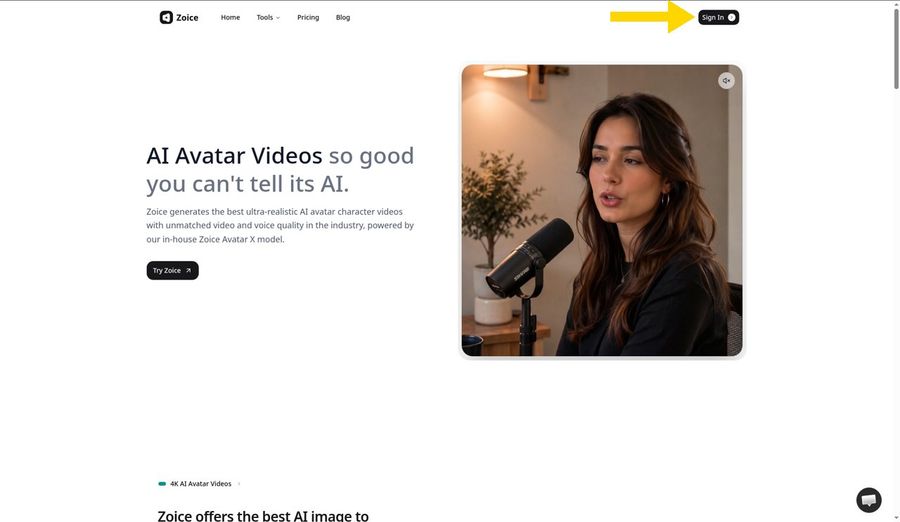
Point your browser to zoice.com and click Sign In in the top right corner. Log in with Google or with an email and password. First visit? The login form has a Sign up option that creates a free account.
Step 2: Click New Avatar Videos on the Left
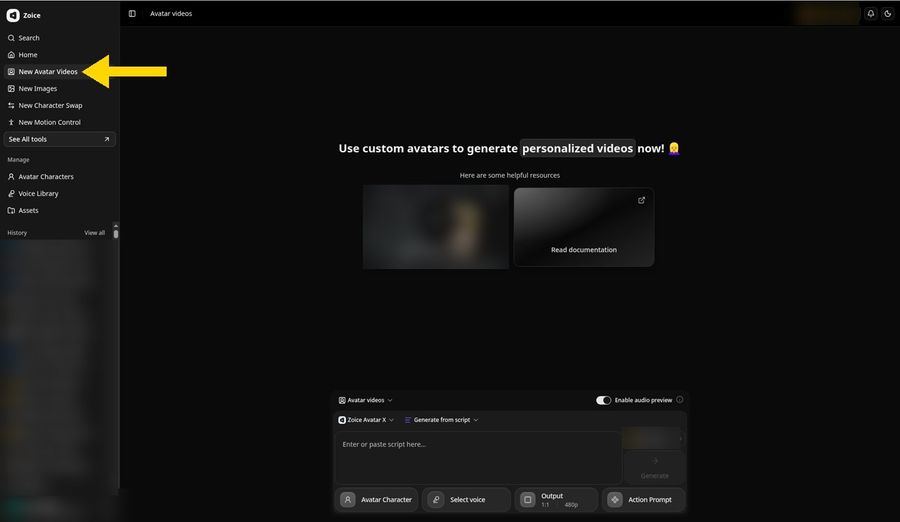
After you log in, click New Avatar Videos in the sidebar on the left. The page that opens has a composer along the bottom edge, and that bar holds everything a slide clip needs: the avatar, the speaker notes, the voice, and the output size.
Step 3: Open Avatar Character and Click Create New
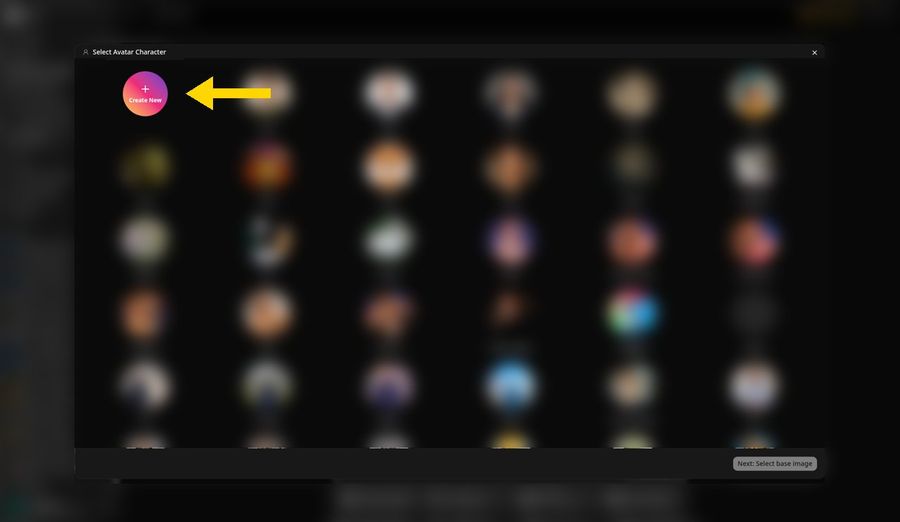
Click Avatar Character at the left end of the composer. The Select Avatar Character window shows any avatars you saved earlier. Click the round Create New button in the top left of the grid to start a new presenter.
Step 4: Keep the Upload Image Option
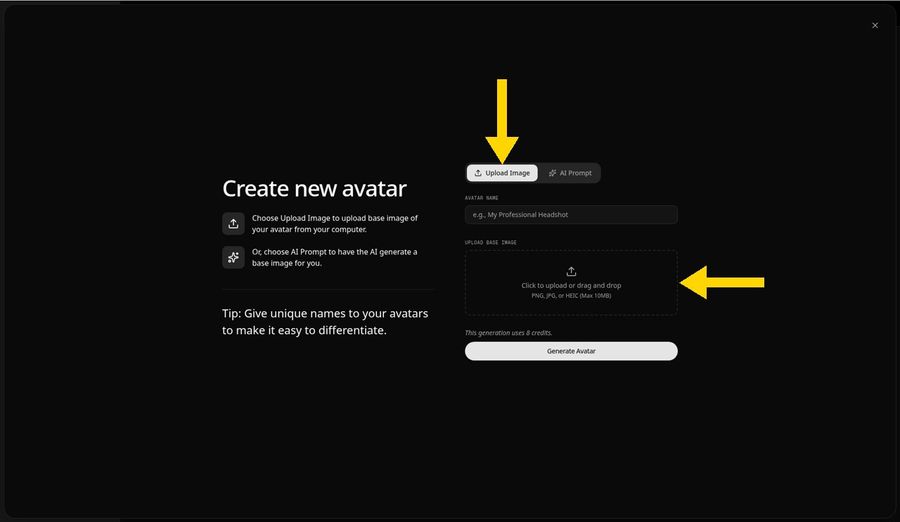
The Create new avatar panel opens with Upload Image already chosen, so there is nothing to switch. Click inside the dashed box to pick a file, or drag one in. PNG, JPG, and HEIC images up to 10 MB are accepted.
Step 5: Drop In a Presenter Headshot
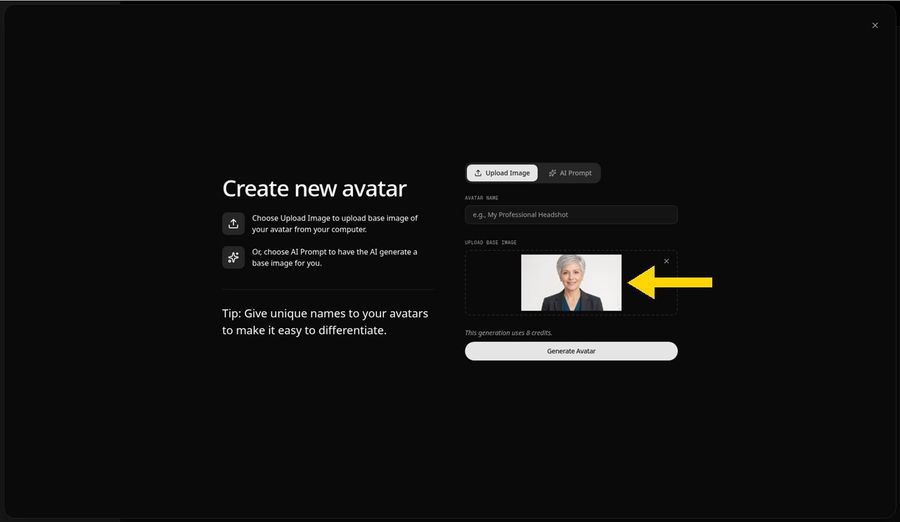
Choose your headshot and a preview appears in the box. The presenter in this demo is not a real person but a fictional portrait made with AI. For a clip that will sit on a slide, a headshot works well when:
- The face is centered and looks straight ahead
- The backdrop is plain and light, so it matches most slide themes
- Business clothing fits the tone of the deck
- Lighting is soft and even on both sides of the face
- Only one person appears in the picture
Step 6: Call the Avatar Host and Click Generate Avatar
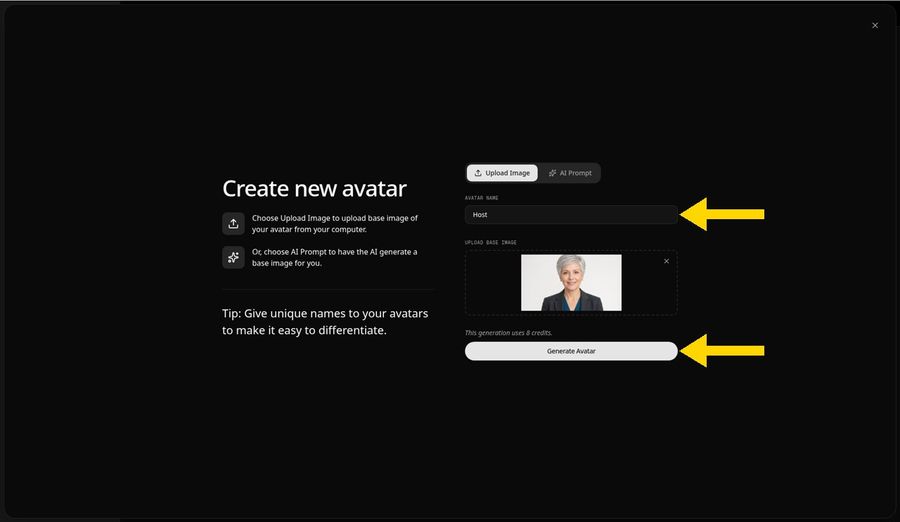
Type Host into the Avatar Name field, or a label that will help you find this presenter again. A line under the image says this generation uses 8 credits. Click Generate Avatar, and Host is saved to Avatar Characters so you can reuse it for every slide in the deck.
Step 7: Open the Script Panel From the Composer
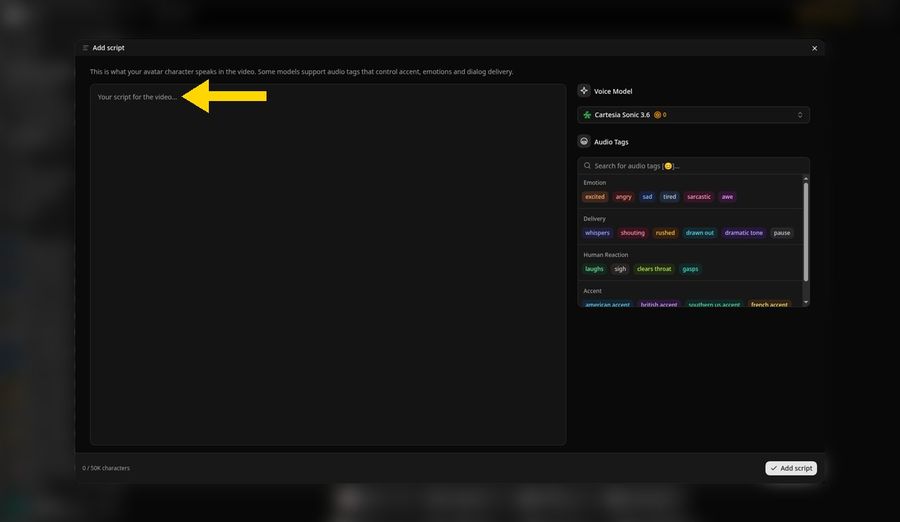
Back in the composer, click the script box. The Add script panel opens with a wide text area on the left for your notes and the Voice Model menu and audio tags on the right.
Step 8: Set the Voice Model to Cartesia Sonic 3.6
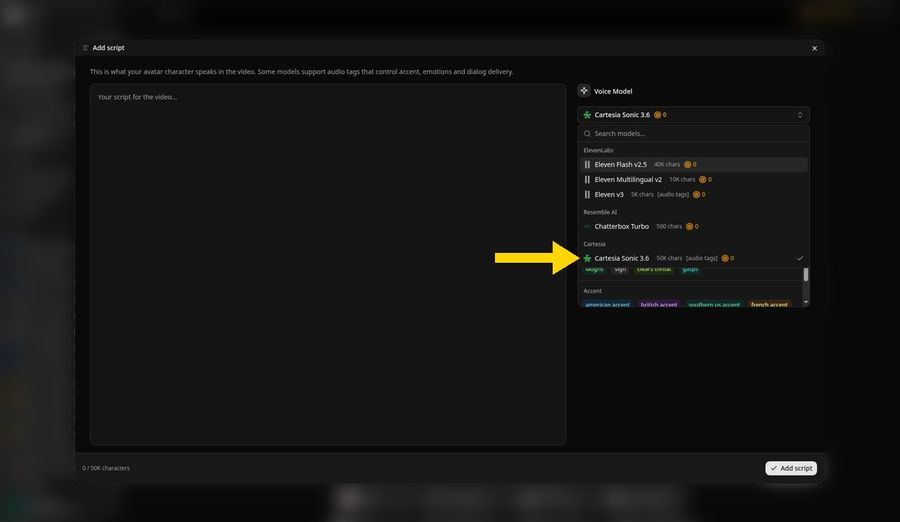
Open the Voice Model menu and click Cartesia Sonic 3.6 under the Cartesia heading; a check mark shows it is active. It takes up to 50K characters and supports audio tags, which helps if a slide needs a pause before a key number.
Step 9: Paste Your Speaker Notes and Click Add Script
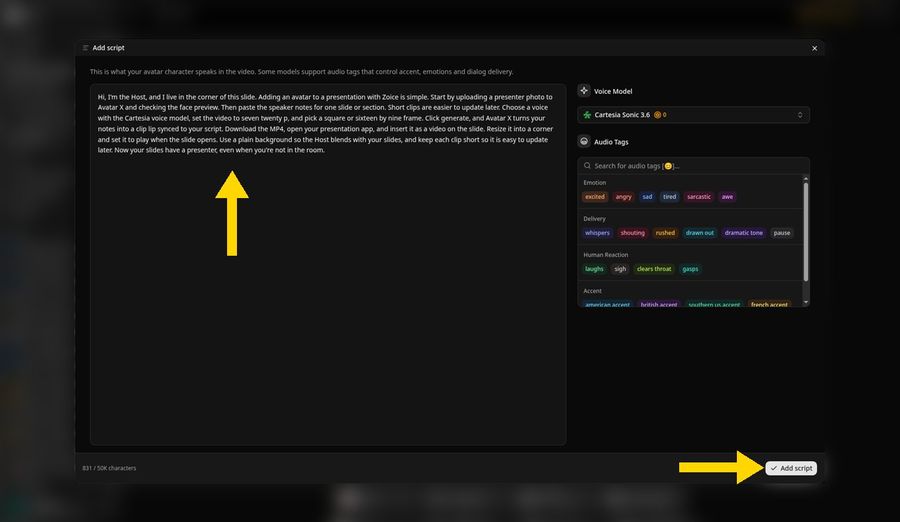
Paste the notes for a single slide or section into the text area. Our notes begin "Hi, I'm the Host, and I live in the corner of this slide." and the counter below reads 831/50K characters. Zoice can voice scripts in 170+ languages and dialects, so a translated deck can get its own presenter too. Click Add script when the notes look right.
Here are the full notes we pasted:
Hi, I'm the Host, and I live in the corner of this slide. Adding an avatar to a presentation with Zoice is simple. Start by uploading a presenter photo to Avatar X and checking the face preview. Then paste the speaker notes for one slide or section. Short clips are easier to update later. Choose a voice with the Cartesia voice model, set the video to seven twenty p, and pick a square or sixteen by nine frame. Click generate, and Avatar X turns your notes into a clip lip synced to your script. Download the MP4, open your presentation app, and insert it as a video on the slide. Resize it into a corner and set it to play when the slide opens. Use a plain background so the Host blends with your slides, and keep each clip short so it is easy to update later. Now your slides have a presenter, even when you're not in the room.
Step 10: Pick Sarah as the Voice
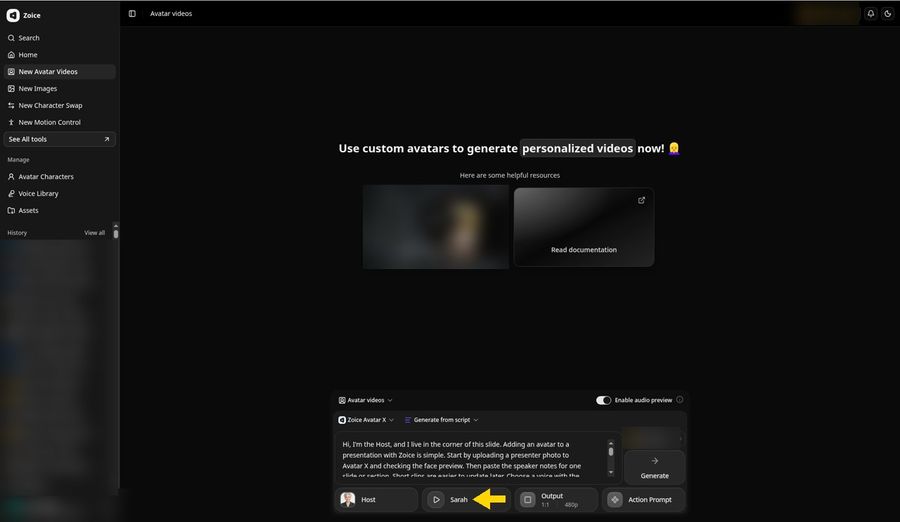
Click the voice button and choose a voice from the library. We went with Sarah, described as warm, composed, and middle aged, a calm fit for a business deck. The composer now shows Host, Sarah, and the start of your notes, with Output still at 1:1 and 480p.
Step 11: Raise the Resolution to 720p
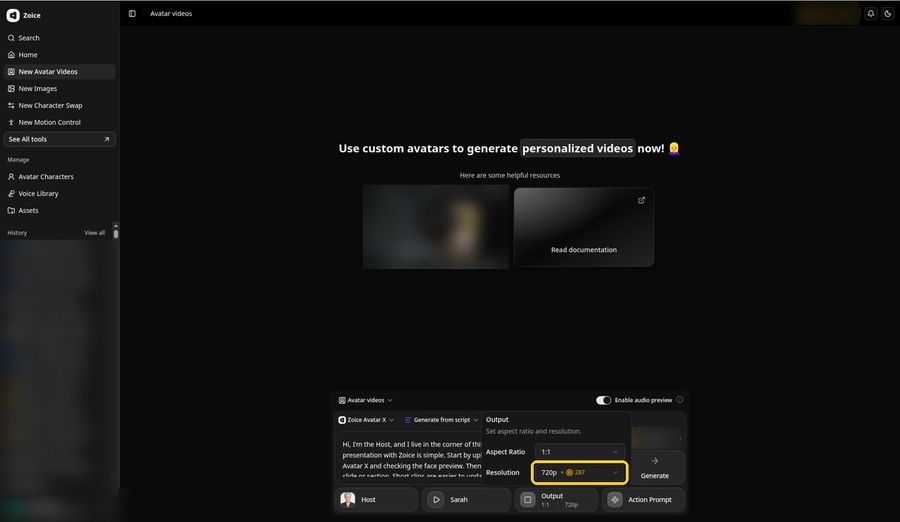
Click Output, leave Aspect Ratio at 1:1, and set Resolution to 720p. The menu lists a +287 credit surcharge beside it, and the Output button changes to 1:1 and 720p. A square tile tucks neatly into a slide corner; choose 16:9 instead if the presenter should fill a whole slide.
Step 12: Click Generate and Listen to the Preview
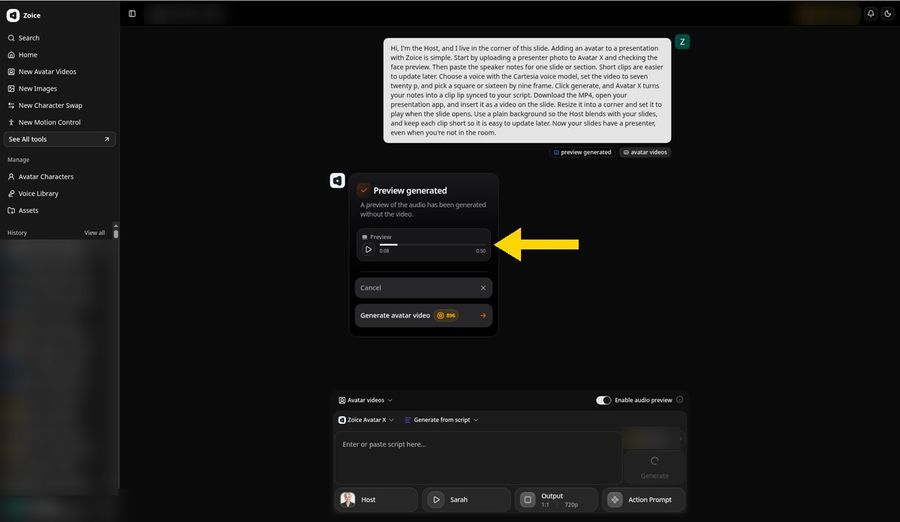
Click Generate. With Enable audio preview switched on, Zoice opens a new project and makes the narration first. The Preview generated card has a small player that lists the full length, 0:50 for our notes. Listen long enough to hear how Sarah handles your opening line.
The composer below still lists Host, Sarah, and 720p while the preview is waiting.
Step 13: Confirm With Generate Avatar Video
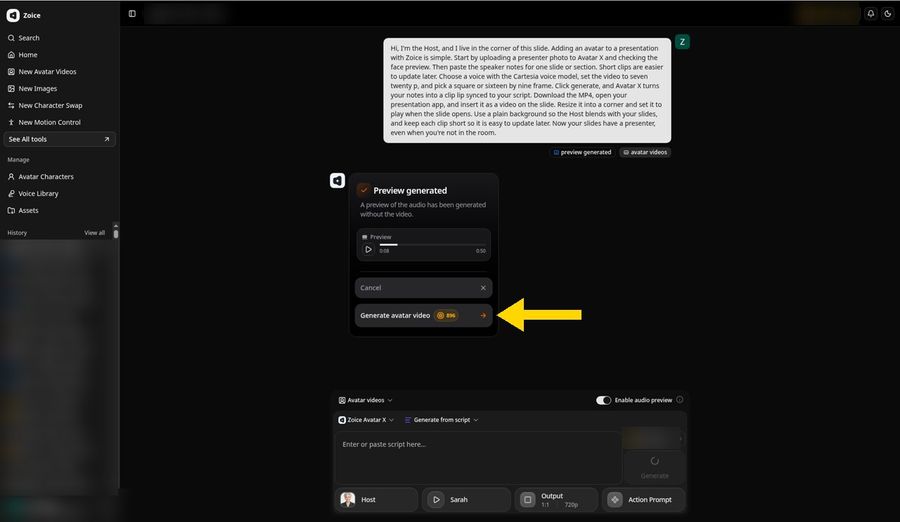
When the narration sounds right, click Generate avatar video. The button shows the price up front, 896 credits for this 0:50 clip at 720p. If a word needs fixing, click Cancel and edit the notes before you spend anything.
Step 14: Wait for the Processing Card
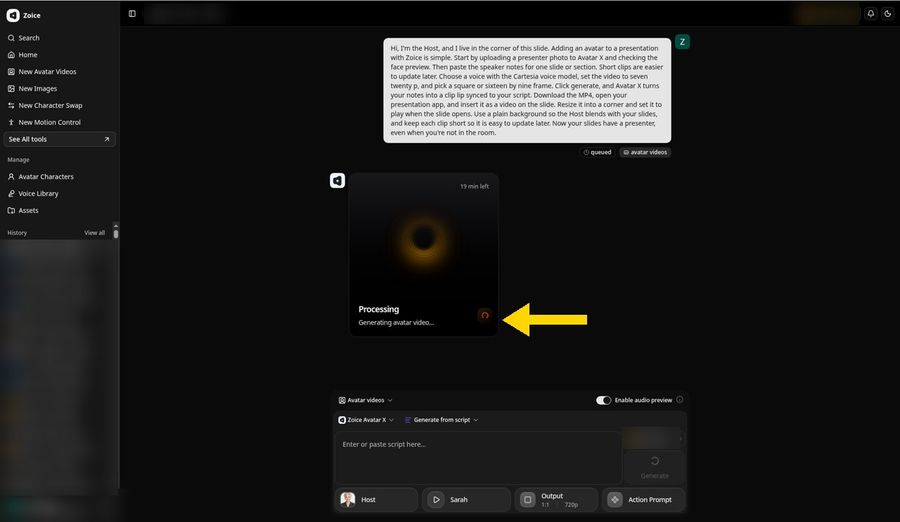
The preview turns into a Processing card that reads Generating avatar video. Ours showed 19 min left at first, and the clip was ready in about 30 minutes, so treat the number as a rough guide. The project stays in your History list, so you can close the tab and come back.
Step 15: Watch the Presenter Clip in the Player
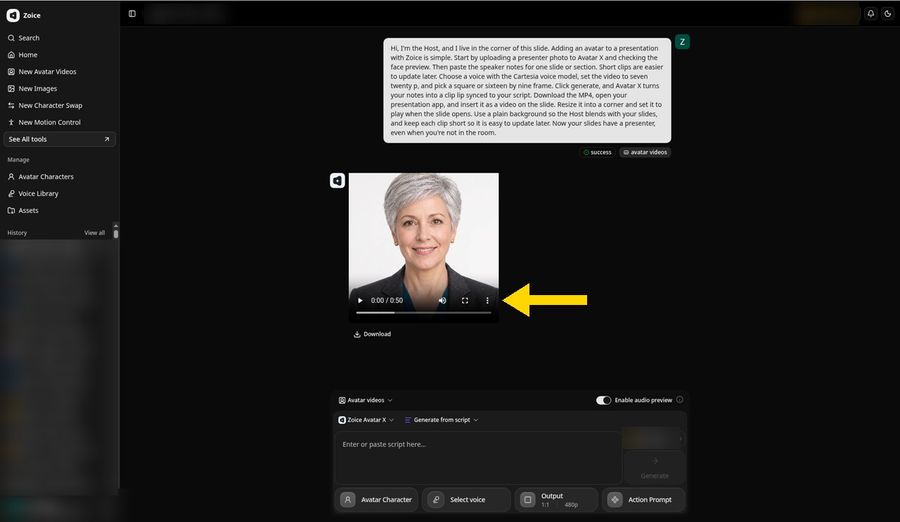
Once the status reads success, the player loads the clip, 0:50 long. Watch it once with the slide in mind and confirm that each sentence is lip synced to your script. The composer below goes back to Avatar Character, Select voice, and 480p for the next clip, while the finished video keeps its 720p.
Step 16: Choose Download in the Three Dot Menu
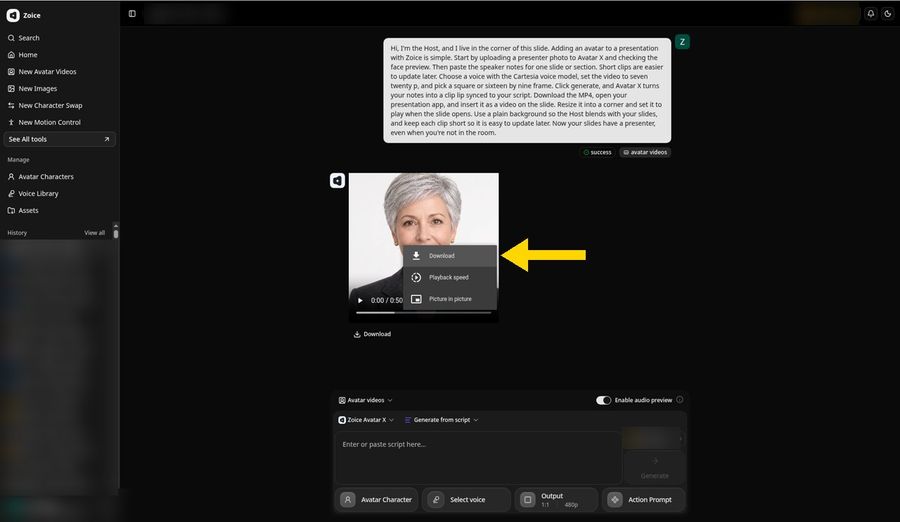
Click the three dot button in the player and pick Download. A plain Download link also sits under the player if you would rather skip the menu.
Step 17: Find the Download and Insert It on Your Slide
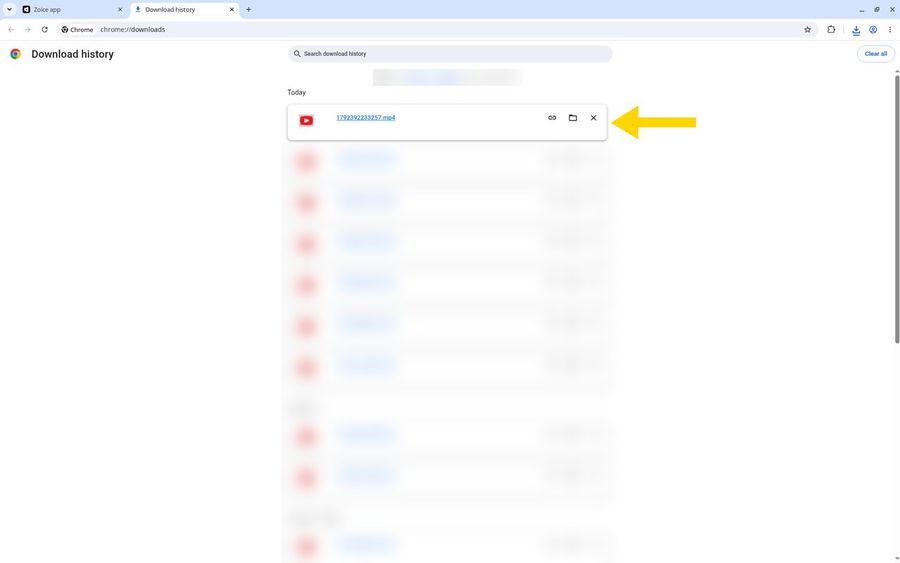
The clip saves as an MP4 and shows first under Today in Chrome Download history. To put it on a slide, open your presentation app, select the slide, open the Insert menu, and choose Video. Desktop apps let you pick the file from your computer, while browser based apps usually take it from your cloud drive, so upload the MP4 there first. Only use photos, voices, and notes you have the rights to, and let your audience know the presenter is an AI avatar.
See the Finished Presenter Clip

This is the clip from the walkthrough: Host, our fictional AI presenter, reads the full notes in the Sarah voice, 0:50 at 720p. Got a deck that needs a narrator? Try Zoice.
Placing the Clip on Your Slides
Presentation apps handle video in much the same way, though the exact menus vary by app and version:
- Select the slide, open the Insert menu, and choose Video
- Pick the MP4 from your computer, or from your cloud drive in a browser based app
- Drag a corner handle to shrink the tile and move it to a free corner
- Open the playback options and choose whether it starts automatically or on click
- Play the slide in presenter mode once to check sound and timing
Tips for Slide Friendly Avatar Clips
- Make one short clip per slide or section, so an edit only means one new clip
- Use a square frame for a corner tile and 16:9 for a full slide intro
- Pick a headshot with a plain light backdrop so the tile blends with the theme
- Leave an empty corner in the slide layout before you add the video
- Play the audio preview first, so a wording slip never costs video credits
Building lessons rather than a pitch deck? Our walkthrough on how to make a training video suits course modules, and these AI avatars for teachers cover classroom use. Ready to give your slides a presenter? Try Zoice.
FAQ
Which presentation apps can play the avatar clip?
Any app that lets you insert an MP4 video onto a slide can play it, and most mainstream desktop and browser based apps do. Desktop apps generally take the file straight from your computer, while browser based ones usually want it uploaded to cloud storage first. Check the playback setting after inserting so it starts when you expect.
Should I make one long clip or several short ones?
Several short ones usually work better. A clip per slide or section lines up with your slide order, and if a number or name changes, only that one clip needs updating. Short clips are also quicker to regenerate and swap out when the deck changes.
Can the avatar read my existing speaker notes?
Yes. Copy the notes for a slide from your presentation app and paste them into the Add script panel, which holds up to 50K characters with Cartesia Sonic 3.6. Tidy them first so they read as full sentences, since shorthand that works as a reminder can sound odd when spoken aloud.
What does one presenter clip cost in credits?
Each part shows its price before you confirm. In our demo the Host avatar took 8 credits, picking 720p displayed a +287 surcharge, and the Generate avatar video button listed 896 credits for the 0:50 clip. The avatar is reusable, so later slides only need the video cost.