How to Make a Talking Head Video With AI: A Simple 2026 Guide
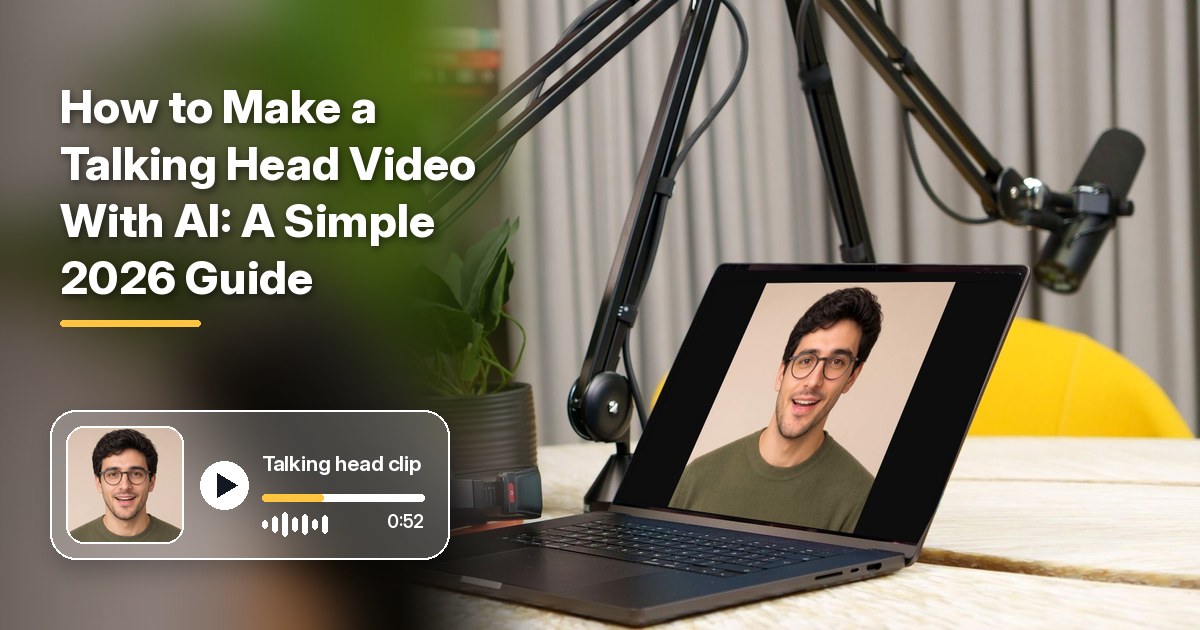
Here is how to make a talking head video in Zoice: start from one shoulders up photo, paste a commentary script, pick a voice, and Zoice returns a speaking presenter clip, lip synced to your script. The format suits opinion pieces, weekly updates, explainers, and podcast highlights, and you never set up a camera or a ring light.
The walkthrough below covers each Zoice screen from signing in to saving the file, then turns to framing advice and places to publish. Looking at other options? Compare the best AI podcast video generators or browse realistic AI avatar generators.
What a Talking Head Video Is
A talking head video keeps one speaker in a head and shoulders frame, talking straight to the viewer. There are no cutaways or b roll, so the face, the voice, and the words carry the whole clip. That simplicity is why news desks, educators, and creators lean on it for fast updates.
In Zoice, the speaker comes from a still image rather than a recording. For a wider look at tools that build avatars from a picture, see AI avatar generators that start from a photo.
How to Make a Talking Head Video in Zoice, Step by Step
Here are the 17 screens in order, each marked with a yellow arrow where you click next. Our demo used a fictional AI commentator portrait, Cartesia Sonic 3.6, a mature library voice, and 720p output in a square frame.
Step 1: Open zoice.com and Press Sign In
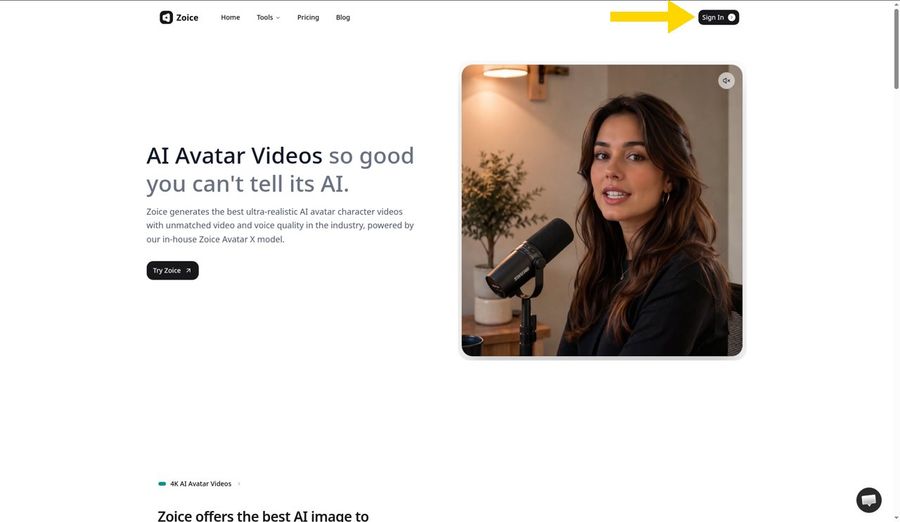
Type zoice.com into your browser and press Sign In at the top right. You can continue with Google, or enter your email and password. No account yet? Choose Sign up on the login form to register for free.
Step 2: Head to New Avatar Videos in the Sidebar
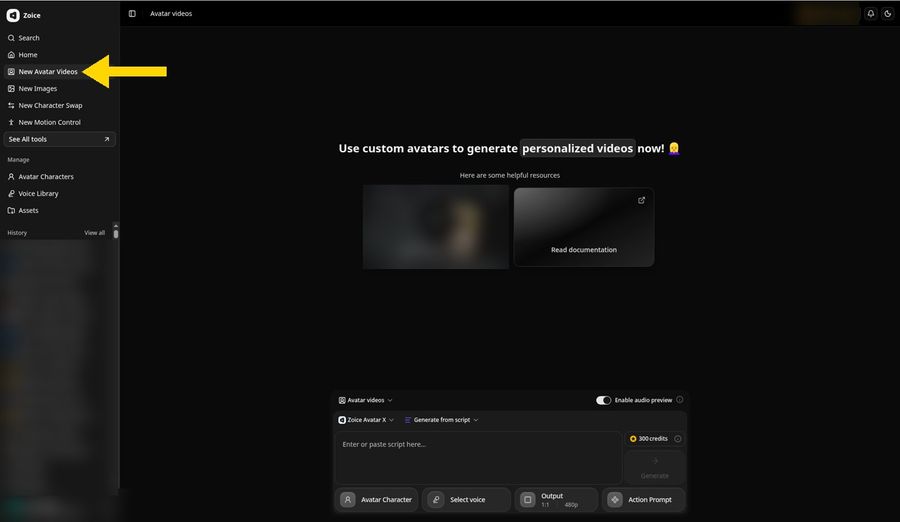
Once you are in, press New Avatar Videos in the left sidebar. The Avatar videos page opens with the composer docked at the bottom, which is where the photo, script, voice, and output settings all come together.
Step 3: Press Avatar Character, Then the Create New Circle
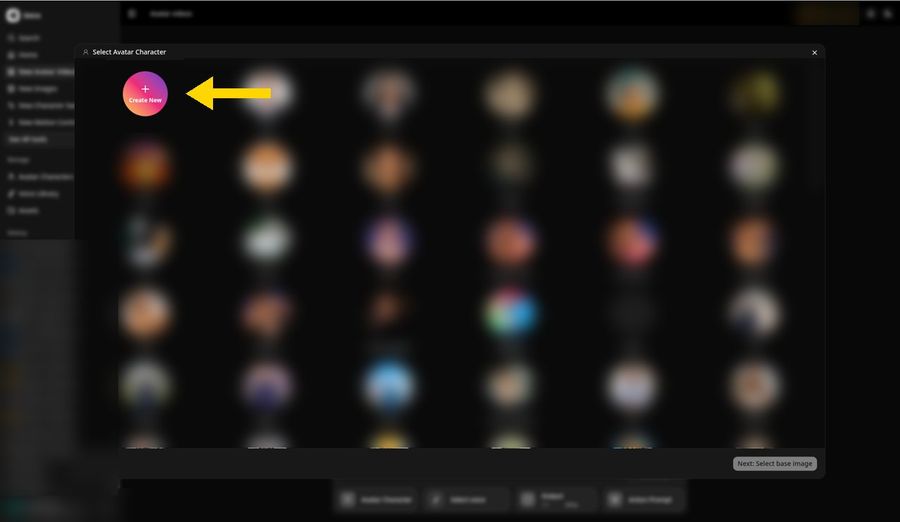
Press Avatar Character in the composer. A Select Avatar Character window lists the avatars already in your account. Press the round Create New button at the start of the grid to add your speaker.
Step 4: Stay on the Upload Image Tab
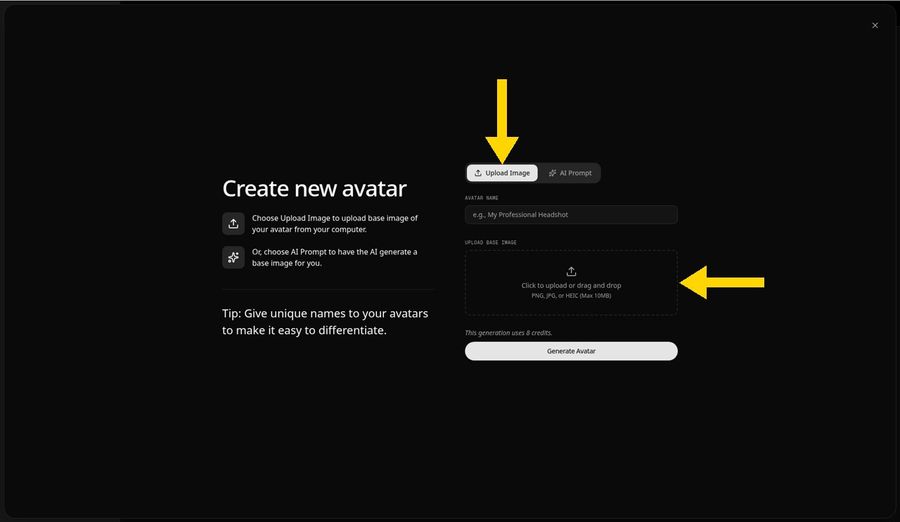
In the Create new avatar panel, leave Upload Image selected rather than AI Prompt. Click the dashed area to browse for your file, or drop it in. The panel accepts PNG, JPG, and HEIC files of 10 MB or less.
Step 5: Add Your Shoulders Up Photo
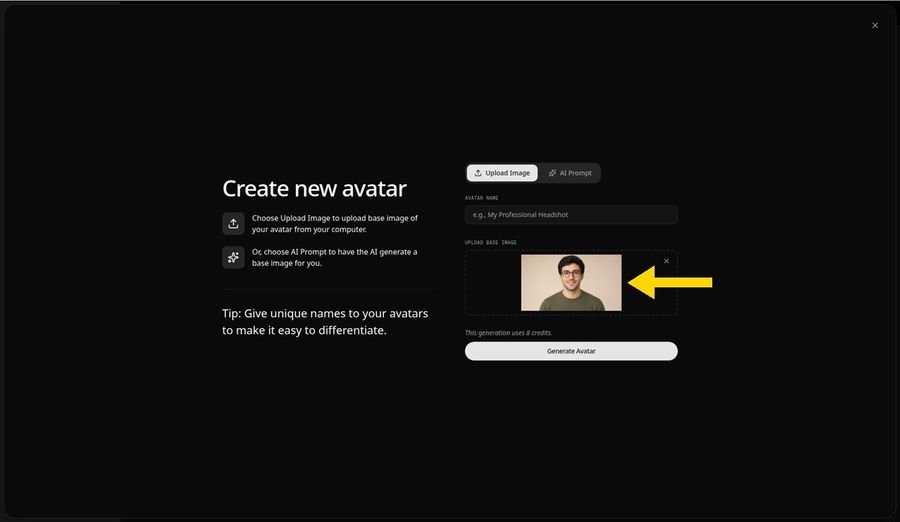
Pick your photo, and a thumbnail fills the upload area so you can confirm the crop. Our commentator is a fictional portrait made with AI, not a photo of a real person. A talking head photo works best when:
- Only the head and shoulders are in frame
- The background is plain and uncluttered
- The face points at the lens with both eyes visible
- Glasses, if any, do not hide the eyes behind glare
- The light falls evenly with no harsh shadow across the mouth
Step 6: Type Host as the Name and Press Generate Avatar
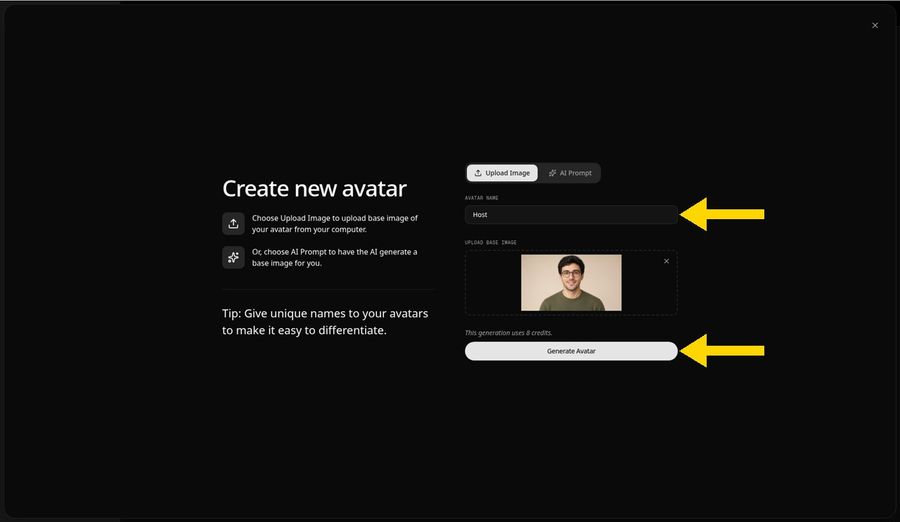
Enter Host in the Avatar Name field, or any label that tells this speaker apart from your other avatars. The note under the photo says this generation uses 8 credits. Press Generate Avatar, and Host is added to Avatar Characters for future clips.
Step 7: Click the Script Box to Open Add Script
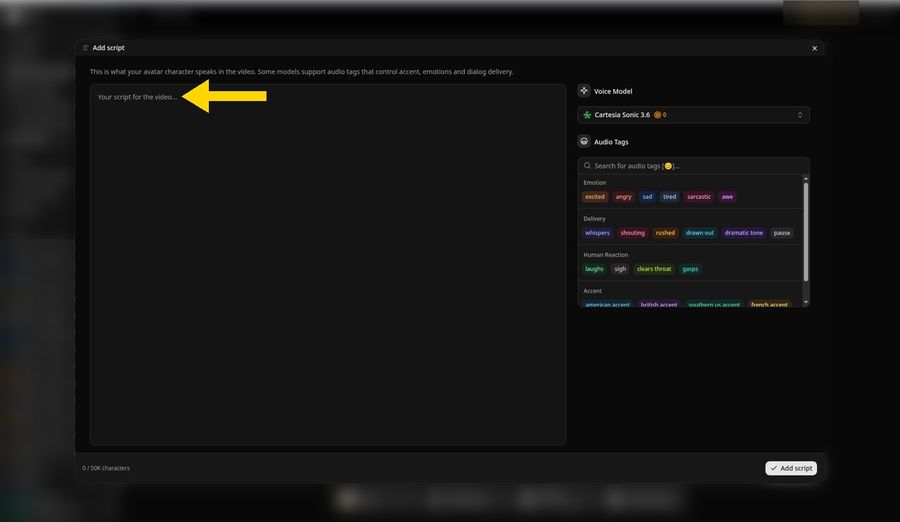
With Host now on the Avatar Character button, click the script box in the composer. The Add script panel opens: commentary goes in the large area on the left, and the Voice Model menu and audio tags sit on the right.
Step 8: Select Cartesia Sonic 3.6 as the Voice Model
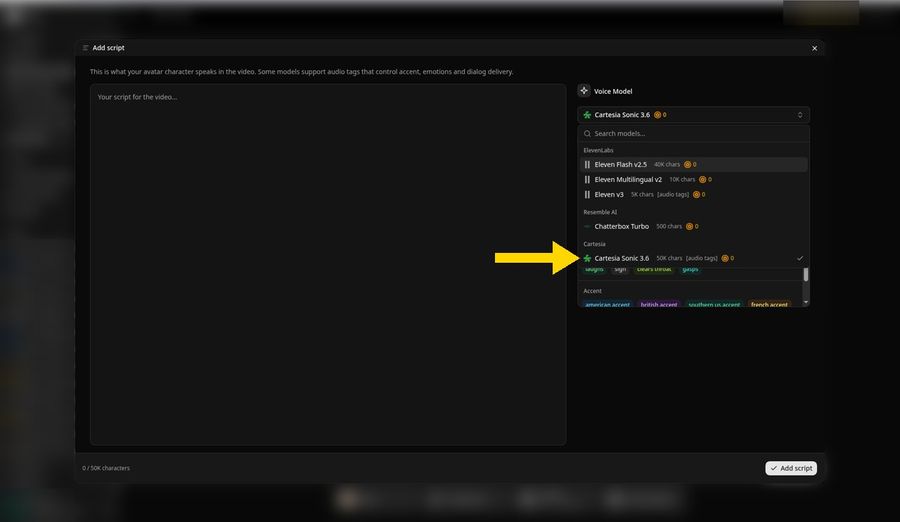
Click the Voice Model menu and choose Cartesia Sonic 3.6 in the Cartesia section, where a check mark confirms it. The model allows scripts of up to 50K characters and reads audio tags, so you can mark a pause or a sigh where a commentator would take a breath.
Step 9: Paste the Commentary and Press Add Script
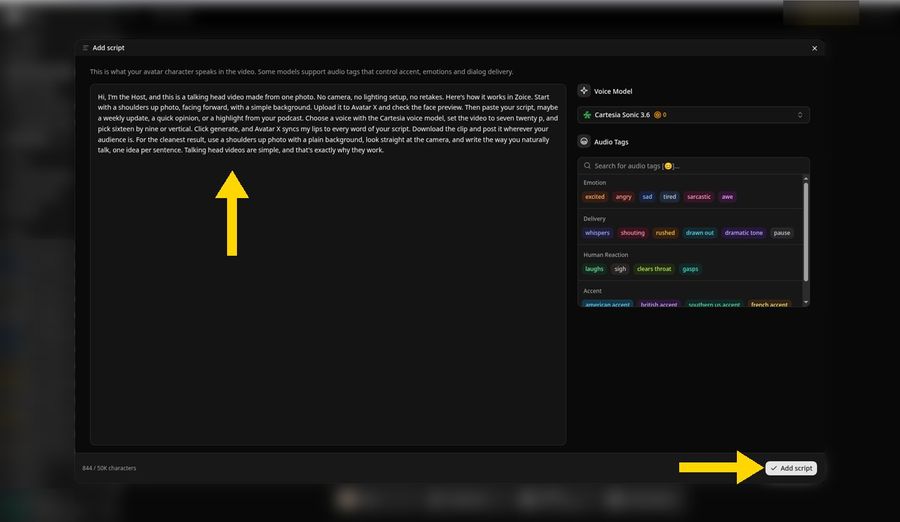
Paste your commentary into the text area. Ours opens with "Hi, I'm the Host, and this is a talking head video made from one photo." The counter at the bottom reads 844/50K characters. Scripts can be written in any of 170+ languages and dialects, handy if your audience is spread across regions. Press Add script.
The script we used, in full:
Hi, I'm the Host, and this is a talking head video made from one photo. No camera, no lighting setup, no retakes. Here's how it works in Zoice. Start with a shoulders up photo, facing forward, with a simple background. Upload it to Avatar X and check the face preview. Then paste your script, maybe a weekly update, a quick opinion, or a highlight from your podcast. Choose a voice with the Cartesia voice model, set the video to seven twenty p, and pick sixteen by nine or vertical. Click generate, and Avatar X syncs my lips to every word of your script. Download the clip and post it wherever your audience is. For the cleanest result, use a shoulders up photo with a plain background, look straight at the camera, and write the way you naturally talk, one idea per sentence. Talking head videos are simple, and that's exactly why they work.
Step 10: Choose Robert From the Voice Library
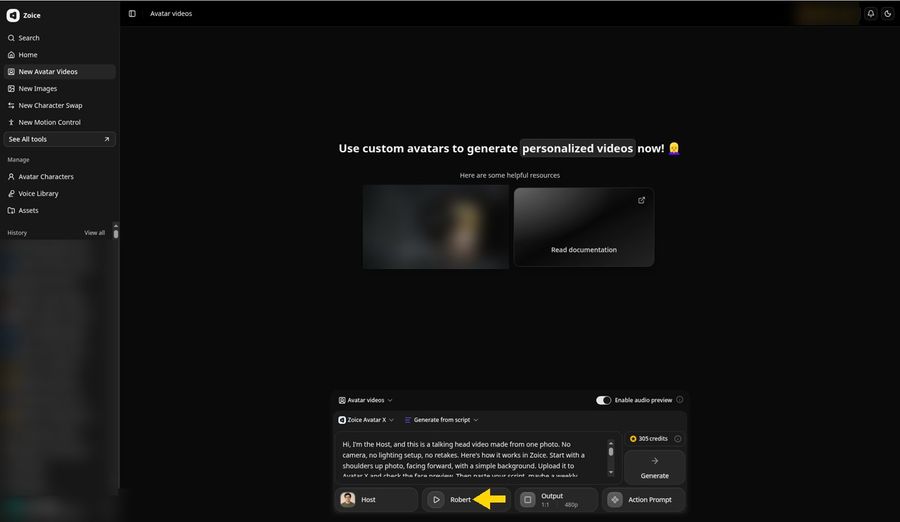
Press the voice button and pick from the voice library. We chose Robert, a public voice described as mature and steady, which fits commentary. The composer row now reads Host and Robert, the script box shows your opening lines, and Output still says 1:1 and 480p.
Step 11: Switch Output to 720p
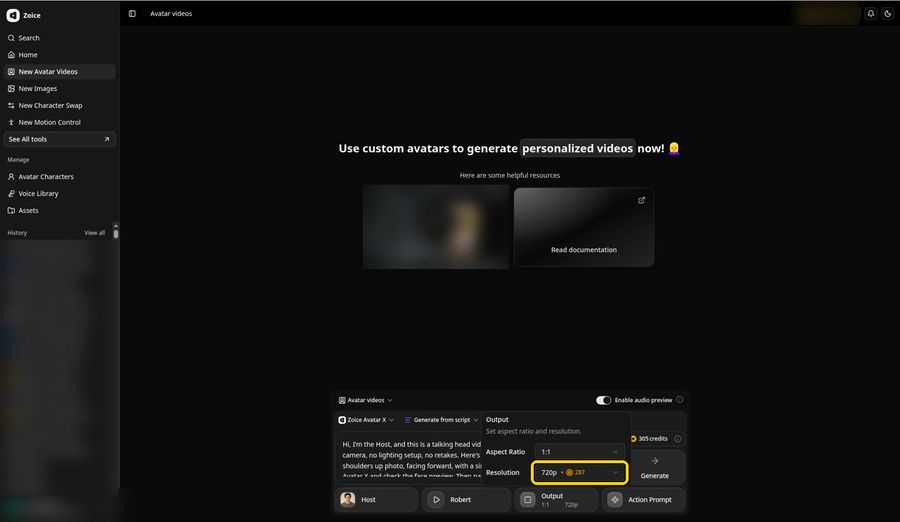
Open Output and keep Aspect Ratio at 1:1. In the Resolution menu choose 720p, which shows a +287 credit surcharge next to it, and the Output button updates to 1:1 and 720p. For a YouTube commentary, 16:9 is the usual frame, while 9:16 suits Shorts and Reels.
Step 12: Press Generate and Play the Audio Preview
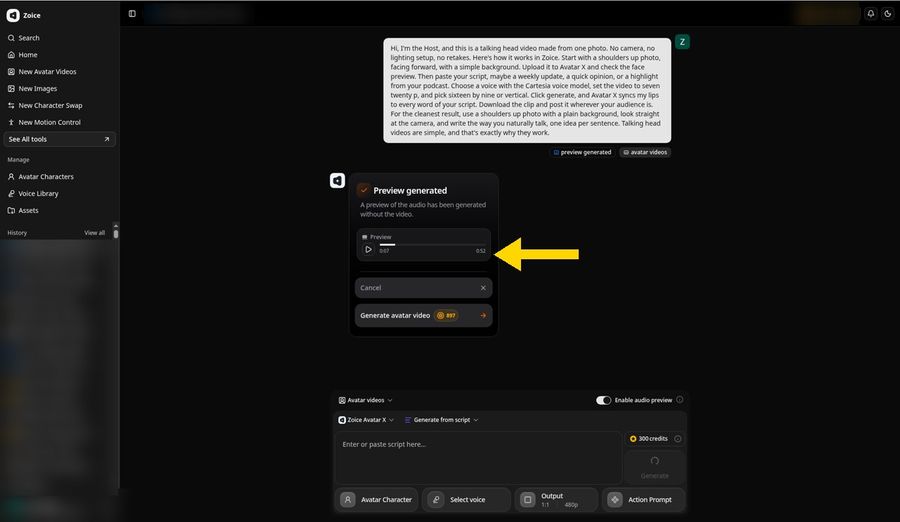
Press Generate. Since Enable audio preview is on, Zoice opens a project and builds the narration before any video. The Preview generated card has a player you can play, and it shows the total length, 0:52 for our commentary. Play enough of it to judge Robert's pacing on your opening lines.
The composer at the bottom resets to a blank Avatar Character, Select voice, and 480p for a new clip, while the project keeps your choices.
Step 13: Approve the Credit Cost With Generate Avatar Video
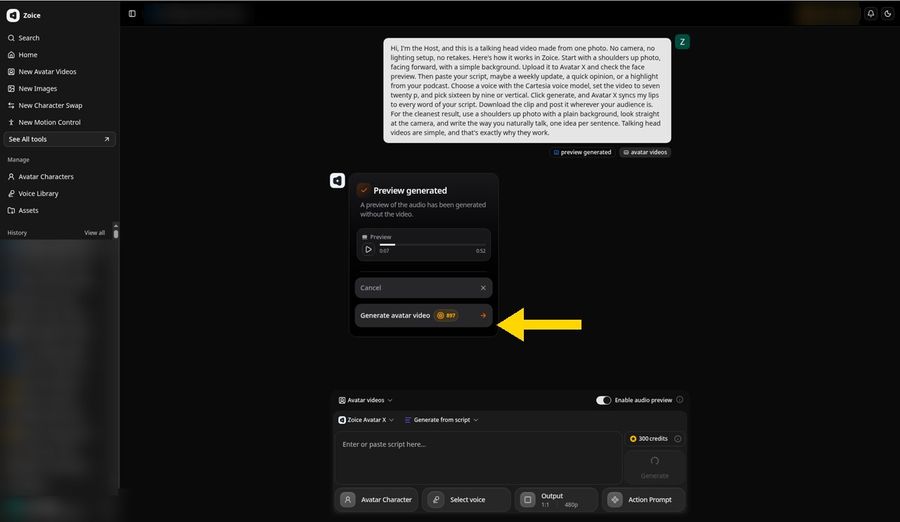
If the narration works, press Generate avatar video. The button carries the price, 897 credits for this 0:52 clip at 720p, so you see it before anything is spent. Spotted a typo? Press Cancel and fix the script first.
Step 14: Let the Processing Card Finish
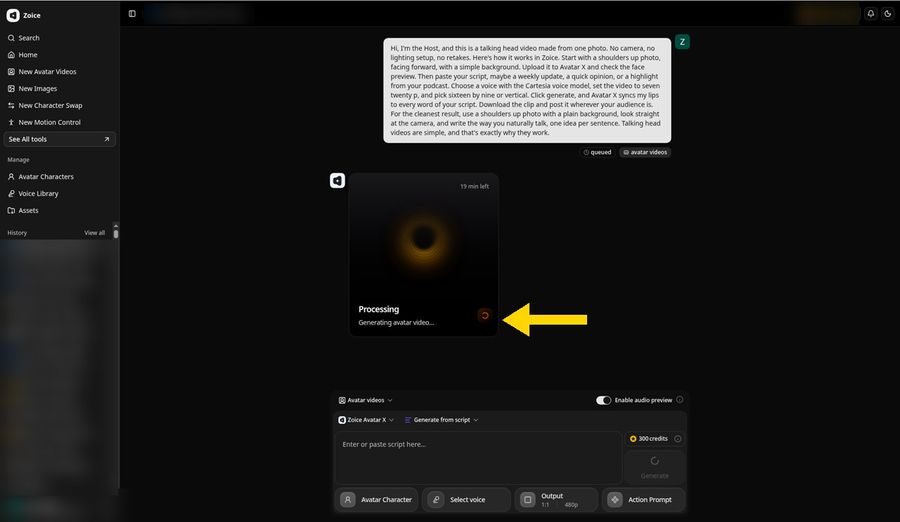
Zoice queues the clip and swaps the preview for a Processing card labeled Generating avatar video. The estimate first read 19 minutes left, and our clip was done in about 19 minutes. Your project waits in the History list, so closing the tab is fine.
Step 15: Play Back the Finished Talking Head
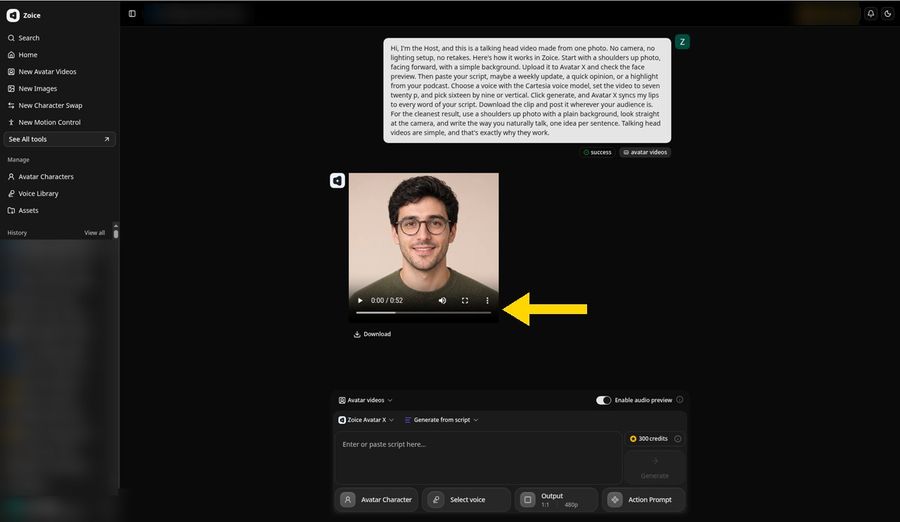
When the status turns to success, the player loads your talking head clip, 0:52 long. Play it through and check that every line is lip synced to your script and that Robert's voice suits the face. Below, the composer sits at 480p again, but the finished clip stays at 720p.
Step 16: Pick Download From the Player Menu
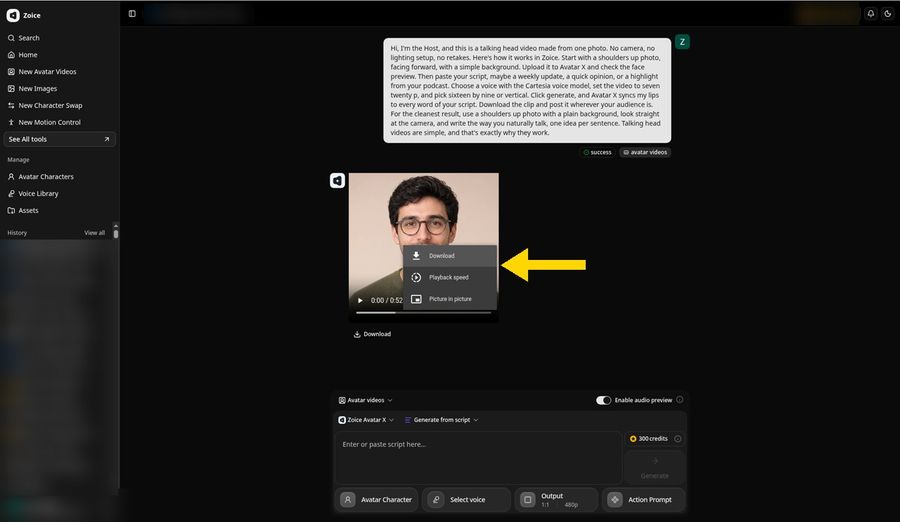
Open the three dot menu in the player and click Download. There is also a Download link just under the player if you prefer one click.
Step 17: Find the MP4 in Download History and Post It
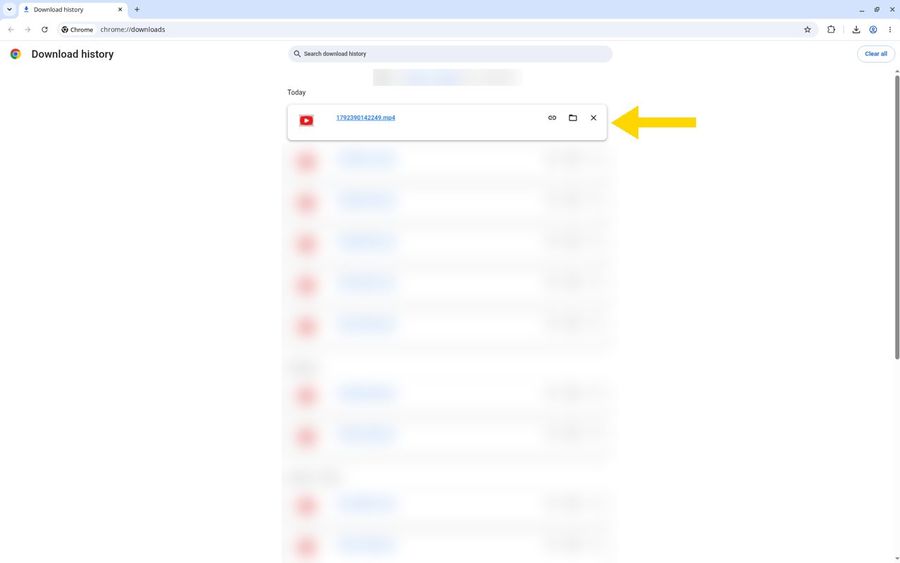
The clip saves as an MP4, and Chrome puts it at the top of Download history under Today. Post it to YouTube, cut it into a Short, or drop it into a newsletter or a podcast episode page. Use only photos, voices, and scripts you have the rights to, and tell viewers when a presenter is an AI avatar.
Your Finished Talking Head Clip

Here is the clip from this guide: Host, our fictional AI commentator, reads the full script in the Robert voice, 0:52 at 720p. Have a take you want to share this week? Try Zoice.
Framing and Script Tips
- Crop the photo so the head and shoulders fill the frame
- Choose a plain wall or backdrop so nothing distracts from the face
- Write in the first person, as if talking to one viewer
- Keep one idea per sentence and cut filler words
- Pick 16:9 for long commentary and 9:16 for short clips
- Listen to the audio preview before any credits go to the video
Where to Use Talking Head Clips
Talking head clips fit almost anywhere a person would normally speak to camera:
- A weekly news or market recap for your channel
- A quick opinion reacting to a trend in your niche
- A podcast highlight that promotes the full episode
- A product update or changelog read by a consistent host
- A welcome message at the top of a newsletter or landing page
Need a longer lesson format? Our guide on how to make a training video covers course modules. Ready to put your first commentary on screen? Try Zoice.
FAQ
What counts as a talking head video?
Any clip where a single speaker, framed from about the chest up, addresses the viewer directly without cutaways. News anchors, explainer creators, and podcast clips all use the style. In Zoice the speaker is built from one still photo and speaks the script you write, so the format needs no set or crew.
Do I have to record myself on camera?
No. Zoice builds the speaker from a single uploaded photo and voices the script with a library voice, so there is no filming at all. If you want the clip to look like you, upload your own shoulders up photo; otherwise, a fictional AI made portrait like our commentator works too.
Can I export a vertical or widescreen version?
Yes. Open Output before you press Generate and pick 9:16 for vertical feeds or 16:9 for widescreen players, along with the resolution. We kept 1:1 for this demo. Pick the frame before generating, since the downloaded MP4 keeps the aspect ratio you set.
How are credits charged for a talking head clip?
Two separate costs apply. Creating the avatar used 8 credits in our demo, and the Generate avatar video button showed 897 credits for the 0:52 clip at 720p. Choosing 720p in Output also displayed a +287 surcharge, and Zoice shows each amount before you confirm, so nothing is charged by surprise.