How to Make a Training Video With AI: A Simple 2026 Guide
Here is how to make a training video in Zoice: turn one presenter photo into an avatar, paste your lesson script, choose a clear voice, and Zoice produces a presenter led video, lip synced to your script. You skip the camera, the studio, and the retakes, and a policy change means editing text rather than booking a new shoot.
Below, every Zoice screen is shown in order from sign in to download, followed by tips on planning modules and splitting long courses. If you are comparing platforms, read our roundup of AI avatar generators for elearning courses or see avatars for employee onboarding videos.
Plan Your Training Module
A short, focused module is easier to write, easier to watch, and easier to update. Sketch the outline before you open Zoice:
- One learning goal per clip, such as a single safety rule or one new workflow
- An opening line that tells learners what they will be able to do
- Three to five short points in the order learners will use them
- A closing line that recaps the goal or points to the next lesson
- Plain words, short sentences, and any jargon explained the first time it appears
As a rough guide, plan on 150 to 180 spoken words per minute. Our demo script of 162 words ran 0:53.
How to Make a Training Video in Zoice, Step by Step
The 17 steps below cover the whole job inside Zoice, and each screenshot has a yellow arrow on the control you need next. For the demo we used a fictional AI trainer portrait, the Cartesia Sonic 3.6 voice model, a steady library voice, and 720p output.
Step 1: Visit Zoice and Sign In
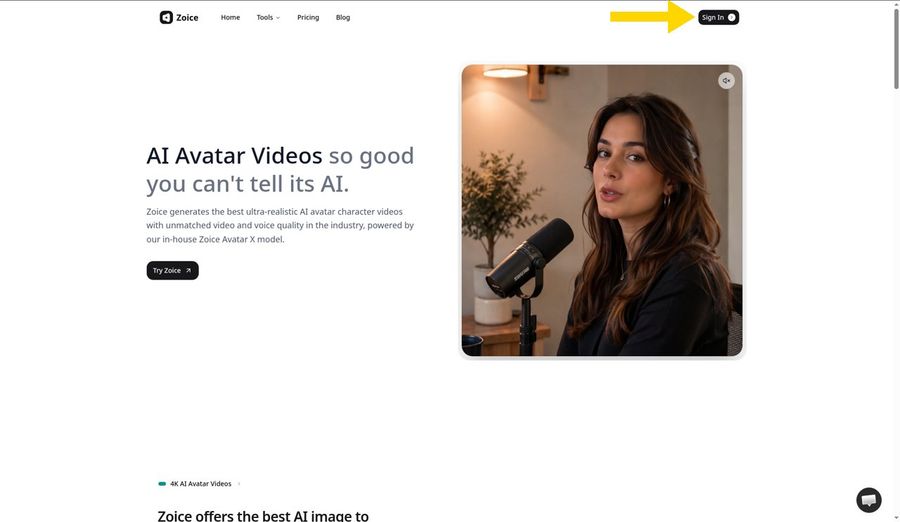
Open zoice.com and use the Sign In button in the top right corner. Sign in with your Google account or with your email and password. First time here? Pick Sign up on the login screen and create a free account.
Step 2: Open New Avatar Videos
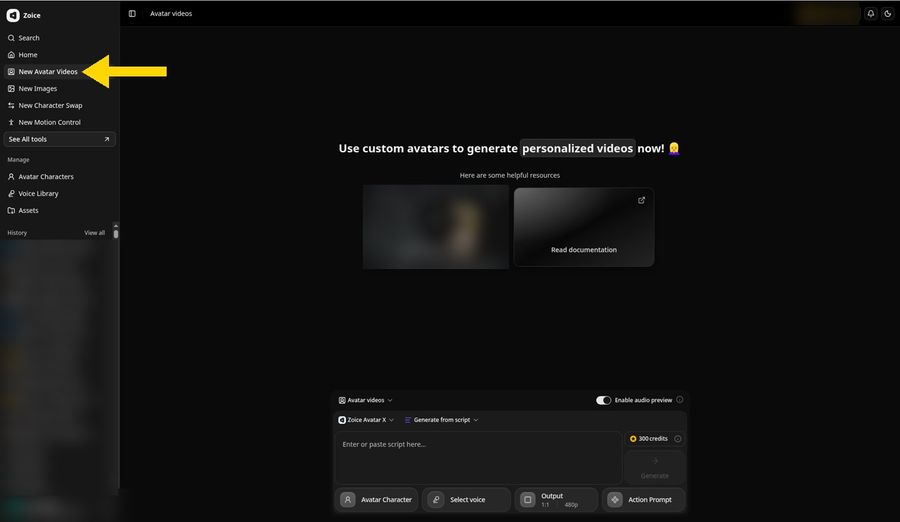
After signing in, choose New Avatar Videos near the top of the left sidebar. The Avatar videos page loads with an empty composer at the bottom, and every part of your training video is set up from there.
Step 3: Click Avatar Character, Then Create New
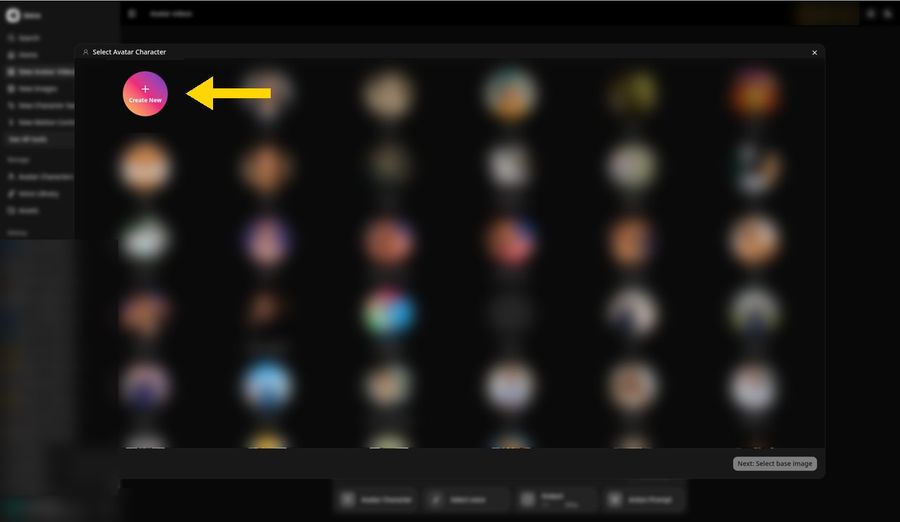
In the composer row, press Avatar Character. The Select Avatar Character window appears with your saved avatars in a grid. Press the round Create New button at the top left of the grid to set up a presenter for this course.
Step 4: Choose Upload Image
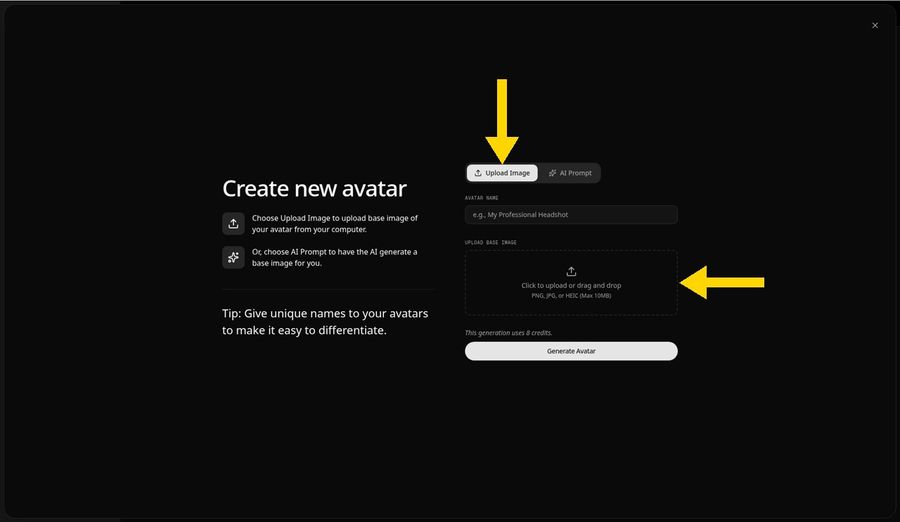
The Create new avatar panel opens on the Upload Image tab. Keep that tab active and click the upload area, or drag the photo onto it. Supported files are PNG, JPG, and HEIC up to 10 MB.
Step 5: Upload a Presenter Photo
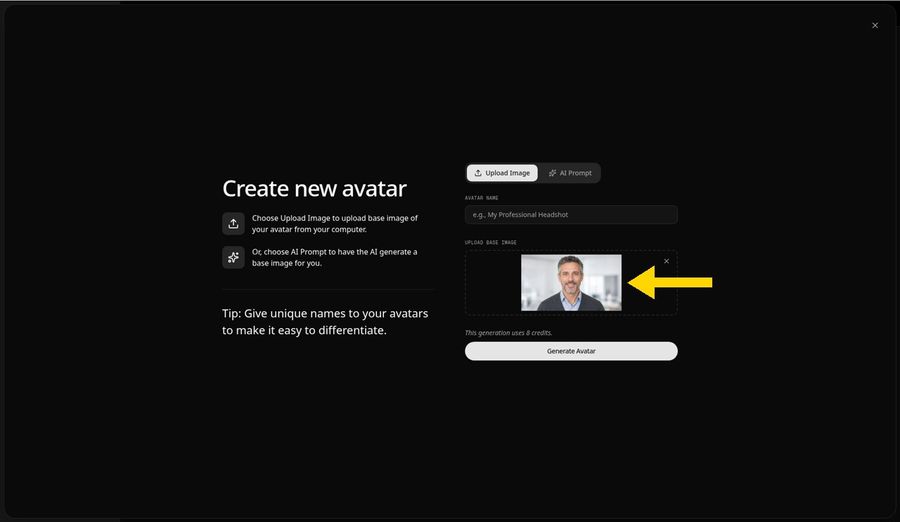
Select the presenter photo. It shows up inside the upload area so you can check the framing before moving on. Our trainer is a fictional portrait made with AI, so it does not show a real employee or any real person. For your own course, pick a photo where:
- The presenter looks straight into the lens
- The eyes and lips are in sharp focus
- Lighting is soft and even across the face
- Nobody else appears in the frame
- Head and shoulders fill most of the picture
Step 6: Name Your Avatar Host and Click Generate Avatar
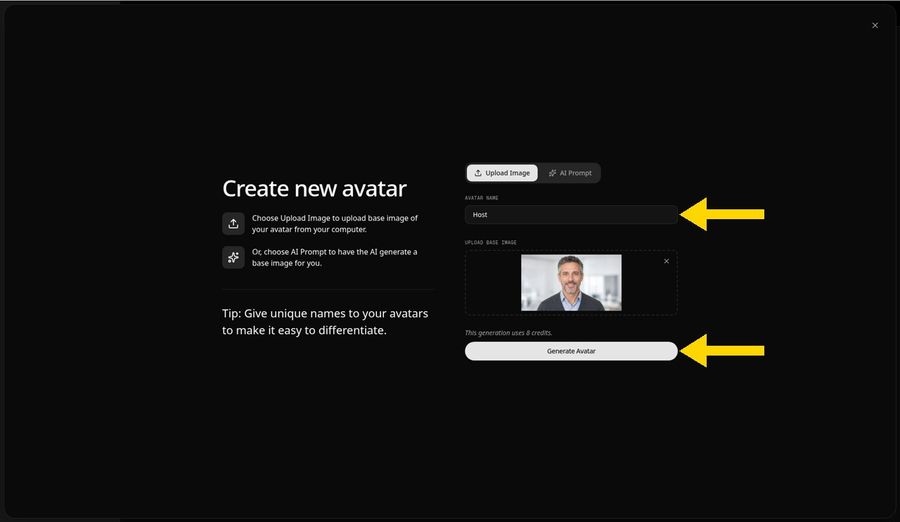
Fill in the Avatar Name field. We called ours Host, and for a real course a name tied to the program or team keeps things easy to find. Press Generate Avatar. It costs 8 credits, and the avatar is then stored in Avatar Characters so every lesson in the course can use the same presenter.
Step 7: Open the Add Script Panel
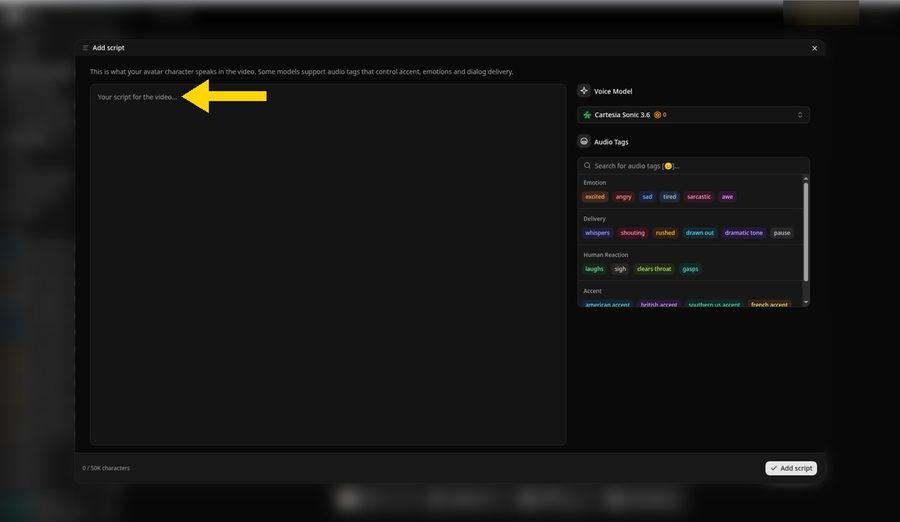
Host now sits in the composer. Click the script box to bring up the Add script panel. The left side holds your lesson text, and the right side holds the Voice Model menu and the list of audio tags.
Step 8: Choose the Cartesia Voice Model
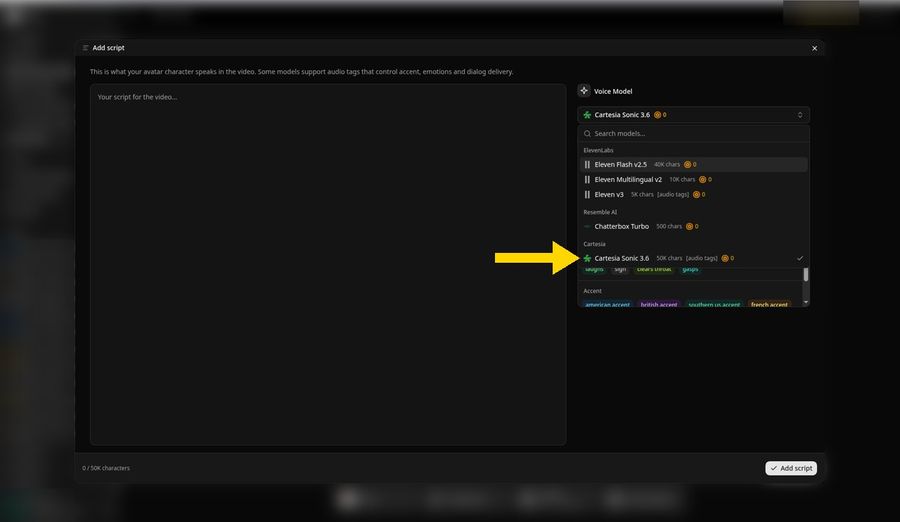
Open the Voice Model menu and choose Cartesia Sonic 3.6 under the Cartesia heading, and a check mark appears next to it. The model takes up to 50K characters per script, which leaves plenty of room for a full lesson, and it supports audio tags such as pause for a beat between key points.
Step 9: Paste Your Script and Click Add Script
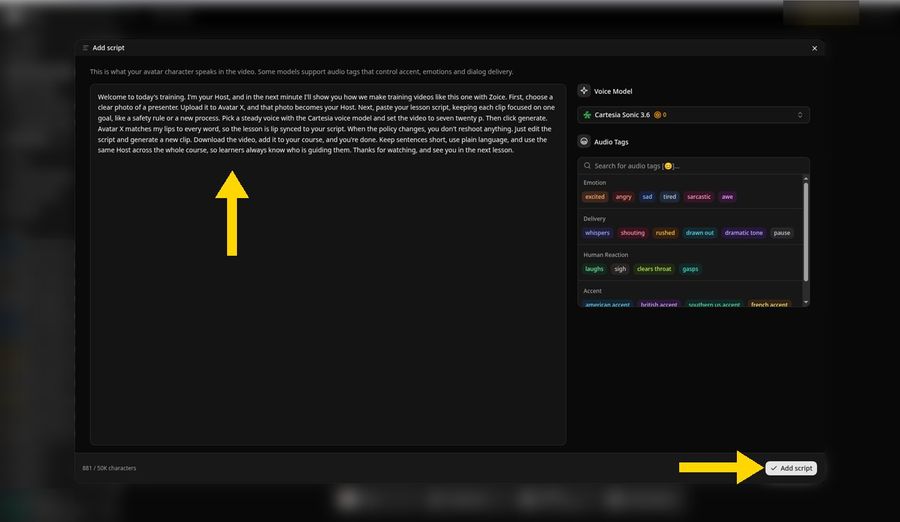
Paste your lesson into the text area. Ours begins "Welcome to today's training. I'm your Host, and in the next minute I'll show you how we make training videos like this one with Zoice." The counter shows 881/50K characters. Zoice works in 170+ languages and dialects, which helps when the same module goes to teams in several countries. Press Add script to confirm.
Full lesson script used in the demo:
Welcome to today's training. I'm your Host, and in the next minute I'll show you how we make training videos like this one with Zoice. First, choose a clear photo of a presenter. Upload it to Avatar X, and that photo becomes your Host. Next, paste your lesson script, keeping each clip focused on one goal, like a safety rule or a new process. Pick a steady voice with the Cartesia voice model and set the video to seven twenty p. Then click generate. Avatar X matches my lips to every word, so the lesson is lip synced to your script. When the policy changes, you don't reshoot anything. Just edit the script and generate a new clip. Download the video, add it to your course, and you're done. Keep sentences short, use plain language, and use the same Host across the whole course, so learners always know who is guiding them. Thanks for watching, and see you in the next lesson.
Step 10: Pick the George Voice
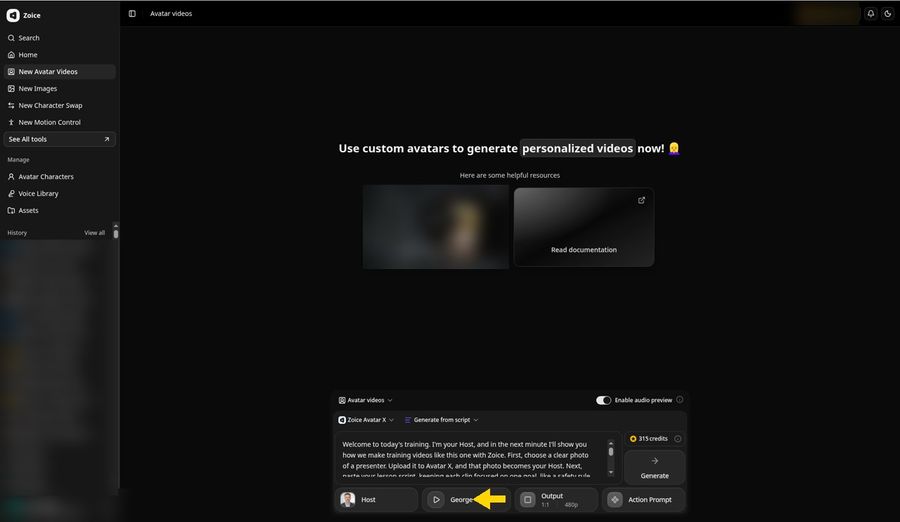
Click the voice button and browse the voice library. We went with George, a warm, steady senior male voice that suits a calm instructor. The composer now shows Host, George, and the first lines of the lesson, and Output is still at 1:1 and 480p.
Step 11: Set 720p in Output
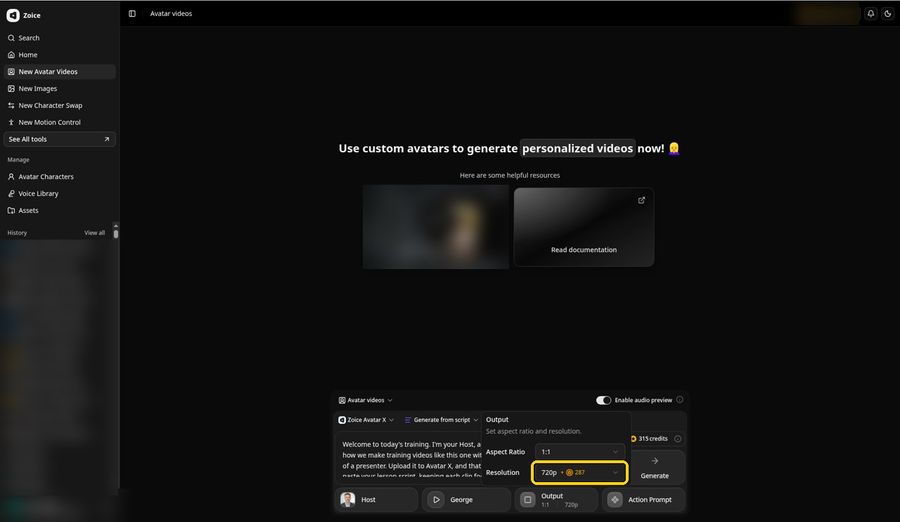
Open Output. Keep 1:1 for the aspect ratio and select 720p in the Resolution menu, which marks the surcharge for that size, +287 credits in our case. Once chosen, the Output button reads 1:1 and 720p. Use 16:9 if the lesson will play on a laptop or a meeting room screen, or 9:16 for a clip people watch on their phones.
Step 12: Click Generate and Check the Audio Preview
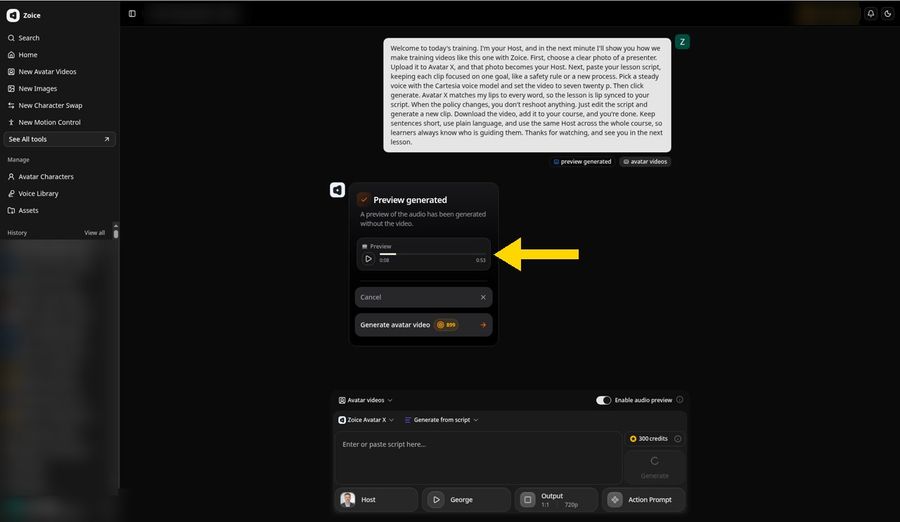
Press Generate. With Enable audio preview switched on, Zoice opens a new project and produces the narration first. The Preview generated card holds a player you can play, and it lists the full length; our lesson ran 0:53. Listen for product names, acronyms, and numbers, since those are the words most likely to need a fix.
The composer underneath empties its script box but keeps Host, George, and 720p ready.
Step 13: Click Generate Avatar Video
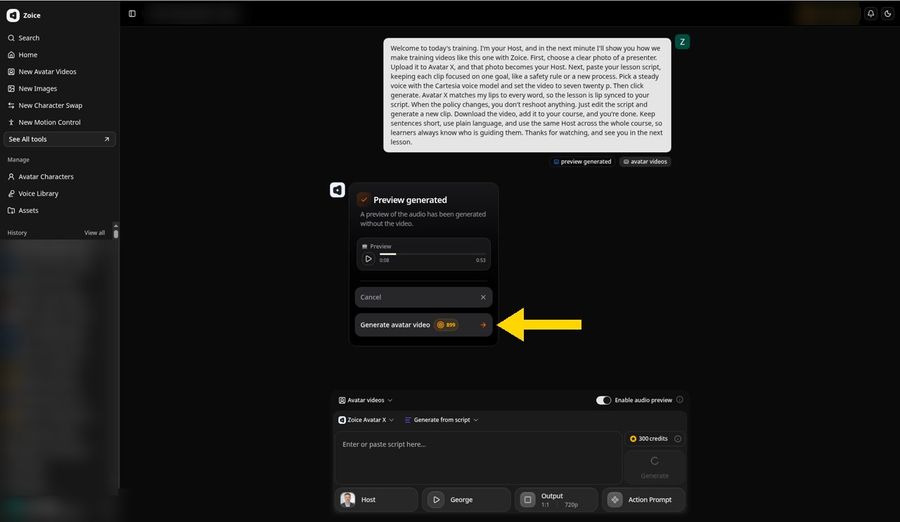
When the narration sounds right, press Generate avatar video. The button displays the price before anything is charged: 899 credits for our 0:53 lesson at 720p. To change a line first, use Cancel and edit the script.
Step 14: Wait While Zoice Processes the Video
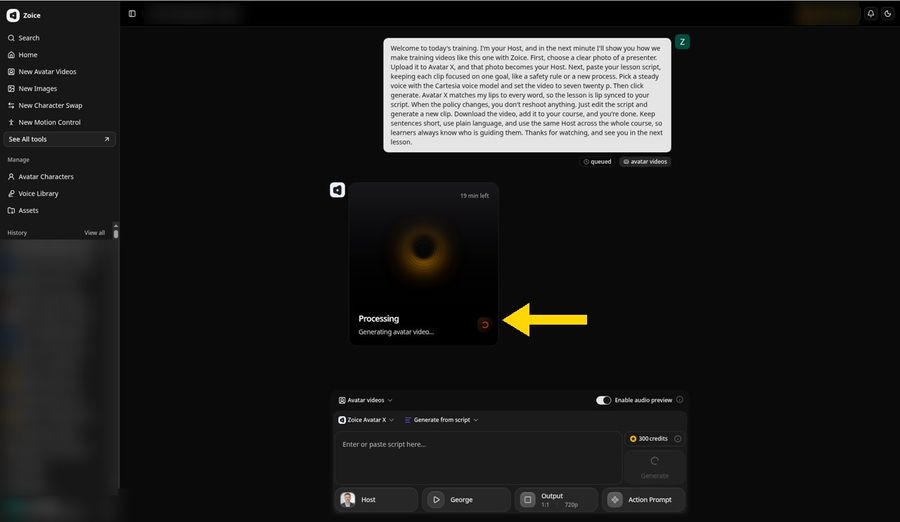
Zoice queues the job and shows a Processing card with the text Generating avatar video plus a time estimate. Ours started at 19 minutes left, and the finished video was ready in about 20 minutes. You can work on other lessons in the meantime and reopen the project from History later.
Step 15: Preview Your Training Video
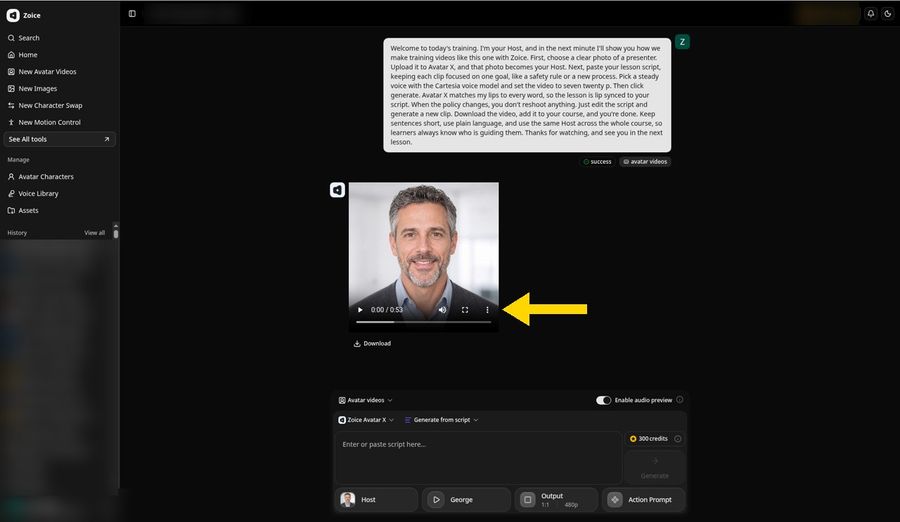
When the tag switches to success, the player loads the finished lesson, 0:53 long. Watch it from start to finish and confirm the narration is lip synced to your script and that George's pace suits your learners. The composer below drops back to 480p for the next job, while this lesson keeps 720p.
Step 16: Open the Player Menu and Click Download
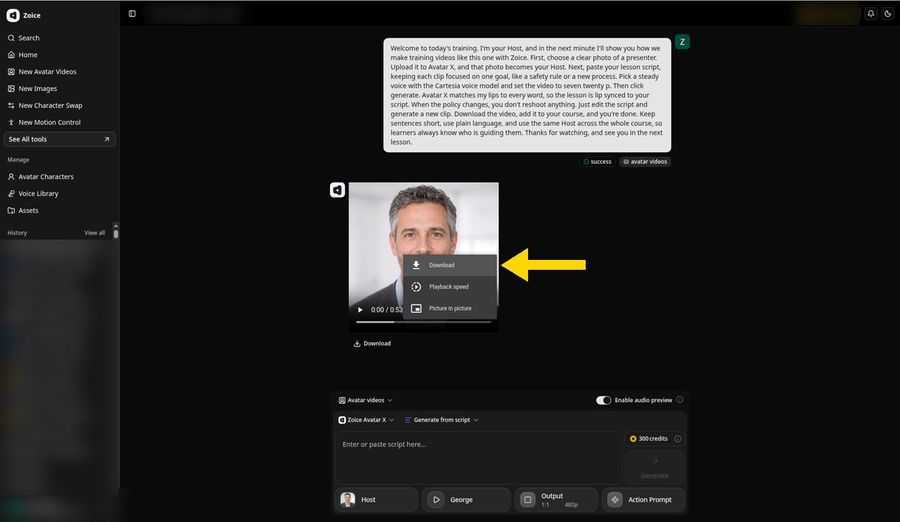
Click the three dot icon in the player, then pick Download, the highlighted first option. The Download link beneath the player is a shortcut to the same file.
Step 17: Download and Share
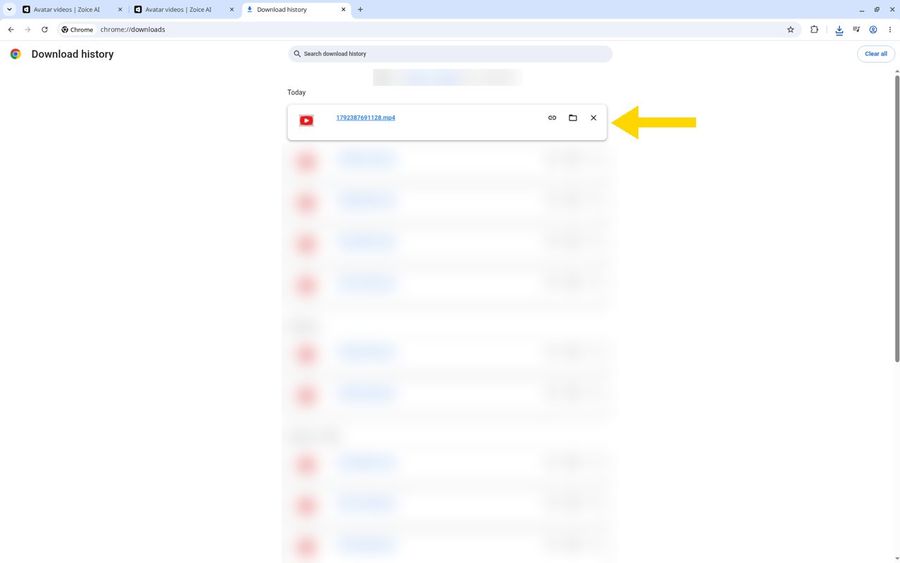
Your browser saves the lesson as an MP4, and Chrome places it first under Today on the Download history page. Upload it to your learning platform, drop it into an onboarding checklist, or share it in a team channel. Only use photos, voices, and scripts you have permission to use, and make sure no learner mistakes an AI presenter for a real colleague.
Watch the Finished Video

This is the lesson we built above: Host, our fictional AI trainer, delivers the whole script in the George voice, 0:53 at 720p. Want a presenter for your next module? Try Zoice.
Tips for Clear Training Videos
- Keep each clip to one learning goal so learners can find it again later
- Write the way you speak, with short sentences and everyday words
- Use the same Host and voice across a whole course
- Add slides, captions, or screen recordings in your editor after download
- Write acronyms in the script the way you want them spoken
- Play the audio preview before you spend credits on the video
Splitting Long Courses Into Short Clips
A two hour course rarely works as one video. Break it into a series instead:
- List every task the learner must be able to do by the end
- Turn each task into its own clip of one to three minutes
- Number the clips in order so learners can pick up where they stopped
- Reuse the same opening line and closing recap in each clip
- Update a single clip when one step changes instead of rebuilding the course
Writing step by step procedures? See AI avatar generators for SOP videos. For a lighter project, our guide on how to create a talking character shows a custom mascot presenter. Ready to build your first lesson without a camera? Try Zoice.
FAQ
Do I need a camera or a studio?
No. The presenter comes from one photo, and the narration comes from your script and a library voice, so nothing is recorded on camera. You need a clear, front facing photo with good light, a written lesson, and enough credits for the avatar and the video, and Zoice shows each cost before you spend it.
Can I update a module later?
Yes. Because the lesson starts as text, you open the script, change the lines that are out of date, and make a fresh video with the same Host and voice. Learners see the same presenter as before, and you avoid booking people, rooms, or equipment for a reshoot.
What file do I get when I download?
An MP4 video file, a format that learning platforms, slide tools, and video editors widely accept. Our demo exported at 720p in a 1:1 frame, but you can choose 16:9 or 9:16 in Output before you click Generate if the lesson will sit in a widescreen course player or a mobile feed.
Does each clip use credits?
Yes. Creating the avatar costs credits once, 8 in our demo, and each video costs credits too, with higher resolutions adding a surcharge. The Generate avatar video button shows the exact figure before you confirm, which was 899 credits for our 0:53 lesson at 720p, so you always know the price first.