How to Make an Anniversary Video With AI: A 2026 Guide
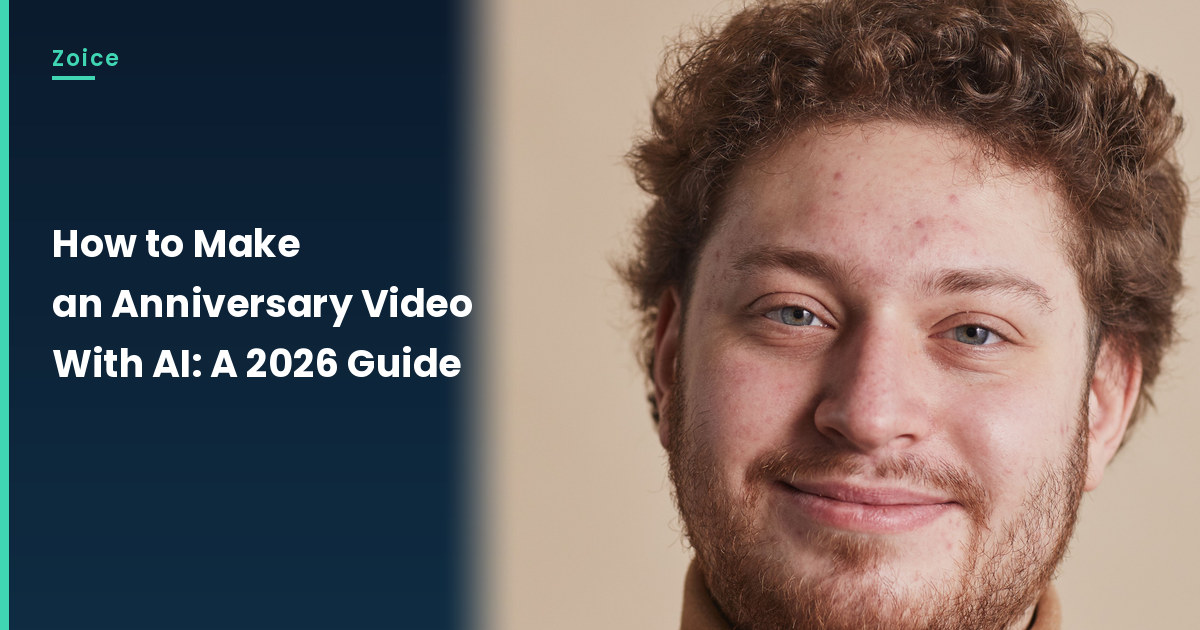
An anniversary video can hold a then-and-now memory without turning it into a greeting card. This is how to make an anniversary video with AI from an approved photo; our talking-greeting-card guide already covers anniversary cards, so this one is a spoken memory. In Zoice you upload a clear, approved picture, it becomes your Host, and the mouth is lip synced to your script. An optional action prompt can add a small smile. Use only photos of people who have agreed to appear. Our screenshots use a stock-model stand-in.
Planning more than one anniversary video clip? Our AI birthday video generator roundup has more anniversary video ideas.
Choosing an Anniversary Photo Image Zoice Can Read
An anniversary video should start from an approved photo of people who have agreed to appear, with a clear face and a simple setting.
- Get consent before using a couple or family photo
- Keep this as a spoken memory, not a greeting-card design
- Use a sharp, front-facing crop
- Our demo uses a stock-model stand-in; swap in an approved photo
How to Make an Anniversary Video in Zoice
Our Host is a stock photograph of an adult man in a rust-brown turtleneck, front-facing against a plain beige wall, with a clear face and a visible mouth, used as the Host for this post and saved in the app.
Step 1: Sign In to Zoice and Open Home
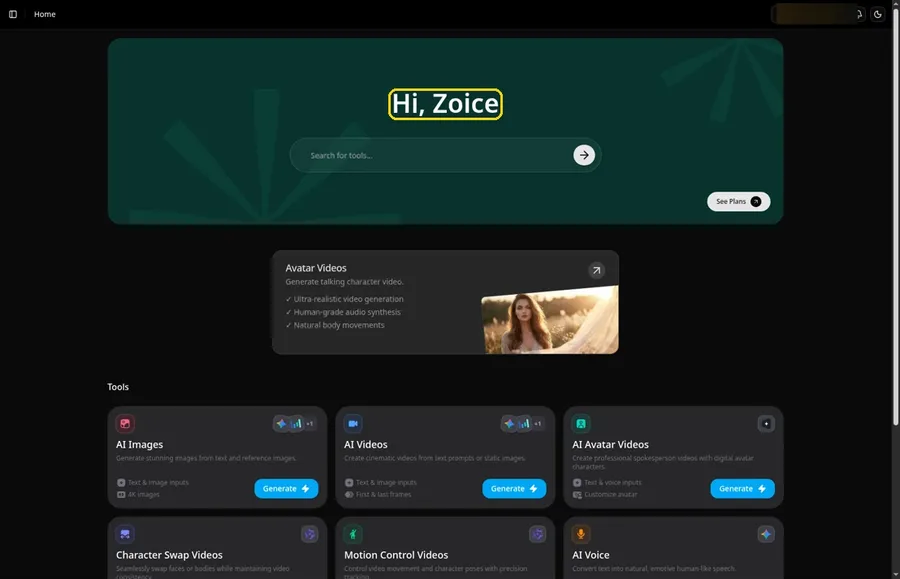
Go to Zoice and click Sign In, using email or Google; Home opens once the anniversary video project can begin.
Step 2: Open Avatar videos
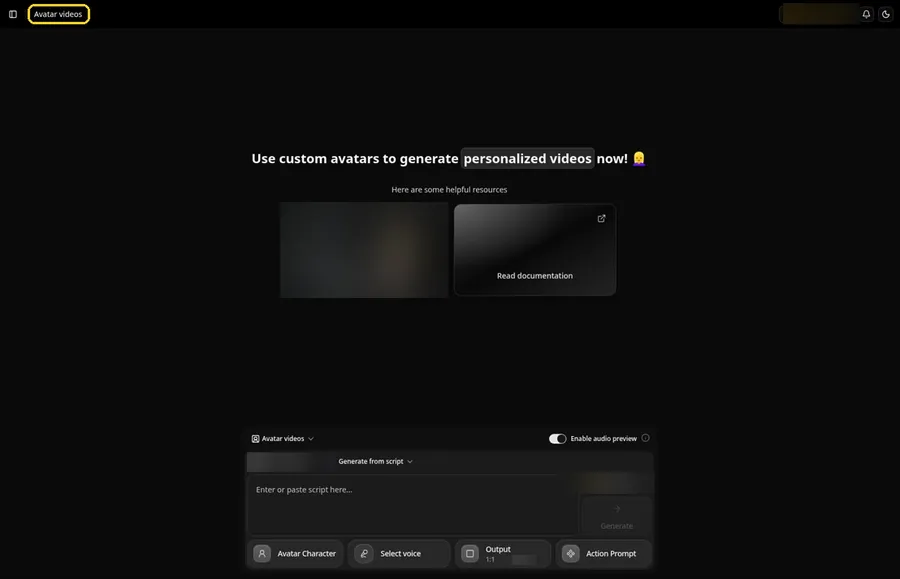
Open Avatar videos. The page title reads Avatar videos, the composer is empty with Output at the default 1:1, and it holds every anniversary video setting.
Step 3: Open Avatar Character and Create a New Avatar
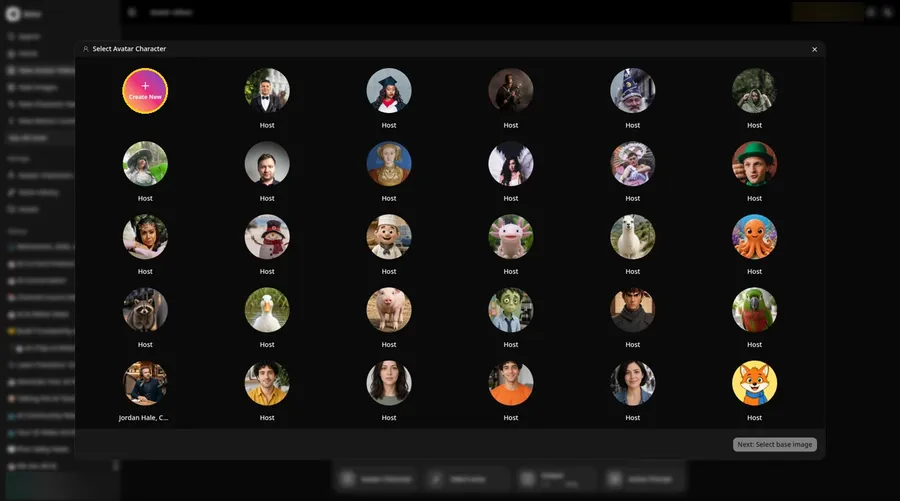
Open Avatar Character, and the Select Avatar Character window appears with the Create New button in view.
Step 4: Choose Upload Image
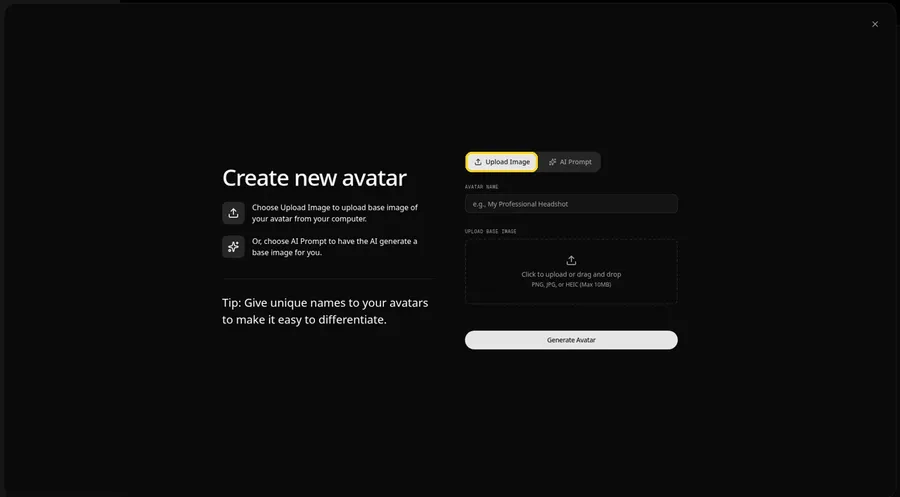
Leave the Upload Image tab on under UPLOAD BASE IMAGE, since the anniversary video comes from an image file.
Step 5: Upload the Anniversary Photo Image
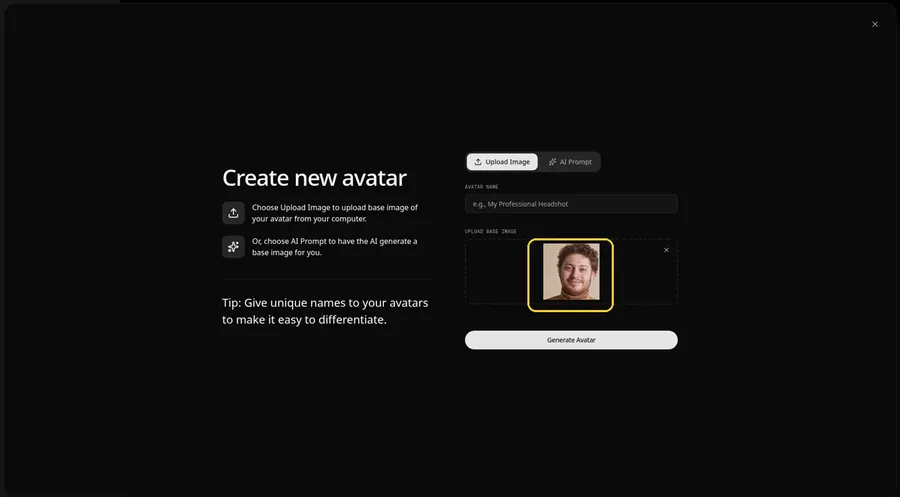
Click the upload area and pick a clear, front-facing anniversary photo. The preview should show the anniversary Host looking straight ahead, an adult man in a rust-brown turtleneck.
Step 6: Name Your Avatar Host and Click Generate Avatar
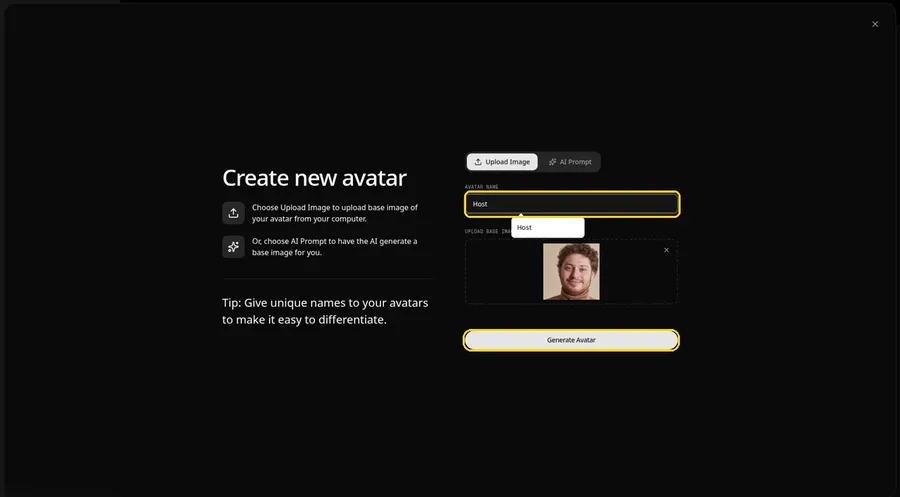
Name the anniversary video avatar Host in AVATAR NAME, with the preview in place, ready to click Generate Avatar.
Step 7: Open the Add Script Panel
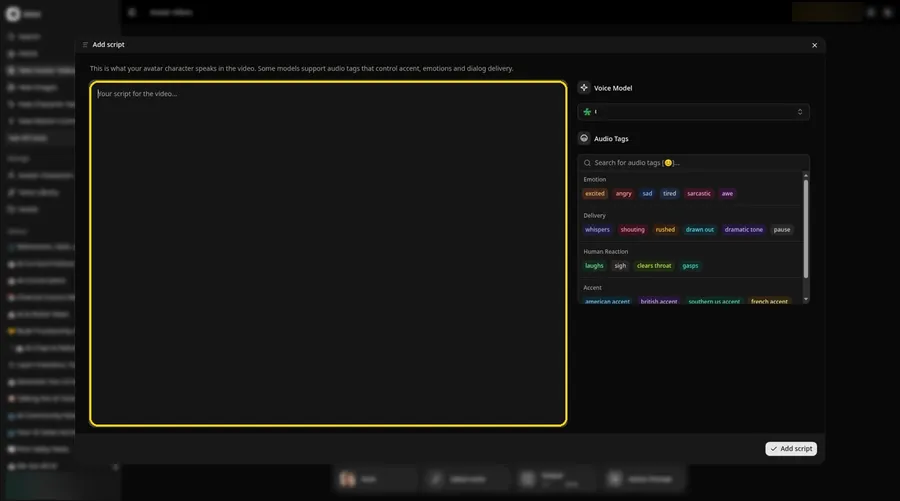
Select the script box, and the Add script panel for the anniversary video slides open.
Step 8: Choose the Voice Model
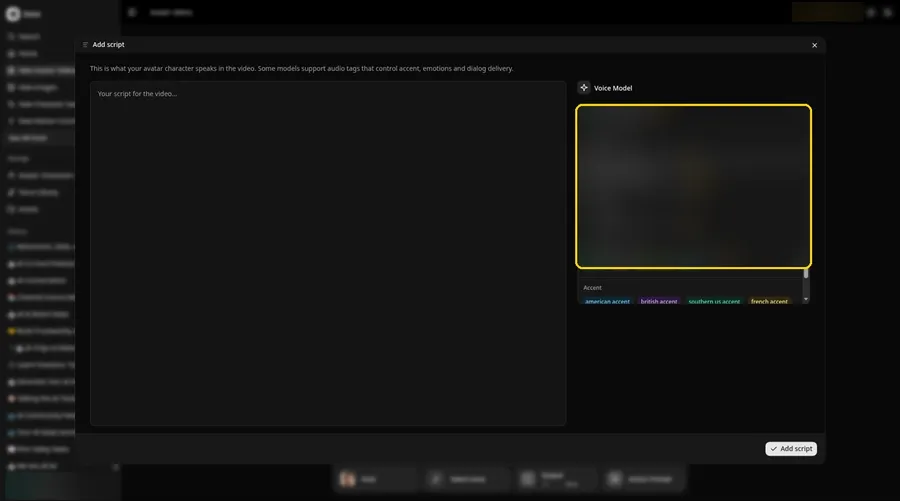
Choose the voice model from the Voice Model menu; it shapes how the anniversary video sounds.
Step 9: Paste Your Script and Click Add Script
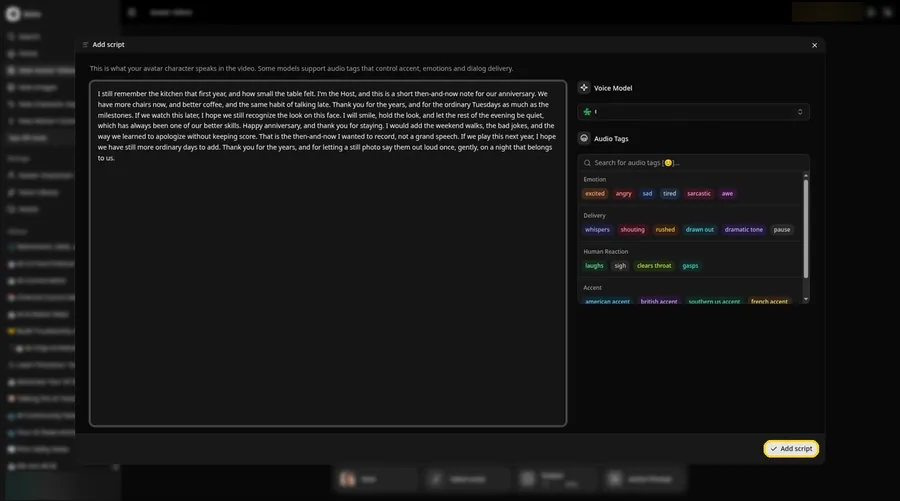
Paste the anniversary video script, read it once more and click Add script. It opens with: I still remember the kitchen that first year, and how small the table felt.
Step 10: Pick a Voice
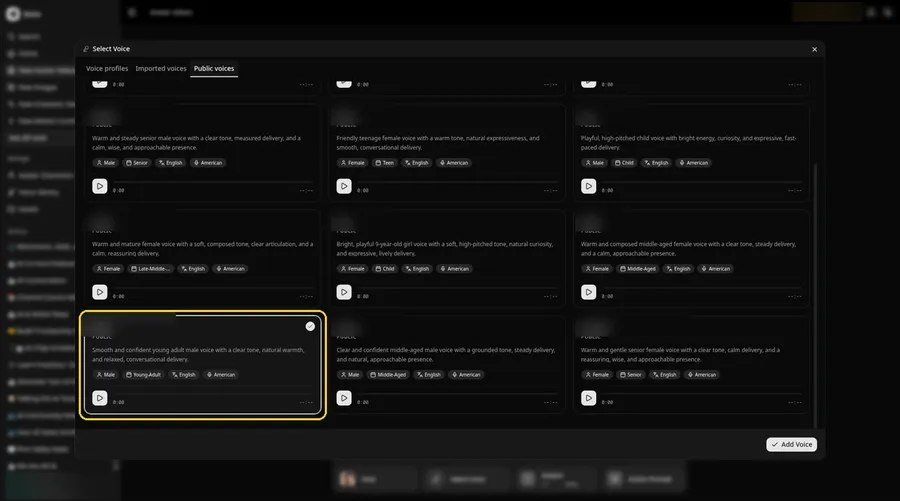
Click the voice button in the composer to open Select Voice for the anniversary video. Pick a warm, fond adult voice on the Public voices tab, then click Add Voice to attach it.
Step 11: Choose your output settings
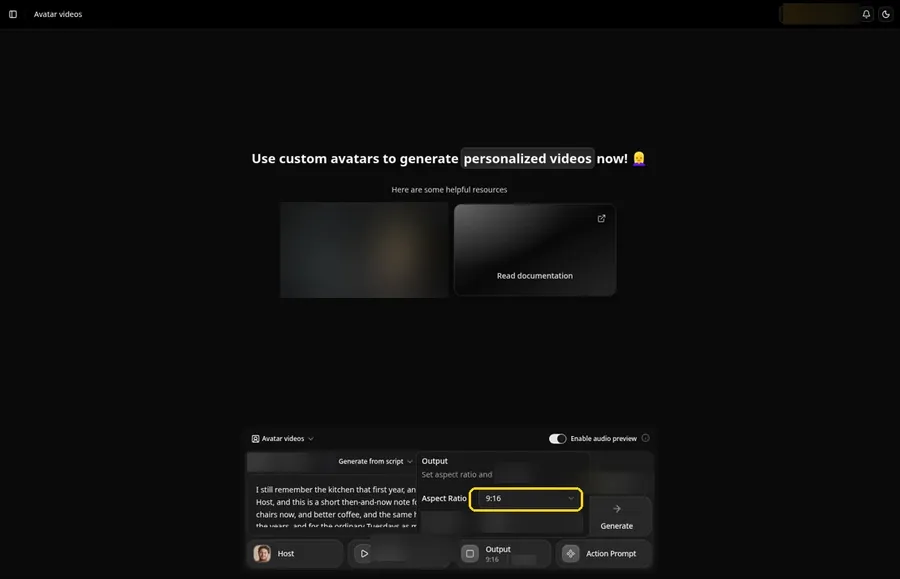
Choose your output settings. Set the Output aspect ratio dropdown to 9:16 if the anniversary video is headed to vertical feeds.
Step 12: Add an Action Prompt
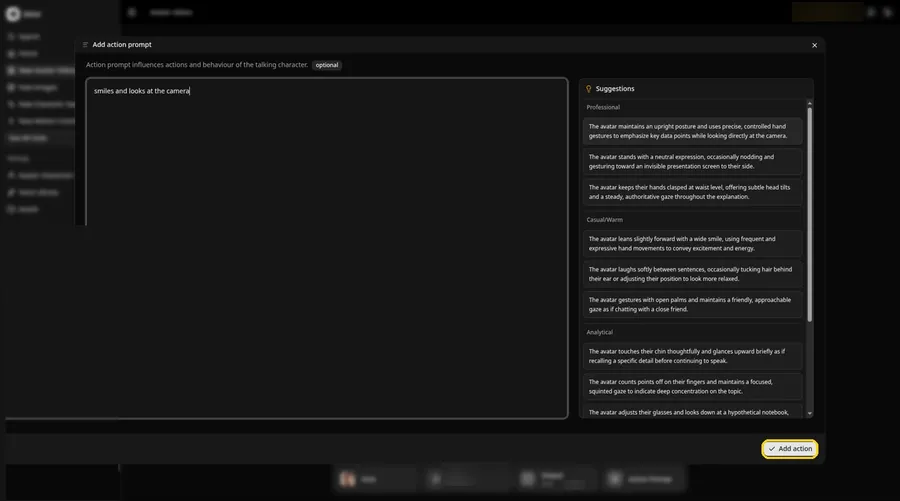
Click Action Prompt and type in the Add action prompt panel: smiles and looks at the camera. Click Add action. The anniversary video only moves the way this prompt says.
Step 13: Click Generate
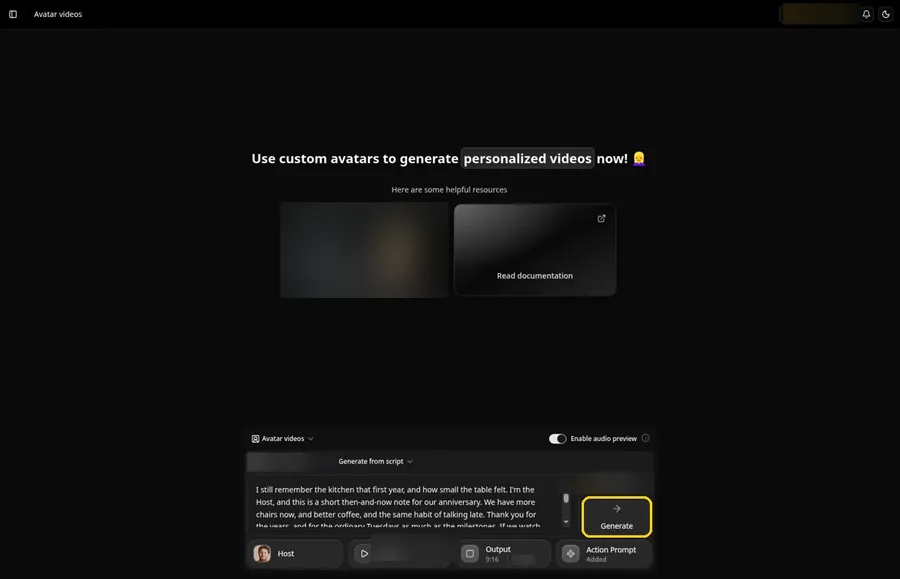
Look over the anniversary Host, the script, the voice, the 9:16 output and the Added Action Prompt chip, then click Generate.
Step 14: Confirm the Audio Preview
Listen to the anniversary video audio preview, then confirm it while Zoice processes the clip.
Step 15: Preview the Video in the Player
Press play in the player and check that the anniversary video lip sync and the action prompt moves match your script.
Step 16: Download From the Player Menu
Use the player's three-dot menu and choose Download to keep the anniversary video file.
Step 17: Share Your Video
Post the anniversary video clip as a Reel, Short or story, or drop it in a chat; stick to images and audio you have the rights to.
Writing the Action Prompt
Keep the anniversary video move gentle, like a small smile at the camera.
- For the anniversary video, smiles and looks at the camera
- nods and pauses
- looks aside as if remembering, then back
Type your pick in step 12 and click Add action.
Demo Idea: A Then and Now Memory
A stock-photograph Host, of an adult man in a rust-brown turtleneck, shares a short then-and-now memory in character. Here is the exact script:
"I still remember the kitchen that first year, and how small the table felt. I'm the Host, and this is a short then-and-now note for our anniversary. We have more chairs now, and better coffee, and the same habit of talking late. Thank you for the years, and for the ordinary Tuesdays as much as the milestones. If we watch this later, I hope we still recognize the look on this face. I will smile, hold the look, and let the rest of the evening be quiet, which has always been one of our better skills. Happy anniversary, and thank you for staying. I would add the weekend walks, the bad jokes, and the way we learned to apologize without keeping score. That is the then-and-now I wanted to record, not a grand speech. If we play this next year, I hope we have still more ordinary days to add. Thank you for the years, and for letting a still photo say them out loud once, gently, on a night that belongs to us."
Your anniversary video is waiting for its first lines. Try Zoice and give the anniversary video a voice.
Tips for Anniversary Photos
- Use an older photo of yourself for a then and now feel.
- Name a specific memory.
- Play it at dinner on the day.
- For the anniversary video, add an action prompt only after the lip sync looks right, then compare the two versions.
Our AI singing photo generator roundup pairs well with this anniversary video tutorial.
FAQ
How is this different from a talking card?
This is a then and now video from an old photo, not a card.
Can I use a photo of us both?
Crop to one face per Host.
Is the action prompt required?
No. The anniversary video is lip synced to your script either way; the action prompt only adds the move.
Can I make a vertical anniversary video?
Yes. Choose 9:16 in the output settings before you click Generate on the anniversary video.
Try Zoice
The anniversary video is ready for its close-up. Read our guide on how to make a picture talk, or Try Zoice and make the anniversary video today.