How to Make a Talking Greeting Card With AI: 2026 Guide

A talking greeting card says thank you, happy holidays or happy anniversary in your own words, spoken by a photo. In Zoice you upload that photo as the Host, write a short message, and set up a video card ready to send.
This guide covers thank you, holiday and anniversary cards. Birthday cards have their own singing birthday card tutorial. For more on portrait tools, see our list of AI tools to animate static portraits.
Writing a Message That Sounds Like You
- Name the person in the first line
- Mention one specific thing they did or one memory you share
- Close with a plan, like dinner or a visit
- Read it aloud once and cut any line that feels stiff
How to Make a Talking Greeting Card in Zoice (Step by Step)
Each step matches a Zoice screen. Our sample is a thank you card for a neighbor who watered the garden.
Step 1: Sign In
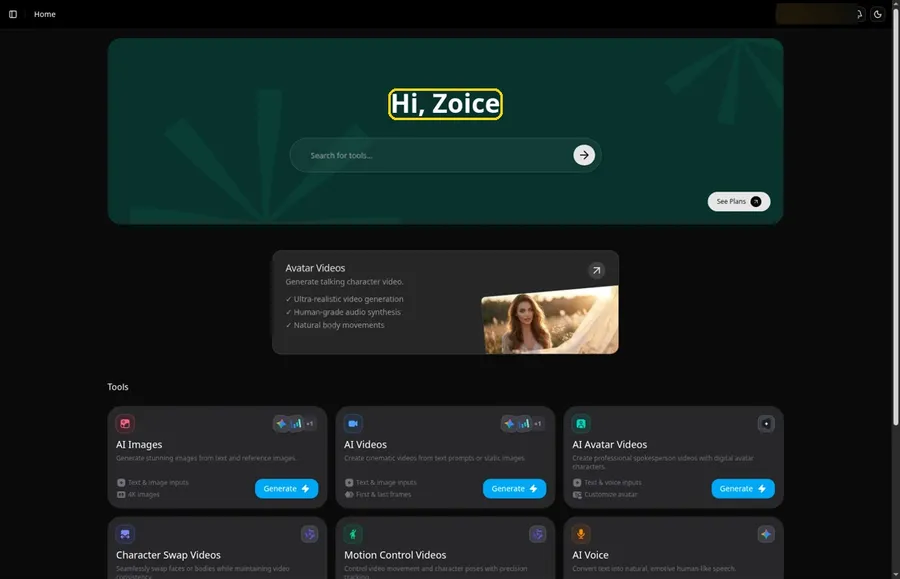
Open Zoice, click Sign In and enter your details. Home opens with the Hi, Zoice heading.
Step 2: Open Avatar videos
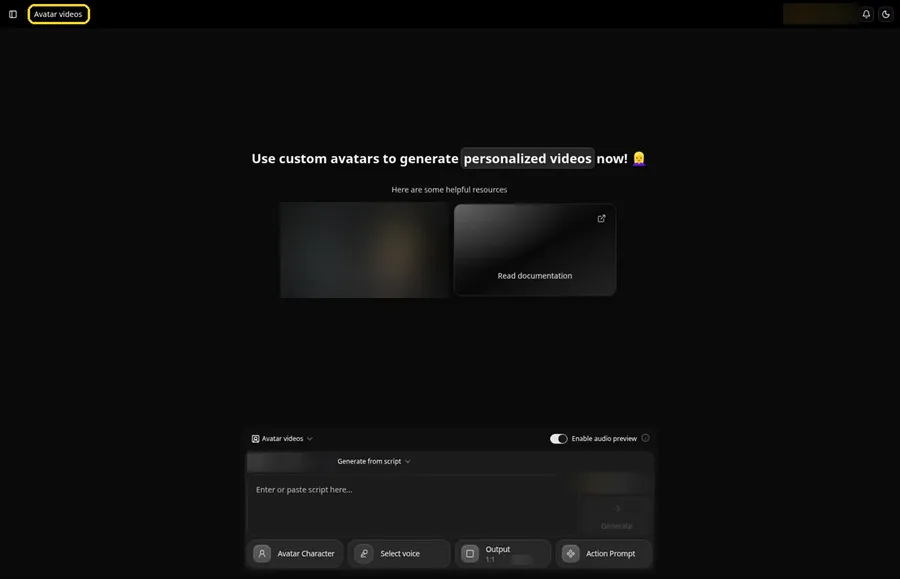
Pick Avatar videos in the sidebar, where the card is assembled.
Step 3: Start a New Character
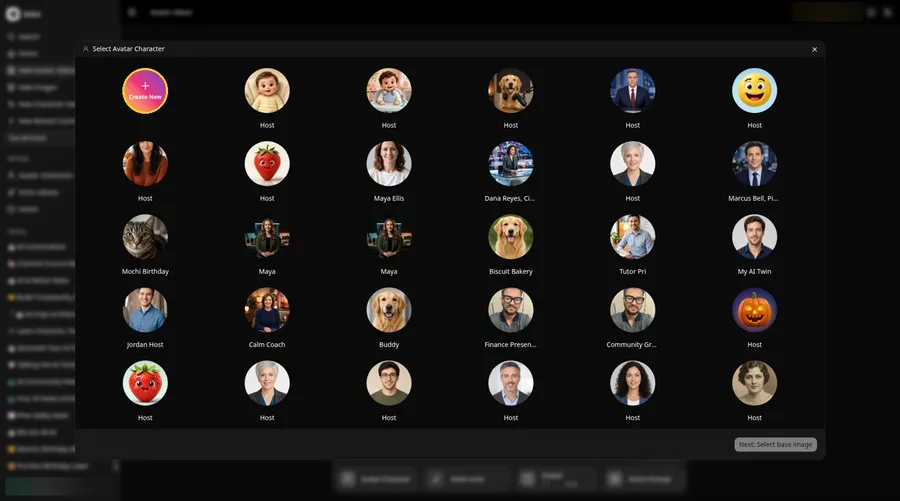
Start the greeting card Host from Avatar Character, which opens Select Avatar Character. Click Create New for the greeting card Host, then click Create New once more on the Avatar Characters page to open the full-screen Create new avatar page.
Step 4: Keep Upload Image Selected
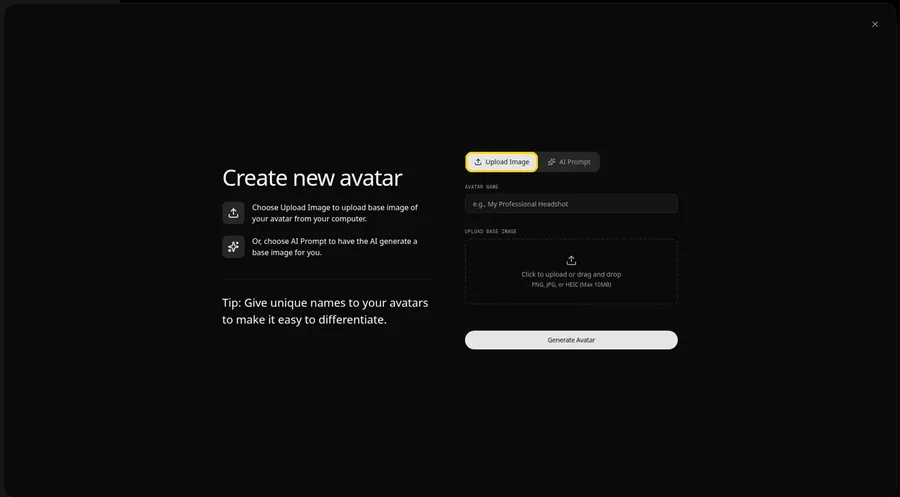
The Create new avatar page opens full screen on the Upload Image tab under Upload Base Image. Keep Upload Image selected so the greeting card Host photo can be added. The AI Prompt tab sits beside it if you ever want to describe the greeting card Host instead of uploading.
Step 5: Upload the Sender's Photo
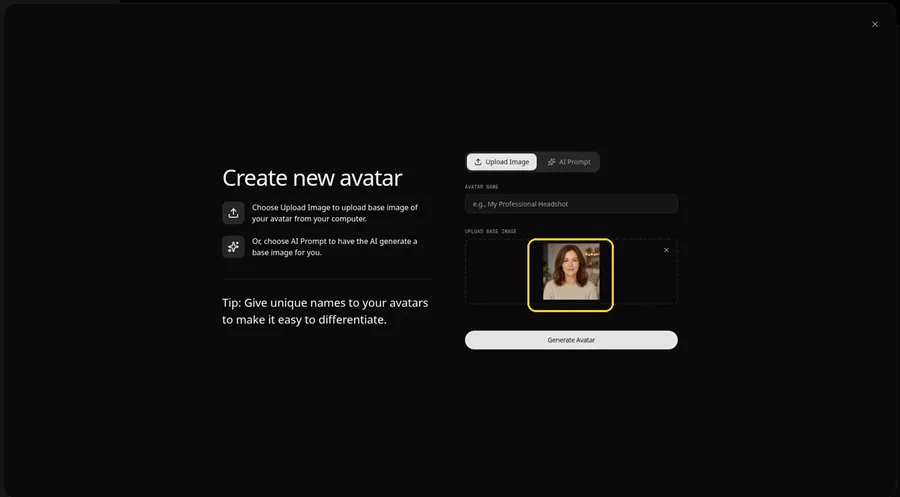
Click the upload area under Upload Base Image and choose a warm, front-facing photo of the sender. Look at the preview to check it before moving on.
Step 6: Name the Avatar Host
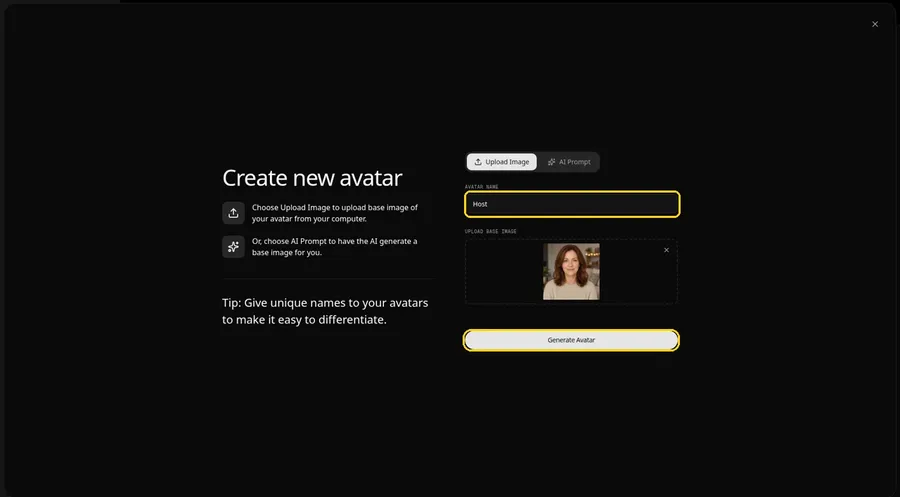
In the Avatar Name field, type Host and click Generate Avatar so the greeting card Host joins your saved characters.
Step 7: Open the Script Panel
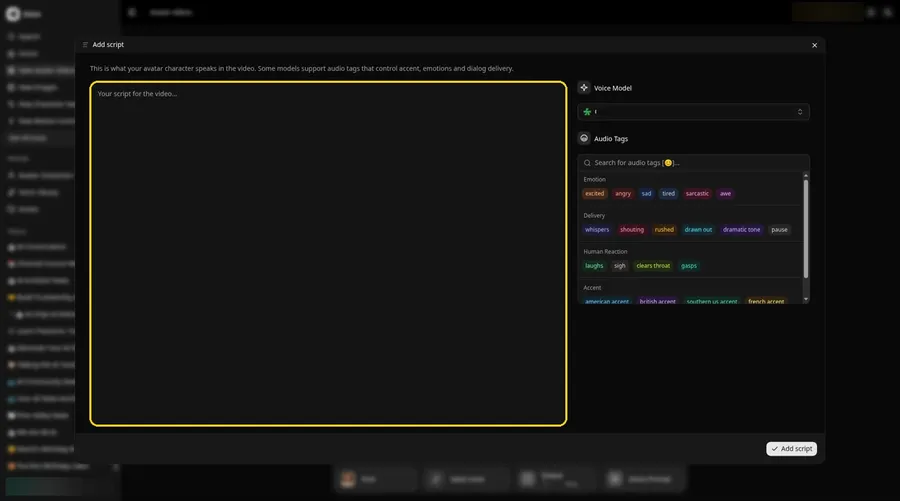
Click the script box in the composer. The Add script panel opens.
Step 8: Pick a Voice Model
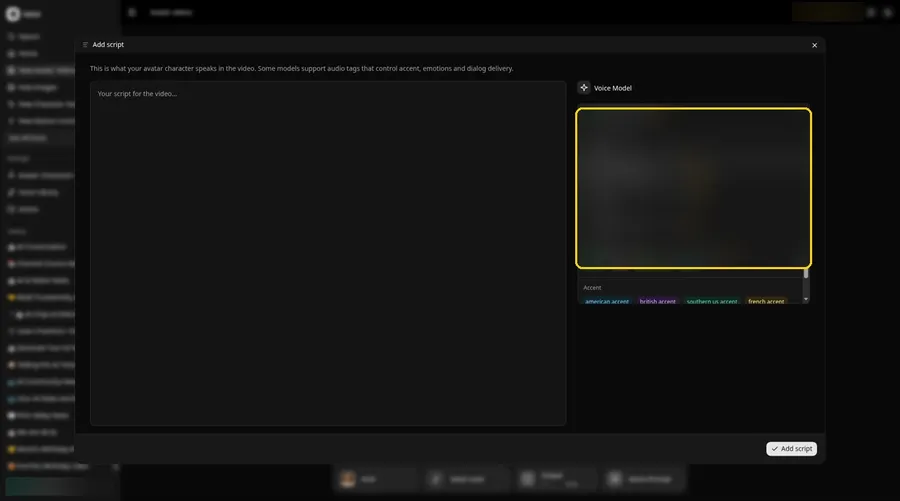
Select a model from the Voice Model menu inside the panel.
Step 9: Write the Card Message
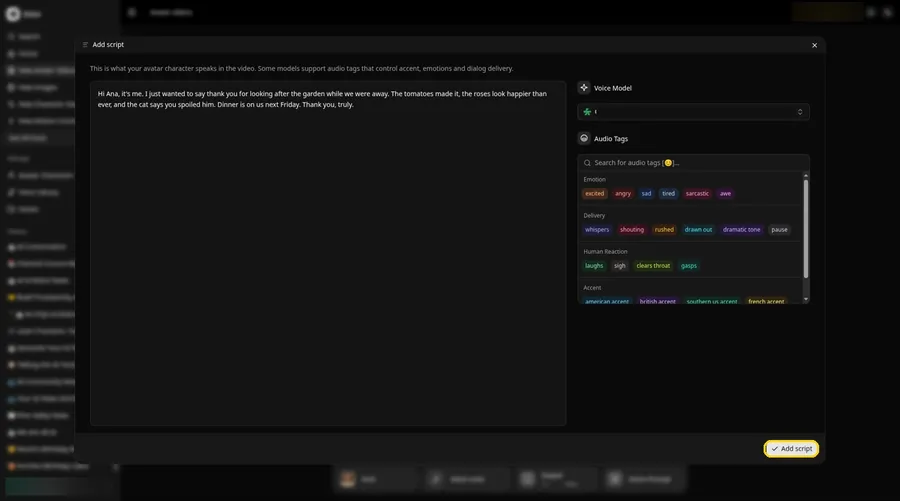
Paste your card message and select Add script. Our card begins: Hi Ana, it's me.
Step 10: Choose a Warm Voice
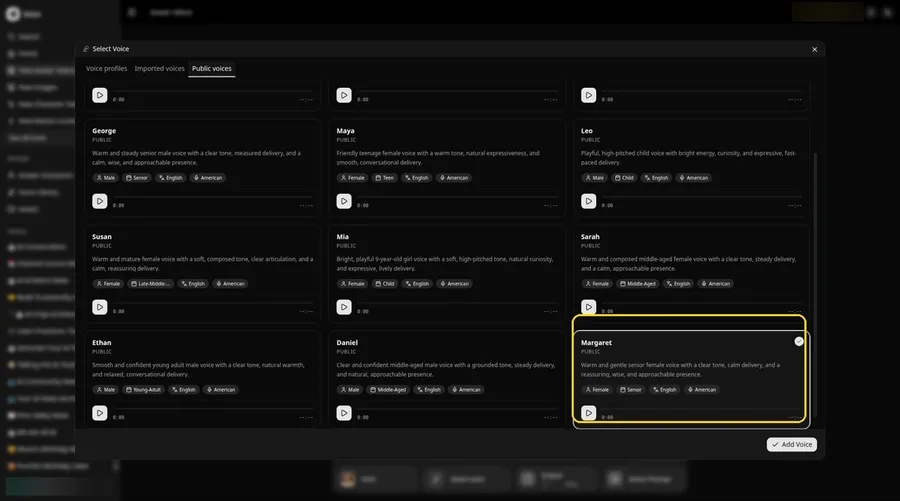
- Open Select Voice for the greeting card Host by clicking the voice button in the composer.
- On the Public voices tab, pick the voice the greeting card Host should use.
- Attach it to the greeting card Host by clicking Add Voice.
A warm, gentle voice suits the greeting card Host.
Step 11: Choose Your Output Settings
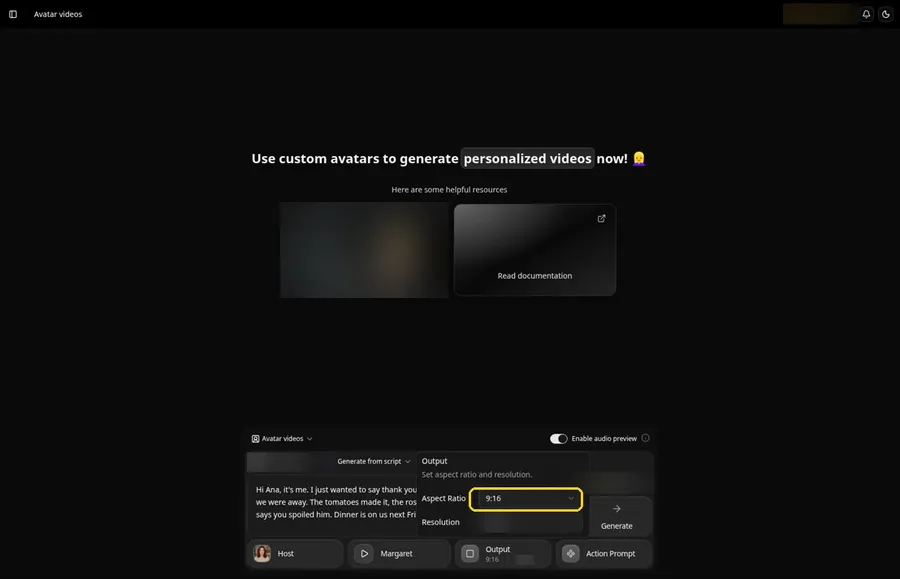
Choose your output settings. Open the Output popover and set the Aspect Ratio dropdown to 9:16.
Step 12: Add an Action Prompt
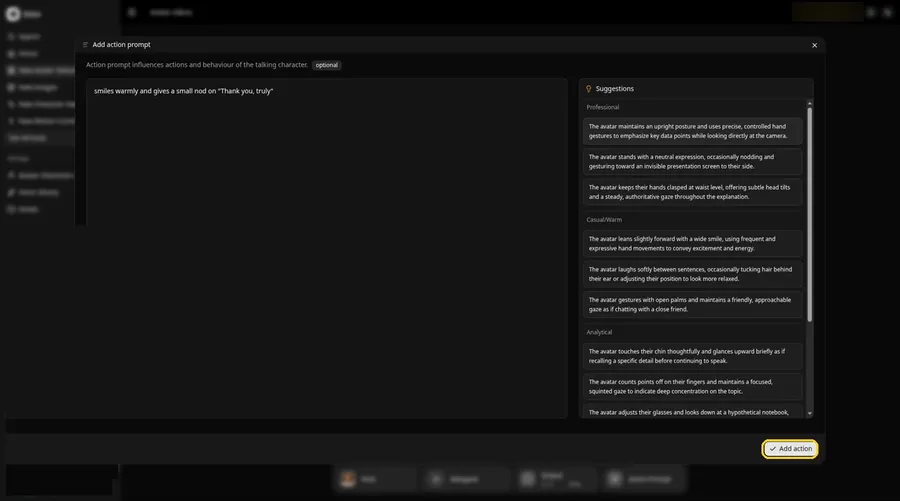
Click Action Prompt. In the Add action prompt panel, type: smiles warmly and gives a small nod on "Thank you, truly". Click Add action. Added then shows on the Action Prompt chip in the composer.
Step 13: Click Generate
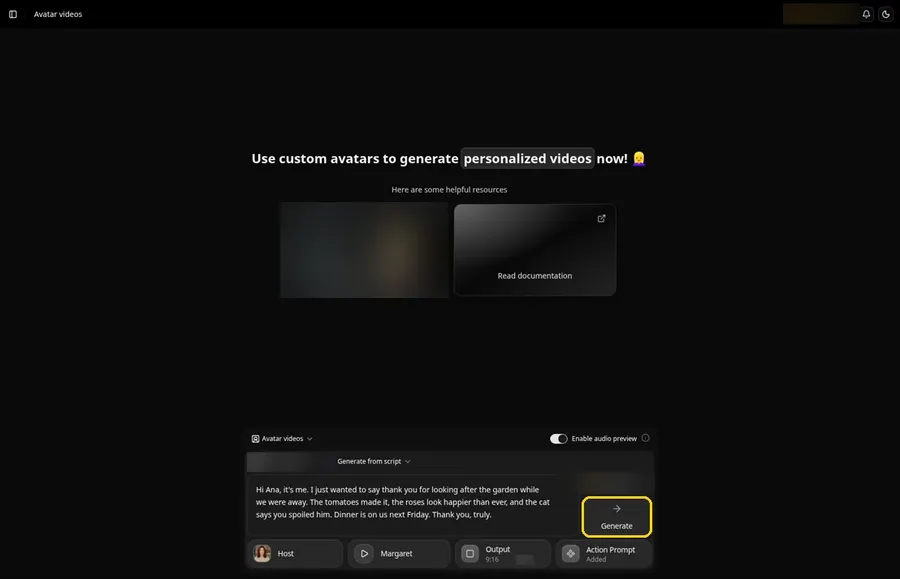
Review the Host, message, voice, vertical frame and action prompt, then click Generate.
Step 14: Approve the Audio Preview
Hear the preview, then confirm the card with Generate avatar video.
Step 15: Watch the Card
When processing ends, play it in the player and read along with your message.
Step 16: Download It
Save it via Download in the player menu.
Step 17: Send the Card
Share the file by text, email or chat, with a short note under it.
Tips for a Talking Greeting Card
- Use your own photo, or one of someone who agreed to send the card
- Mention one detail only the two of you would know
- Match the voice to the mood: soft for thanks, bright for holidays
- Make one card per person so each feels personal
- Send it at a moment that matters, like the morning of an anniversary
Want other photo-based ideas? Our AI avatar generator from photo roundup has more.
Demo Idea: A Thank You to the Neighbor
Our fictional sender read this message:
"Hi Ana, it's me. I just wanted to say thank you for looking after the garden while we were away. The tomatoes made it, the roses look happier than ever, and the cat says you spoiled him. Dinner is on us next Friday. Thank you, truly."
Write your own thank you, holiday wish or anniversary note. Try Zoice and send the card today.
FAQ
Which occasions does this guide cover?
Thank you, holiday and anniversary cards. Birthday cards have their own singing card guide.
Can I use my own recorded message?
Yes. Switch to Generate from audio and upload or record it.
How do I send the card?
Share the downloaded file by text, email or chat.
Can I reuse the photo for another card?
Yes. The saved Host is waiting in your avatar list.
Try Zoice
One photo and a heartfelt message make a card worth keeping. Try Zoice to create yours.