How to Make a Picture Talk With AI: A Simple 2026 Guide
Here is how to make a picture talk in Zoice: upload one clear picture with a face, add a script or your own audio, pick a voice, and let Zoice turn it into a talking video, lip synced to your script. You do not need editing skills, and the whole process takes a few simple steps in your browser.
This guide walks through every screen in Zoice, from sign in to download, then shares tips for a natural result and ideas for your first talking picture. Want to compare options first? See the best AI avatar generators from a photo, or read about AI tools that animate static portraits.
What You Need
You only need a few things before you start. Gather them first, and the steps below go quickly.
- A clear picture with one front facing face: a photo, an illustration, or a painting
- A script, a recording, or a voice: type the words you want, upload audio, or pick a voice
- A Zoice account: avatar videos start on the Starter plan
- One short idea: a greeting, a story, or a lesson intro works well for a first video
If you search for a talking photo app, a way to animate a picture, or an AI photo to video tool, you will find many options. Zoice runs in your browser and gives you control over the voice, the language, and the size of your talking picture video.
Make a Picture Talk in Zoice, Step by Step
Here is how to make a picture talk in Zoice, one click at a time. Each step shows the exact screen, with a yellow arrow on the button to click. For this demo we used an illustrated portrait named Host, the Cartesia Sonic 3.6 voice model, the Sarah voice, and 720p output.
Step 1: Visit Zoice and Sign In
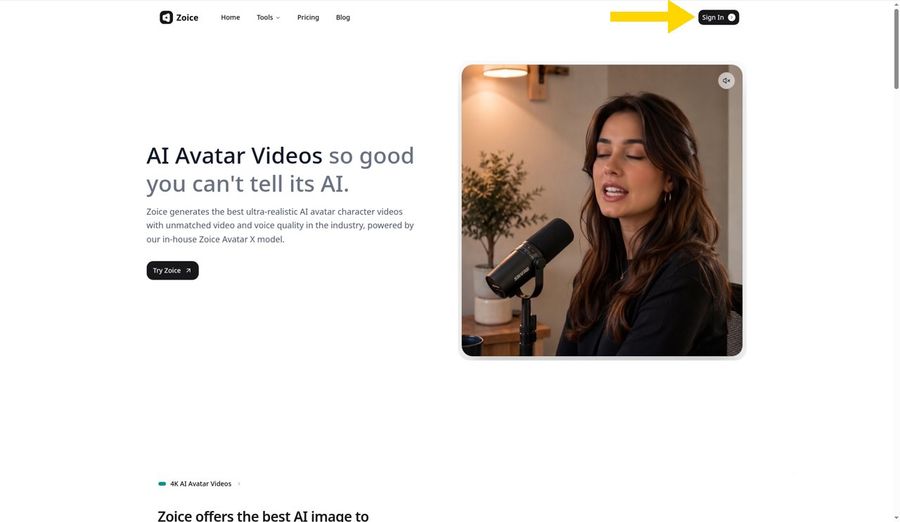
Go to the Zoice website at zoice.com and click Sign In in the top right corner of the homepage. Log in with your email and password, or with Google. New to Zoice? Click Sign up on the login form to create a free account first.
Step 2: Open New Avatar Videos
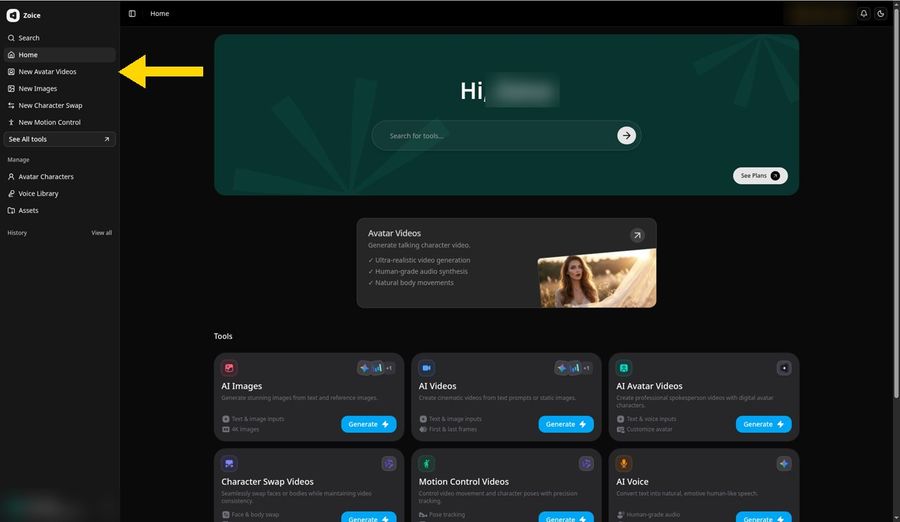
After you sign in, you land on the Zoice dashboard. In the left sidebar, click New Avatar Videos. This opens the avatar video composer, where every talking picture starts.
Step 3: Click Avatar Character, Then Create New
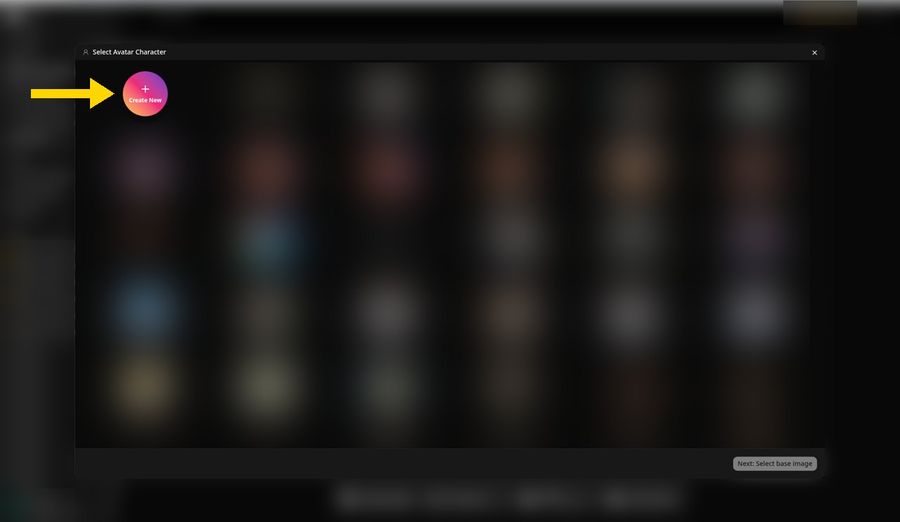
In the composer, click the Avatar Character button. The Select Avatar Character window opens and lists your saved avatars. Click the round Create New button at the top left to add your picture as a new avatar.
Step 4: Choose Upload Image
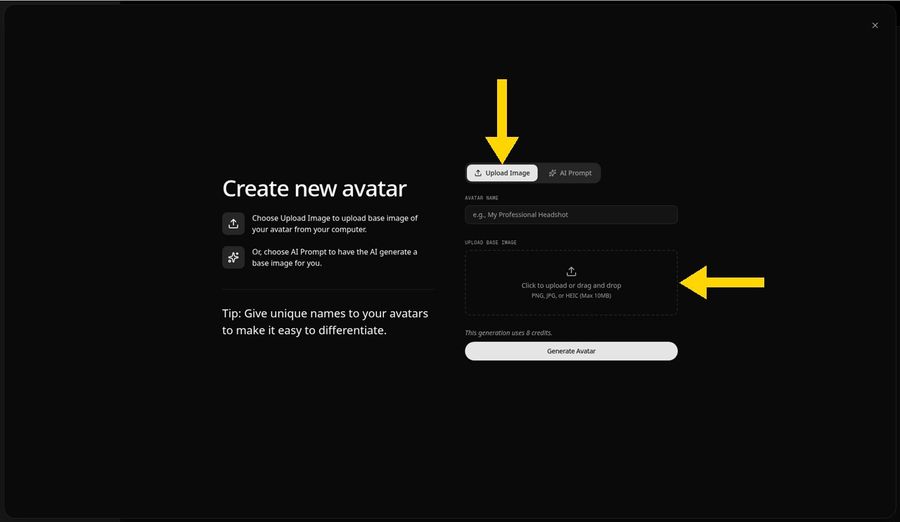
The Create new avatar panel opens. Keep the Upload Image tab selected, then click the upload area, or drag your file onto it. Zoice accepts PNG, JPG, and HEIC files up to 10 MB.
Step 5: Upload a Clear Picture
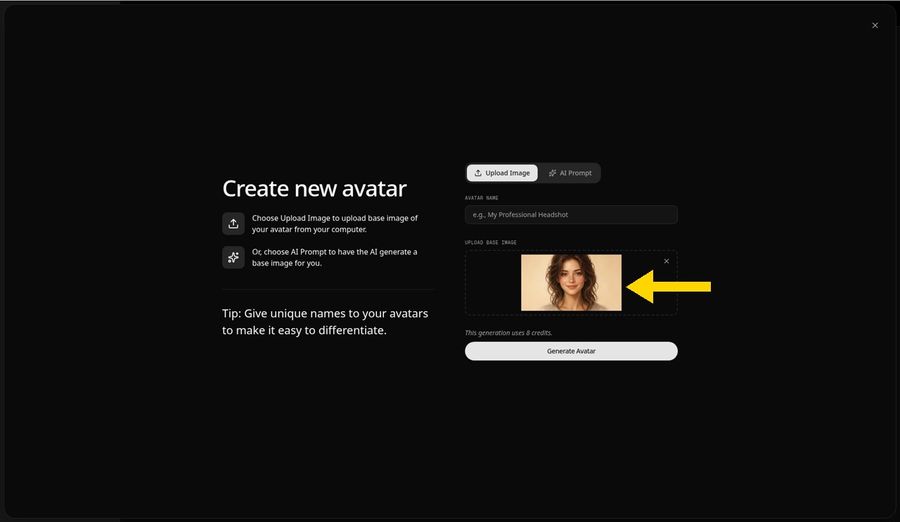
Pick your picture. A preview appears in the upload area, so you can check it before you continue. For this demo we used an illustrated portrait of a fictional woman, not a photo of a real person. Any picture works best when the face looks straight at the camera:
- Use a front facing face with the eyes open
- Keep the face large in the frame
- Choose soft, even light with no heavy shadows
- Avoid sunglasses or hands over the face
- Use a picture with only one face in it
- Photos, illustrations, and paintings all work
Step 6: Name Your Avatar Host and Click Generate Avatar
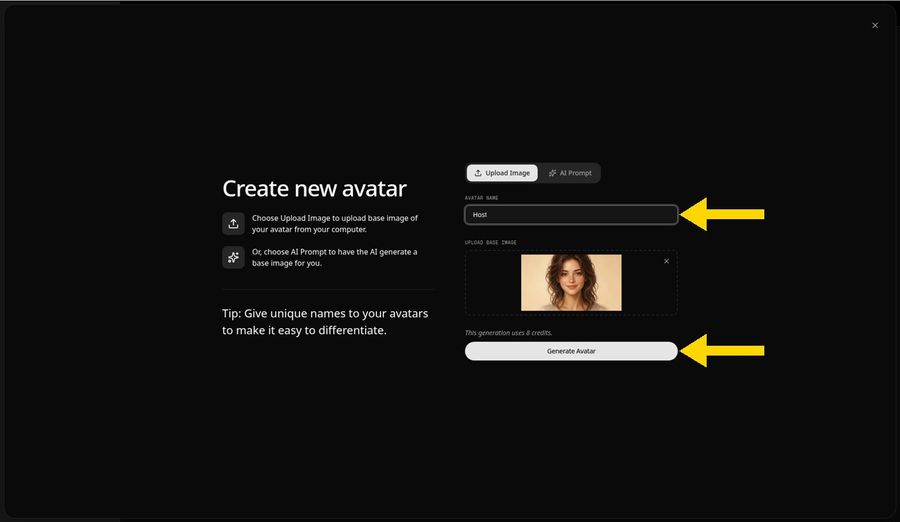
Type a name in the Avatar Name field. We used Host. A unique name makes the avatar easy to find later, when you have many saved avatars. Then click Generate Avatar. The panel notes that this generation uses 8 credits, and Zoice saves your picture to Avatar Characters, so you can reuse it in any video.
Step 7: Open the Add Script Panel
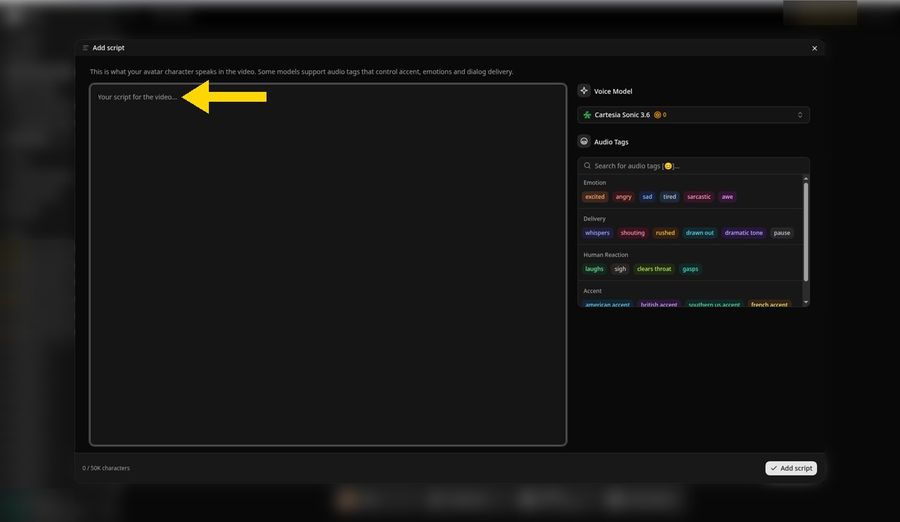
Back in the composer, click the script box to open the Add script panel. This is where you write the words your picture will say. The Voice Model menu on the right shows the model that will read your script.
Step 8: Choose the Cartesia Voice Model
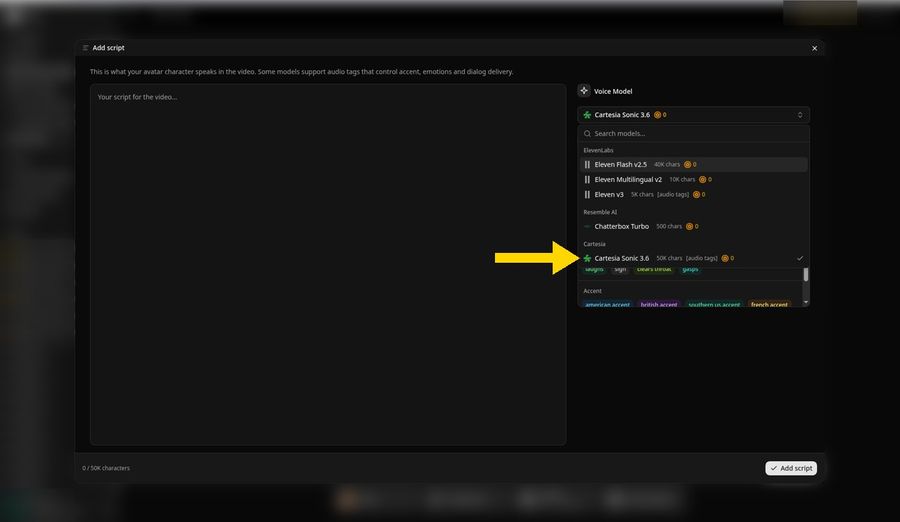
Open the Voice Model menu on the right and choose Cartesia Sonic 3.6 under Cartesia. A check mark shows next to the selected model. It supports long scripts of up to 50K characters and audio tags, such as excited, whispers, or laughs, that shape how your picture delivers each line.
Step 9: Paste Your Script and Click Add Script
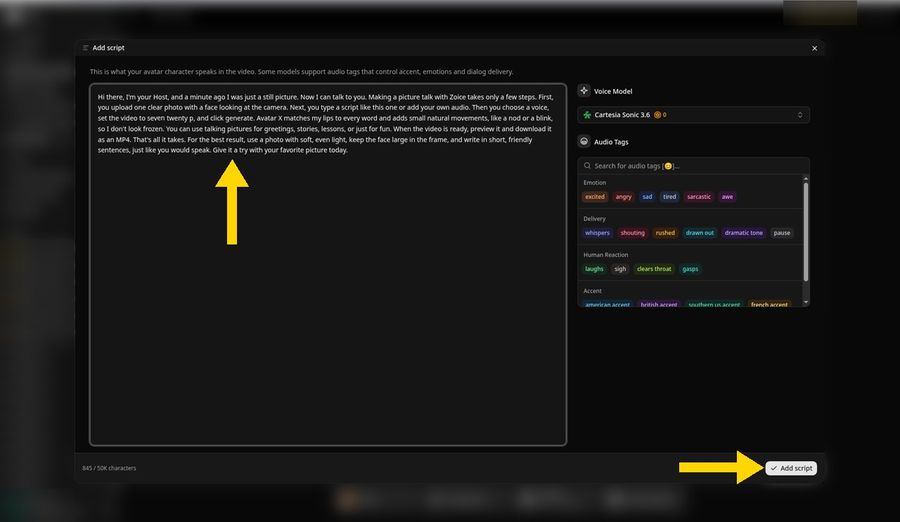
Type or paste the words your picture will say. Our script starts with "Hi there, I'm your Host, and a minute ago I was just a still picture." It runs 845 characters, so the panel counts 845 of 50K. Zoice supports scripts in 170+ languages and dialects. Then click Add script.
Here is the full script we used:
Hi there, I'm your Host, and a minute ago I was just a still picture. Now I can talk to you. Making a picture talk with Zoice takes only a few steps. First, you upload one clear photo with a face looking at the camera. Next, you type a script like this one or add your own audio. Then you choose a voice, set the video to seven twenty p, and click generate. Avatar X matches my lips to every word and adds small natural movements, like a nod or a blink, so I don't look frozen. You can use talking pictures for greetings, stories, lessons, or just for fun. When the video is ready, preview it and download it as an MP4. That's all it takes. For the best result, use a photo with soft, even light, keep the face large in the frame, and write in short, friendly sentences, just like you would speak. Give it a try with your favorite picture today.
Step 10: Pick the Sarah Voice
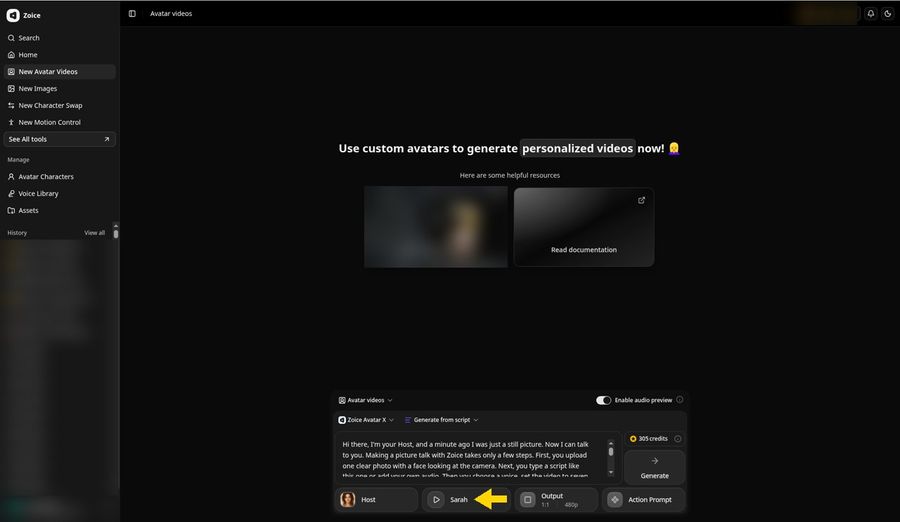
Click the voice button in the composer and pick a voice profile. We chose Sarah, so the composer now shows the Host avatar, the Sarah voice, and your script in the text box. A warm, friendly voice suits a smiling portrait. You can also use a voice you cloned.
Step 11: Set 720p in Output
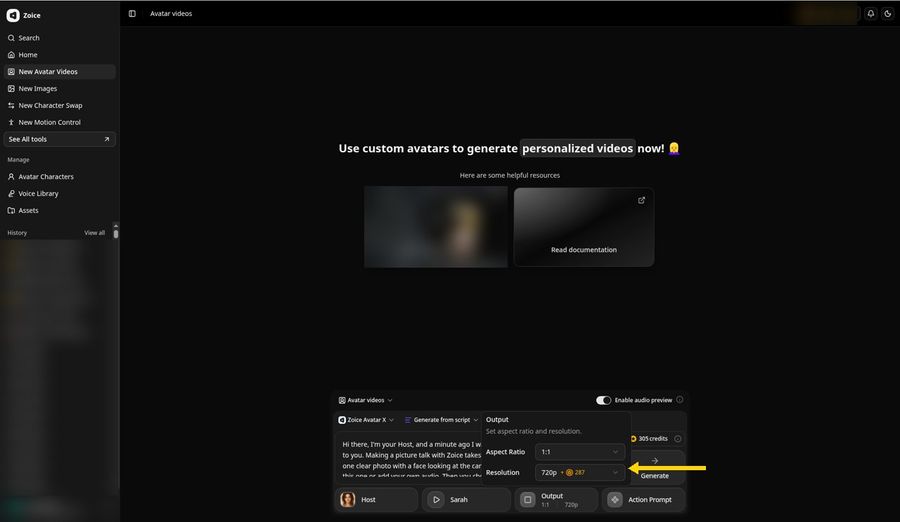
Click Output to open the Output popover, where you set the aspect ratio and the resolution. We kept 1:1 and picked 720p in the Resolution menu, so the Output button now reads 1:1 and 720p. The menu shows the extra credits that 720p adds. Choose 9:16 for TikTok, Reels, and Shorts, or 16:9 for YouTube and the web.
Step 12: Click Generate and Check the Audio Preview
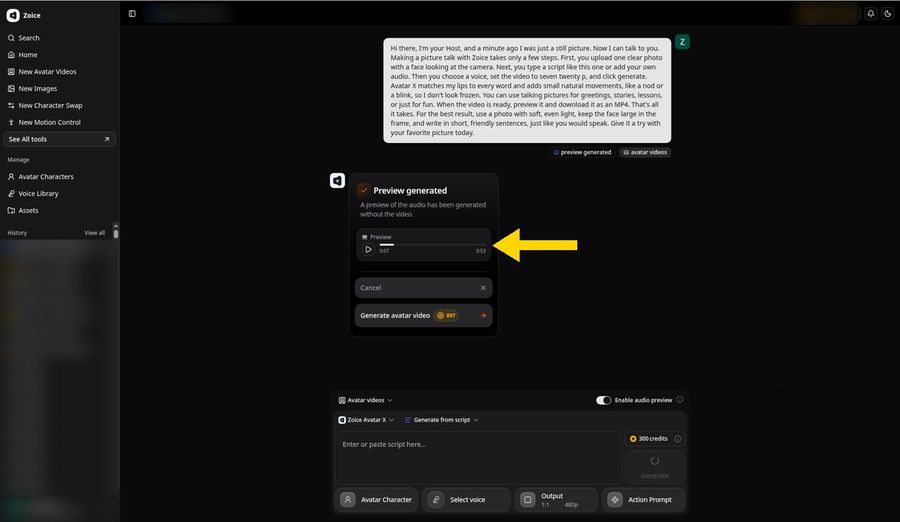
Check that your avatar, script, voice, and output are set, then click Generate. With Enable audio preview switched on, Zoice opens a new project and first makes an audio preview. The player shows the length, and ours ran 0:53. Press play on the Preview card to check the words and the timing before the video is made.
Step 13: Click Generate Avatar Video
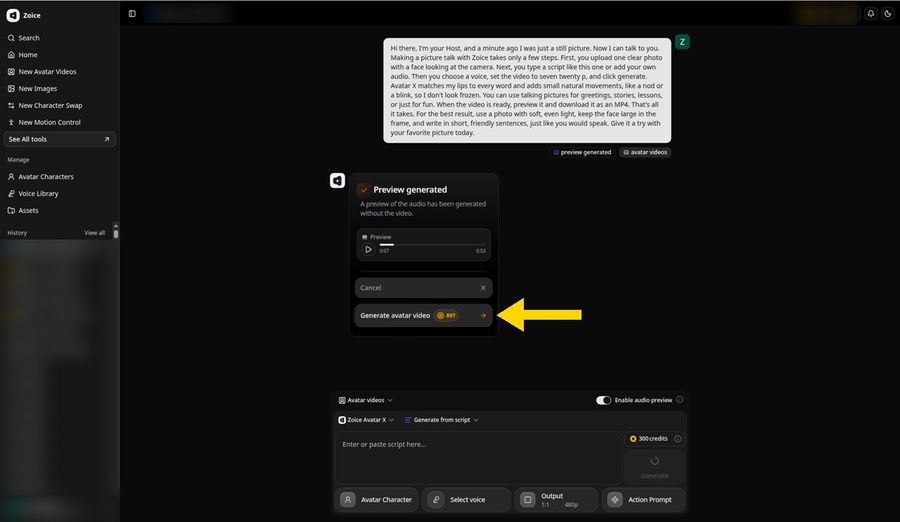
If the audio sounds right, click Generate avatar video on the card. The credit cost shows on the button, 897 credits for our 0:53 script at 720p. Want to change something? Click Cancel, edit the script, and generate a new preview.
Step 14: Wait While Zoice Processes the Video
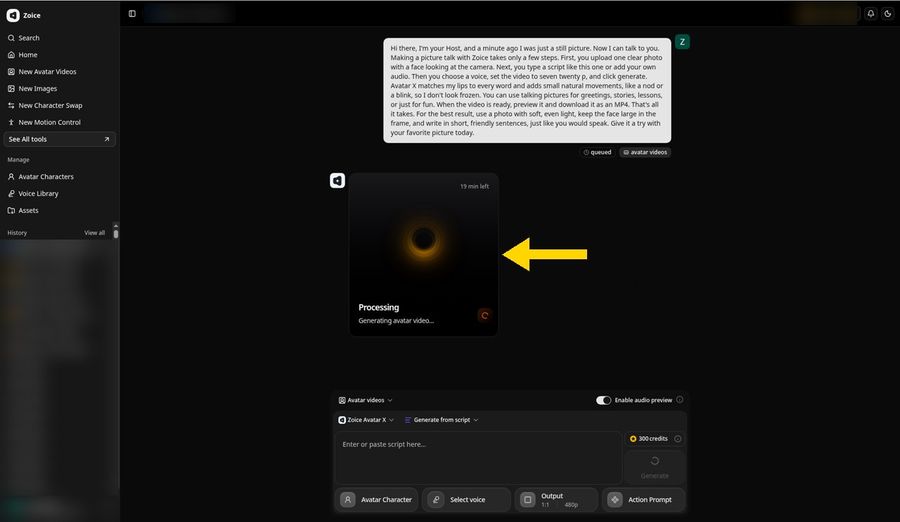
Zoice queues the request and shows a Processing card with the text Generating avatar video. The card shows an estimate of the time left, and ours showed 19 minutes. You can leave the page open or come back to the project later from History.
Step 15: Preview Your Talking Picture Video
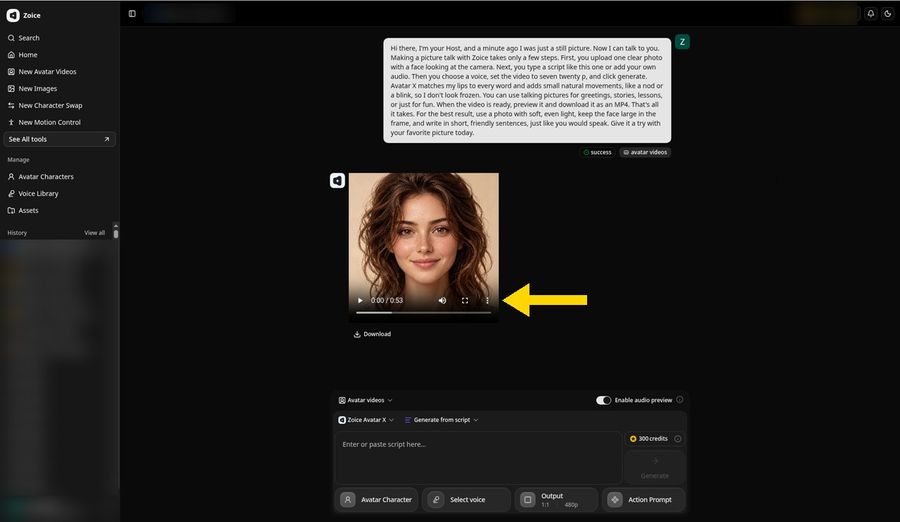
When the status changes to success, the video player appears. Our talking picture video ran 0:53. Press play and check that the video is lip synced to your script and that the voice sounds right. If something is off, change the script or the picture and generate again.
The composer below resets to 480p for your next video, but your finished video stays at 720p.
Step 16: Open the Player Menu and Click Download
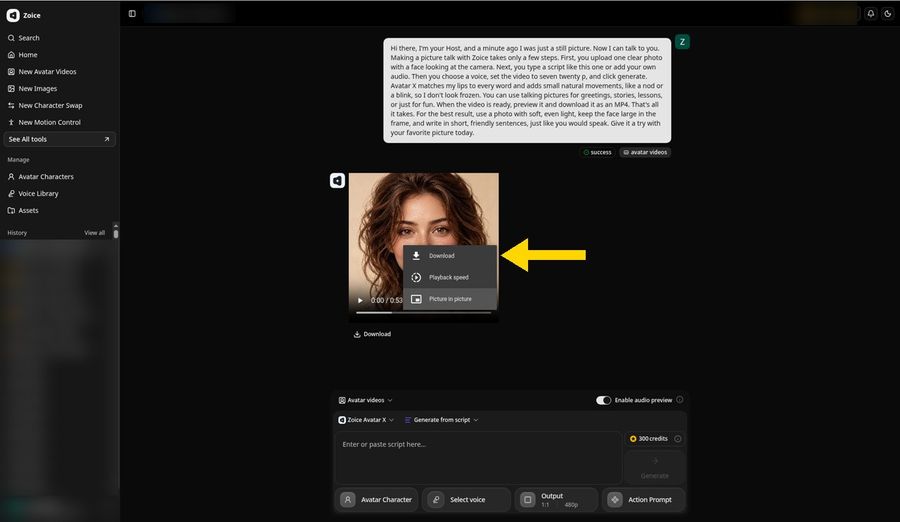
To save the video, click the three dot menu in the player and choose Download. You can also click the Download link below the player.
Step 17: Download and Share
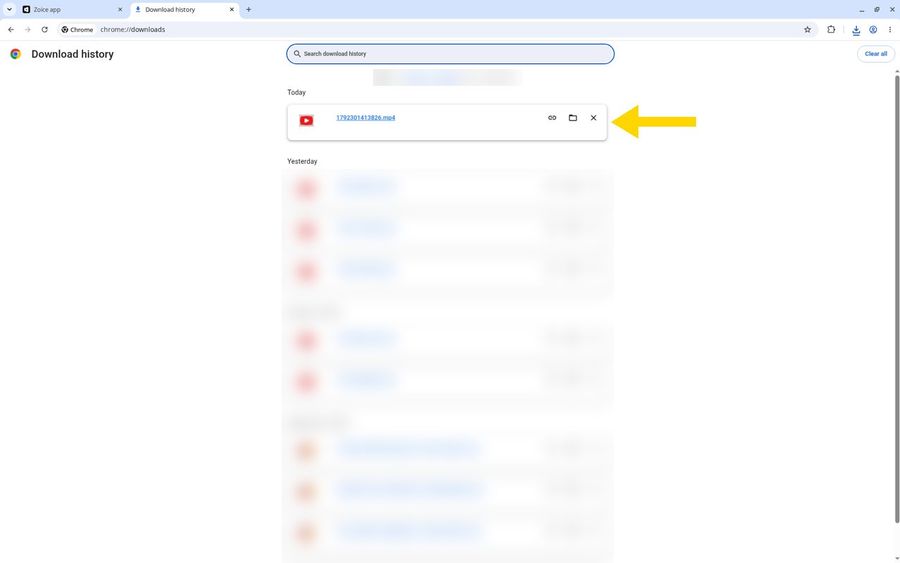
Your browser saves the video as an MP4 file. The saved MP4 appears in your browser's Downloads page, listed first under Today, so you can open it or show it in its folder. Then post it to TikTok, Instagram Reels, YouTube Shorts, or send it to friends and family. Only use pictures you own, and only use audio you have the rights to use.
Tips for a Natural Talking Picture
- Use a front facing picture with even light: it gives the cleanest lip sync
- Keep the face large in the frame, and avoid sunglasses and heavy shadows
- Write short sentences: they sound natural when spoken
- Preview the audio before you spend credits on the video
- Use 9:16 for TikTok, Reels, and Shorts
Ideas for Talking Pictures
Short, personal videos tend to work best. Here are ideas to start with:
- A birthday greeting from a portrait
- A short story told by a painted character
- A lesson intro for a class
- A welcome message for a website or channel
Want your picture to sing instead? Read how to make a photo sing with AI. Ready to make your first talking picture? Try Zoice.
FAQ
Can any picture be made to talk?
Most can. Clear, front facing pictures of a single face work best, whether the picture is a photo, an illustration, or a painting. Avoid heavy shadows, sunglasses, and group pictures.
Do I need to record my own voice?
No. Pick a voice from the library, upload your own audio, or use a voice you cloned. We used the Sarah voice with the Cartesia Sonic 3.6 model.
What format is the download?
An MP4 video file. You can post it to TikTok, Reels, or Shorts, or send it to friends and family.
Does it cost credits?
Yes. Creating the avatar and generating the video both use credits, and Zoice shows the credit cost before you generate.