How to Make an AI Prank Video: A Simple 2026 Guide
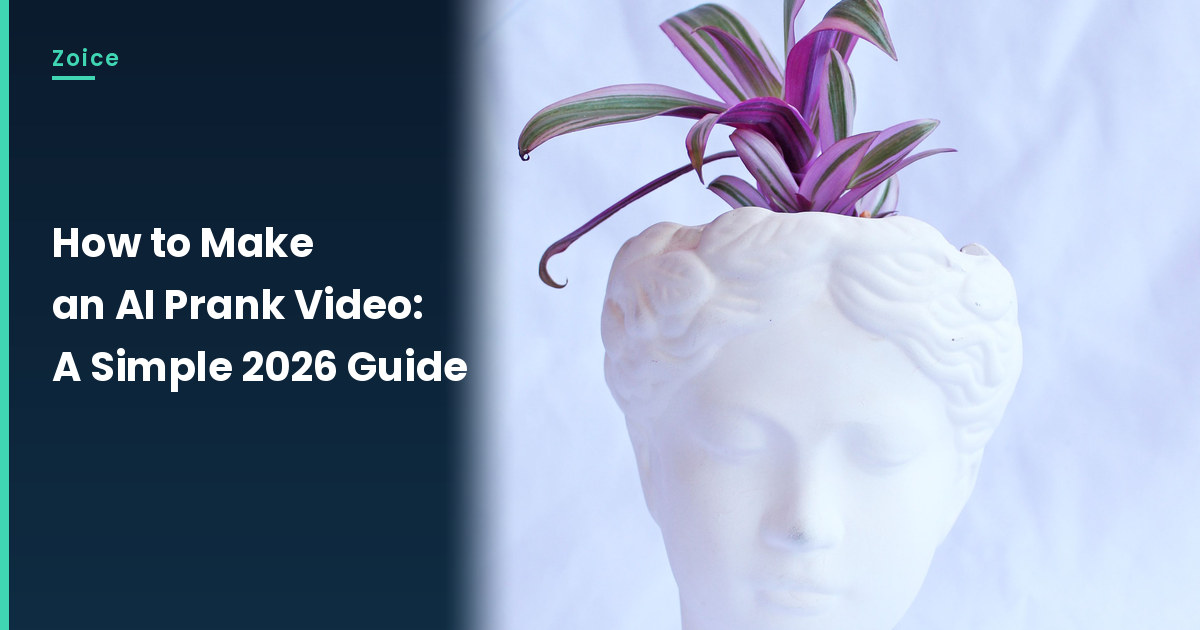
A clearly joking confession from an office plant is a fun prank clip, as long as nobody is led to think the bit is real. This is how to make an AI prank video in Zoice: upload a plant character with a sculpted or painted face and a visible mouth, use it as the Host, paste a short joke confession, pick a voice, and let lip sync follow the words. An optional action prompt can add a small move, such as tilts toward the camera with a sly look. Keep the tone obviously staged, and use a stock or fictional plant character you may show.
Below is how to make an AI prank video, one screen at a time. A related humor walkthrough is our AI avatar laugh tutorial.
Picking a Photo for Your AI Prank Video
Use a plant character or similar figure with a sculpted or painted face and a visible mouth. Keep the joke clearly staged so nobody is led to think the bit is real. Only use a stock or fictional plant character you may show.
- Choose a plant character with a sculpted or painted face and a visible mouth
- Keep the confession obviously staged and kind
- Write original joke lines; do not target a real person
- Test the face in Zoice, because sculpted faces can be harder to detect
How to Make an AI Prank Video in Zoice
Our Host is a stock photograph of a white ceramic head planter with a sculpted feminine face and a pink and green plant growing from the top, on a pale white fabric backdrop, with a visible mouth, used as the Host for this post and saved in the app.
If you also want a short vertical clip after the joke, our AI YouTube Shorts tutorial is a useful companion.
Step 1: Sign In to Zoice and Open Home
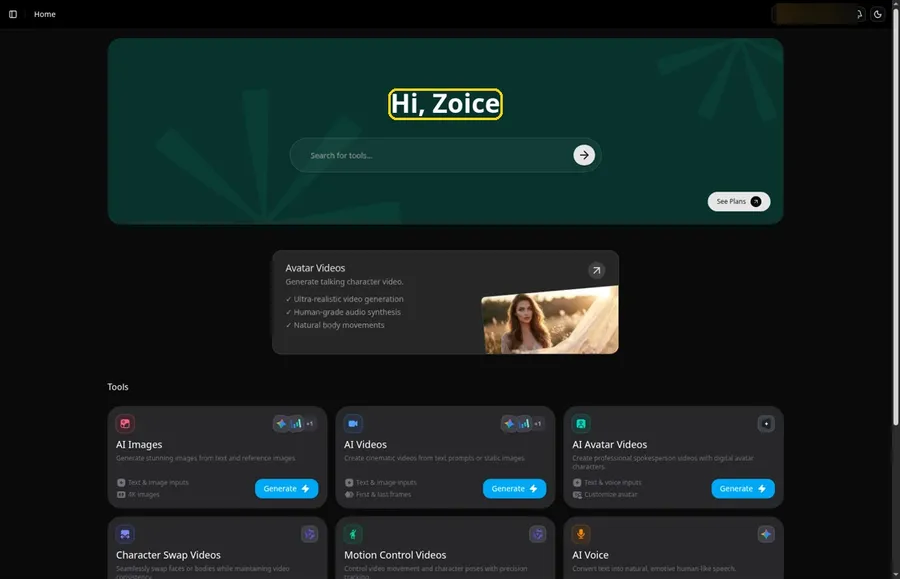
Begin at Zoice, click Sign In, and complete email or Google login so you can make the AI prank video.
Step 2: Open Avatar videos
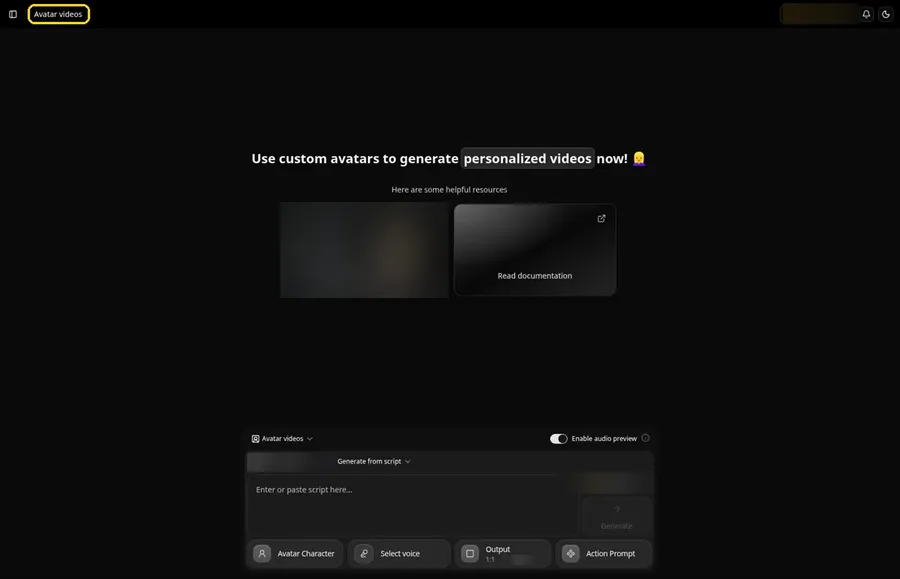
Sidebar first: open Avatar videos and confirm the empty composer is on screen for the AI prank video.
Step 3: Open Avatar Character and Create a New Avatar
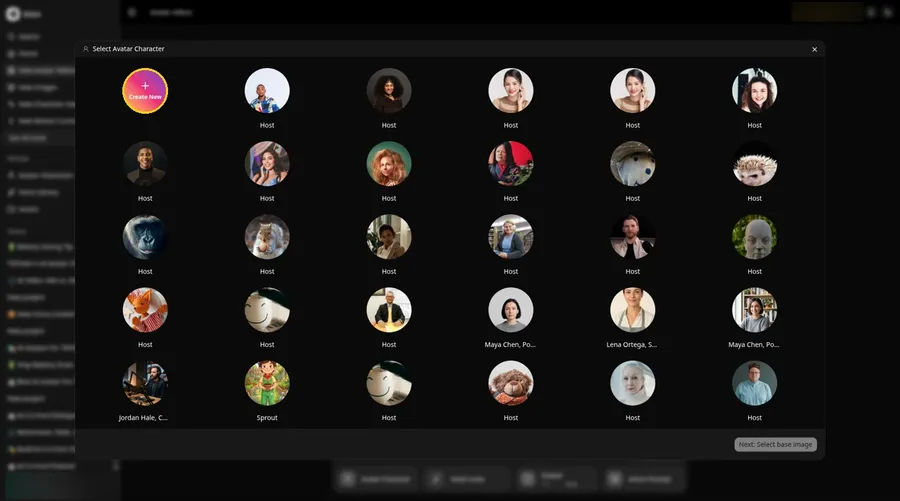
Start a new character for the AI prank video: Avatar Character, Create New, and a second Create New if the list opens, ending on Create new avatar.
Step 4: Choose Upload Image
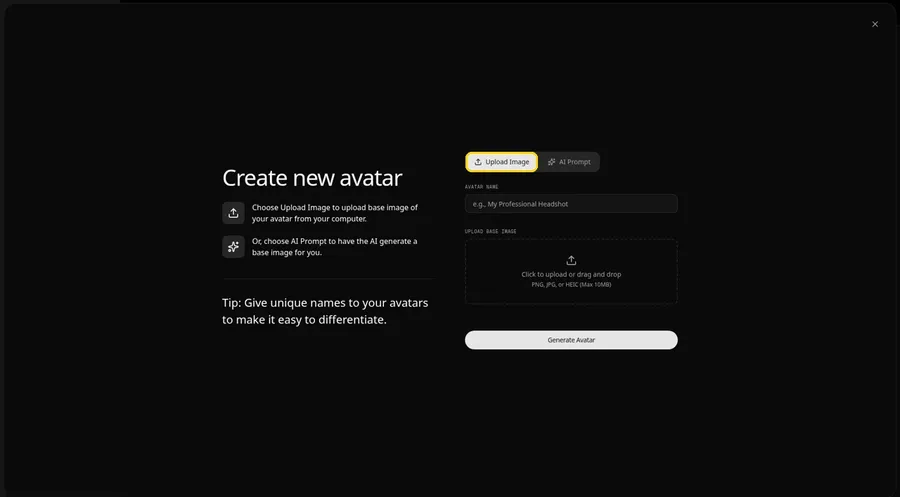
Keep Upload Image chosen under UPLOAD BASE IMAGE so the AI prank video can be uploaded next.
Step 5: Upload the Office Plant Image
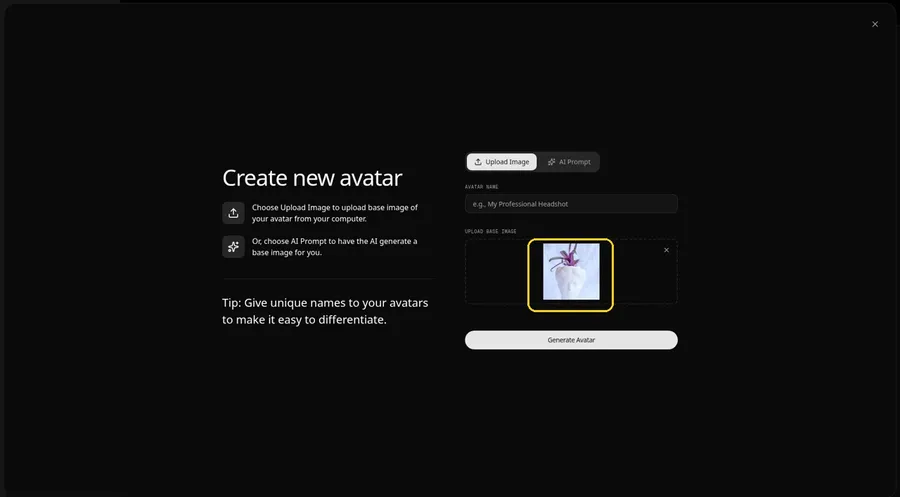
File-upload the AI prank video photo, then check that the preview matches a white ceramic head planter with a sculpted feminine face and a pink and green plant growing from the top, on a pale white fabric backdrop, with a visible mouth.
Step 6: Name Your Avatar Host and Click Generate Avatar
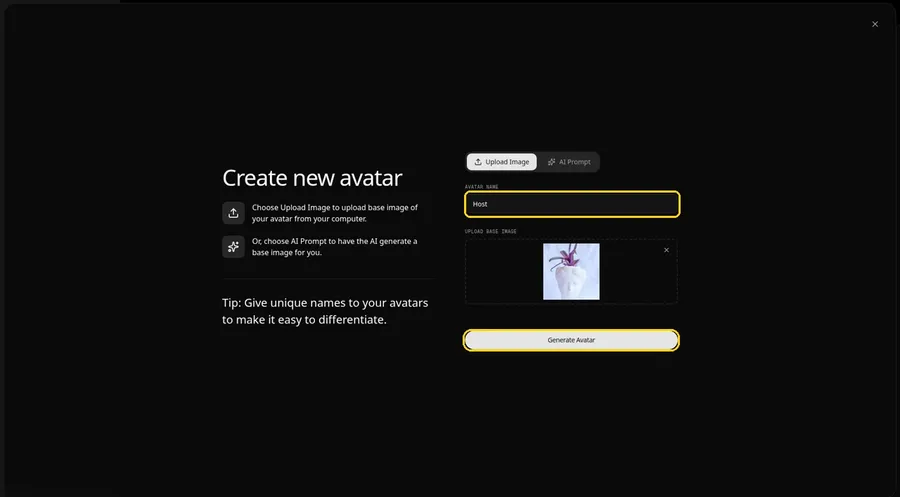
Complete AVATAR NAME with Host and click Generate Avatar to store this AI prank video.
Step 7: Open the Add Script Panel
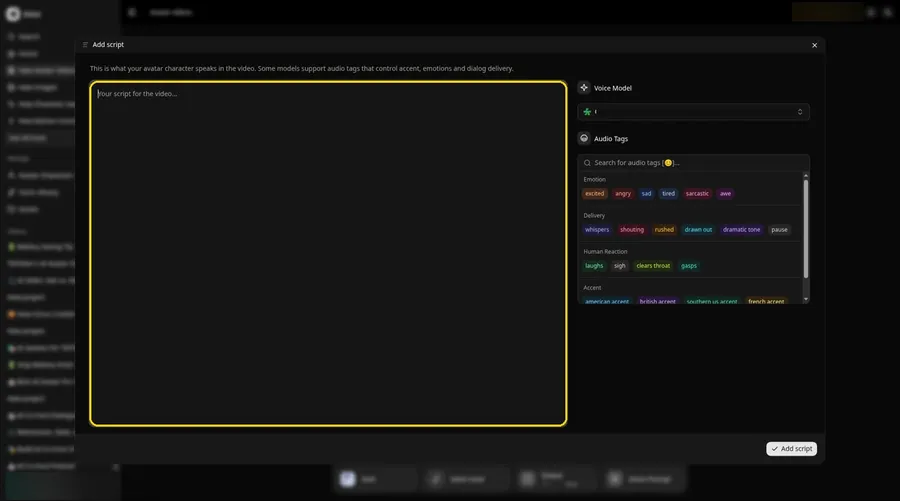
Reveal the Add script panel from the script box before you paste anything for the AI prank video.
Step 8: Choose the Voice Model
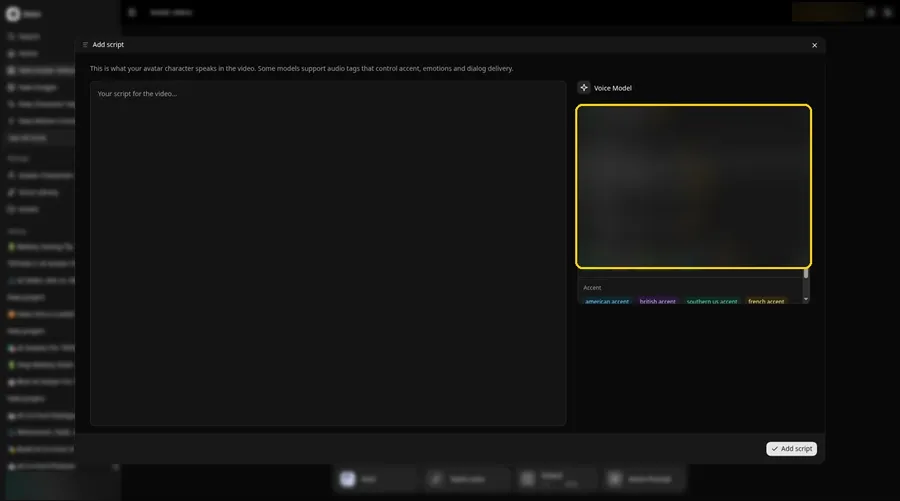
Choose your voice model from the Voice Model menu, then leave it set for the AI prank video.
Step 9: Paste Your Script and Click Add Script
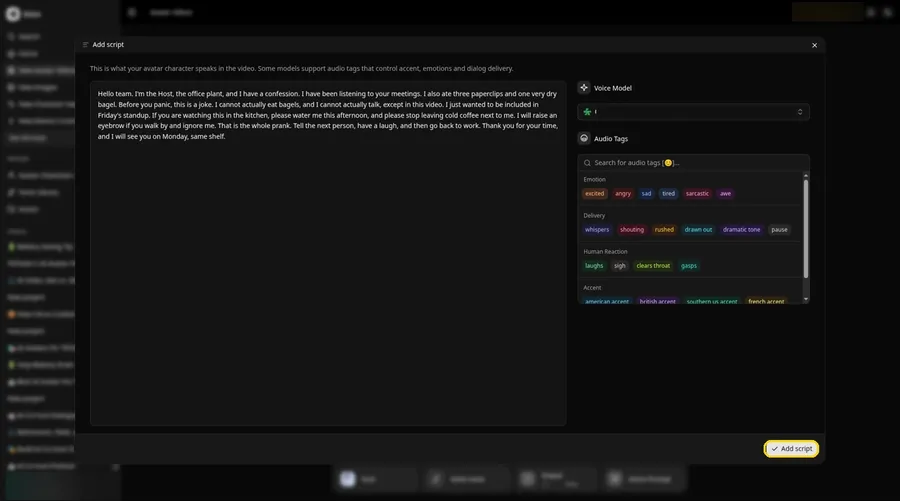
After pasting the AI prank video script, click Add script. Confirm it opens with: Hello team.
Step 10: Pick a Voice
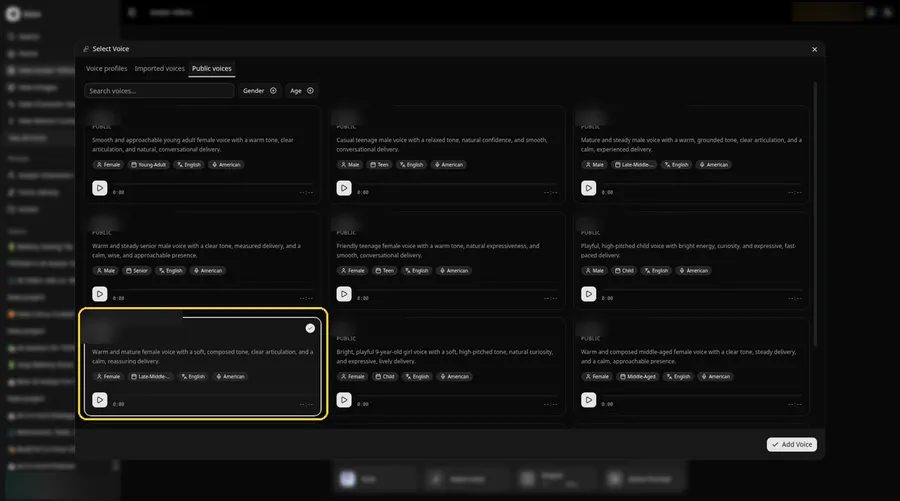
From Select Voice, stay on the Public voices tab, choose a sly and dry adult voice for the AI prank video, and click Add Voice.
Step 11: Choose your output settings
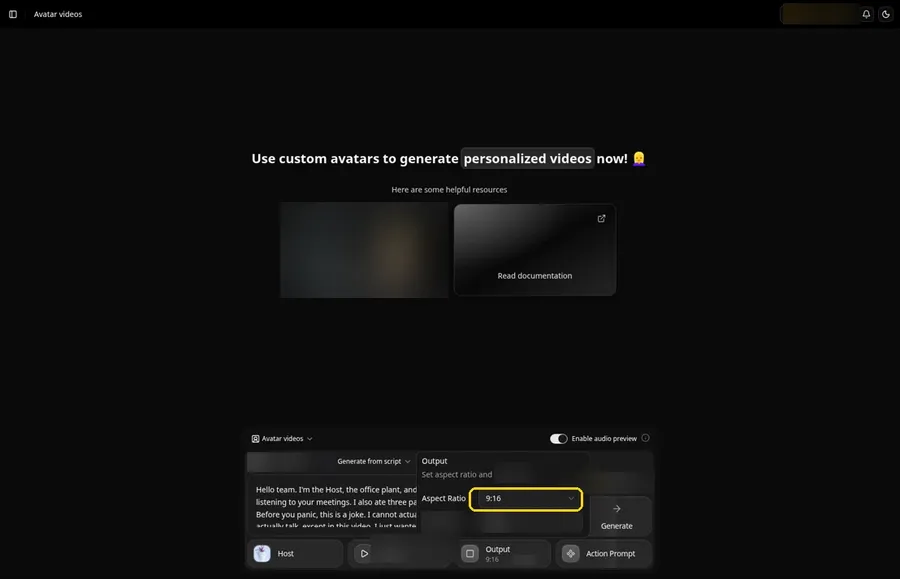
Choose your output settings. Leave 9:16 selected in the Output aspect ratio dropdown for the AI prank video.
Step 12: Add an Action Prompt
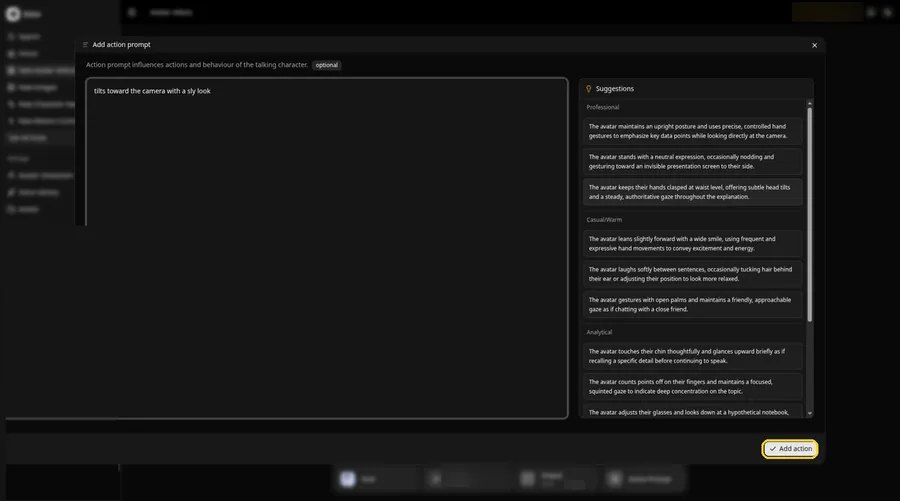
Open the Add action prompt panel for the AI prank video, enter tilts toward the camera with a sly look, and click Add action.
Step 13: Click Generate
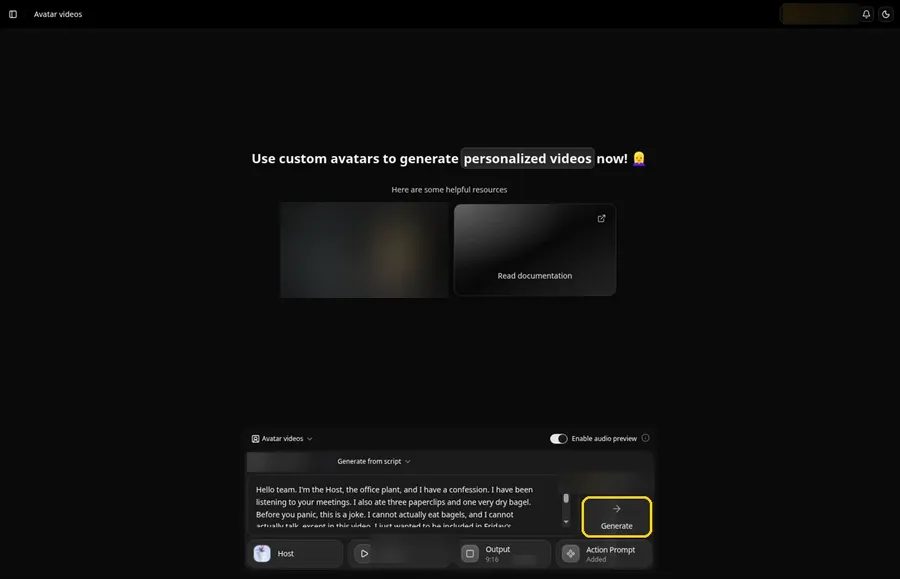
Once the AI prank video has the Host, the voice, the script, 9:16 and Added on the Action Prompt chip, click Generate.
Step 14: Confirm the Audio Preview
Play and confirm the audio preview for the AI prank video so Zoice can process the clip.
Step 15: Preview the Video in the Player
Play the AI prank video back in the player, then check lip sync and the action prompt move together.
Step 16: Download From the Player Menu
Pick Download under the player's three-dot menu to store the AI prank video.
Step 17: Share Your Video
Share the AI prank video clip where it is useful, as a Reel, Short, story or chat, with rights-cleared media only.
Writing the Action Prompt
Keep the AI prank video move tiny, like a slight tilt and a sly look, so the joke still feels like a clearly staged confession.
- tilts toward the camera with a sly look
Type tilts toward the camera with a sly look in step 12 and click Add action so the Action Prompt chip updates on the AI prank video.
Demo Idea: The Office Plant Confesses
A stock-photograph Host, of a white ceramic head planter with a sculpted feminine face and a pink and green plant growing from the top, on a pale white fabric backdrop, delivers a clearly joking confession, with a sly look from the action prompt. Here is the exact script:
"Hello team. I'm the Host, the office plant, and I have a confession. I have been listening to your meetings. I also ate three paperclips and one very dry bagel. Before you panic, this is a joke. I cannot actually eat bagels, and I cannot actually talk, except in this video. I just wanted to be included in Friday's standup. If you are watching this in the kitchen, please water me this afternoon, and please stop leaving cold coffee next to me. I will raise an eyebrow if you walk by and ignore me. That is the whole prank. Tell the next person, have a laugh, and then go back to work. Thank you for your time, and I will see you on Monday, same shelf."
Your AI prank video is waiting for its first lines. Try Zoice and give the AI prank video a voice.
Tips for Your AI Prank Video
- Use a fictional character or a prop with a face, not a real identifiable person, and only use a photo you may use.
- Make the joke obvious and kind, and reveal that it is a joke, so nobody thinks the clip is a real confession.
- A sly, dry voice fits a playful prank better than an angry one.
- Action prompt tip: use one small move, such as tilts toward the camera with a sly look, just before the punchline.
A looser vlog-style path sits beside this one in our AI vlog tutorial.
FAQ
Can I make a real coworker's photo say something as a prank?
Only with their okay, and only if you may use the photo. For this demo, use a fictional character, used as the Host, and keep the joke harmless.
Does the Host photo need a face?
Yes. Zoice needs a face with a visible mouth to lip sync, so pick a character that faces the camera.
What image formats can I upload?
PNG, JPG or HEIC files, as the Upload Image panel states.
Is the action prompt required?
No. Lip sync still follows your AI prank video script if you skip the action prompt; the prompt only adds the move.
Try Zoice
Read our AI cartoon videos tutorial, or Try Zoice and make the AI prank video today.