How to Make an AI Avatar Laugh: A Simple 2026 Guide

Nothing makes a video feel human like a good laugh. In Zoice you upload one photo as your Host, add a script with a punchline, and lip sync follows your words. The laugh comes from the action prompt: tell the Host to tilt back, laugh and smile, and it reacts on cue. This guide walks through each laughing presenter click up to Generate.
Below is how to make an AI avatar laugh, one screen at a time. Laughs are one of the clearest expressions an avatar can show, and our list of AI avatar generators with facial expressions covers why they matter.
Why a Laughing Avatar Works
A laugh makes the Host feel like a real person sharing a joke instead of reading lines. It works best for:
- Reaction clips on Reels and Shorts
- Light intros for a channel or class
- Birthday and greeting videos that end on a joke
- Bloopers-style outros
How to Make an AI Avatar Laugh in Zoice (Step-by-Step)
Our Host is an AI-made fictional presenter with a relaxed smile, created for this post.
Step 1: Visit Zoice and Sign In
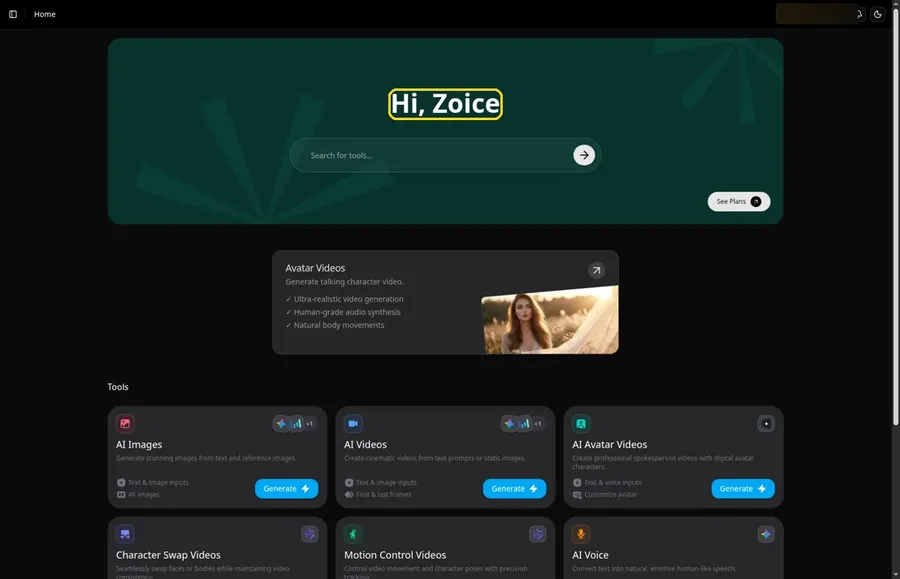
Click Sign In on Zoice and log in with your email or Google account to start the laughing presenter video.
Step 2: Open Avatar videos
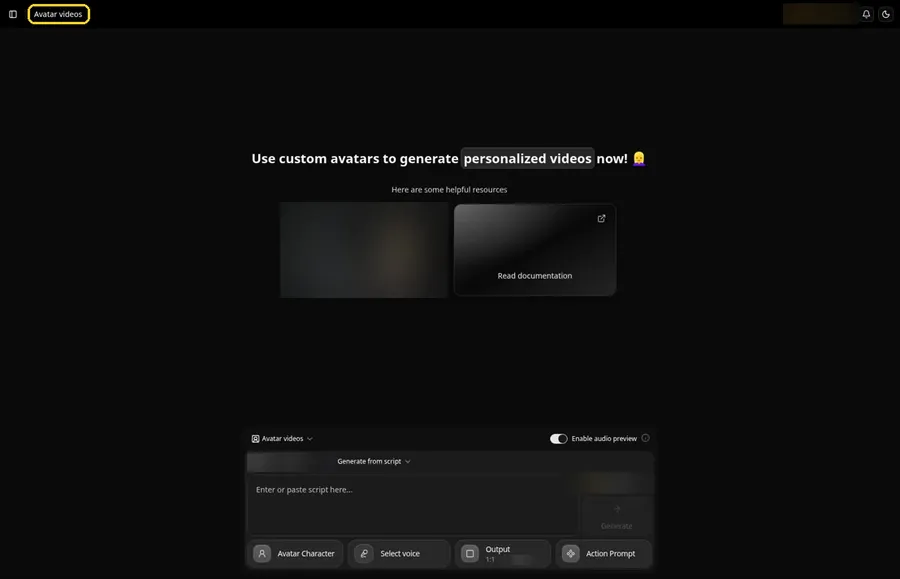
Pick Avatar videos from the sidebar. The screen that opens is titled Avatar videos, and the laughing presenter gets built in the composer at the bottom.
Step 3: Click Avatar Character, Then Create New
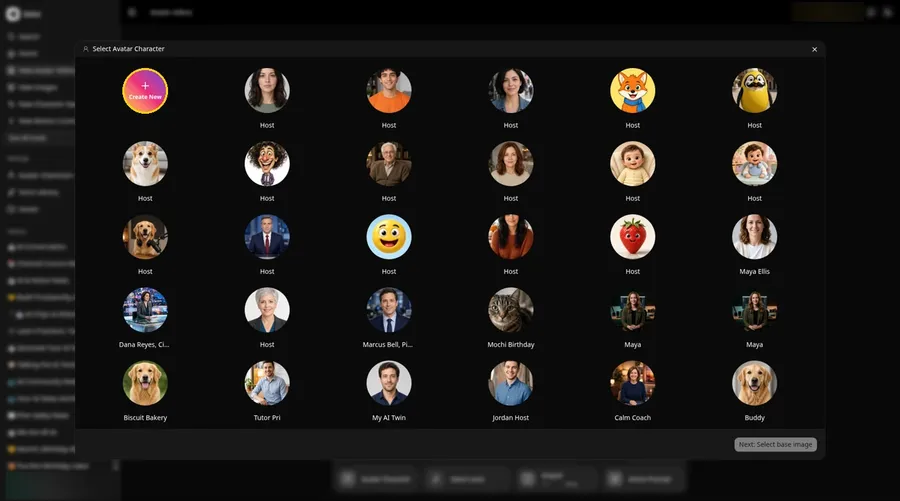
Bring up Select Avatar Character from the Avatar Character button, then use Create New for the laughing presenter. A second Create New on the Avatar Characters page opens the full-screen Create new avatar page for the laughing presenter.
Step 4: Choose Upload Image
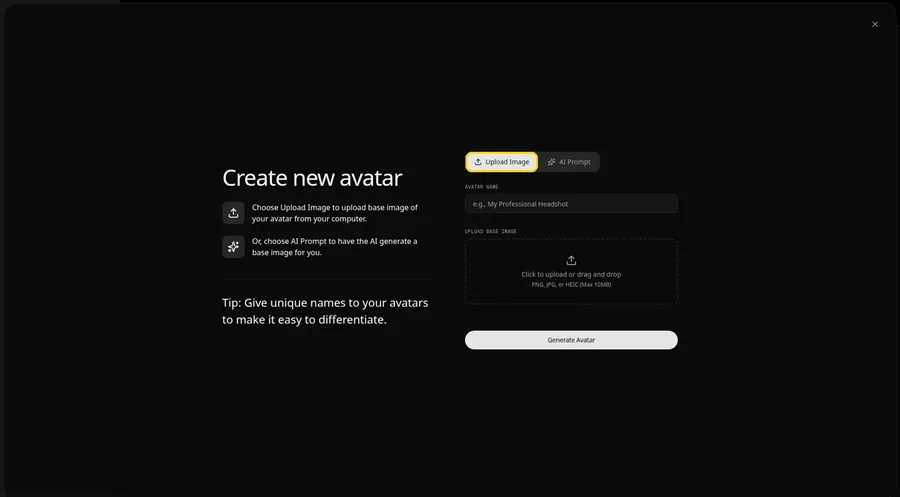
Choose the Upload Image tab under UPLOAD BASE IMAGE, because this laughing presenter starts from a still image. AI Prompt remains the other tab if the laughing presenter has no file to upload.
Step 5: Upload Your Presenter Photo
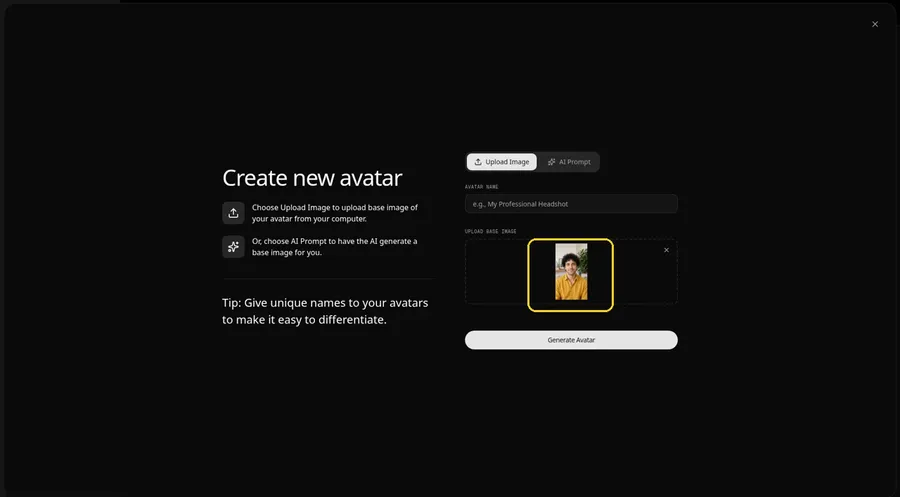
Choose a clear, front-facing presenter photo in the upload area and confirm the laughing presenter faces the camera in the preview.
Step 6: Name Your Avatar Host and Click Generate Avatar
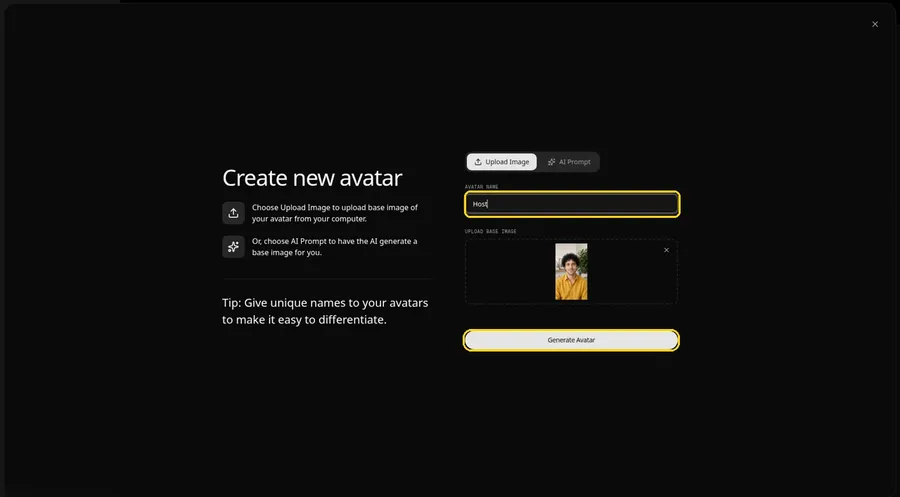
The AVATAR NAME field reads Host and the preview is in place. Click Generate Avatar to save the laughing presenter for this project and the next one.
Step 7: Open the Add Script Panel
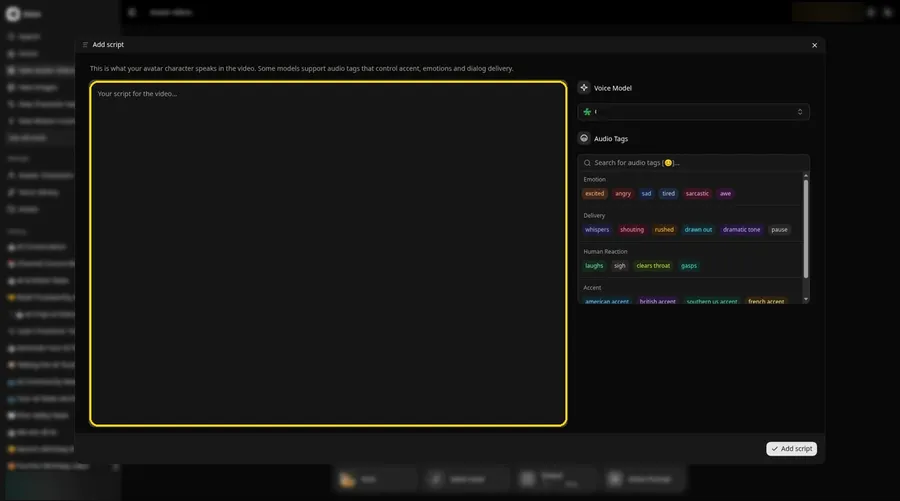
Select the script box, and the Add script panel for the laughing presenter slides open with the voice controls on the right.
Step 8: Choose the Voice Model
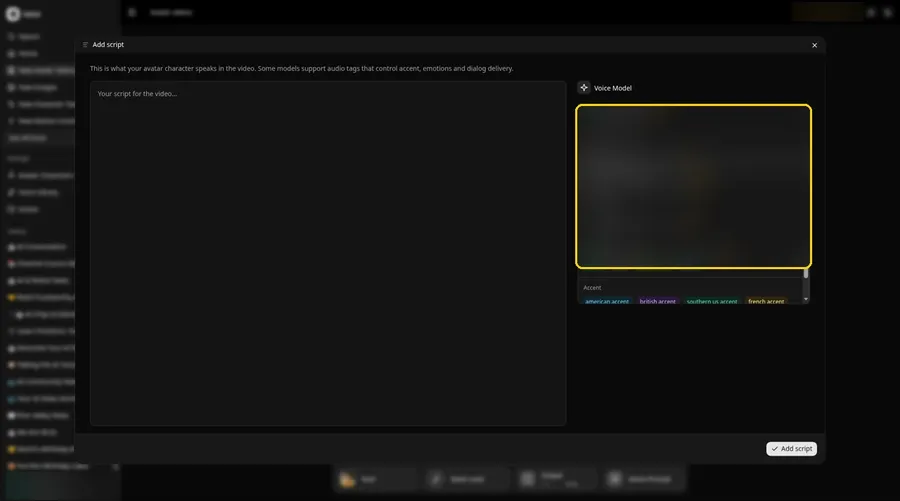
Choose the voice model from the Voice Model menu; it shapes how the laughing presenter sounds.
Step 9: Paste Your Script and Click Add Script
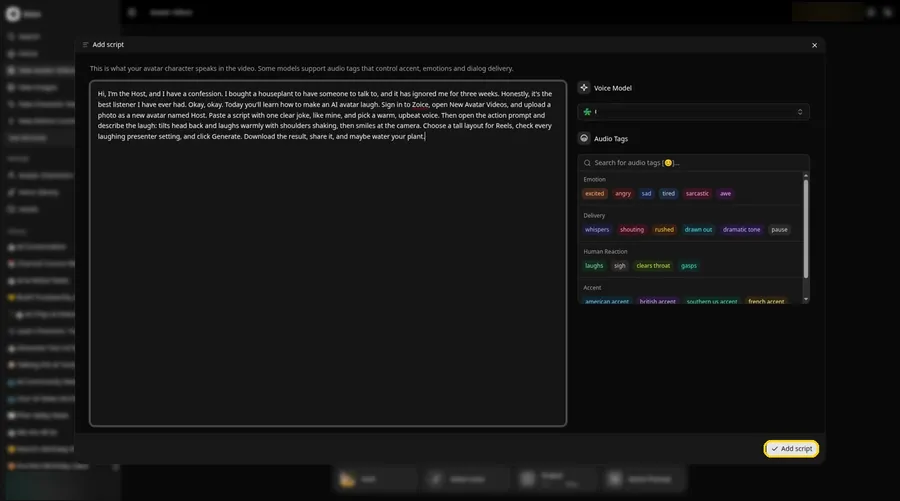
Paste the laughing presenter script, read it once more and click Add script. It opens with: Hi, I'm the Host, and I have a confession.
Step 10: Pick a Voice
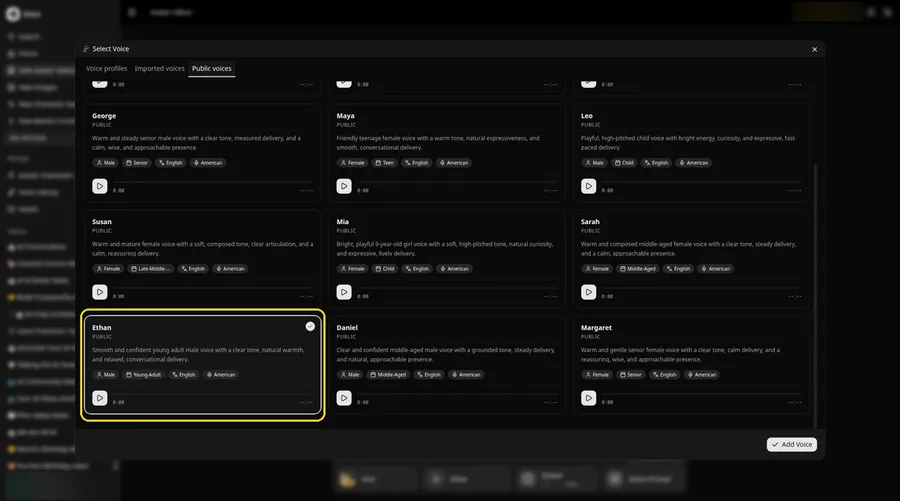
- In the composer, click the voice button so Select Voice opens for the laughing presenter.
- Choose a voice for the laughing presenter from the Public voices tab.
- Click Add Voice, and the laughing presenter now has that voice.
We chose a warm, conversational voice for the laughing presenter.
Step 11: Choose Your Output Settings
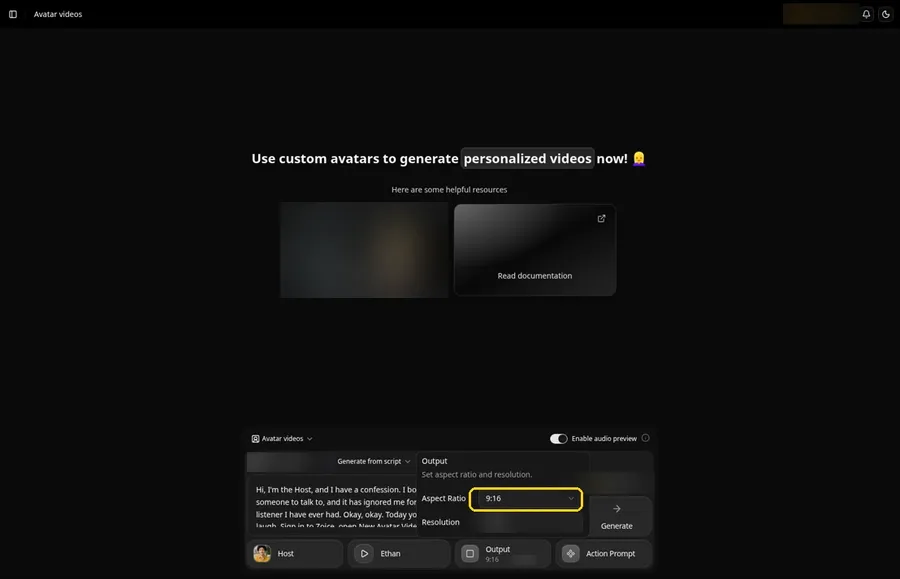
Choose your output settings. Pick 9:16 from the aspect ratio dropdown in Output so the laughing presenter is framed correctly.
Step 12: Add an Action Prompt
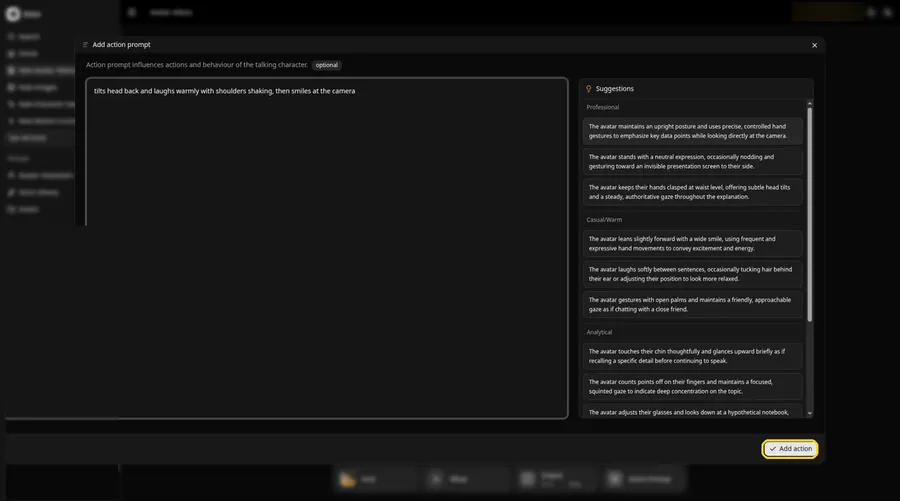
In the Add action prompt panel, enter: tilts head back and laughs warmly with shoulders shaking, then smiles at the camera. Press Add action and check that Added shows on the Action Prompt chip, since the laughing presenter only moves the way this prompt says.
Step 13: Click Generate
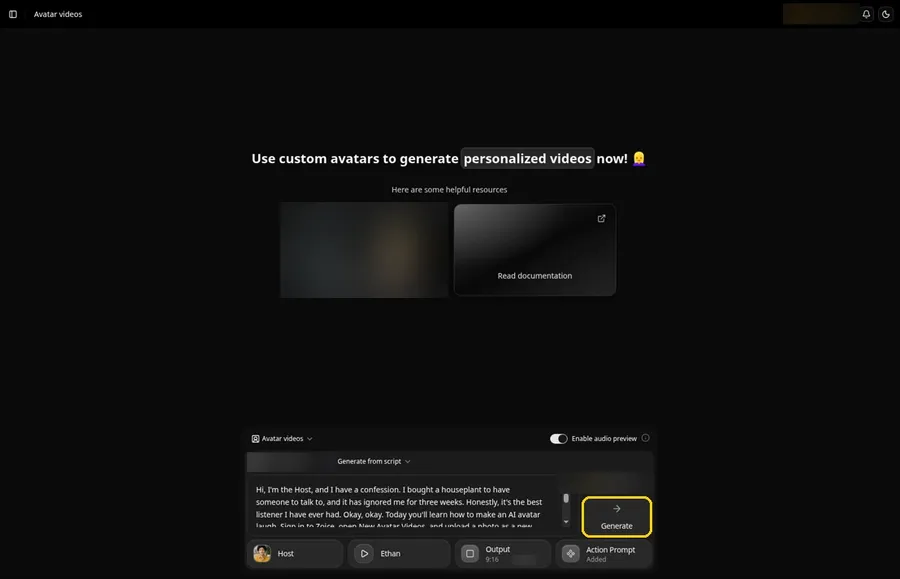
Look over every laughing presenter setting in the composer once more, then click Generate.
Step 14: Confirm the Audio Preview and Let Zoice Process
An audio preview of the laughing presenter lines plays first; if it sounds right, click Generate avatar video and let Zoice process it.
Step 15: Watch the Result
Watch the laughing presenter video once in the player to check the lip sync and the action prompt.
Step 16: Download From the Player Menu
Open the three-dot menu on the player and click Download to save the laughing presenter video.
Step 17: Share Your Laughing Avatar
Post it as a reaction clip on Reels or Shorts, or send it in a chat.
Writing a Laugh Action Prompt
Describe the laugh as a body movement, then add where the eyes should land when it ends.
- tilts head back and laughs warmly with shoulders shaking, then smiles at the camera
- covers a grin with one hand, then laughs and shakes its head
- leans forward laughing, then wipes an eye and smiles
Demo Idea: The Host Cracks Up
The Host tells a short joke about a houseplant that keeps ignoring its owner, then cracks up on cue thanks to the action prompt. Here is the exact script:
"Hi, I'm the Host, and I have a confession. I bought a houseplant to have someone to talk to, and it has ignored me for three weeks. Honestly, it's the best listener I have ever had. Okay, okay. Today you'll learn how to make an AI avatar laugh. Sign in to Zoice, open New Avatar Videos, and upload a photo as a new avatar named Host. Paste a script with one clear joke, like mine, and pick a warm, upbeat voice. Then open the action prompt and describe the laugh: tilts head back and laughs warmly with shoulders shaking, then smiles at the camera. Choose a tall layout for Reels, check every laughing presenter setting, and click Generate. Download the result, share it, and maybe water your plant."
Got a joke that always lands? Try Zoice and let the Host crack up.
Tips for a Natural Laugh
- Build the script around one clear punchline so the laugh has a reason.Leave a short pause line after the joke, such as Okay, okay, so the reaction has room.Use a photo where the Host already looks relaxed; a stiff headshot reads less warm.Action prompt tip: describe the laugh in body terms, such as tilts head back, shoulders shake, then smiles at the camera.Keep the voice warm and friendly so the tone matches the reaction.
- Leave a short pause line after the joke, such as Okay, okay, so the reaction has room.
- Use a photo where the Host already looks relaxed; a stiff headshot reads less warm.
- Action prompt tip: describe the laugh in body terms, such as tilts head back, shoulders shake, then smiles at the camera.
- Keep the voice warm and upbeat so the tone matches the reaction.
Want more speaking avatars? Browse our AI talking avatar generator roundup.
FAQ
How do I make my avatar laugh?
Type the laugh as an action prompt, such as tilts head back and laughs warmly, then click Add action.
Will the voice laugh out loud?
The voice reads your script. The laugh you see comes from the action prompt, so write the joke into the script and let the action carry the reaction.
Can I combine a laugh with other moves?
Yes. Add a second move in the same prompt, such as then smiles and points at the camera.
Which photo works best?
A front-facing photo with the face clear and a relaxed expression.
Try Zoice
The punchline is waiting. Build a full comedy cast with our guide on how to create a talking character, or Try Zoice and make your avatar laugh.