How to Make AI Cartoon Videos: A Simple 2026 Guide
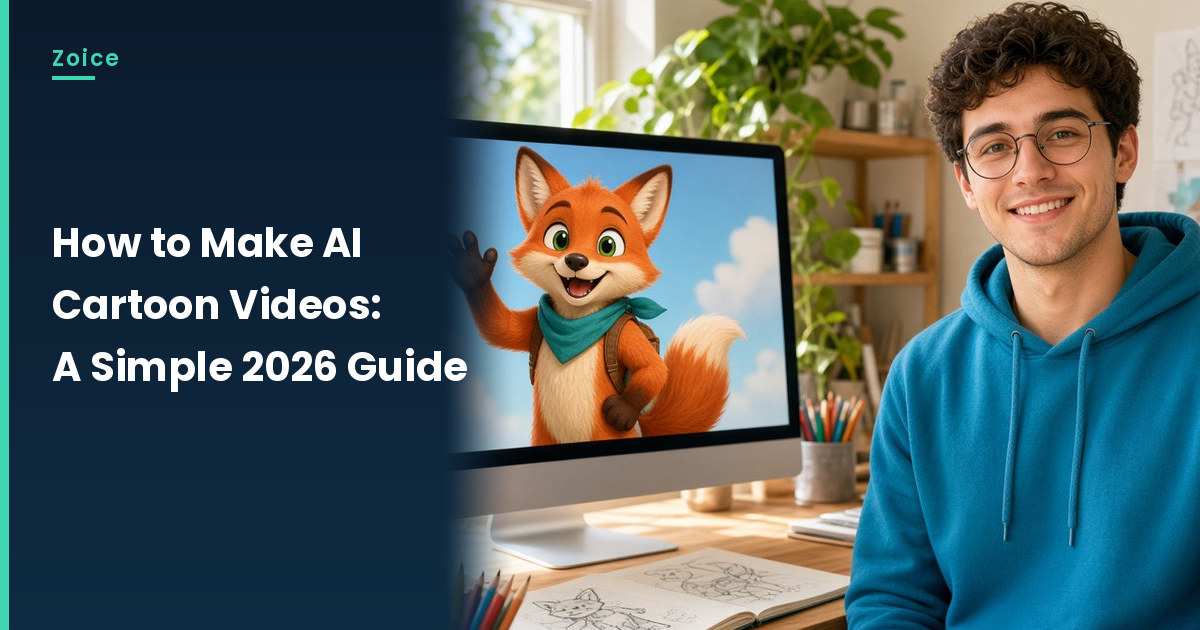
A cartoon video needs a character who can talk and, when you ask for it, act. In Zoice you upload a cartoon image as your Host, write the scene, and use the action prompt to direct shrugs, nods and waves.
You do not need to draw the character yourself; one made with an image tool works if you have the rights to it. Compare styles in our list of AI talking cartoon generators.
Getting a Cartoon Character Ready
- A face drawn straight on with a clear mouth line
- Bold outlines and flat colors that separate the face from the background
- An upper-body pose that leaves room for gestures
- A name and a personality before you write a word
How to Make AI Cartoon Videos in Zoice (Step by Step)
The steps line up with the Zoice screens. Our character is an original cartoon fox wearing a blue scarf.
Step 1: Sign In
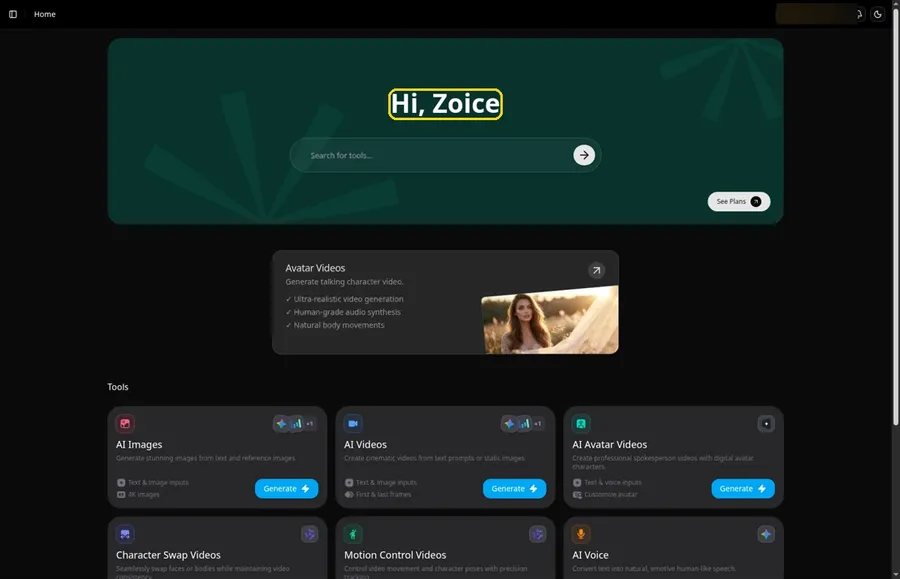
Sign in on Zoice, and you start on Home.
Step 2: Open Avatar videos
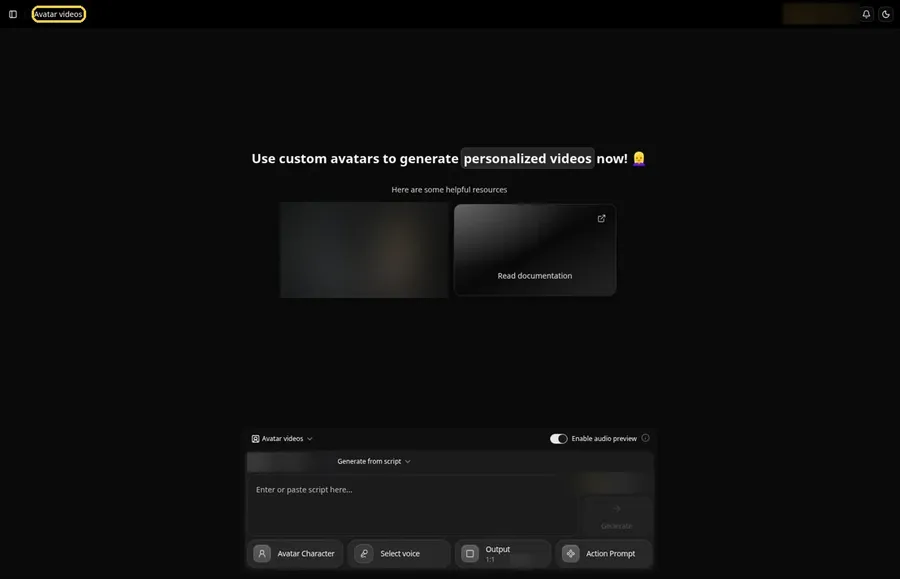
Find Avatar videos in the sidebar and click it.
Step 3: Create a New Avatar Character
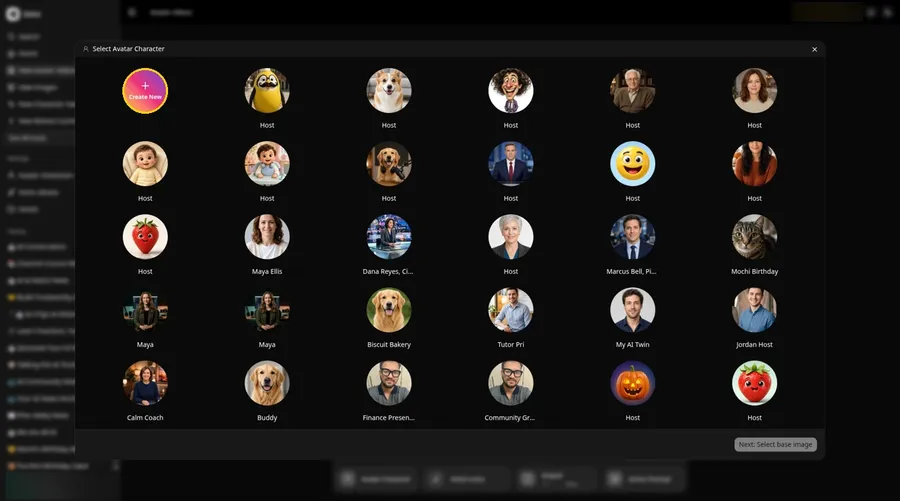
Open Avatar Character, and the Select Avatar Character window appears for the cartoon character. Create New there leads to the Avatar Characters page, where a second Create New opens the full-screen Create new avatar page for the cartoon character.
Step 4: Use Upload Image
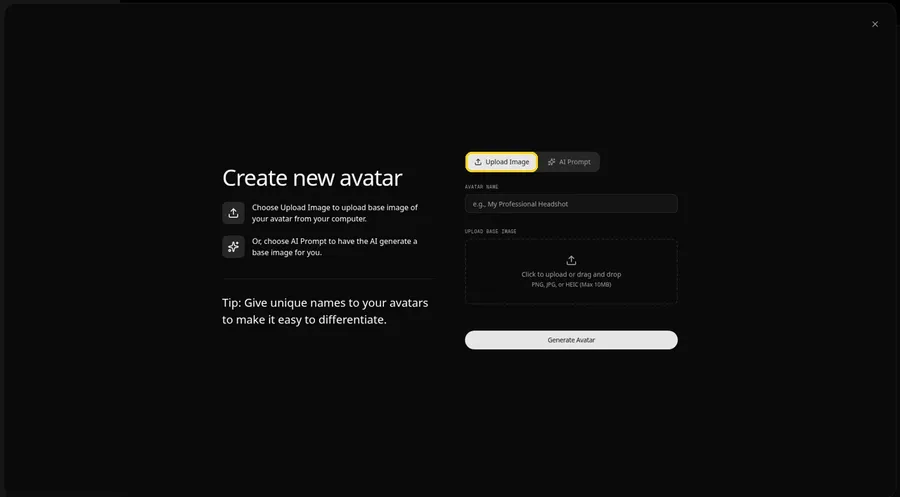
Leave the Upload Image tab on under UPLOAD BASE IMAGE, since the cartoon character comes from an image file. You can switch to the AI Prompt tab later if the cartoon character needs a written description instead.
Step 5: Upload the Cartoon
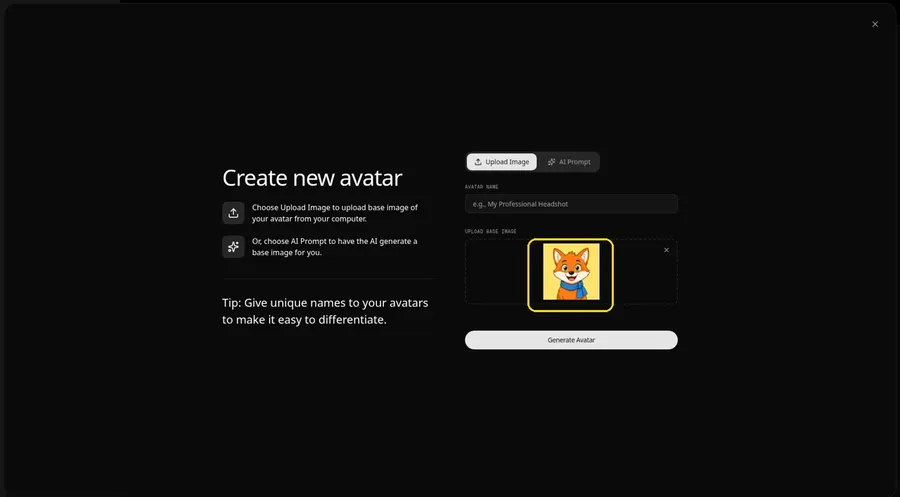
Add the cartoon and look at the preview; the mouth line should be clear.
Step 6: Name the Cartoon Host
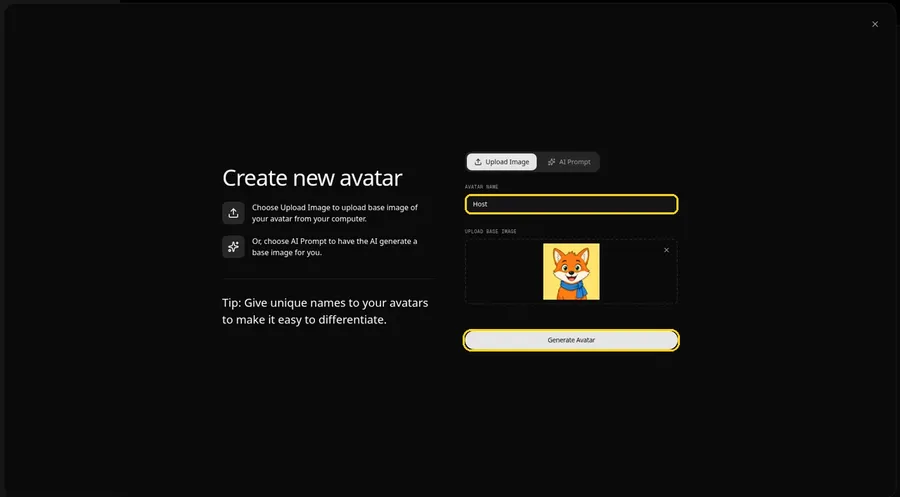
Enter Host under AVATAR NAME and press Generate Avatar; the cartoon character is now saved in your avatar list.
Step 7: Open the Script Panel
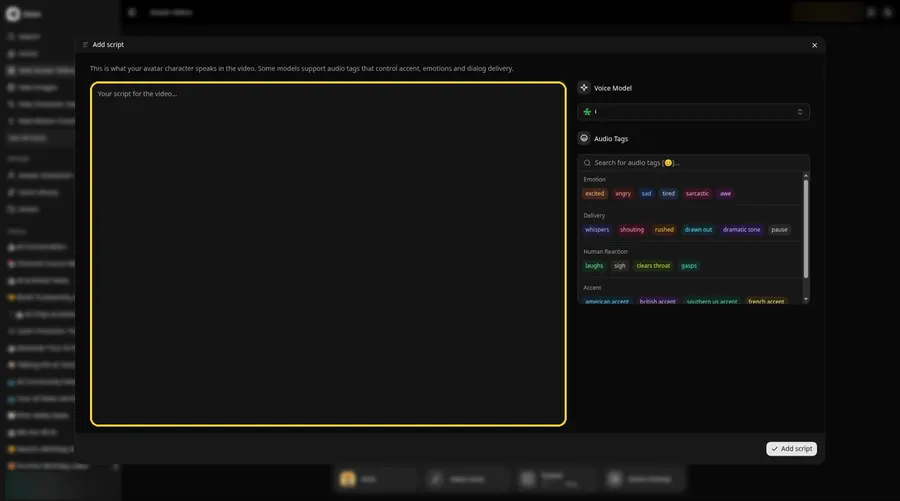
Select the script box, and Add script opens beside it.
Step 8: Pick the Voice Model
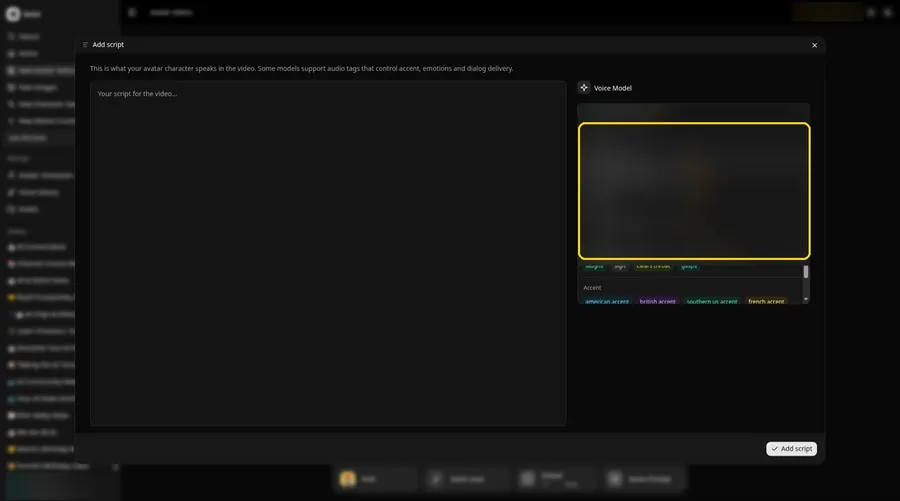
Use the Voice Model menu to choose a model.
Step 9: Write the Scene
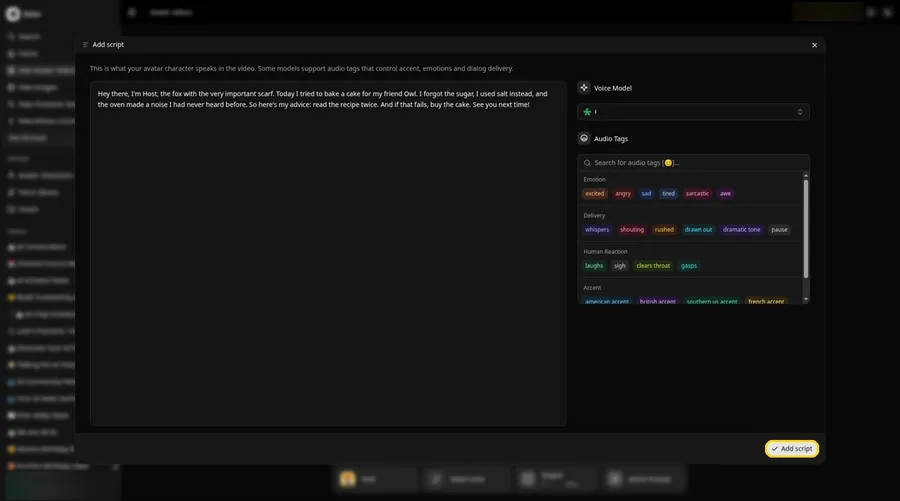
Paste the scene and press Add script. Ours starts: Hey there, I'm Host, the fox with the very important scarf.
Step 10: Pick a Character Voice
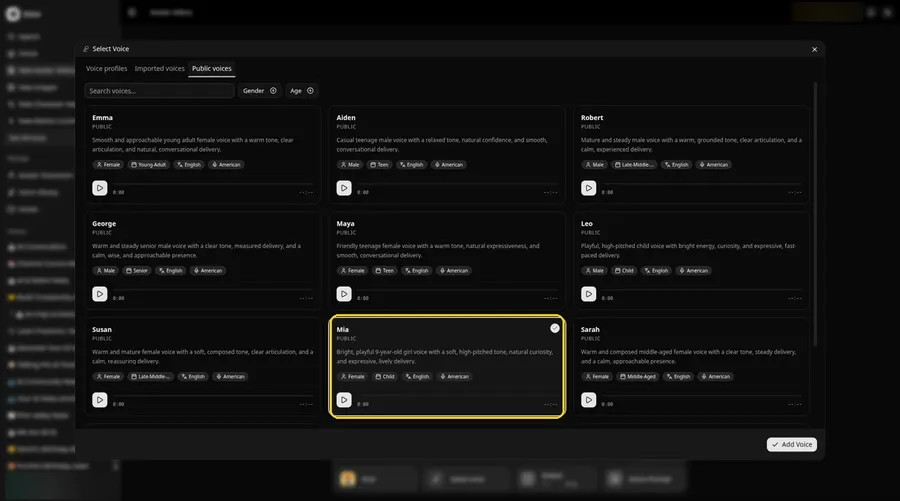
- Open Select Voice for the cartoon character by clicking the voice button in the composer.
- On the Public voices tab, pick the voice the cartoon character should use.
- Attach it to the cartoon character by clicking Add Voice.
A bright, playful voice suits the cartoon character.
Step 11: Choose Your Output Settings
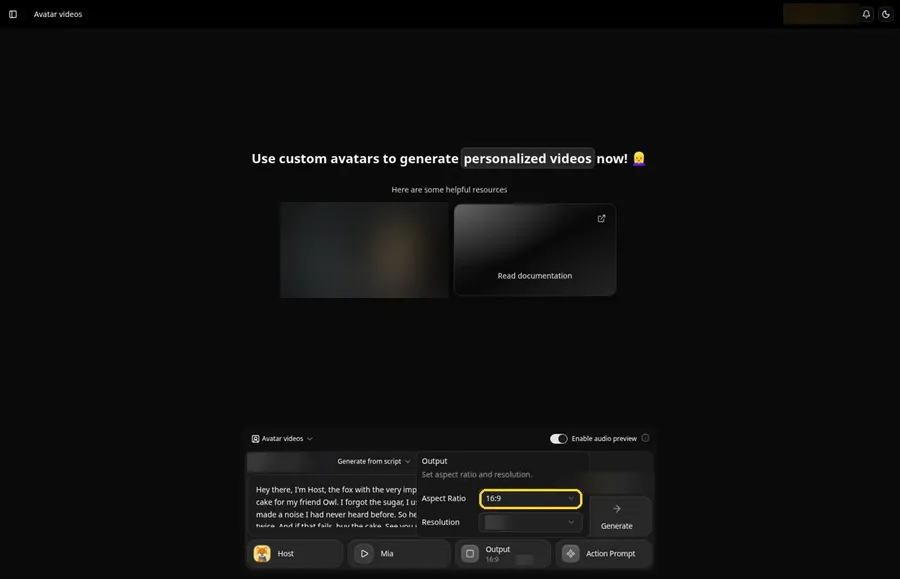
Choose your output settings. Pick 16:9 from the aspect ratio dropdown in Output so the cartoon character is framed correctly.
Step 12: Add an Action Prompt
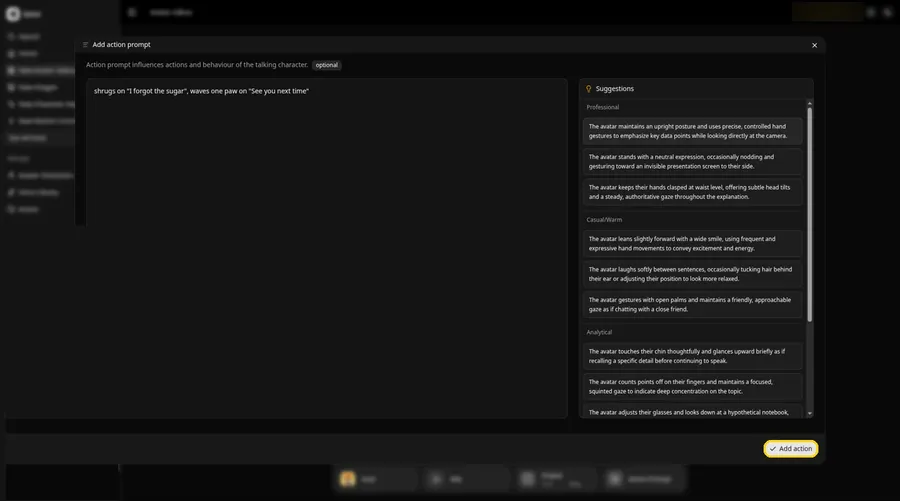
Click Action Prompt. In the Add action prompt panel, type: shrugs on "I forgot the sugar", waves one paw on "See you next time". Click Add action. Added then shows on the Action Prompt chip in the composer.
Step 13: Click Generate
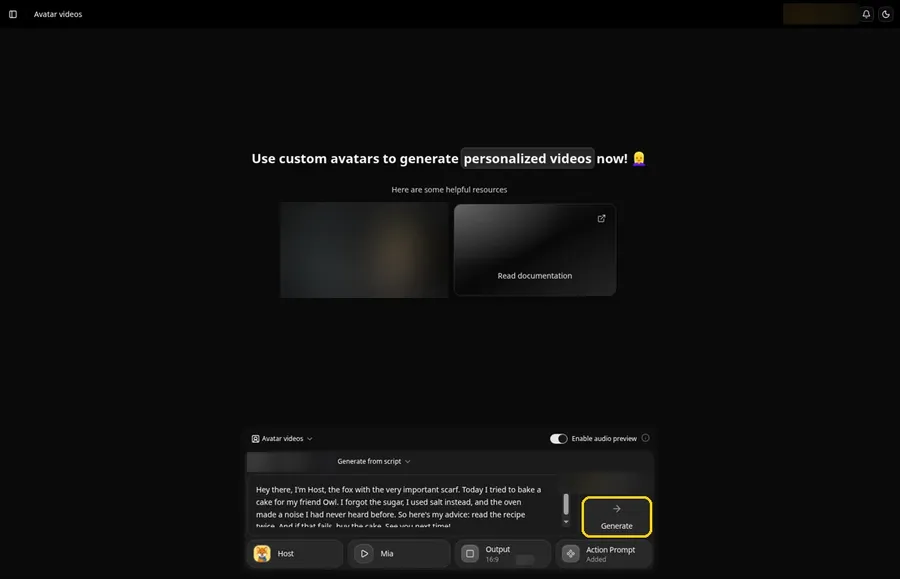
Check the fox, scene, voice, output and action prompt, then click Generate.
Step 14: Confirm the Preview
Hear the audio preview and confirm with Generate avatar video.
Step 15: Watch the Episode
Play the episode in the player and follow along with your scene.
Step 16: Download It
Use Download in the player menu.
Step 17: Publish the Cartoon
Upload it with a title that names your character, so viewers can find the next episode.
Writing Action Prompts for Cartoons
- Name the action and the line it belongs to
- Pick big, readable moves like a shrug or a wave
- Use one or two moves per clip so each one stands out
Tips for AI Cartoon Videos
- Test one image first if your style is unusual
- Give the character a recurring catchphrase
- Write short scenes with one joke each
- Keep the same voice across episodes
- Plan a second character for future dialogues
Building a mascot instead? See our AI talking mascot generators.
Demo Idea: The Fox Bakes a Cake
Our cartoon fox read this scene:
"Hey there, I'm Host, the fox with the very important scarf. Today I tried to bake a cake for my friend Owl. I forgot the sugar, I used salt instead, and the oven made a noise I had never heard before. So here's my advice: read the recipe twice. And if that fails, buy the cake. See you next time!"
Write your own character's first episode. Try Zoice and bring it to life.
FAQ
What cartoon styles work?
Clear cartoon faces with a visible mouth. Test one image first if the style is unusual.
Do I need to draw the character?
No. You can generate one with an image tool, then upload it.
Which voice suits the cartoon?
Browse the Public voices tab for a cartoon voice with character, then click Add Voice.
Can I reuse the cartoon in a series?
Yes. After Generate Avatar the Host is saved to Avatar Characters.
Try Zoice
A cartoon, a scene and an action prompt are all you need. Try Zoice and start episode one.