How to Make an AI Vlog: Easy Step by Step Guide for 2026
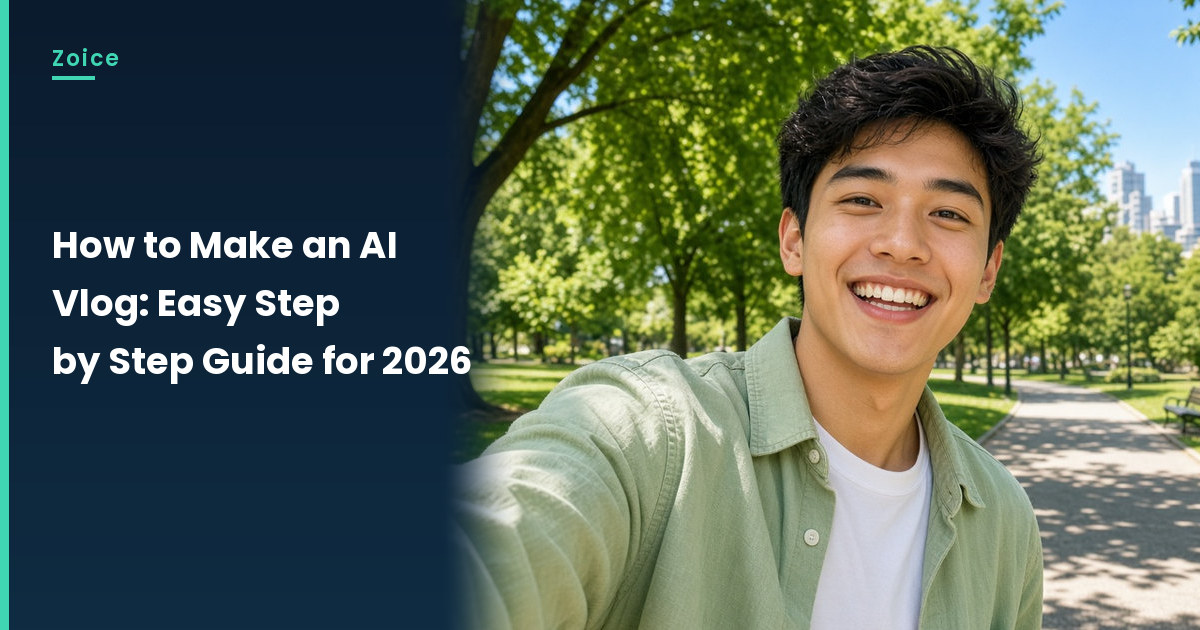
An AI vlog is a daily or weekly video from a host who never has to film. In Zoice you upload a vlogger image as your Host, write the day's script, and the action prompt adds the wave or the look around that vlogs are known for.
It is a strong fit for a faceless channel. If you are starting one, read how to start a faceless YouTube channel with AI.
Planning a Vlog Episode
- A greeting viewers learn to expect
- Where the Host is today and why it matters
- Two or three things on today's list
- A promise about tomorrow's video
How to Make an AI Vlog in Zoice (Step by Step)
These steps follow the screens in Zoice. Our vlogger is a fictional character outside a corner cafe.
Step 1: Sign In to Zoice
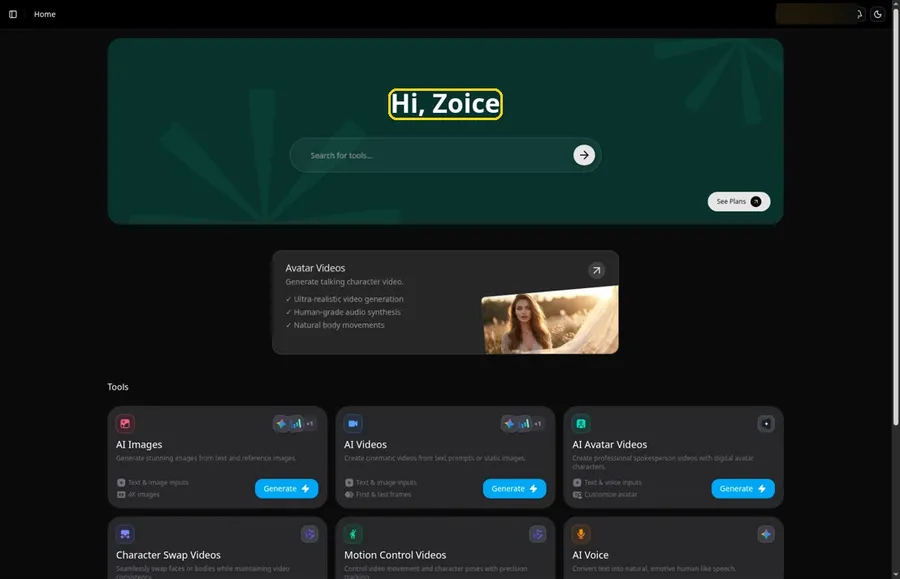
Log in with Sign In on Zoice; Home appears.
Step 2: Open Avatar videos
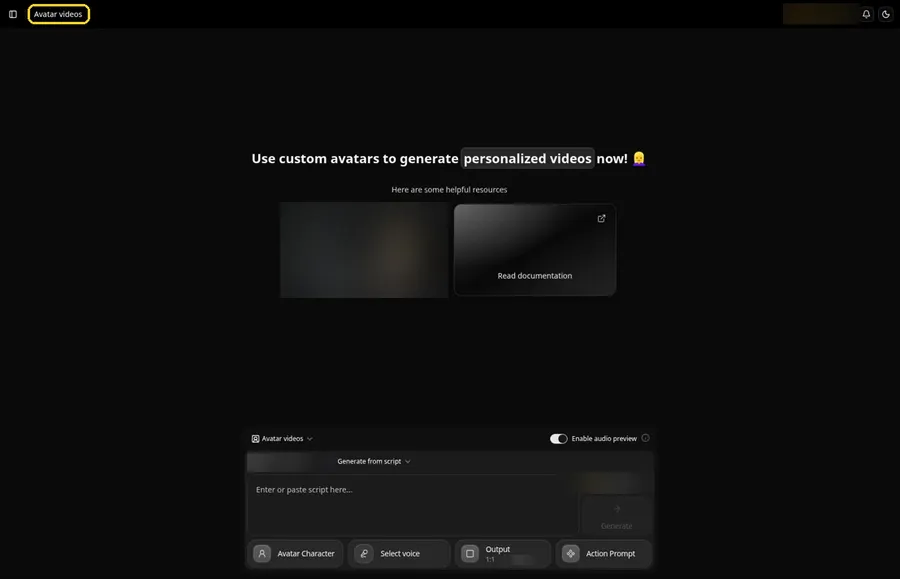
In the sidebar, click into Avatar videos.
Step 3: Add a New Avatar Character
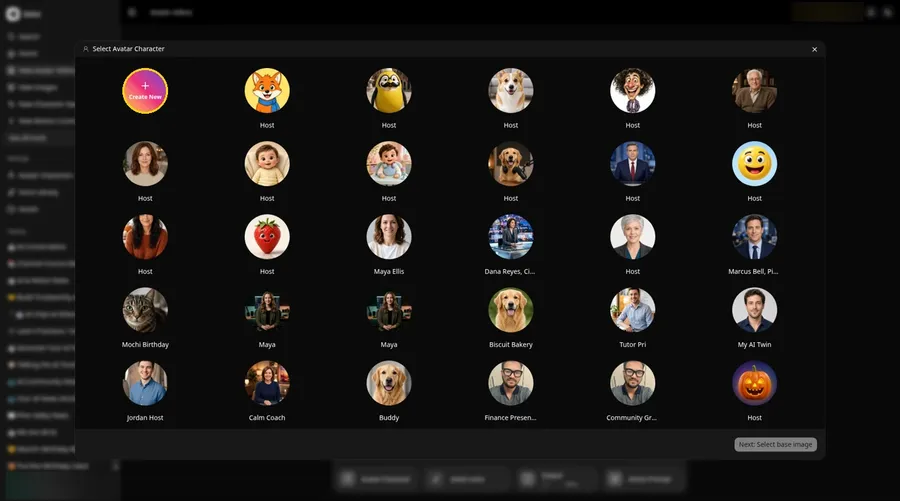
For the AI vlogger, press Avatar Character, choose Create New in Select Avatar Character, then press Create New on the Avatar Characters page to reach the full-screen Create new avatar page.
Step 4: Choose Upload Image
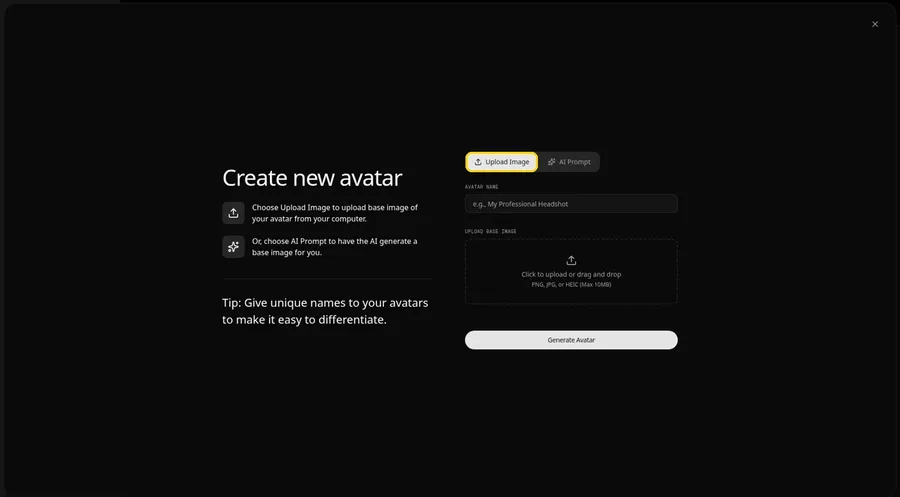
Keep Upload Image selected under UPLOAD BASE IMAGE so the AI vlogger photo can be added. The AI Prompt tab sits beside it if you ever want to describe the AI vlogger instead of uploading.
Step 5: Upload the Vlogger Image
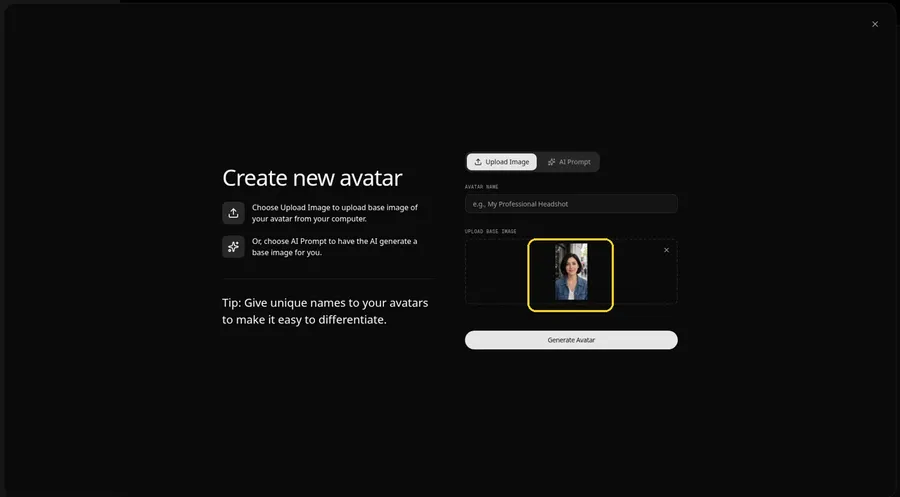
Upload a made-up vlogger character and check the face in the preview.
Step 6: Save the Vlogger as Host
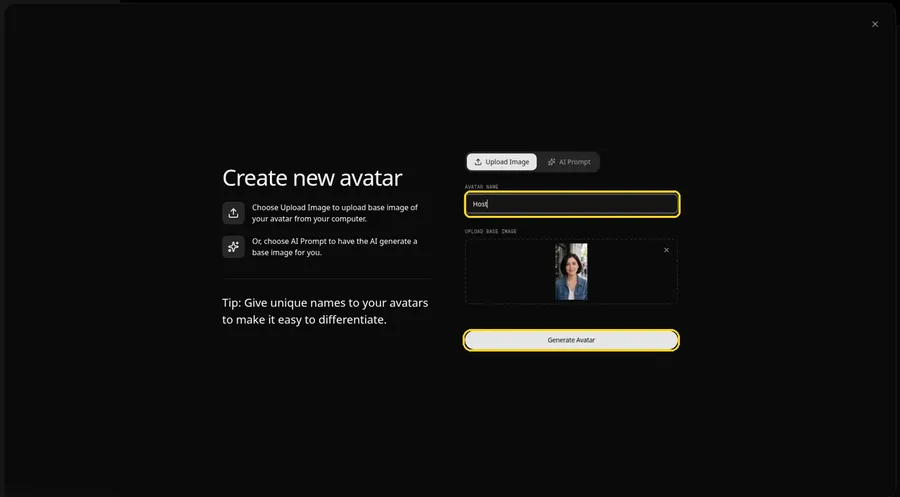
The AVATAR NAME field reads Host and the preview is in place. Click Generate Avatar to save the AI vlogger for this project and the next one.
Step 7: Open the Script Panel
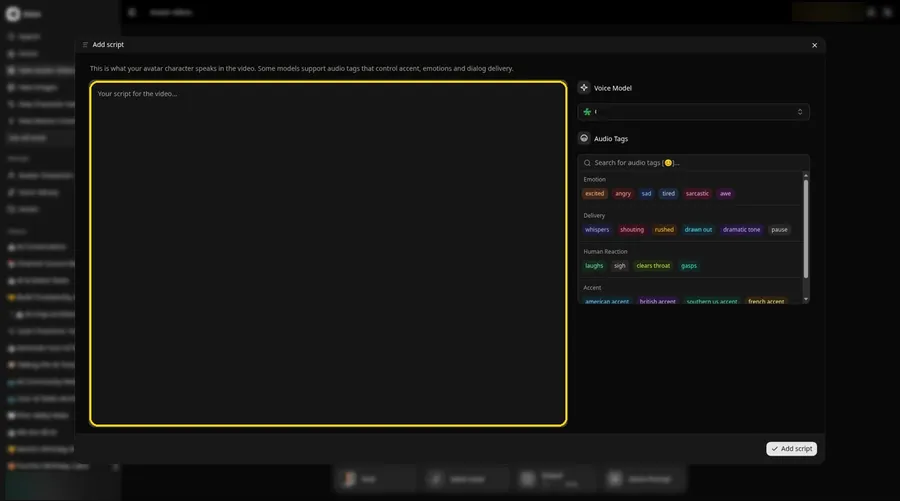
Click the empty script box to open Add script.
Step 8: Choose the Voice Model
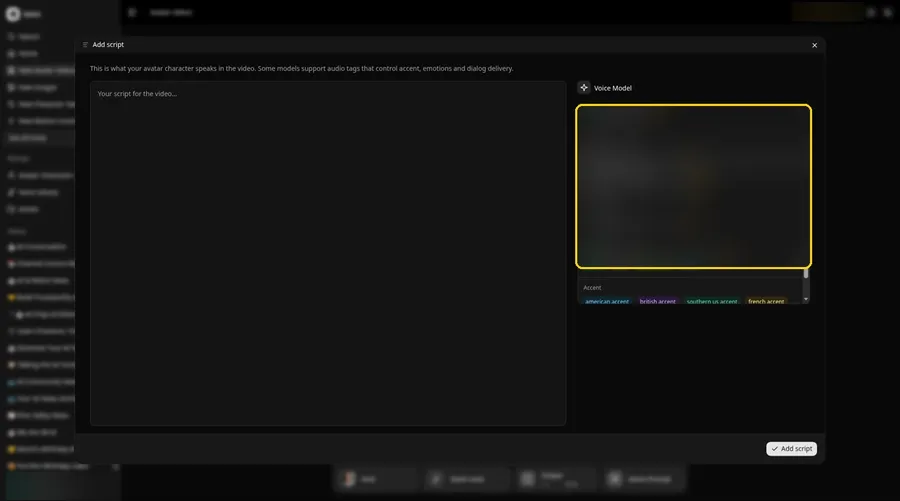
Select a model in the Voice Model menu.
Step 9: Paste Today's Vlog
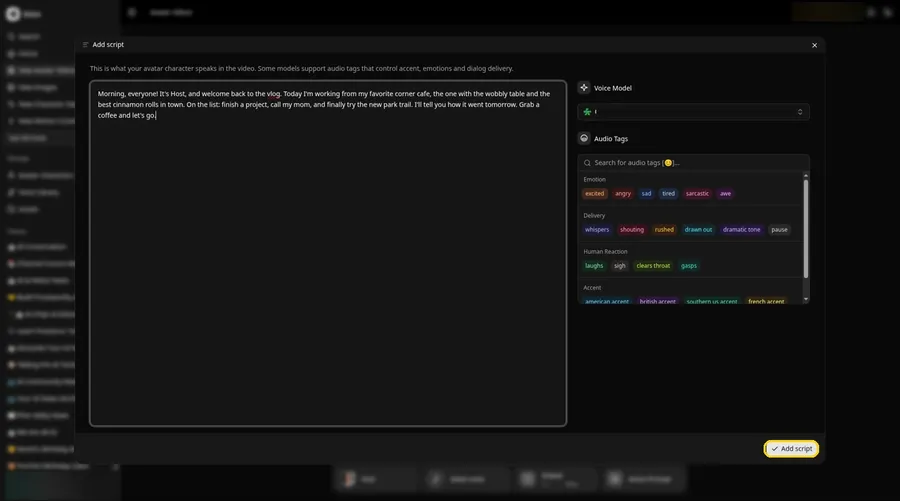
Paste the vlog script, then hit Add script. Ours opens: Morning, everyone!
Step 10: Pick a Conversational Voice
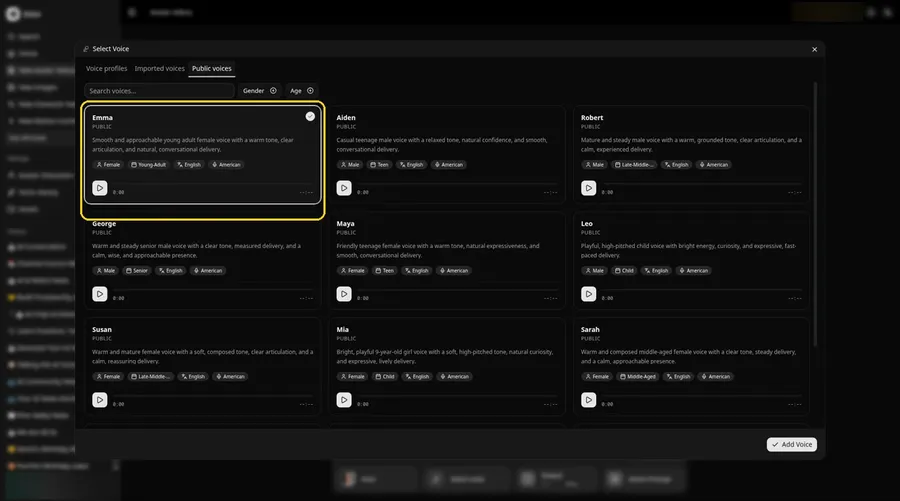
- Click the voice button in the composer to open Select Voice for the AI vlogger.
- Pick a voice for the AI vlogger on the Public voices tab.
- Click Add Voice to attach that voice to the AI vlogger.
A warm, conversational voice suits the AI vlogger.
Step 11: Choose Your Output Settings
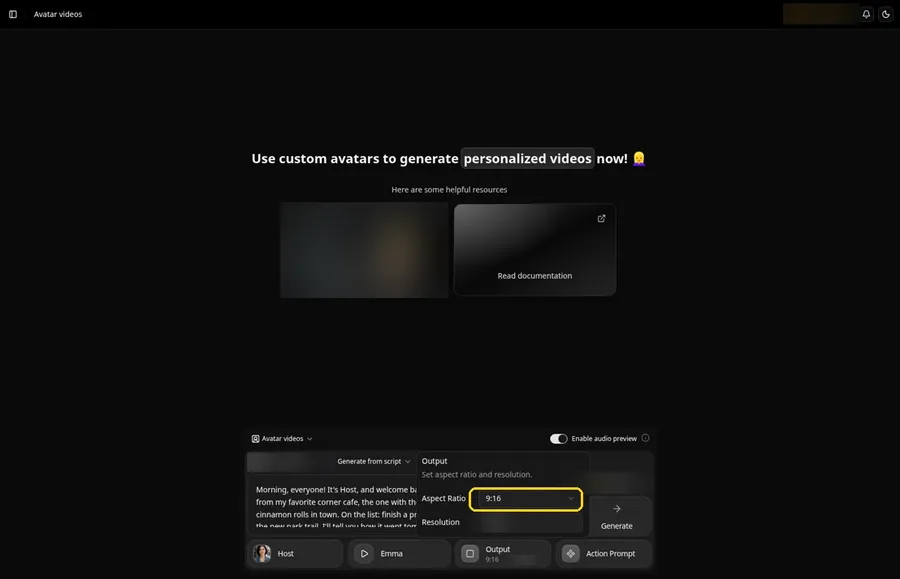
Choose your output settings. Set the Output aspect ratio dropdown to 9:16 if the AI vlogger is headed to that frame.
Step 12: Add an Action Prompt
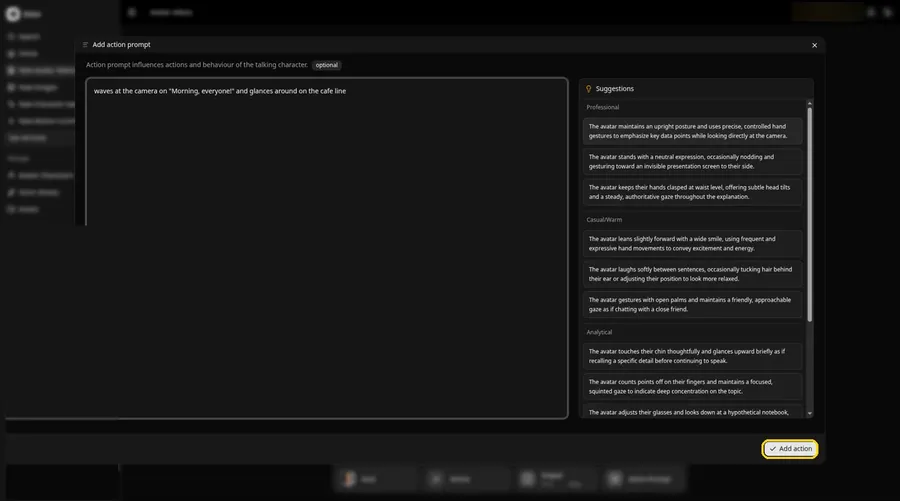
Open the Add action prompt panel, type waves at the camera on "Morning, everyone!" and glances around on the cafe line, then click Add action; the Action Prompt chip now reads Added. Every AI vlogger move comes from this prompt.
Step 13: Click Generate
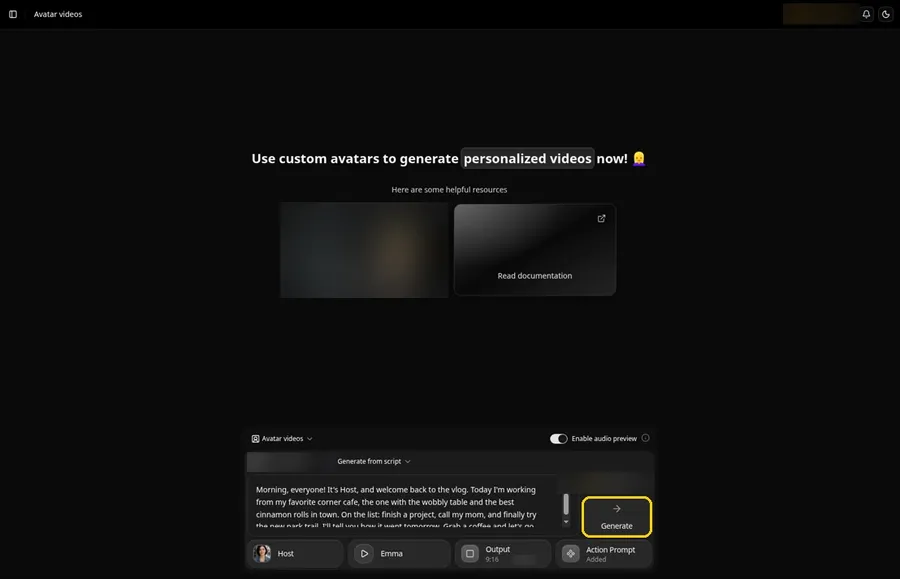
Review the vlogger, the script, the voice, the output and the action prompt, then click Generate.
Step 14: Confirm After the Preview
Check the audio preview and confirm it with Generate avatar video.
Step 15: Watch the Episode
Play it in the player and check the day's lines.
Step 16: Download It
Save the episode with Download in the player menu.
Step 17: Post and Plan Tomorrow
Publish the episode and draft tomorrow's script while the idea is fresh.
Tips for an AI Vlog
- Use a made-up vlogger character, so you never appear on camera
- Keep the same greeting and sign-off each episode
- Write like you talk, with short sentences
- Mention a real plan, then follow up in the next episode
- Pick vertical for short apps and horizontal for YouTube
See more presenter options in our AI influencer video generators roundup.
Demo Idea: A Morning at the Corner Cafe
Our vlogger Host read this episode:
"Morning, everyone! It's Host, and welcome back to the vlog. Today I'm working from my favorite corner cafe, the one with the wobbly table and the best cinnamon rolls in town. On the list: finish a project, call my mom, and finally try the new park trail. I'll tell you how it went tomorrow. Grab a coffee and let's go."
Write tomorrow's episode next. Try Zoice and start your vlog.
FAQ
Do I need to show my face in an AI vlog?
No. The Host is a made-up character, so you can vlog without appearing on camera.
Can I use the same vlogger every week?
Yes. The Host is saved to Avatar Characters, so you pick it again for each episode.
Which aspect ratio is best for vlogs?
Vertical for Shorts, Reels and TikTok, or horizontal for YouTube.
What can the vlogger do on camera?
Whatever you describe in the action prompt step, such as a wave or a look around.
Try Zoice
A vlogger image and today's script are all you need. Try Zoice and post episode one.