How to Make a Welcome Video With AI: A Simple 2026 Guide
A first-day hello can be recorded once and shared with a new teammate before they walk in. This is how to make a welcome video with AI in Zoice: upload a clear, approved photo, use it as the Host, paste a short greeting, pick a voice, and let lip sync follow the words. An optional action prompt can add a small move, such as opens both arms in a greeting and smiles. The welcome video screenshots use a stock-model stand-in, so swap in a photo of someone who has agreed to appear.
The screens below show how to make a welcome video with AI, in order. A card-style hello that sits well beside it is our talking greeting card tutorial.
Picking a Photo for Your Welcome Video
Pick a clear, approved photo of someone who has agreed to appear in the welcome video, with a visible mouth. A simple knit top works well if the face stays unobstructed. The welcome video screenshots use a stock-model stand-in, which you can replace with an approved photo.
- Choose a clear, front-facing photo with a visible mouth
- Use only a photo of someone who has agreed to appear
- Keep the first-day hello short and warm
- Test the face in Zoice before you share it
How to Make a Welcome Video in Zoice
Our Host is a stock photograph of an adult woman in a brown and beige striped knit top, front-facing, with one hand raised to her face, a clear face and a visible mouth, used as the Host for this post and saved in the app.
If the welcome is for a first day at work, our training video tutorial is a useful companion.
Step 1: Sign In to Zoice and Open Home
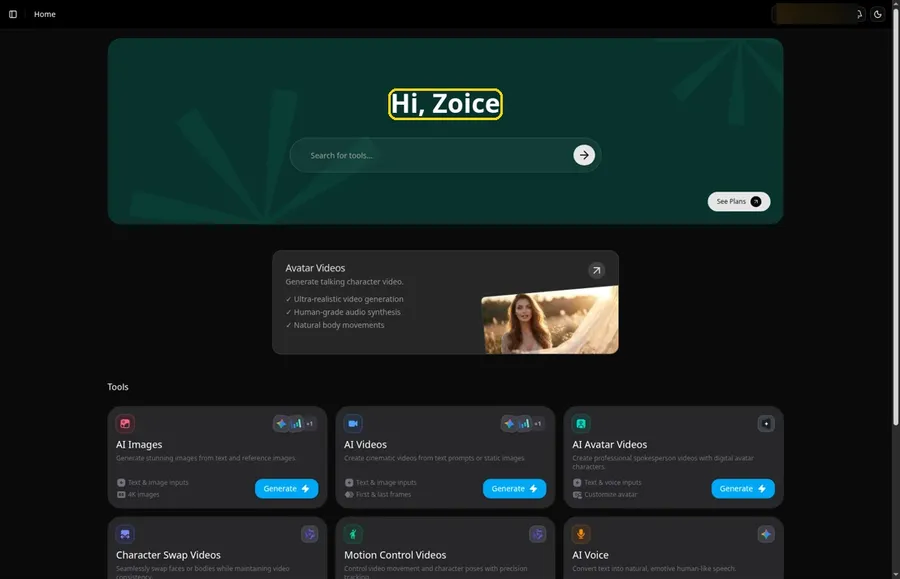
On the Zoice homepage, use Sign In with email or Google, then wait for Home so the welcome video can begin.
Step 2: Open Avatar videos
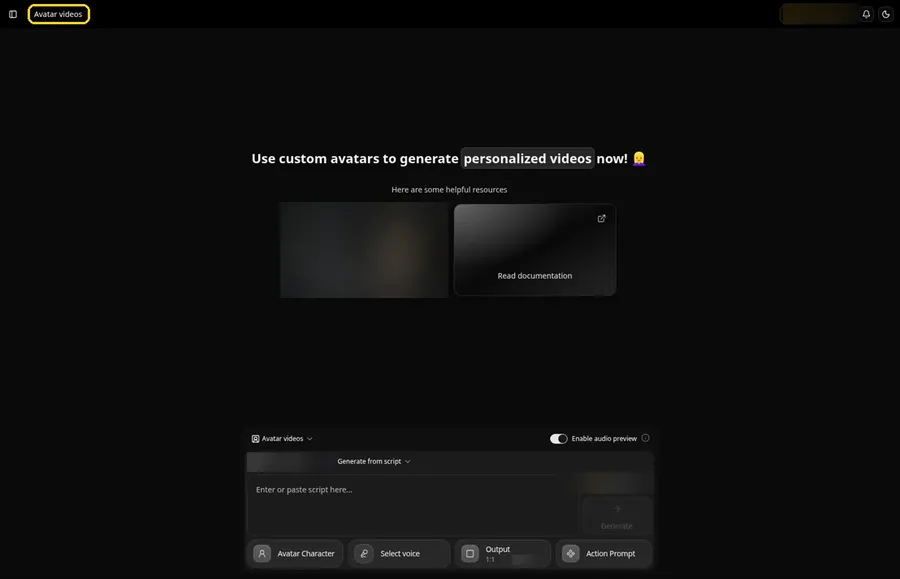
Open Avatar videos. The page title reads Avatar videos, and the composer is empty with Output at the default 1:1.
Step 3: Open Avatar Character and Create a New Avatar
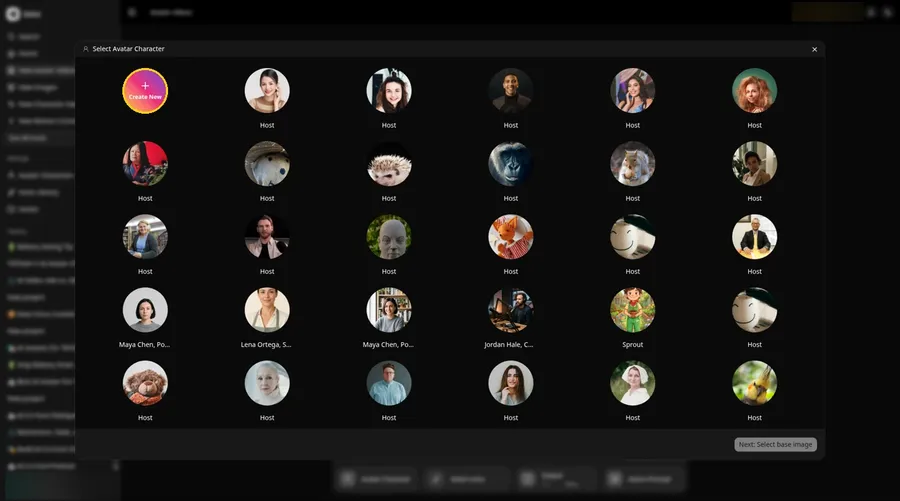
Use Avatar Character and Create New, twice if the list page appears, so the welcome video is on the full-screen Create new avatar page.
Step 4: Choose Upload Image
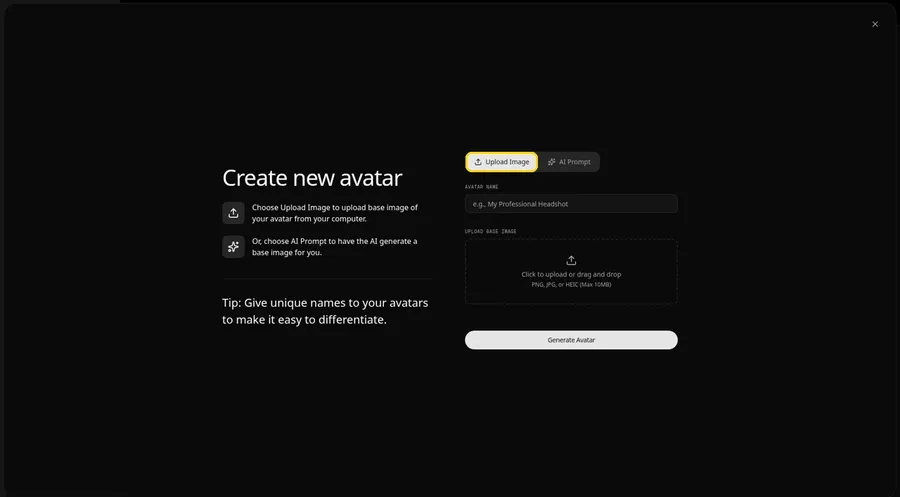
Confirm Upload Image is the active tab under UPLOAD BASE IMAGE before you add the welcome video photo.
Step 5: Upload the Welcome Image
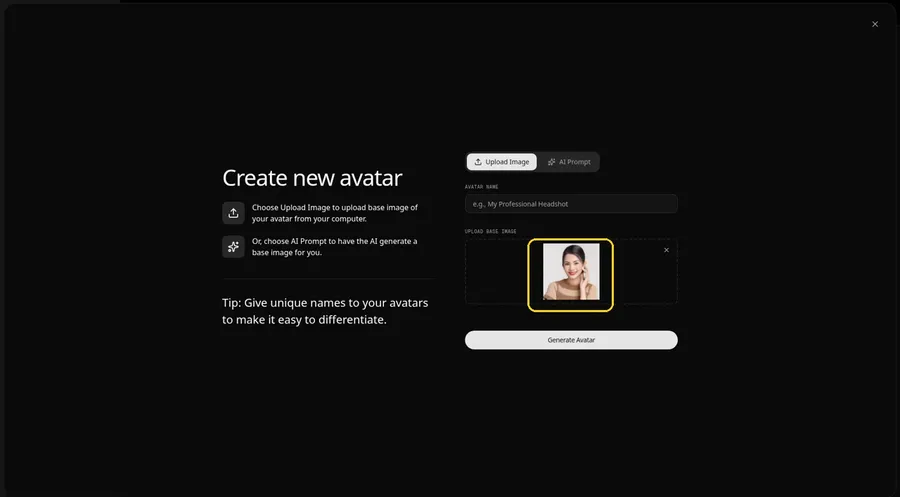
Bring in the photo for the welcome video; the preview needs to show an adult woman in a brown and beige striped knit top, front-facing, with one hand raised to her face, a clear face and a visible mouth.
Step 6: Name Your Avatar Host and Click Generate Avatar
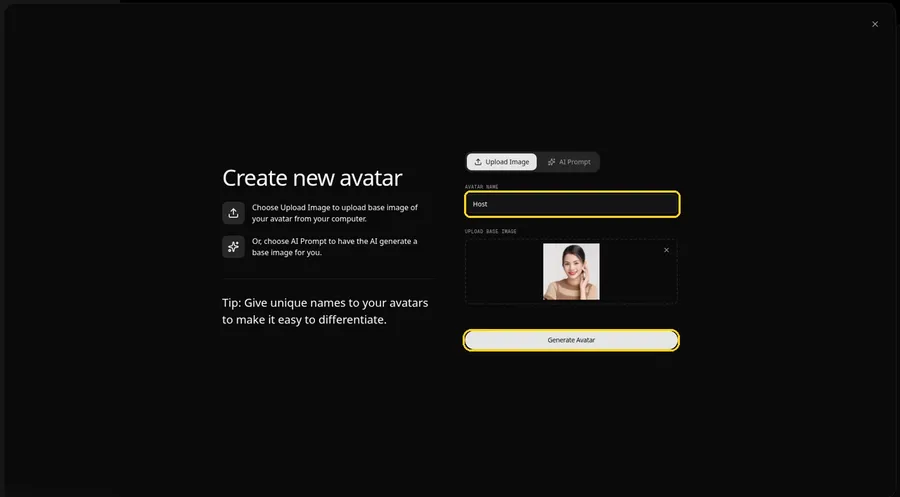
Type Host in the AVATAR NAME field, with the preview in place, ready to click Generate Avatar.
Step 7: Open the Add Script Panel
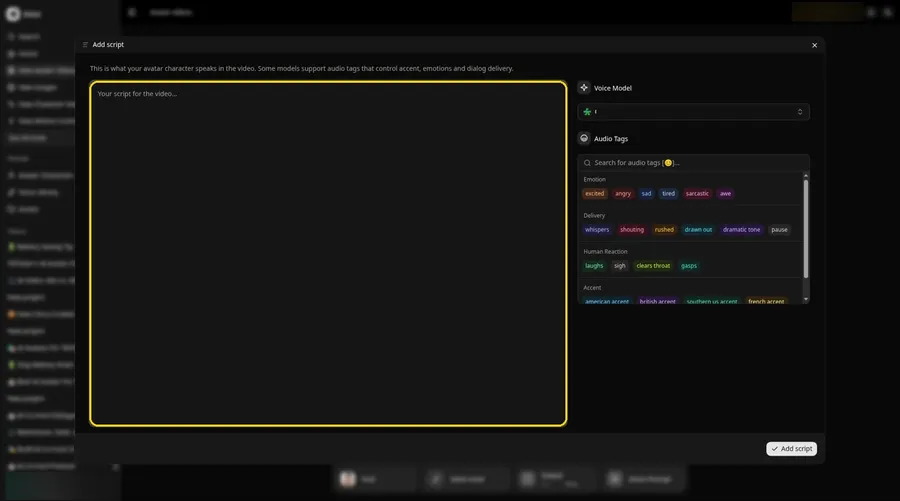
Open Add script by selecting the script box in the composer for the welcome video.
Step 8: Choose the Voice Model
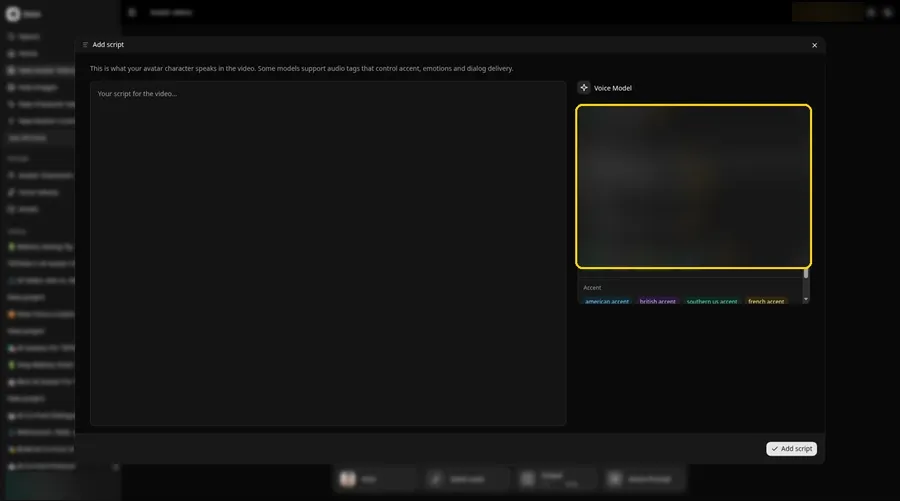
Pick the voice model under Voice Model; that choice helps shape the welcome video.
Step 9: Paste Your Script and Click Add Script
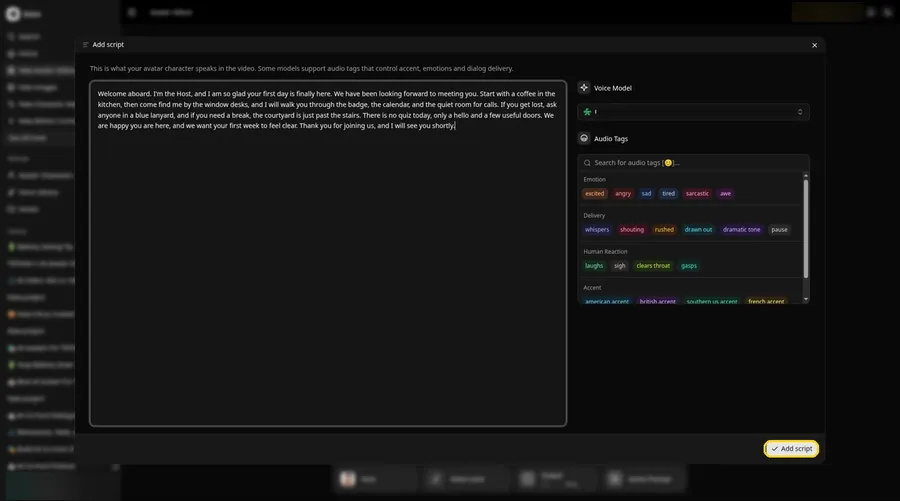
Place the welcome video script in the script box and click Add script. Opening line: Welcome aboard.
Step 10: Pick a Voice
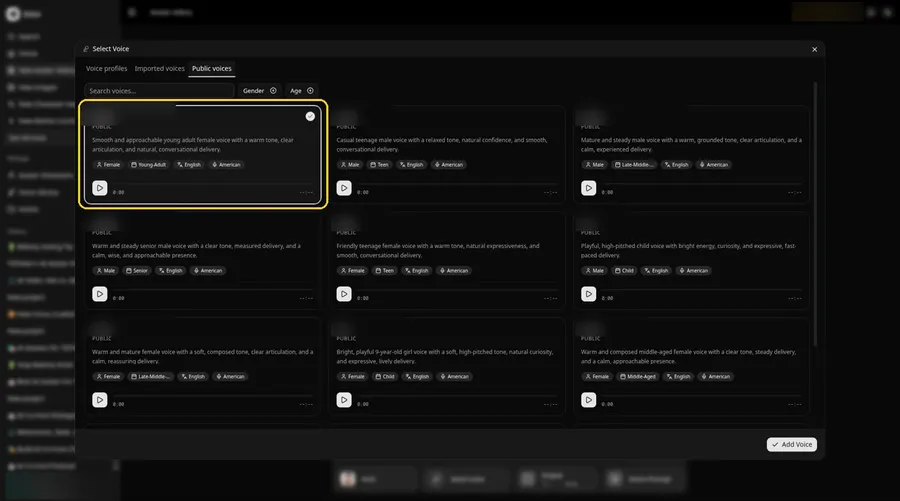
Select Voice should be on Public voices; choose a bright and warm adult voice and click Add Voice for the welcome video.
Step 11: Choose your output settings
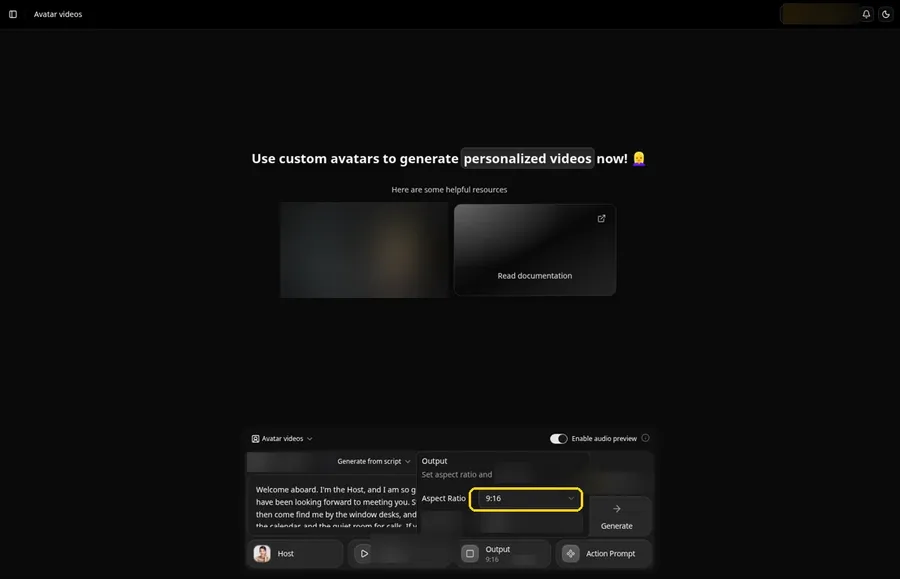
Choose your output settings. Open the Output menu and choose 9:16 so the welcome video matches vertical posts.
Step 12: Add an Action Prompt
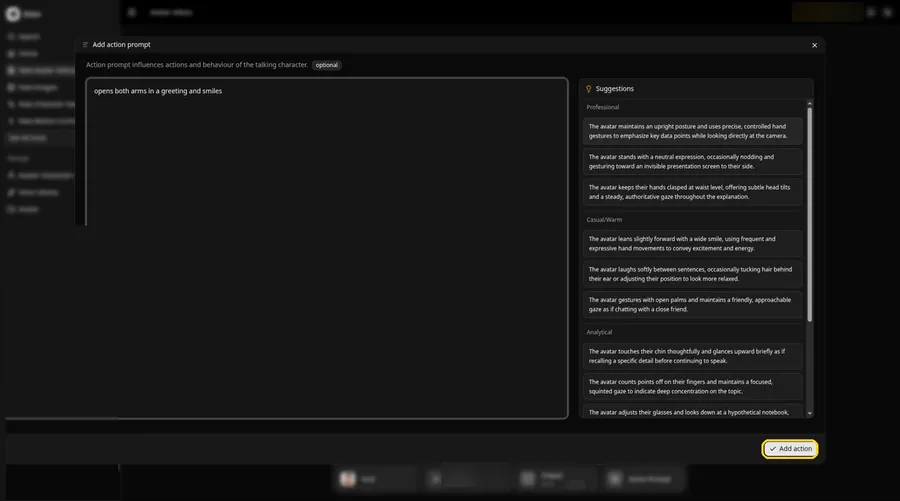
In the action prompt box, write opens both arms in a greeting and smiles and click Add action. The welcome video should follow that instruction.
Step 13: Click Generate
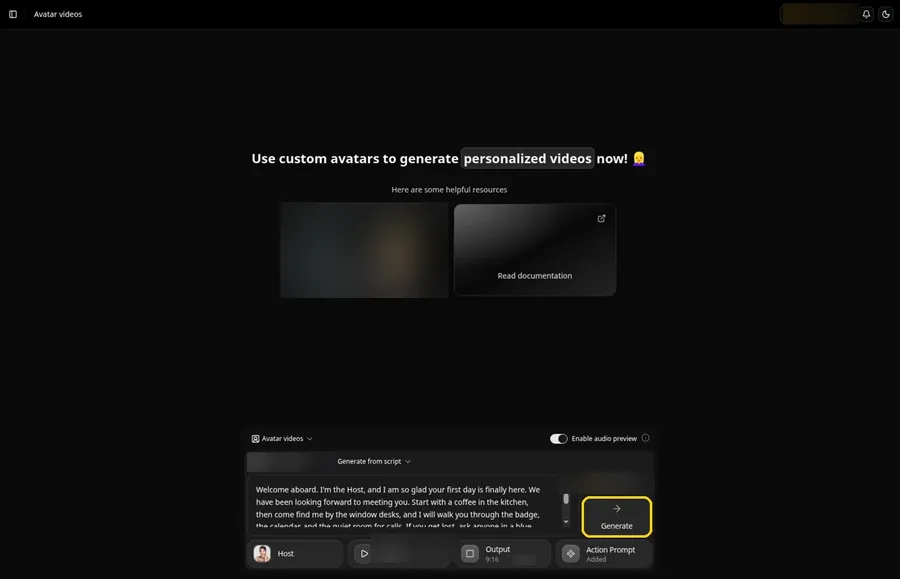
Look over the welcome Host, the attached voice, the script, 9:16, and Added on the Action Prompt chip, then click Generate.
Step 14: Confirm the Audio Preview
Listen once to the welcome video preview audio, confirm it, and let Zoice process the clip.
Step 15: Preview the Video in the Player
Watch the welcome video in the player and confirm both lip sync and the action prompt move look right.
Step 16: Download From the Player Menu
If you want a file of the welcome video, open the three-dot player menu and click Download.
Step 17: Share Your Video
The welcome video is ready to send or post; keep the source photo and audio limited to what you may use.
Writing the Action Prompt
Keep the welcome video move open and small, like a smile and a brief open-armed greeting.
- opens both arms in a greeting and smiles
Type opens both arms in a greeting and smiles in step 12 and click Add action so the Action Prompt chip updates on the welcome video.
Demo Idea: A First Day Hello
A stock-photograph Host, of an adult woman in a brown and beige striped knit top, front-facing, with one hand raised to her face, welcomes a new teammate on a first day, with open arms and a smile from the action prompt. Here is the exact script:
"Welcome aboard. I'm the Host, and I am so glad your first day is finally here. We have been looking forward to meeting you. Start with a coffee in the kitchen, then come find me by the window desks, and I will walk you through the badge, the calendar, and the quiet room for calls. If you get lost, ask anyone in a blue lanyard, and if you need a break, the courtyard is just past the stairs. There is no quiz today, only a hello and a few useful doors. We are happy you are here, and we want your first week to feel clear. Thank you for joining us, and I will see you shortly."
Your welcome video is waiting for its first lines. Try Zoice and give the welcome video a voice.
Tips for Your Welcome Video
- Start with a stock or fictional adult photo you may use for this welcome video, and keep the face and mouth easy to see.
- Name the place, the first stop, and one friendly offer of help, so the welcome feels useful.
- A bright, warm voice fits a first-day hello.
- Action prompt tip: use one small move, such as opens both arms in a greeting and smiles, at the hello.
A simple portrait companion to this welcome video is our picture talk tutorial.
FAQ
Can I use a manager's real headshot?
Only if they agree and you may use the photo in this welcome video. For this welcome video demo, use a stock or fictional adult as the Host, not a real identifiable person.
Does the Host photo need a face?
Yes. Lip sync for this welcome video needs a visible mouth, so pick a photo that faces the camera.
What image formats can I upload?
PNG, JPG or HEIC files, as the Upload Image panel states.
Is the action prompt required?
No. Lip sync still follows your welcome video script if you skip the action prompt; the prompt only adds the move.
Try Zoice
Read our talking head video tutorial, or Try Zoice and make the welcome video today.