How to Make a Scarecrow Talk With AI: A Simple 2026 Guide
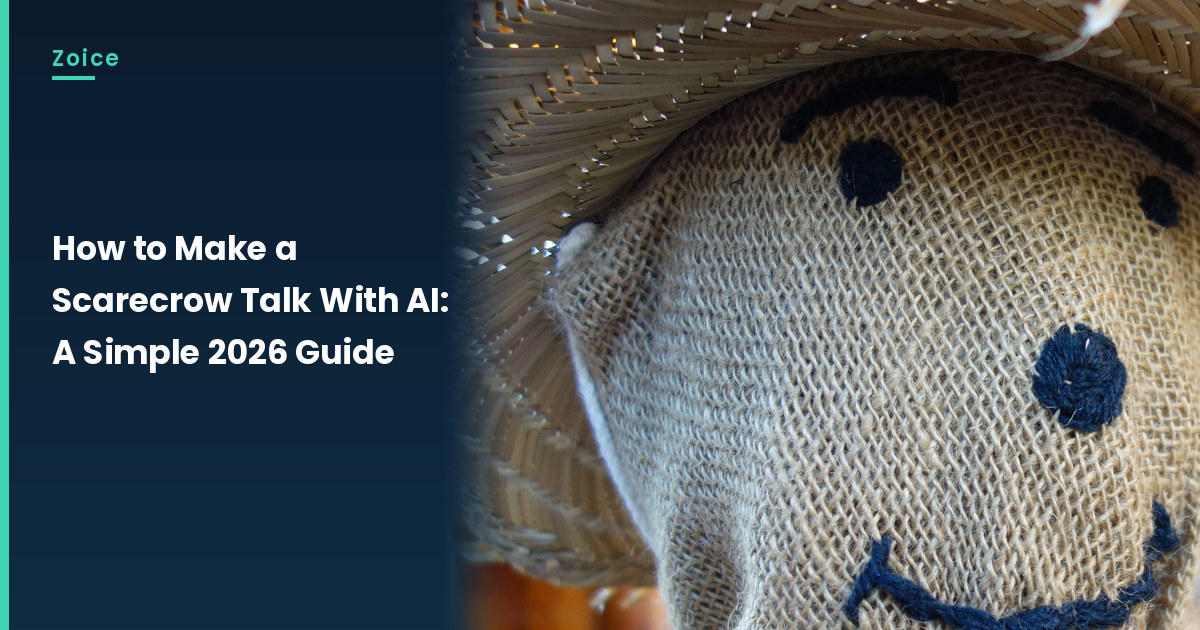
A burlap face with a stitched smile can still carry a short set of directions from the field edge. This is how to make a scarecrow talk with AI in Zoice: upload a clear photo of a farm-field scarecrow with a visible mouth, use it as the Host, paste an original welcome, pick a voice, and let lip sync follow the words. An optional action prompt can add a small move, such as turns its head and waves one hand. Skip franchise characters, and use a stock or fictional scarecrow you may show.
The walkthrough below is how to make a scarecrow talk with AI, screen by screen. A harvest table greeting that does not use a scarecrow is in our Thanksgiving video message tutorial.
Picking a Scarecrow Photo That Can Talk
Use a photo of a farm-field scarecrow with a clear stitched or painted mouth. A burlap face and a straw hat work well if the mouth stays visible. Skip franchise characters, and use a stock or fictional scarecrow you may show.
- Choose a scarecrow with a visible mouth, such as a stitched smile
- A straw hat is fine if it does not hide the face
- Write original field-edge directions, not song lyrics you do not own
- Skip franchise characters, and test the face in Zoice
How to Make a Scarecrow Talk With AI in Zoice
Our Host is a stock photograph of a burlap scarecrow with a stitched smile and a straw hat, with a visible mouth, used as the Host for this post and saved in the app.
A farm-animal path beside this talking scarecrow is our talking pig tutorial.
Step 1: Sign In to Zoice and Open Home
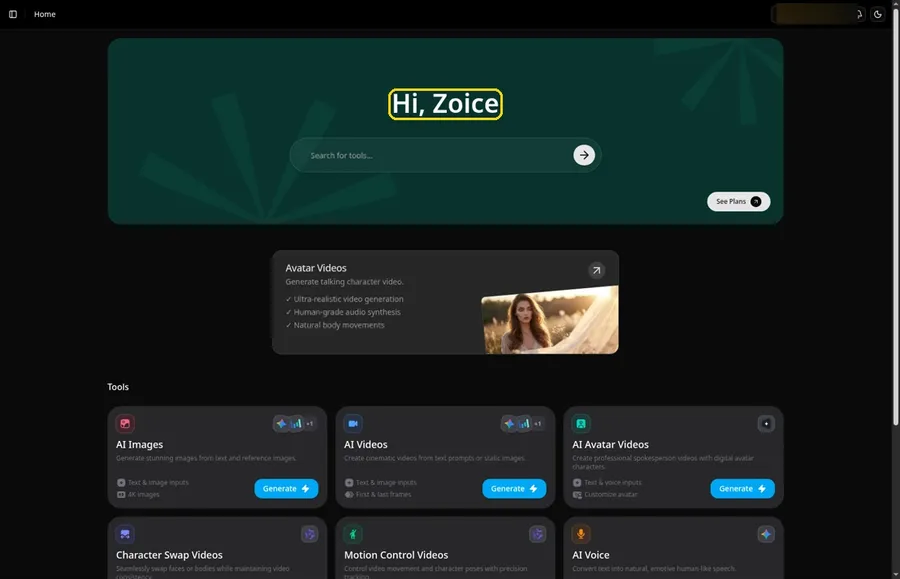
Open the Zoice site, pick Sign In, and log in with email or Google so the talking scarecrow can get under way.
Step 2: Open Avatar videos
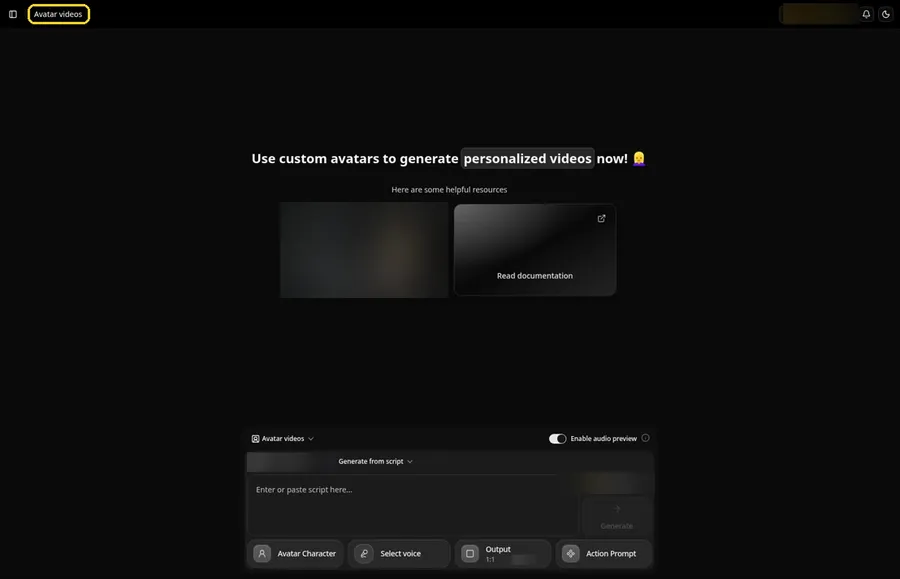
Open Avatar videos. The page title reads Avatar videos, and the composer is empty with Output at the default 1:1.
Step 3: Open Avatar Character and Create a New Avatar
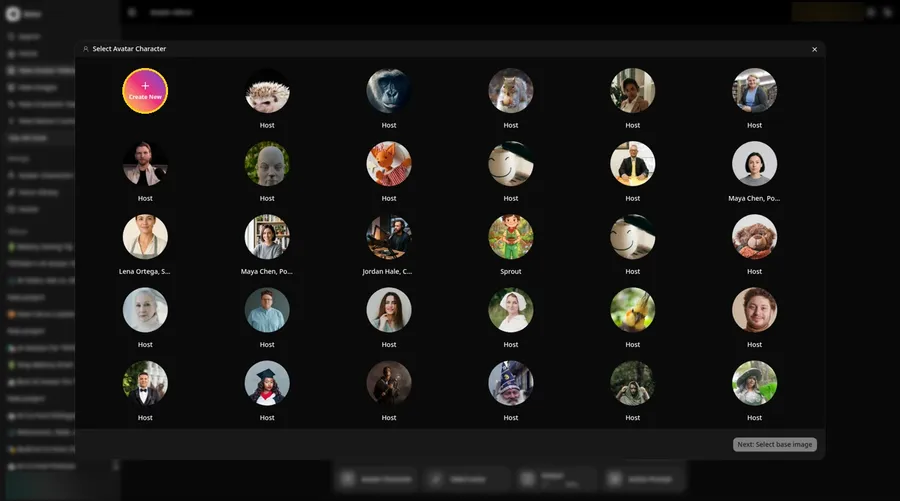
In the composer, open Avatar Character, hit Create New, and continue with Create New on the list page so the talking scarecrow lands on Create new avatar.
Step 4: Choose Upload Image
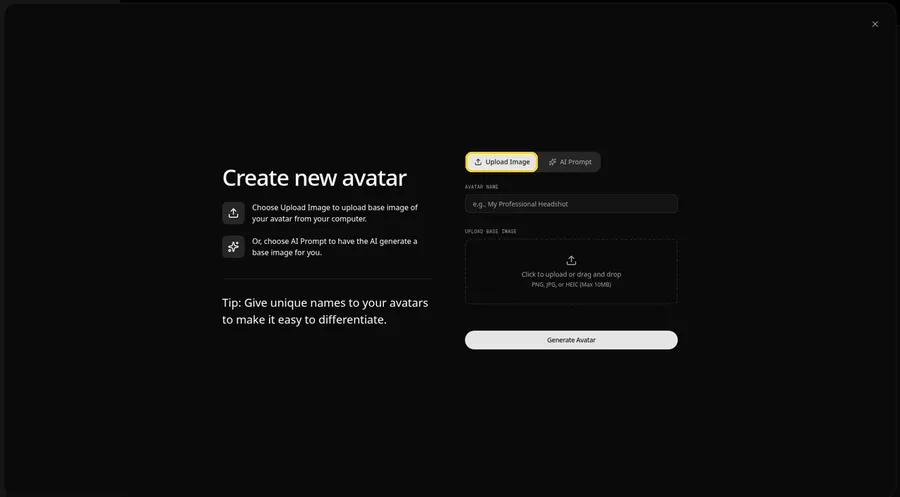
Under UPLOAD BASE IMAGE, keep the Upload Image tab active; the talking scarecrow begins as an image file.
Step 5: Upload the Scarecrow Image
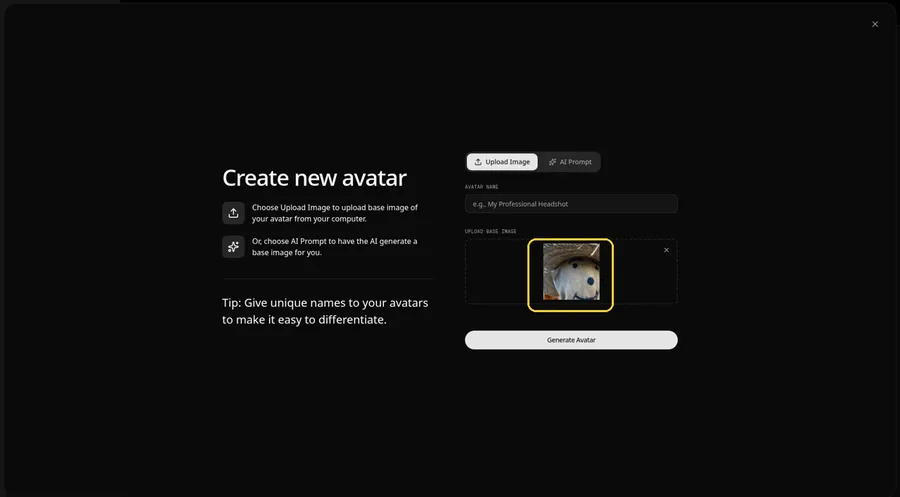
Select the file for the talking scarecrow and wait for a preview of a burlap scarecrow with a stitched smile and a straw hat, with a visible mouth.
Step 6: Name Your Avatar Host and Click Generate Avatar
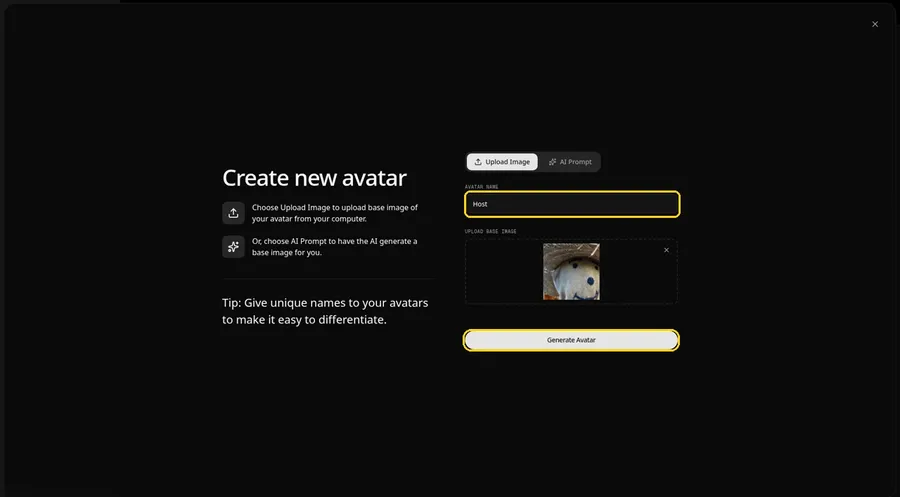
Type Host in the AVATAR NAME field, with the preview in place, ready to click Generate Avatar.
Step 7: Open the Add Script Panel
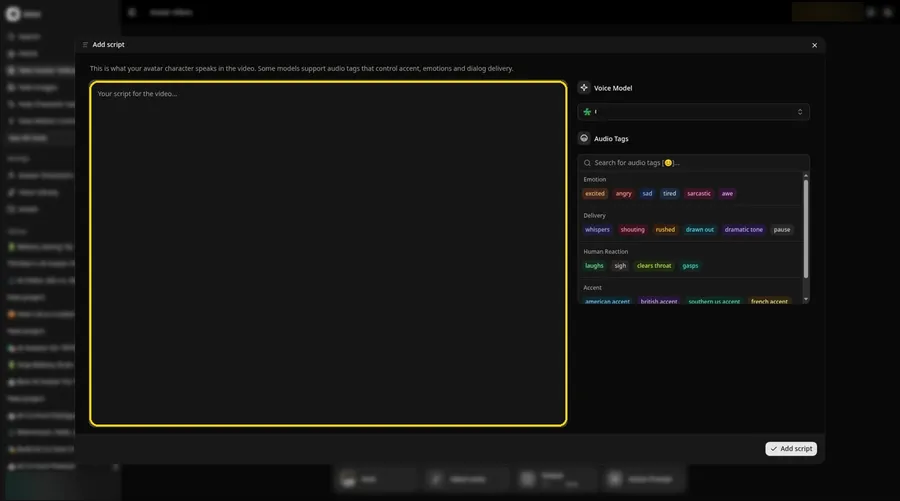
Press the script field to slide open the Add script panel for the talking scarecrow.
Step 8: Choose the Voice Model
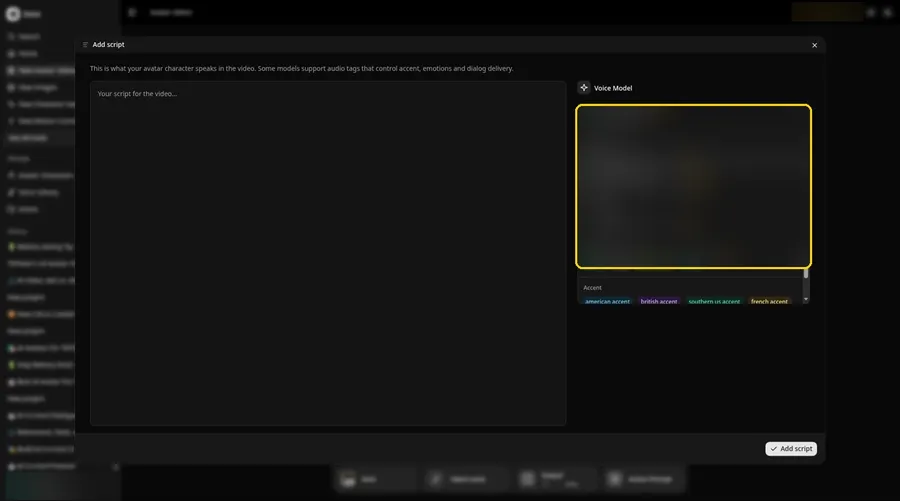
In the Add script panel, open Voice Model and select the voice model for the talking scarecrow.
Step 9: Paste Your Script and Click Add Script
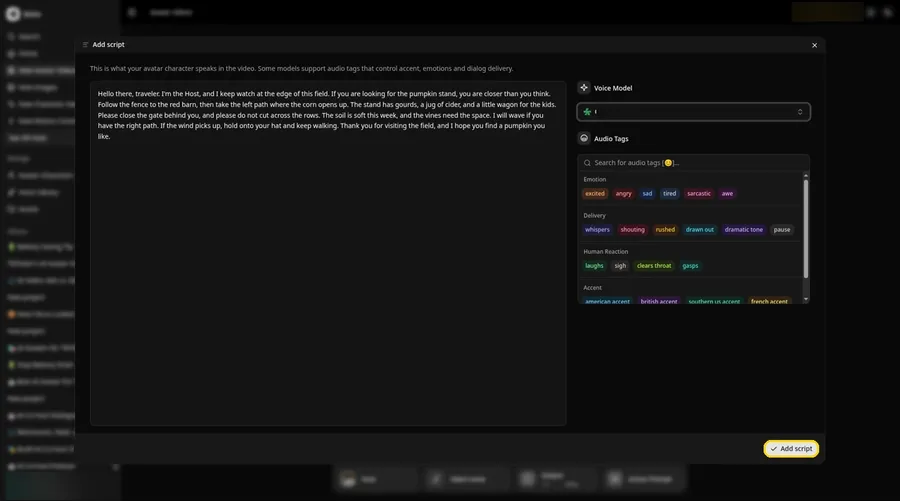
Put the talking scarecrow script in the panel, check the wording, and click Add script. It starts: Hello there, traveler.
Step 10: Pick a Voice
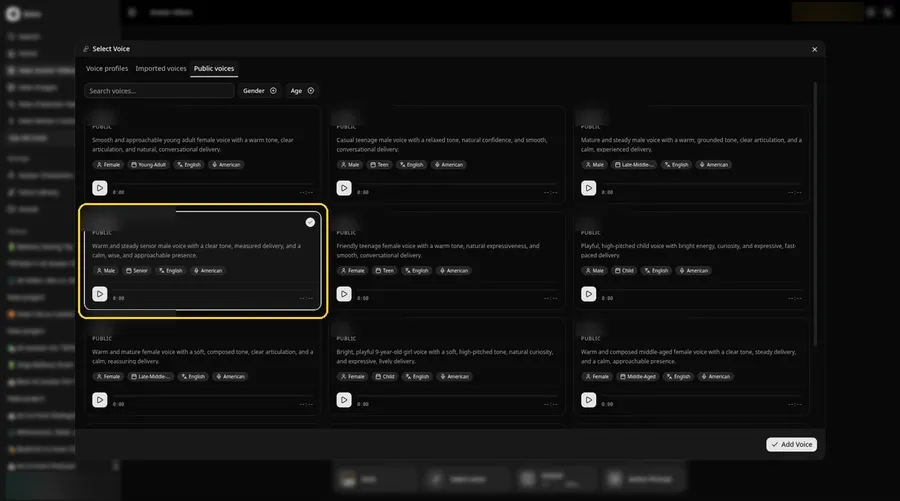
Use Select Voice on Public voices, choose a warm and slightly rustic adult voice, then click Add Voice to attach it to the talking scarecrow.
Step 11: Choose your output settings
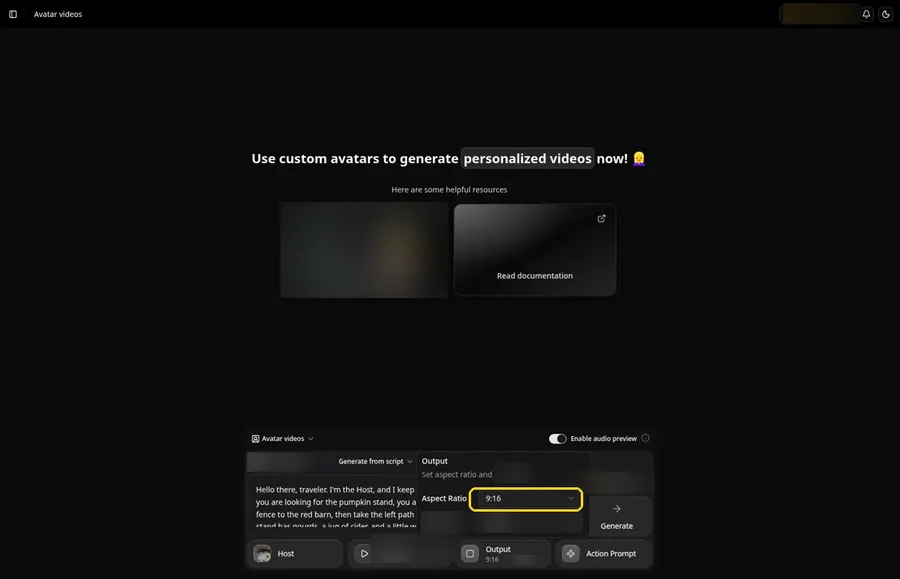
Choose your output settings. Pick 9:16 in the Output aspect ratio dropdown so the talking scarecrow fits vertical feeds.
Step 12: Add an Action Prompt
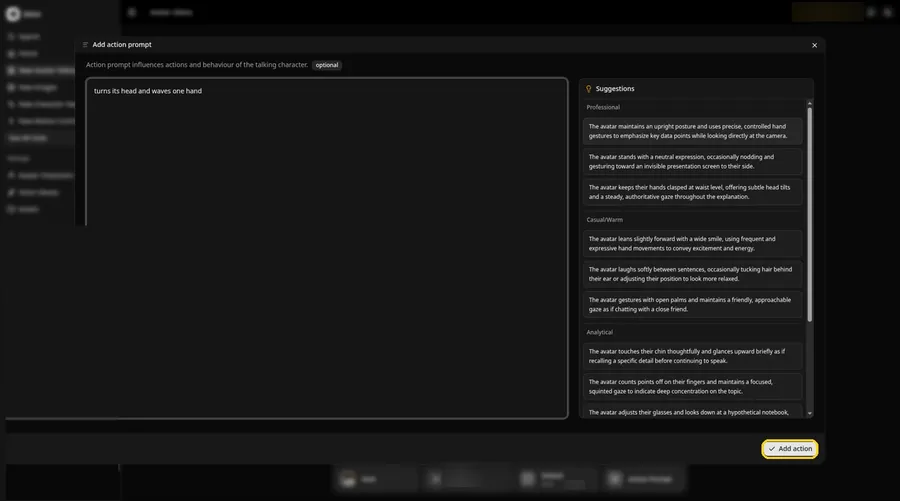
In Add action prompt, enter turns its head and waves one hand, then click Add action. That is the only move the talking scarecrow should add.
Step 13: Click Generate
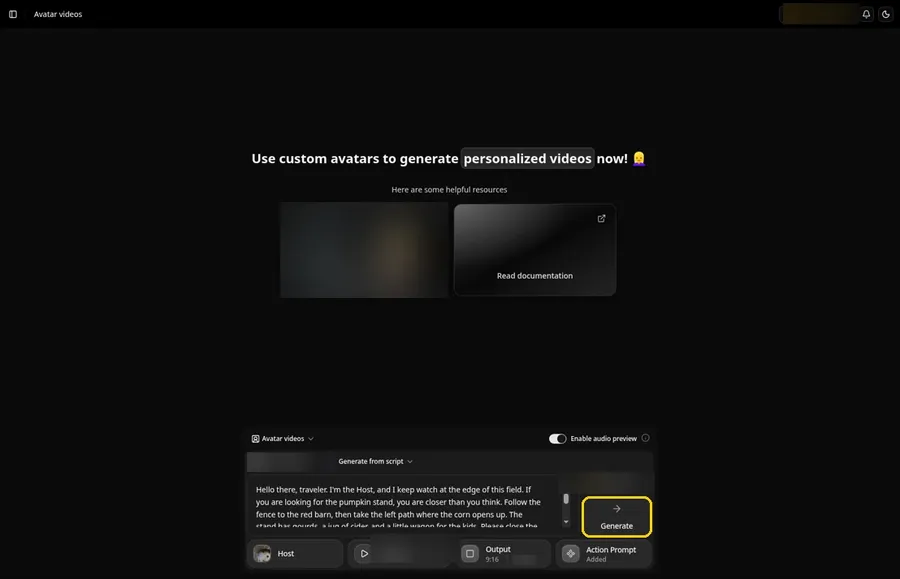
Look over the talking scarecrow Host, the attached voice, the script, 9:16, and Added on the Action Prompt chip, then click Generate.
Step 14: Confirm the Audio Preview
Start the talking scarecrow audio preview, confirm it when it sounds right, and wait while Zoice processes the clip.
Step 15: Preview the Video in the Player
Play the finished talking scarecrow in the player and confirm the lip sync plus the action prompt move.
Step 16: Download From the Player Menu
Open the player's menu (the three dots) and pick Download to save the talking scarecrow.
Step 17: Share Your Video
Share the talking scarecrow in a message or as a Reel, Short or story, and keep to photos and audio you have rights to.
Writing the Action Prompt
Keep the talking scarecrow move simple, like a small turn of the head and a wave toward the pumpkin stand.
- turns its head and waves one hand
- nods once and looks down the path
- tilts the hat brim a little
Type your pick in step 12 and click Add action so the Action Prompt chip updates on the talking scarecrow.
Demo Idea: Directions From the Field Edge
A stock-photograph Host, of a burlap scarecrow with a stitched smile and a straw hat, greets visitors at the edge of a harvest field and points them toward the pumpkin stand, with a head turn and a wave from the action prompt. Here is the exact script:
"Hello there, traveler. I'm the Host, and I keep watch at the edge of this field. If you are looking for the pumpkin stand, you are closer than you think. Follow the fence to the red barn, then take the left path where the corn opens up. The stand has gourds, a jug of cider, and a little wagon for the kids. Please close the gate behind you, and please do not cut across the rows. The soil is soft this week, and the vines need the space. I will wave if you have the right path. If the wind picks up, hold onto your hat and keep walking. Thank you for visiting the field, and I hope you find a pumpkin you like."
Your talking scarecrow is waiting for its first lines. Try Zoice and give the talking scarecrow a voice.
Tips for Your Talking Scarecrow Video
- Use a scarecrow with a clear face and a visible mouth, and only use a photo you made or may use.
- Write a friendly harvest-field greeting, with simple directions to the pumpkin stand.
- A warm, slightly rustic voice fits a harvest-field welcome.
- Action prompt tip: use one small move, such as turns its head and waves one hand, when the directions start.
A still-portrait path that sits well beside this talking scarecrow is our picture talk tutorial.
FAQ
What tone should the script have?
A friendly harvest-field greeting with simple directions works well. Keep the tone warm and useful.
Does the scarecrow photo need a face?
Yes. Zoice needs a face with a visible mouth to lip sync, so pick a scarecrow that faces the camera.
What image formats can I upload?
PNG, JPG or HEIC files, as the Upload Image panel states.
Is the action prompt required?
No. The scarecrow is lip synced to your script either way; the action prompt only adds the move.
Try Zoice
Read our talking storybook character tutorial, or Try Zoice and make the talking scarecrow today.