How to Make a Thanksgiving Video Message With AI in 2026
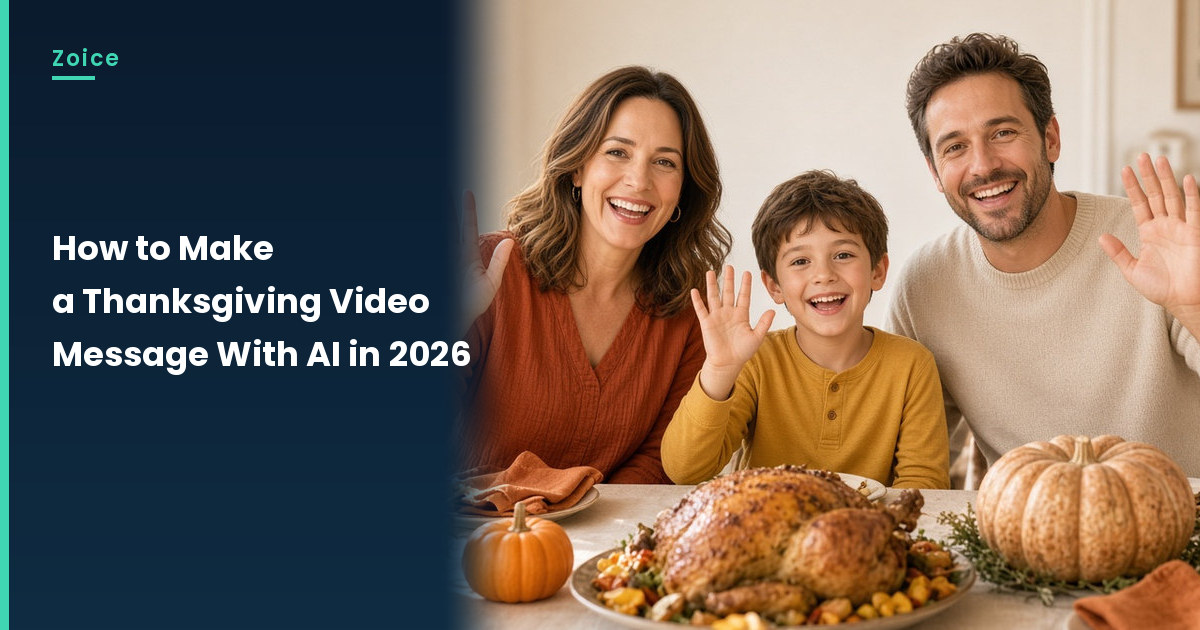
A Thanksgiving video message lets you say thank you to family and friends even when you can't be at the table. In Zoice you upload one photo as your Host, paste a short script, pick a voice, and add an action prompt for a smile or a raised glass, while lip sync follows your words.
This step-by-step guide shows each click, from sign-in to the Generate button, so your message is ready to send before the holiday. New to talking photos? Start with our guide on how to make a picture talk.
Planning Your Thanksgiving Message
Decide who the message is for first: the whole family group chat, one relative who can't travel, or a circle of old friends. Then keep the script to three parts:
- A greeting that names the people watching
- One specific thank-you, such as the pie recipe or the long drive
- A warm sign-off that ends on a smile
The same steps work for a team or customer thank-you video: swap the family details for a short note about the year you shared.
How to Make a Thanksgiving Video Message With AI in Zoice (Step-by-Step)
Steps 1 to 13 follow the real Zoice screens up to the Generate click, and steps 14 to 17 cover what happens next. Our Host is an AI-made fictional person seated at a Thanksgiving table, created for this post.
Step 1: Sign In to Zoice and Open Home
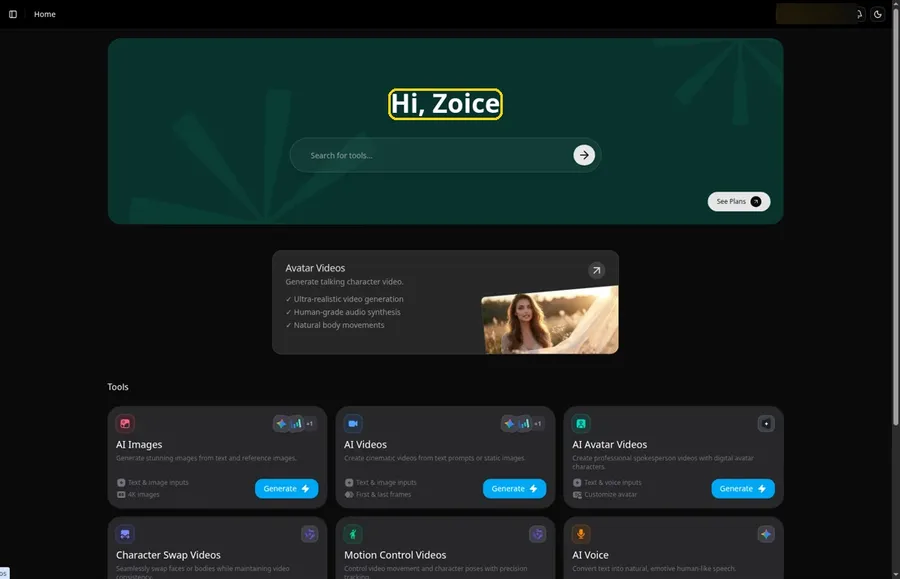
Go to Zoice and click Sign In. Use your email or your Google account, and the Home page opens with the Hi, Zoice heading once you are in.
Step 2: Open Avatar videos
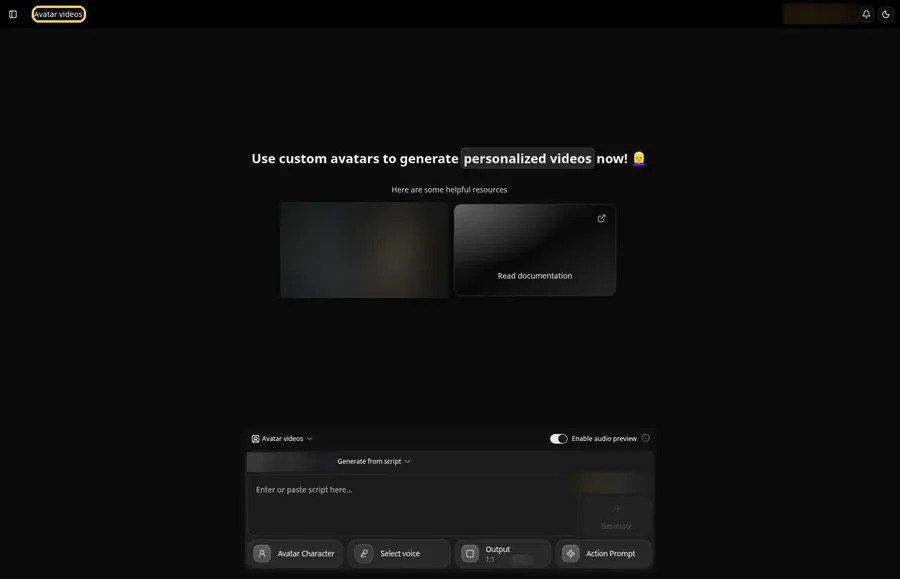
Click New Avatar Videos in the sidebar. The page that opens is titled Avatar videos, and its composer at the bottom holds every setting for your message.
Step 3: Click Avatar Character, Then Create New
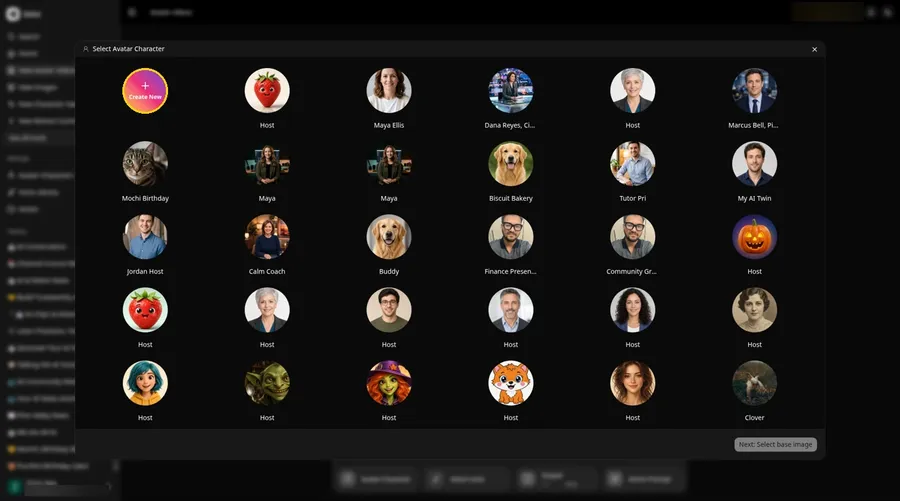
Click the Avatar Character button in the composer. In the Select Avatar Character window, press the round Create New button. That opens the Avatar Characters page, where you click Create New again to reach the Create new avatar form.
Step 4: Choose Upload Image
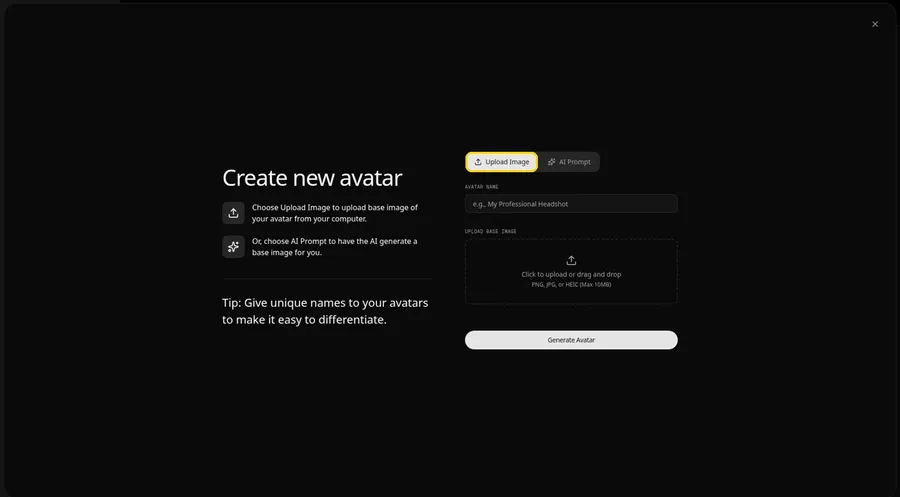
The Create new avatar page opens full screen. Keep the Upload Image tab selected under Upload Base Image. If you have no suitable photo, the AI Prompt tab lets you describe a person instead.
Step 5: Upload Your Host Photo
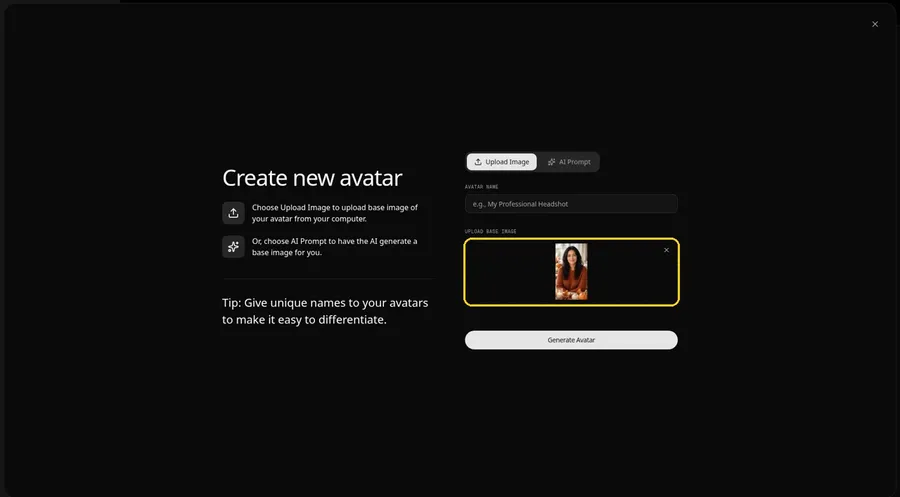
Click the upload area under Upload Base Image and pick your photo. A clear, front-facing face in soft, warm light gives the best start, and the preview of the Host at a Thanksgiving table lets you check it before moving on.
Step 6: Name Your Avatar Host and Click Generate Avatar
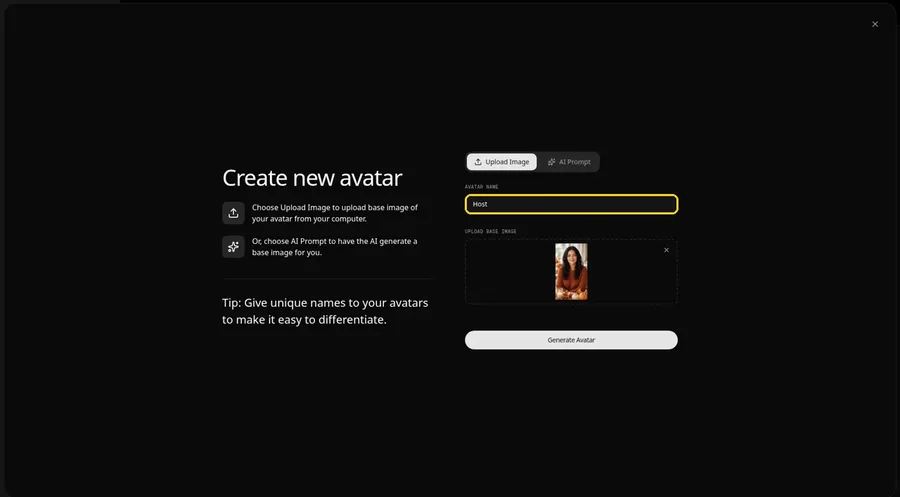
In the Avatar Name field, type Host and click Generate Avatar. The Host is saved, so next year's message can reuse it.
Step 7: Open the Add Script Panel
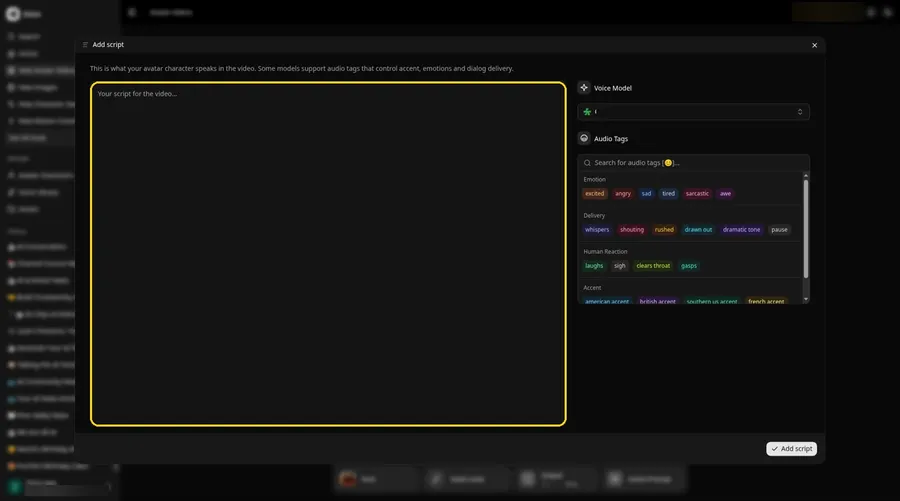
Click the script box in the composer. The Add script panel opens, with the Voice Model control on its right.
Step 8: Choose the Voice Model
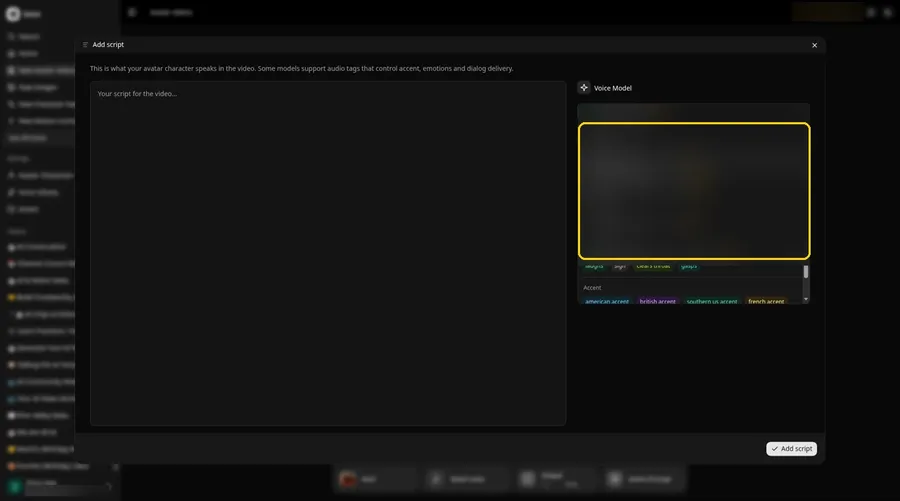
Open the Voice Model menu and choose the model that will read your greeting.
Step 9: Paste Your Script and Click Add Script
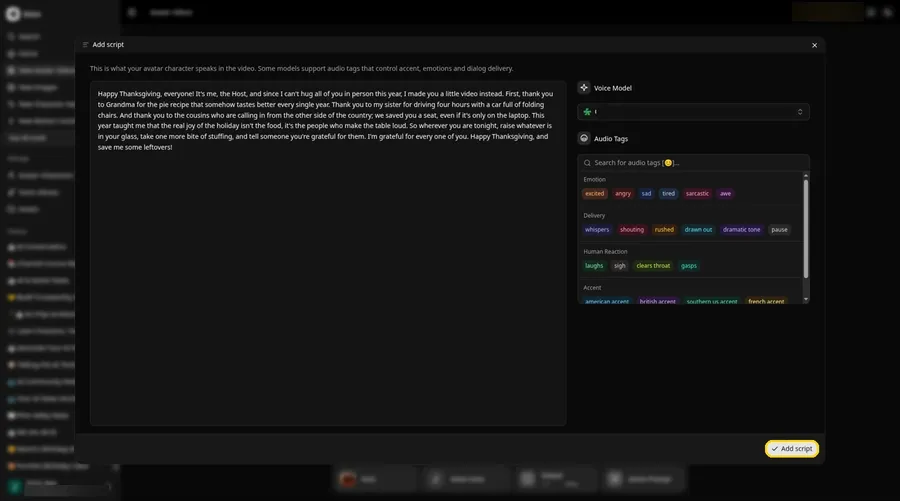
Paste your greeting into the panel, read it once more, and click Add script. Ours opens with: Happy Thanksgiving, everyone!
Step 10: Pick a Voice
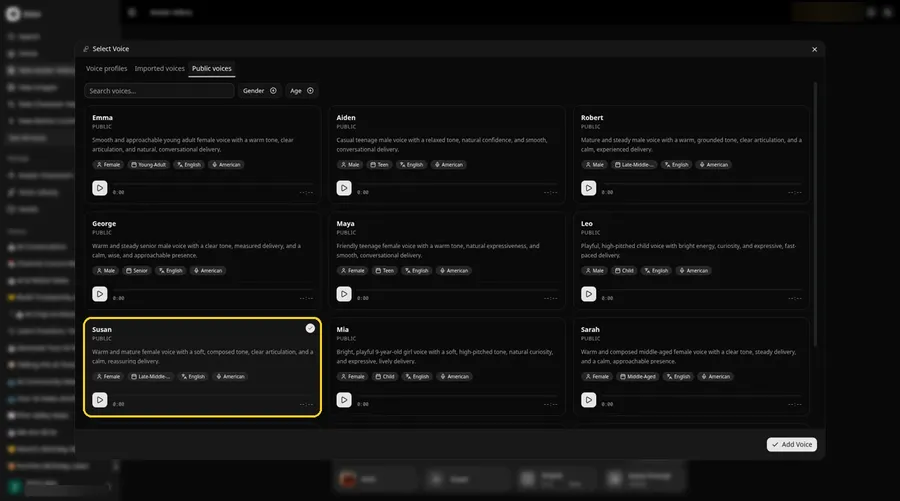
Click the voice button in the composer to open the Select Voice window. On the Public voices tab, pick a warm, friendly voice for your greeting, then click Add Voice to attach it.
Step 11: Choose Your Output Settings
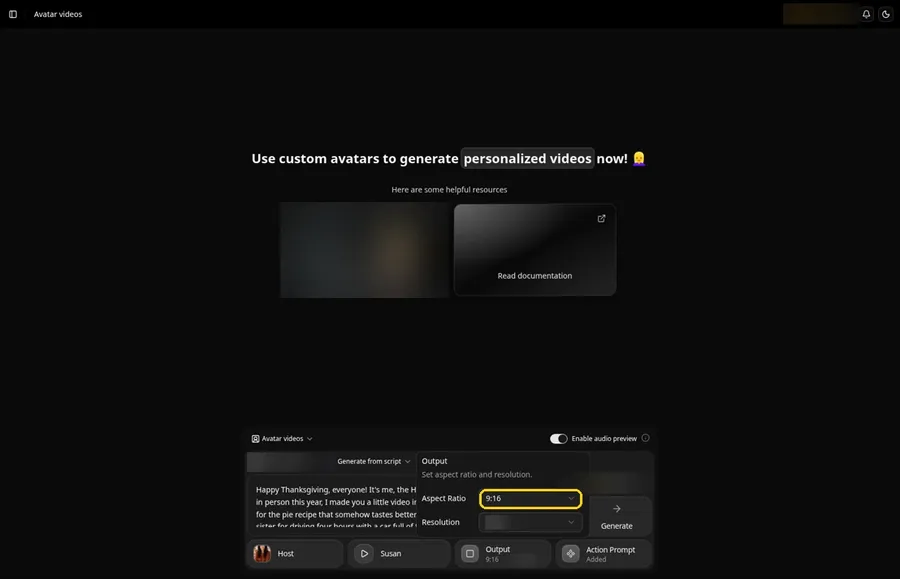
Open the Output popover and set the Aspect Ratio dropdown to 9:16 for phones and group chats, or 16:9 if the family will watch on a TV or open it from an email.
Step 12: Add an Action Prompt
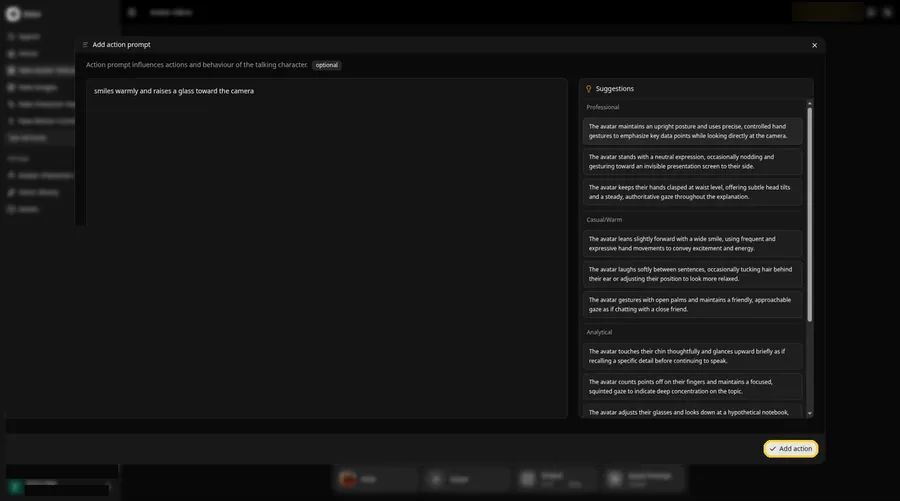
Click Action Prompt. In the Add action prompt panel, type: smiles warmly and raises a glass toward the camera. Click Add action. Added then shows on the Action Prompt chip in the composer.
Step 13: Click Generate
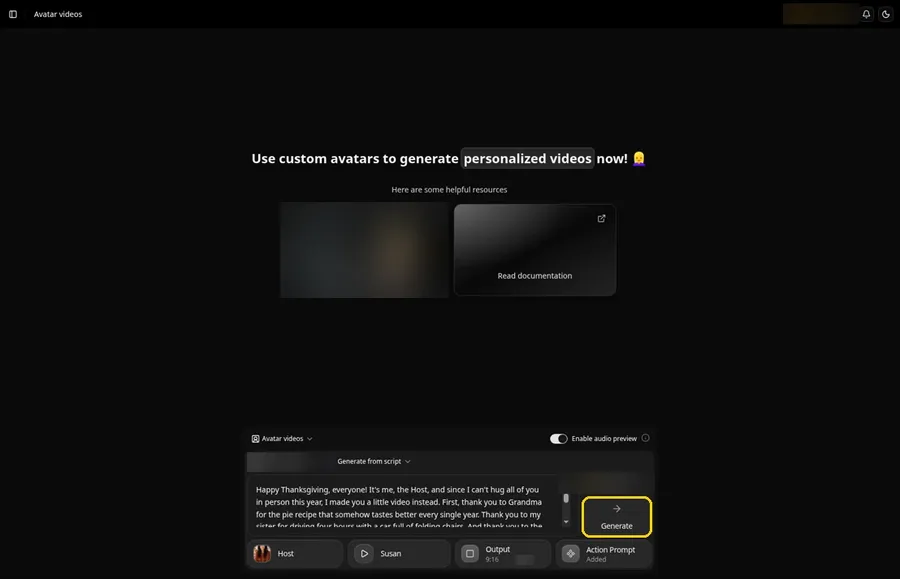
Check the Host, the voice, the script, the 9:16 output and the Added action prompt. Then click Generate.
Step 14: Confirm the Audio Preview and Let Zoice Process
After you click Generate, Zoice plays an audio preview of your script. If it sounds right, click Generate avatar video and wait while Zoice processes the video.
Step 15: Watch the Result
When the video is ready, press play in the player and check that the greeting, names and sign-off sound right.
Step 16: Download From the Player Menu
Open the player menu and click Download to save the video.
Step 17: Send It to Family and Friends
Share the downloaded video in your family group chat, a text message or an email so everyone gets your Thanksgiving greeting before dinner.
Writing the Action Prompt
The action prompt is the only place where you tell the Host how to move. Describe one or two simple moves in plain words, and keep the biggest one for the toast at the end.
- smiles warmly and raises a glass toward the camera
- nods gently while saying thank you
- laughs softly on the leftovers line
Demo Idea: A Thanksgiving Toast for the Family Group Chat
Our Host records a warm toast from a cozy Thanksgiving table, thanking everyone and inviting the far-away cousins to call in. Here is the full script:
"Happy Thanksgiving, everyone! It's me, the Host, and since I can't hug all of you in person this year, I made you a little video instead. First, thank you to Grandma for the pie recipe that somehow tastes better every single year. Thank you to my sister for driving four hours with a car full of folding chairs. And thank you to the cousins who are calling in from the other side of the country; we saved you a seat, even if it's only on the laptop. This year taught me that the real joy of the holiday isn't the food, it's the people who make the table loud. So wherever you are tonight, raise whatever is in your glass, take one more bite of stuffing, and tell someone you're grateful for them. I'm grateful for every one of you. Happy Thanksgiving, and save me some leftovers!"
Pair it with the action prompt from step 12 and the 9:16 output. Ready to record your own toast? Try Zoice
Tips for Your Thanksgiving Video Message
- Open with the person's name so the message feels personal
- Thank one specific person or moment, like who made the pie or a trip you took together
- Keep sentences short and read the script out loud once before you paste it
- Spell tricky names the way they sound so the voice says them clearly
- Use a front-facing photo with soft, warm light and a plain background
- Action prompt tip: describe one or two moves, such as smiles warmly and raises a glass, and save the toast for the last line
Planning more celebration videos? See our picks for AI birthday video generators, or learn how to make a talking head video.
FAQ
Can I make a Thanksgiving video message without being on camera?
Yes. A Host made from one photo speaks your script, so you never have to record yourself.
Can I send it as a vertical video for my phone?
Yes. Choose the 9:16 output setting before you click Generate.
Can I make one for my team or customers?
Yes. Use the same steps and write a short thank-you for the year instead of a family greeting.
Try Zoice
Your Thanksgiving greeting needs one photo and a few warm lines. Try Zoice and send it before dinner.