How to Make a Storybook Character Talk With AI: A 2026 Guide
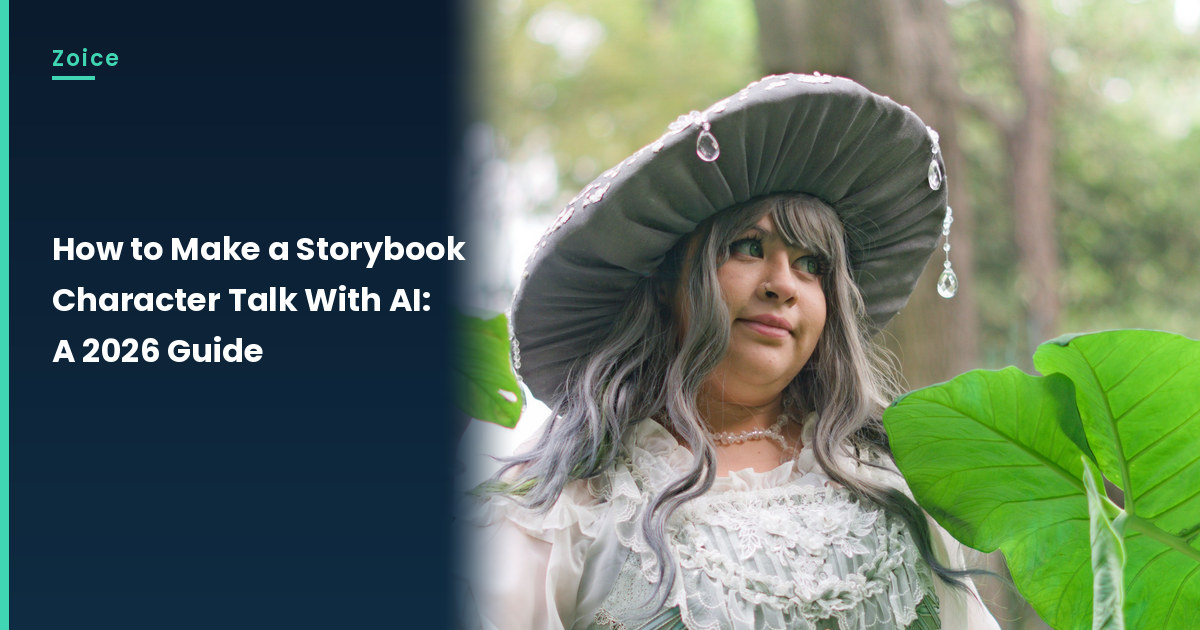
A storybook character can introduce a page before you turn it. This is how to make a storybook character talk with AI from a costume photo or an illustration you may use. For the talking storybook character, in Zoice you upload a clear picture, it becomes your Host, and the mouth is lip synced to your script. An optional action prompt can add a small wave. Do not use a character from a book you do not have rights to, and test the face.
Before you start the talking storybook character, you may like our AI storytelling avatar generator roundup.
Choosing a Storybook Character Image Zoice Can Read
A talking storybook character needs a clear, front-facing photo or illustration you may use, such as a costumed Host with a wide hat among the leaves, and no unlicensed book character.
- Use a costume photo or an illustration you may use
- Keep text and page numbers out of the face crop
- Use even light so the face stays easy to read
- Test the image in Zoice; if a face is not detected, try a tighter crop or a different page, and note the swap
How to Make a Storybook Character Talk in Zoice
Our Host is an adult woman in a storybook-style costume with a wide gray hat, a lace blouse and a green bodice, standing among large leaves in a forest, with a clear face and a visible mouth, not a licensed book character, used as the Host for this post and saved in the app.
Step 1: Sign In to Zoice and Open Home
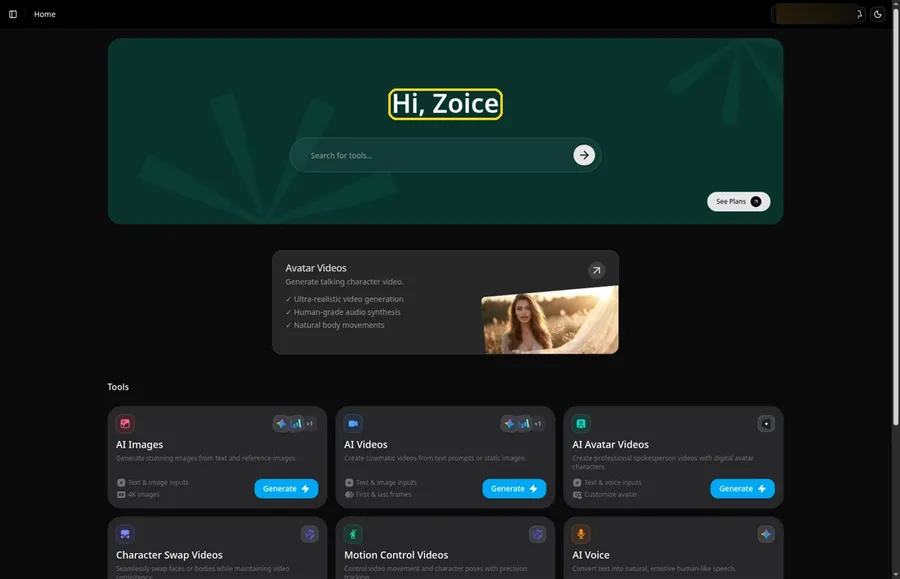
Go to Zoice and click Sign In, using email or Google; Home opens once the talking storybook character project can begin.
Step 2: Open Avatar videos
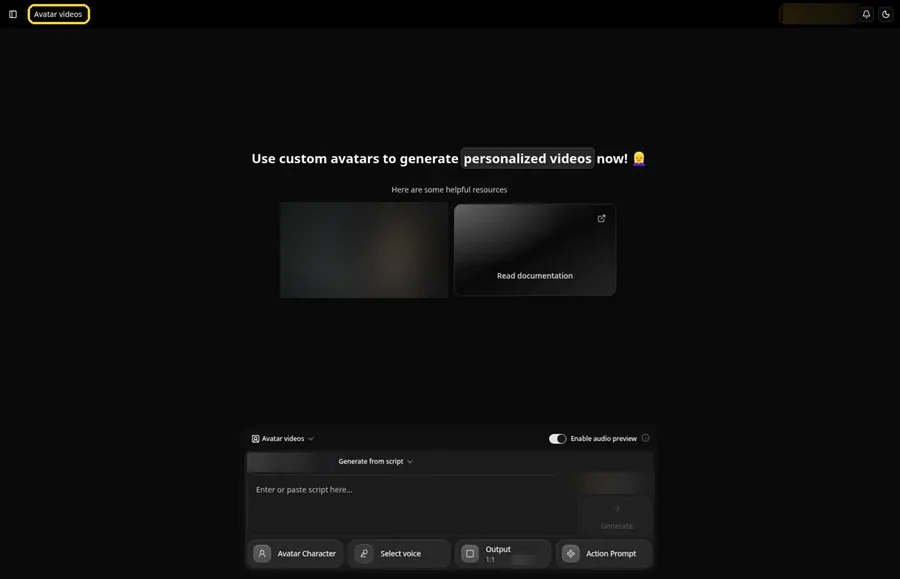
Pick Avatar videos from the sidebar to begin the talking storybook character. The screen that opens is titled Avatar videos, with the composer for the talking storybook character at the bottom.
Step 3: Open Avatar Character and Create a New Avatar
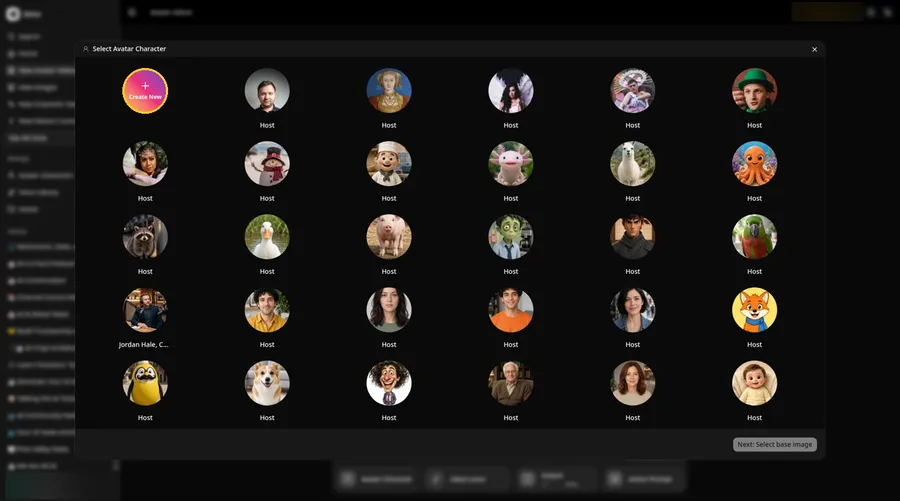
For the talking storybook character, press Avatar Character, choose Create New in Select Avatar Character, then press Create New on the Avatar Characters page to reach the full-screen Create new avatar page.
Step 4: Choose Upload Image
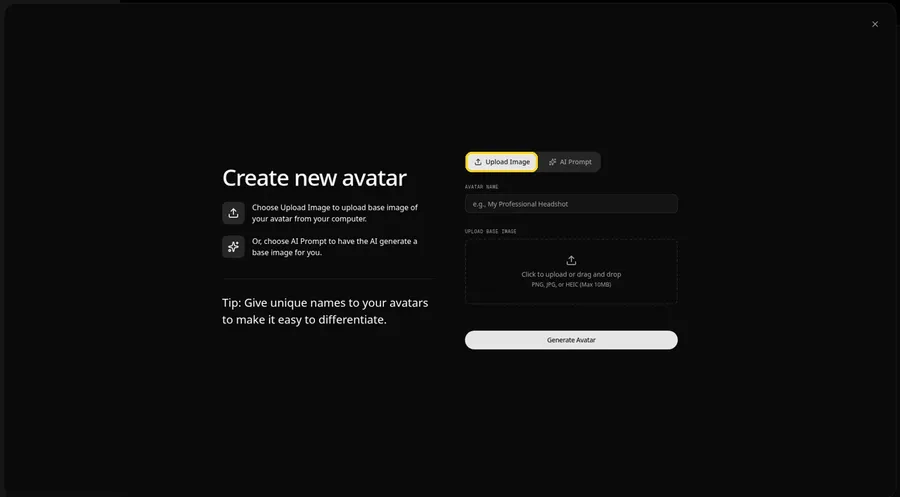
Under UPLOAD BASE IMAGE, keep the Upload Image tab selected for the talking storybook character picture.
Step 5: Upload the Storybook Character Image
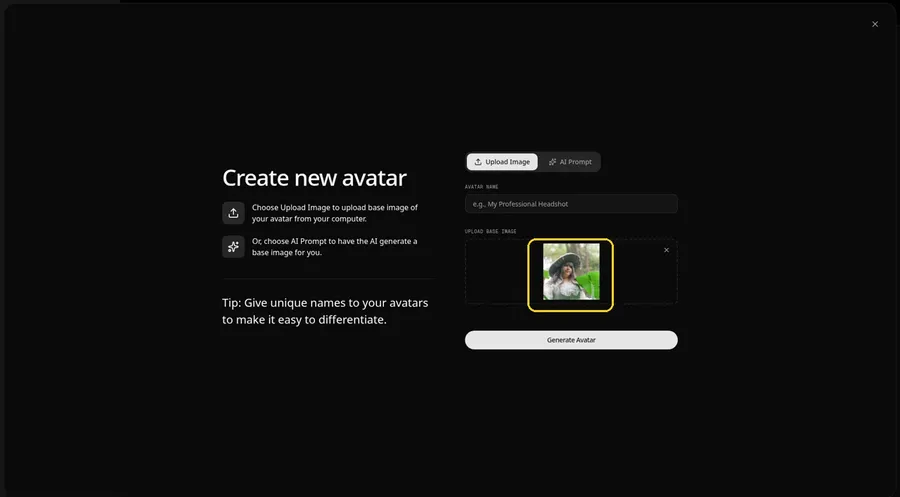
Choose the storybook character image in the upload area. The preview should show the talking storybook character looking ahead, with a wide gray hat, a green bodice, and large leaves.
Step 6: Name Your Avatar Host and Click Generate Avatar
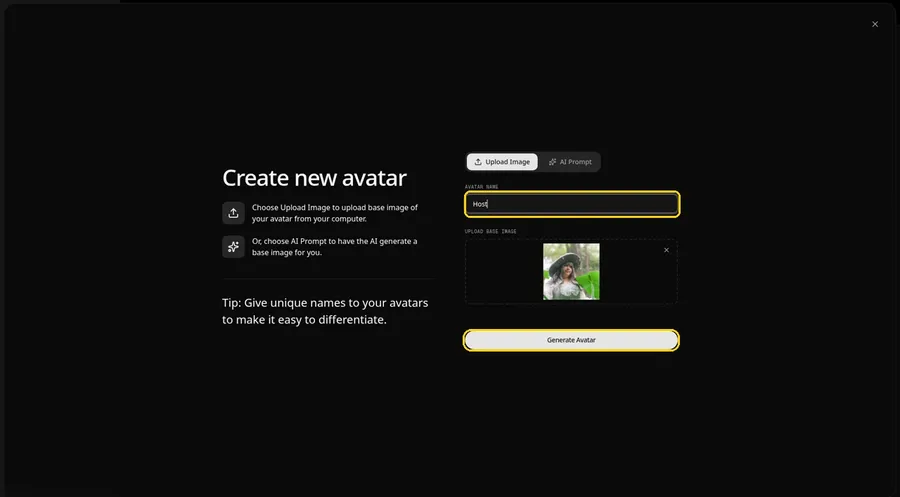
Enter Host under AVATAR NAME and press Generate Avatar; the talking storybook character is now saved in your avatar list.
Step 7: Open the Add Script Panel
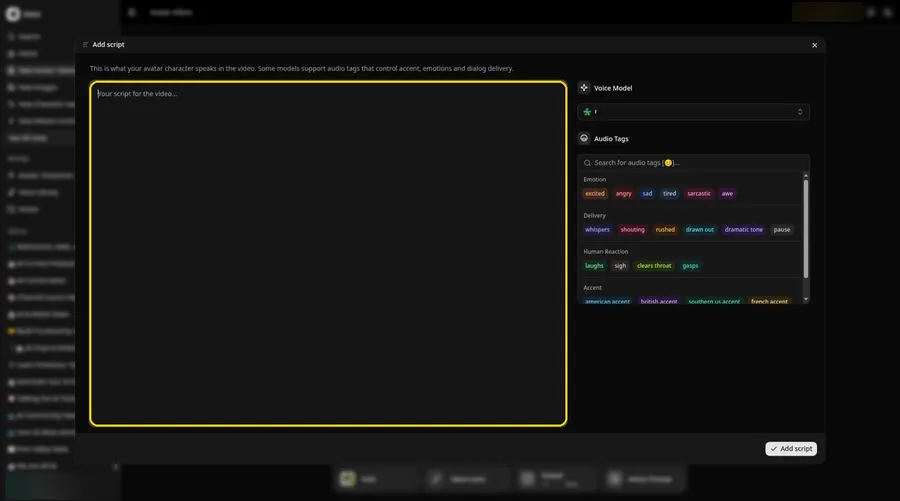
Click the script box in the composer, and the Add script panel opens for the talking storybook character.
Step 8: Choose the Voice Model
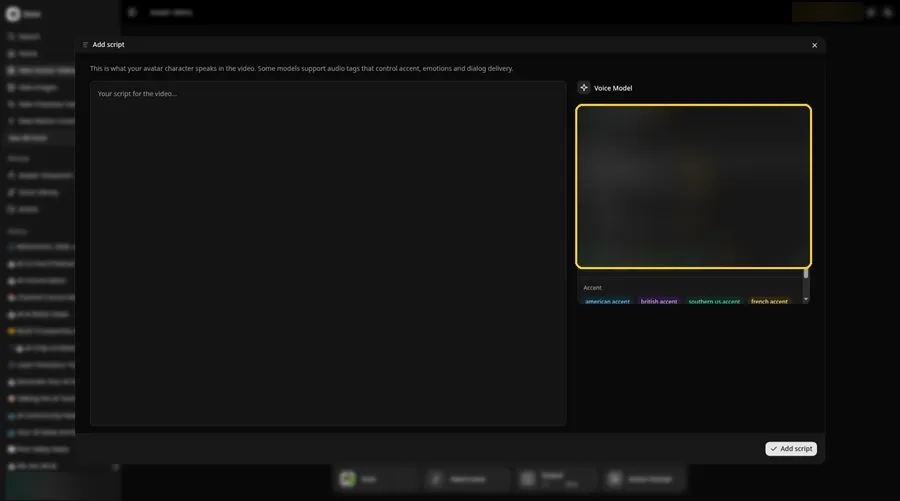
Pick a model in the Voice Model menu before the talking storybook character script goes in.
Step 9: Paste Your Script and Click Add Script
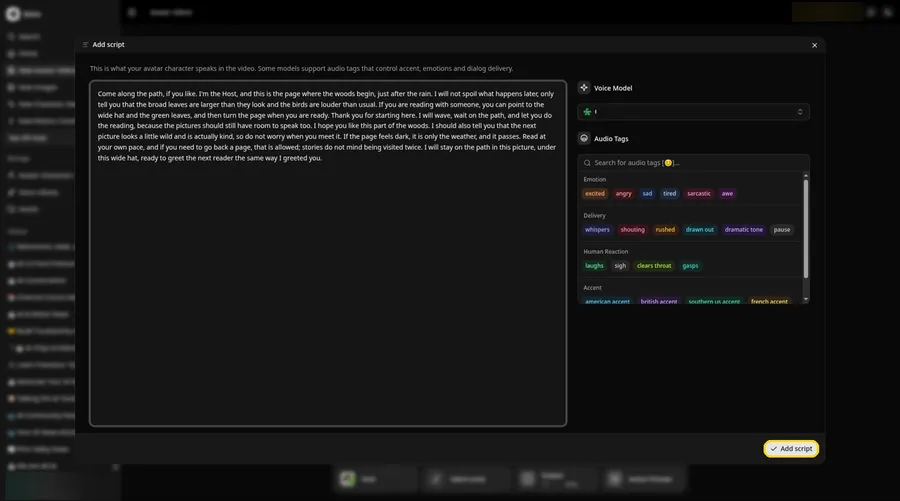
Drop in the full talking storybook character script, then click Add script. The opening words are: Come along the path, if you like.
Step 10: Pick a Voice
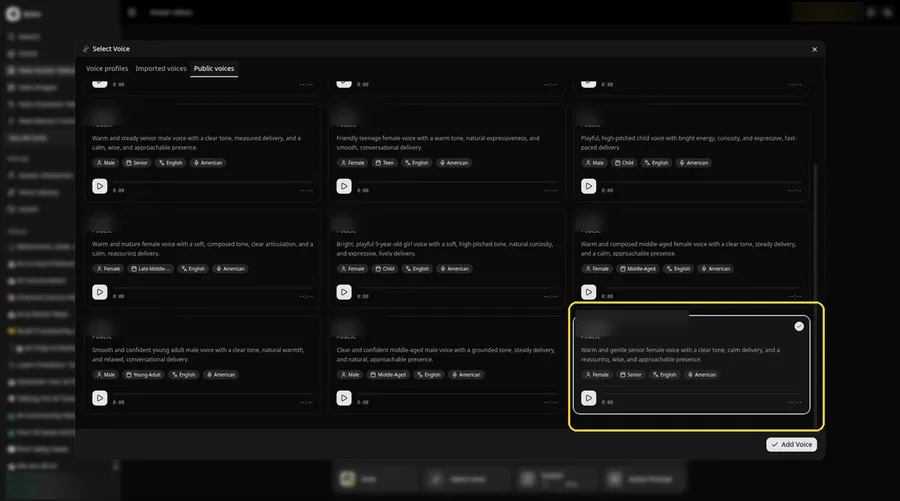
Click the voice button in the composer to open Select Voice for the talking storybook character. Pick a warm, gentle adult voice on the Public voices tab, then click Add Voice to attach it.
Step 11: Choose Your Output Settings
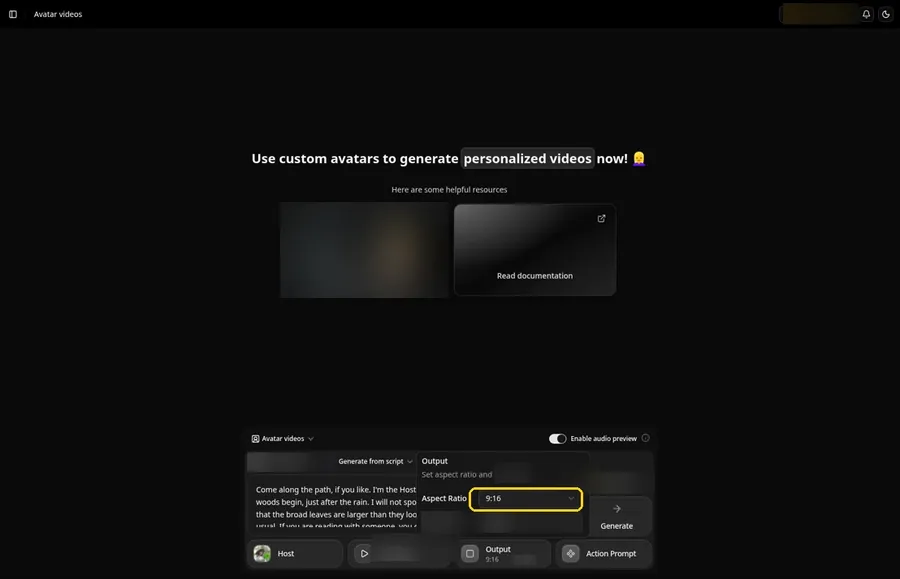
Choose your output settings. The talking storybook character video uses 9:16, picked from the aspect ratio dropdown in Output.
Step 12: Add an Action Prompt
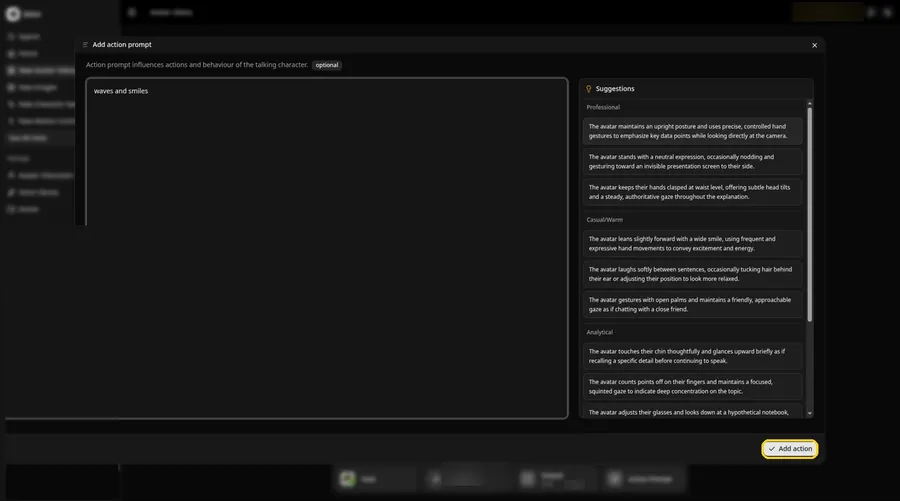
In the Add action prompt panel, enter: waves and smiles. Press Add action. The talking storybook character only moves the way this prompt says.
Step 13: Click Generate
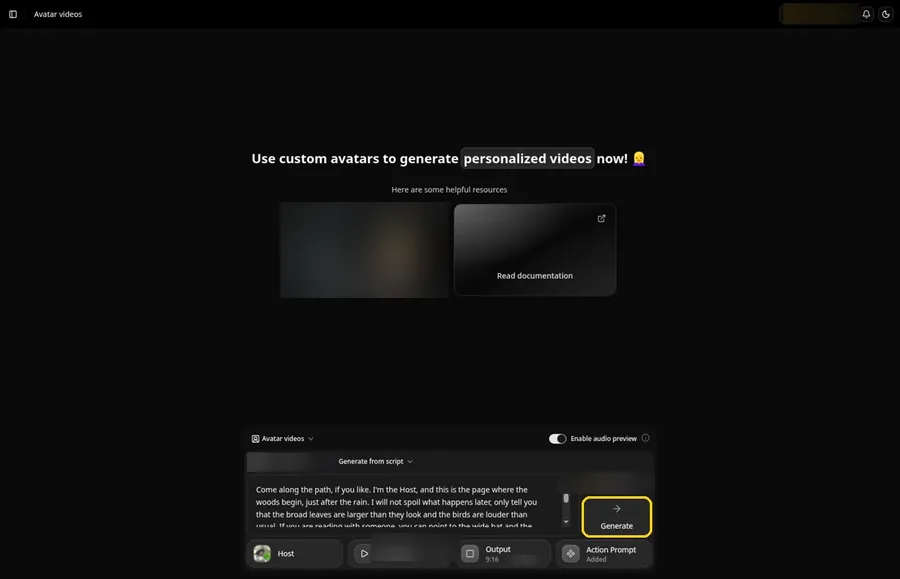
Check the talking storybook character Host, the voice, the script, the 9:16 output and the Added Action Prompt chip, then click Generate.
Step 14: Confirm the Audio Preview
An audio preview of the talking storybook character lines plays first; if it sounds right, confirm it and let Zoice process it.
Step 15: Preview the Video in the Player
Watch the talking storybook character video once in the player to check the lip sync and the action prompt.
Step 16: Download From the Player Menu
Open the three-dot menu on the player and click Download to save the talking storybook character video.
Step 17: Share Your Video
Share the downloaded talking storybook character video in a group chat or as a Reel, Short or story, using only images and audio you made or may use.
Writing the Action Prompt
Keep the talking storybook character move simple, like a small wave.
- waves and smiles
- nods and looks down the path
- smiles and looks at the camera
Type your pick in step 12 and click Add action so the Action Prompt chip updates on the talking storybook character.
Demo Idea: The Character Opens the Next Page
An adult storybook-character Host in a wide gray hat among the leaves introduces, in character, the next page of a story. Here is the exact script:
"Come along the path, if you like. I'm the Host, and this is the page where the woods begin, just after the rain. I will not spoil what happens later, only tell you that the broad leaves are larger than they look and the birds are louder than usual. If you are reading with someone, you can point to the wide hat and the green leaves, and then turn the page when you are ready. Thank you for starting here. I will wave, wait on the path, and let you do the reading, because the pictures should still have room to speak too. I hope you like this part of the woods. I should also tell you that the next picture looks a little wild and is actually kind, so do not worry when you meet it. If the page feels dark, it is only the weather, and it passes. Read at your own pace, and if you need to go back a page, that is allowed; stories do not mind being visited twice. I will stay on the path in this picture, under this wide hat, ready to greet the next reader the same way I greeted you."
Ready to make your own talking storybook character video? Try Zoice and follow the talking storybook character steps above.
Tips for Storybook Character Photos
- Use a costume photo or an illustration you have rights to.
- Keep the face clear of leaves and hat trim.
- Pair it with the printed book at story time.
- For the talking storybook character, add an action prompt only after the lip sync looks right, then compare the two versions.
Once the talking storybook character works, branch out with our AI talking character generator for kids roundup.
FAQ
Can I use characters from famous picture books?
Only characters you created or have rights to.
Can authors use it for book launches?
Yes, as a character intro clip.
Is the action prompt required?
No. The talking storybook character is lip synced to your script either way; the action prompt only adds the move.
Can I make a vertical talking storybook character video?
Yes. Choose 9:16 in the output settings before you click Generate on the talking storybook character.
Try Zoice
Your talking storybook character video is one click away. Explore our guide on how to make a drawing come to life, or Try Zoice and start your talking storybook character now.