How to Animate Old Family Photos With AI: A Simple 2026 Guide
Here is how to animate old family photos in Zoice: scan a vintage portrait, upload it as an avatar, write a short memory or message, choose a gentle voice, and Zoice creates a talking keepsake video, lip synced to your script. Sepia and black and white portraits both work as long as the face reads clearly. In this guide, animate means the portrait talks, with lip sync and natural facial movement, not head turns, gestures, or body motion.
Below you will find every Zoice screen from signing in to saving the MP4, followed by advice on preparing faded prints and ways to share the result. Comparing options? Read about the best AI tools for static portraits or explore historical figure video generators.
Preparing Old and Faded Photos
A proper scan of a print gives Zoice far more detail than a quick phone snapshot of an album page. Before you upload, prepare the photo like this:
- Scan the print at 600 dpi or higher, lying flat on the glass
- Wipe dust off the scanner glass and the print with a soft, dry cloth
- Repair scratches, spots, and tears in a photo editor, keeping the face natural
- Crop to one person, head and shoulders, so a single face fills the frame
- Save the file as a JPG or PNG under 10 MB
Working with a recent color snapshot instead? Our guide on how to make a picture talk covers everyday photos.
How to Animate Old Family Photos in Zoice, Step by Step
Follow these 17 steps in Zoice from start to finish. Every screenshot marks the next click with a yellow arrow. Our demo used a fictional sepia portrait, the Cartesia Sonic 3.6 voice model, a warm library voice, and 720p output.
Step 1: Visit Zoice and Sign In
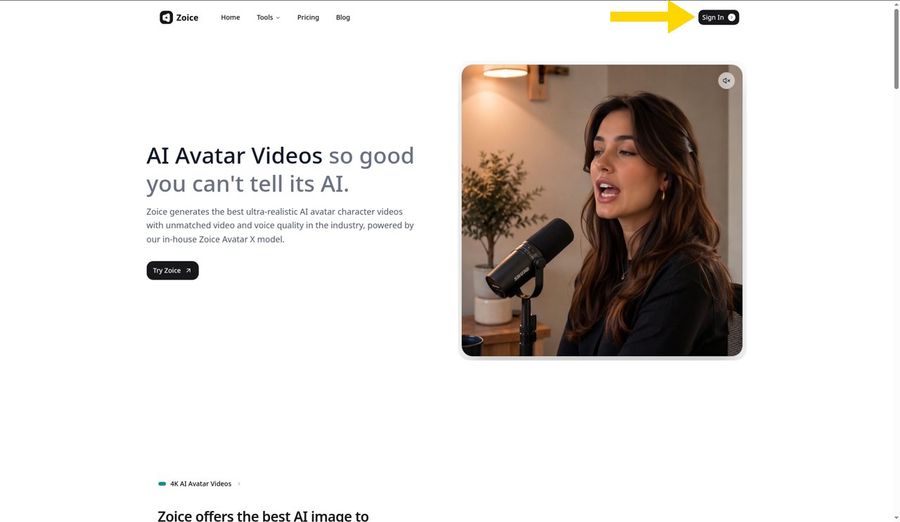
Head to zoice.com in your browser and click Sign In at the top right of the page. You can log in with Google or with an email and password. If you do not have an account yet, choose Sign up on the login screen to make one for free.
Step 2: Open New Avatar Videos
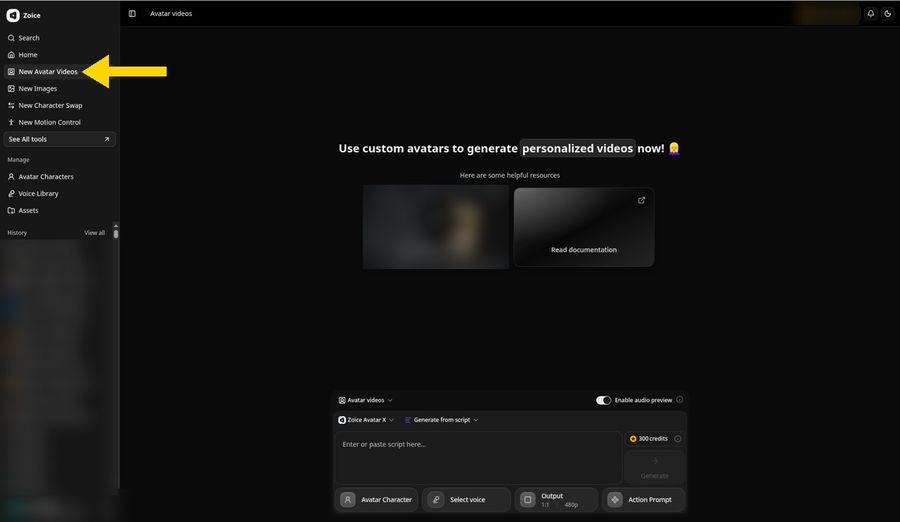
Once you are signed in, find New Avatar Videos in the left sidebar and click it. The Avatar videos page opens, with the composer at the bottom where you will put the whole video together.
Step 3: Click Avatar Character, Then Create New
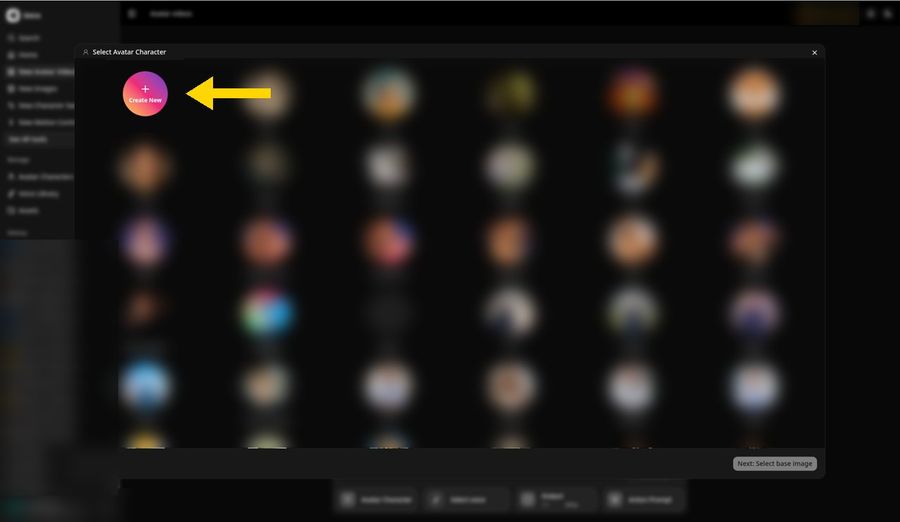
Down in the composer, click Avatar Character, the first button in the bottom row. A Select Avatar Character window opens over the page, listing the avatars already saved to your account. Click the round Create New button in its top left corner to begin a fresh avatar from your scan.
Step 4: Choose Upload Image
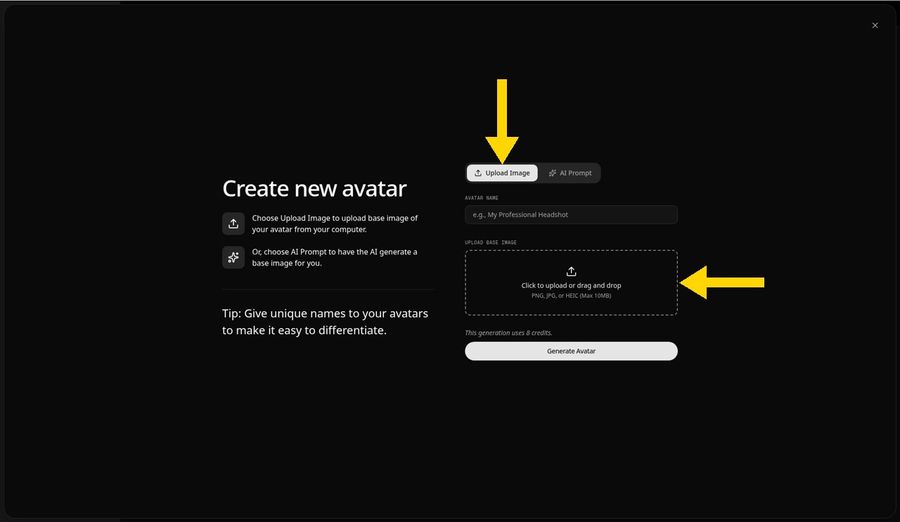
A Create new avatar panel appears. Leave the Upload Image tab selected, then click the dashed upload box or drop your scan onto it. The panel takes PNG, JPG, and HEIC images up to 10 MB.
Step 5: Upload the Scanned Photo
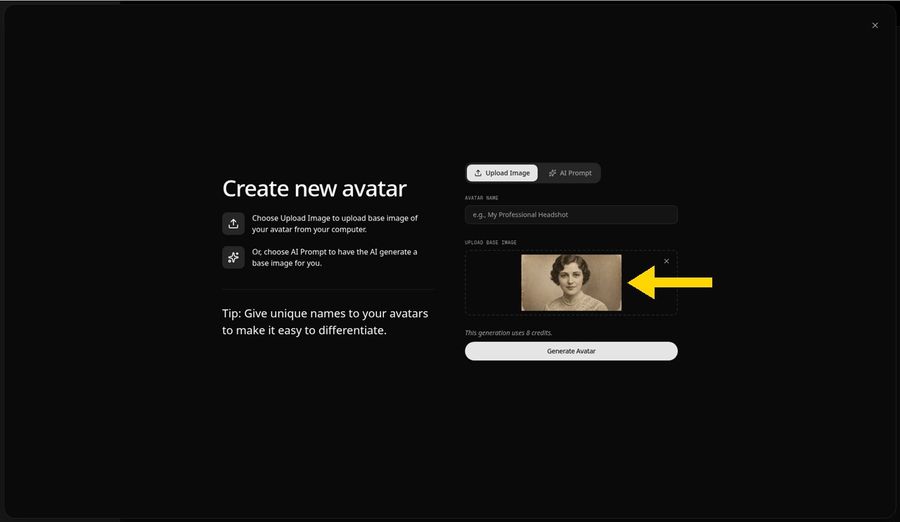
Choose your scanned photo and a thumbnail appears in the upload box, so you can confirm the face is sharp before going on. Our demo image is a fictional portrait made with AI in a 1920s sepia studio style. It is not a real family member or anyone's ancestor. Old photos give the best results when:
- The face fills a good part of the frame
- Both eyes and the mouth are sharp, not lost in grain
- The person faces the camera
- Only one face is in the picture
- Cracks and stains stay away from the face
Step 6: Name Your Avatar Host and Click Generate Avatar
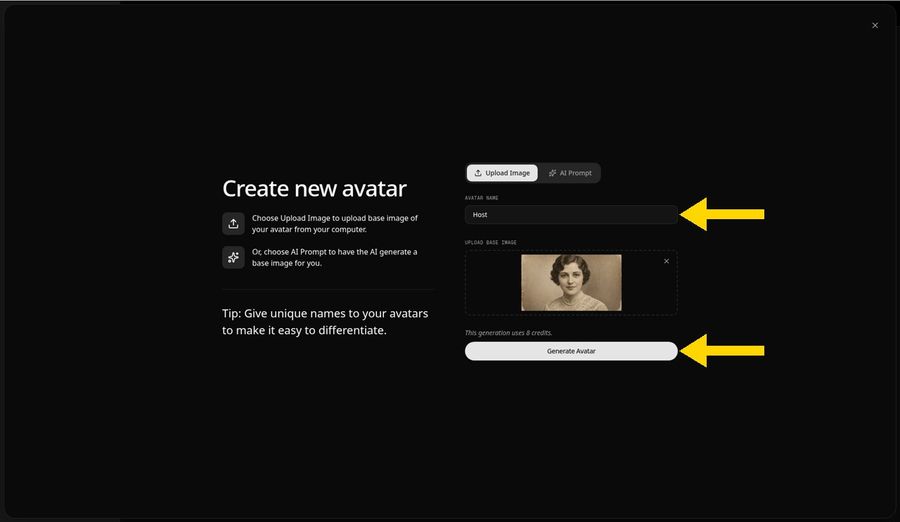
Enter a name in the Avatar Name field; ours is Host. If you plan to bring several old portraits into Zoice, a clear name for each one keeps your library tidy. Click Generate Avatar to save it. This step costs 8 credits, and the new avatar lands in Avatar Characters, ready for later videos.
Step 7: Open the Add Script Panel
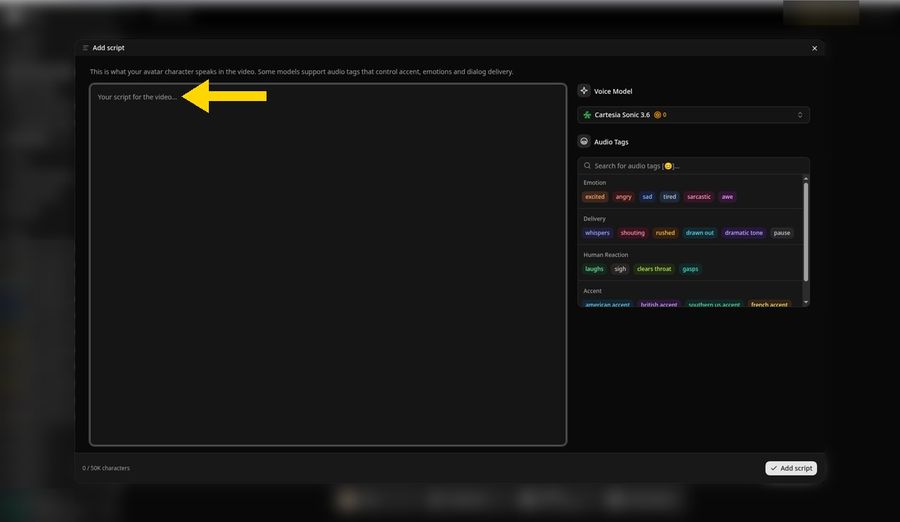
Back in the composer, your new Host avatar is attached. Click into the script box and the Add script panel opens, with a large text area on the left and voice settings, including Voice Model, on the right.
Step 8: Choose the Cartesia Voice Model
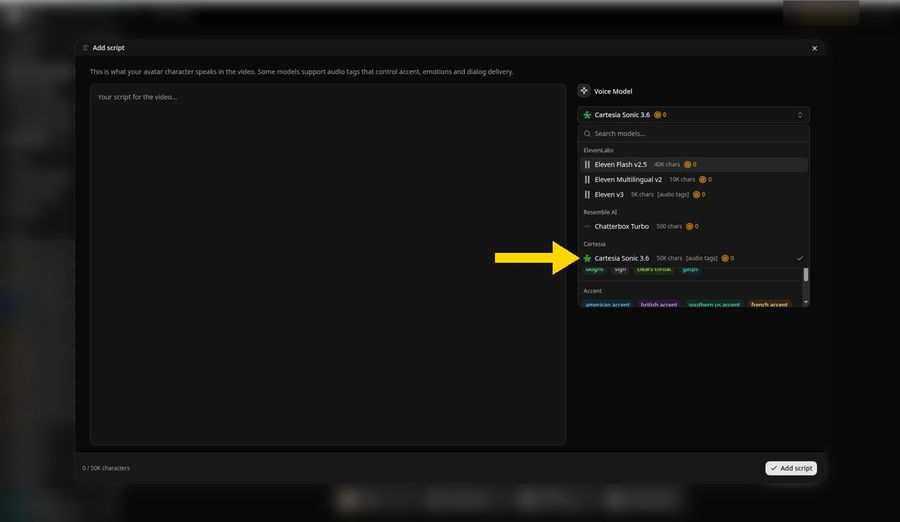
Click the Voice Model menu and select Cartesia Sonic 3.6 in the Cartesia group; a check mark confirms the choice. This model accepts scripts up to 50K characters and supports audio tags, which let you shape how individual lines are delivered.
Step 9: Paste Your Script and Click Add Script
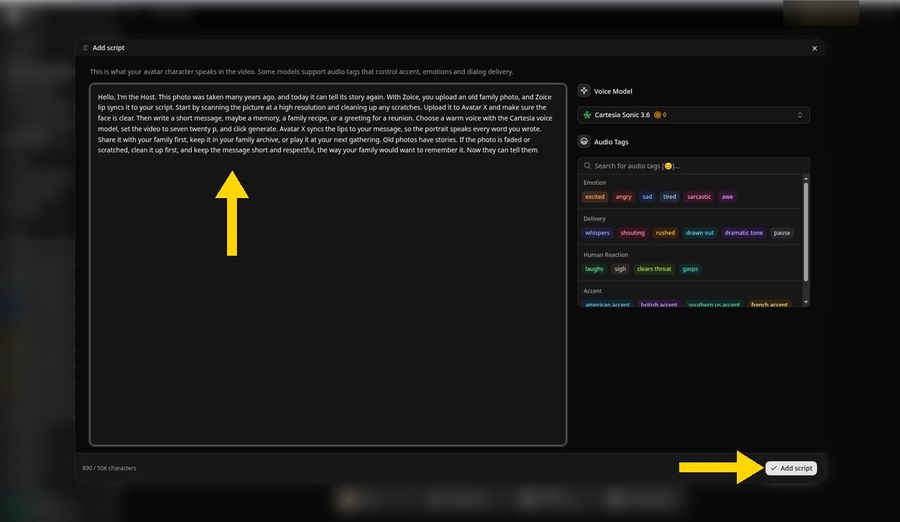
Write or paste what the portrait should say. Our script opens with "Hello, I'm the Host. This photo was taken many years ago, and today it can tell its story again." It is 890 characters long, so the counter shows 890/50K. Zoice handles 170+ languages and dialects, so the message can be in the language your family speaks at home. Click Add script when you are done.
The complete script from our demo:
Hello, I'm the Host. This photo was taken many years ago, and today it can tell its story again. With Zoice, you upload an old family photo, and Zoice lip syncs it to your script. Start by scanning the picture at a high resolution and cleaning up any scratches. Upload it to Avatar X and make sure the face is clear. Then write a short message, maybe a memory, a family recipe, or a greeting for a reunion. Choose a warm voice with the Cartesia voice model, set the video to seven twenty p, and click generate. Avatar X syncs the lips to your message, so the portrait speaks every word you wrote. Share it with your family first, keep it in your family archive, or play it at your next gathering. Old photos have stories. If the photo is faded or scratched, clean it up first, and keep the message short and respectful, the way your family would want to remember it. Now they can tell them.
Step 10: Pick the Sarah Voice
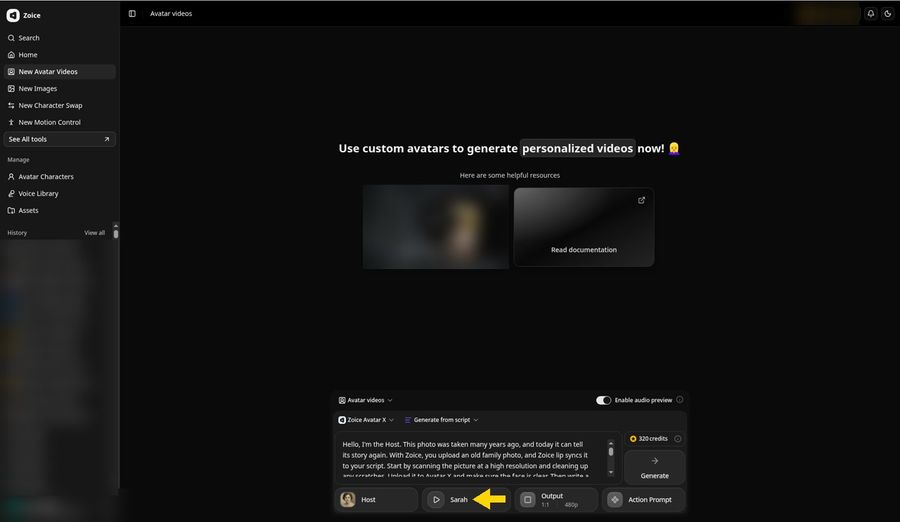
Open the voice button in the composer and choose a voice from the library. We picked Sarah, a warm, composed female voice that suits a family keepsake. The composer now lists Host, Sarah, and the opening of your script, while Output still reads 1:1 and 480p.
Step 11: Set 720p in Output
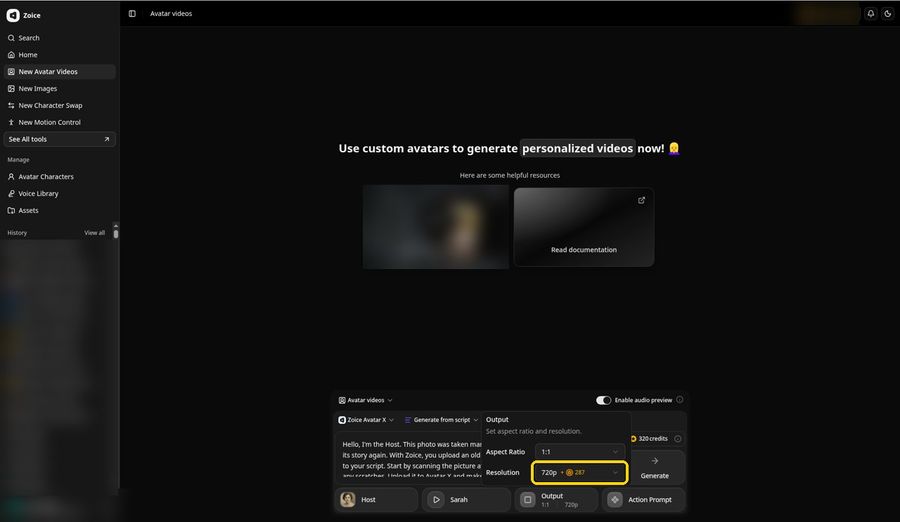
Click Output to open its popover. Leave the aspect ratio at 1:1, which frames a single portrait nicely, and pick 720p from the Resolution menu, which lists the extra credits it adds. For a phone story, 9:16 works well, and 16:9 fits a TV screen or YouTube.
Step 12: Click Generate and Check the Audio Preview
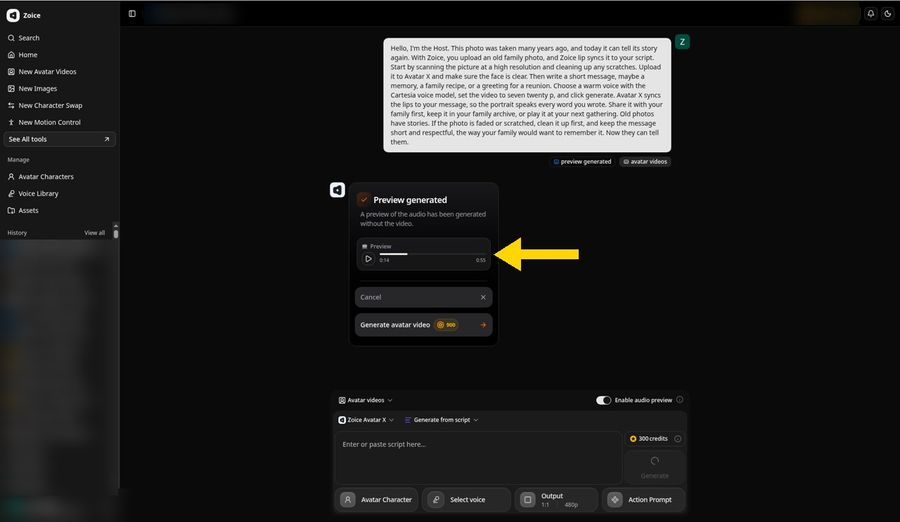
Click Generate. Because Enable audio preview is on, Zoice creates a project and makes the audio first. Once the card says Preview generated, the player is ready to play and shows the full length; ours came to 0:55. Listen all the way through to catch any name or date that sounds wrong.
Down below, the composer clears itself for your next video, and the project keeps everything you set.
Step 13: Click Generate Avatar Video
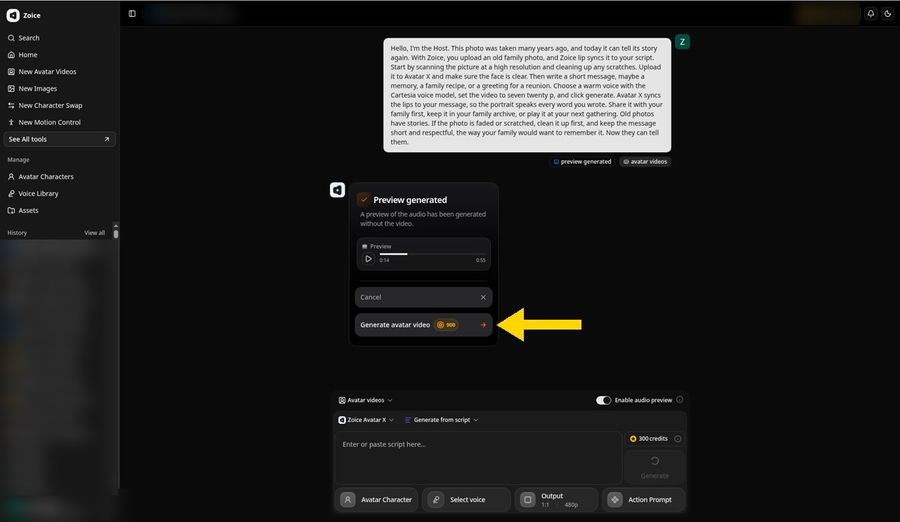
Happy with the audio? Click Generate avatar video. The button lists the price, which was 900 credits for our 0:55 message at 720p. Need to change a word? Choose Cancel and edit the script now, before any credits are spent.
Step 14: Wait While Zoice Processes the Video
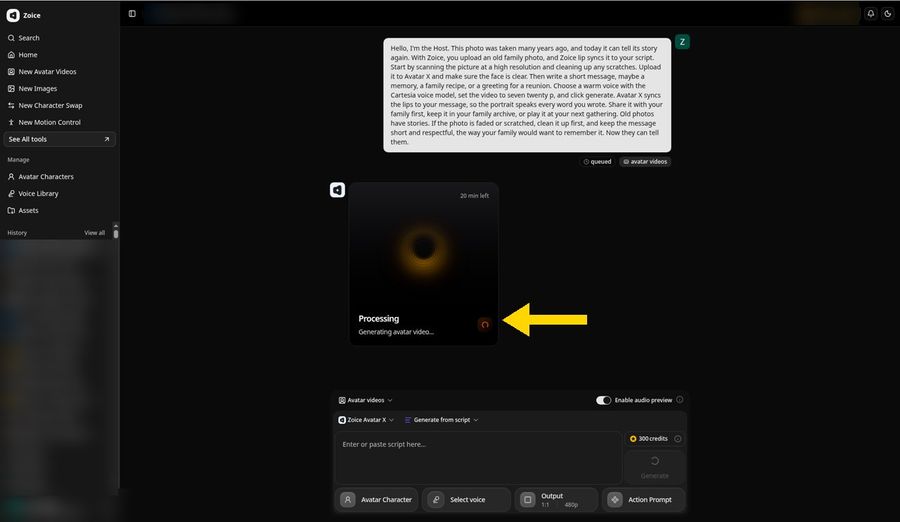
Zoice lines up the job and shows a Processing card labeled Generating avatar video, along with a time estimate. Ours said 20 minutes. Feel free to close the tab, because the project stays in History and you can return to it whenever you like.
Step 15: Preview Your Talking Family Photo
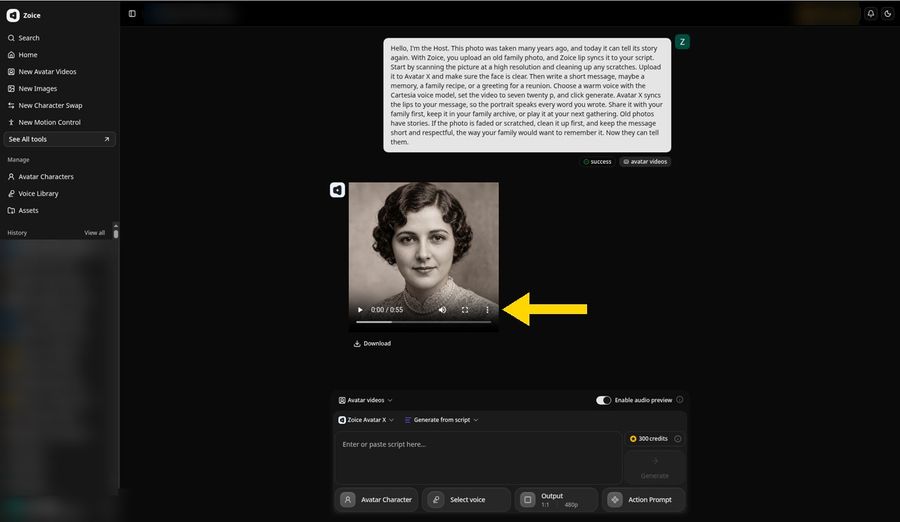
As soon as the status reads success, the finished video shows up in the player, 0:55 long in our demo. Play it and confirm the speech is lip synced to your script and that Sarah's voice suits the portrait. The composer underneath is back to 480p for the next job, but this video keeps its 720p setting. In our demo, the portrait blinks and shifts its expression as it speaks, while the pose stays close to the original photo. We did not use the optional Action Prompt button, which can guide gestures, so none appear here.
Step 16: Open the Player Menu and Click Download
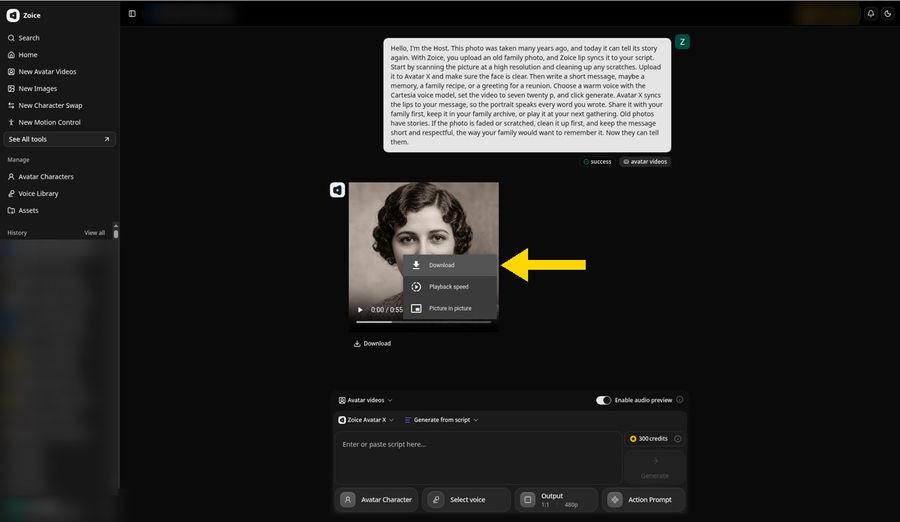
Click the three dot button on the player to open its menu, then choose Download. The Download link under the player does the same job.
Step 17: Download and Share
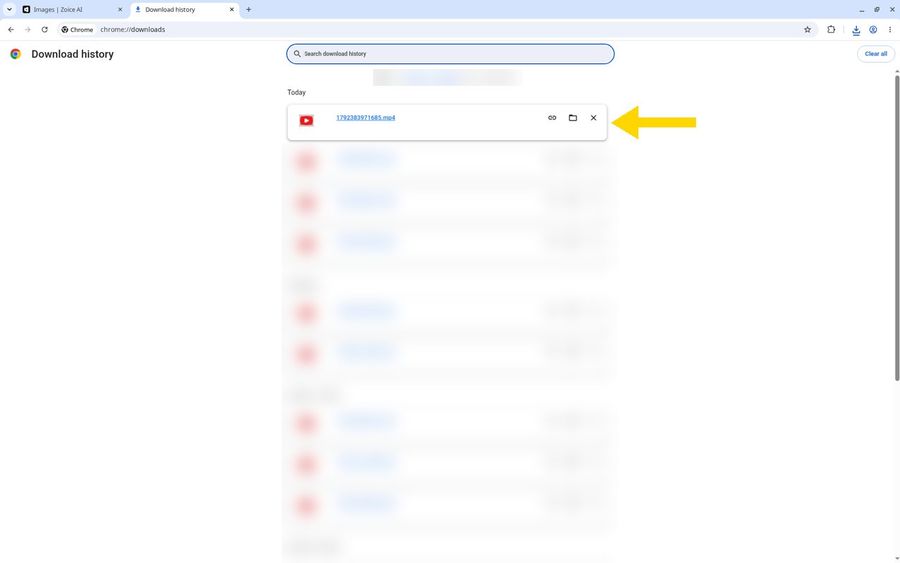
The browser stores the video as an MP4 file, and Chrome lists it at the top of Download history under Today. Send it to relatives in a family chat, add it to a digital family archive, or play it at a reunion. Use only photos and recordings that you have the right to use, and check with close family before you share a portrait of someone they loved. Treat a scripted message as a gentle tribute, not as something the person really said.
Watch the Finished Video

Here is the result of this guide: Host, our fictional sepia portrait, speaks the full message in the Sarah voice, 0:55 at 720p. Have a family photo waiting in a drawer? Try Zoice.
Tips for Respectful, Clear Results
- Scan at high resolution and clean dust and scratches before you upload
- Choose a portrait where the face looks toward the camera
- Write the message the way the person might really have spoken, short and kind
- Avoid putting invented confessions or opinions in a real relative's mouth
- Show the video to close family before you post it anywhere public
- Listen to the audio preview before spending credits on the video
Ideas: Family History, Reunions, Memorials
A single portrait can become part of many family moments:
- A great grandparent introducing the family tree at a reunion
- A short memory read aloud at a memorial or an anniversary
- A birthday greeting voiced from an old wedding portrait
- A school project where students give a voice to a figure from local history
- A handwritten recipe told through the photo of the cook who wrote it
For more ways to tell a story with an avatar, see AI storytelling avatar generators. Need an invented character instead of a portrait? Read how to create a talking character. Ready to hear an old photo speak? Try Zoice.
FAQ
Do black and white photos work?
Yes. Black and white and sepia prints both work in Zoice, because what matters is a sharp, clearly visible face, not color. Scan the print in color mode even if it looks gray, which keeps subtle tones, and crop so one face fills most of the frame before you upload.
Can I use a damaged photo?
Yes, but repair it first. Cracks, stains, and heavy fading across the eyes or mouth make the face harder to read, so fix those areas in a photo editor and keep the edits natural. Wear around the edges or in the background usually matters less and can often stay as it is.
Can I use a relative's real voice?
Yes, if you have the right to use the recording and the family agrees. Zoice also lets you upload or record audio in place of a typed script, as our guide on how to make a photo sing with AI shows screen by screen. A saved voicemail or a home video clip can work. Use a real recording only as it was spoken, and never make it sound as if the person said something they did not.
How long will the video be?
The length follows your script. Our 890 character message became a 0:55 video, and the audio preview shows the exact length before you spend credits. A longer script makes a longer video, and the Generate avatar video button shows the credit cost for that length before you commit, so trim the words until the preview runs as long as you want.