How to Make a Photo Sing with AI
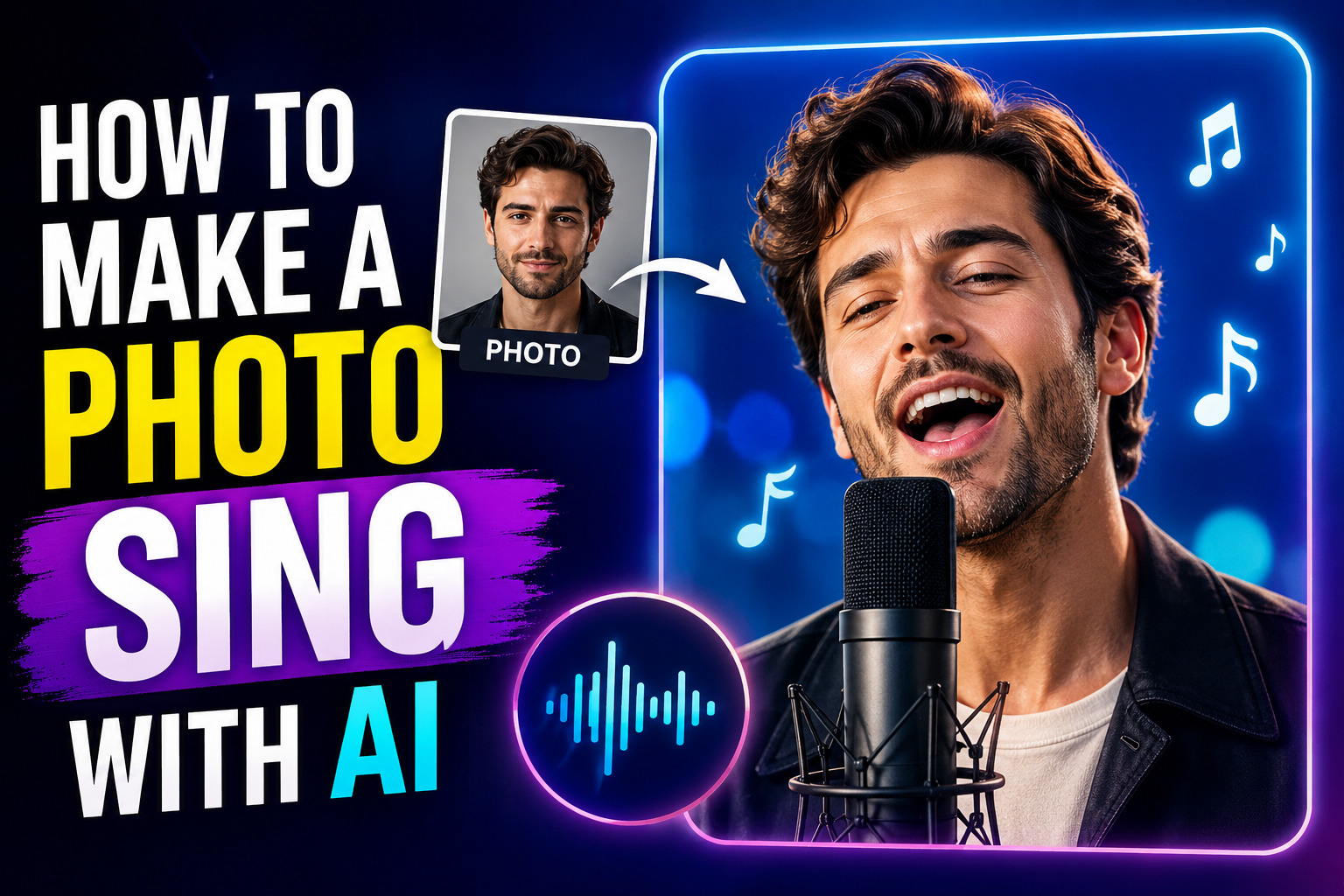
AI technology has changed the way people create videos. Earlier, turning a simple photo into a singing video required animation skills, editing software, and hours of work. Now, AI singing avatar tools allow anyone to make a photo sing within minutes.
With AI, you can upload a picture, add a song or audio, and automatically generate a realistic singing video where the person in the photo moves their lips, changes expressions, and performs like a real singer.
Whether you want to create fun social media videos, AI music covers, animated characters, or engaging content or ai avatar for TikTok and Instagram, AI singing photo generators make the entire process simple.
In this article, you will learn how to make a photo sing with AI, how the technology works, and the step-by-step process to turn any image into a singing avatar video.
What Is an AI Singing Photo?
An AI singing photo is a digitally animated image that uses artificial intelligence to make a still picture appear like it is singing.
AI analyzes the uploaded image and adds realistic:
- Lip movements
- Facial expressions
- Head motion
- Singing animations
- Voice synchronization
The AI matches the mouth movements with the uploaded audio or song, creating the effect that the person in the image is actually performing.
You can create singing videos using:
- Your own photo
- AI-generated characters
- Digital avatars
- Cartoon characters
- Virtual influencers
Why Make a Photo Sing with AI?
AI singing photo generators are becoming popular because they make video creation faster and easier. You do not need cameras, actors, or professional editing skills.
Here are some common reasons creators use AI singing avatars:
Create Viral Social Media Content
Singing photos are popular on platforms like TikTok, Instagram Reels, and YouTube Shorts.
You can turn ordinary images into entertaining videos that capture attention quickly.
Bring Characters to Life
AI allows you to animate different characters and make them perform songs naturally.
You can create:
- Virtual singers
- Digital influencers
- Animated characters
- Creative storytelling videos
Save Time on Video Production
Instead of recording yourself singing, AI handles:
- Face animation
- Lip syncing
- Expressions
- Video generation
This helps creators produce more content in less time.
Create Personalized Videos
You can turn personal photos into unique singing videos for:
- Birthdays
- Fun messages
- Entertainment
- Creative projects
How to Make a Photo Sing with AI Using Zoice (Step-by-Step)
Zoice allows you to create realistic singing avatar videos by uploading a photo and adding audio. Follow these steps to make your first AI singing photo video.
Step 1: Visit Zoice and Click Sign In
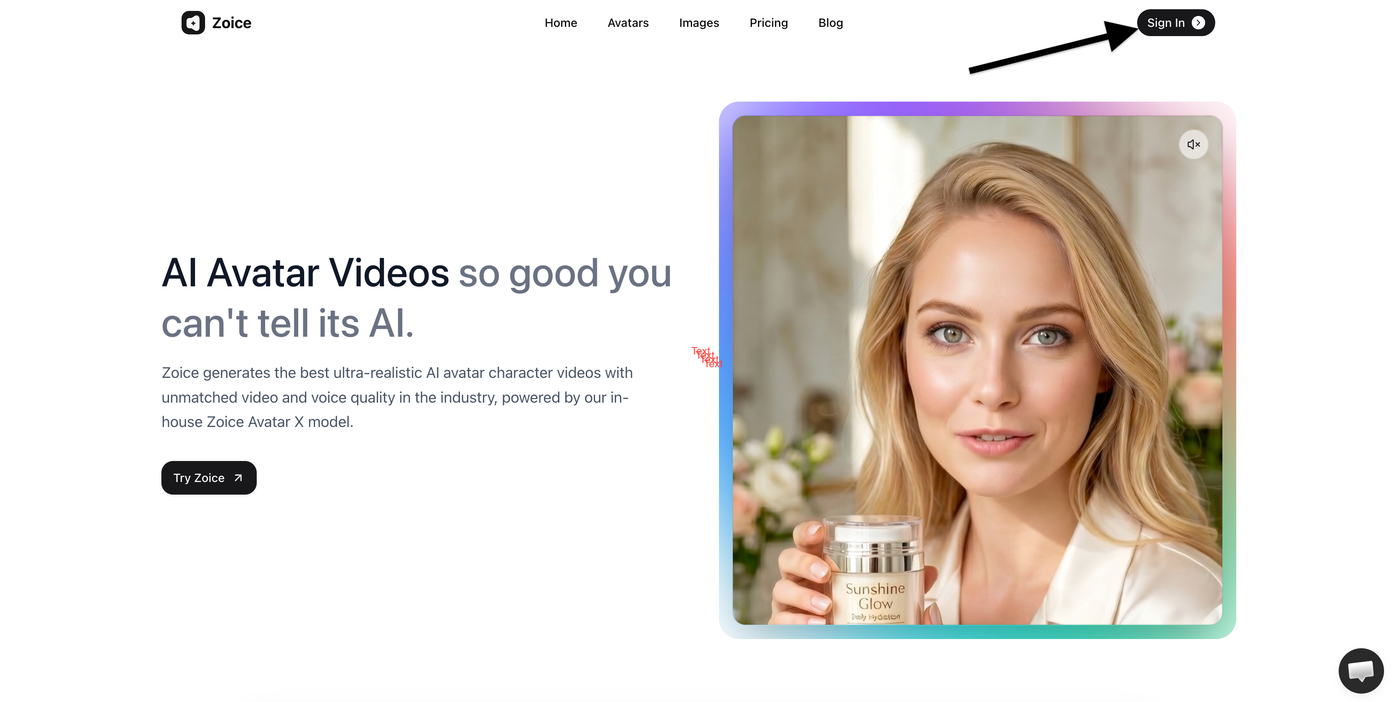
Go to the Zoice website and click on the Sign In button available at the top-right corner of the homepage.
If you already have an account, you can directly log in. New users can create an account before accessing the AI singing photo features.
Step 2: Sign In to Your Account
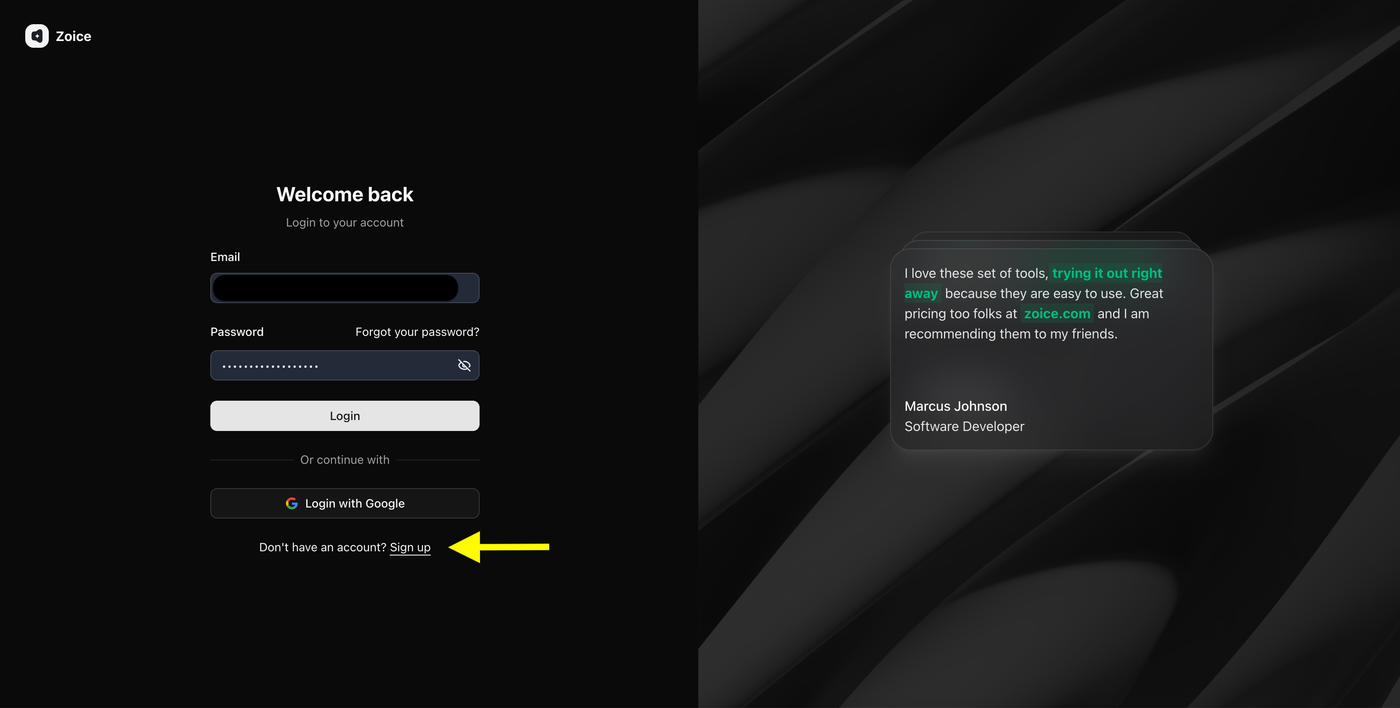
If you already have a Zoice account, enter your login details.
Add:
- Email address
- Password
Then click the Login button to access your Zoice dashboard.
You can also use the Login with Google option for quick access.
Step 3: Create a New Account
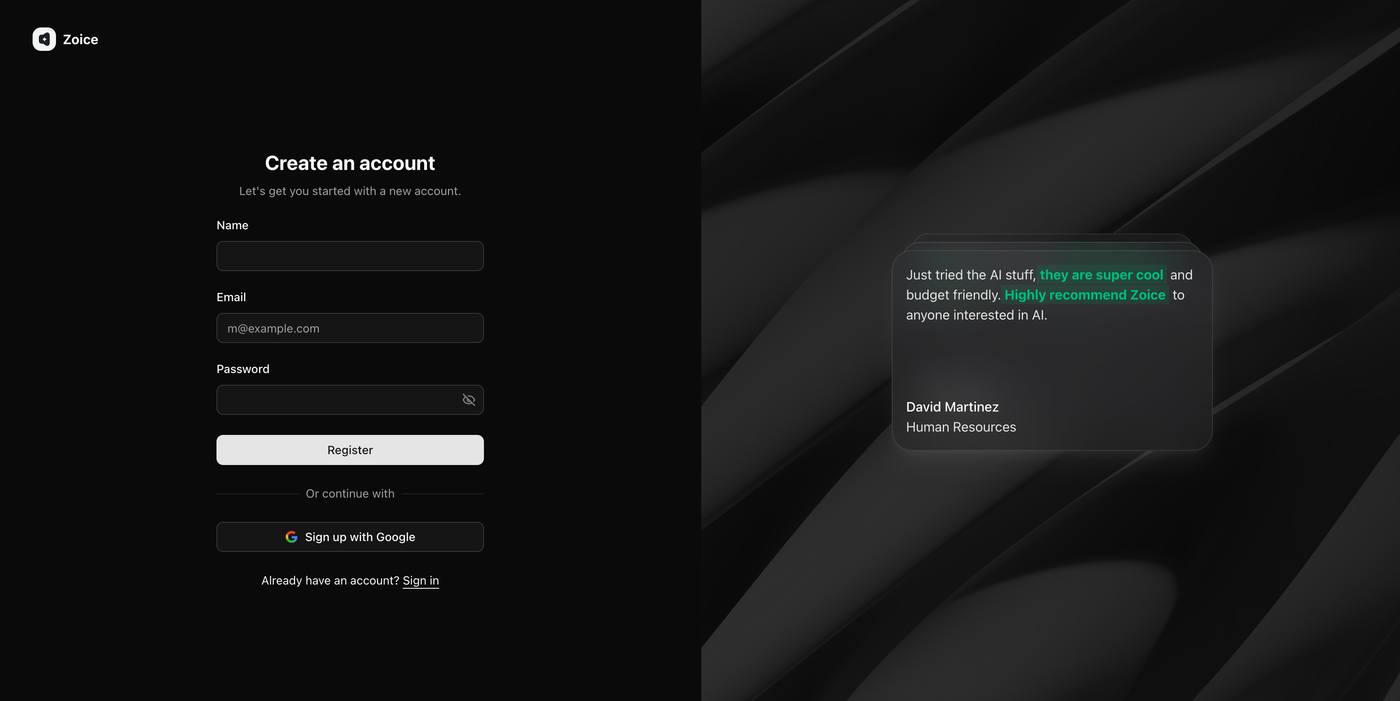
If you are a new user, click on the Sign up option.
Fill in your account details:
- Name
- Email address
- Password
After entering the required information, click Register to create your Zoice account.
You can also sign up directly using your Google account.
Step 4: Navigate to Avatar Characters
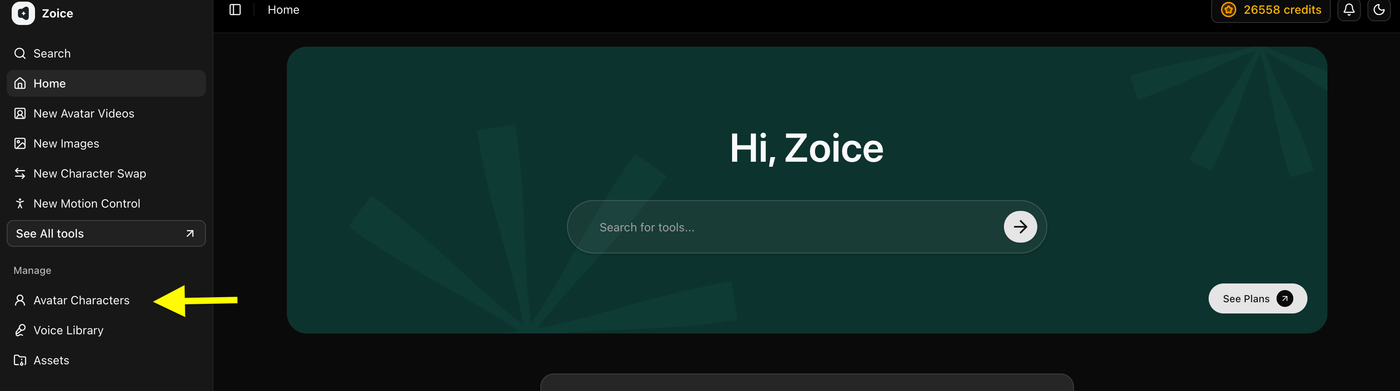
After logging in, you will enter the Zoice dashboard.
From the left sidebar:
- Go to the Manage section
- Click Avatar Characters
Here, you can create and manage AI avatars that will be used to make your photo sing.
Step 5: Click Create New Avatar

Inside the Avatar Characters section, click the Create New button.
You can create your singing avatar in two ways:
- Upload an image from your device
- Generate an image using an AI prompt
Step 6: Upload Your Photo and Generate Avatar
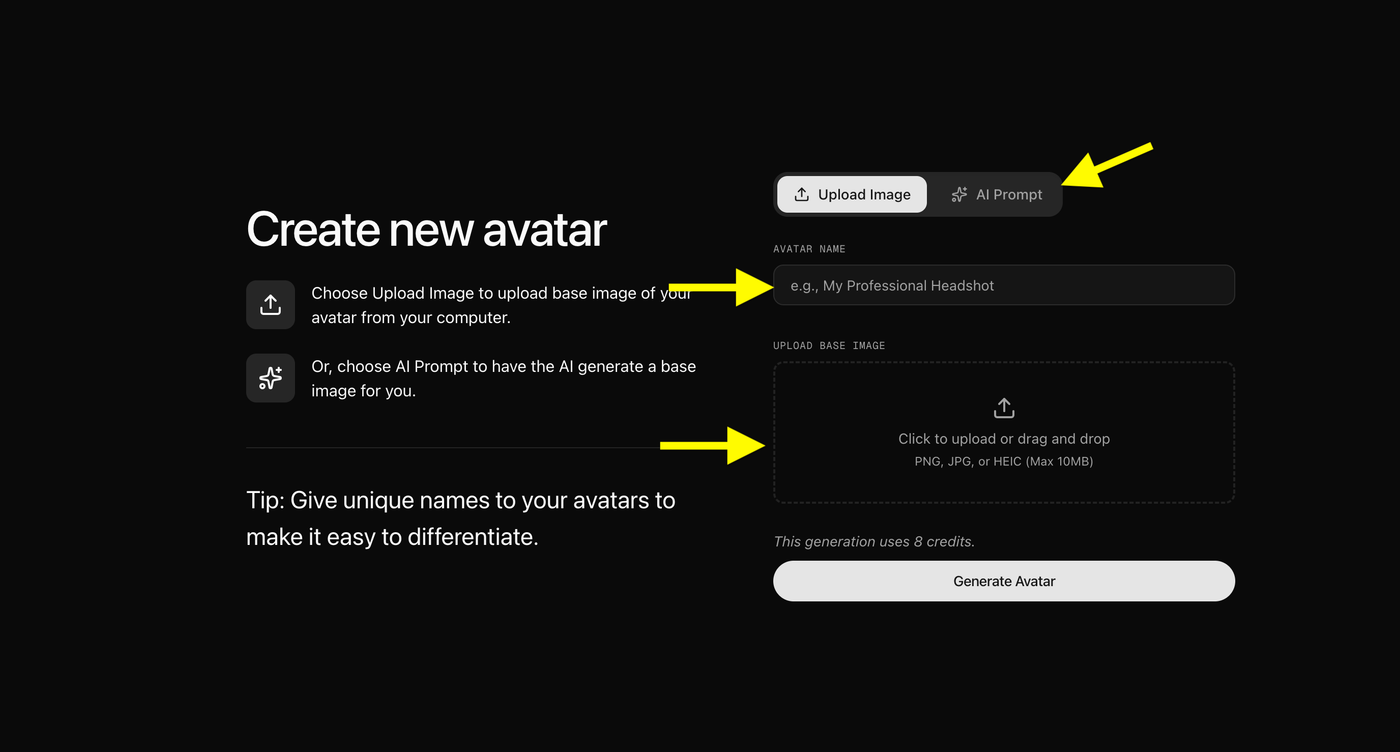
Now add the required avatar details:
- Enter a unique Avatar Name
- Upload the image you want to turn into a singing AI avatar
For better results, use a photo with:
- Clear face visibility
- Good lighting
- High image quality
- Front-facing angle
After uploading the image or generating one with an AI prompt, click Generate Avatar to create your custom AI singing avatar.
Step 7: Add Avatar Details and Generate Your Avatar
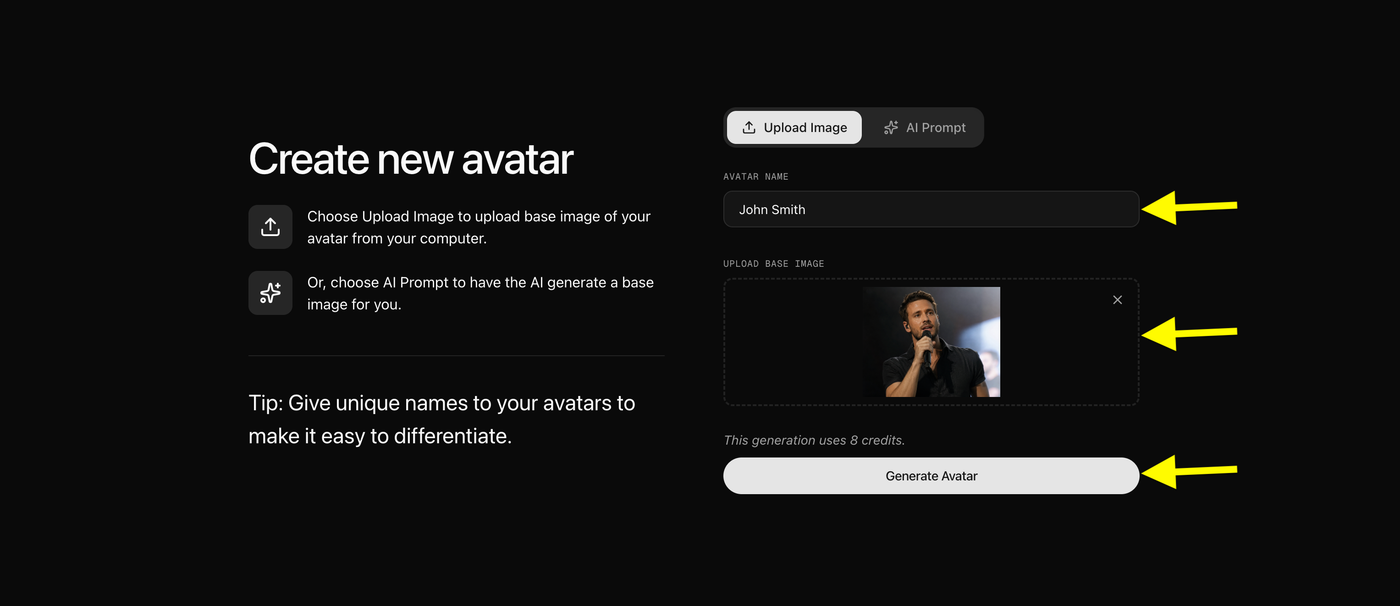
After choosing your image, complete the avatar setup by adding the required information.
Add:
- Avatar Name: Enter a unique name for your AI avatar so you can easily identify it later.
- Upload Base Image: Upload the photo you want to convert into a singing AI avatar.
Make sure your image has:
- Clear face visibility
- Good lighting
- Front-facing angle
- High image quality
After adding the avatar name and uploading your image, click Generate Avatar.
Zoice will process your photo and create a realistic AI avatar that you can use to generate your singing AI video.
Step 8: Select Your Created Avatar
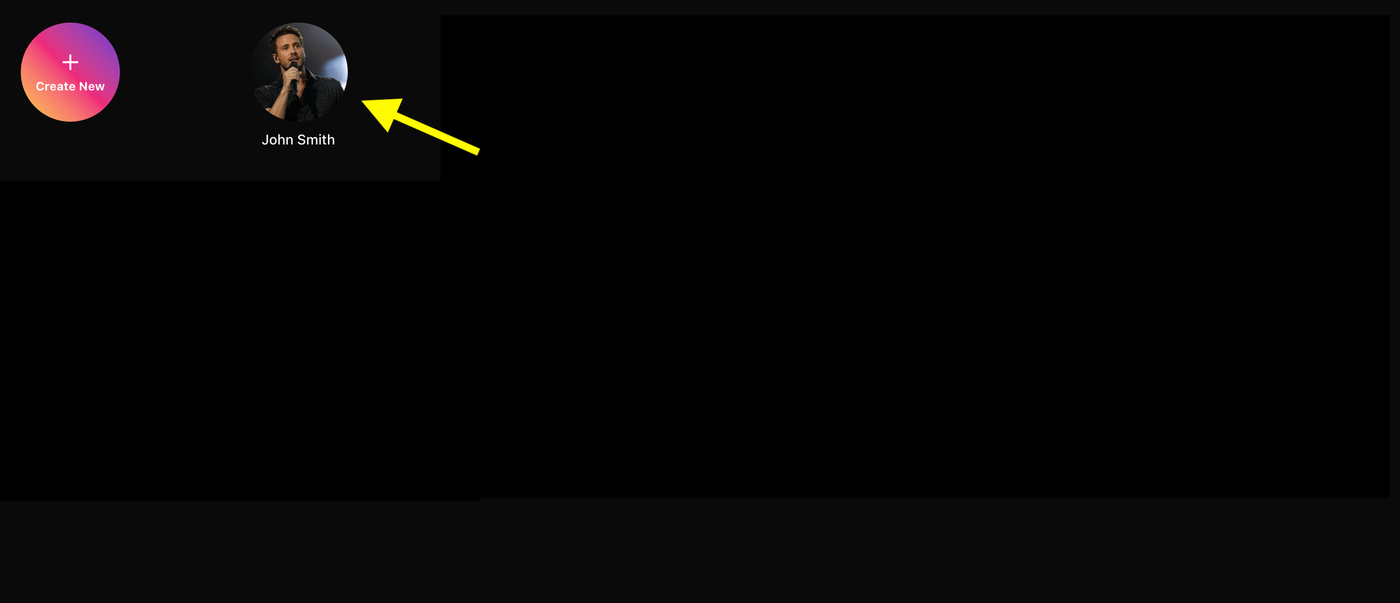
Once your AI avatar is generated, it will appear in the Avatar Characters section.
Click on the newly created avatar to select it.
From here, you can open your avatar profile and continue the setup process to turn your photo into a singing AI video.
Step 9: Click Generate Video
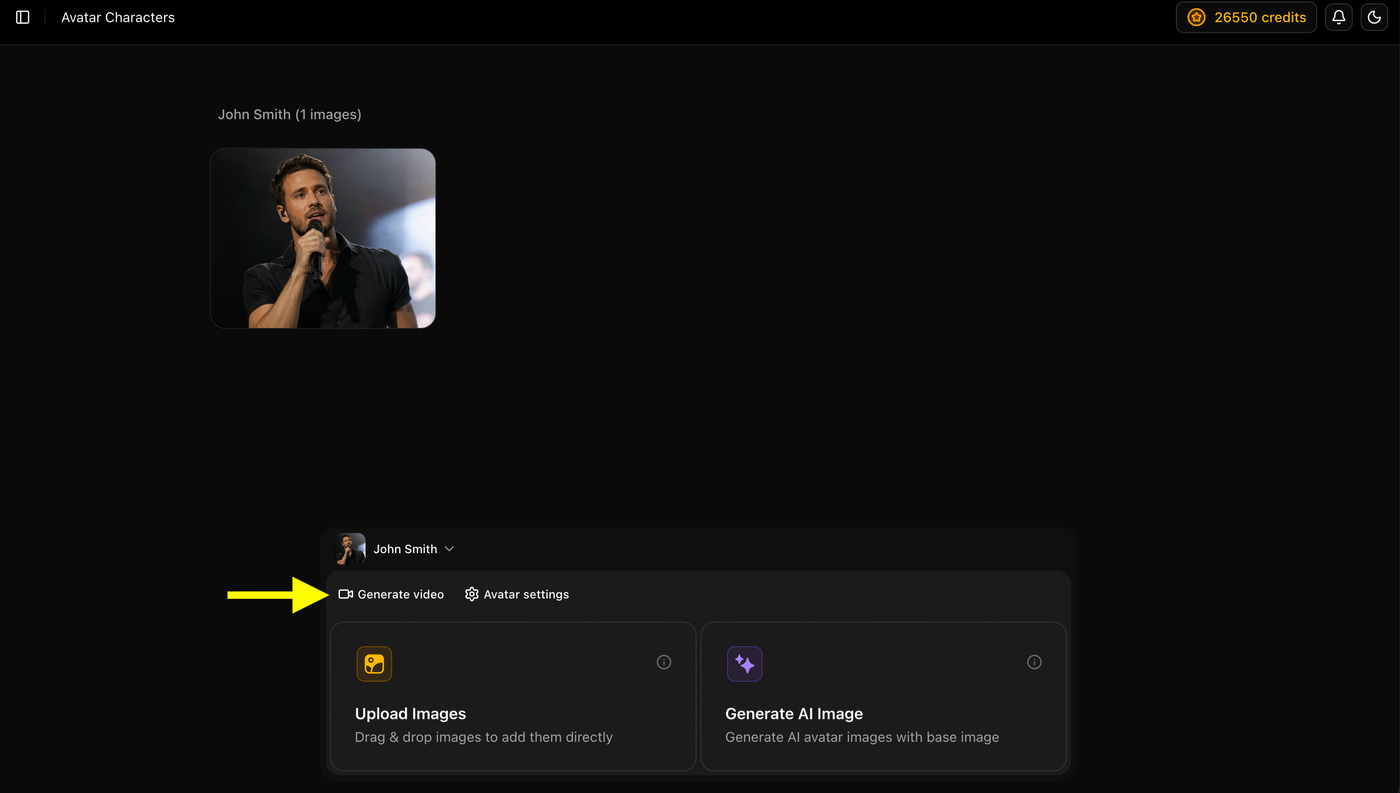
After selecting your created avatar, you will see your avatar profile page.
Click on the Generate Video option to start creating your singing AI avatar video.
Here you can:
- Use the selected avatar image
Once you click Generate Video, you can continue customizing your singing video by adding voice, music, and other settings.
Step 10: Add Your Script
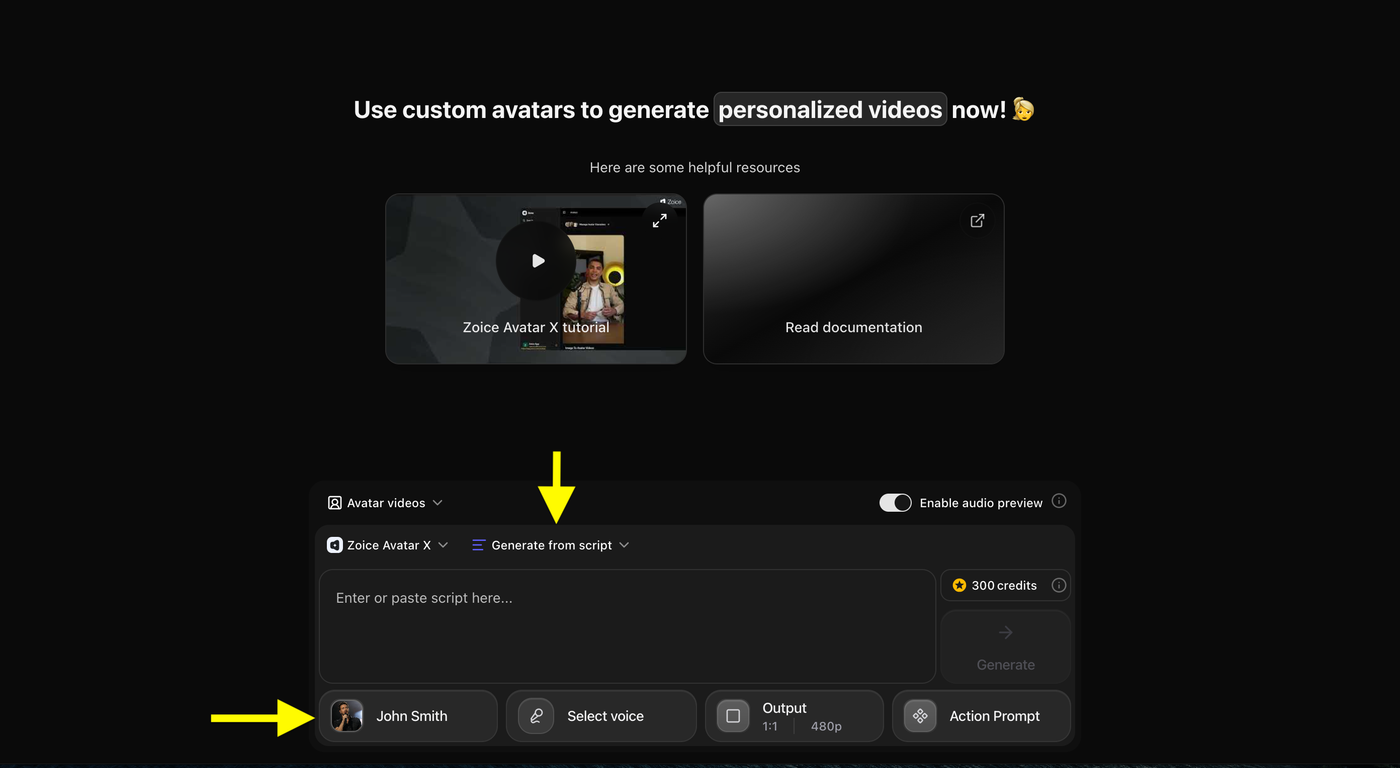
After clicking Generate Video, your created AI avatar will already be connected and ready to use.
Now click on Generate from Script
Step 11: Select Generate from Audio Method
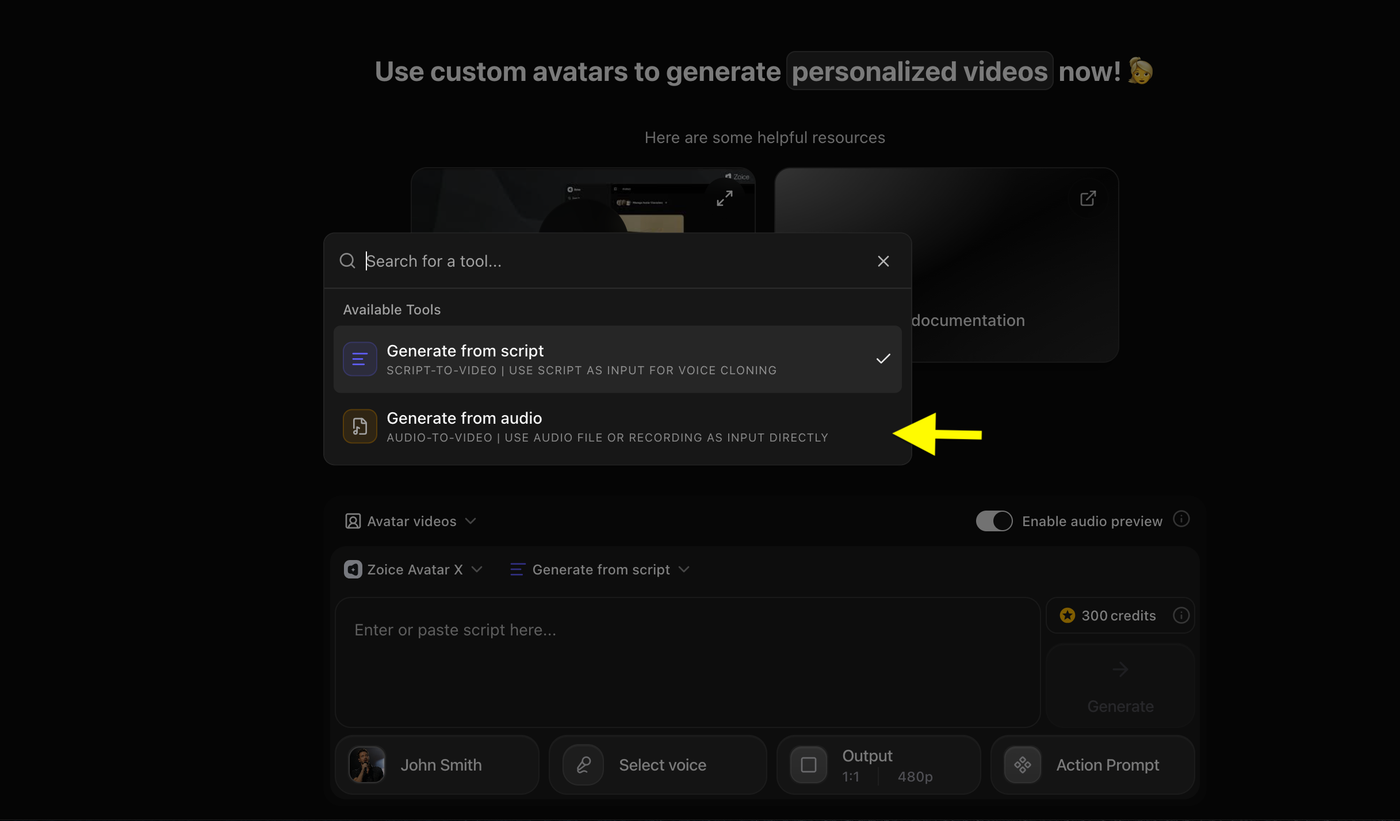
Click on the Generate from Audio method option to choose how you want your avatar to sing.
You will get two options:
- Generate from Script: Enter text or song lyrics and Zoice will create the voice for your singing avatar.
- Generate from Audio: Upload your own song, audio file, or recording that your avatar will use for the singing video.
Select Generate from Audio if you already have a singing voice or music file ready.
Step 12: Upload or Record Your Audio
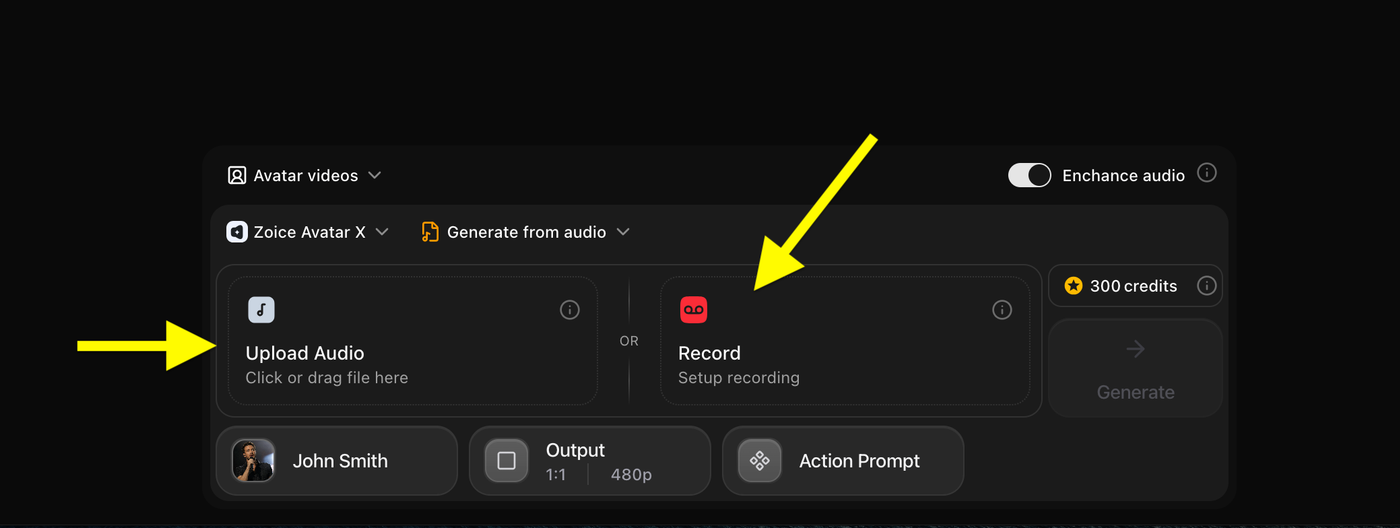
After selecting Generate from Audio, add the audio you want your avatar to sing.
You can choose:
- Upload Audio: Upload a song, voice, or audio file from your device.
- Record: Record your voice directly inside Zoice.
Choose the option that works best for creating your singing AI avatar.
Step 13: Preview Your Uploaded Audio
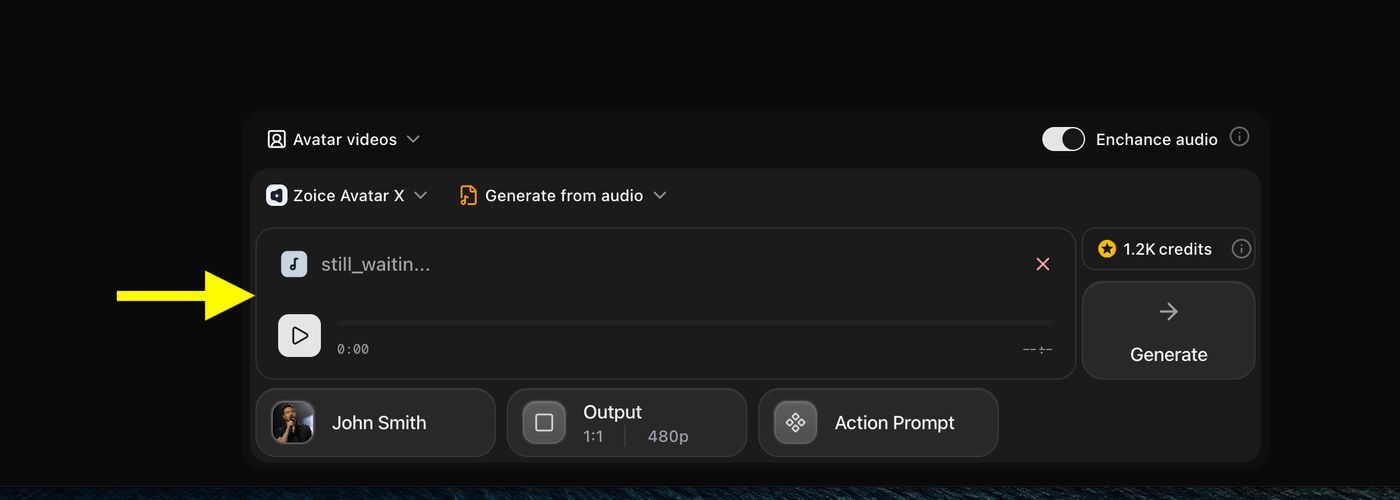
After uploading your audio file, Zoice will display the audio preview section.
Here, you can:
- Play and listen to the uploaded audio
- Check if the correct audio file is selected
- Remove and upload another audio file if needed
Preview your audio before moving to the next step.
Step 14: Click on Output Settings
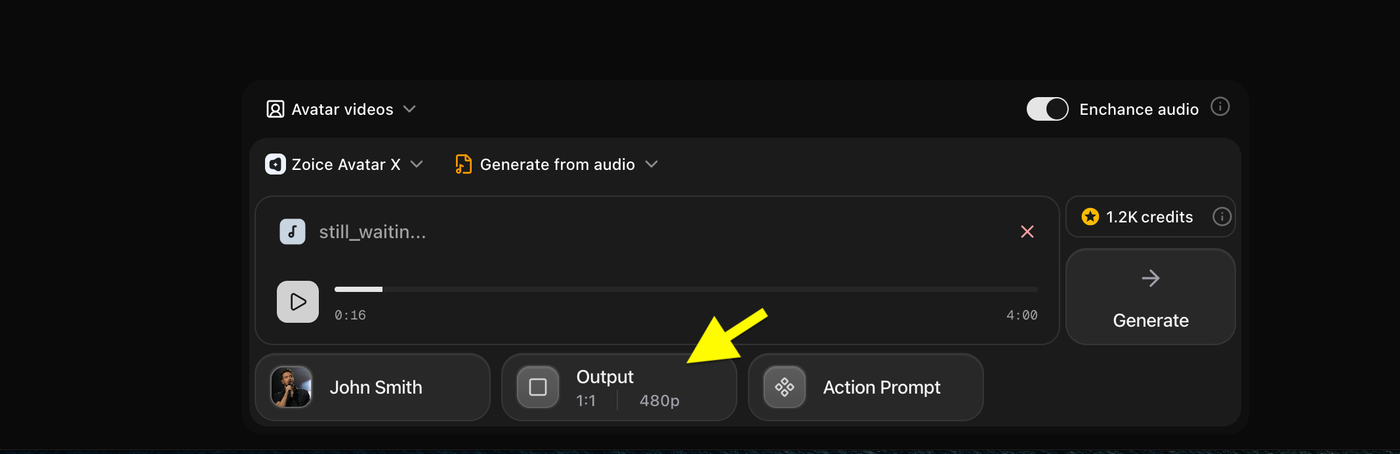
Click on the Output option to customize your final singing avatar video settings.
Here, you can adjust the video format before generating your video.
Step 15: Choose Aspect Ratio and Resolution
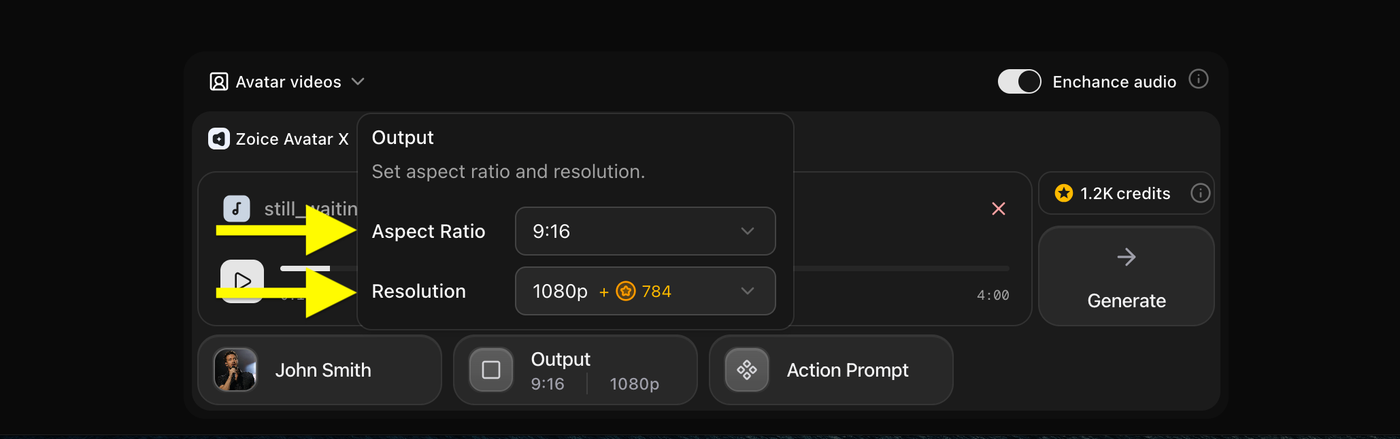
Set your preferred video output settings:
- Aspect Ratio: Select the video size according to your platform.
- 9:16 for YouTube Shorts, Instagram Reels, and TikTok
- 16:9 for YouTube videos and landscape content
- Resolution: Choose the video quality you want, such as 480p or 1080p or more.
Step 16: Click on Action Prompt
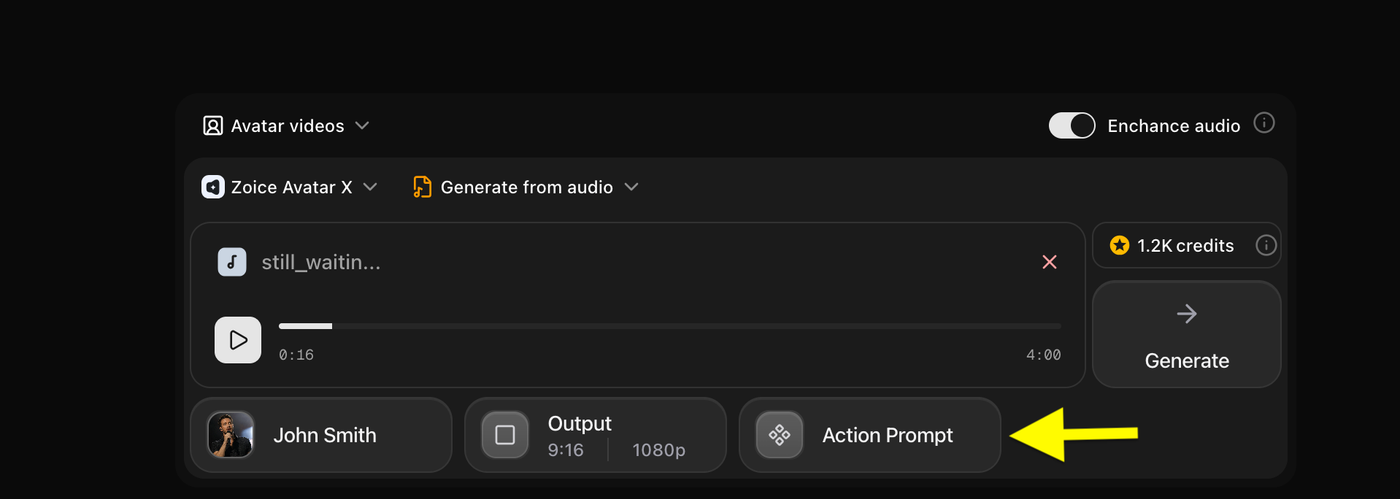
Click on the Action Prompt option to customize your avatar’s movements.
Action prompts help control:
- Facial expressions
- Body movement
- Hand gestures
- Singing performance style
Step 17: Select or Write an Action Prompt
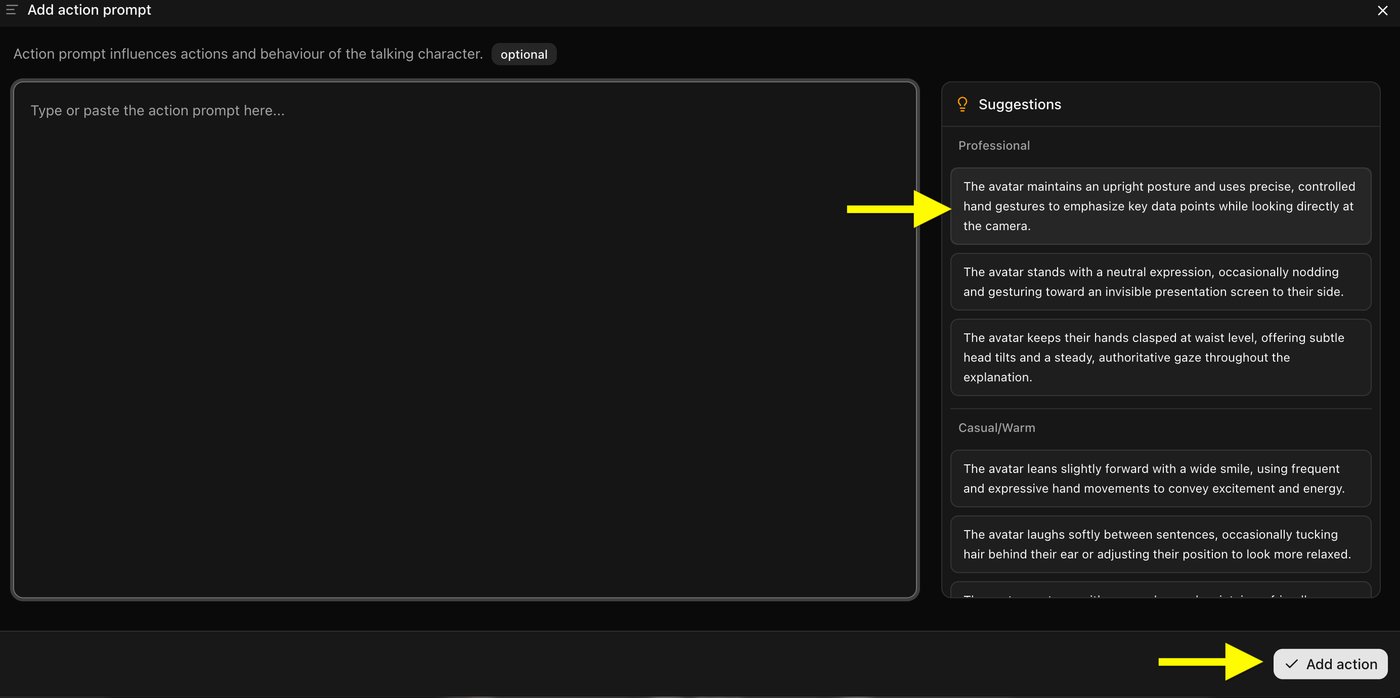
Add instructions for how you want your singing avatar to perform.
You can:
- Choose a suggested action prompt
- Write your own custom action instructions
After selecting the prompt, click Add Action to apply it.
Step 18: Generate Your Singing Avatar Video
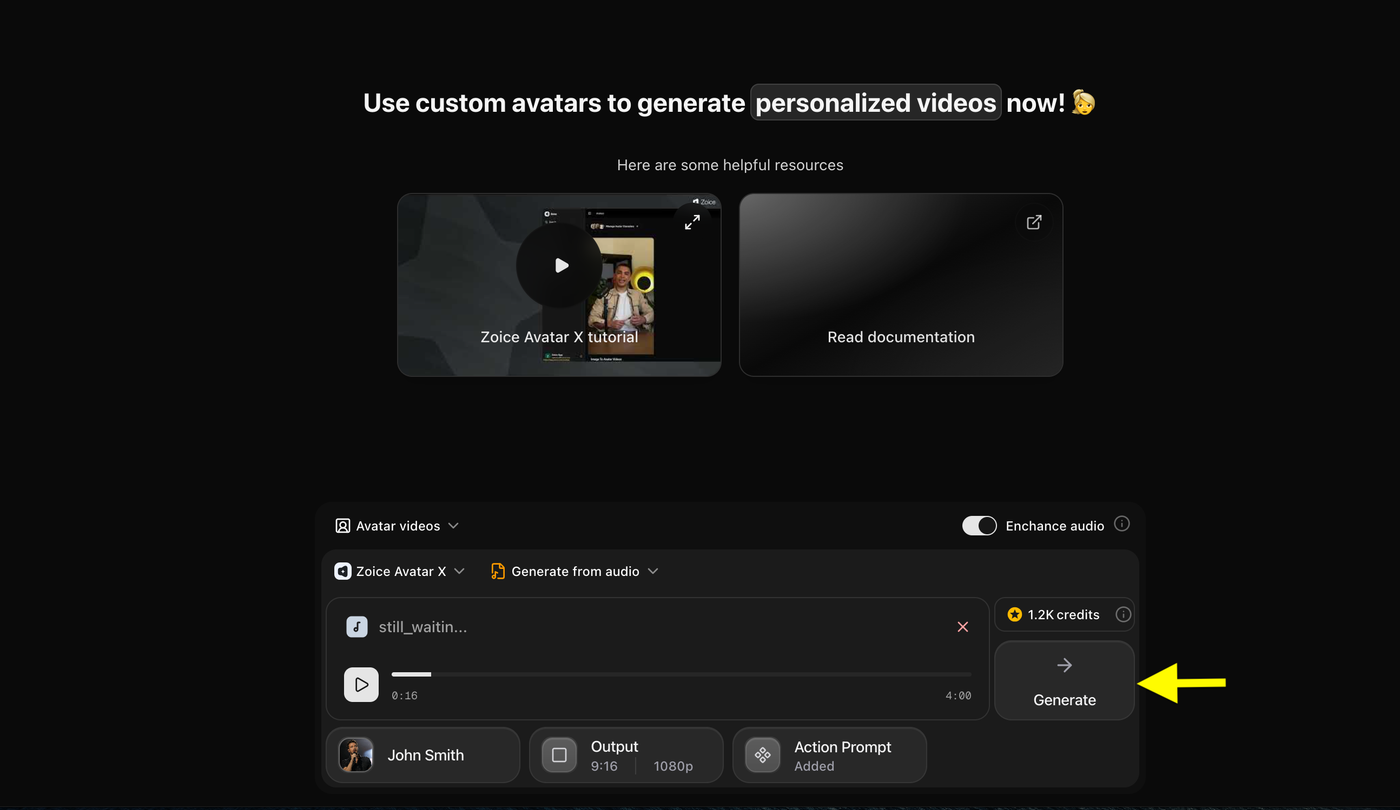
Once your audio, output settings, and action prompt are ready, click the Generate button.
Zoice will start processing your image and audio to create your singing AI avatar video.
Step 19: Preview Audio then Click on Generate Avatar Video
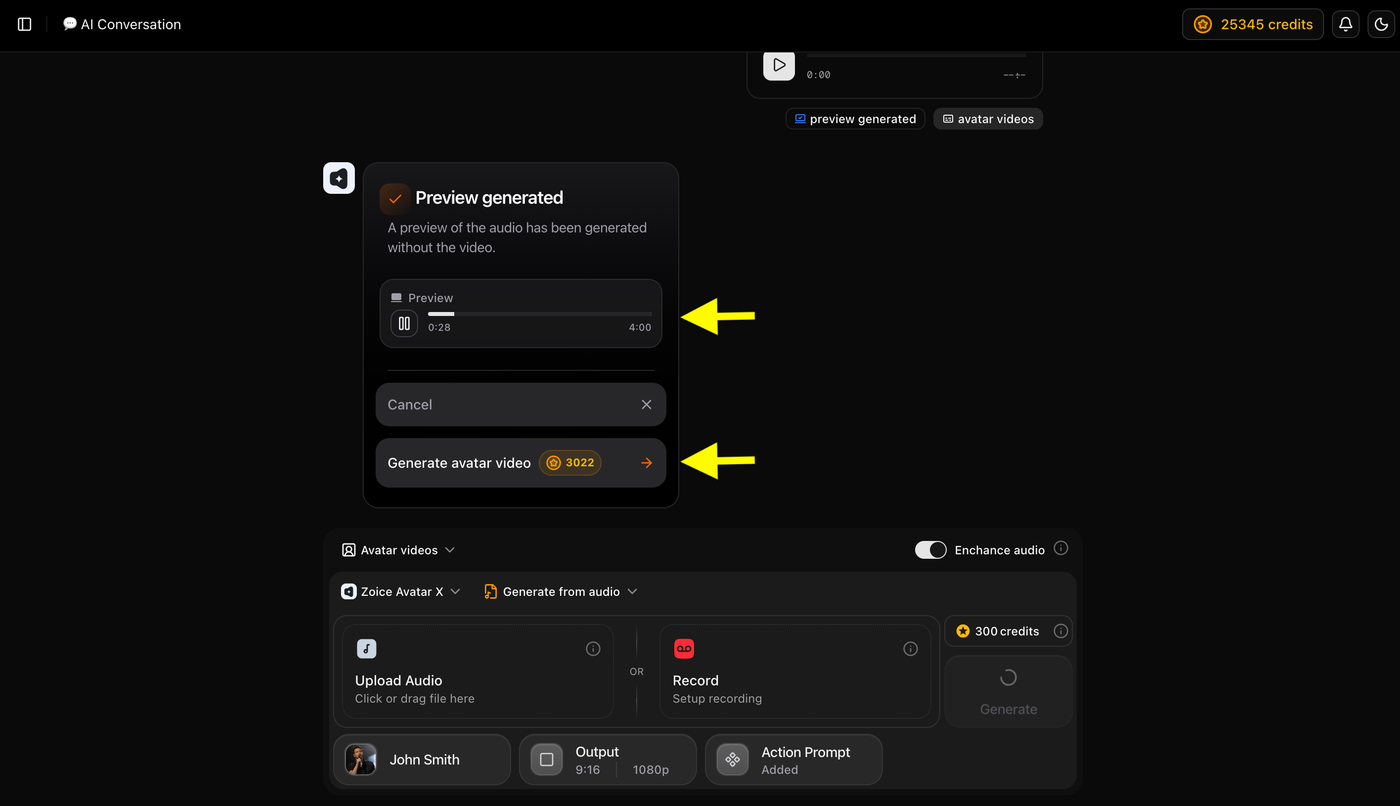
Before generating the final video, Zoice creates an audio preview.
Listen to the preview to check:
- Audio quality
- Voice timing
- Overall output
If everything looks good, click Generate Avatar Video to create your final singing AI video.
Step 20: Wait for Your Singing Avatar Video to Generate
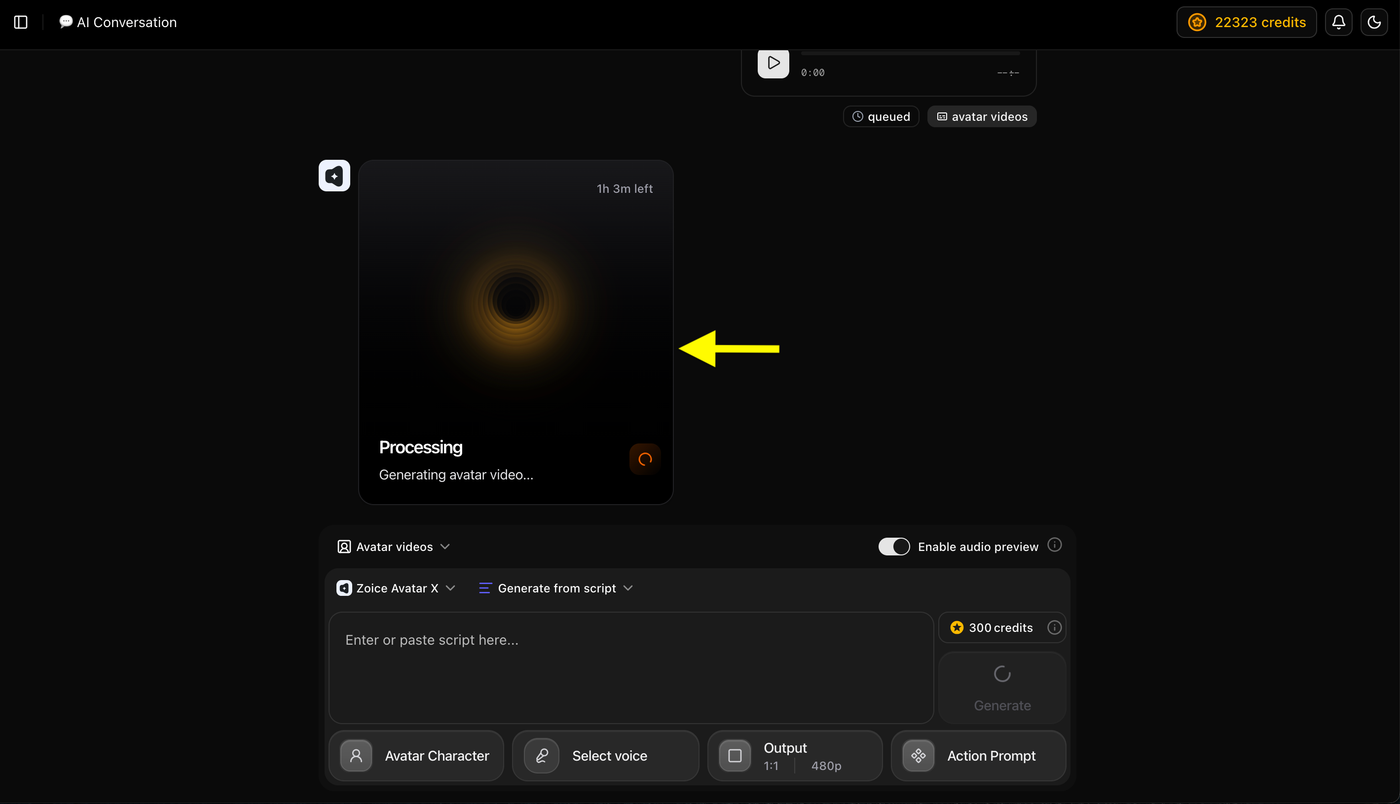
After clicking Generate Avatar Video, Zoice will start processing your video.
You can track the generation status on the screen while your AI avatar video is being created.
Once the processing is complete, your photo will be converted into a realistic singing AI avatar video that you can preview and use.
Step 21: Preview and Download Your Singing AI Video
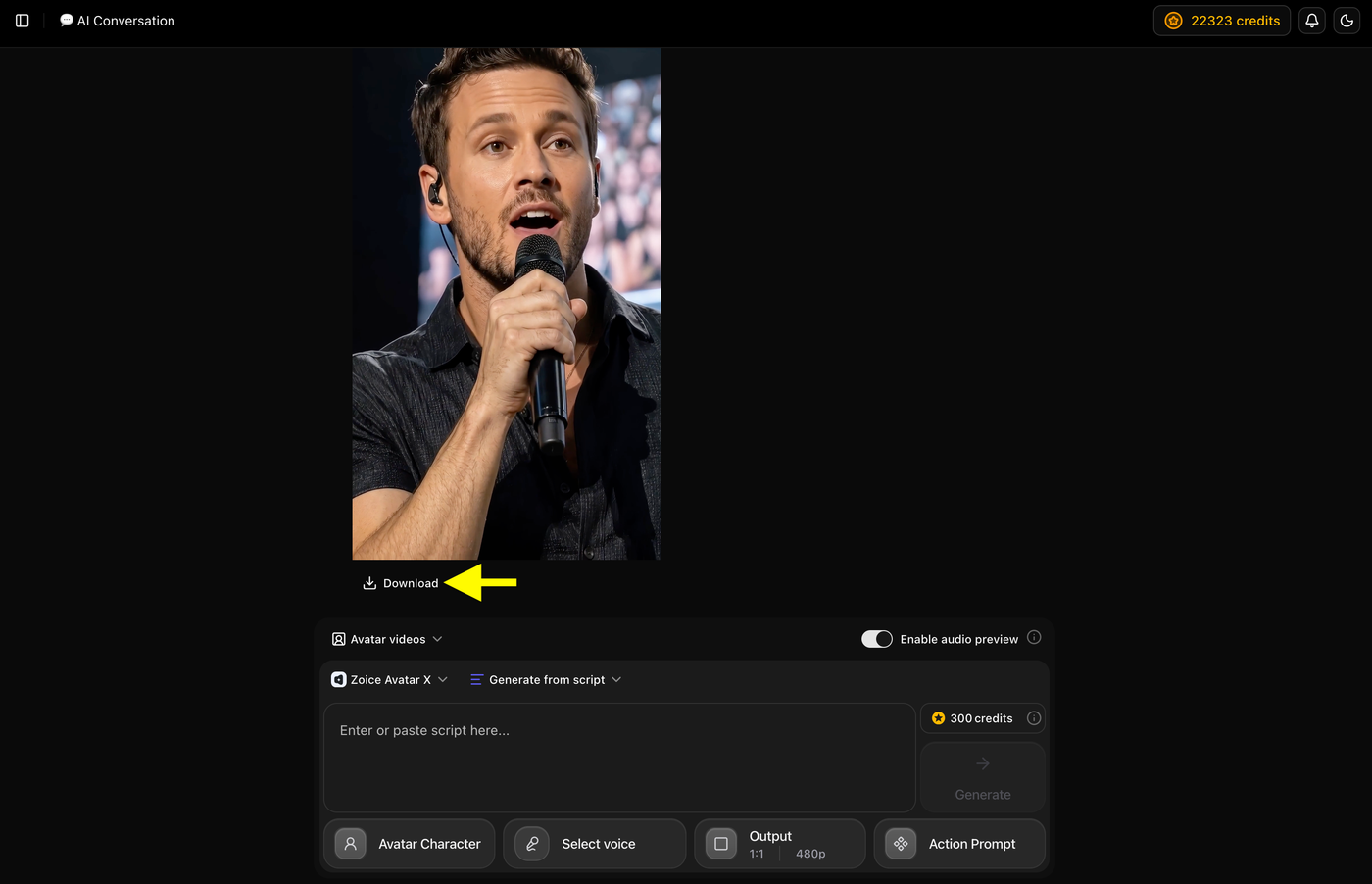
Once the video generation is complete, your final singing AI avatar video will appear on the screen.
Preview the generated video to check the final result.
If you are happy with the output, click the Download button to save your singing AI video to your device.
Your photo has now been successfully converted into a realistic singing AI avatar video.
Example AI Singing Photo Video
To show the final result, we created an AI singing avatar using Zoice.
A photo was uploaded, music was added, and Zoice generated a realistic singing video where the avatar performed with natural facial expressions and synchronized lip movements.
Audio Used
Generated AI Singing Video
Tip: Compare the original image with the generated singing video to see how AI transforms a still photo into an animated performer.
Note: You need to sync the audio with the generated video using any video editing tool, such as CapCut, DaVinci Resolve, or Adobe Premiere Pro.
Tips to Create Better AI Singing Photos
Follow these tips to improve your AI singing videos:
- Use a clear photo: High-quality images create better facial animations.
- Choose clean audio: Avoid noisy audio files for accurate lip sync.
- Use front-facing images: Direct face angles produce more realistic results.
- Keep videos short: Short singing clips work better for social media.
- Match character and song: Choose a photo style that fits your audio.
Best Ideas for AI Singing Photo Videos
You can use AI singing photos for different creative projects:
- Virtual Singer Videos: Create your own AI singer or music performer.
- Funny Social Media Content: Turn images into entertaining singing videos.
- Character Animation: Make fictional characters perform songs.
- Birthday and Greeting Videos: Create personalized singing messages.
- Marketing Content: Use singing avatars for creative brand videos.
Common Mistakes to Avoid
Avoid these mistakes when making a photo sing with AI:
- Uploading blurry images
- Using low-quality audio
- Choosing side-facing photos
- Creating very long videos
- Ignoring final preview checks
Better input quality creates more realistic AI singing videos.
FAQs About Making a Photo Sing with AI
1. Can AI make any photo sing?
Yes, AI can animate most photos by adding realistic mouth movements, expressions, and syncing them with music or audio.
2. Can I make my own photo sing?
Yes, you can upload your own picture and turn it into a singing avatar video generator like Zoice.
3. Do I need editing skills to create AI singing videos?
No, AI handles the animation, lip sync, and video generation automatically. No video editing experience is required.
4. Can I upload my own song?
Yes, you can upload your own audio or music file and use it to generate a singing photo video.
5. Can I share AI singing videos on TikTok and Instagram?
Yes, AI singing videos can be downloaded and shared on TikTok, Instagram Reels, YouTube Shorts, and other platforms.
Conclusion
Making a photo sing with AI is now simple, fast, and accessible for everyone. Instead of using complicated animation software, AI can transform a single image into a realistic singing video within minutes.
With Zoice, you can upload a photo, add your song, and generate an AI singing avatar with natural lip movements and expressions.
Whether you want to create viral social media videos, virtual singers, personalized messages, or creative content, AI singing photo technology gives you an easy way to bring your images to life.