How to Make AI History Videos: A Simple 2026 Guide
A history clip is easier to follow when a narrator talks you through a scene. This is how to make AI history videos with a stock-model narrator as the Host, not with the face of a real person who lived, and not in the first person as a historical figure. In Zoice you upload that photo as your Host, paste a script whose facts you have checked, and the mouth is lip synced to your words. An optional action prompt can add a small nod.
Planning more than one AI history video clip? Our AI historical figure video generator roundup has more AI history video ideas.
Choosing a Narrator Image and a Careful Script
An AI history video works best from a front-facing photo of a modern narrator, such as a teacher or guide in a study, with a visible mouth, paired with a script whose facts you have checked, and no likeness of a real historical person.
- Use a stock or fictional narrator; do not copy a film actor or a known portrait
- Write the scene as a narration, and check every fact if you teach a real event
- Keep props off the mouth
- Test the photo in Zoice first
How to Make AI History Videos in Zoice
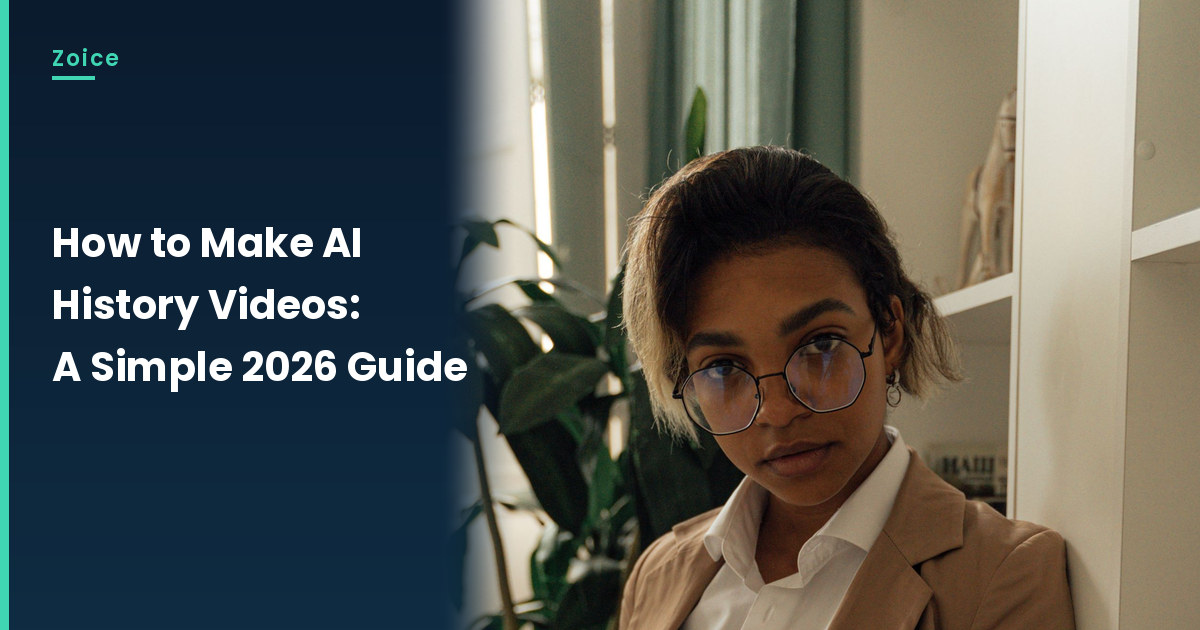
Our Host is a stock photograph of an adult woman in glasses, a tan blazer, and a white shirt, leaning on a white bookshelf in a bright study, facing the camera with a clearly visible mouth, not a depiction of a real historical person, used as the Host for this post and saved in the app.
Step 1: Sign In to Zoice and Open Home
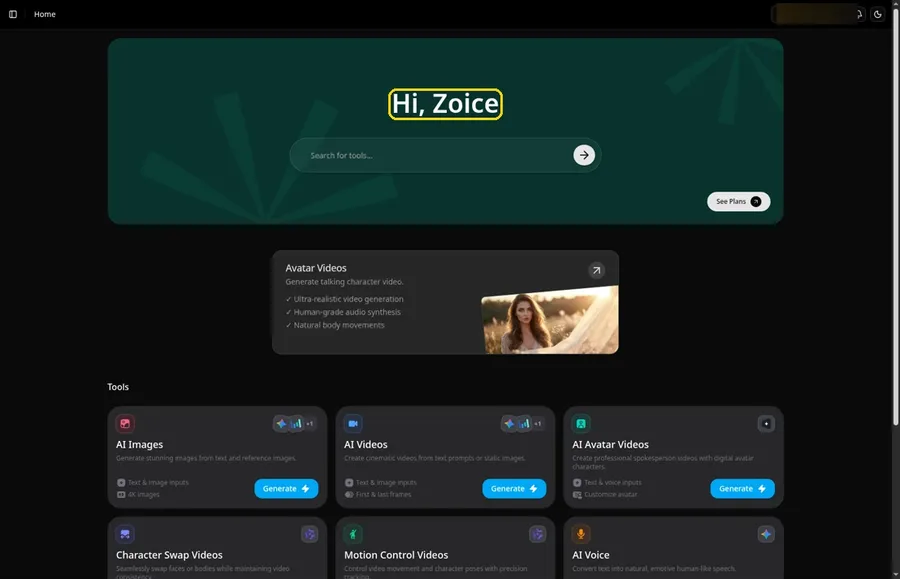
Click Sign In on Zoice and log in with your email or Google account to start the AI history video.
Step 2: Open Avatar videos
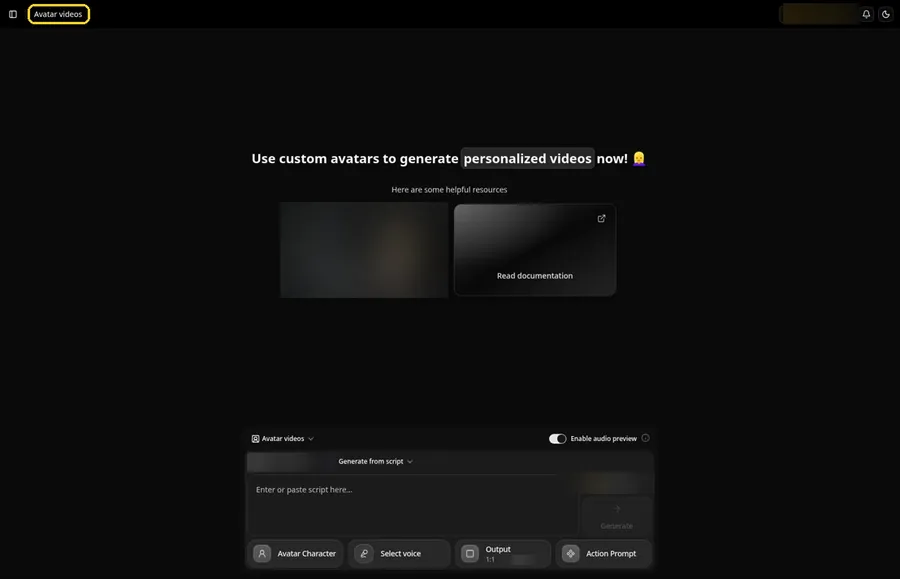
Open Avatar videos. The page title reads Avatar videos, and the composer is empty with Output at the default 1:1.
Step 3: Open Avatar Character and Create a New Avatar
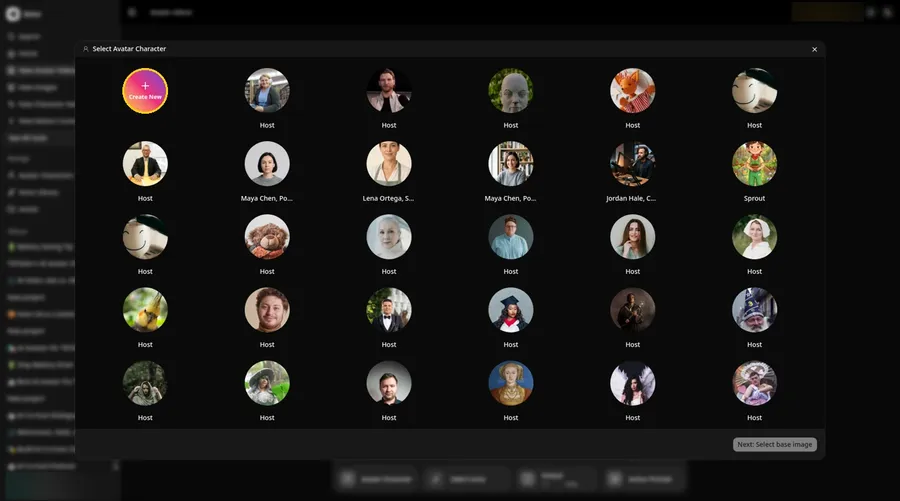
For the AI history video, click Avatar Character in the composer to open Select Avatar Character, then click Create New. On the Avatar Characters page, click Create New again, and the full-screen Create new avatar page opens for the AI history video.
Step 4: Choose Upload Image
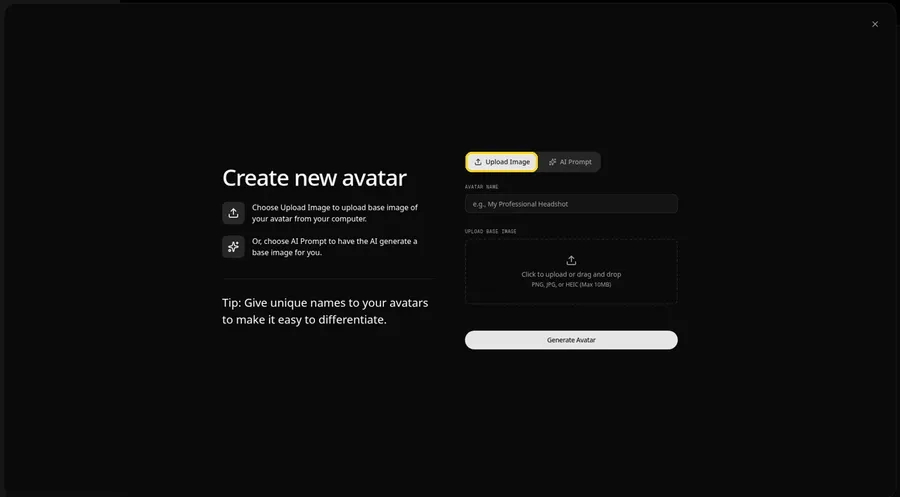
Leave the Upload Image tab on under UPLOAD BASE IMAGE, since the AI history video comes from an image file.
Step 5: Upload the Narrator Image
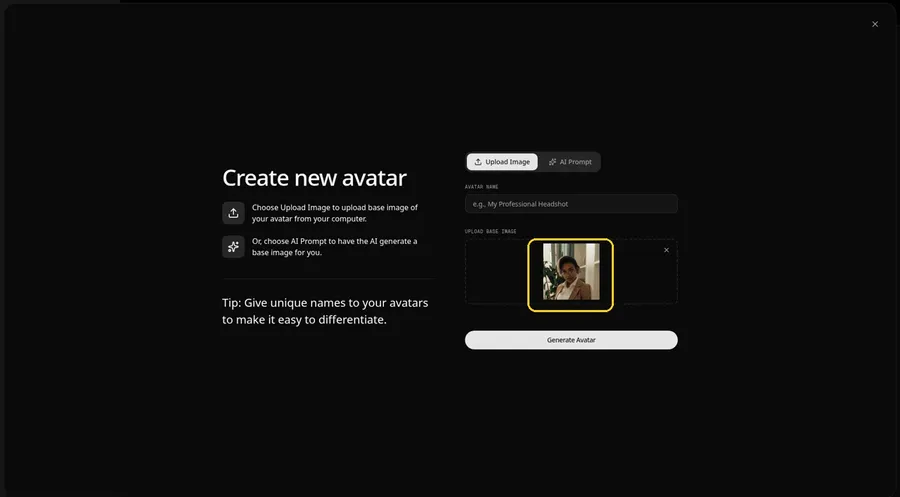
Choose the narrator image in the upload area. The preview should show the narrator facing the camera, in glasses, a tan blazer, and a white shirt, leaning on a white bookshelf.
Step 6: Name Your Avatar Host and Click Generate Avatar
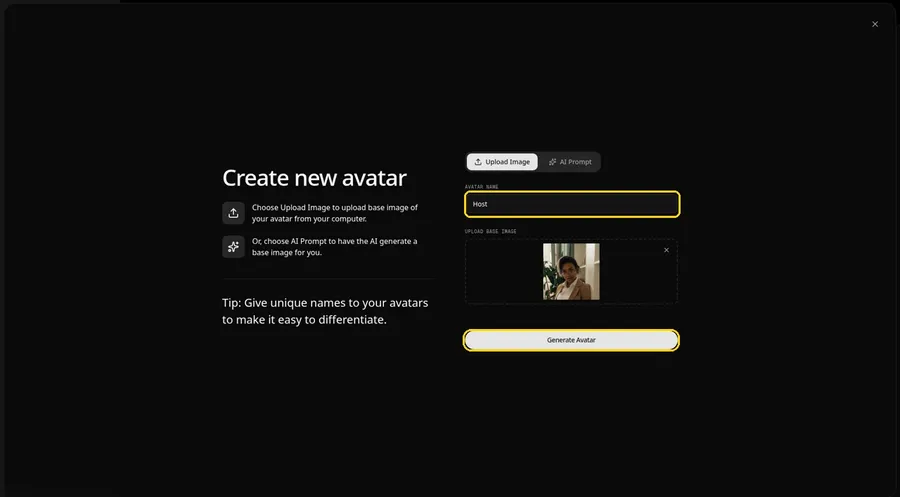
Type Host in the AVATAR NAME field, with the preview in place, ready to click Generate Avatar.
Step 7: Open the Add Script Panel
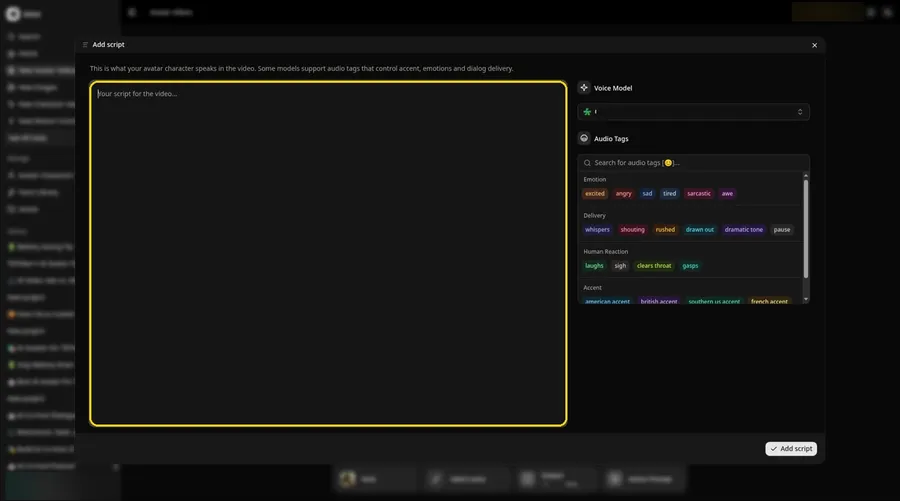
Select the script box, and the Add script panel for the AI history video slides open.
Step 8: Choose the Voice Model
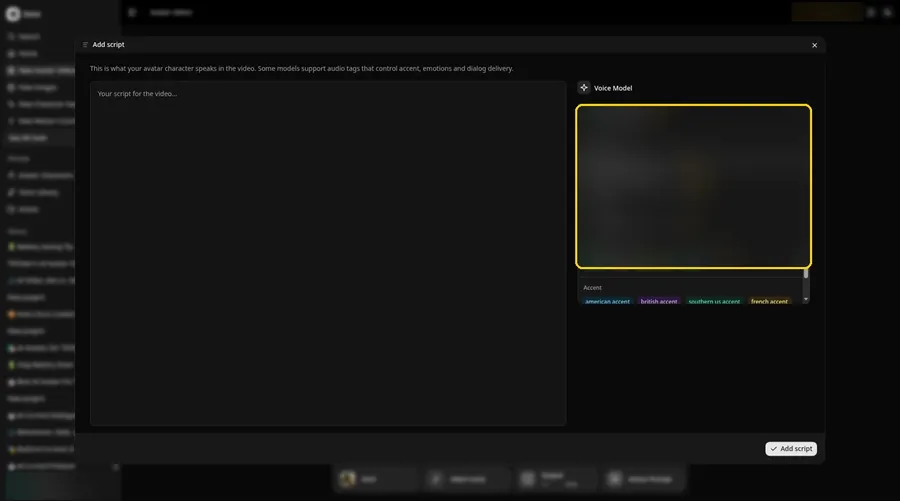
Choose the voice model from the Voice Model menu; it shapes how the AI history video sounds.
Step 9: Paste Your Script and Click Add Script
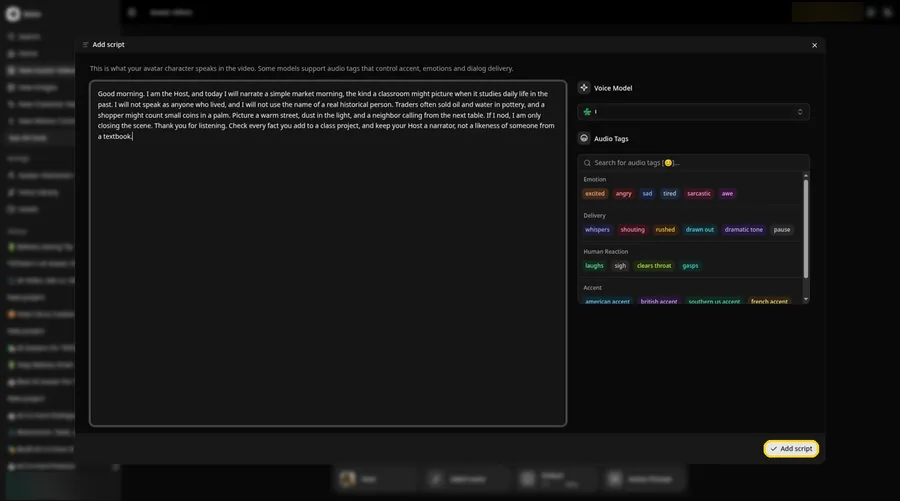
Paste the AI history video script, read it once more and click Add script. It opens with: Good morning.
Step 10: Pick a Voice
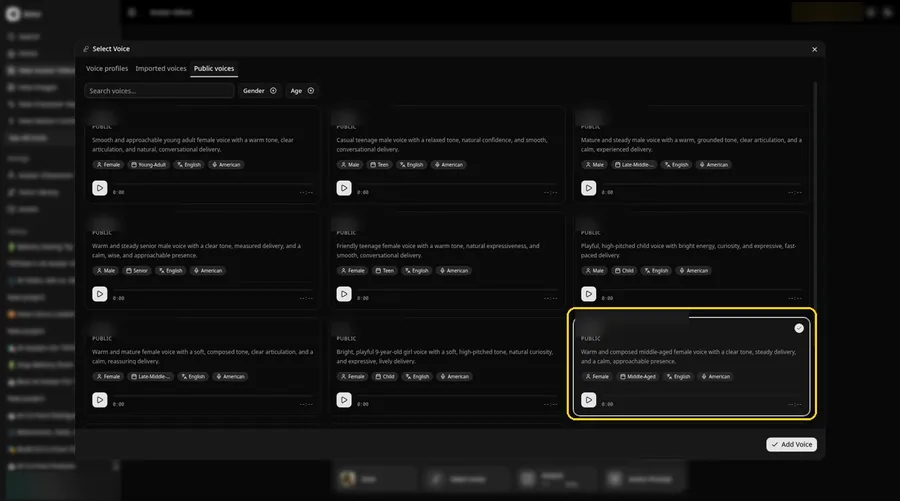
Click the voice button in the composer to open Select Voice for the AI history video. Pick a calm, clear adult voice on the Public voices tab, then click Add Voice to attach it.
Step 11: Choose your output settings
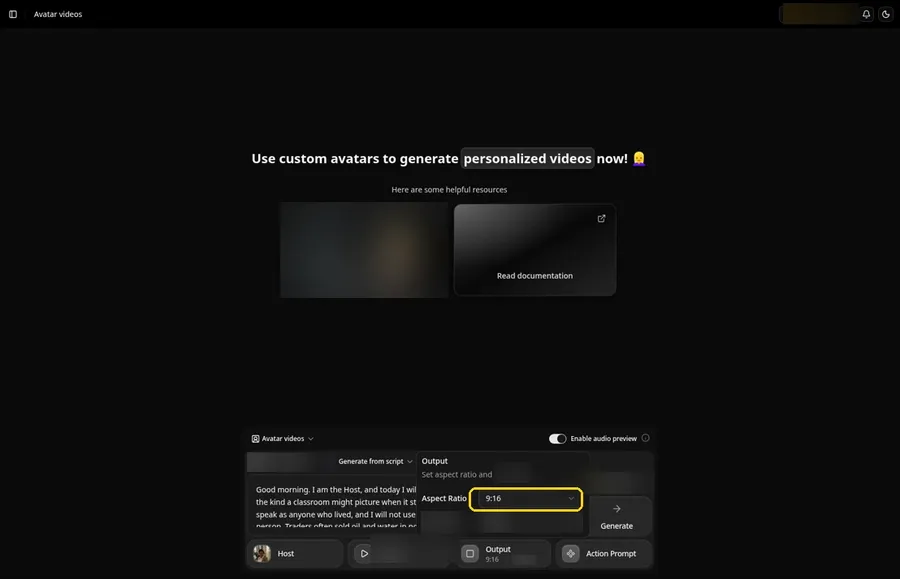
Choose your output settings. Set the Output aspect ratio dropdown to 9:16 if the AI history video is headed to vertical feeds.
Step 12: Add an Action Prompt
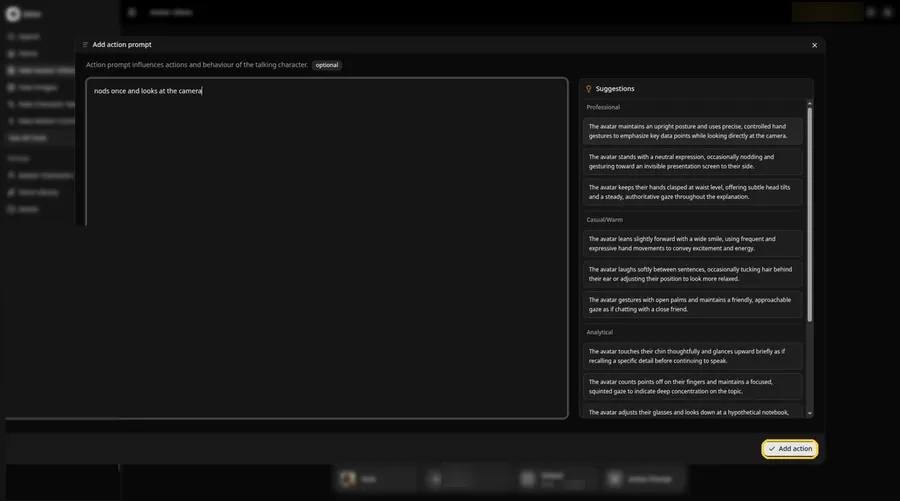
Click Action Prompt and type in the Add action prompt panel: nods once and looks at the camera. Click Add action. This step is the only place the AI history video gets its moves.
Step 13: Click Generate
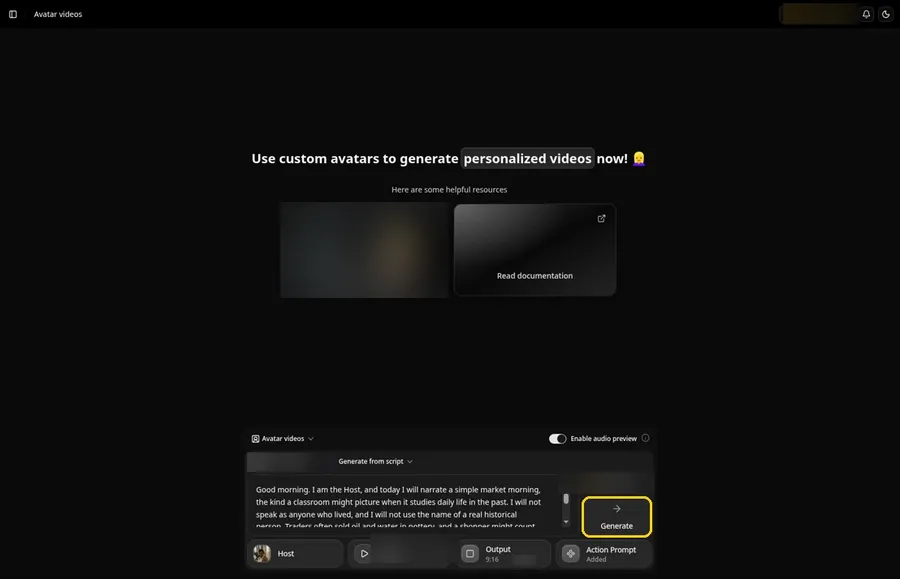
Look over every AI history video setting in the composer once more, with the Added Action Prompt chip in place, then click Generate.
Step 14: Confirm the Audio Preview
Listen to the AI history video audio preview, then confirm it while Zoice processes the clip.
Step 15: Preview the Video in the Player
Press play in the player and check that the AI history video lip sync and the action prompt moves match your script.
Step 16: Download From the Player Menu
Use the player's three-dot menu and choose Download to keep the AI history video file.
Step 17: Share Your Video
Post the AI history video clip as a Reel, Short or story, or drop it in a chat; stick to images and audio you have the rights to.
Writing the Action Prompt
Keep the history move simple, like a small nod, so the Host still feels like a narrator in a study.
- nods once and looks at the camera
- looks toward the shelves and back
- tilts the head slightly and looks at the camera
Type your pick in step 12 and click Add action.
Demo Idea: A Narrator Describes a Market Morning
A stock-model narrator Host in a study describes a market morning as a classroom scene, without speaking as anyone who lived. Here is the exact script:
"Good morning. I am the Host, and today I will narrate a simple market morning, the kind a classroom might picture when it studies daily life in the past. I will not speak as anyone who lived, and I will not use the name of a real historical person. Traders often sold oil and water in pottery, and a shopper might count small coins in a palm. Picture a warm street, dust in the light, and a neighbor calling from the next table. If I nod, I am only closing the scene. Thank you for listening. Check every fact you add to a class project, and keep your Host a narrator, not a likeness of someone from a textbook."
Your AI history video is waiting for its first lines. Try Zoice and give the AI history video a voice.
Tips for Accurate History Videos
- Use a modern narrator photo, not a famous face or a period-costume stand-in for a real person.
- Keep the script short and check anything you present as fact.
- Light the face evenly in the study or classroom.
- Use one clear, small move in the action prompt, not a large performance.
Our AI avatar for teachers roundup pairs well with this AI history video tutorial.
FAQ
Can the Host be a real historical person?
No. Use a stock or fictional narrator, and avoid any likeness of a real person. Keep the script in a narrator voice, not in the first person as a historical figure.
Do the facts need a check?
Yes. If you add dates, places, or events, check them before you share the video.
Can I use this in a classroom?
Yes, if the Host is a narrator and the script is careful about what is fact and what is a scene.
Is the action prompt required?
No. The AI history video is lip synced to your script either way; the action prompt only adds the move.
Can I make a vertical AI history video?
Yes. Choose 9:16 in the output settings before you click Generate on the AI history video.
Try Zoice
The AI history video is ready for its close-up. Read our AI storytelling avatar generator roundup, or Try Zoice and make the AI history video today.