How to Make a Wedding Photo Talk With AI: A 2026 Guide
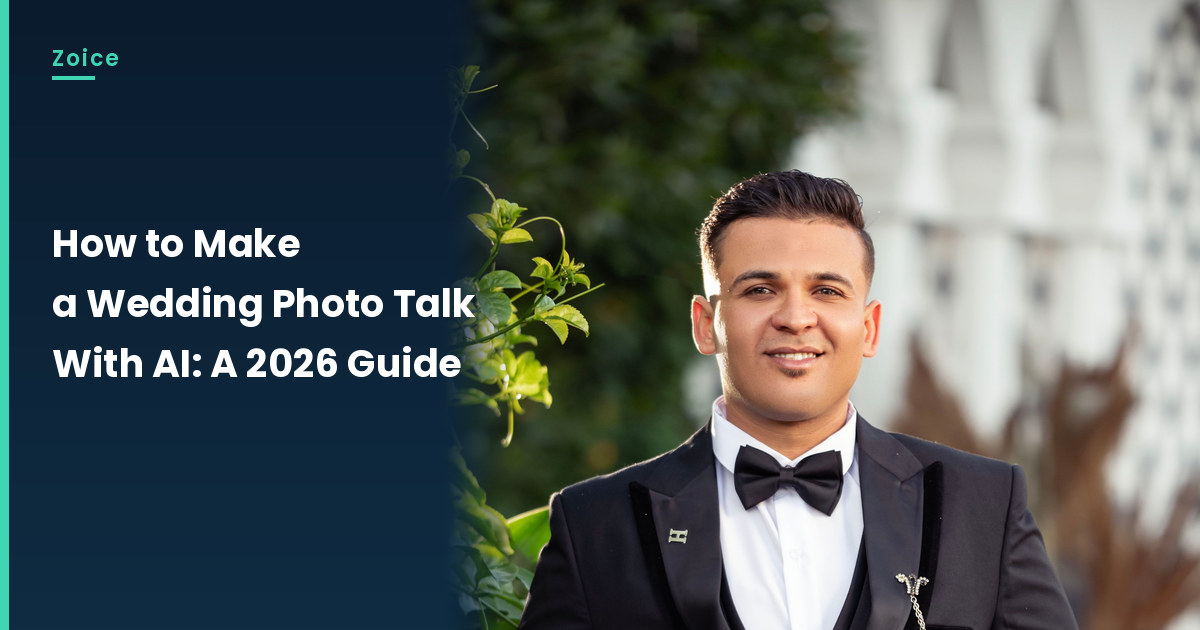
A wedding portrait can say thank you after the day, as a keepsake rather than an invitation. This is how to make a wedding photo talk with AI, kept apart from any wedding-invitation listicle. In Zoice you upload an approved photo, it becomes your Host, and the mouth is lip synced to your script. An optional action prompt can add a warm smile. Use only photos of people who have clearly agreed to appear. Our screenshots use a stock-model stand-in.
Before you start the talking wedding photo, you may like our AI birthday video generator roundup.
Choosing a Wedding Photo Image Zoice Can Read
A talking wedding photo should be an approved portrait of people who have agreed to appear, with a clear face and soft light.
- Get clear consent before using a wedding portrait
- This guide is a thank-you and keepsake, not an invitation
- Keep busy bouquets out of the mouth area
- Our demo uses a stock-model stand-in; swap in an approved photo
How to Make a Wedding Photo Talk in Zoice
Our Host is a stock photograph of an adult man in a black tuxedo and bow tie, front-facing in soft garden light, with a clear face and a visible mouth, used as the Host for this post and saved in the app.
Step 1: Sign In to Zoice and Open Home
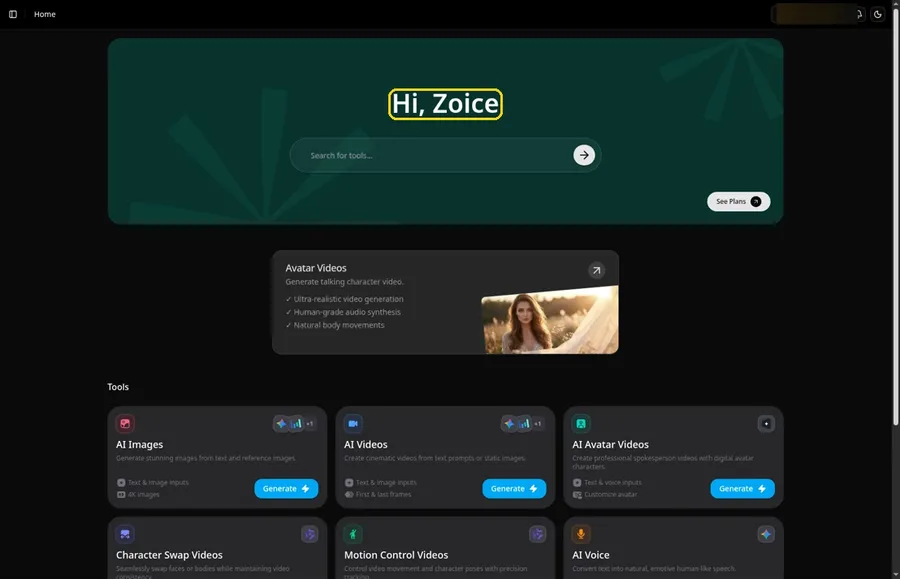
Go to Zoice and click Sign In, using email or Google; Home opens once the talking wedding photo project can begin.
Step 2: Open Avatar videos
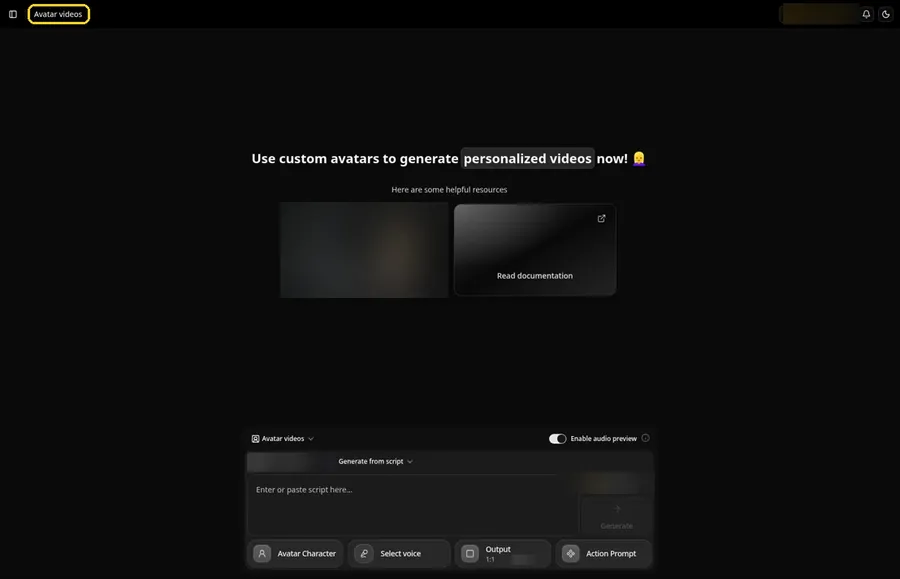
Open Avatar videos. The page title reads Avatar videos, the composer is empty with Output at the default 1:1, and it holds every talking wedding photo setting.
Step 3: Open Avatar Character and Create a New Avatar
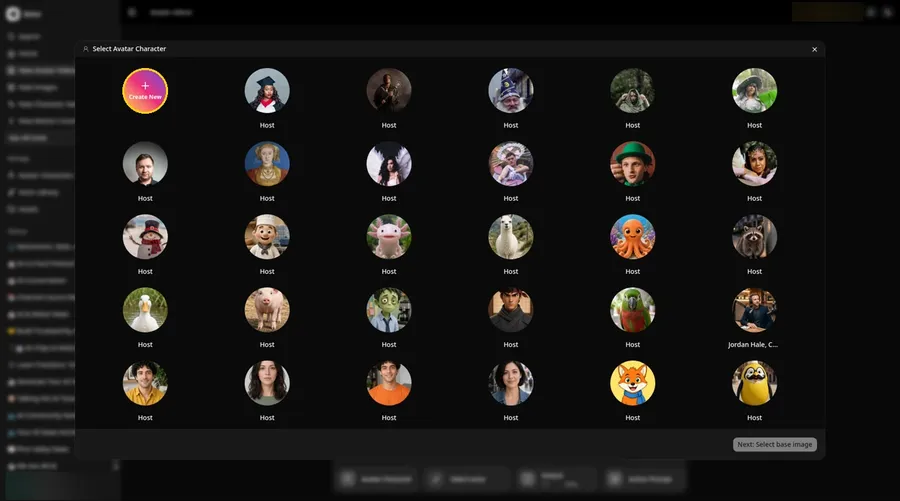
Open Avatar Character, and the Select Avatar Character window appears with the Create New button in view.
Step 4: Choose Upload Image
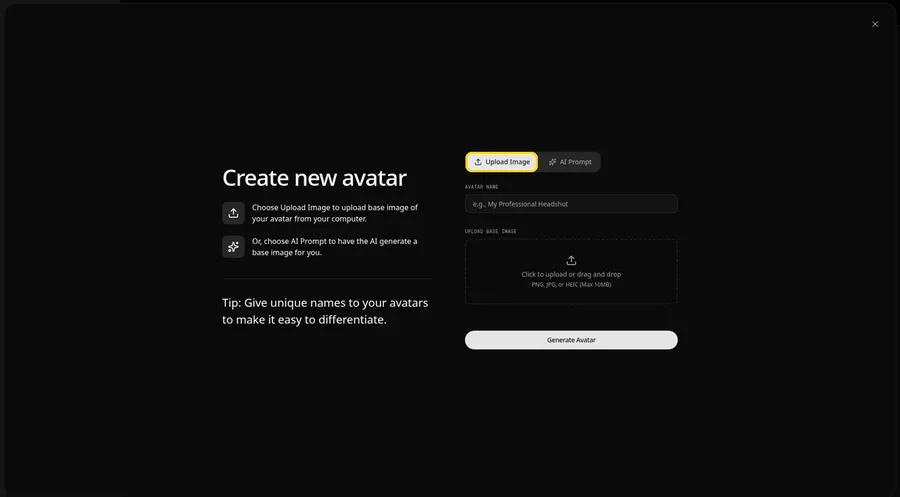
Under UPLOAD BASE IMAGE, keep the Upload Image tab selected for the talking wedding photo picture.
Step 5: Upload the Wedding Photo Image
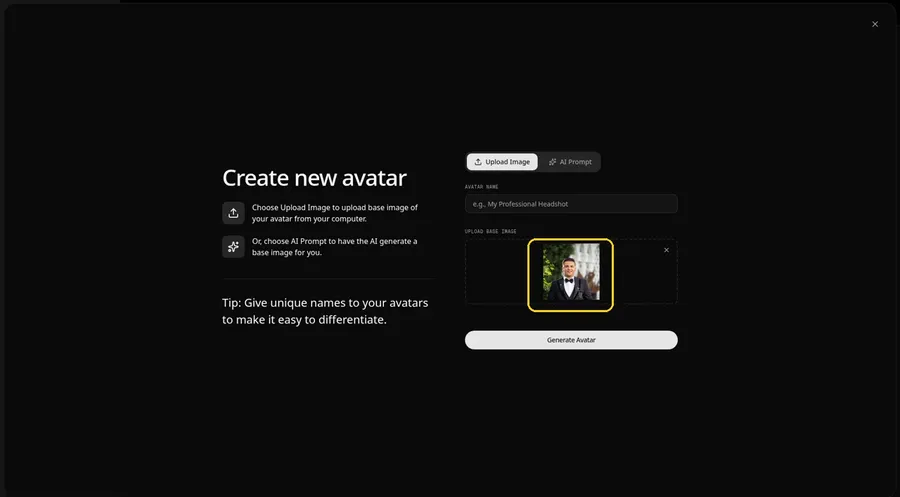
Click the upload area and pick a clear, front-facing wedding portrait. The preview should show the talking wedding photo looking straight ahead, an adult man in a black tuxedo and bow tie.
Step 6: Name Your Avatar Host and Click Generate Avatar
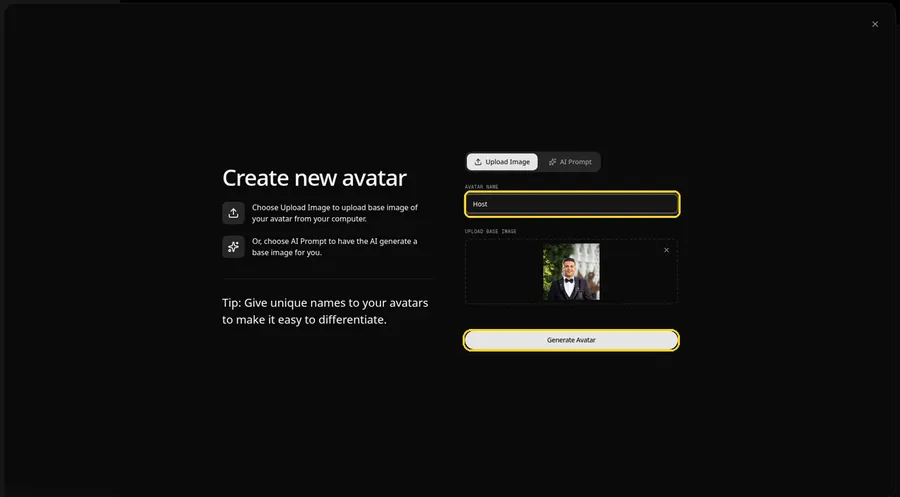
Name the talking wedding photo avatar Host in AVATAR NAME, with the preview in place, ready to click Generate Avatar.
Step 7: Open the Add Script Panel
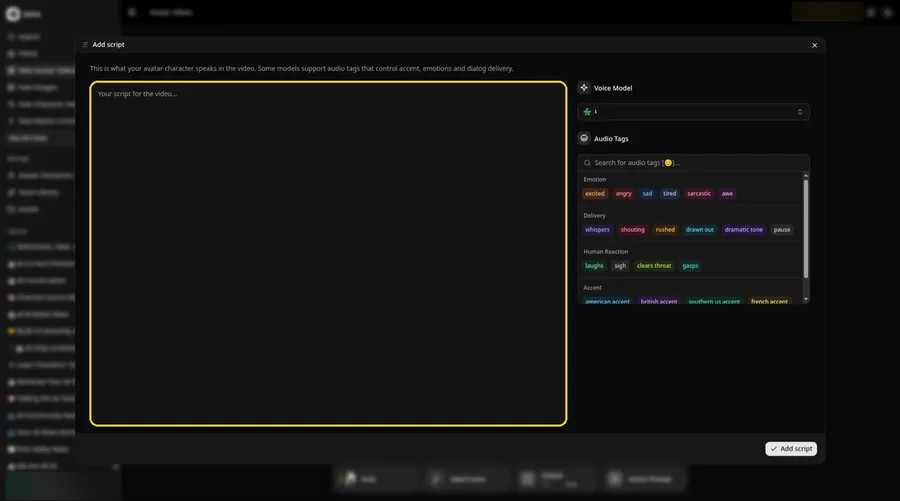
Click the script box in the composer, and the Add script panel opens for the talking wedding photo.
Step 8: Choose the Voice Model
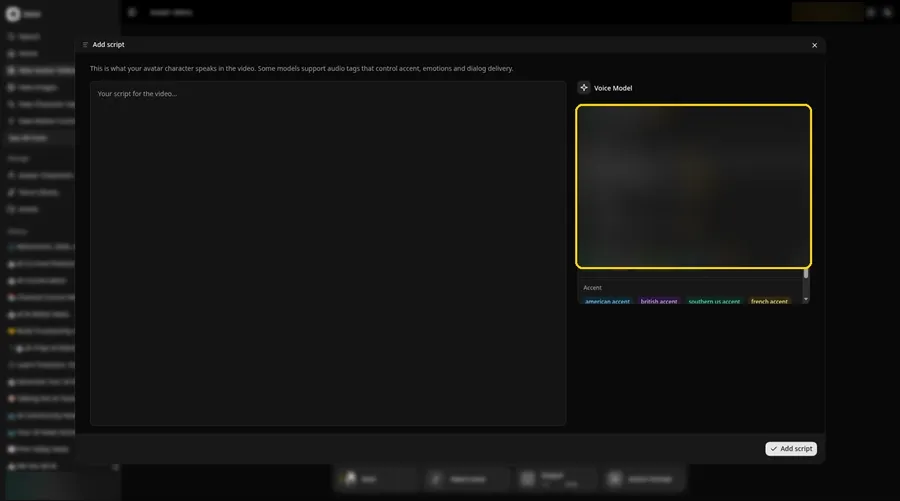
Pick a model in the Voice Model menu before the talking wedding photo script goes in.
Step 9: Paste Your Script and Click Add Script
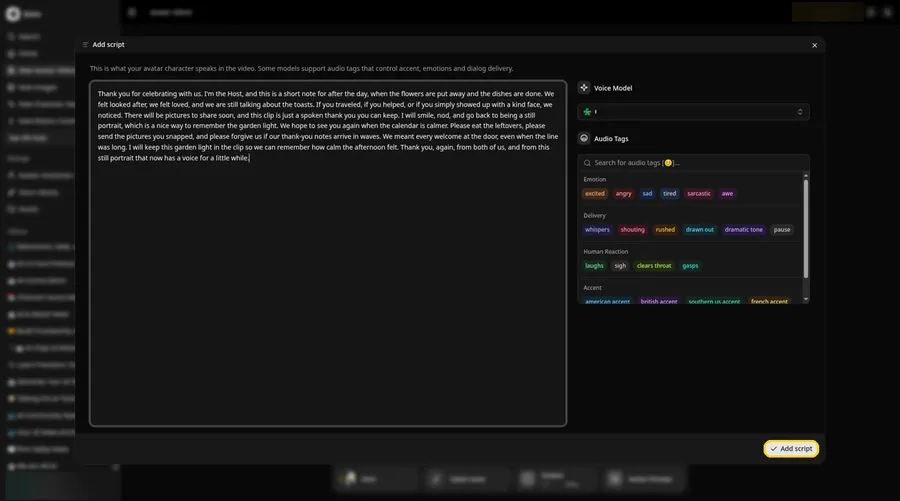
Drop in the full talking wedding photo script, then click Add script. The opening words are: Thank you for celebrating with us.
Step 10: Pick a Voice
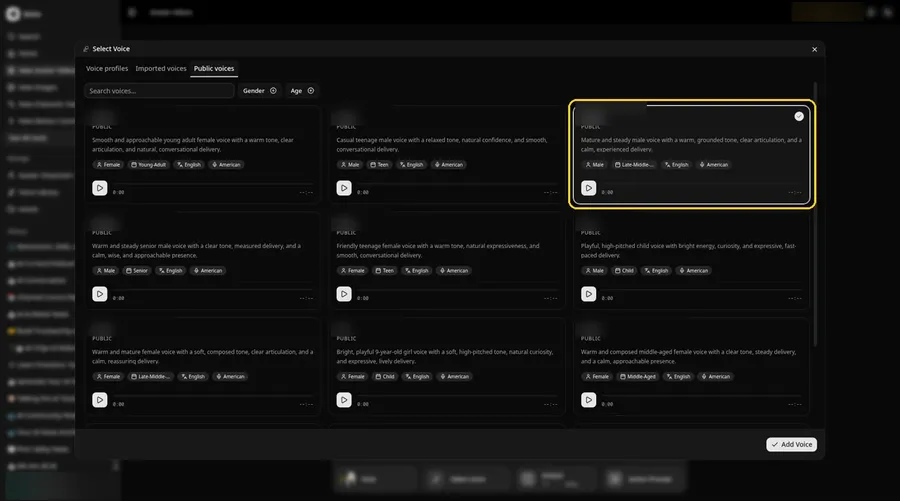
Click the voice button in the composer to open Select Voice for the talking wedding photo. Pick a warm, grateful adult voice on the Public voices tab, then click Add Voice to attach it.
Step 11: Choose your output settings
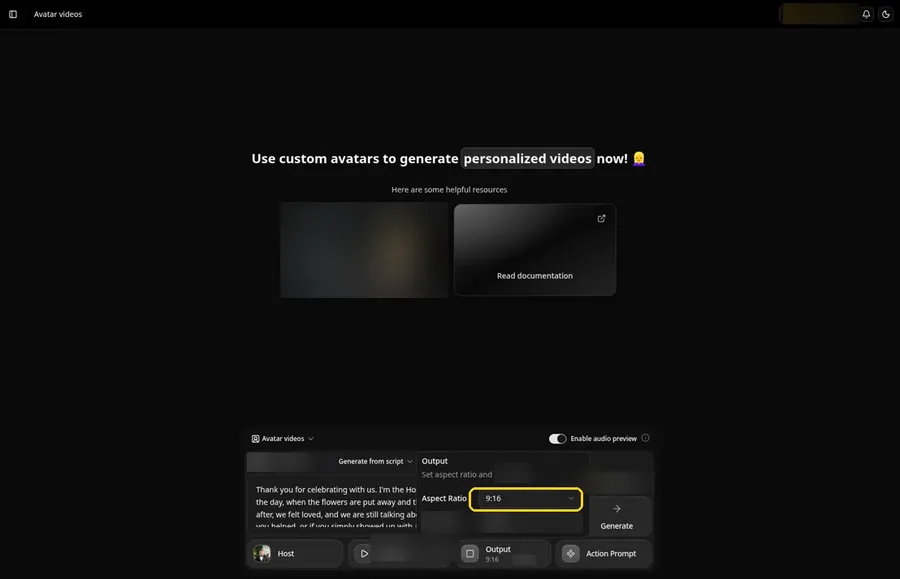
Choose your output settings. The talking wedding photo video uses 9:16, picked from the aspect ratio dropdown in Output.
Step 12: Add an Action Prompt
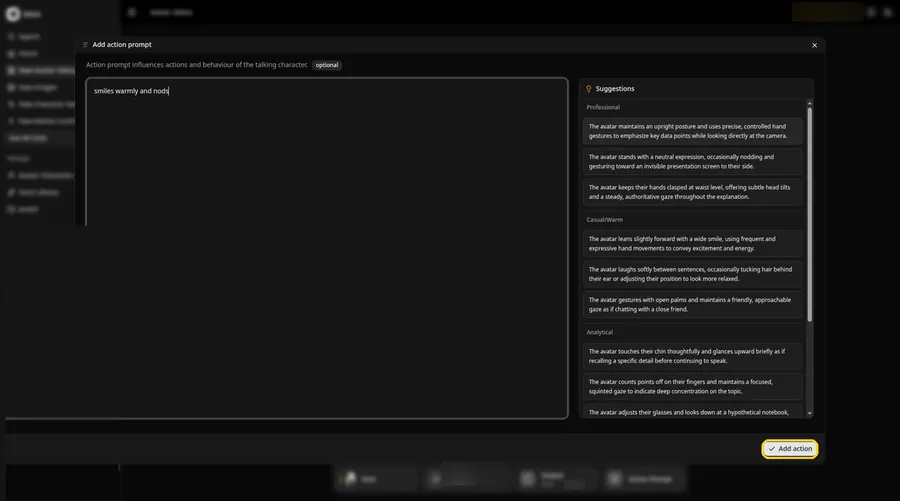
In the Add action prompt panel, enter: smiles warmly and nods. Press Add action. The talking wedding photo only moves the way this prompt says.
Step 13: Click Generate
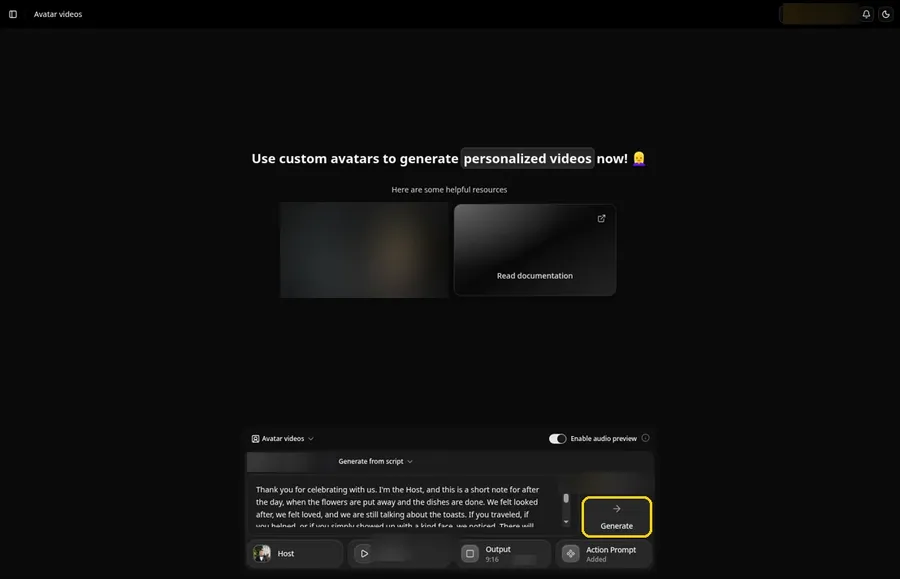
Check the talking wedding photo Host, the voice, the script, the 9:16 output and the Added Action Prompt chip, then click Generate.
Step 14: Confirm the Audio Preview
An audio preview of the talking wedding photo lines plays first; if it sounds right, confirm it and let Zoice process it.
Step 15: Preview the Video in the Player
Watch the talking wedding photo video once in the player to check the lip sync and the action prompt.
Step 16: Download From the Player Menu
Open the three-dot menu on the player and click Download to save the talking wedding photo video.
Step 17: Share Your Video
Share the downloaded talking wedding photo video in a group chat or as a Reel, Short or story, using only images and audio you made or may use.
Writing the Action Prompt
Keep the talking wedding photo move warm and small, like a grateful smile.
- smiles warmly and nods
- For the talking wedding photo, looks at the camera and pauses
- tilts the head slightly
Type your pick in step 12 and click Add action.
Demo Idea: A Post Wedding Thank You
A stock-photograph Host, of an adult man in a black tuxedo and bow tie, records a post-wedding thank-you in character. Here is the exact script:
"Thank you for celebrating with us. I'm the Host, and this is a short note for after the day, when the flowers are put away and the dishes are done. We felt looked after, we felt loved, and we are still talking about the toasts. If you traveled, if you helped, or if you simply showed up with a kind face, we noticed. There will be pictures to share soon, and this clip is just a spoken thank you you can keep. I will smile, nod, and go back to being a still portrait, which is a nice way to remember the garden light. We hope to see you again when the calendar is calmer. Please eat the leftovers, please send the pictures you snapped, and please forgive us if our thank-you notes arrive in waves. We meant every welcome at the door, even when the line was long. I will keep this garden light in the clip so we can remember how calm the afternoon felt. Thank you, again, from both of us, and from this still portrait that now has a voice for a little while."
Ready to make your own talking wedding photo video? Try Zoice and follow the talking wedding photo steps above.
Tips for Wedding Portraits
- Use one face per Host; make one clip for each partner if you like.
- Get your photographer's okay to reuse the image.
- Send it with the photo gallery link.
- For the talking wedding photo, add an action prompt only after the lip sync looks right, then compare the two versions.
Once the talking wedding photo works, branch out with our AI singing photo generator roundup.
FAQ
Is this for wedding invitations?
No, it is for photos after the day, like thank you messages.
Can both of us talk?
Make one clip per person and edit them together.
Is the action prompt required?
No. The talking wedding photo is lip synced to your script either way; the action prompt only adds the move.
Can I make a vertical talking wedding photo video?
Yes. Choose 9:16 in the output settings before you click Generate on the talking wedding photo.
Try Zoice
Your talking wedding photo video is one click away. Explore our guide on how to make a picture talk, or Try Zoice and start your talking wedding photo now.