How to Make a Statue Talk With AI: A Simple 2026 Guide
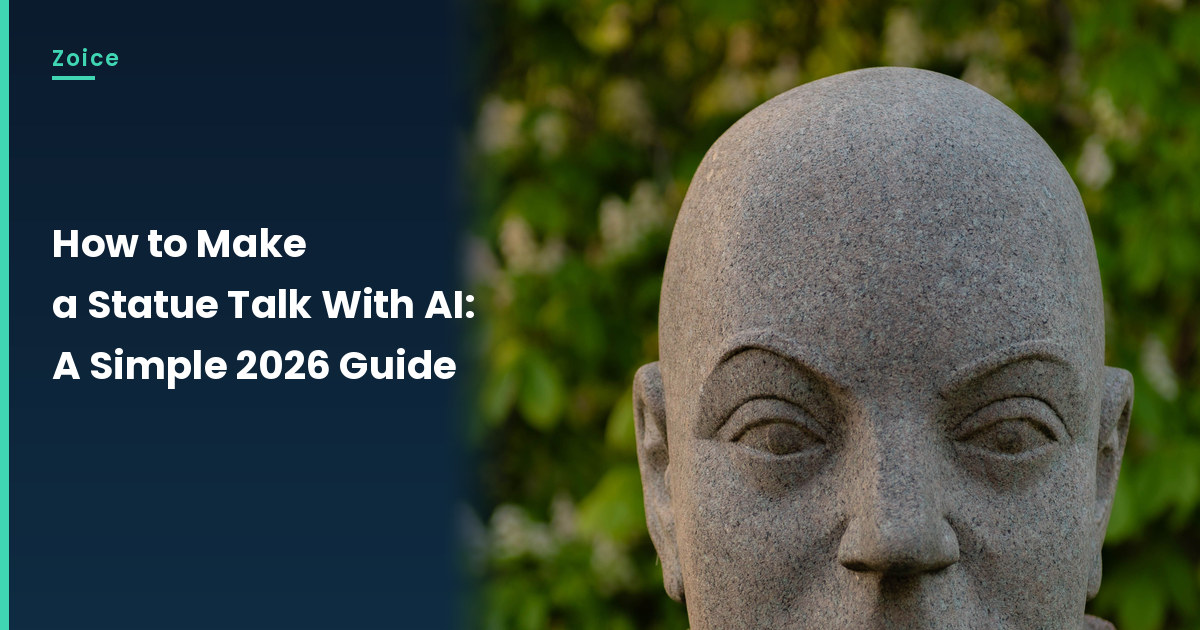
A garden statue already looks as if it has been waiting to speak. This is how to make a statue talk with AI from a figure you photographed with permission, which suits travel notes and museum-style explainers. For the talking statue, in Zoice you upload a front-facing photo as your Host, write a short script, and the mouth is lip synced to your words. An optional action prompt can add a slight turn of the head. Test the face, because pale stone can flatten in harsh noon light, and do not copy a famous monument or a living person.
Planning more than one talking statue clip? Our AI historical figure video generator roundup has more talking statue ideas.
Choosing a Statue Image Zoice Can Read
A talking statue works best from a front-facing photo with a carved or sculpted mouth you can see, taken in soft light, of a figure you have permission to show.
- Ask before photographing a statue in a private garden or a museum
- Avoid famous monuments and any likeness of a real person
- Shoot in even morning light, not hard noon glare
- Test the photo in Zoice; if a face is not detected, try a tighter crop or softer light
How to Make a Statue Talk with AI in Zoice
Our Host is a gray stone garden bust of a fictional figure with a calm face and a clearly visible mouth, standing in front of leafy garden greenery, not a copy of a famous monument, used as the Host for this post and saved in the app.
Step 1: Sign In to Zoice and Open Home
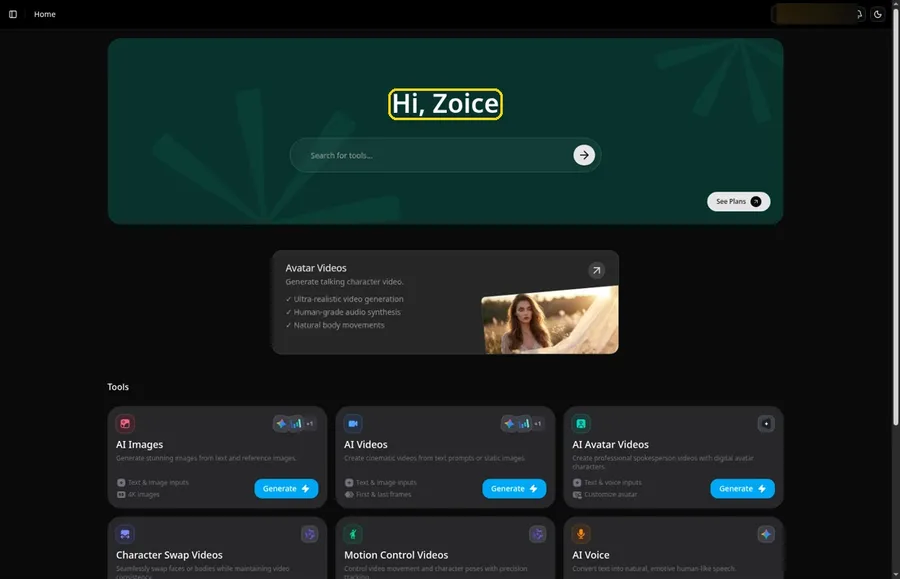
Click Sign In on Zoice and log in with your email or Google account to start the talking statue video.
Step 2: Open Avatar videos
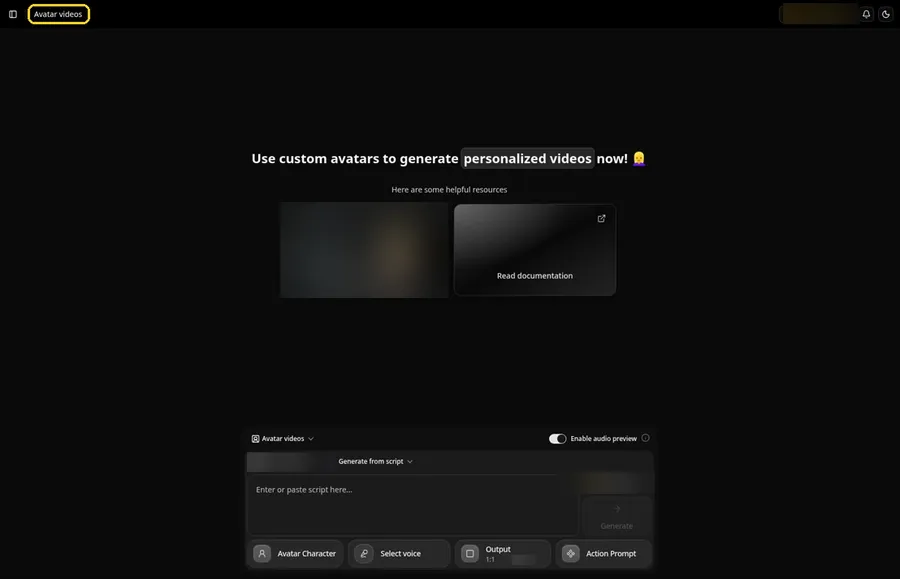
Open Avatar videos. The page title reads Avatar videos, and the composer is empty with Output at the default 1:1.
Step 3: Open Avatar Character and Create a New Avatar
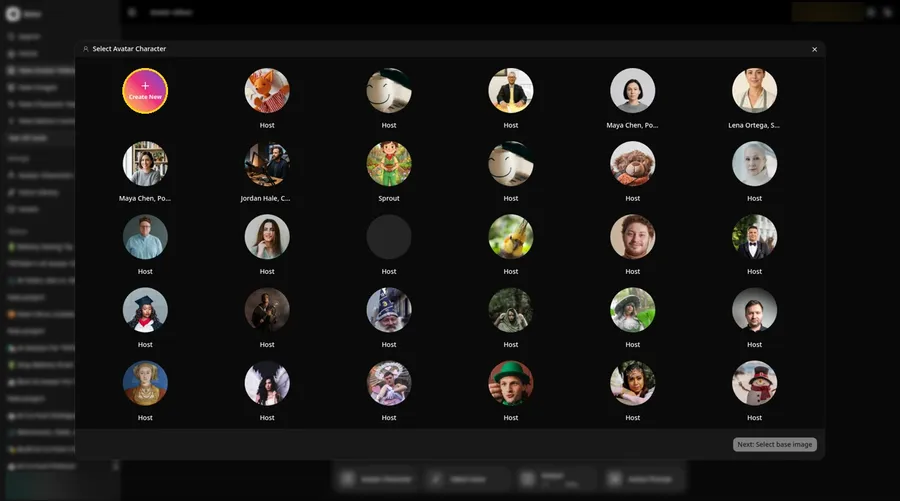
For the talking statue, click Avatar Character in the composer to open Select Avatar Character, then click Create New. On the Avatar Characters page, click Create New again, and the full-screen Create new avatar page opens for the talking statue.
Step 4: Choose Upload Image
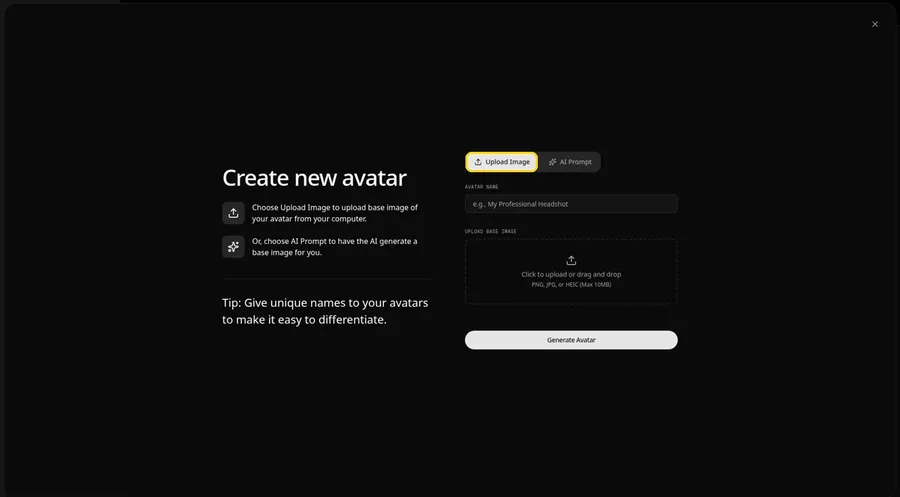
Leave the Upload Image tab on under UPLOAD BASE IMAGE, since the talking statue comes from an image file.
Step 5: Upload the Statue Image
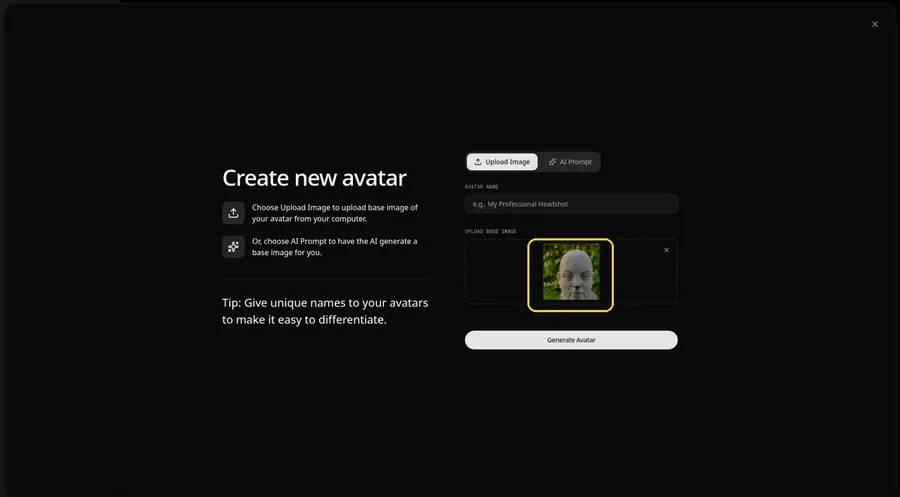
Choose the statue image in the upload area. The preview should show the gray stone garden bust looking toward the camera, with a calm face and a visible mouth, in front of leafy garden greenery.
Step 6: Name Your Avatar Host and Click Generate Avatar
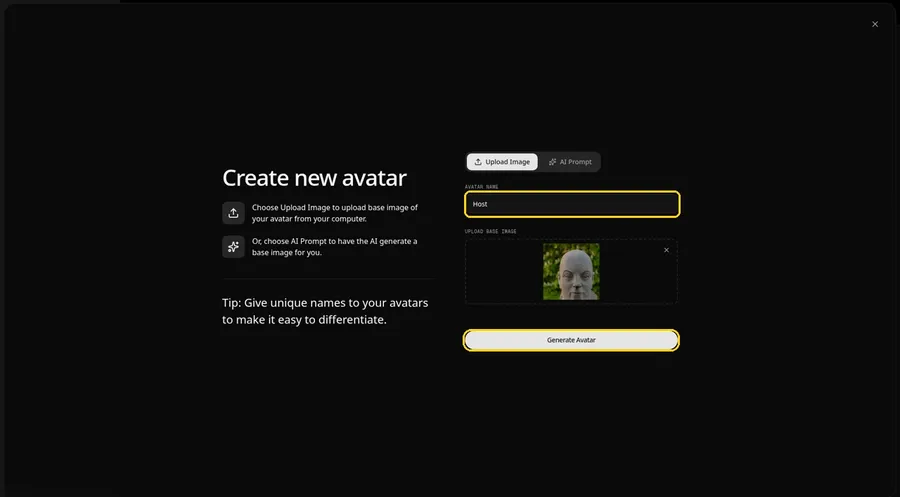
Type Host in the AVATAR NAME field, with the preview in place, ready to click Generate Avatar.
Step 7: Open the Add Script Panel
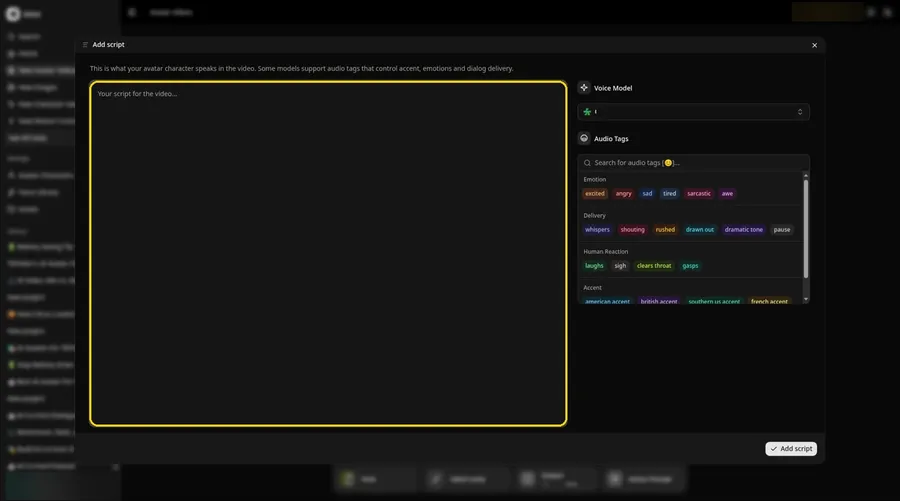
Select the script box, and the Add script panel for the talking statue slides open.
Step 8: Choose the Voice Model
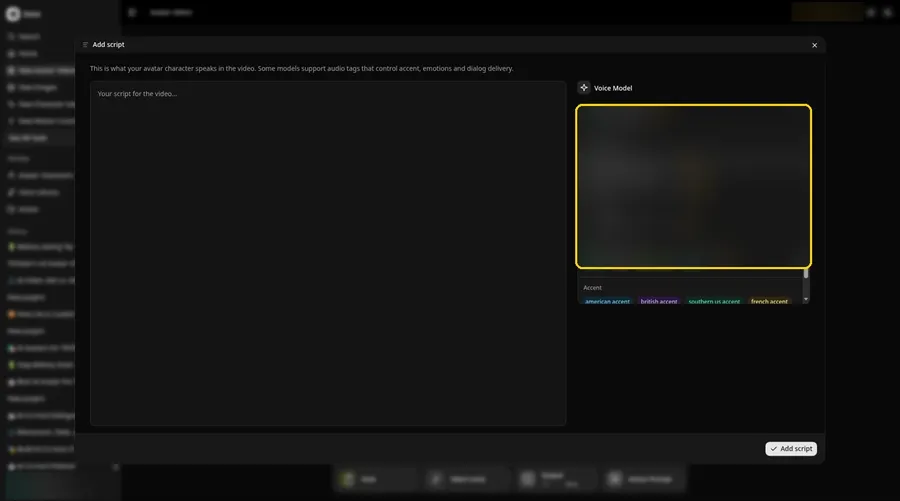
Choose the voice model from the Voice Model menu; it shapes how the talking statue sounds.
Step 9: Paste Your Script and Click Add Script
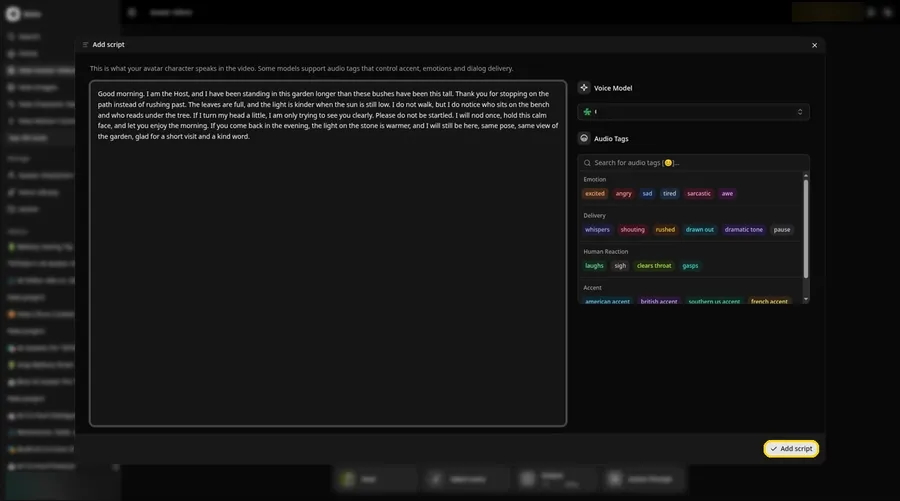
Paste the talking statue script, read it once more and click Add script. It opens with: Good morning.
Step 10: Pick a Voice
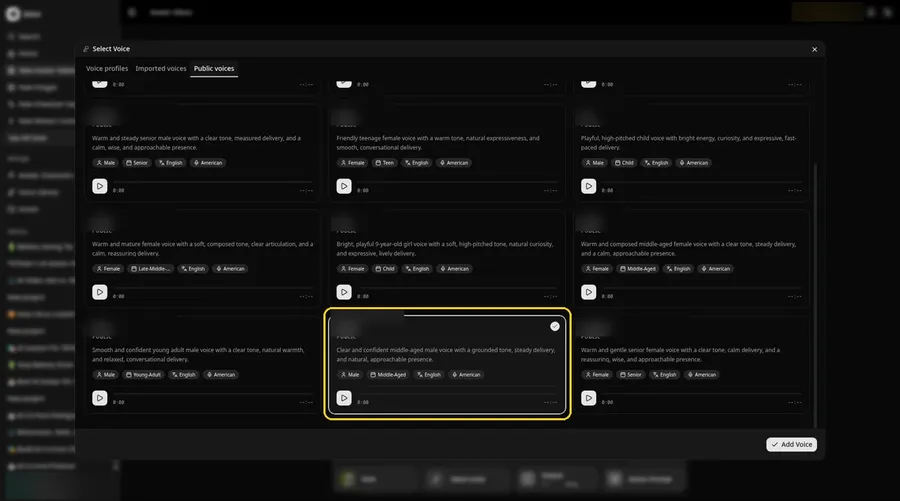
Click the voice button in the composer to open Select Voice for the talking statue. Pick a calm, even adult voice on the Public voices tab, then click Add Voice to attach it.
Step 11: Choose your output settings
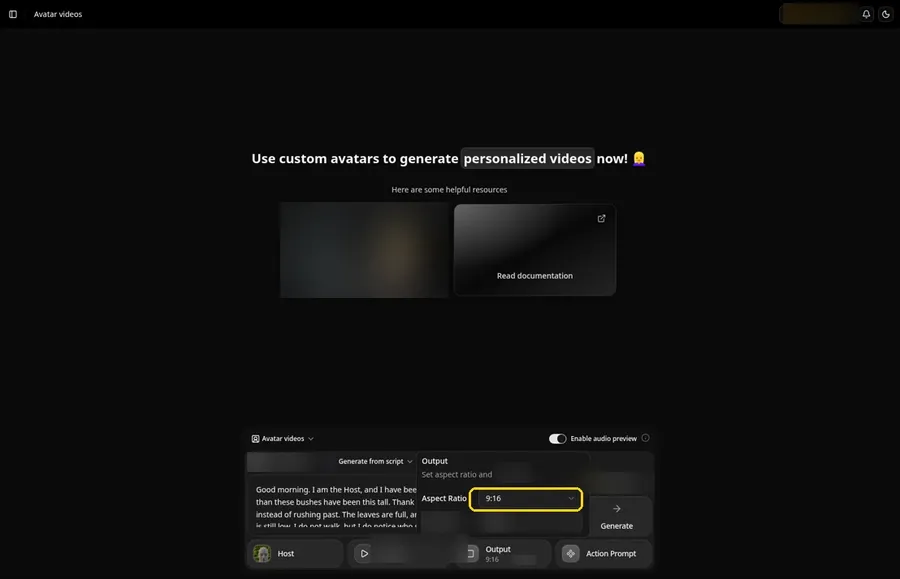
Choose your output settings. Set the Output aspect ratio dropdown to 9:16 if the talking statue is headed to vertical feeds.
Step 12: Add an Action Prompt
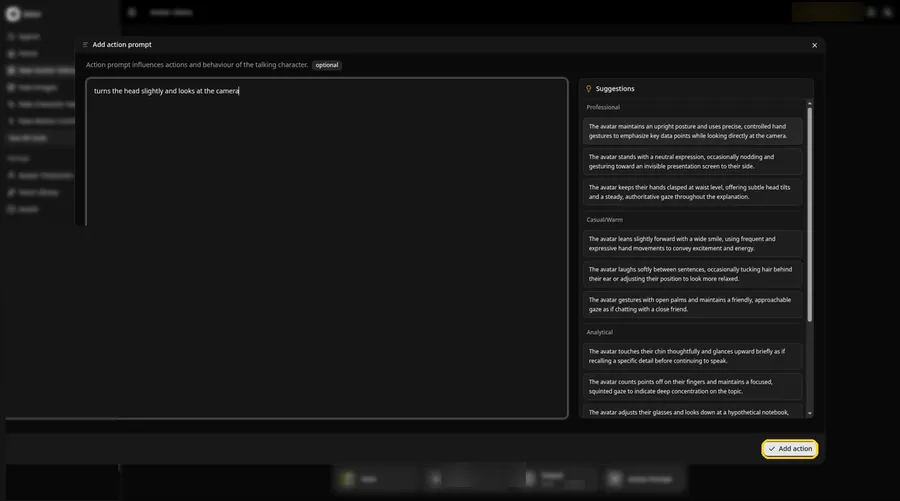
Click Action Prompt and type in the Add action prompt panel: turns the head slightly and looks at the camera. Click Add action. This step is the only place the talking statue gets its moves.
Step 13: Click Generate
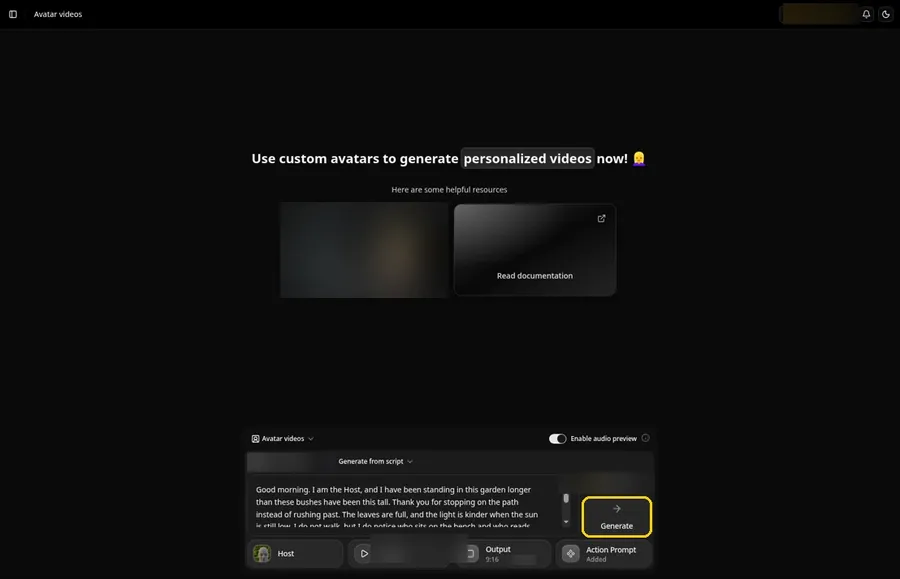
Look over the statue Host, the script, the voice, the 9:16 output and the Added Action Prompt chip, then click Generate.
Step 14: Confirm the Audio Preview
Listen to the talking statue audio preview, then confirm it while Zoice processes the clip.
Step 15: Preview the Video in the Player
Press play in the player and check that the talking statue lip sync and the action prompt moves match your script.
Step 16: Download From the Player Menu
Use the player's three-dot menu and choose Download to keep the talking statue file.
Step 17: Share Your Video
Post the talking statue clip as a Reel, Short or story, or drop it in a chat; stick to images and audio you have the rights to.
Writing the Action Prompt
Keep the talking statue move slow and small, like a slight turn of the head, so it still feels like stone in a garden.
- turns the head slightly and looks at the camera
- nods once toward the path
- looks toward the garden and back
Type your pick in step 12 and click Add action.
Demo Idea: A Garden Figure Greets the Morning
A fictional gray stone garden bust Host greets a visitor and comments on the garden greenery and a quiet path. Here is the exact script:
"Good morning. I am the Host, and I have been standing in this garden longer than these bushes have been this tall. Thank you for stopping on the path instead of rushing past. The leaves are full, and the light is kinder when the sun is still low. I do not walk, but I do notice who sits on the bench and who reads under the tree. If I turn my head a little, I am only trying to see you clearly. Please do not be startled. I will nod once, hold this calm face, and let you enjoy the morning. If you come back in the evening, the light on the stone is warmer, and I will still be here, same pose, same view of the garden, glad for a short visit and a kind word."
Your talking statue is waiting for its first lines. Try Zoice and give the talking statue a voice.
Tips for Photographing Statues
- Photograph in soft morning or open shade, not harsh noon sun.
- Stand straight in front of the face, not at a low angle that hides the mouth.
- Write a calm greeting rather than a loud speech.
- Use a slow head turn, not a big gesture, in the action prompt.
Our guide on how to make a picture talk pairs well with this talking statue tutorial.
FAQ
Can I use a photo from a museum trip?
Only if photography is allowed and you are not copying a famous work or a real person.
What if the stone face is very worn?
Try a closer crop and softer light. If a face is not detected, use a clearer figure.
Should the statue tell a true history?
Keep the demo fictional, or check every fact if you write a real local story.
Is the action prompt required?
No. The talking statue is lip synced to your script either way; the action prompt only adds the move.
Can I make a vertical talking statue video?
Yes. Choose 9:16 in the output settings before you click Generate on the talking statue.
Try Zoice
The talking statue is ready for its close-up. Read our guide to animating old family photos, or Try Zoice and make the talking statue today.