How to Make a Retirement Video With AI: A Simple 2026 Guide
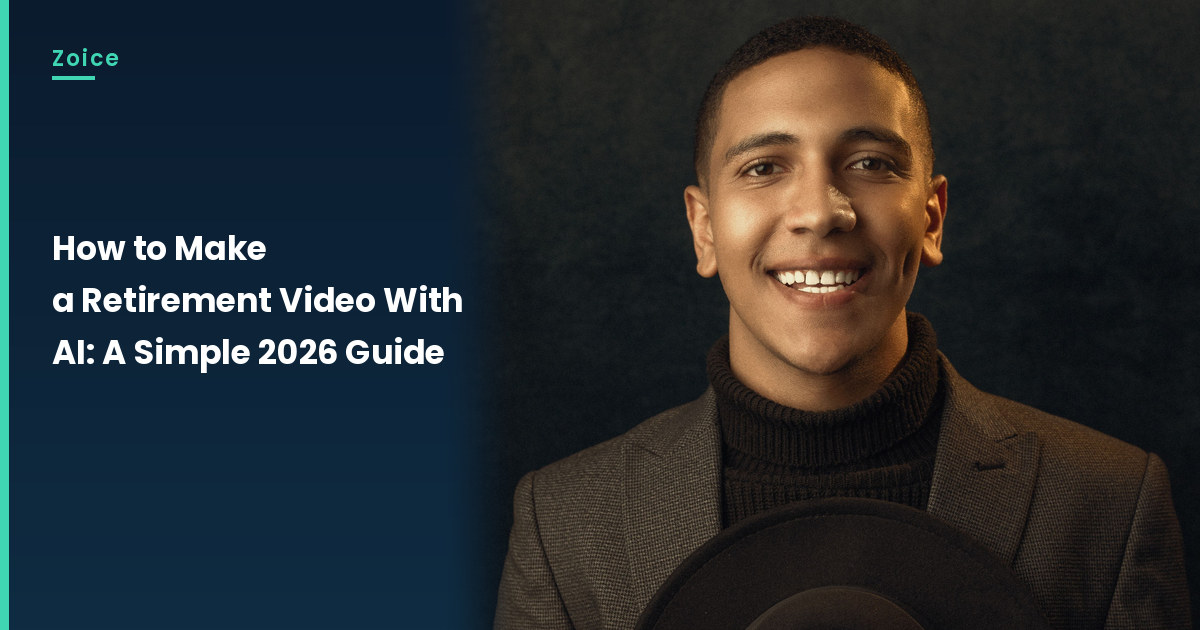
A short spoken thank you can stand in for a long retirement speech when the room is already full. This is how to make a retirement video with AI in Zoice: upload a clear, approved photo, use it as the Host, paste a brief table thank-you, pick a voice, and let lip sync follow the words. An optional action prompt can add a small move, such as raises his hat and nods. The retirement video screenshots use a stock-model stand-in, so swap in a photo of the person who has agreed to appear.
The walkthrough below is how to make a retirement video with AI, screen by screen. A card-style thank you sits well beside it in our talking greeting card tutorial.
Picking a Photo for Your Retirement Video
Pick a clear, approved photo of the person who has agreed to appear in the retirement video, with a visible mouth. A jacket and a gathered-table look are fine if the face stays clear. The retirement video screenshots use a stock-model stand-in, which you can replace with an approved photo.
- Choose a clear, front-facing photo with a visible mouth
- Use only a photo of the person who has agreed to appear
- Keep the thank-you short and spoken in your own words
- Test the face in Zoice before you share the clip
How to Make a Retirement Video in Zoice
Our Host is a stock photograph of an adult man in a grey-brown blazer and a dark turtleneck, holding a dark hat, with a clear face and a visible mouth, used as the Host for this post and saved in the app.
If you want a simpler talking-head path, our talking head video tutorial is a useful companion.
Step 1: Sign In to Zoice and Open Home
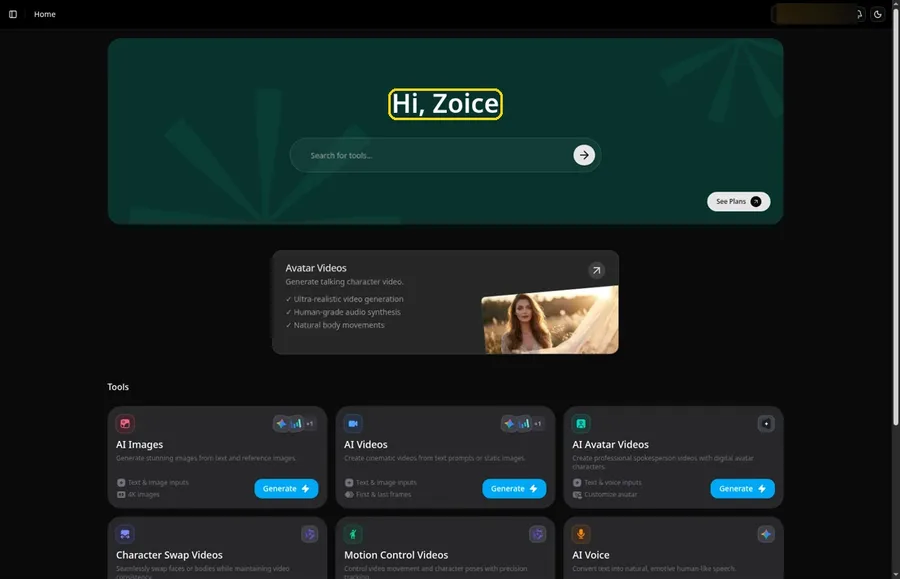
Head to Zoice, click Sign In, and use email or Google so Home opens for the retirement video.
Step 2: Open Avatar videos
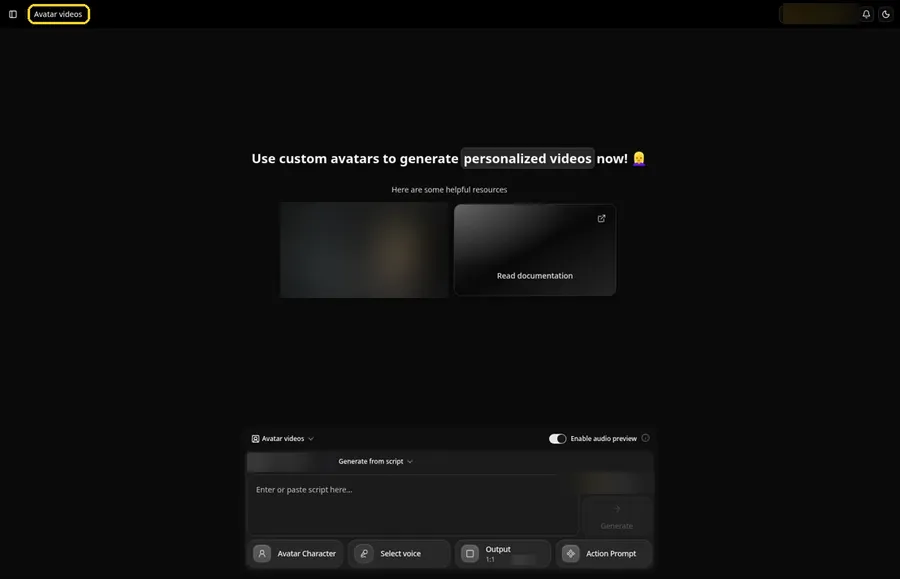
Open Avatar videos. The page title reads Avatar videos, and the composer is empty with Output at the default 1:1.
Step 3: Open Avatar Character and Create a New Avatar
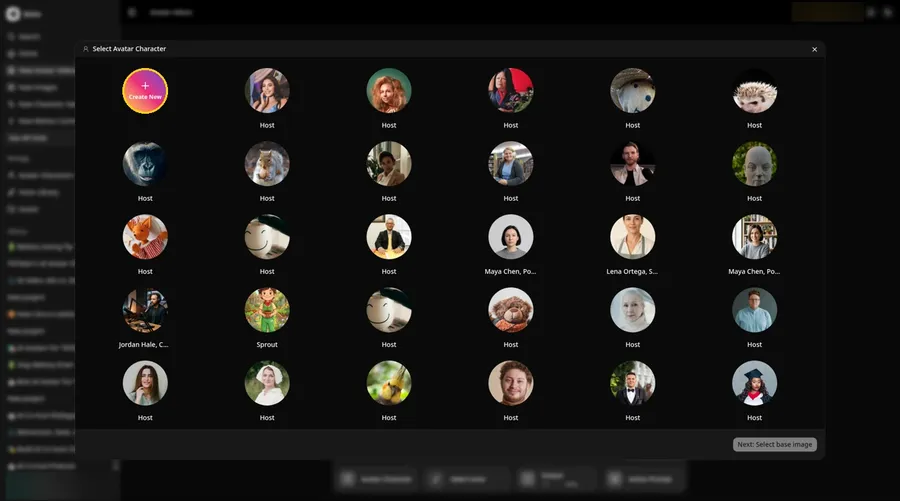
From the composer, open Select Avatar Character, click Create New, and if the Avatar Characters page shows, click Create New again for the retirement video.
Step 4: Choose Upload Image
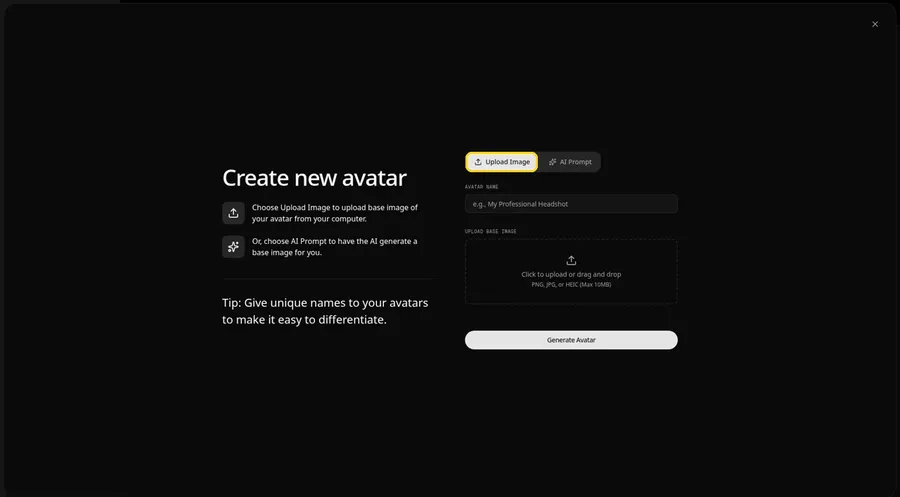
Keep the Upload Image tab in view under UPLOAD BASE IMAGE so you can file-upload the retirement video.
Step 5: Upload the Retirement Image
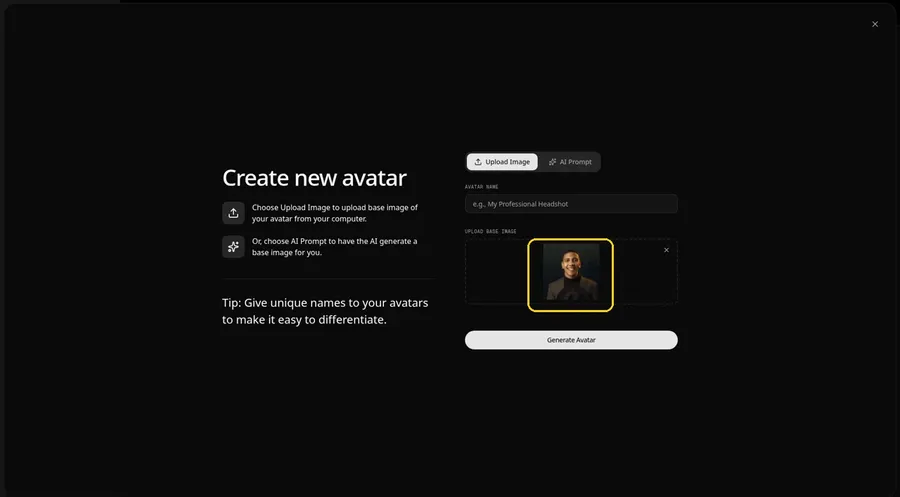
Upload your file for the retirement video and review the preview, which should be an adult man in a grey-brown blazer and a dark turtleneck, holding a dark hat, with a clear face and a visible mouth.
Step 6: Name Your Avatar Host and Click Generate Avatar
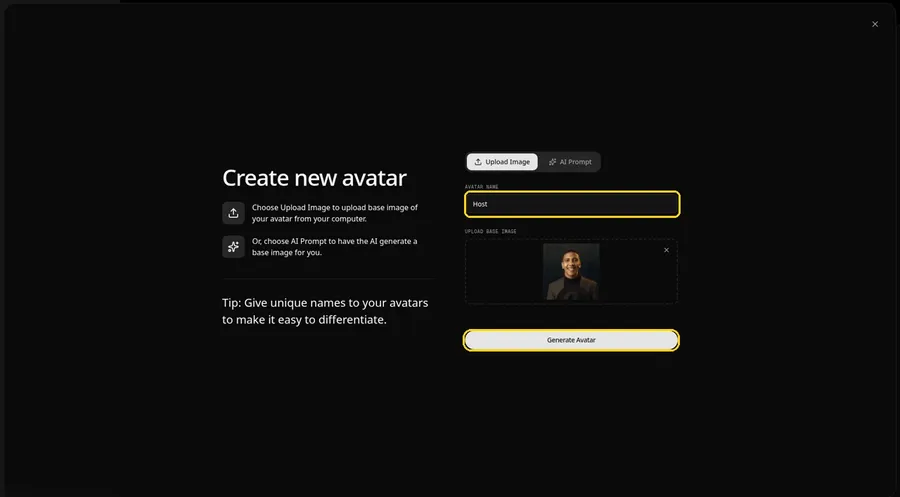
Type Host in the AVATAR NAME field, with the preview in place, ready to click Generate Avatar.
Step 7: Open the Add Script Panel
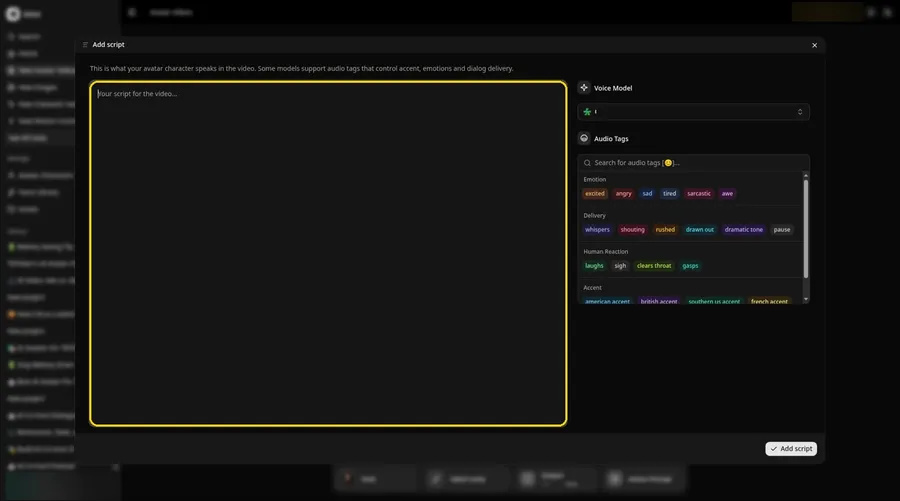
Bring up the Add script panel from the script box so you can prepare the retirement video.
Step 8: Choose the Voice Model
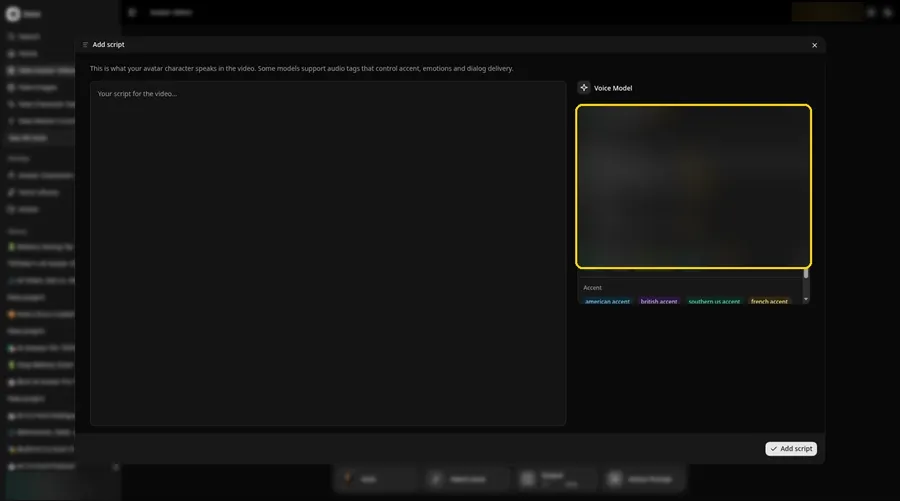
Select a voice model in the Voice Model menu so the retirement video has a starting sound profile.
Step 9: Paste Your Script and Click Add Script
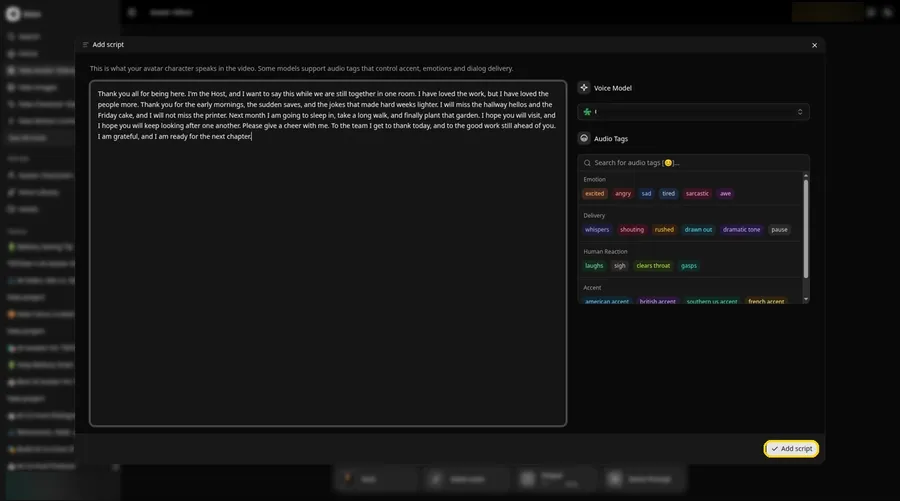
Paste your retirement video script, glance over it, and press Add script. The start is: Thank you all for being here.
Step 10: Pick a Voice
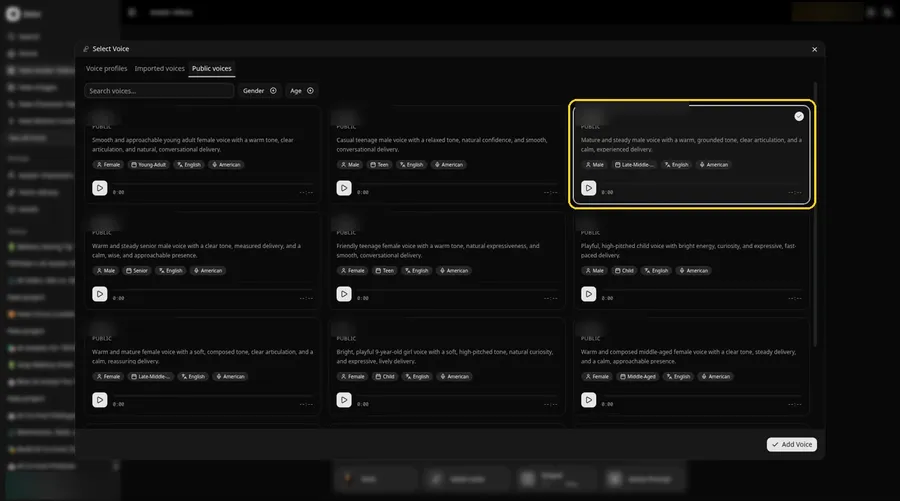
Open the Select Voice window, stay on Public voices, choose a warm and even adult voice, and click Add Voice to finish the retirement video voice step.
Step 11: Choose your output settings
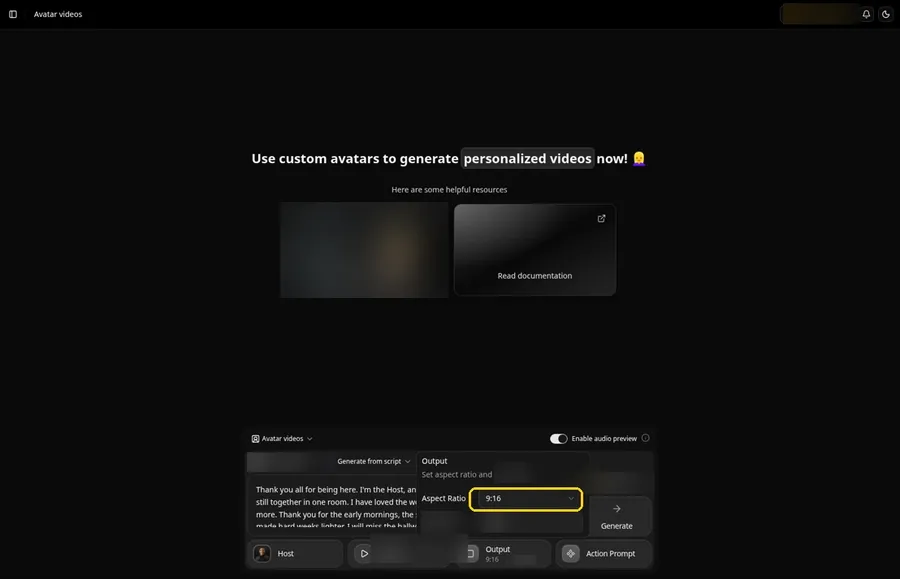
Choose your output settings. Set Output to a 9:16 aspect ratio when the retirement video should stand tall on a phone.
Step 12: Add an Action Prompt
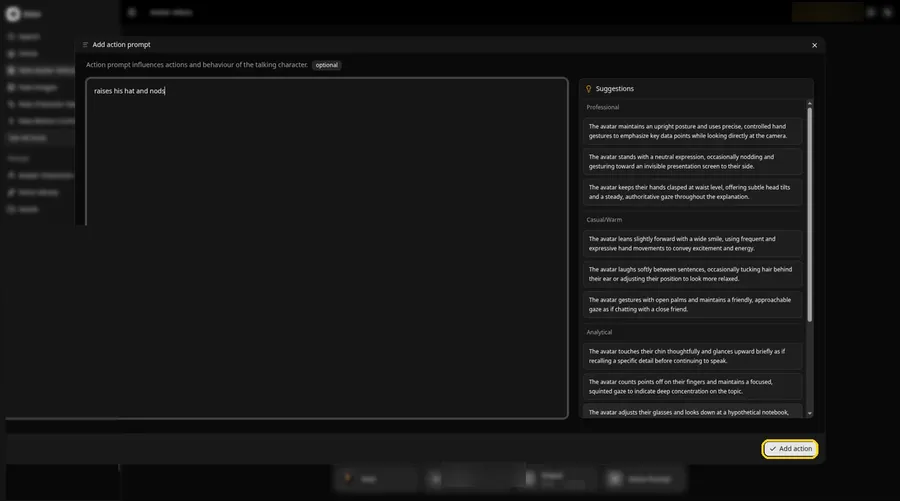
Fill Add action prompt with raises his hat and nods and click Add action, so the retirement video follows that motion only.
Step 13: Click Generate
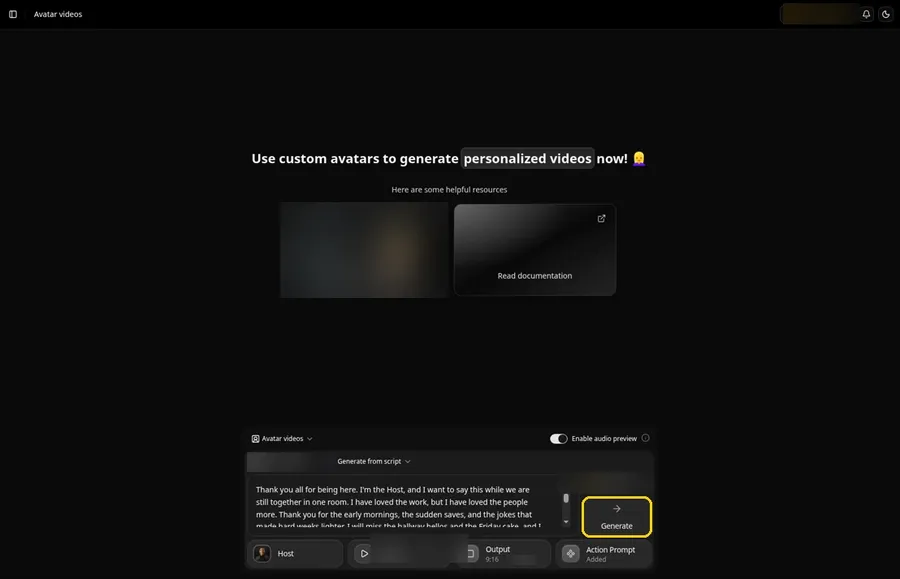
Look over the retirement Host, the attached voice, the script, 9:16, and Added on the Action Prompt chip, then click Generate.
Step 14: Confirm the Audio Preview
Open the retirement video audio preview, confirm the take, and wait as Zoice processes the clip.
Step 15: Preview the Video in the Player
Preview the retirement video in the player and match the lip sync and action prompt move to the script.
Step 16: Download From the Player Menu
Save the retirement video by opening the player's three-dot menu and choosing Download.
Step 17: Share Your Video
Publish the retirement video as a short social clip or a private message, and do not use photos or audio you may not use.
Writing the Action Prompt
Keep the retirement video move warm and small, like raises his hat and nods at the table.
- raises his hat and nods
- smiles and nods to the table
- looks at the guests and back
Type your pick in step 12 and click Add action so the Action Prompt chip updates on the retirement video.
Demo Idea: A Thank You at the Retirement Table
A stock-photograph Host, of an adult man in a grey-brown blazer and a dark turtleneck, thanks coworkers at a retirement gathering and raises his hat and nods, from the action prompt. Here is the exact script:
"Thank you all for being here. I'm the Host, and I want to say this while we are still together in one room. I have loved the work, but I have loved the people more. Thank you for the early mornings, the sudden saves, and the jokes that made hard weeks lighter. I will miss the hallway hellos and the Friday cake, and I will not miss the printer. Next month I am going to sleep in, take a long walk, and finally plant that garden. I hope you will visit, and I hope you will keep looking after one another. Please give a cheer with me. To the team I get to thank today, and to the good work still ahead of you. I am grateful, and I am ready for the next chapter."
Your retirement video is waiting for its first lines. Try Zoice and give the retirement video a voice.
Tips for Your Retirement Video
- Start with a stock or fictional adult photo you may use for this retirement video, and keep the face and mouth easy to see.
- Name the feeling, not a long work history: thank the team, mention the next chapter, and keep the close warm.
- A warm, even voice fits a thank you speech.
- Action prompt tip: use one small move, such as raises his hat and nods, at the close.
A plain portrait option is our picture talk tutorial.
FAQ
Can I use the retiree's real headshot?
Only if you may use it. For this retirement video demo, use a stock or fictional adult as the Host, not a real identifiable person.
Does the Host photo need a face?
Yes. Lip sync for this retirement video needs a visible mouth, so pick a photo that faces the camera.
What image formats can I upload?
PNG, JPG or HEIC files, as the Upload Image panel states.
Is the action prompt required?
No. Lip sync still follows your retirement video script if you skip the action prompt; the prompt only adds the move.
Try Zoice
Read our guide to creating a talking character, or Try Zoice and make the retirement video today.