How to Make a Gender Reveal Video With AI: 2026 Guide

A backyard reveal invitation can be spoken from a still party photo instead of a long filmed speech. This is how to make a gender reveal video with AI in Zoice: upload a clear, approved photo, use it as the Host, paste a short invitation, pick a voice, and let lip sync follow the words. An optional action prompt can add a small move, such as smiles and raises a small wrapped box. The gender reveal video screenshots use a stock-model stand-in, so swap in a photo of someone who has agreed to appear.
Below is how to make a gender reveal video with AI, one screen at a time. A card-style greeting sits well beside this gender reveal invite in our talking greeting card tutorial.
Picking a Photo for Your Gender Reveal Video
Pick a clear, approved photo of someone who has agreed to appear in the gender reveal video, with a visible mouth. Party clothes and festive light are fine if they do not hide the face. The gender reveal video screenshots use a stock-model stand-in, which you can replace with an approved photo.
- Choose a clear, front-facing photo with a visible mouth
- Use only a photo of someone who has agreed to appear
- Keep the invitation short and spoken in your own words
- Test the face in Zoice before you record the final take
How to Make a Gender Reveal Video in Zoice
Our Host is a stock photograph of an adult woman in a blue sequined dress with flower details, in festive party light, with a clear face and a visible mouth, used as the Host for this post and saved in the app.
If the reveal invite should feel more formal, our best AI wedding invitation video maker roundup is a useful companion.
Step 1: Sign In to Zoice and Open Home
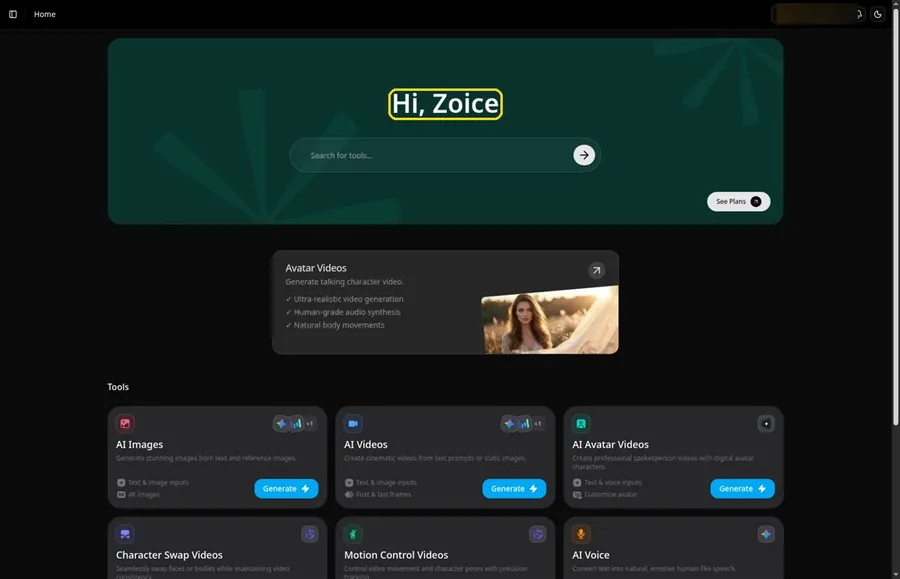
Visit Zoice, choose Sign In, and complete your email or Google login to begin the gender reveal video.
Step 2: Open Avatar videos
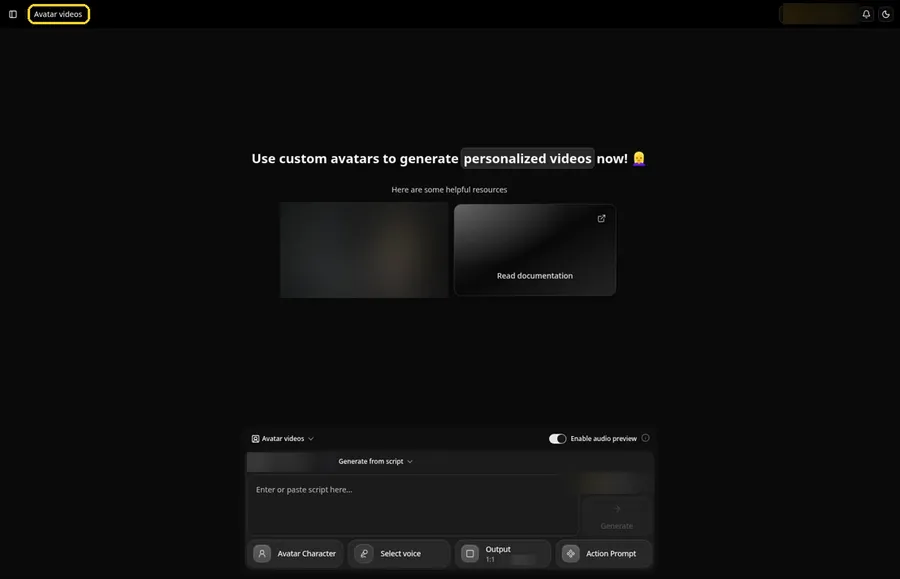
Open Avatar videos. The page title reads Avatar videos, and the composer is empty with Output at the default 1:1.
Step 3: Open Avatar Character and Create a New Avatar
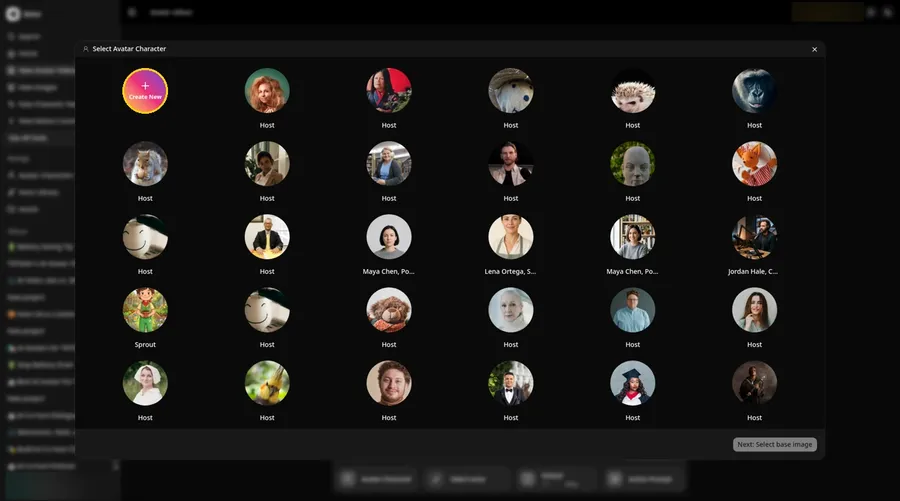
Select Avatar Character, click Create New, and keep going until the full-screen Create new avatar page is open for the gender reveal video.
Step 4: Choose Upload Image
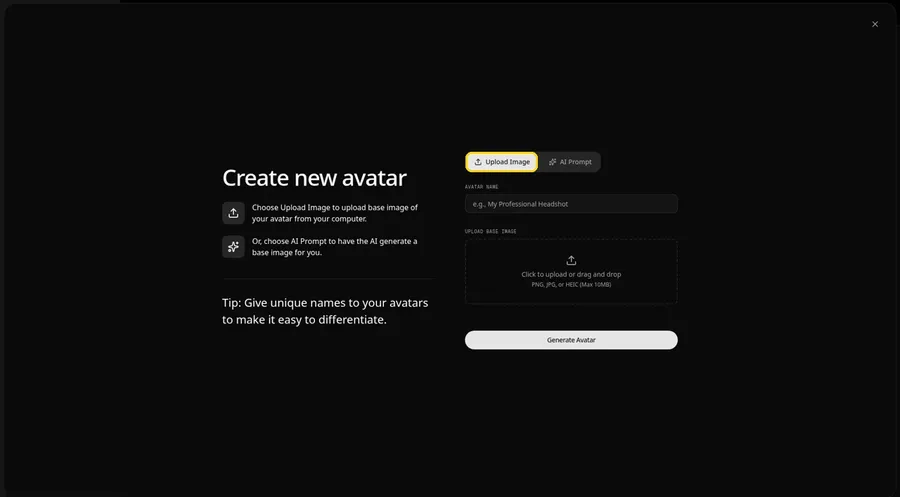
Remain on Upload Image in the UPLOAD BASE IMAGE section, as the gender reveal video is made from a file you already have.
Step 5: Upload the Gender Reveal Image
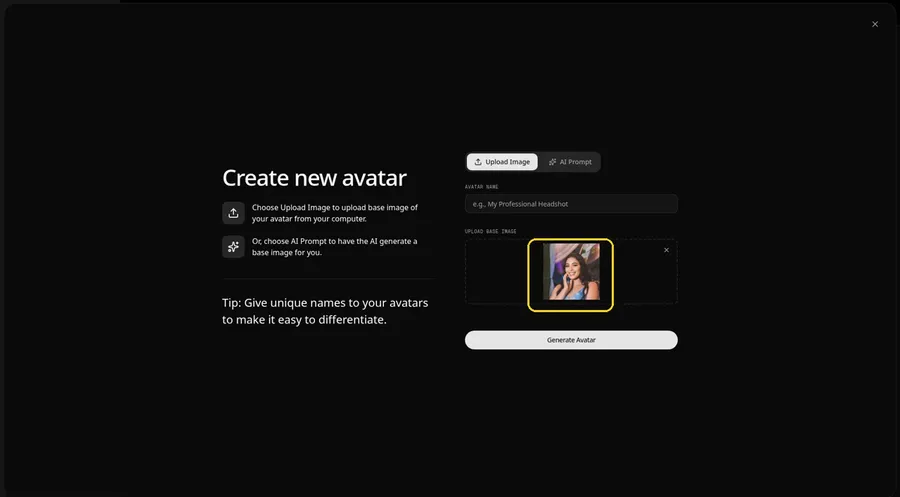
Drop or choose the gender reveal video photo so the preview displays an adult woman in a blue sequined dress with flower details, in festive party light, with a clear face and a visible mouth.
Step 6: Name Your Avatar Host and Click Generate Avatar
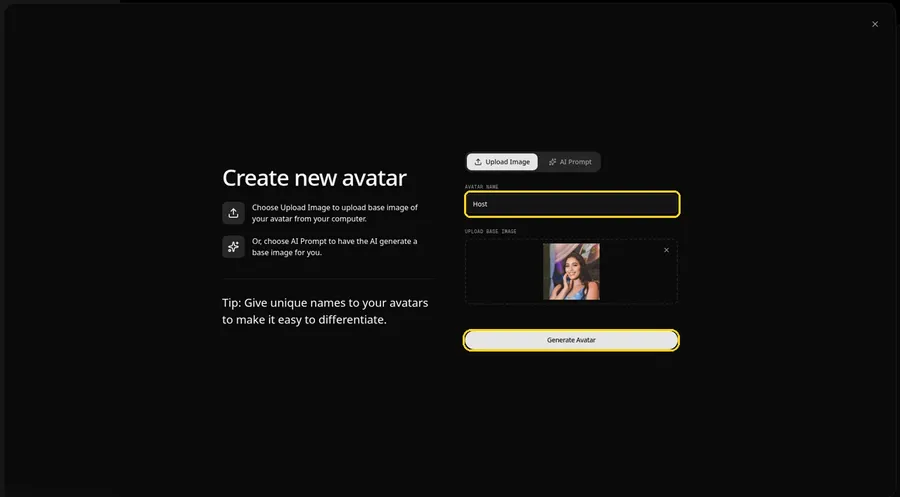
Type Host in the AVATAR NAME field, with the preview in place, ready to click Generate Avatar.
Step 7: Open the Add Script Panel
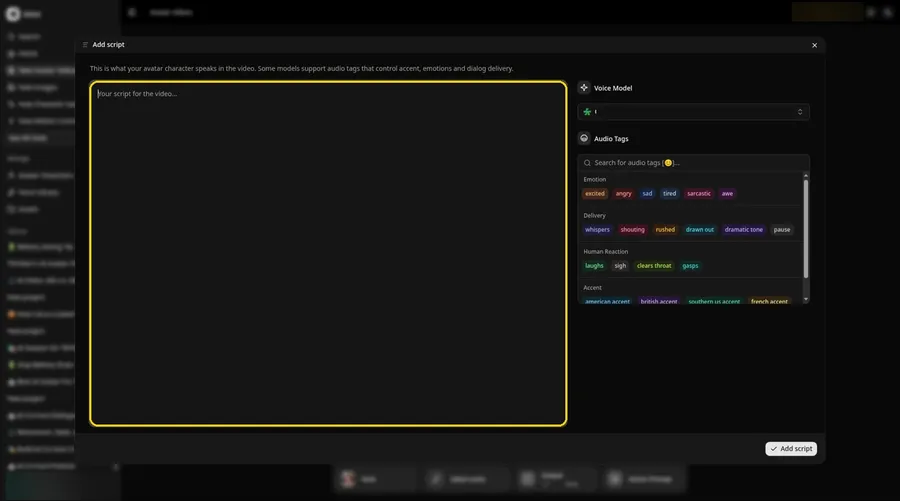
Click into the script box until the Add script panel is open and ready for the gender reveal video.
Step 8: Choose the Voice Model
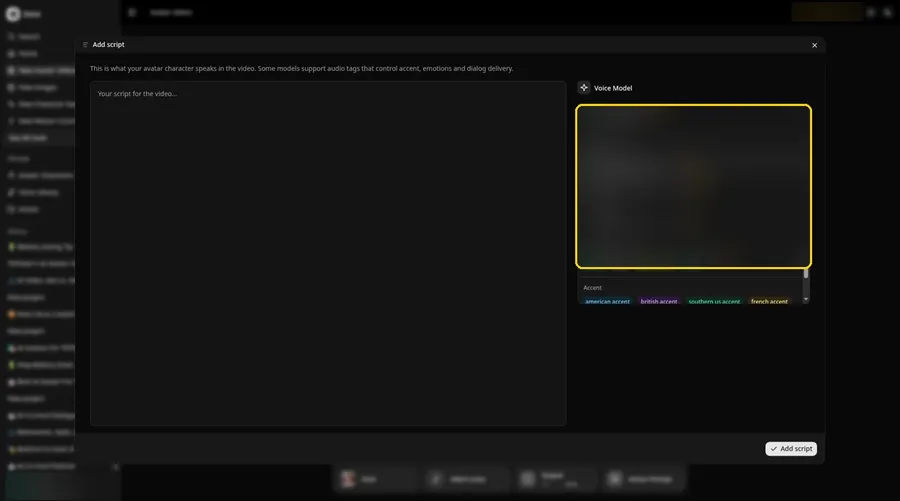
From the Voice Model list, choose the voice model you want for the gender reveal video.
Step 9: Paste Your Script and Click Add Script
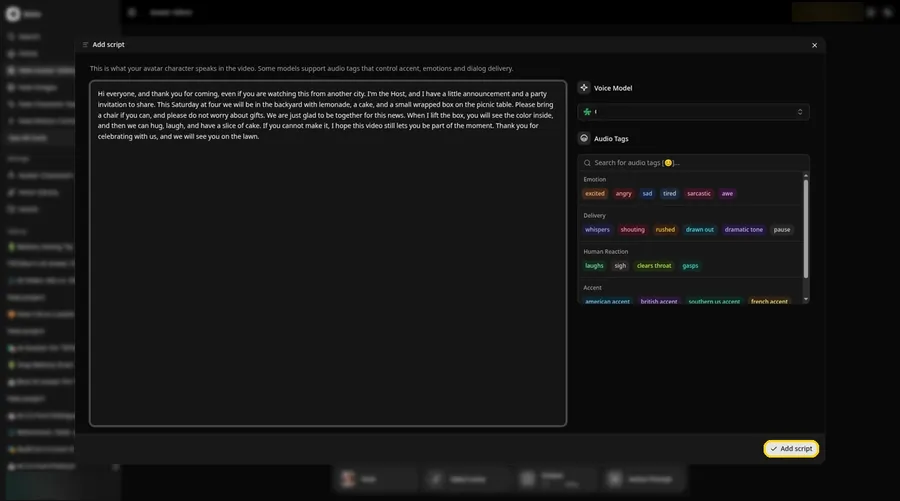
Copy the gender reveal video script into Add script, confirm it, and click Add script. It opens: Hi everyone, and thank you for coming, even if you are watching this from another city.
Step 10: Pick a Voice
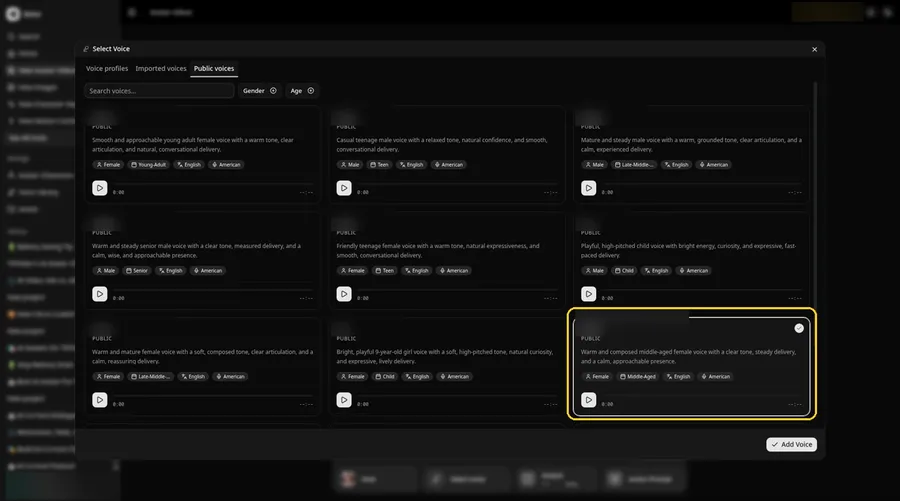
Go to Select Voice, keep the Public voices tab in front, select a friendly and even adult voice, and click Add Voice for the gender reveal video.
Step 11: Choose your output settings
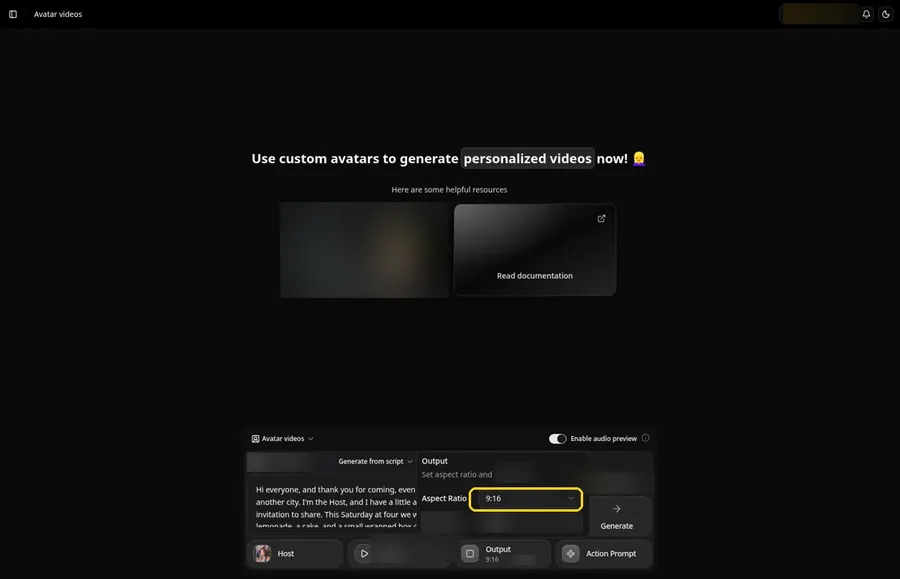
Choose your output settings. If you plan to post the gender reveal video as a Reel, Short or story, choose 9:16 in Output.
Step 12: Add an Action Prompt
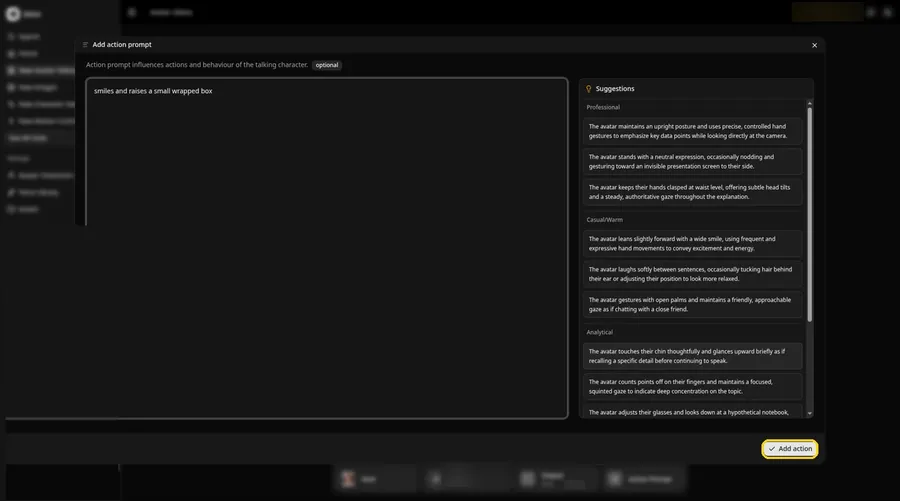
The Add action prompt panel is where you type smiles and raises a small wrapped box, then click Add action for the gender reveal video.
Step 13: Click Generate
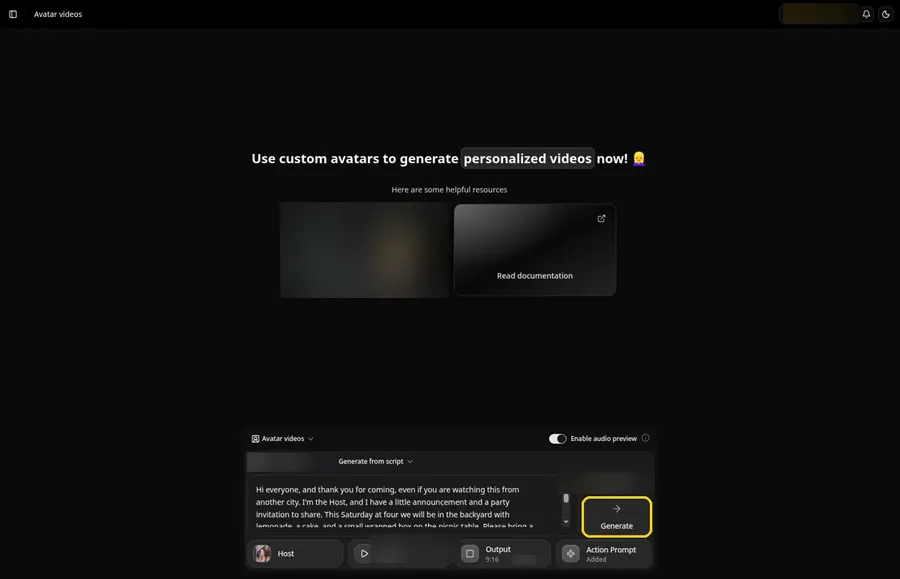
Look over the gender reveal Host, the attached voice, the script, 9:16, and Added on the Action Prompt chip, then click Generate.
Step 14: Confirm the Audio Preview
Check the audio preview on the gender reveal video, confirm it, and let processing continue in Zoice.
Step 15: Preview the Video in the Player
Hit play and watch the gender reveal video in the player, looking for lip sync and the action prompt move you wrote.
Step 16: Download From the Player Menu
The three-dot menu on the player includes Download, which saves the gender reveal video file.
Step 17: Share Your Video
Use the gender reveal video in a group chat or as a Reel, Short or story, staying with rights-cleared images and audio.
Writing the Action Prompt
Keep the gender reveal video move small, like a smile and a raised box as the invitation lands.
- smiles and raises a small wrapped box
- smiles and nods to the guests
- holds the look and blinks once
Type your pick in step 12 and click Add action so the Action Prompt chip updates on the gender reveal video.
Demo Idea: A Backyard Reveal Invitation
A stock-photograph Host, of an adult woman in a blue sequined dress with flower details, invites family to a backyard reveal party and shares the news, with a smile and a raised box from the action prompt. Here is the exact script:
"Hi everyone, and thank you for coming, even if you are watching this from another city. I'm the Host, and I have a little announcement and a party invitation to share. This Saturday at four we will be in the backyard with lemonade, a cake, and a small wrapped box on the picnic table. Please bring a chair if you can, and please do not worry about gifts. We are just glad to be together for this news. When I lift the box, you will see the color inside, and then we can hug, laugh, and have a slice of cake. If you cannot make it, I hope this video still lets you be part of the moment. Thank you for celebrating with us, and we will see you on the lawn."
Your gender reveal video is waiting for its first lines. Try Zoice and give the gender reveal video a voice.
Tips for Your Gender Reveal Video
- Start with a stock or fictional adult photo you may use for this gender reveal video, and keep the face and mouth easy to see.
- Write a warm invitation and announcement in your own words, and keep private details off the clip if you do not want them public.
- A friendly, even voice fits a family announcement.
- Action prompt tip: use one small move, such as smiles and raises a small wrapped box, just as the news is shared.
For a plain portrait that speaks first, see our picture talk tutorial.
FAQ
Can I use a real family photo from the party?
Only if you may use it. For this gender reveal video demo, use a stock or fictional adult as the Host, not a real identifiable person.
Does the Host photo need a face?
Yes. Lip sync for this gender reveal video needs a visible mouth, so pick a photo that faces the camera.
What image formats can I upload?
PNG, JPG or HEIC files, as the Upload Image panel states.
Is the action prompt required?
No. Lip sync still follows your gender reveal video script if you skip the action prompt; the prompt only adds the move.
Try Zoice
Read our baby talk tutorial, or Try Zoice and make the gender reveal video today.