How to Make a Baby Talk With AI: A Simple 2026 Guide
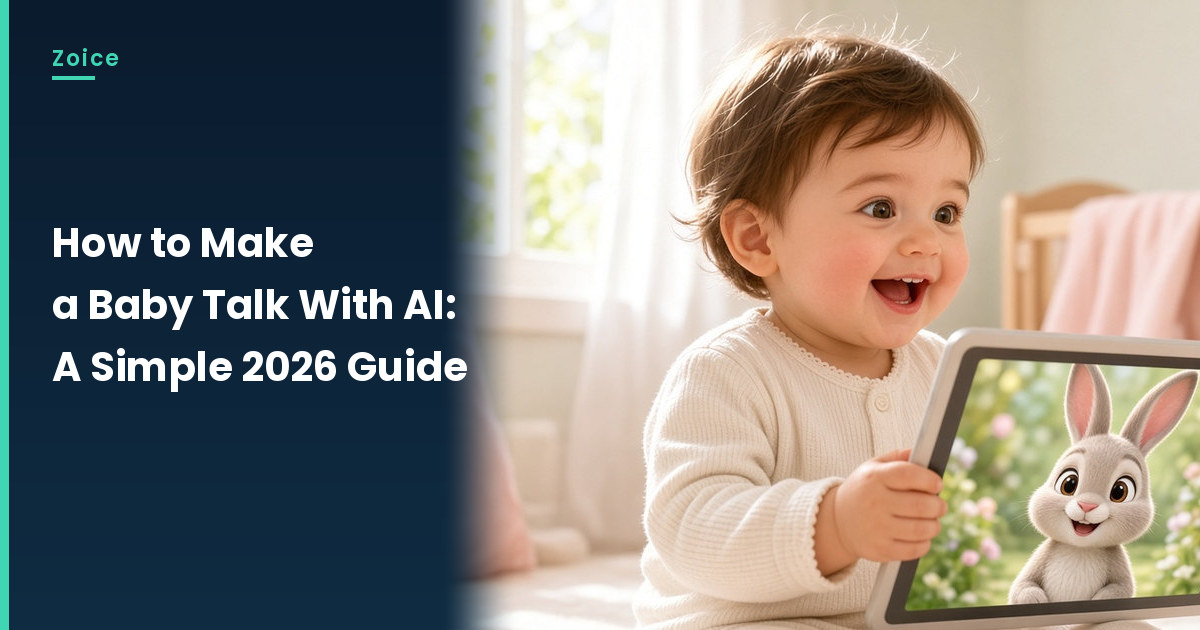
A talking baby clip is a sweet way to share a milestone, say thank you to grandparents or deliver a family joke. In Zoice you upload a baby photo you have permission to use, type a short spoken line, and the baby becomes a Host that says it.
This guide covers spoken lines only. For songs, our singing baby generator roundup compares the options.
Choosing the Right Baby Photo
The photo decides most of the result, so choose with care.
- Your own child, or a baby whose parents said yes
- The face toward the camera, with both eyes open
- The mouth in view, not hidden by a hand or pacifier
- Soft, even light and an uncluttered background
How to Make a Baby Talk With AI in Zoice (Step by Step)
Work through these screens in order. Our example uses an illustrated, fictional baby sending a thank you to the grandparents.
Step 1: Sign In
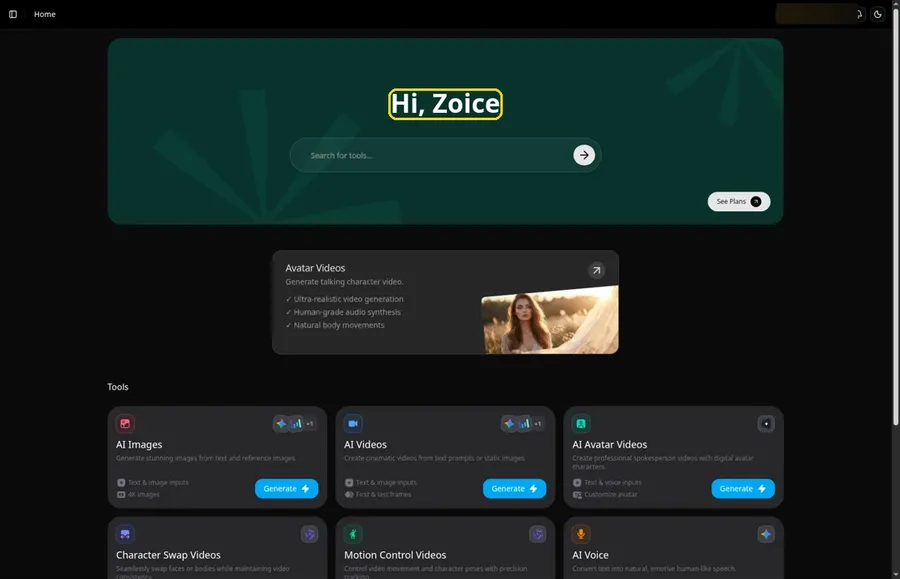
Click Sign In on Zoice and log in with your email or Google. Home opens with the Hi, Zoice heading.
Step 2: Go to the Avatar videos Page
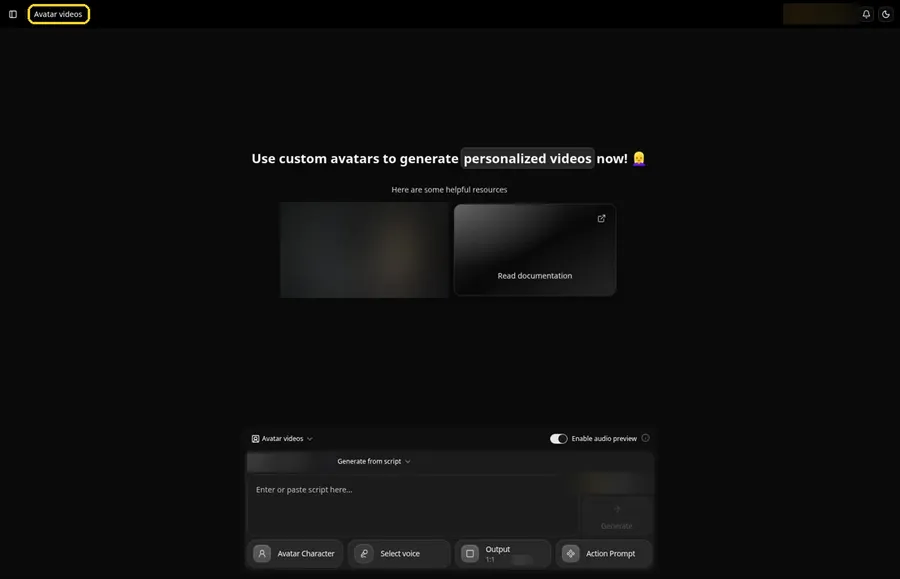
Select Avatar videos in the sidebar, where the composer waits at the bottom.
Step 3: Start a New Character
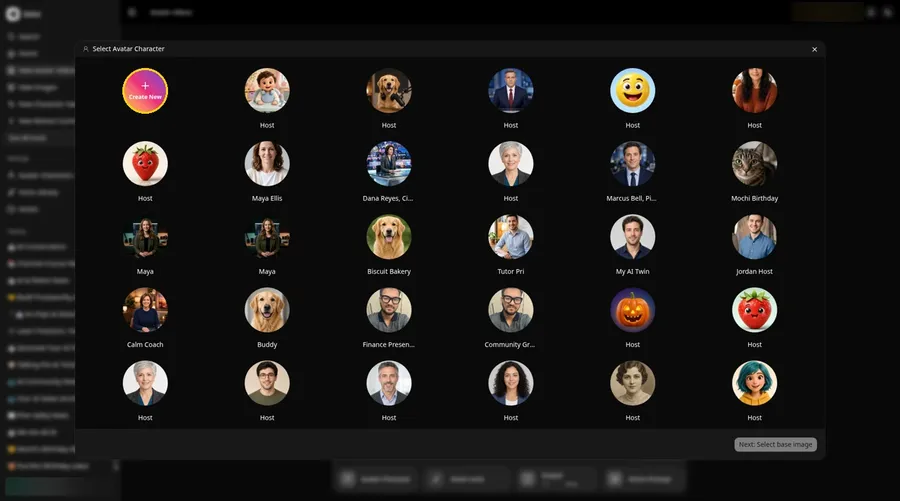
Press the Avatar Character button in the composer. In the Select Avatar Character window, click Create New. That opens the Avatar Characters page, where you click Create New again to reach the Create new avatar form.
Step 4: Use Upload Image
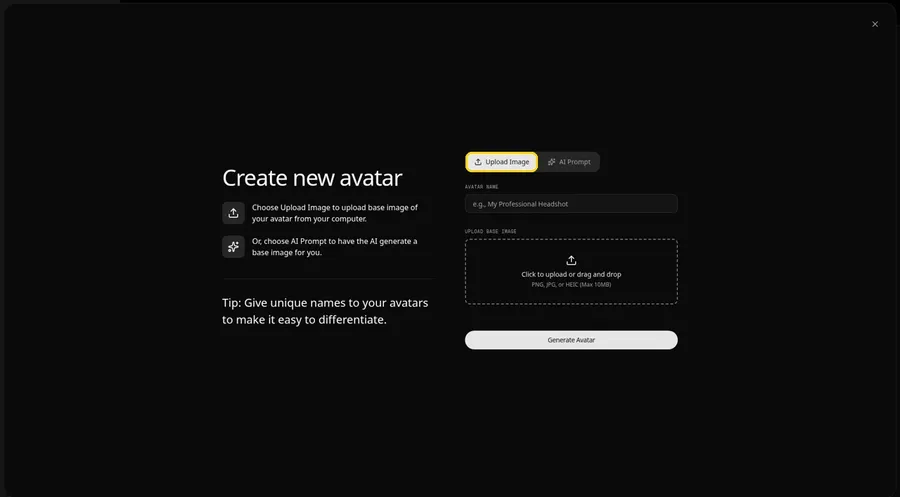
The Create new avatar page opens full screen on the Upload Image tab under Upload Base Image. Keep Upload Image selected for your baby photo.
Step 5: Upload the Baby Photo
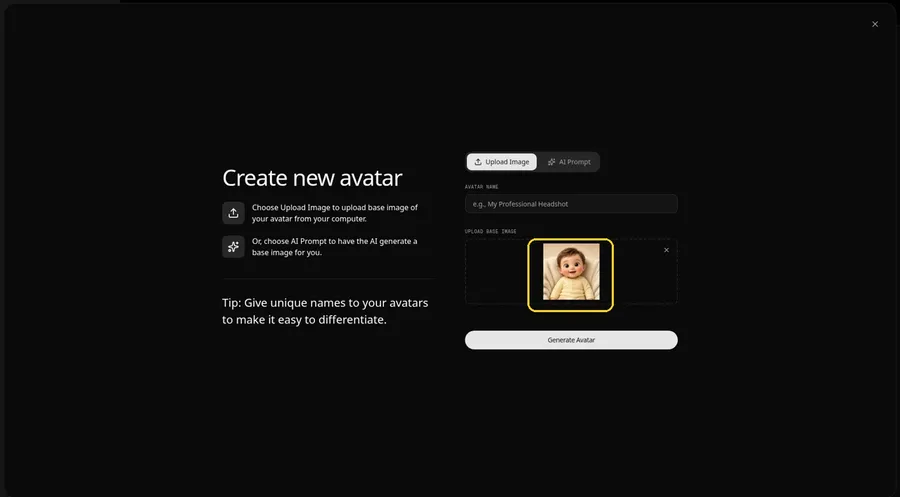
Click the upload area under Upload Base Image and pick the photo. Look at the preview. The eyes and mouth should be sharp and centered.
Step 6: Name the Avatar Host
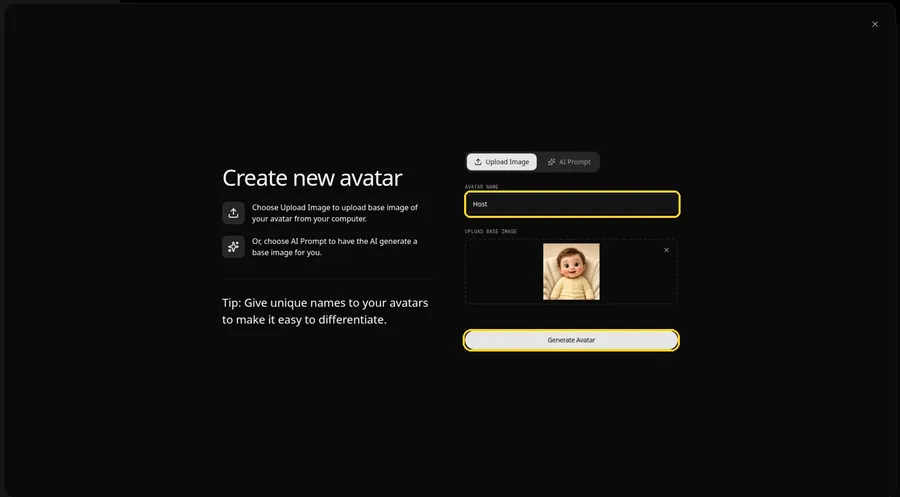
In the Avatar Name field, type Host and click Generate Avatar.
Step 7: Open the Script Panel
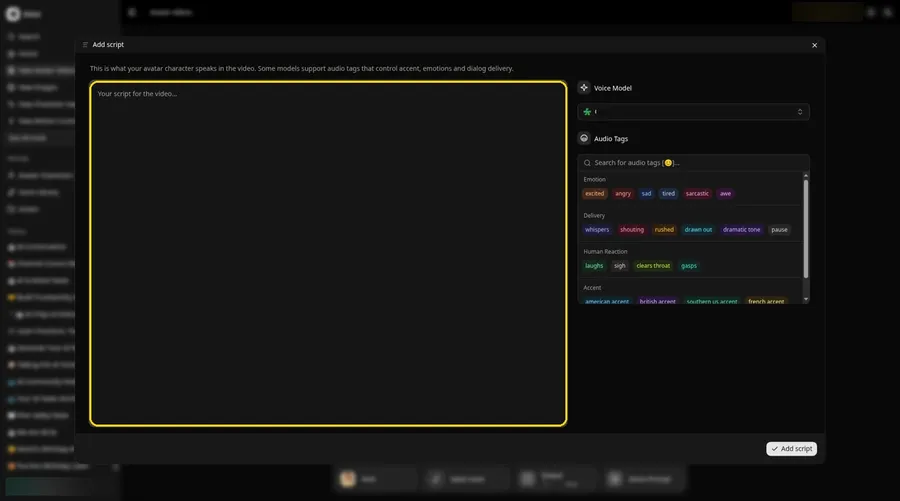
Click the script box in the composer. The Add script panel opens.
Step 8: Select the Voice Model
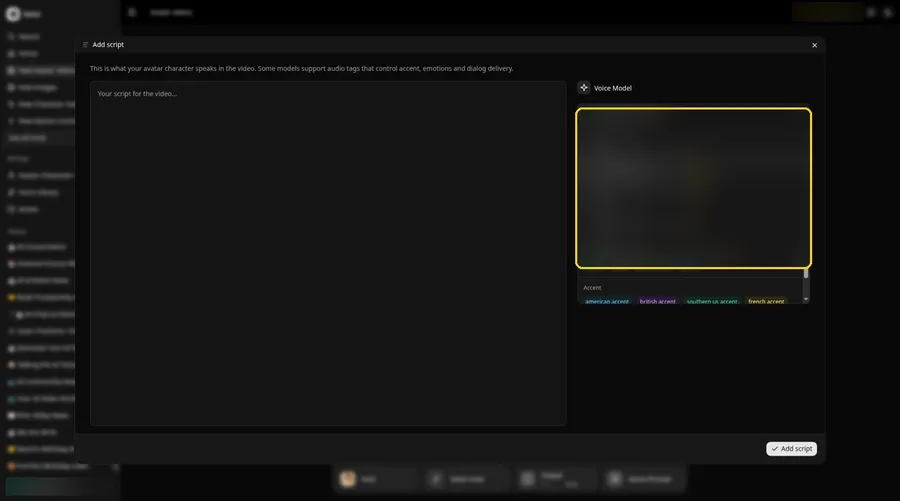
Pick a model from the Voice Model menu.
Step 9: Write the Baby's Line
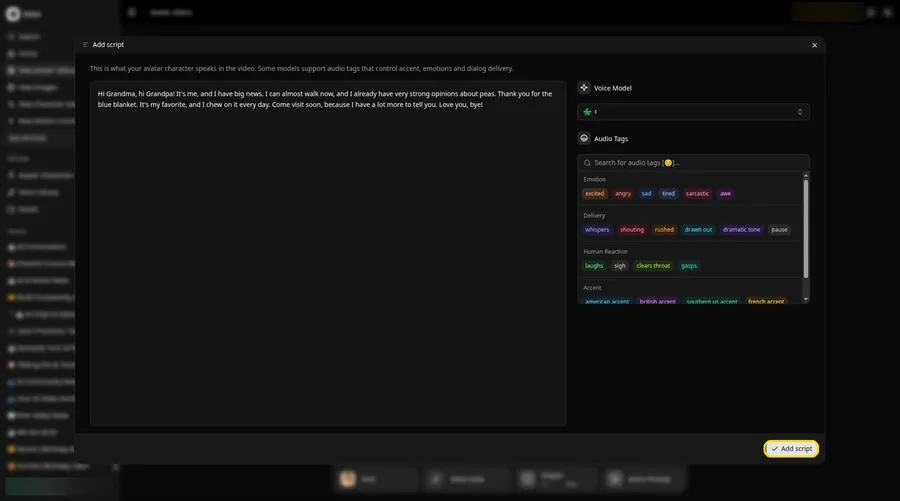
Paste the message and press Add script. Ours began: Hi Grandma, hi Grandpa!
Step 10: Pick a Cute Voice
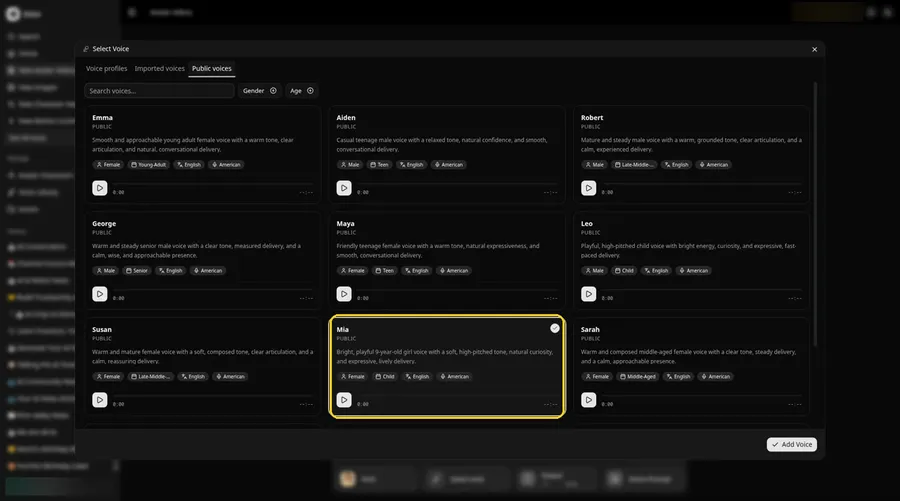
- Click the voice button in the composer to open Select Voice for the talking baby.
- Pick a voice for the talking baby on the Public voices tab.
- Click Add Voice to attach that voice to the talking baby.
Step 11: Choose Your Output Settings
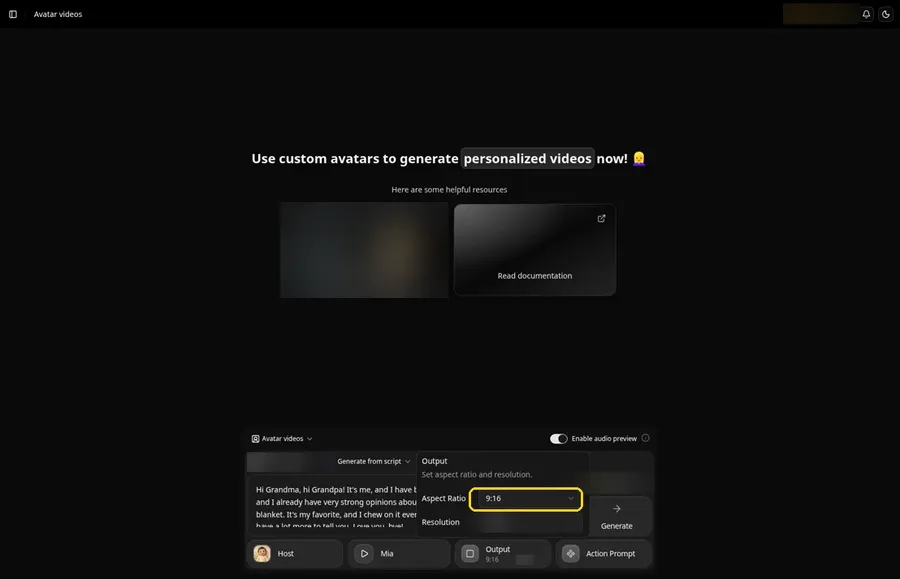
Choose your output settings. Open the Output popover and set the Aspect Ratio dropdown to 9:16, which fits the family chat on a phone.
Step 12: Add an Action Prompt
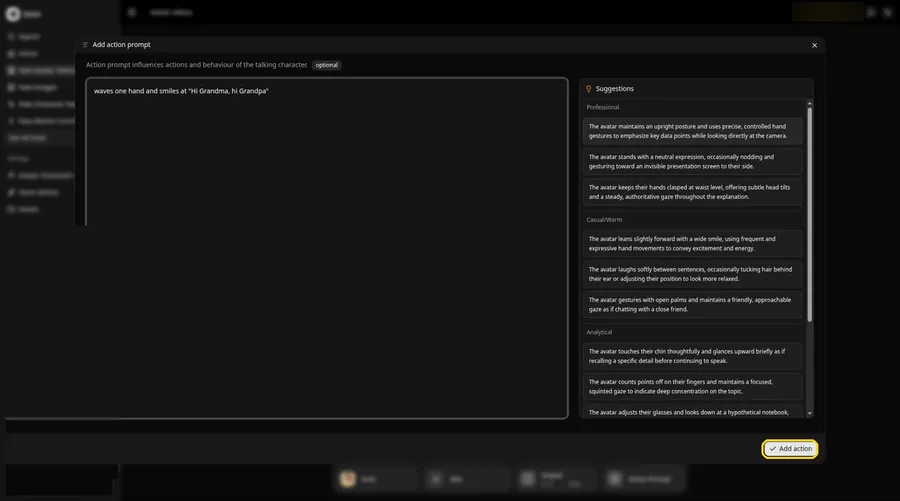
Click Action Prompt. In the Add action prompt panel, type: waves one hand and smiles at "Hi Grandma, hi Grandpa". Click Add action. Added then shows on the Action Prompt chip in the composer.
Step 13: Click Generate
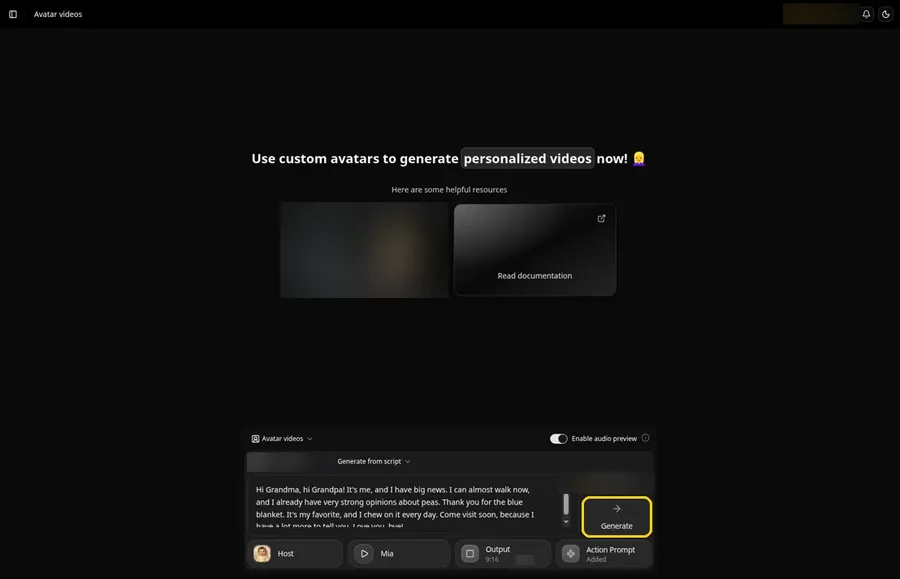
Look over the Host, message, voice, output and action prompt, then click Generate.
Step 14: Confirm the Audio Preview
Listen to the preview and confirm with Generate avatar video to start processing.
Step 15: Play the Clip
Watch the clip in the player and confirm every word is the one you typed.
Step 16: Download
Choose Download from the player menu.
Step 17: Send It to the Family
Share the file in your family chat, privately first.
Tips for Talking Baby Clips
- Use your own child's photo or one you have permission for
- Pick a forward-facing photo with the mouth in view
- Keep the message short and sweet
- Write the way a baby would talk if it could, full of big feelings
- Share privately with family before posting anywhere
Demo Idea: A Thank You to the Grandparents
Our illustrated Host read this message:
"Hi Grandma, hi Grandpa! It's me, and I have big news. I can almost walk now, and I already have very strong opinions about peas. Thank you for the blue blanket. It's my favorite, and I chew on it every day. Come visit soon, because I have a lot more to tell you. Love you, bye!"
Swap in your own milestone or thank you. Try Zoice and make the grandparents smile.
For more family-friendly characters, see our picks for AI talking character generators for kids.
FAQ
Whose baby photo can I use?
Your own child's, or one the parents approved.
Can the baby sing instead?
This guide covers spoken lines. Singing uses an uploaded song with Generate from audio.
What can the baby say?
Any short script you write, like an announcement or a thank you.
Can I use the same baby photo again?
Yes. The Host stays in your avatar list.
Try Zoice
A baby photo and a few words make a message the family will replay. Try Zoice and write yours.