How to Make a Birthday Invitation Video With AI: 2026 Guide
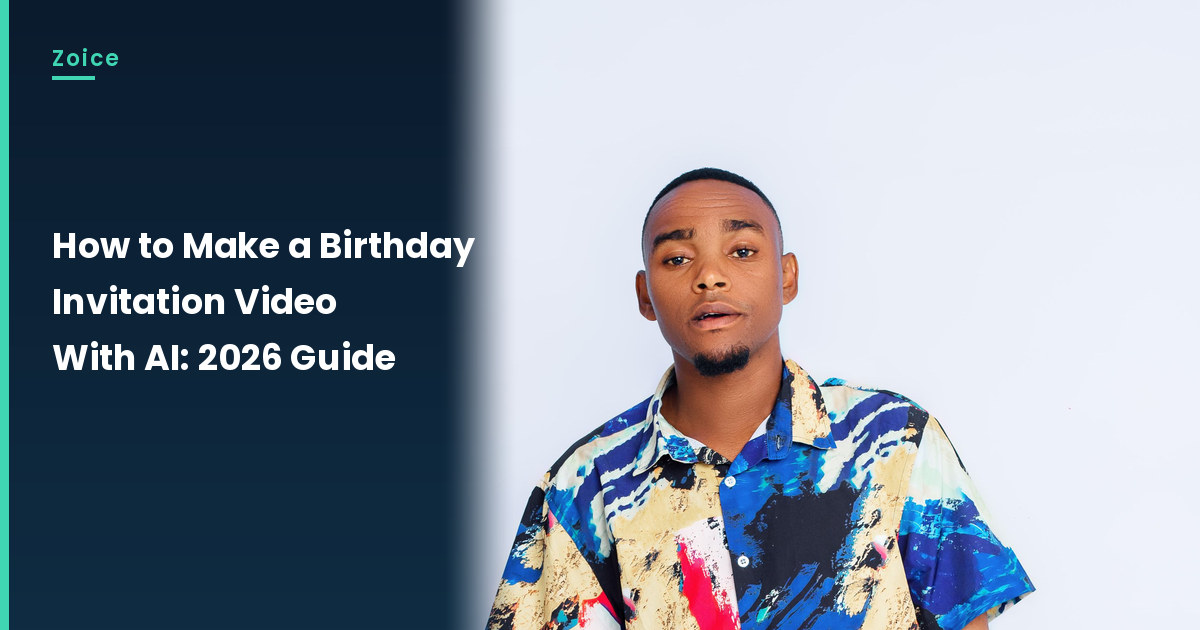
A backyard birthday invite can be spoken from a still photo and sent in a chat, instead of a long written note. This is how to make a birthday invitation video with AI in Zoice: upload a clear, approved photo, use it as the Host, paste the invite, pick a voice, and let lip sync follow the words. An optional action prompt can add a small move, such as waves cheerfully and smiles. The birthday invitation video screenshots use a stock-model stand-in, so swap in a photo of someone who has agreed to appear.
The walkthrough below is how to make a birthday invitation video with AI, screen by screen. A card-style greeting sits well beside this birthday invite in our talking greeting card tutorial.
Picking a Photo for Your Birthday Invitation Video
Pick a clear, approved photo of someone who has agreed to appear in the birthday invitation video, with a visible mouth. A bright shirt is fine if it does not hide the face. The birthday invitation video screenshots use a stock-model stand-in, which you can replace with an approved photo.
- Choose a clear, front-facing photo with a visible mouth
- Use only a photo of someone who has agreed to appear
- Put the time, place and welcome into the spoken invite
- Test the face in Zoice before you send the clip
How to Make a Birthday Invitation Video in Zoice
Our Host is a stock photograph of an adult man with short hair and a small goatee, in a bright multicolor abstract-print short-sleeve shirt (blue, cream, black, pink), on a plain pale background, holding nothing, with a clear face and a visible mouth, used as the Host for this post and saved in the app.
If you also want a formal invite style, our best AI wedding invitation video maker roundup is a useful companion.
Step 1: Sign In to Zoice and Open Home
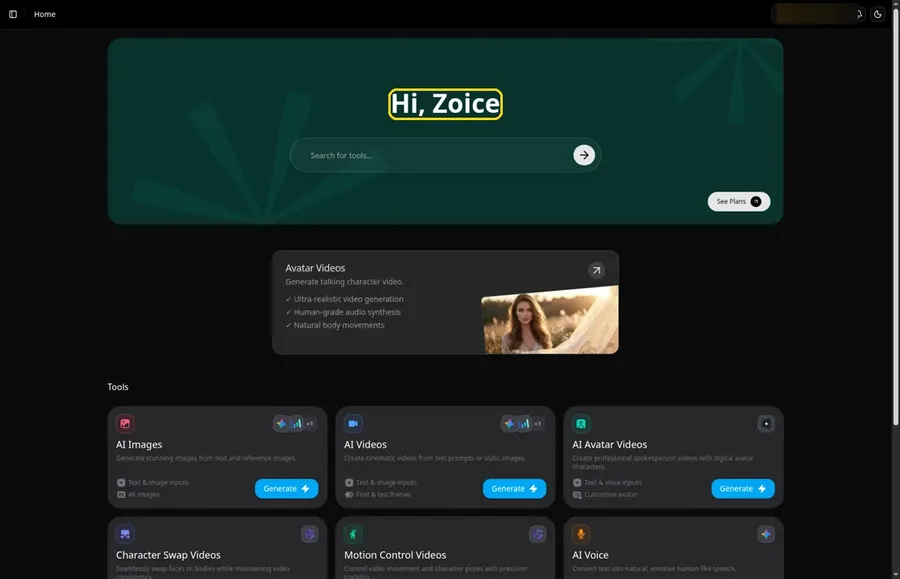
Use Sign In on Zoice, finish with email or Google, and wait until Home is ready for the birthday invitation video.
Step 2: Open Avatar videos
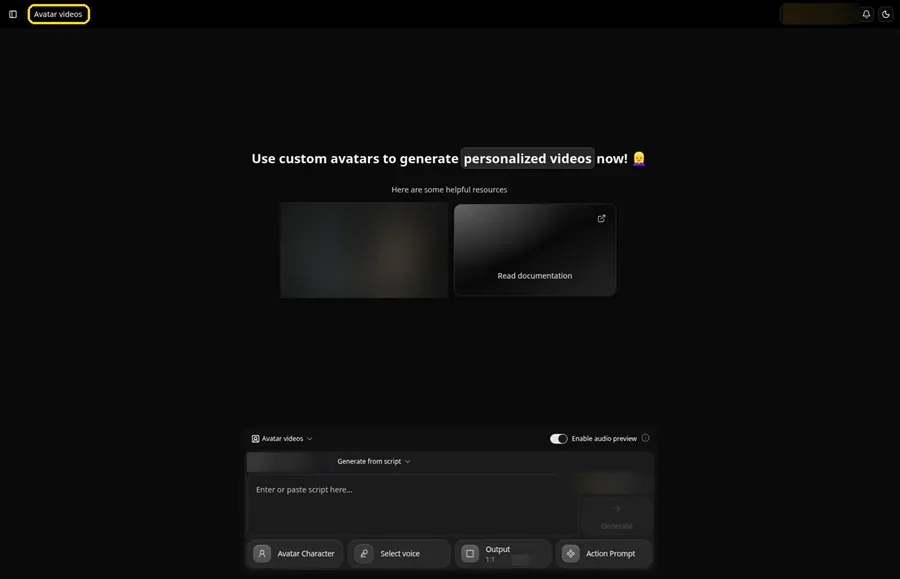
Pick the Avatar videos page from the sidebar; its title and empty composer now serve the birthday invitation video.
Step 3: Open Avatar Character and Create a New Avatar
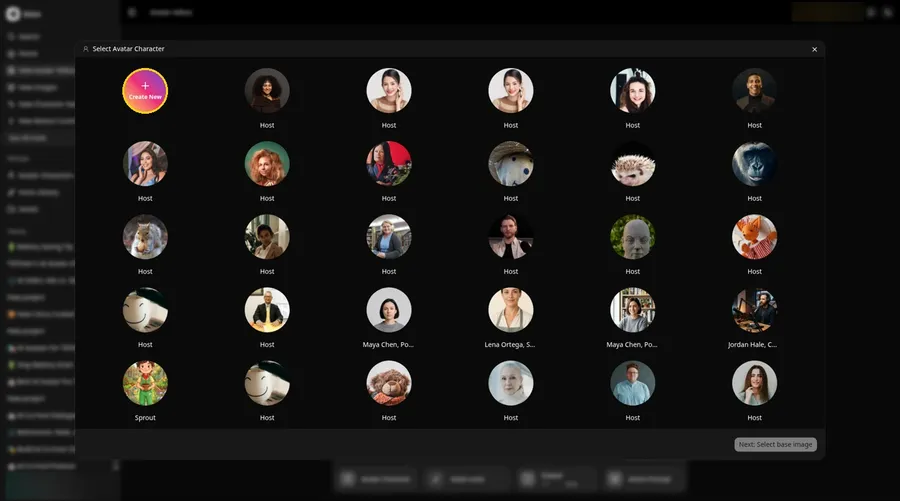
Click through Avatar Character and Create New, repeating Create New on the characters page when it appears, until the birthday invitation video has the full-screen Create new avatar page.
Step 4: Choose Upload Image
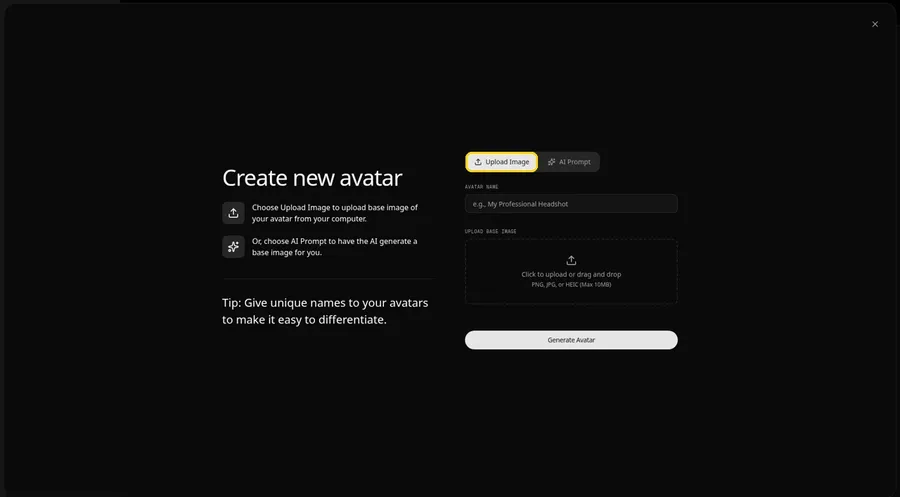
UPLOAD BASE IMAGE should show the Upload Image tab selected, because the birthday invitation video comes from a picture file.
Step 5: Upload the Birthday Invitation Image
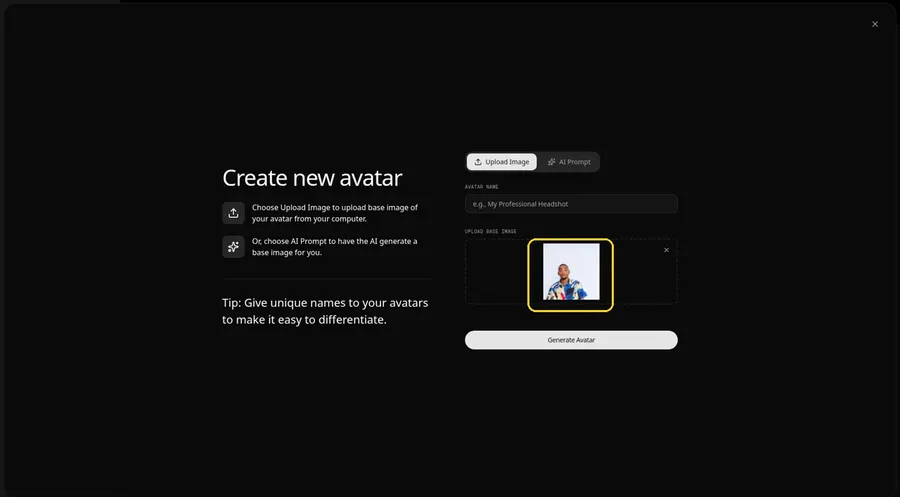
Open the birthday invitation video image from disk and look for a preview of an adult man with short hair and a small goatee, in a bright multicolor abstract-print short-sleeve shirt (blue, cream, black, pink), on a plain pale background, holding nothing, with a clear face and a visible mouth.
Step 6: Name Your Avatar Host and Click Generate Avatar
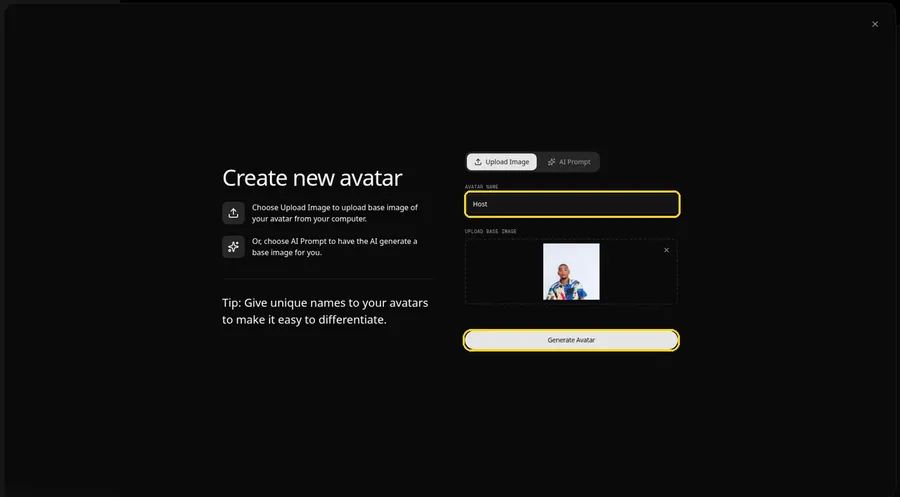
Use Host as the AVATAR NAME and click Generate Avatar, which files the birthday invitation video for later clips.
Step 7: Open the Add Script Panel
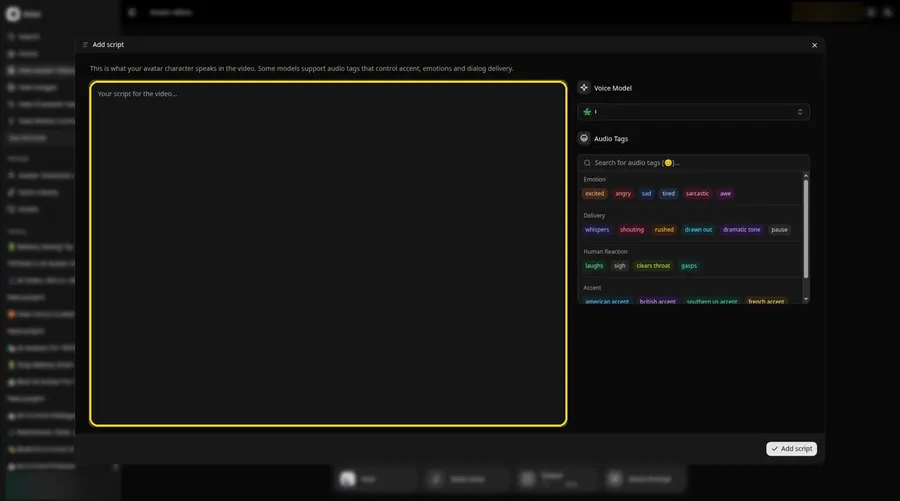
Go to the script box and click it so Add script opens for the birthday invitation video.
Step 8: Choose the Voice Model
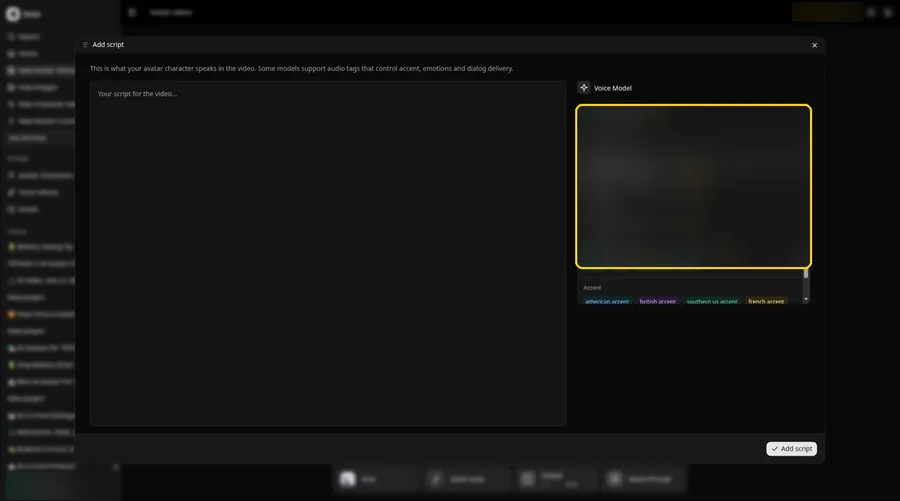
The Voice Model control in Add script is how you choose the voice model for the birthday invitation video.
Step 9: Paste Your Script and Click Add Script
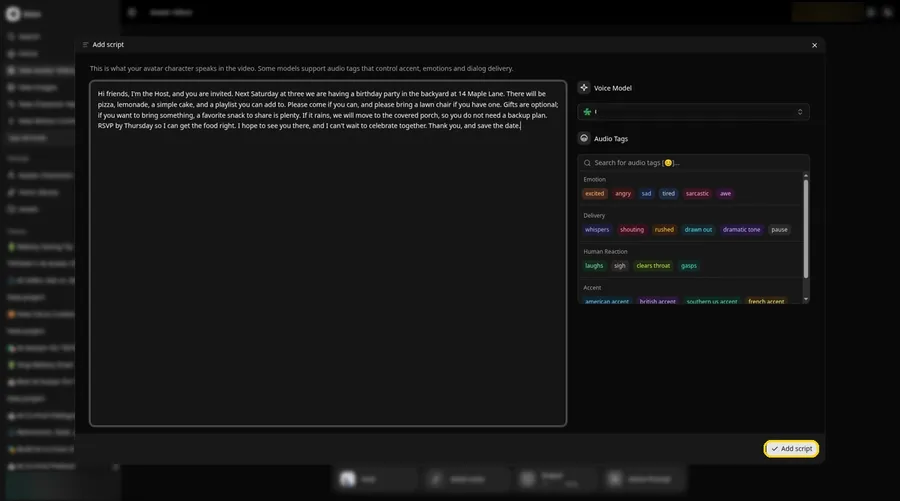
Fill the box with the birthday invitation video script and click Add script. The first words are: Hi friends, I'm the Host, and you are invited.
Step 10: Pick a Voice
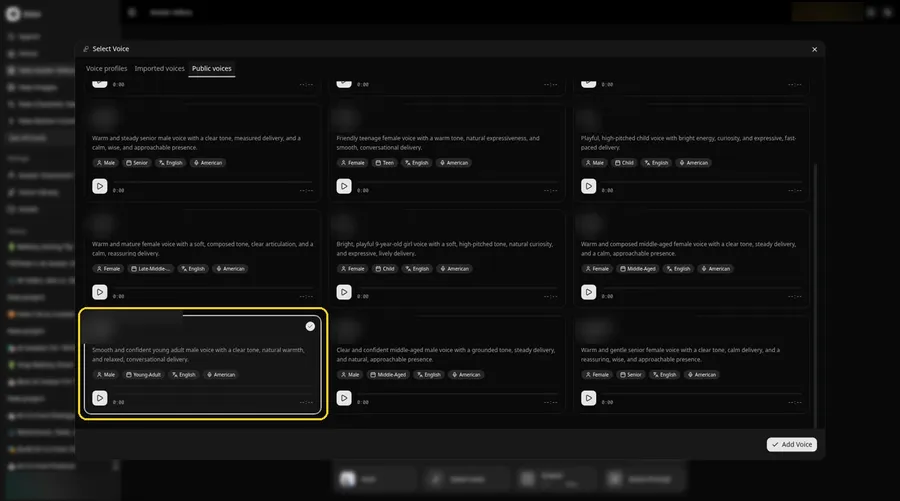
Keep Public voices selected in Select Voice, pick a bright and friendly adult voice, and click Add Voice to assign it to the birthday invitation video.
Step 11: Choose your output settings
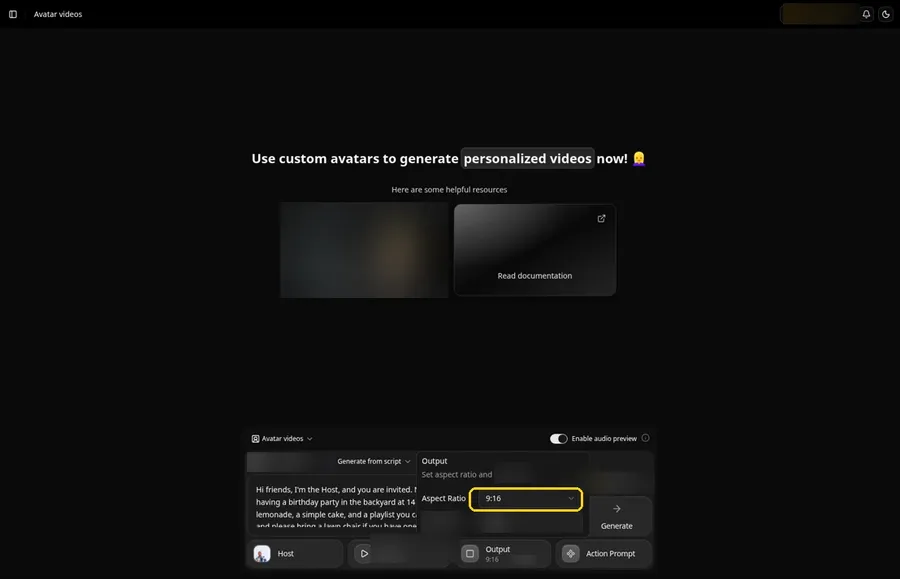
Choose your output settings. In Output, set aspect ratio to 9:16 for a vertical birthday invitation video.
Step 12: Add an Action Prompt
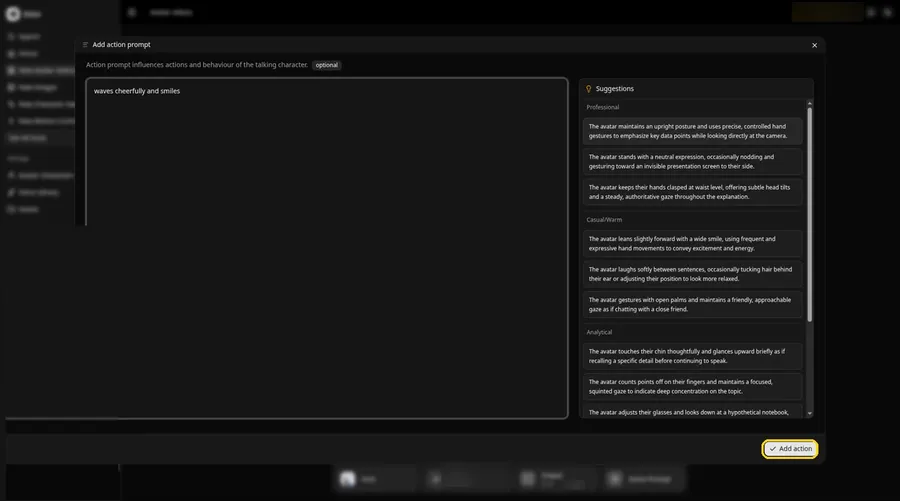
Paste or type waves cheerfully and smiles into Add action prompt and click Add action so the birthday invitation video gets that move.
Step 13: Click Generate
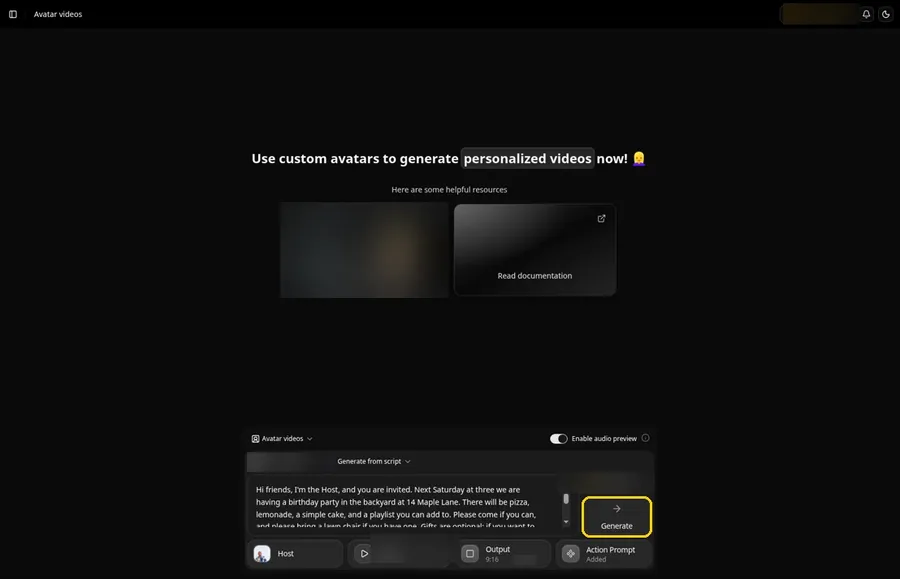
The birthday invitation video should show its Host, voice, script, 9:16 and the Action Prompt chip reading Added before you click Generate.
Step 14: Confirm the Audio Preview
The birthday invitation video audio preview should be played and confirmed, after which Zoice processes the clip.
Step 15: Preview the Video in the Player
Start playback and compare the birthday invitation video lip sync, plus the action prompt move, with the script.
Step 16: Download From the Player Menu
The birthday invitation video can be saved locally through Download in the player's three-dot menu.
Step 17: Share Your Video
You can post the birthday invitation video to vertical feeds or send it privately, using only images and audio you may use.
Writing the Action Prompt
Keep the birthday invitation video move festive and small, like a cheerful wave and a smile.
- waves cheerfully and smiles
Type waves cheerfully and smiles in step 12 and click Add action so the Action Prompt chip updates on the birthday invitation video.
Demo Idea: A Backyard Birthday Invite
A stock-photograph Host, of an adult man with short hair and a small goatee, in a bright multicolor abstract-print short-sleeve shirt (blue, cream, black, pink), on a plain pale background, holding nothing, invites friends to a backyard birthday with a cheerful wave and a smile from the action prompt. Here is the exact script:
"Hi friends, I'm the Host, and you are invited. Next Saturday at three we are having a birthday party in the backyard at 14 Maple Lane. There will be pizza, lemonade, a simple cake, and a playlist you can add to. Please come if you can, and please bring a lawn chair if you have one. Gifts are optional; if you want to bring something, a favorite snack to share is plenty. If it rains, we will move to the covered porch, so you do not need a backup plan. RSVP by Thursday so I can get the food right. I hope to see you there, and I can't wait to celebrate together. Thank you, and save the date."
Your birthday invitation video is waiting for its first lines. Try Zoice and give the birthday invitation video a voice.
Tips for Your Birthday Invitation Video
- Start with a stock or fictional adult photo you may use for this birthday invitation video, and keep the face and mouth easy to see.
- Put the date, time, place and what to bring in the script so the invite is useful on its own.
- A bright, friendly voice fits a party invitation.
- Action prompt tip: use one small move, such as waves cheerfully and smiles, when the date is announced.
A simple portrait companion to this birthday invitation is our picture talk tutorial.
FAQ
Can I use a child's real photo as the Host?
Only if you may use it and a parent or guardian agrees. For this birthday invitation video demo, use a stock or fictional adult as the Host, not a real identifiable person.
Does the Host photo need a face?
Yes. Lip sync for this birthday invitation video needs a visible mouth, so pick a photo that faces the camera.
What image formats can I upload?
PNG, JPG or HEIC files, as the Upload Image panel states.
Is the action prompt required?
No. Lip sync still follows your birthday invitation video script if you skip the action prompt; the prompt only adds the move.
Try Zoice
Read our baby talk tutorial, or Try Zoice and make the birthday invitation video today.