How to Make an AI Podcast Video: A Simple 2026 Guide
A podcast feels more finished when listeners can see who is talking. This is how to make an AI podcast video from one studio photo, which supports a regular episode format rather than a one-off talking-head clip. In Zoice you upload that photo as your Host, paste the episode script, and the mouth is lip synced to your words. An optional action prompt can add a lean toward the microphone. Test the face, and reuse the same Host if you want a consistent show.
For more ideas beyond the AI podcast video, see our AI podcast video generator roundup.
Choosing a Studio Image Zoice Can Read
An AI podcast video works best from a front-facing studio photo with a clear face and a visible mouth, ideally with the microphone in the frame if you want that show look.
- Use a photo of yourself with permission, or a fictional stand-in
- Keep the microphone from covering the mouth
- Light the face evenly, not only the desk
- Test the photo in Zoice and reuse the saved Host for later episodes
How to Make an AI Podcast Video in Zoice
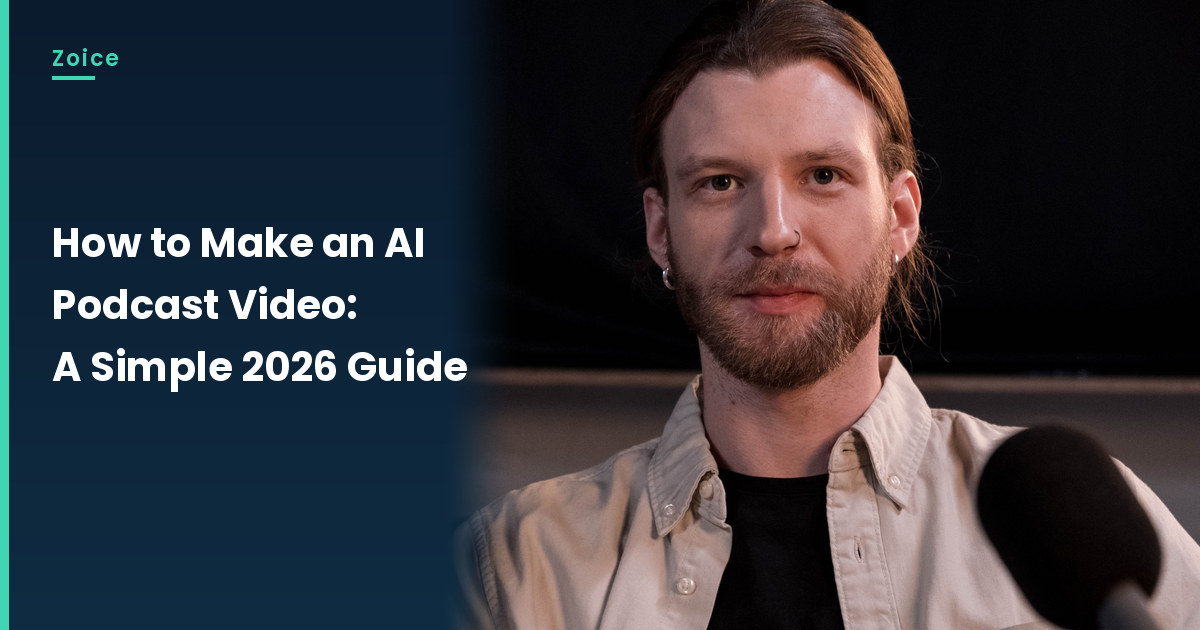
Our Host is a stock photograph of an adult man in a light beige button-down shirt over a black t-shirt, seated at a desk microphone in a dark studio, facing the camera with a clearly visible mouth, used as the Host for this post and saved in the app.
Step 1: Sign In to Zoice and Open Home
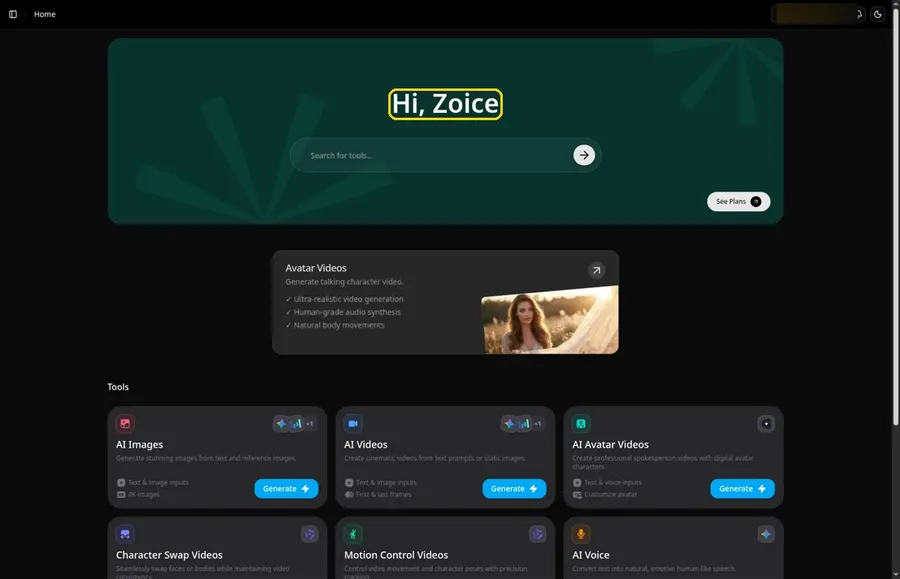
Open Zoice, press Sign In and choose email or Google, and you land on Home ready for the AI podcast video.
Step 2: Open Avatar videos
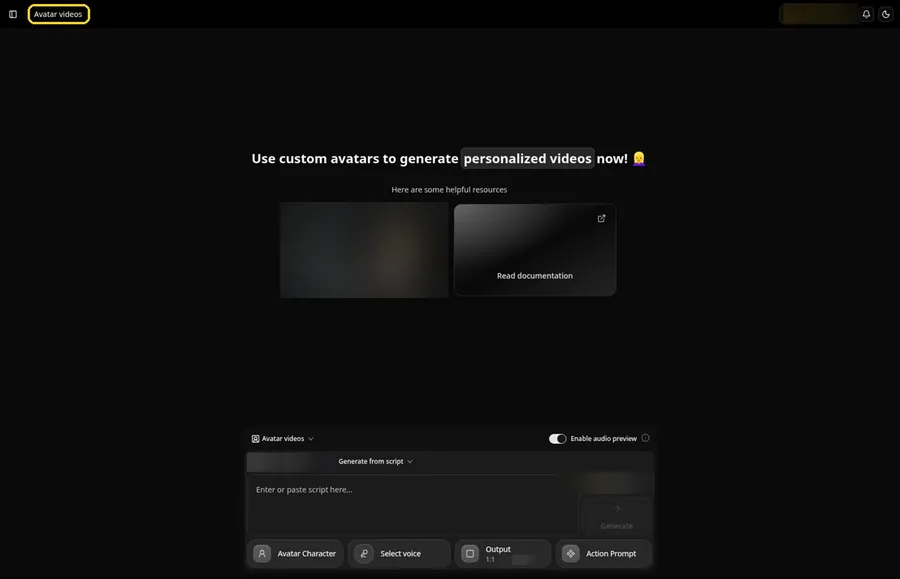
Open Avatar videos. The page title reads Avatar videos, and the composer is empty with Output at the default 1:1.
Step 3: Open Avatar Character and Create a New Avatar
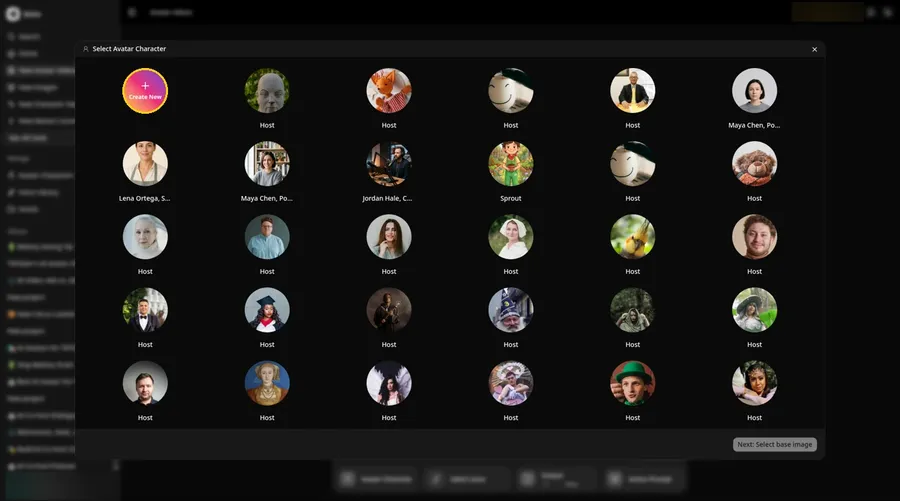
Open Avatar Character, and the Select Avatar Character window appears; Create New there leads to the Avatar Characters page, where a second Create New opens the full-screen Create new avatar page for the AI podcast video.
Step 4: Choose Upload Image
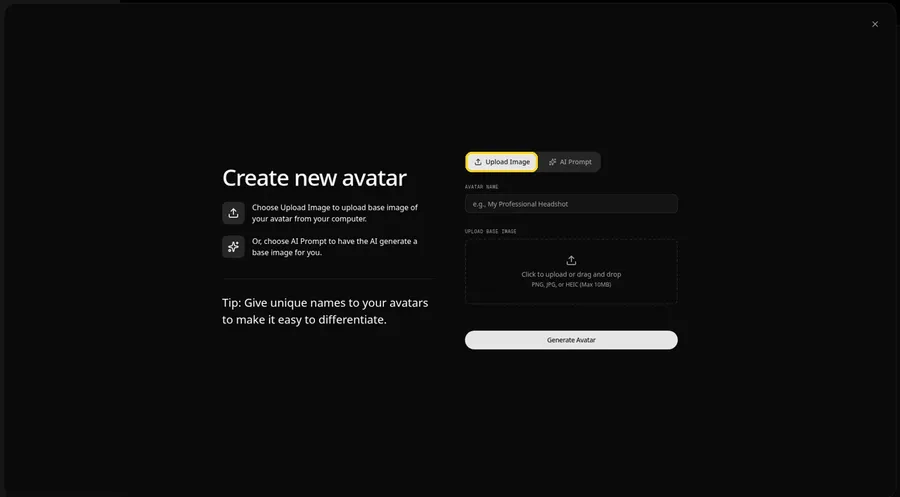
On the Create new avatar page, the AI podcast video image goes in under UPLOAD BASE IMAGE with the Upload Image tab active.
Step 5: Upload the Host Image
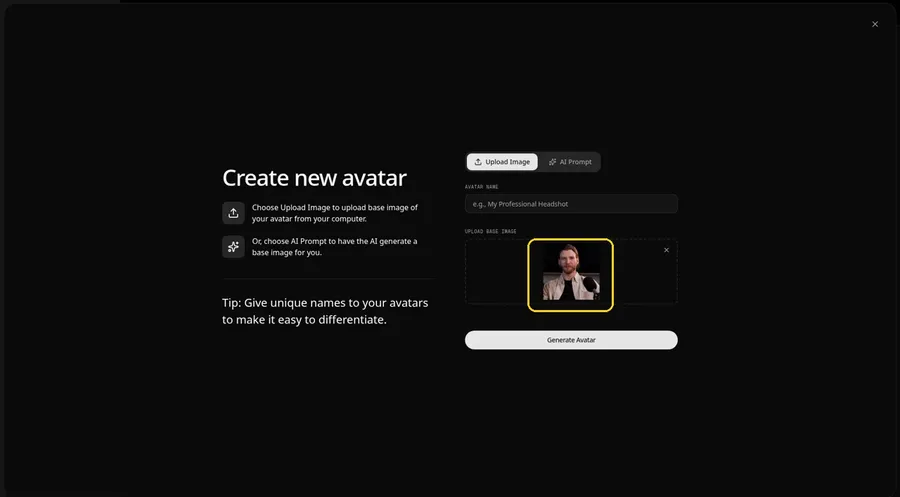
Choose the studio photo in the upload area. The preview should show the Host looking at the camera, in a light beige button-down shirt over a black t-shirt, with a desk microphone that does not cover the mouth.
Step 6: Name Your Avatar Host and Click Generate Avatar
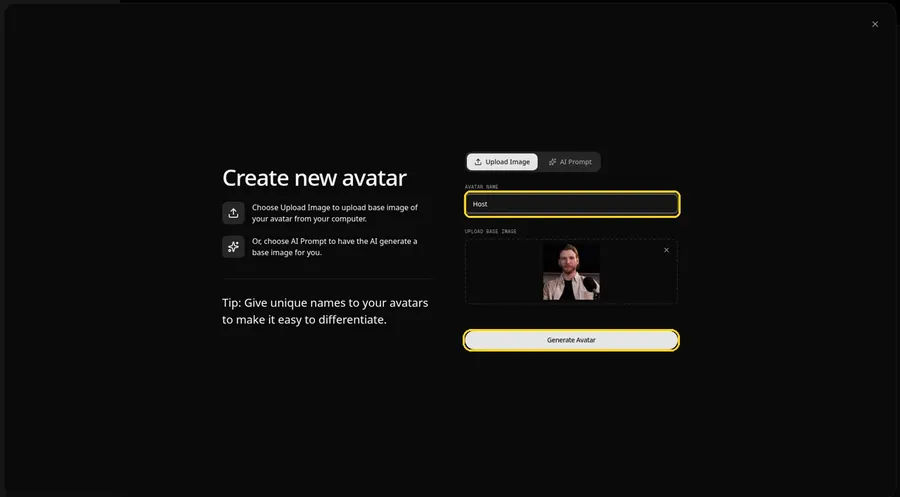
Name the AI podcast video avatar Host in AVATAR NAME, with the preview in place, ready to click Generate Avatar.
Step 7: Open the Add Script Panel
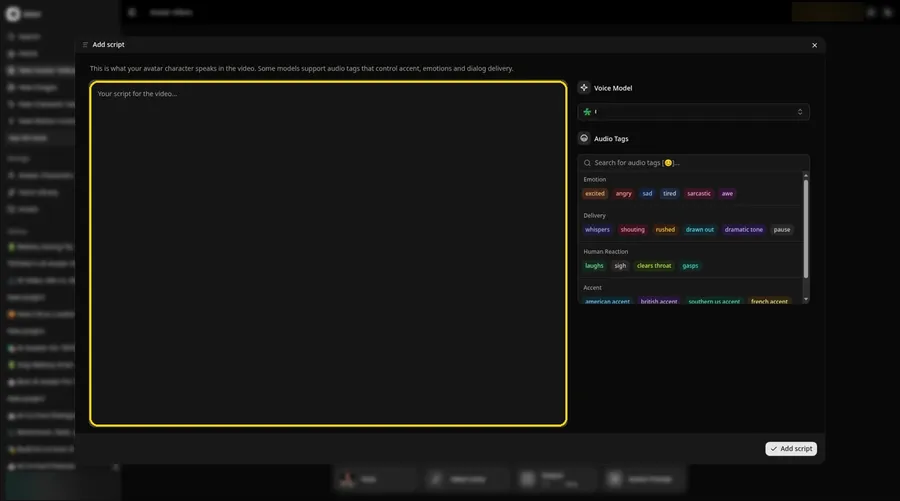
Open the Add script panel by clicking the script box beside the AI podcast video Host.
Step 8: Choose the Voice Model
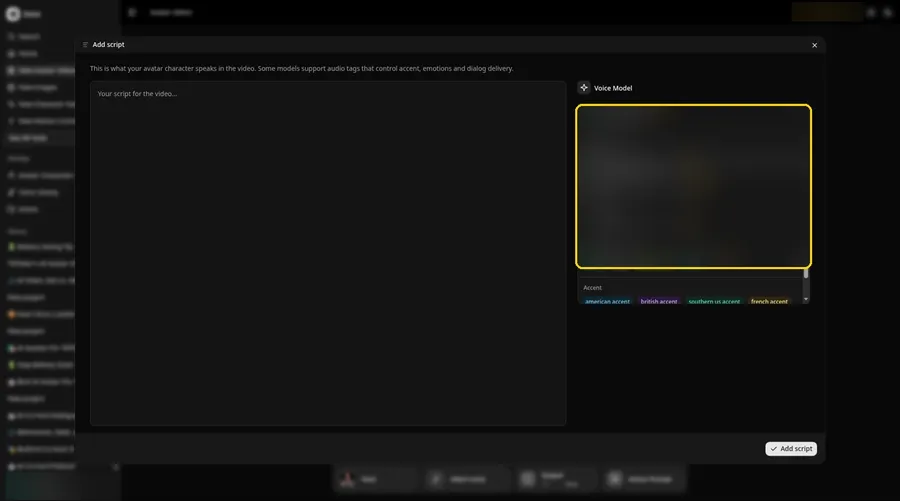
Open the Voice Model menu and choose the model that will read the AI podcast video lines.
Step 9: Paste Your Script and Click Add Script
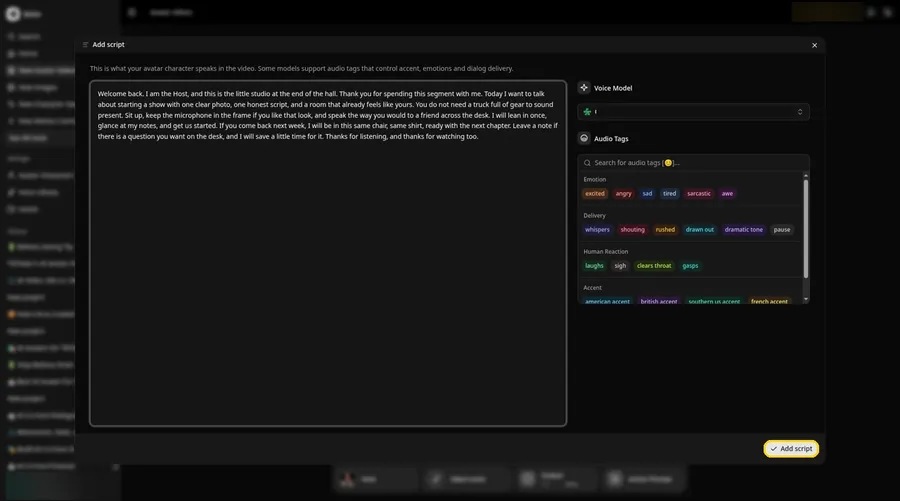
Paste the AI podcast video lines into the panel and click Add script. First line: Welcome back.
Step 10: Pick a Voice
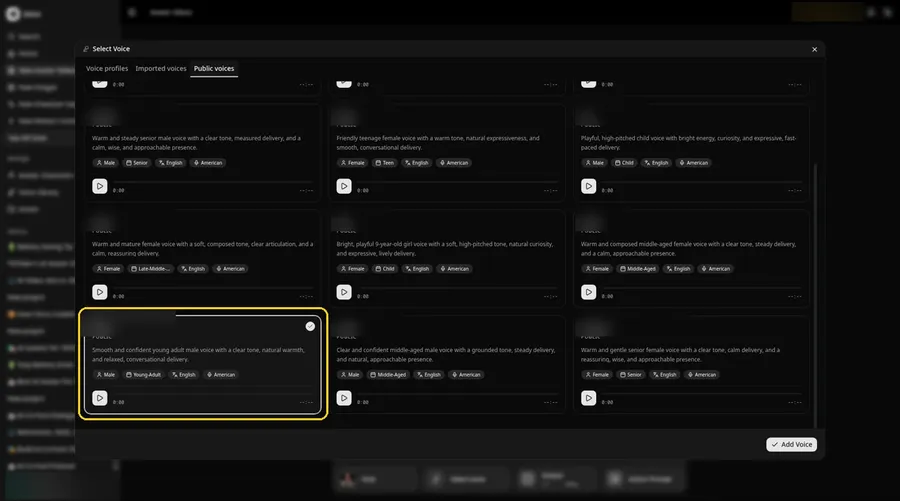
Click the voice button in the composer to open Select Voice for the AI podcast video. Pick a warm, conversational adult voice on the Public voices tab, then click Add Voice to attach it.
Step 11: Choose your output settings
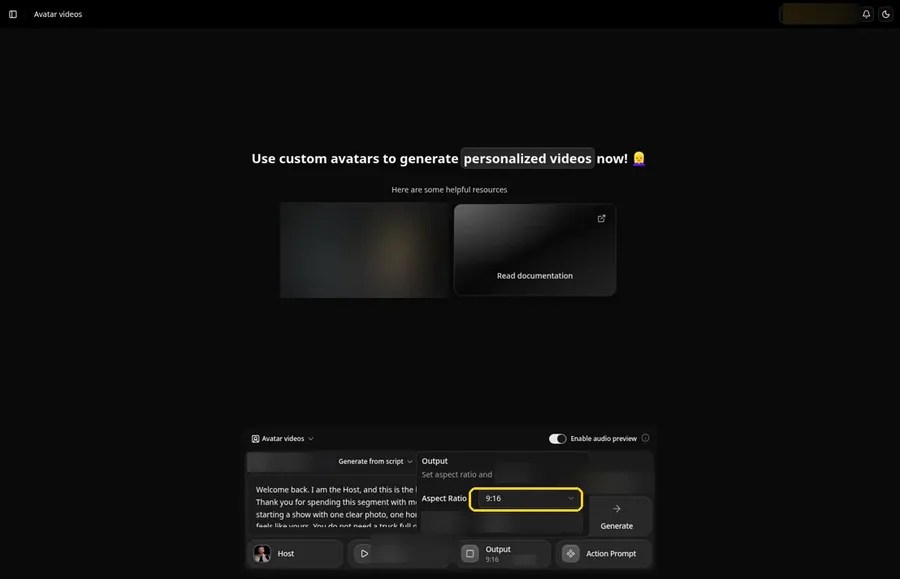
Choose your output settings. In Output, open the aspect ratio dropdown and pick 9:16 so the AI podcast video fits Reels and Shorts.
Step 12: Add an Action Prompt
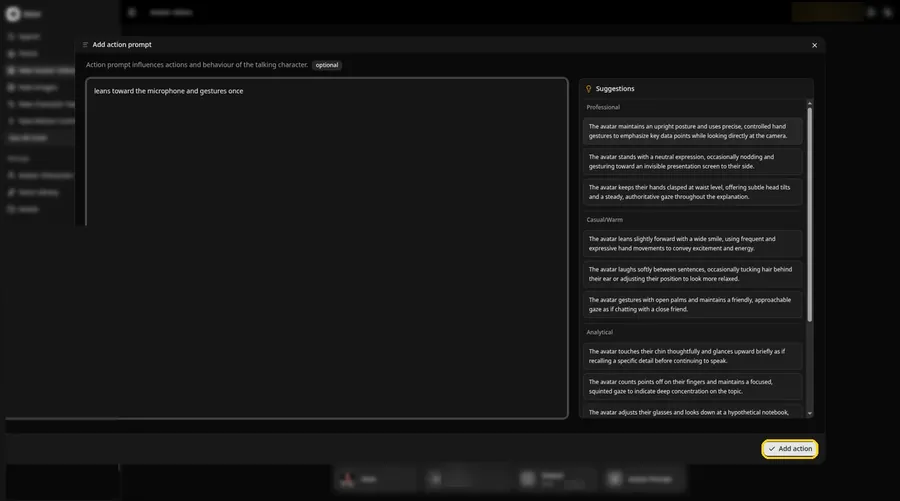
Open the Add action prompt panel, type leans toward the microphone and gestures once, then click Add action. Every AI podcast video move comes from this prompt.
Step 13: Click Generate
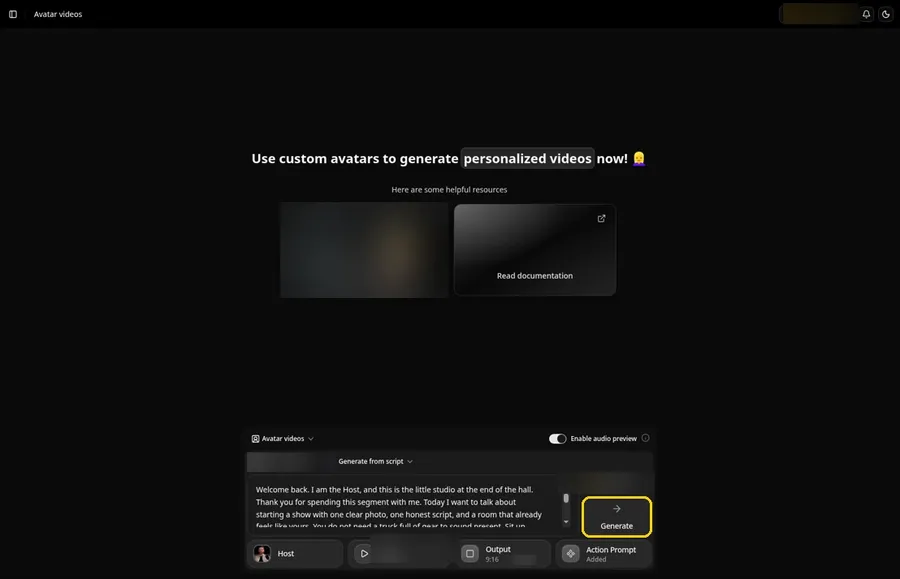
With the AI podcast video Host, script, voice, 9:16 frame and Added Action Prompt chip in place, click Generate.
Step 14: Confirm the Audio Preview
Zoice plays an audio preview of the AI podcast video script; confirm it, and Zoice processes the clip.
Step 15: Preview the Video in the Player
Play the AI podcast video in the player and make sure the words and the prompted moves line up.
Step 16: Download From the Player Menu
Click the three-dot menu on the player, then Download, and the AI podcast video saves to your device.
Step 17: Share Your Video
Send the AI podcast video to friends or post it to Reels and Shorts, and keep to images and audio you made or may use.
Writing the Action Prompt
Keep the podcast move natural, like a lean toward the microphone, so the Host still feels mid conversation.
- leans toward the microphone and gestures once
- nods and smiles at the camera
- looks down at notes and back up
Type your pick in step 12 and click Add action.
Demo Idea: A Short Studio Open
A studio Host opens a weekly show, welcomes returning listeners, and teases a simple topic for the segment. Here is the exact script:
"Welcome back. I am the Host, and this is the little studio at the end of the hall. Thank you for spending this segment with me. Today I want to talk about starting a show with one clear photo, one honest script, and a room that already feels like yours. You do not need a truck full of gear to sound present. Sit up, keep the microphone in the frame if you like that look, and speak the way you would to a friend across the desk. I will lean in once, glance at my notes, and get us started. If you come back next week, I will be in this same chair, same shirt, ready with the next chapter. Leave a note if there is a question you want on the desk, and I will save a little time for it. Thanks for listening, and thanks for watching too."
Give the AI podcast video a go yourself. Try Zoice and paste your own AI podcast video script.
Tips for Podcast Video Episodes
- A microphone in the frame helps the clip feel like a studio show.
- Break a long episode into shorter segments rather than one huge script.
- Reuse the same Host so viewers recognize the show.
- Match the action prompt to a studio, like a lean toward the microphone.
Next to this AI podcast video guide, our talking head video tutorial offers more options.
FAQ
Do I write the episode as a script?
Yes. Paste the episode words into the script box. This guide does not use Generate from audio.
Can I use my own voice later?
Yes. You can pick a voice that fits the show, including one recorded with permission if you want it to sound like you.
Should every episode look the same?
Yes if you want a consistent look. Reuse the saved Host and the same small move each week.
Is the action prompt required?
No. The AI podcast video is lip synced to your script either way; the action prompt only adds the move.
Can I make a vertical AI podcast video?
Yes. Choose 9:16 in the output settings before you click Generate on the AI podcast video.
Try Zoice
Everything the AI podcast video needs is above. See our AI talking head generator roundup too, or Try Zoice and build your AI podcast video now.