How to Make an AI Dog Podcast: A Simple 2026 Guide
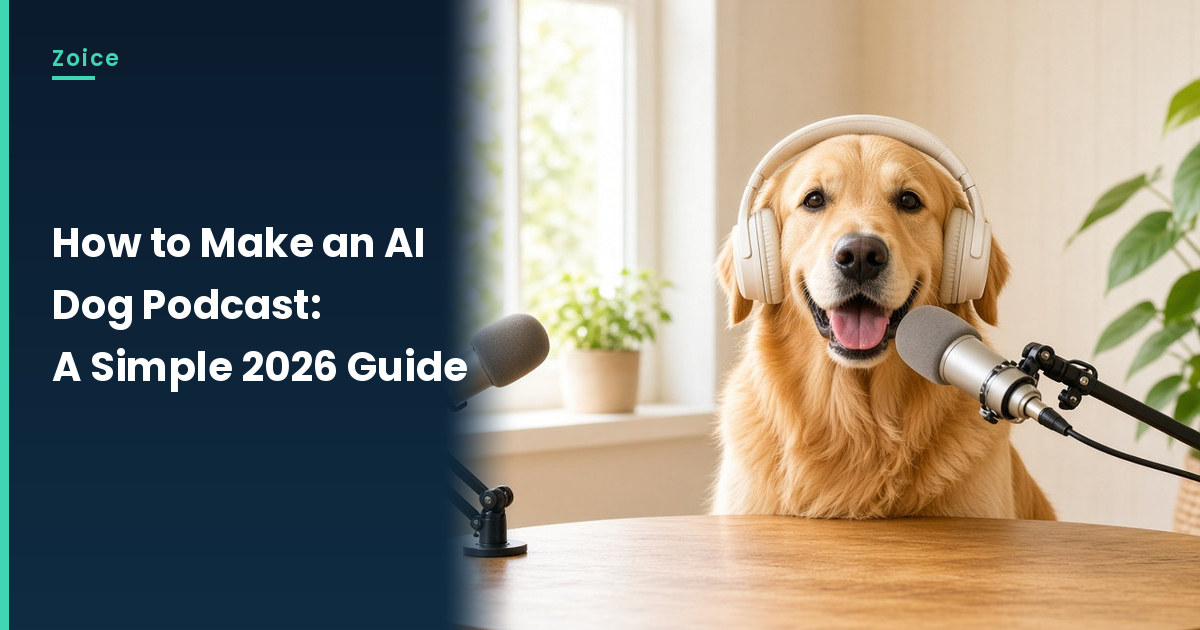
A dog podcast gives your pup a weekly show, complete with an intro, a segment or two and a sign off. In Zoice you upload your dog's photo as the Host, write each segment, and build episode after episode with the same furry presenter.
This guide is about a recurring show. For a single message from your dog, our dog talk tutorial is the better fit.
Planning the Episode
Podcasts feel familiar because they repeat a format. Sketch yours once and reuse it:
- A fixed intro with the show name, such as Bark Talk
- One or two segments, like the squirrel debate or a park ranking
- A tease for the next segment to keep viewers watching
- The same sign off at the end of every episode
How to Make an AI Dog Podcast in Zoice (Step by Step)
Follow these screens in order. We built Bark Talk with a golden retriever at a home podcast desk.
Step 1: Sign In to Zoice
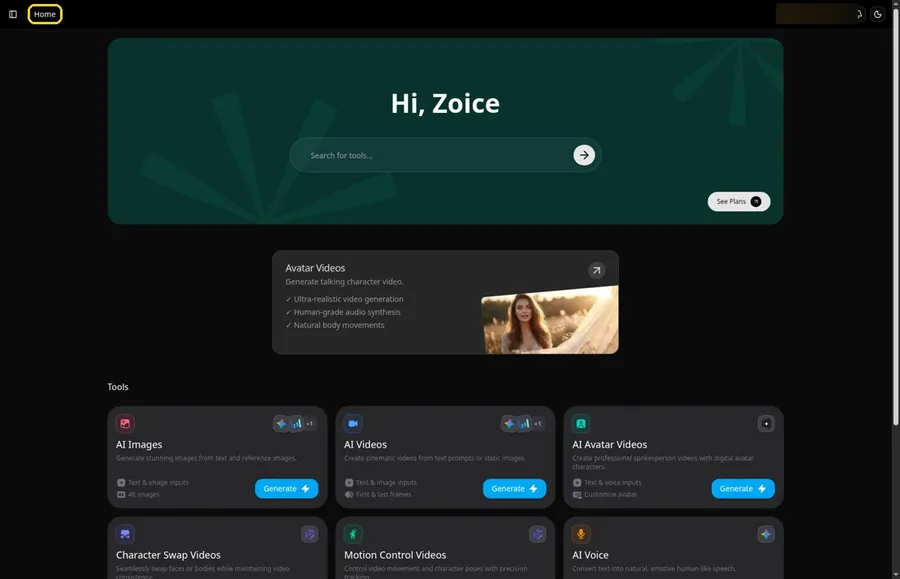
Log in through Sign In on Zoice to reach Home, and the Home title is in the top bar.
Step 2: Open the Avatar videos Page
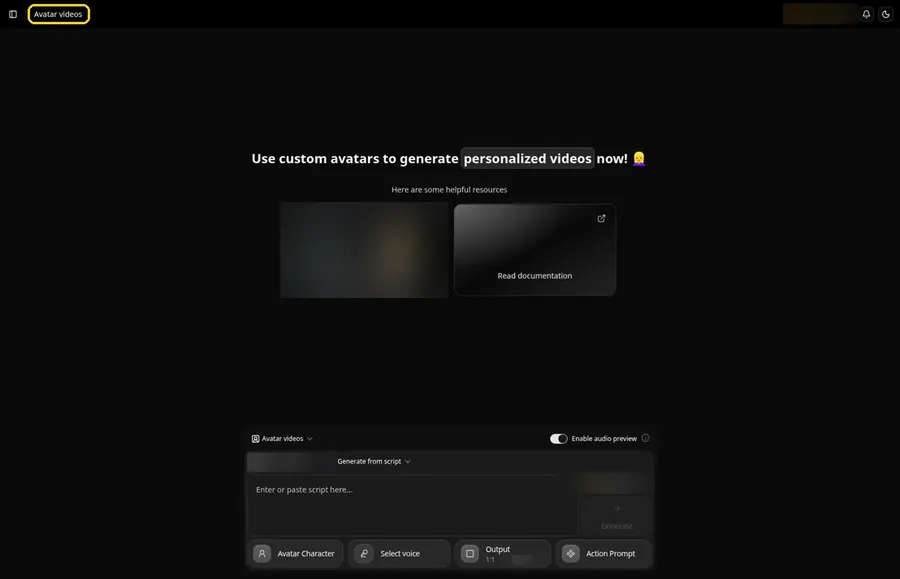
Click Avatar videos in the sidebar. Each podcast segment is set up in the composer here.
Step 3: Create a New Avatar Character
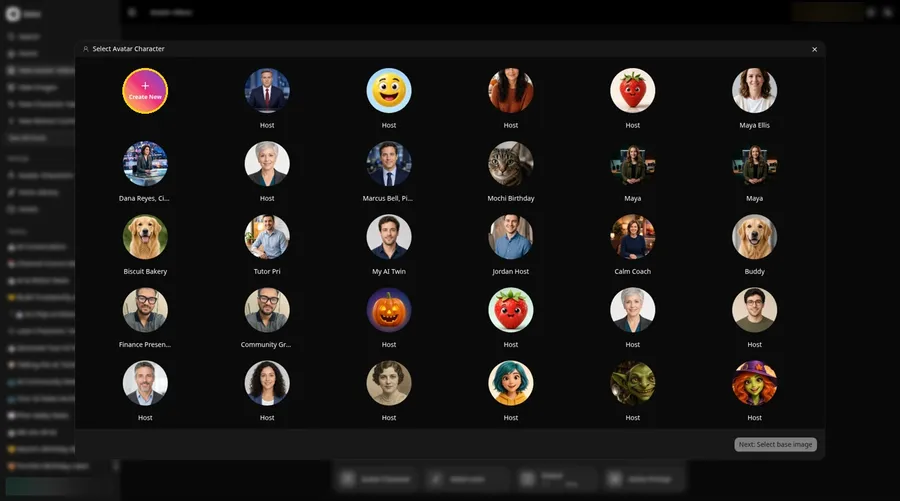
Press the Avatar Character button in the composer. In the Select Avatar Character window, click Create New. That opens the Avatar Characters page, where you click Create New again to reach the Create new avatar form.
Step 4: Choose Upload Image
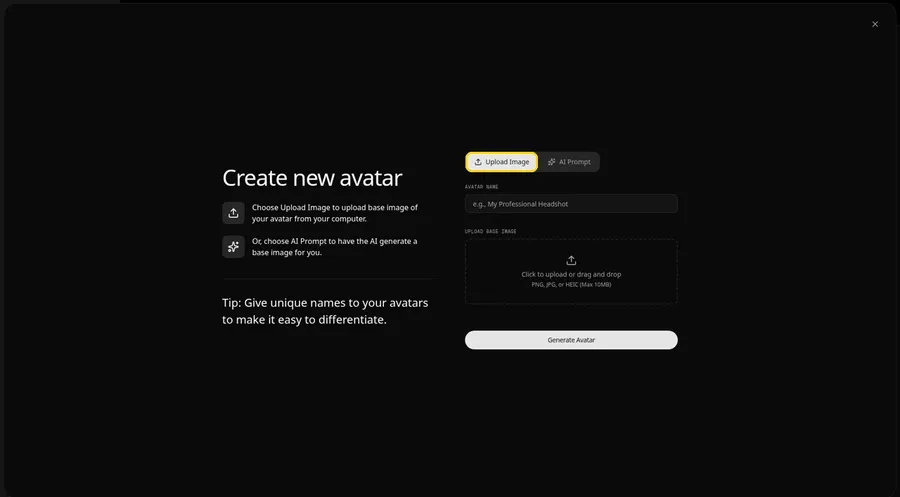
The Create new avatar page opens full screen. Keep the Upload Image tab selected under Upload Base Image, so you can use a real photo of your dog.
Step 5: Upload Your Dog's Photo
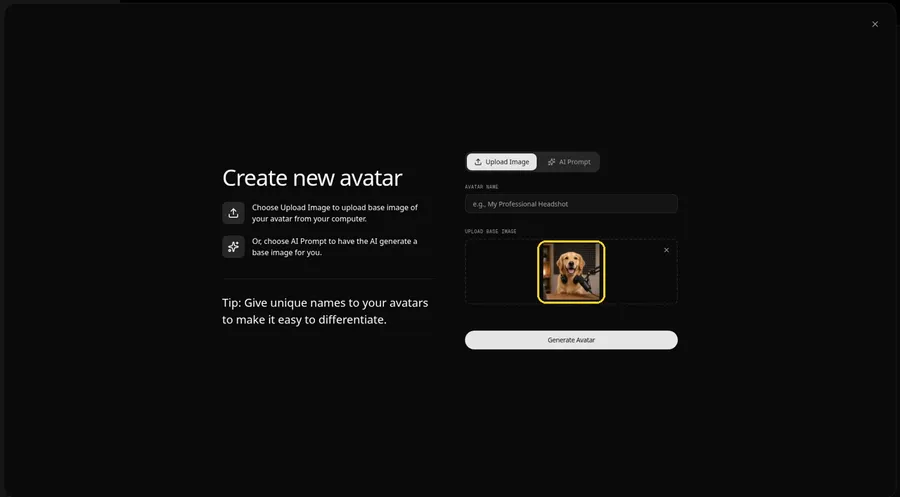
Click the upload area under Upload Base Image and pick a front-facing shot where the muzzle and mouth are in view. The preview of the Host at the podcast desk lets you check it before moving on. Ours shows a golden retriever beside a studio mic.
Step 6: Name Your Dog Host and Generate
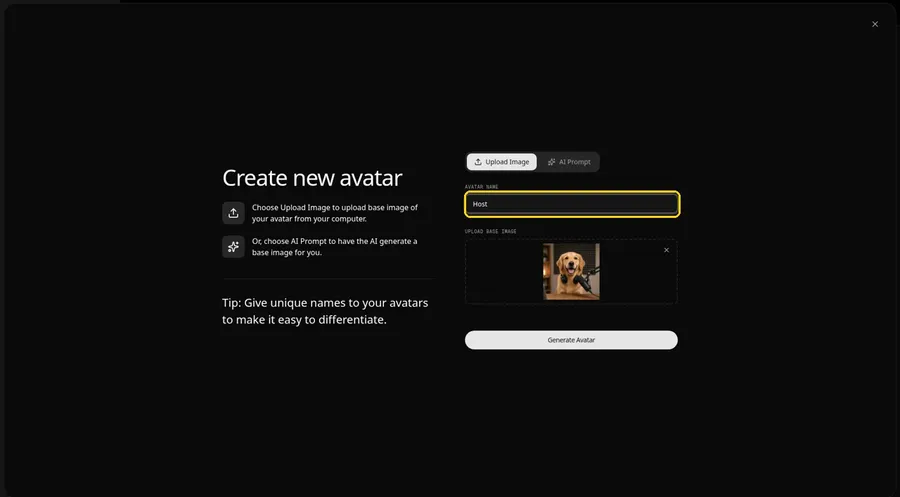
In the Avatar Name field, type Host and click Generate Avatar. Your dog is saved for every future episode.
Step 7: Open the Script Panel
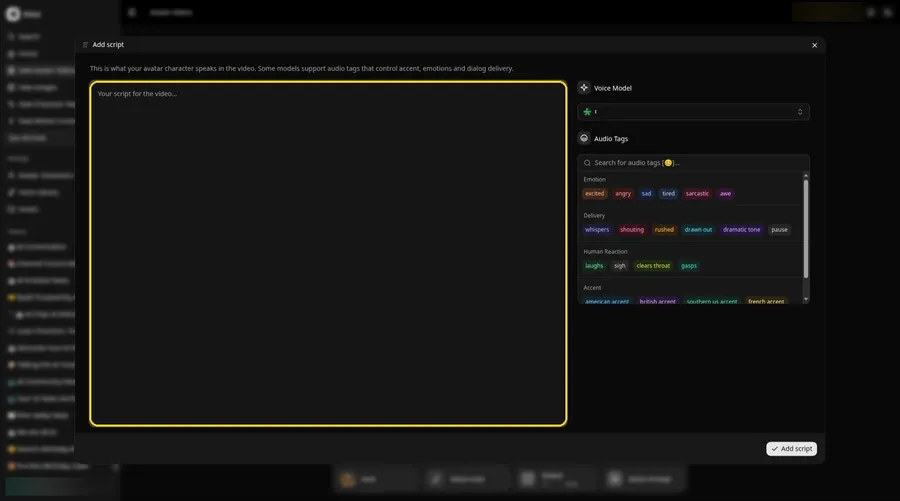
Click the script box in the composer. The Add script panel opens.
Step 8: Pick the Voice Model
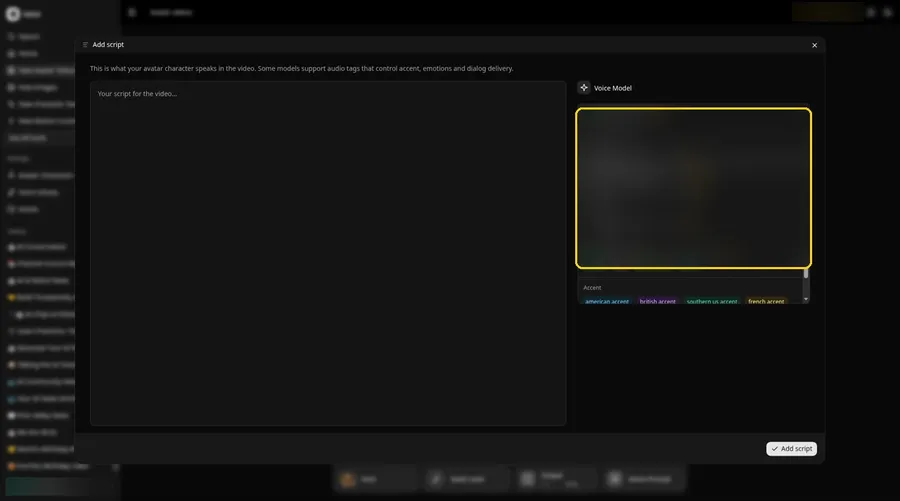
Choose the model that will read the segment from the Voice Model menu.
Step 9: Add One Segment
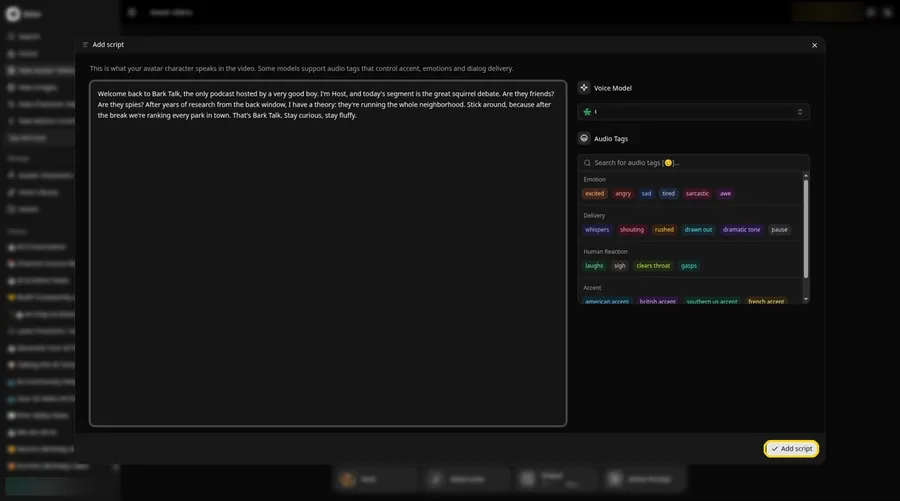
Paste a single segment and click Add script. Generating one segment per clip keeps editing simple later.
Step 10: Choose the Show Voice
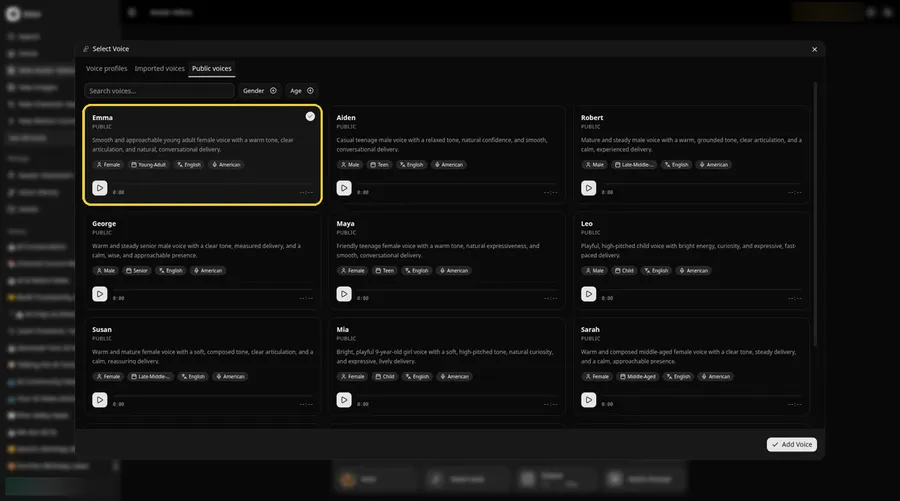
Click the voice button in the composer to open the Select Voice window. Pick a warm, friendly voice on the Public voices tab, then click Add Voice to attach it. Use the same one every week so the show sounds consistent.
Step 11: Choose Your Output Settings
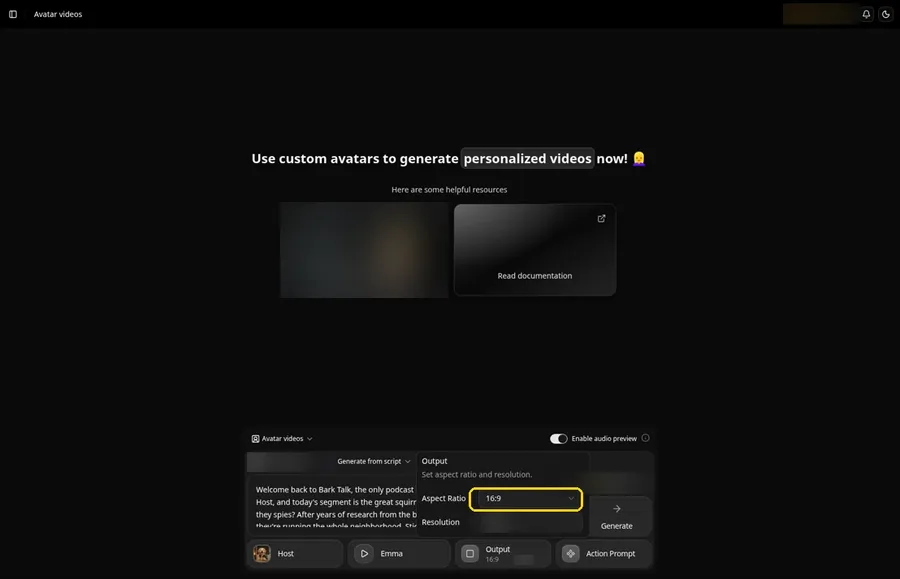
Open the Output popover and set the Aspect Ratio dropdown to 16:9 for a podcast-style video, or choose 9:16 for clips cut for Shorts.
Step 12: Add an Action Prompt
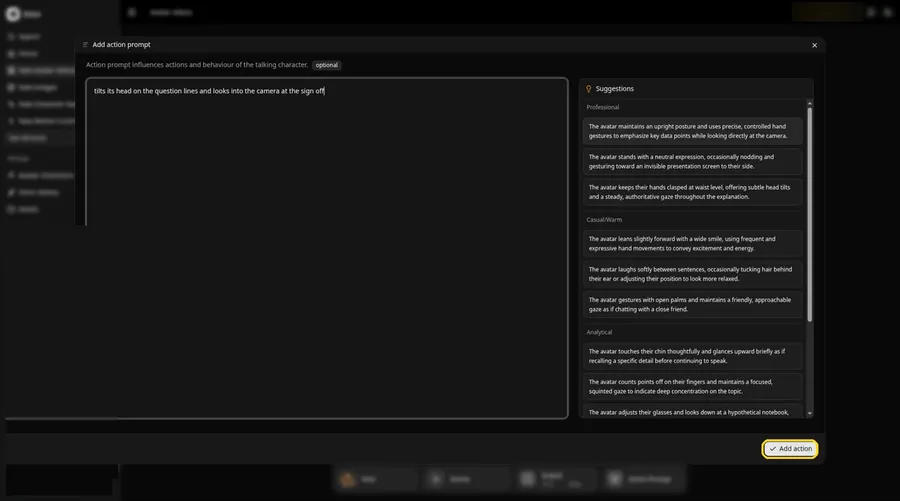
Click Action Prompt. In the Add action prompt panel, type: tilts its head on the question lines and looks into the camera at the sign off. Click Add action. Added then shows on the Action Prompt chip in the composer.
Step 13: Click Generate
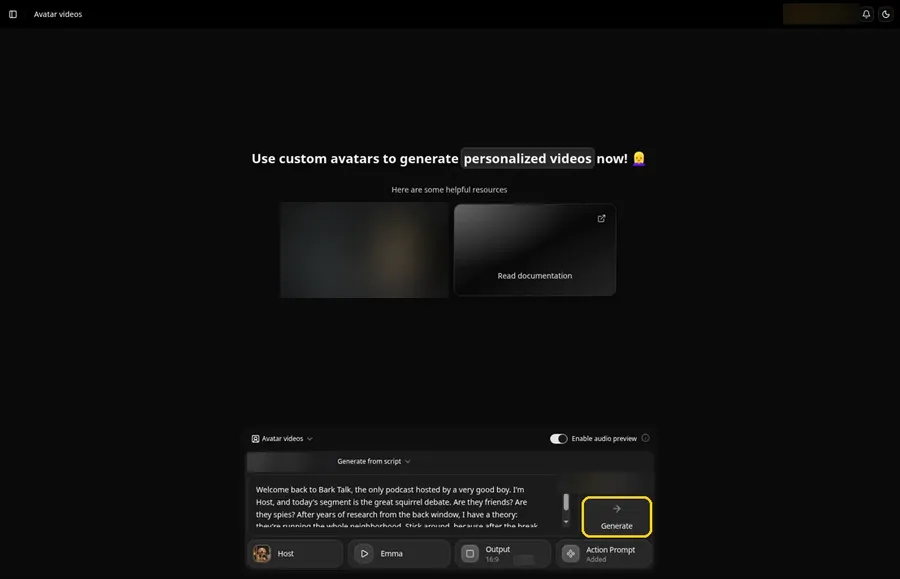
Confirm the dog, the segment, the show voice, the frame and the action prompt. Then click Generate.
Step 14: Confirm and Let It Process
After the audio preview, confirm with Generate avatar video. Processing runs while you write the next segment.
Step 15: Watch the Segment
Play it in the player and check it against your script.
Step 16: Download Each Segment
Choose Download from the player menu, then repeat steps 9 to 15 for your other segments.
Step 17: Join the Episode
Line the segments up in your editor, add music between them, and publish the episode.
Tips for a Dog Podcast
- Use a front-facing photo where the mouth is visible
- Write the intro and sign off once and paste them every week
- Generate one segment per clip and join them in your editor
- Keep the same voice so regular viewers recognize the host
- Give recurring segments names, like Squirrel Watch
Exploring other podcast formats? See our list of AI podcast video generators.
Demo Idea: Bark Talk, Episode One
Our golden retriever Host read this segment:
"Welcome back to Bark Talk, the only podcast hosted by a very good boy. I'm Host, and today's segment is the great squirrel debate. Are they friends? Are they spies? After years of research from the back window, I have a theory: they're running the whole neighborhood. Stick around, because after the break we're ranking every park in town. That's Bark Talk. Stay curious, stay fluffy."
Write your dog's first episode next. Try Zoice and launch the show.
FAQ
How is this different from making my dog talk?
This guide builds a recurring show with segments. The dog talk tutorial covers one message.
Can I add a second host?
Yes. Create another Host from a second photo and edit the clips together.
How many segments should an episode have?
Start with two or three short ones.
Do I need a new avatar for each episode?
No. The saved Host stays in your avatar list.
Try Zoice
Your dog already has the charisma; all it needs is a script. Try Zoice and record episode one.