How to Make My Dog Talk With AI: A Simple 2026 Guide
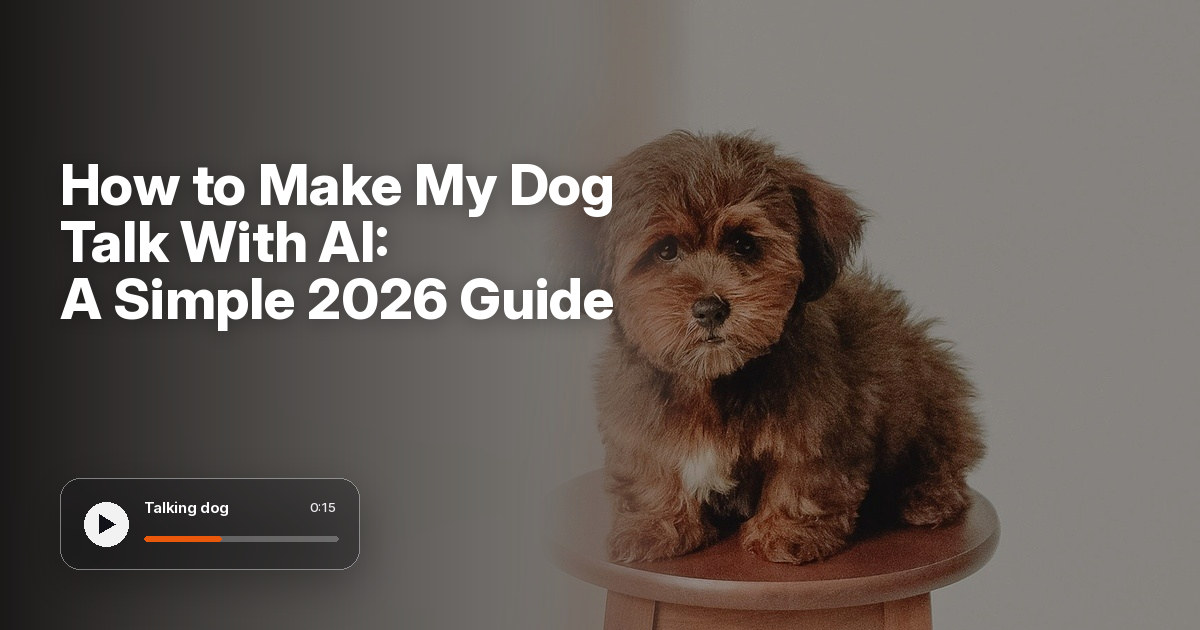
Here is how to make my dog talk with AI: upload a clear photo of your dog, add a script, a recording, or a cloned voice, pick a language and size, and let Zoice make the video. You do not need editing skills, and the whole process takes a few simple steps.
This guide walks you through each step in Zoice, then shares tips for better results and fun ideas for your first video. Dogs are easy to work with, because their faces are expressive and their photos are often clear. If you have more than one kind of pet, read our pet guide, or see the best AI talking pet generators.
What You Need
You only need a few things before you start. Gather them first, and the steps below go quickly.
- A clear photo of your dog: front facing, head up, with the eyes and nose visible
- A script, a recording, or a voice: type the words you want, upload audio, or clone a voice
- A Zoice account: avatar videos start on the Starter plan
- A short idea: one joke or one message works best for a first dog video
If you search for a make my dog talk app, a talking dog AI tool, or an AI dog voice, you will find many options. Zoice runs in your browser and gives you control over the voice, the language, and the size of your dog talking video.
Step 1: Upload a Clear Dog Photo
Sign in to Zoice, open Avatar Characters under Manage, and click Create New. Give the avatar a name, then upload your photo. Click Generate Avatar, and Zoice saves it so you can reuse it in any video.
Dog photos work best when the dog is looking at the camera with a calm, relaxed face. A dog sitting with its head up is a good choice.
- Use a front facing photo with the head up and eyes open
- Choose a relaxed mouth, closed or softly open
- Use bright, even light and avoid heavy shadows
- Keep the dog alone in the frame, with no other faces
- Use a sharp photo, taken at the dog's eye level
Step 2: Add a Script, Recorded Audio, or a Cloned Voice
Open your saved avatar and click Generate Video. Now choose how your dog will speak. You have two main options.
- Generate from Script: type the words, pick a voice, and Zoice speaks them
- Generate from Audio: upload a recording or record one in Zoice
You can also clone a voice if you want a custom sound for your dog. Dog voices are where the humor comes from. Try a deep, serious voice for a big dog, a squeaky voice for a puppy, or a dramatic narrator for a sleepy dog. Your dog voice should match the face you uploaded.
Keep the first script short. A line of ten to twenty words is enough for a talking dog video.
Step 3: Pick Language and Aspect Ratio
Zoice supports scripts in 170+ languages and dialects, so you can write in your own language or try a new one. Then click Output to set the video size.
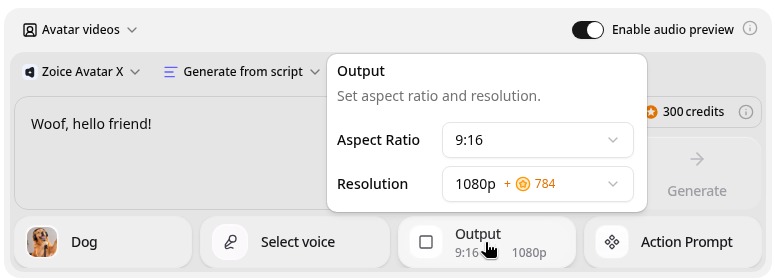
- Aspect Ratio: choose 9:16 for TikTok, Reels, and Shorts, or 16:9 for YouTube and the web
- Resolution: choose 480p up to 4K, where higher resolutions use extra credits
Most pet clips look best in 9:16, since people watch them on phones.
Step 4: Generate and Preview
Click Generate. Zoice first lets you preview the audio, so you can check the words and the timing before the video is made. If the audio sounds right, confirm, and Zoice creates the video.
You can also add an Action Prompt to guide expressions and movement, for example a happy look or a calm nod. Then watch the preview and check the lip sync. If something is off, change the script or the photo and generate again.
Step 5: Download and Share
When you are happy with the result, click Download to save the video to your device. Then post it to TikTok, Instagram Reels, YouTube Shorts, or send it to friends and family.
Only use photos you own, and only use audio you have the rights to use.
Tips for Best Results
- Shoot at eye level: it gives the cleanest lip sync
- Pick a calm photo: a relaxed face reads better than an excited one
- Keep the script short: one punchline per video
- Pick a funny voice: a big voice for a small dog is a classic
- Preview the audio before you generate
- Use 9:16 for TikTok, Reels, and Shorts
Fun Ideas for Your Talking Video
Short and silly videos tend to win. Here are ideas to start with:
- Treat negotiation: the dog explains why it deserves a treat
- Walk announcement: the dog tells you it is time to go out
- Guilty confession: the dog admits to chewing a shoe
- Birthday message: the dog wishes someone a happy birthday
- Dog review: the dog rates its dinner
Want a singing dog instead? Read how to make a photo sing with AI. Ready to start your first talking dog video? Try Zoice.
FAQ
Can AI make my dog talk?
Yes. Upload a clear photo of your dog, add a script or audio, and an AI tool moves the mouth to match the words. In Zoice you do this in a few steps in your browser.
What dog photo works best?
A sharp, front facing photo with the head up, soft light, and a calm face. Keep the dog alone in the frame.
Can I give my dog a funny voice?
Yes. Pick a voice that suits your dog, upload a recording, or clone a voice, and your dog will speak with it.
Can I share it on TikTok?
Yes. Export a 9:16 video from Zoice and post it to TikTok, Reels, or Shorts. Use only photos you own and audio you have the rights to use.