How to Make AI Bible Videos: A Simple Guide for 2026
A Bible story lands gently when a familiar storyteller speaks it. This is how to make AI Bible videos with a teacher or grandparent as the Host, not with a depiction of a sacred figure. In Zoice you upload a front-facing photo you have permission to use, paste a short script built from a public-domain King James line or your own paraphrase, and the mouth is lip synced to your words. An optional action prompt can add a small, calm nod. Keep the tone respectful, and do not use this as a claim about any holy person speaking.
Before you start the AI Bible video, you may like our AI avatar for church videos roundup.
Choosing a Storyteller Image and Public Domain Text
An AI Bible video works best from a front-facing photo of a teacher or relative who has agreed to appear, paired with a public-domain King James line or your own careful paraphrase, not a sacred-figure portrait.
- Use a storyteller, not a depiction of a sacred figure
- Use a public-domain King James line, or write your own words
- Get consent for any real person photo
- Test the face in Zoice and keep the motion small and respectful
How to Make AI Bible Videos in Zoice
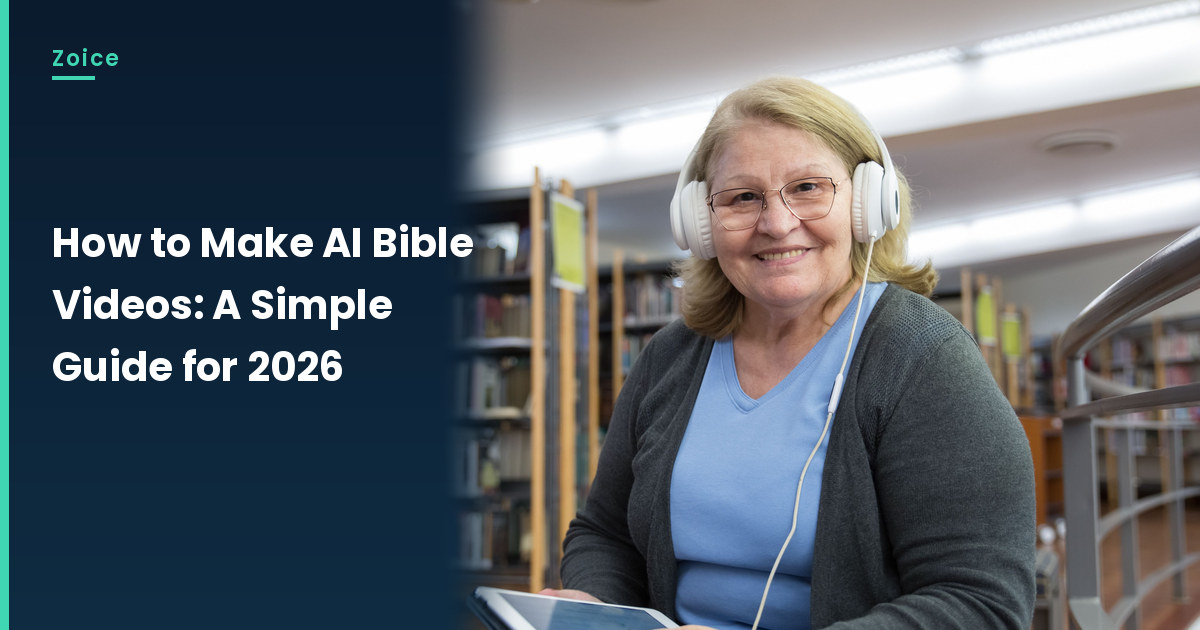
Our Host is a stock photograph of an adult woman with blonde hair and glasses, wearing white headphones, in a gray cardigan over a blue top, seated in a library with bookshelves, holding a tablet, facing the camera with a clearly visible mouth, not a sacred-figure depiction, used as the Host for this post and saved in the app.
Step 1: Sign In to Zoice and Open Home
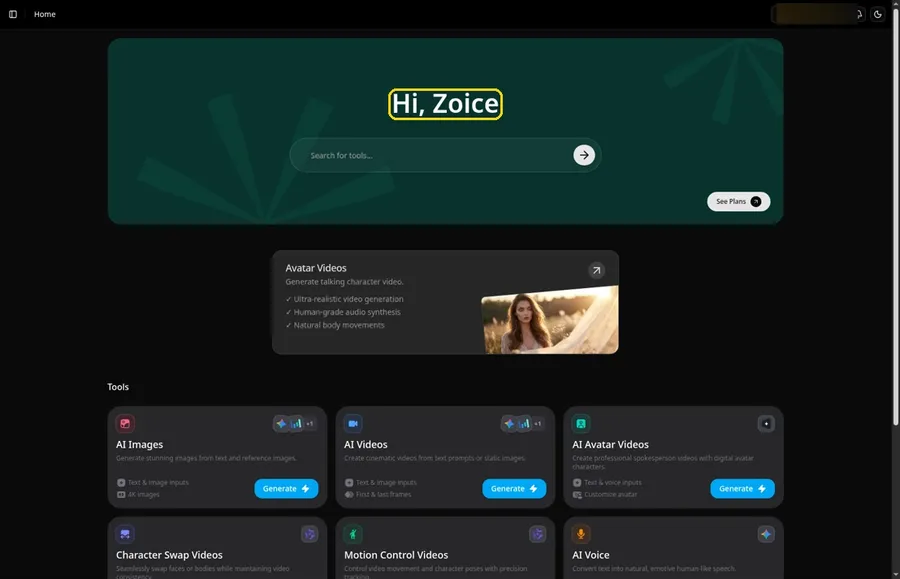
Go to Zoice and click Sign In, using email or Google; Home opens once the AI Bible video project can begin.
Step 2: Open Avatar videos
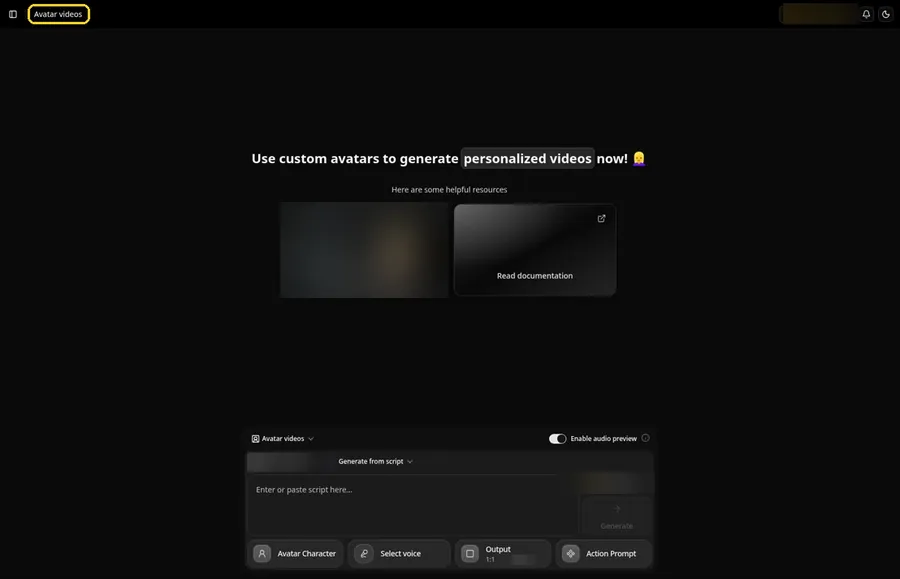
Open Avatar videos. The page title reads Avatar videos, and the composer is empty with Output at the default 1:1.
Step 3: Open Avatar Character and Create a New Avatar
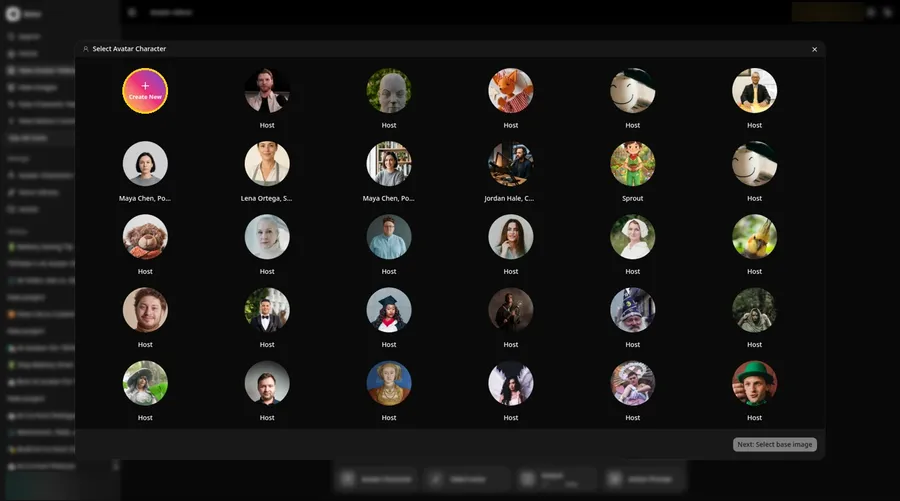
For the AI Bible video, press Avatar Character, choose Create New in Select Avatar Character, then press Create New on the Avatar Characters page to reach the full-screen Create new avatar page.
Step 4: Choose Upload Image
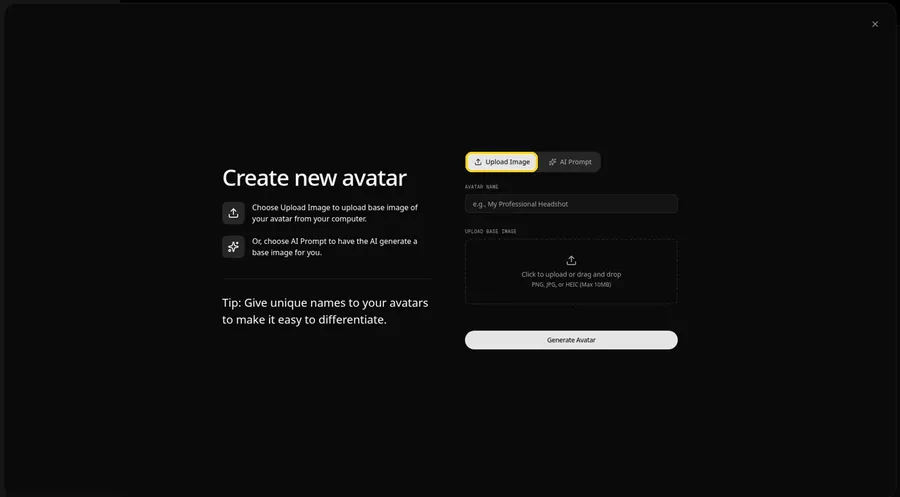
Under UPLOAD BASE IMAGE, keep the Upload Image tab selected for the AI Bible video picture.
Step 5: Upload the Storyteller Image
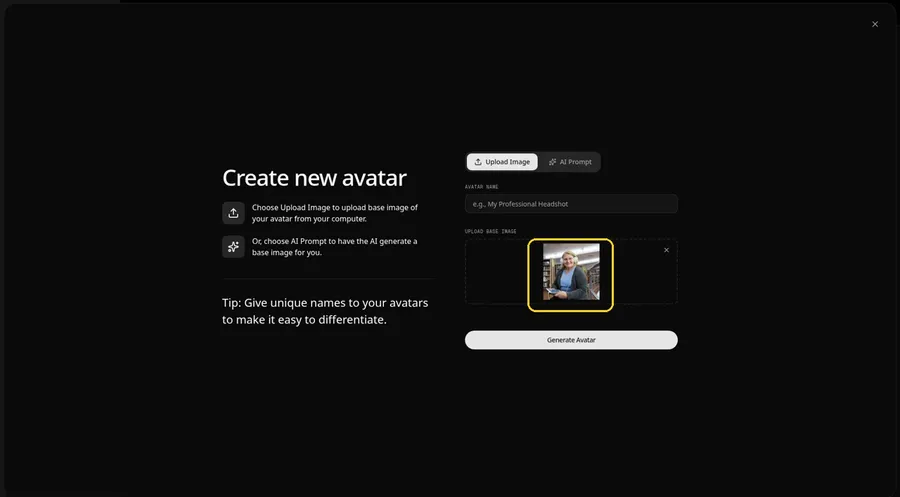
Choose the storyteller image in the upload area. The preview should show the storyteller looking straight ahead, wearing white headphones, in a gray cardigan over a blue top, seated in a library, holding a tablet.
Step 6: Name Your Avatar Host and Click Generate Avatar
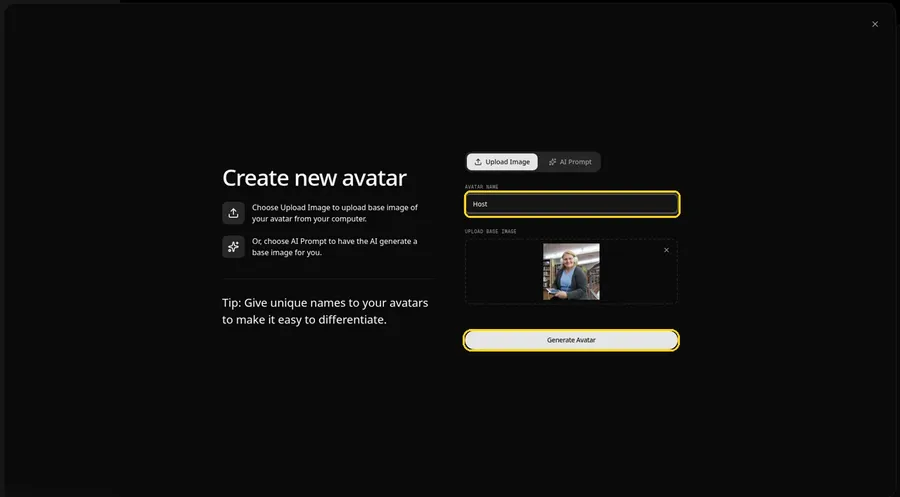
Enter Host under AVATAR NAME, with the preview in place, ready to click Generate Avatar.
Step 7: Open the Add Script Panel
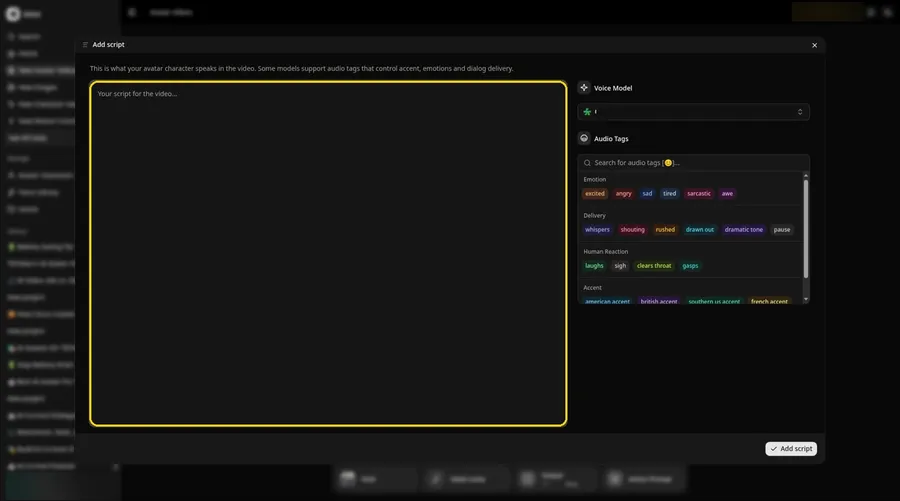
Click the script box in the composer, and the Add script panel opens for the AI Bible video.
Step 8: Choose the Voice Model
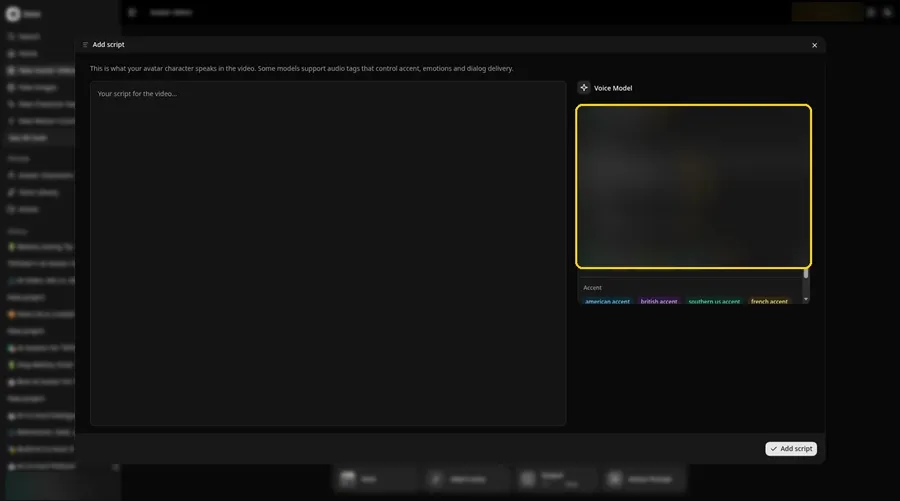
Pick a model in the Voice Model menu before the AI Bible video script goes in.
Step 9: Paste Your Script and Click Add Script
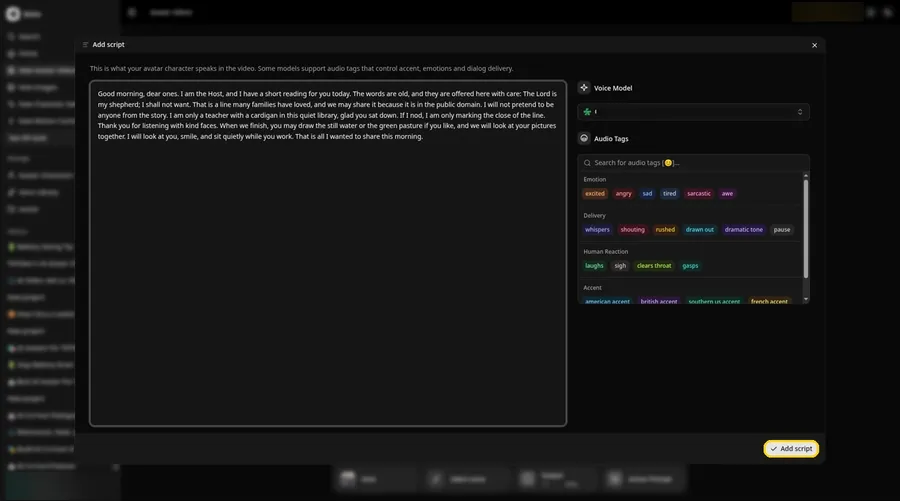
Drop in the full AI Bible video script, then click Add script. The opening words are: Good morning, dear ones.
Step 10: Pick a Voice
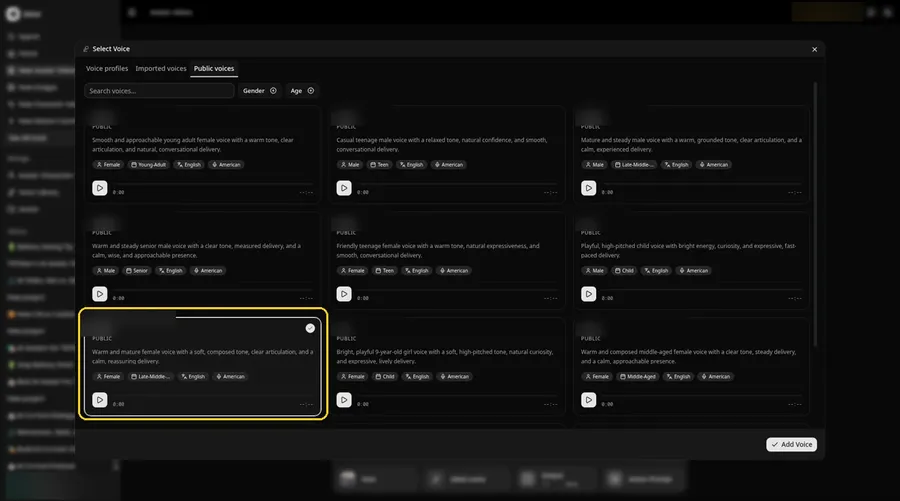
Click the voice button in the composer to open Select Voice for the AI Bible video. Pick a gentle, kind adult voice on the Public voices tab, then click Add Voice to attach it.
Step 11: Choose your output settings
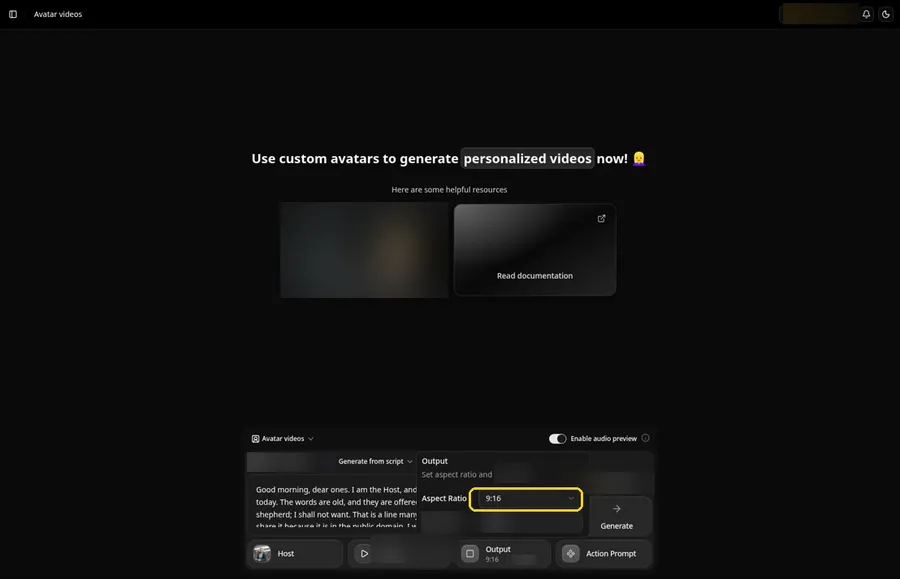
Choose your output settings. The AI Bible video uses 9:16, picked from the aspect ratio dropdown in Output.
Step 12: Add an Action Prompt
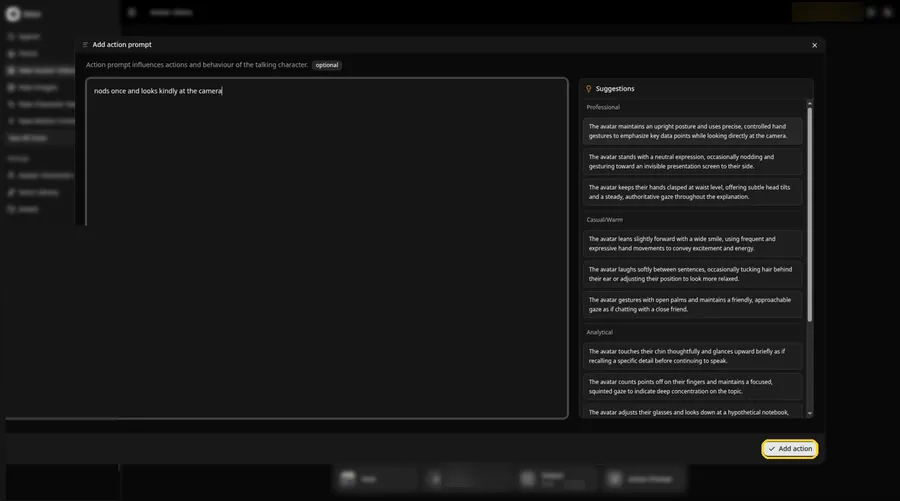
In the Add action prompt panel, enter: nods once and looks kindly at the camera. Press Add action. The AI Bible video only moves the way this prompt says.
Step 13: Click Generate
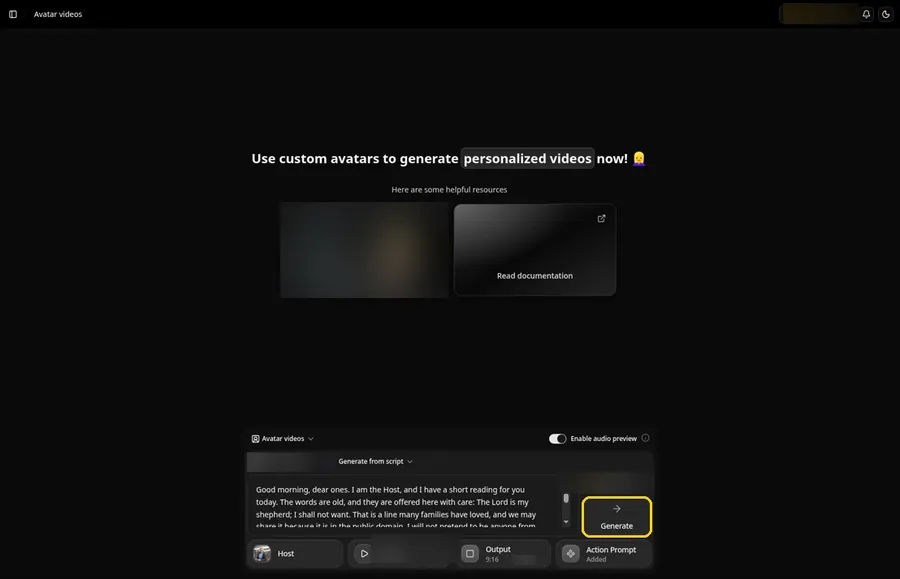
Check the AI Bible video Host, the voice, the script, the 9:16 output and the Added Action Prompt chip, then click Generate.
Step 14: Confirm the Audio Preview
An audio preview of the AI Bible video lines plays first; if it sounds right, confirm it and let Zoice process it.
Step 15: Preview the Video in the Player
Watch the AI Bible video once in the player to check the lip sync and the action prompt.
Step 16: Download From the Player Menu
Open the three-dot menu on the player and click Download to save the AI Bible video.
Step 17: Share Your Video
Share the downloaded AI Bible video in a group chat or as a Reel, Short or story, using only images and audio you made or may use.
Writing the Action Prompt
Keep the storyteller move quiet, like a single nod, so the clip still feels like a quiet library reading.
- nods once and looks kindly at the camera
- opens a hand toward the listener and smiles
- looks down at the tablet and back up
Type your pick in step 12 and click Add action.
Demo Idea: A Library Reading of a Short Psalm Line
A stock-model storyteller Host in a library reads a short, public-domain King James line and offers a simple, kind word. Here is the exact script:
"Good morning, dear ones. I am the Host, and I have a short reading for you today. The words are old, and they are offered here with care: The Lord is my shepherd; I shall not want. That is a line many families have loved, and we may share it because it is in the public domain. I will not pretend to be anyone from the story. I am only a teacher with a cardigan in this quiet library, glad you sat down. If I nod, I am only marking the close of the line. Thank you for listening with kind faces. When we finish, you may draw the still water or the green pasture if you like, and we will look at your pictures together. I will look at you, smile, and sit quietly while you work. That is all I wanted to share this morning."
Ready to make your own AI Bible video? Try Zoice and follow the AI Bible video steps above.
Tips for Bible Story Videos
- Use a storyteller photo, not a depiction of a sacred figure.
- Quote a public-domain King James line, or write the reading in your own words.
- Keep the action prompt small and calm.
- Get consent before using a real person as the Host.
Once the AI Bible video works, branch out with our AI storytelling avatar generator roundup.
FAQ
Should the Host be a sacred figure?
No. Use a teacher, a parent, or another storyteller, and keep the video respectful.
Which Bible text can I use?
Use a public-domain King James line, or write your own paraphrase. Do not paste a modern text you do not have rights to.
Can this be used in a classroom or church?
Yes, if you have consent for the photo and you follow your community guidelines.
Is the action prompt required?
No. The AI Bible video is lip synced to your script either way; the action prompt only adds the move.
Can I make a vertical AI Bible video?
Yes. Choose 9:16 in the output settings before you click Generate on the AI Bible video.
Try Zoice
Your AI Bible video is one click away. Explore our AI avatar for teachers roundup, or Try Zoice and start your AI Bible video now.