How to Make a Wizard Talk With AI: A Simple 2026 Guide
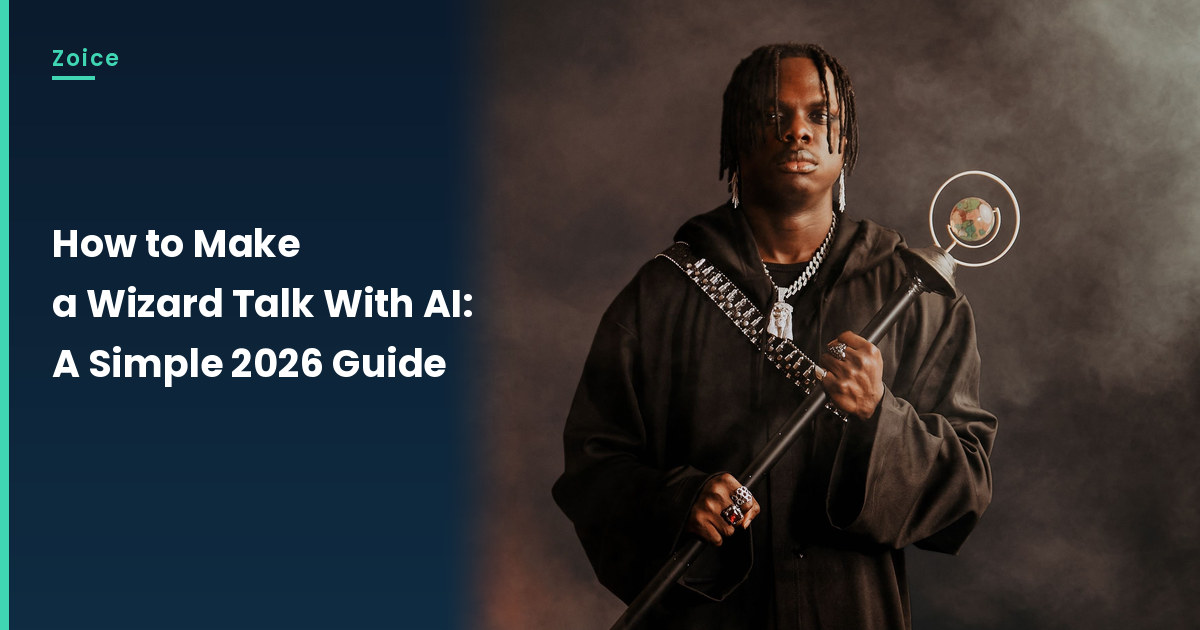
A wizard costume photo can open story time or a birthday party. For the talking wizard, in Zoice you upload a clear picture, it becomes your Host, and the mouth is lip synced to your script. An optional action prompt can add a small raise of the hand. Use a stock-model costume photo or original wizard art you may use, not a film likeness and not a photo of a real identifiable person, and test the face.
Below is how to make a wizard talk with AI, one screen at a time. Planning more than one talking wizard clip? Our AI storytelling avatar generator roundup has more talking wizard ideas.
Choosing a Wizard Image Zoice Can Read
A talking wizard needs a stock-model costume photo or original art you may use, with a clear face and no film-character likeness.
- Keep the hood and staff out of the eyes and mouth
- Use even indoor light
- Avoid busy props in front of the face
- For the talking wizard, test the image in Zoice; if a face is not detected, try a tighter crop or a different piece, and note the swap
How to Make a Wizard Talk in Zoice
Our Host is a stock photograph of an adult man in a long dark robe with the hood down, holding a staff topped with a small globe, with a clear face and a visible mouth, used as the Host for this post and saved in the app.
Step 1: Sign In to Zoice and Open Home
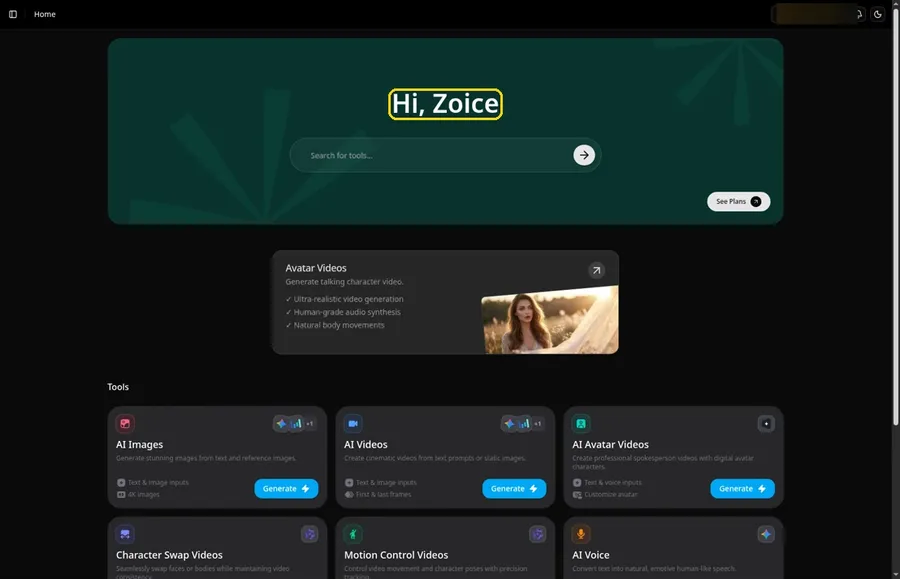
Click Sign In on Zoice and log in with your email or Google account to start the talking wizard video.
Step 2: Open Avatar videos
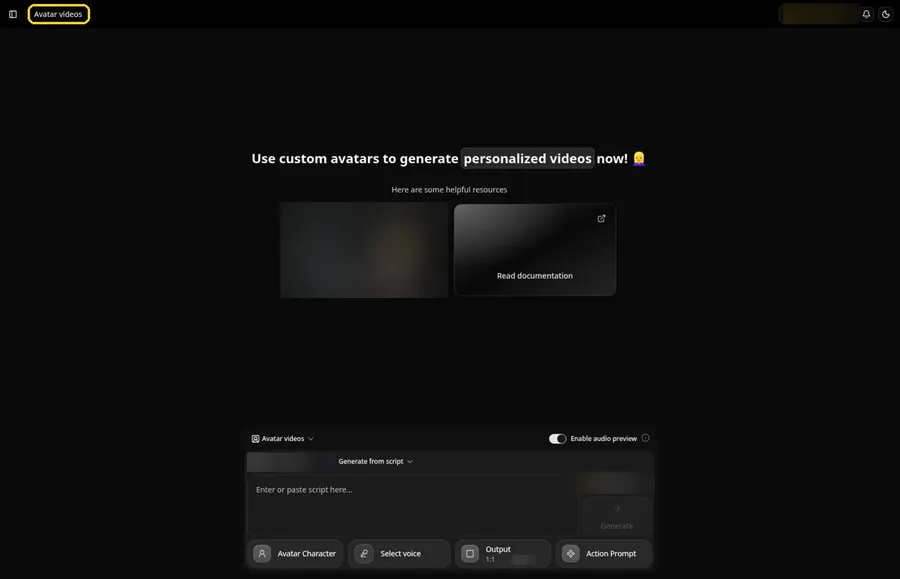
Pick Avatar videos from the sidebar to begin the talking wizard. The screen that opens is titled Avatar videos, with the composer for the talking wizard at the bottom.
Step 3: Open Avatar Character and Create a New Avatar
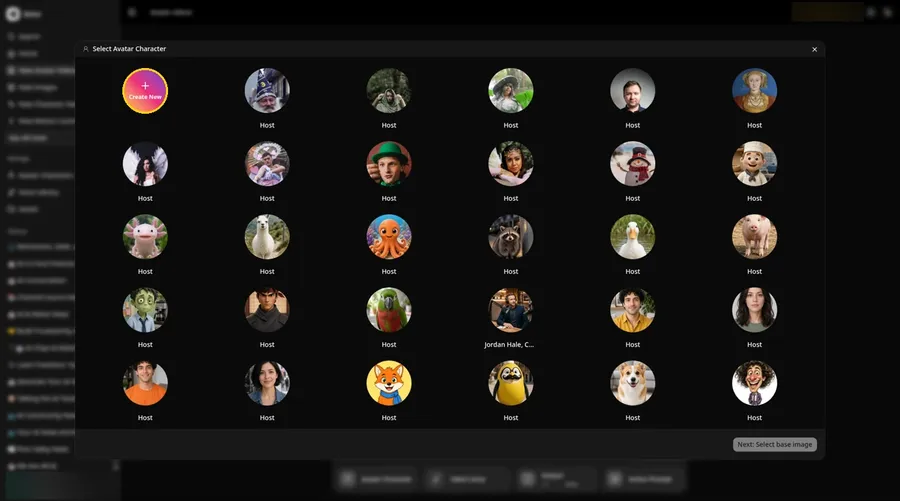
For the talking wizard, click Avatar Character in the composer to open Select Avatar Character, then click Create New. On the Avatar Characters page, click Create New again, and the full-screen Create new avatar page opens for the talking wizard.
Step 4: Choose Upload Image
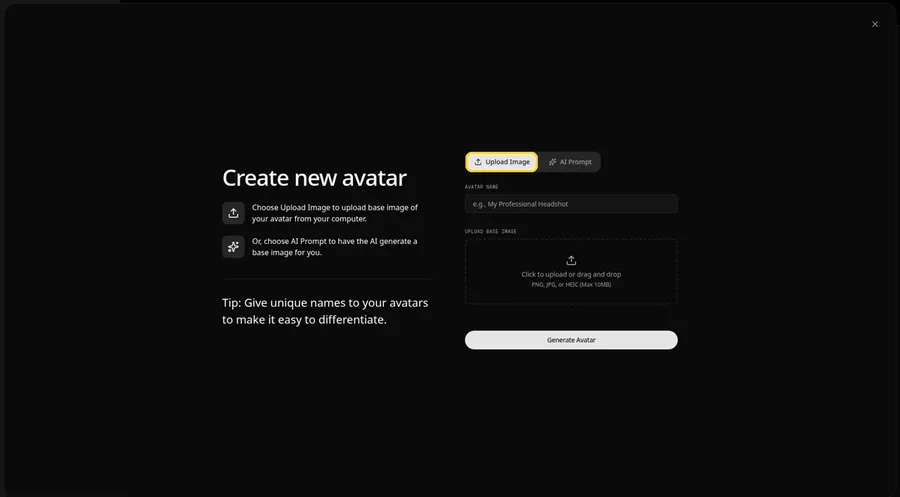
Leave the Upload Image tab on under UPLOAD BASE IMAGE, since the talking wizard comes from an image file.
Step 5: Upload the Wizard Image
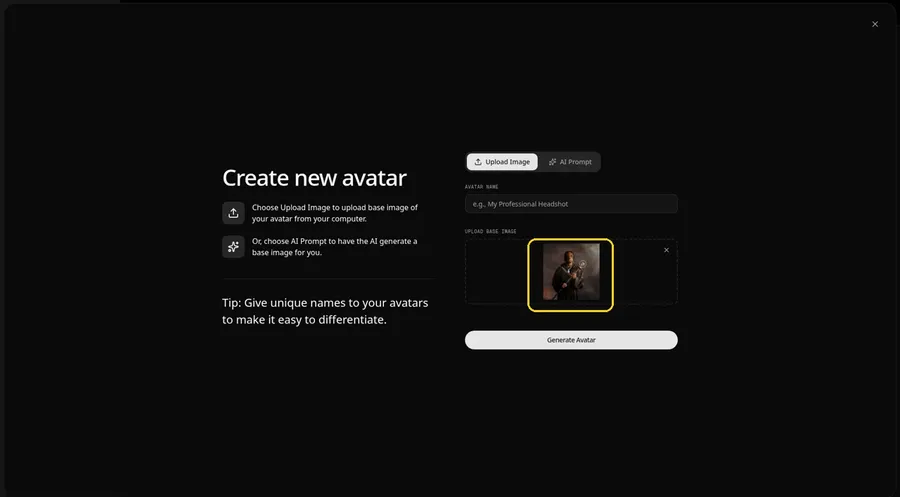
Choose the wizard image in the upload area. The preview should show the talking wizard looking straight ahead, in a long dark robe with the hood down, holding a staff topped with a small globe.
Step 6: Name Your Avatar Host and Click Generate Avatar
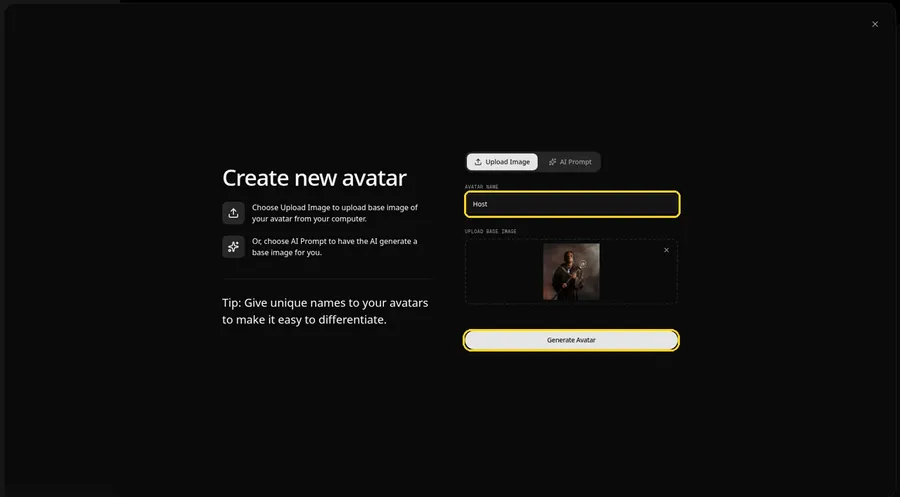
Type Host in the AVATAR NAME field and click Generate Avatar, so the talking wizard is saved for later videos.
Step 7: Open the Add Script Panel
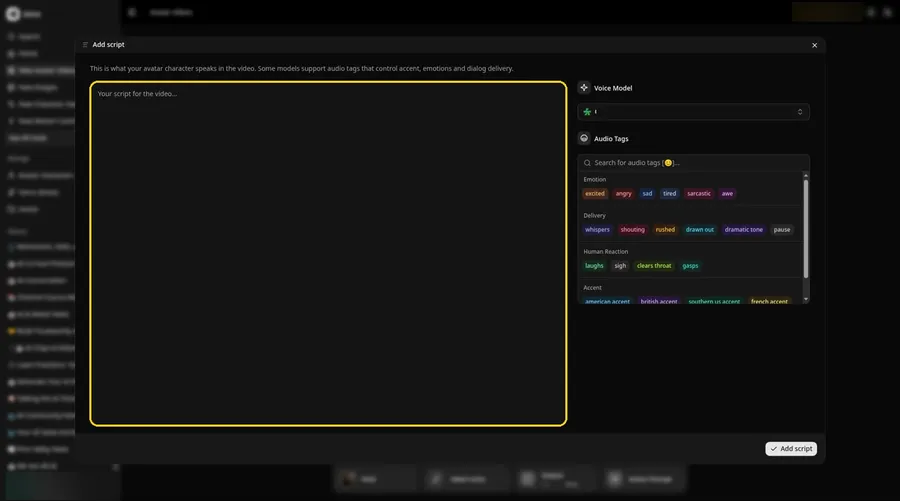
Select the script box, and the Add script panel for the talking wizard slides open.
Step 8: Choose the Voice Model
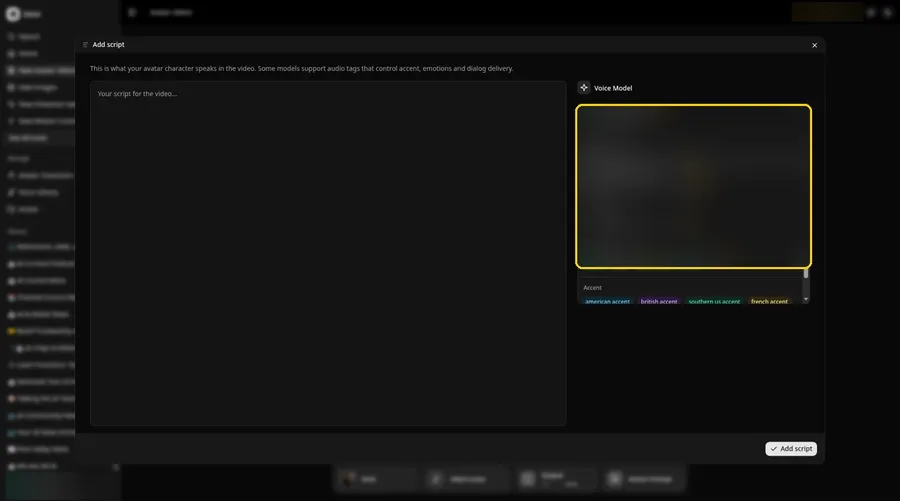
Choose the voice model from the Voice Model menu; it shapes how the talking wizard sounds.
Step 9: Paste Your Script and Click Add Script
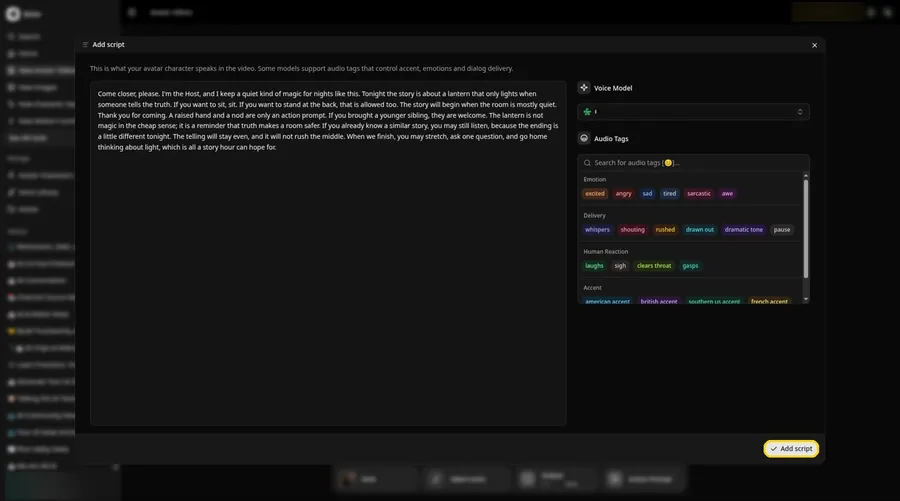
Paste the talking wizard script, read it once more and click Add script. It opens with: Come closer, please.
Step 10: Pick a Voice
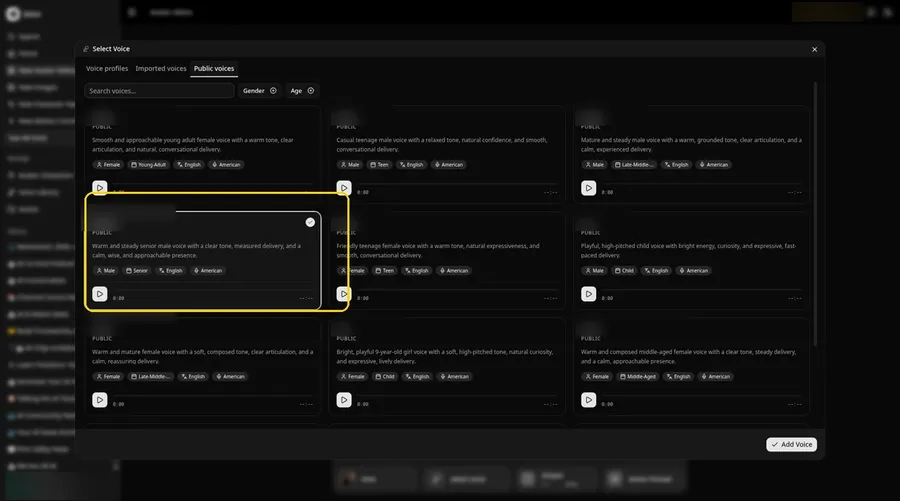
Click the voice button in the composer to open Select Voice for the talking wizard. Pick a warm, even adult voice on the Public voices tab, then click Add Voice to attach it.
Step 11: Choose your output settings
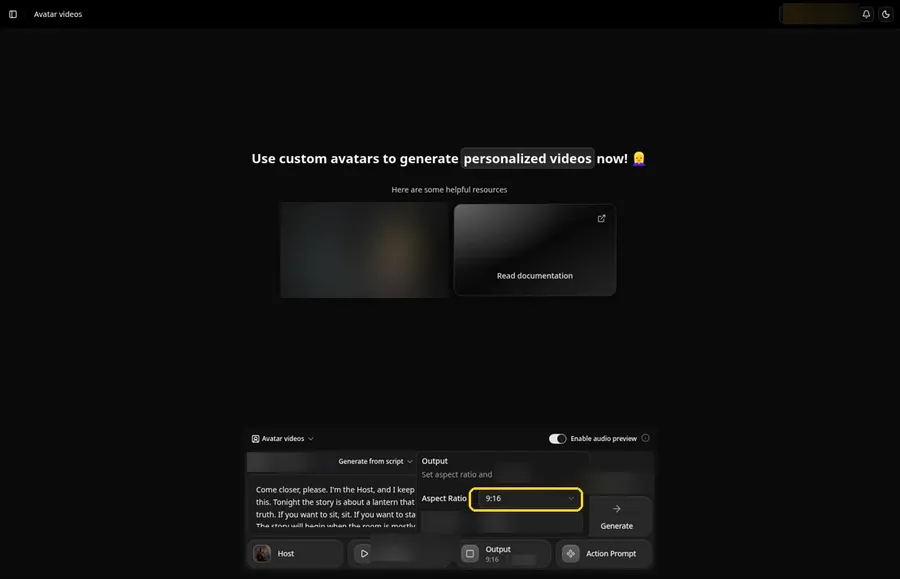
Choose your output settings. Set the Output aspect ratio dropdown to 9:16 if the talking wizard is headed to vertical feeds.
Step 12: Add an Action Prompt
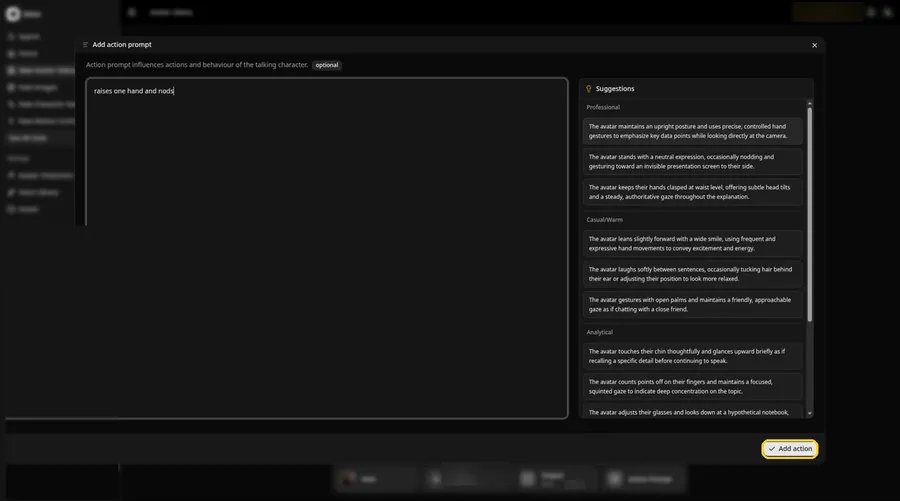
In the Add action prompt panel, enter: raises one hand and nods. Press Add action. The talking wizard only moves the way this prompt says.
Step 13: Click Generate
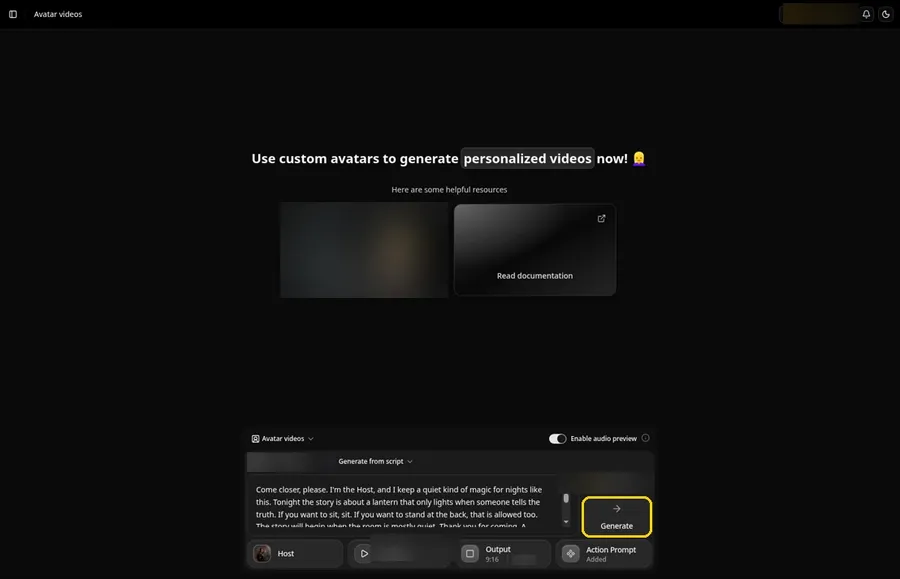
Check the talking wizard Host, the voice, the script, the 9:16 output and the Added Action Prompt chip, then click Generate.
Step 14: Confirm the Audio Preview
Listen to the talking wizard audio preview, then confirm it while Zoice processes the clip.
Step 15: Preview the Video in the Player
Press play in the player and check that the talking wizard lip sync and the action prompt moves match your script.
Step 16: Download From the Player Menu
Use the player's three-dot menu and choose Download to keep the talking wizard file.
Step 17: Share Your Video
Post the talking wizard clip as a Reel, Short or story, or drop it in a chat; stick to images and audio you have the rights to.
Writing the Action Prompt
Give the talking wizard one story-time move, like a small raise of the hand.
- raises one hand and nods
- For the talking wizard, looks at the camera and smiles
- lifts the staff and nods
Type your pick in step 12 and click Add action so the Action Prompt chip updates on the talking wizard.
Demo Idea: The Wizard Opens Story Time
A stock-photograph Host, of an adult man in a long dark robe holding a staff topped with a small globe, delivers a short original story-time greeting in character. Here is the exact script:
"Come closer, please. I'm the Host, and I keep a quiet kind of magic for nights like this. Tonight the story is about a lantern that only lights when someone tells the truth. If you want to sit, sit. If you want to stand at the back, that is allowed too. The story will begin when the room is mostly quiet. Thank you for coming. A raised hand and a nod are only an action prompt. If you brought a younger sibling, they are welcome. The lantern is not magic in the cheap sense; it is a reminder that truth makes a room safer. If you already know a similar story, you may still listen, because the ending is a little different tonight. The telling will stay even, and it will not rush the middle. When we finish, you may stretch, ask one question, and go home thinking about light, which is all a story hour can hope for."
Your talking wizard is waiting for its first lines. Try Zoice and give the talking wizard a voice.
Tips for Wizard Images
- Keep the hood off the face so the eyes and mouth stay clear.
- Use it to open a tabletop game night.
- Make up your own spell words.
- For the talking wizard, add an action prompt only after the lip sync looks right, then compare the two versions.
Our AI talking cartoon generator list pairs well with this talking wizard tutorial.
FAQ
Can I use famous movie wizards?
Use original wizards only.
Is it good for a party?
Yes, as a quest intro for games.
Is the action prompt required?
No. The talking wizard is lip synced to your script either way; the action prompt only adds the move.
Can I make a vertical talking wizard video?
Yes. Choose 9:16 in the output settings before you click Generate on the talking wizard.
Try Zoice
The talking wizard is ready for its close-up. Read our AI talking character generator for kids roundup, or Try Zoice and make the talking wizard today.