How to Make a Samurai Talk With AI: A Simple 2026 Guide

A simple samurai costume photo can open a practice yard welcome if the face is clear and the lines are your own. This is how to make a samurai talk with AI in Zoice: upload a stock or fictional costumed adult, use that picture as the Host, paste original lines rather than period quotes, pick a voice, and let lip sync follow the words. An optional action prompt can add a small move, such as bows slowly, then looks up at the camera. Do not use a real or historical figure.
Below is how to make a samurai talk with AI, one screen at a time. A nearby costume walkthrough is our talking ninja tutorial.
Picking a Samurai Photo That Can Talk
Choose a stock or fictional costumed adult for this talking samurai, with a clear face and a visible mouth. A dark robe and a practice sword are fine if the face stays unobstructed. Do not use a real or historical figure for the talking samurai, and write original lines rather than period quotes.
- Choose a stock or fictional costumed adult with a visible mouth
- A robe with clear trim is fine if the face is unobstructed
- Write original practice-yard lines; do not paste period quotes
- Skip real historical figures, and test the face in Zoice
How to Make a Samurai Talk With AI in Zoice
Our Host is a stock photograph of an adult woman in a dark robe with red trim, with a sword blade partly visible, a clear face and a visible mouth, used as the Host for this post and saved in the app.
If you want a broader path for original characters, our game character tutorial is a useful companion.
Step 1: Sign In to Zoice and Open Home
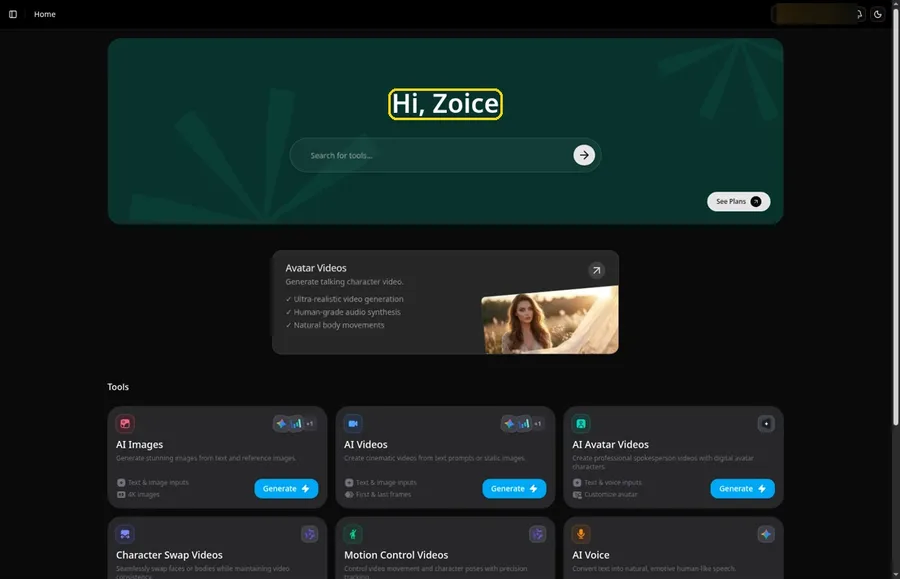
Load Zoice in your browser, click Sign In, and sign in with email or Google to start the talking samurai.
Step 2: Open Avatar videos
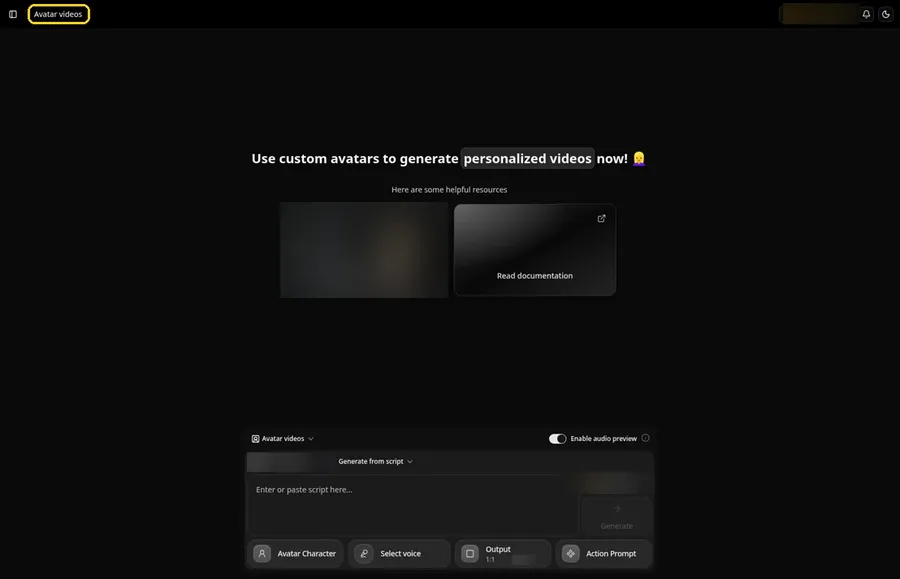
Open Avatar videos. The page title reads Avatar videos, and the composer is empty with Output at the default 1:1.
Step 3: Open Avatar Character and Create a New Avatar
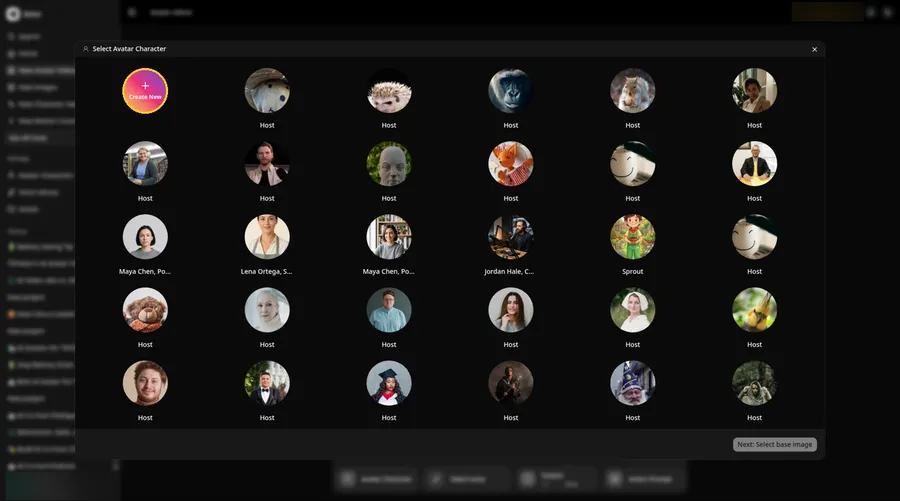
Tap Avatar Character, then the round Create New button; if a list of characters opens, click Create New again to reach the full-screen page for the talking samurai.
Step 4: Choose Upload Image
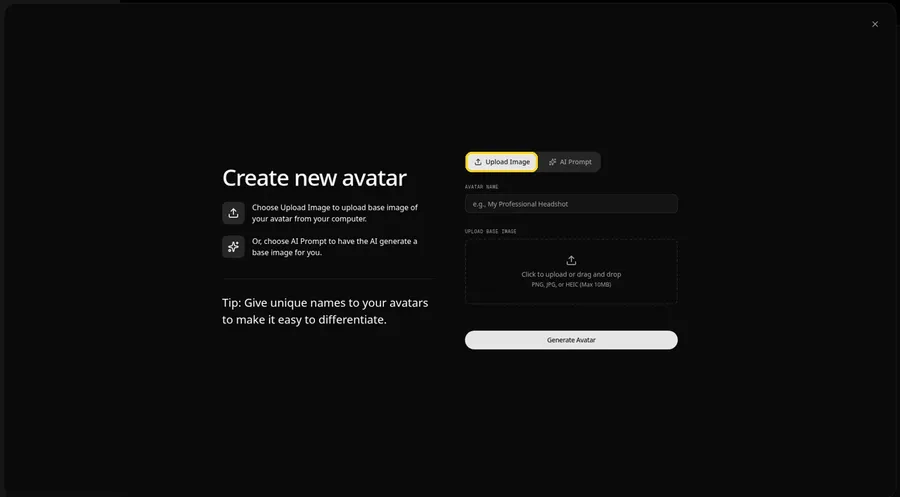
Do not switch away from Upload Image under UPLOAD BASE IMAGE, because the talking samurai needs a photo upload.
Step 5: Upload the Samurai Image
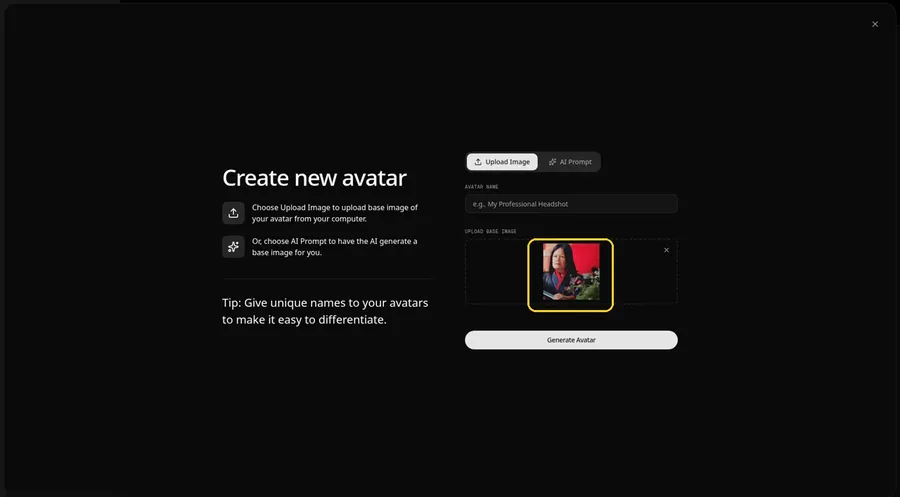
Place the talking samurai photo in the upload field, then confirm the preview is an adult woman in a dark robe with red trim, with a sword blade partly visible, a clear face and a visible mouth.
Step 6: Name Your Avatar Host and Click Generate Avatar
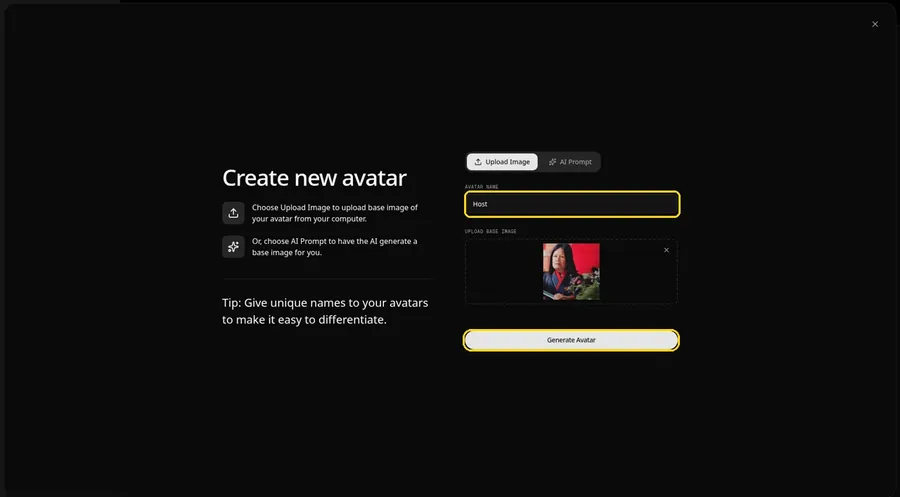
Type Host in the AVATAR NAME field, with the preview in place, ready to click Generate Avatar.
Step 7: Open the Add Script Panel
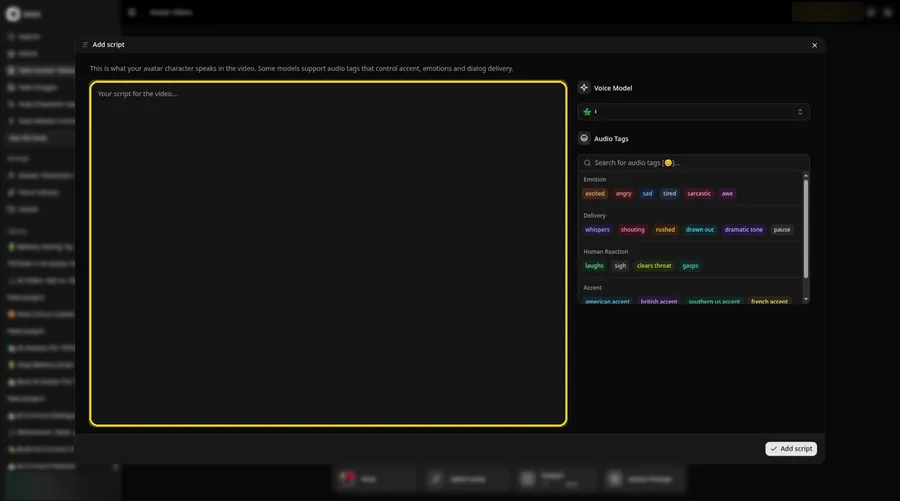
Tap the script box and wait for the Add script panel to appear for the talking samurai.
Step 8: Choose the Voice Model
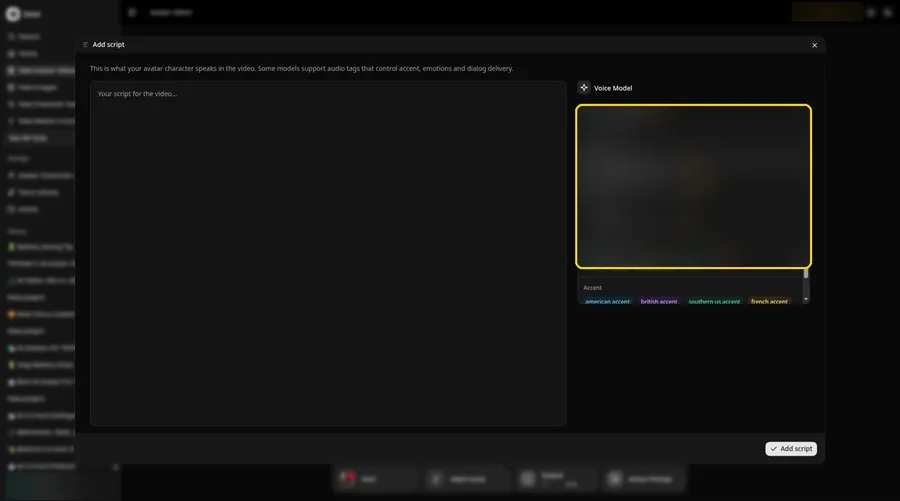
The Voice Model menu is where you choose the voice model that will color the talking samurai.
Step 9: Paste Your Script and Click Add Script
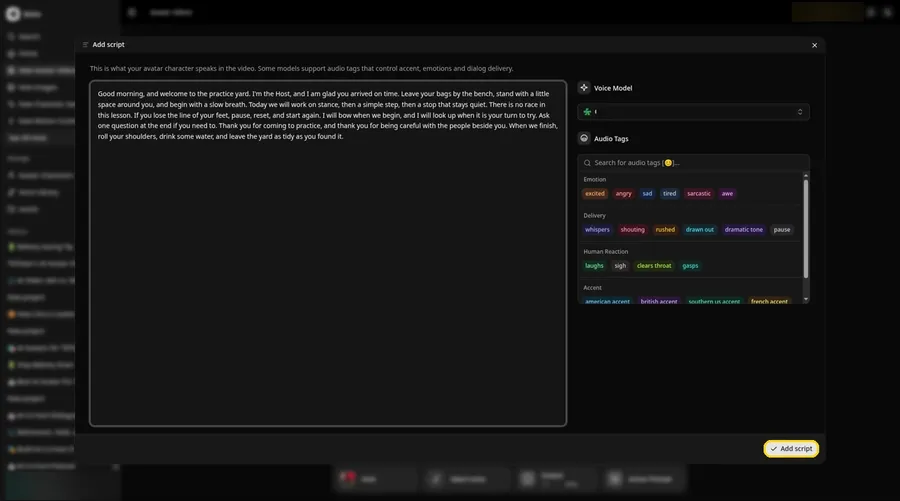
Paste in the lines for the talking samurai and click Add script after a quick read. The opening is: Good morning, and welcome to the practice yard.
Step 10: Pick a Voice
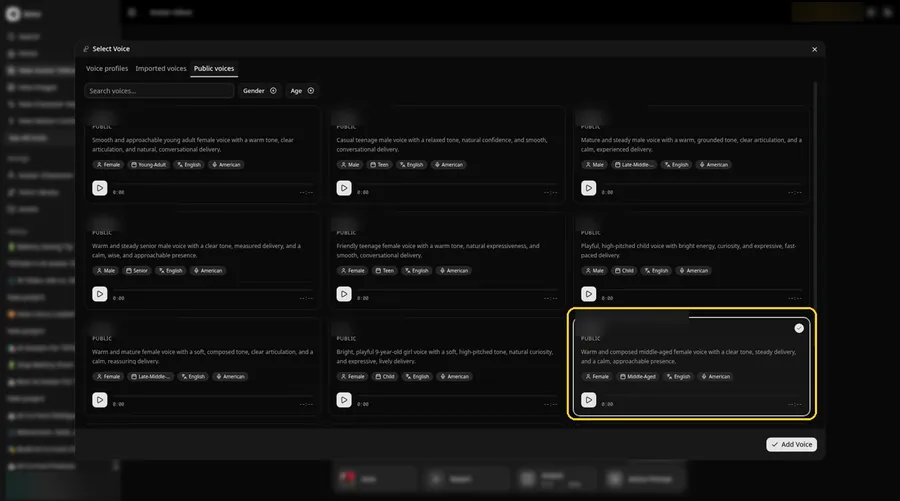
In Select Voice, stay on Public voices, pick a calm and even adult voice, and press Add Voice for the talking samurai.
Step 11: Choose your output settings
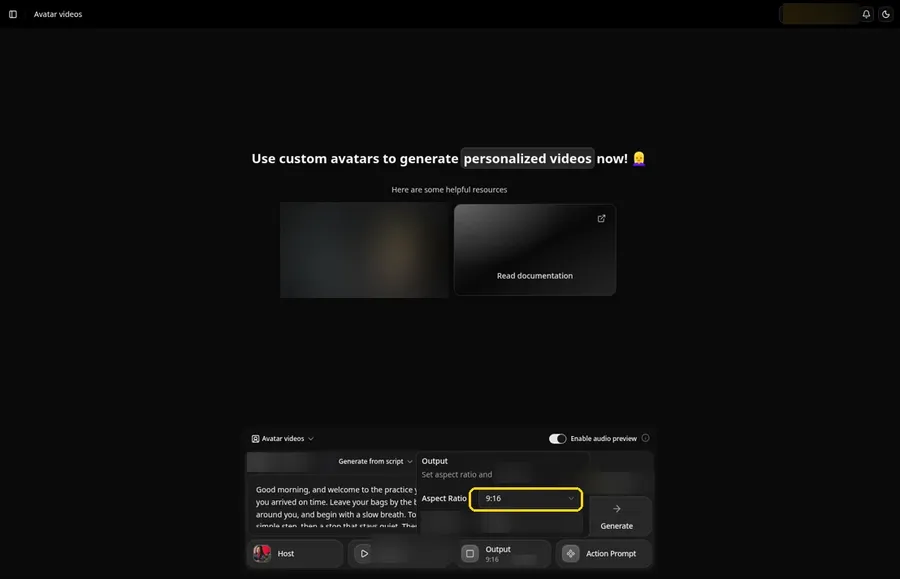
Choose your output settings. For a vertical talking samurai, set the Output aspect ratio dropdown to 9:16.
Step 12: Add an Action Prompt
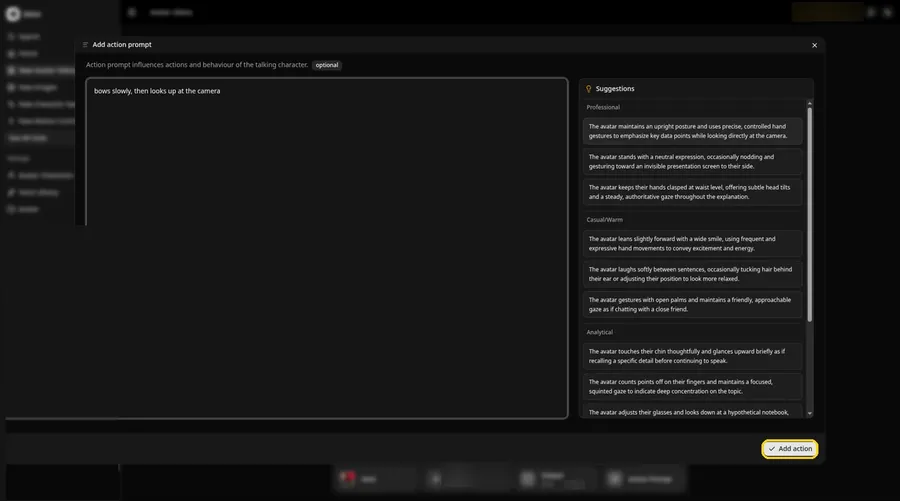
Type bows slowly, then looks up at the camera in the Add action prompt panel and click Add action, which tells the talking samurai how to move.
Step 13: Click Generate
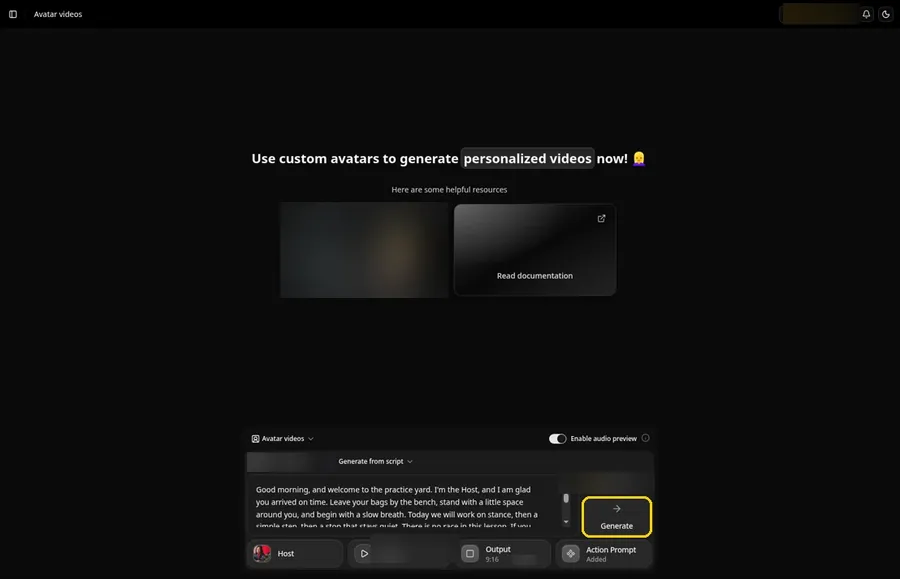
Before you click Generate, check that the talking samurai shows the Host, the voice, the script, 9:16 and an Action Prompt chip marked Added.
Step 14: Confirm the Audio Preview
Use the audio preview for the talking samurai, confirm it, and allow Zoice to process the clip.
Step 15: Preview the Video in the Player
In the player, press play and review how the talking samurai mouth and the action prompt move follow the script.
Step 16: Download From the Player Menu
Download the talking samurai from the player's three-dot menu when you want a local file.
Step 17: Share Your Video
The talking samurai can go into a chat or onto Reels, Shorts or stories, as long as the image and audio are yours to use.
Writing the Action Prompt
Keep the talking samurai move formal and small, like a slow bow and a look back up at the camera.
- bows slowly, then looks up at the camera
- nods once and holds the sword still
- looks toward the yard and back
Type your pick in step 12 and click Add action so the Action Prompt chip updates on the talking samurai.
Demo Idea: A Welcome in the Practice Yard
A stock-photograph Host, of an adult woman in a dark robe with red trim, with a sword blade partly visible, welcomes students to a practice yard with original lines, with a slow bow from the action prompt. Here is the exact script:
"Good morning, and welcome to the practice yard. I'm the Host, and I am glad you arrived on time. Leave your bags by the bench, stand with a little space around you, and begin with a slow breath. Today we will work on stance, then a simple step, then a stop that stays quiet. There is no race in this lesson. If you lose the line of your feet, pause, reset, and start again. I will bow when we begin, and I will look up when it is your turn to try. Ask one question at the end if you need to. Thank you for coming to practice, and thank you for being careful with the people beside you. When we finish, roll your shoulders, drink some water, and leave the yard as tidy as you found it."
Your talking samurai is waiting for its first lines. Try Zoice and give the talking samurai a voice.
Tips for Your Talking Samurai Video
- Choose a stock or fictional costumed adult with a visible mouth, and skip famous armor looks or historical portraits.
- Write original practice-yard lines about patience and footwork; do not paste period quotes.
- A calm, even voice fits a welcome better than a shouted command.
- Action prompt tip: use one small move, such as bows slowly, then looks up at the camera, after the greeting.
Another costume-style option is our talking clay character tutorial.
FAQ
Can I use a portrait of a real historical samurai?
No. Use a stock or fictional costumed adult, used as the Host, for this talking samurai. Do not use a real, historical or identifiable person for the talking samurai, and do not use a franchise costume.
Does the samurai photo need a face?
Yes. Lip sync for this talking samurai needs a visible mouth, so pick a costume photo that faces the camera. A helmet that hides the mouth will not work.
What image formats can I upload?
PNG, JPG or HEIC files, as the Upload Image panel states.
Is the action prompt required?
No. The samurai is lip synced to your script either way; the action prompt only adds the move.
Try Zoice
Read our guide to creating a talking character, or Try Zoice and make the talking samurai today.