How to Make a Game Character Talk With AI: A 2026 Guide
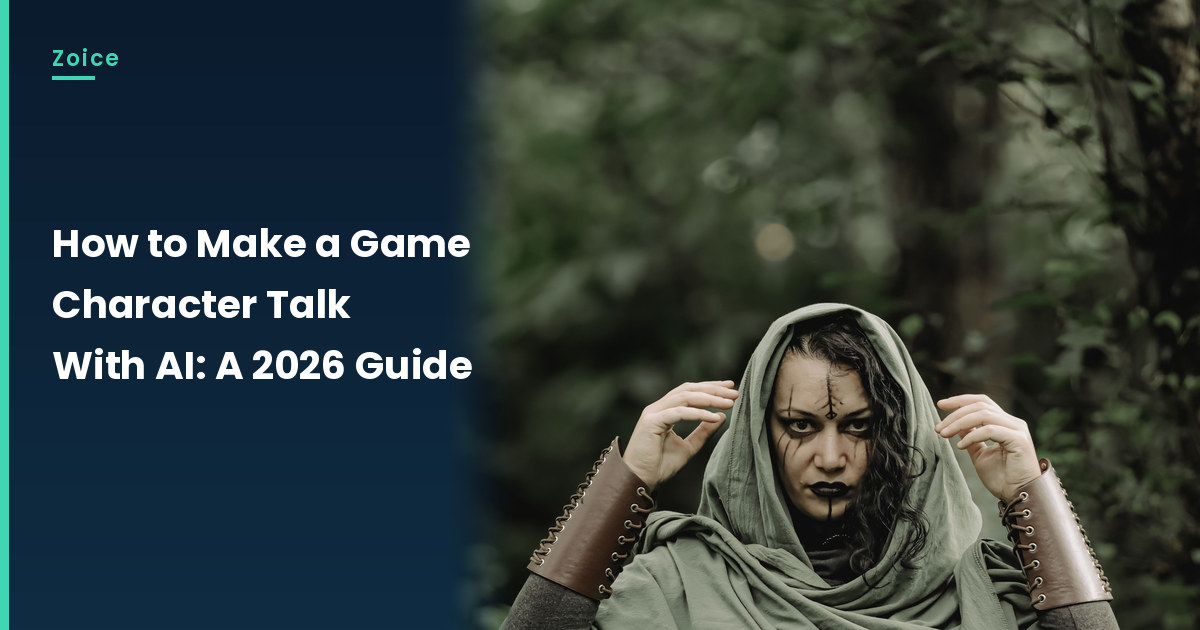
A custom game character can introduce a quest without using a studio's cast. This is how to make a game character talk with AI from a costume photo or a screenshot of a character you designed or may use. It is distinct from our Gacha-style guide, and it is not a license to use another studio's characters. Check the game's content policy before you record. In Zoice you upload a clear, front-facing still, it becomes your Host, and the mouth is lip synced to your script. An optional action prompt can add a small salute. Test the face.
Planning more than one talking game character clip? Our AI avatar generator for YouTube roundup has more talking game character ideas.
Choosing a Game Character Image Zoice Can Read
A talking game character should be a costume photo or a custom character you designed or may use, with a clear face, not a named studio character.
- Check the game's content policy before you use a screenshot
- Crop to a front-facing still with a visible mouth
- Avoid interface text over the face
- Test the still in Zoice; if a face is not detected, try a closer crop or a different custom character, and note the swap
How to Make a Game Character Talk in Zoice
Our Host is an adult in an original-looking game-style costume with a sage-green hooded cloak and leather bracers, standing in a forest, with a clear face and a visible mouth, not a studio character, used as the Host for this post and saved in the app.
Step 1: Sign In to Zoice and Open Home
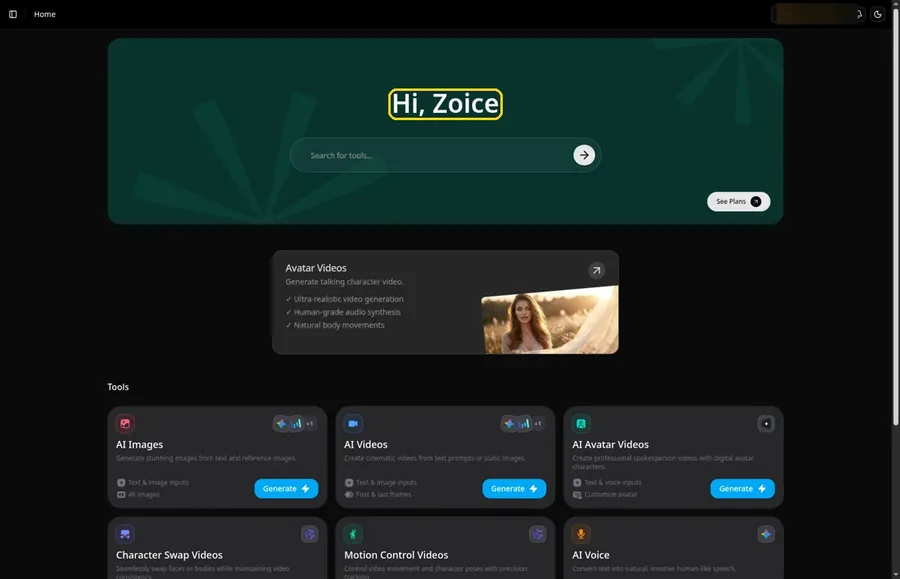
Click Sign In on Zoice and log in with your email or Google account to start the talking game character video.
Step 2: Open Avatar videos
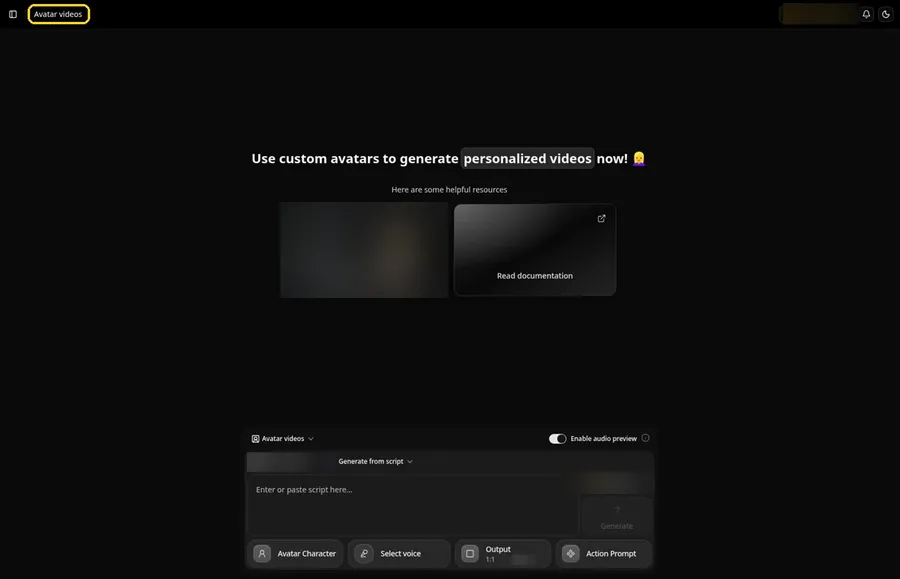
Use Avatar videos in the sidebar to reach the Avatar videos page, where the talking game character gets built in the composer.
Step 3: Open Avatar Character and Create a New Avatar
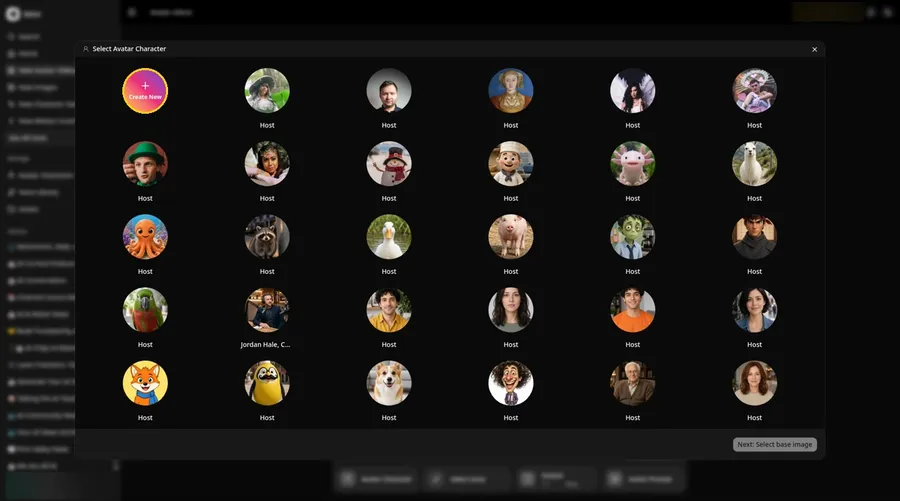
For the talking game character, click Avatar Character in the composer to open Select Avatar Character, then click Create New. On the Avatar Characters page, click Create New again, and the full-screen Create new avatar page opens for the talking game character.
Step 4: Choose Upload Image
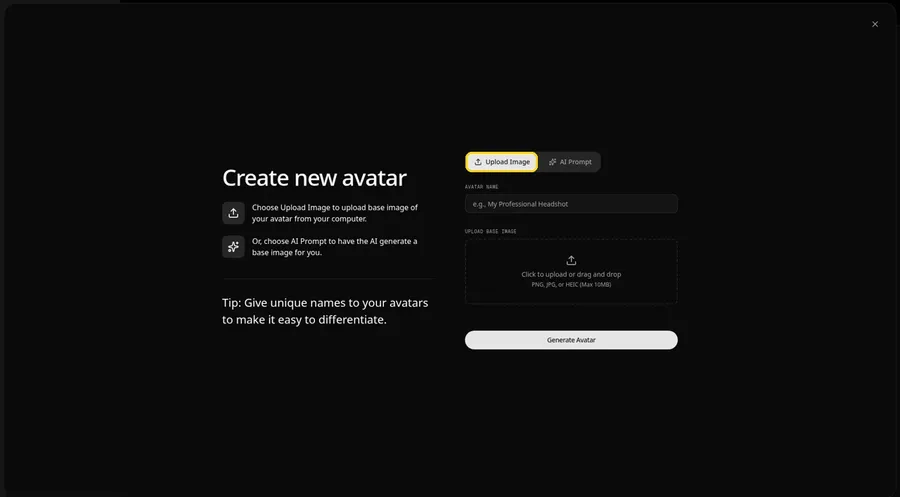
Leave the Upload Image tab on under UPLOAD BASE IMAGE, since the talking game character comes from an image file.
Step 5: Upload the Game Character Image
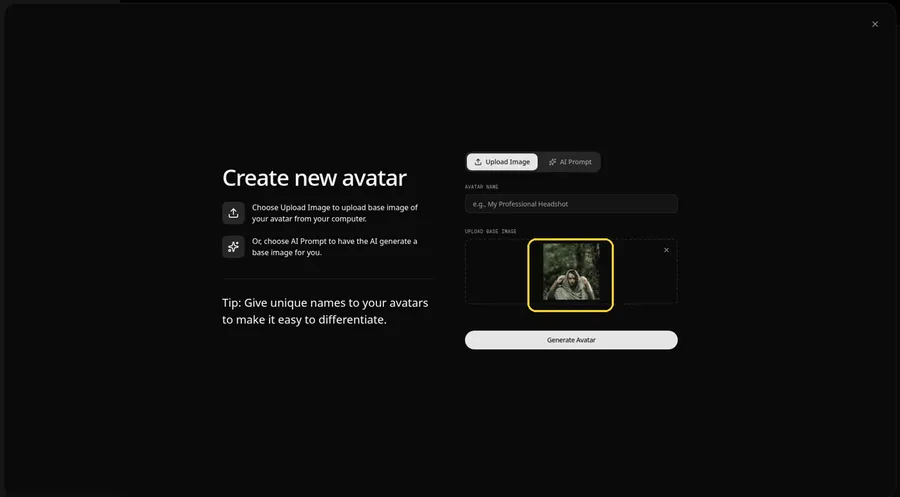
Click the upload area and pick the game character image, then confirm the talking game character faces the camera in the preview, in a sage-green hooded cloak among the trees.
Step 6: Name Your Avatar Host and Click Generate Avatar
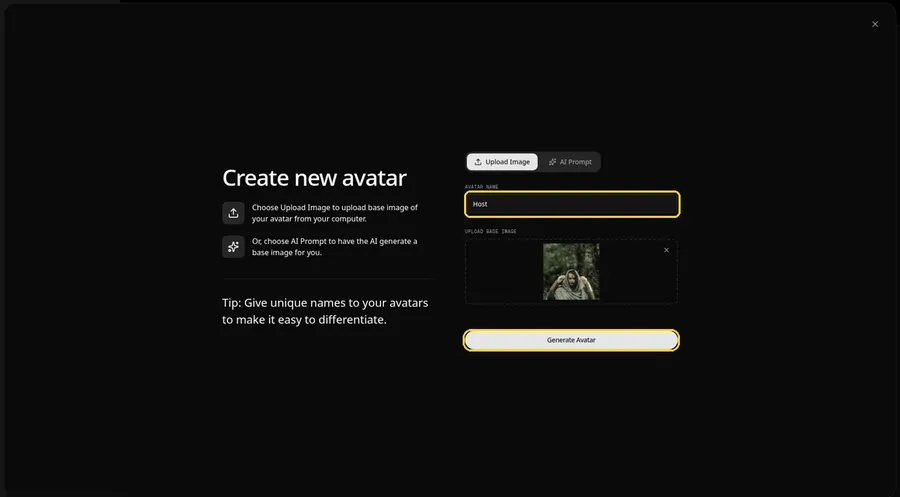
Type Host in the AVATAR NAME field and click Generate Avatar, so the talking game character is saved for later videos.
Step 7: Open the Add Script Panel
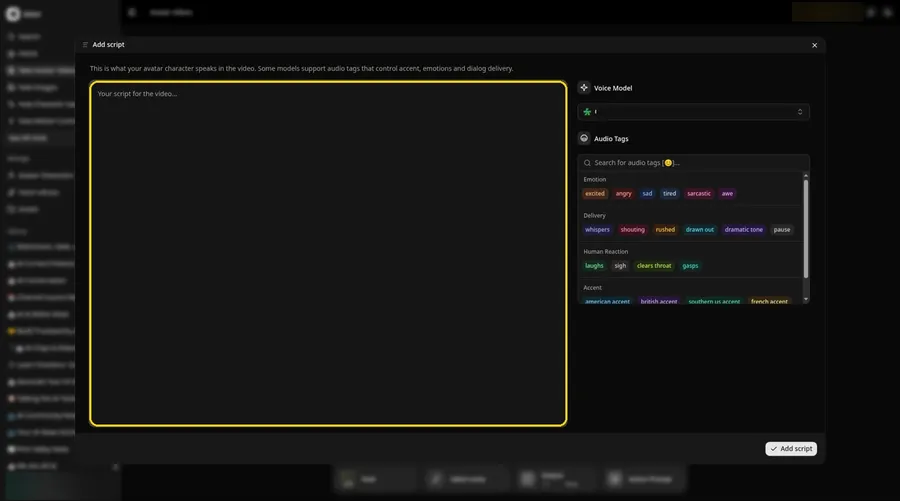
Select the script box, and the Add script panel for the talking game character slides open.
Step 8: Choose the Voice Model
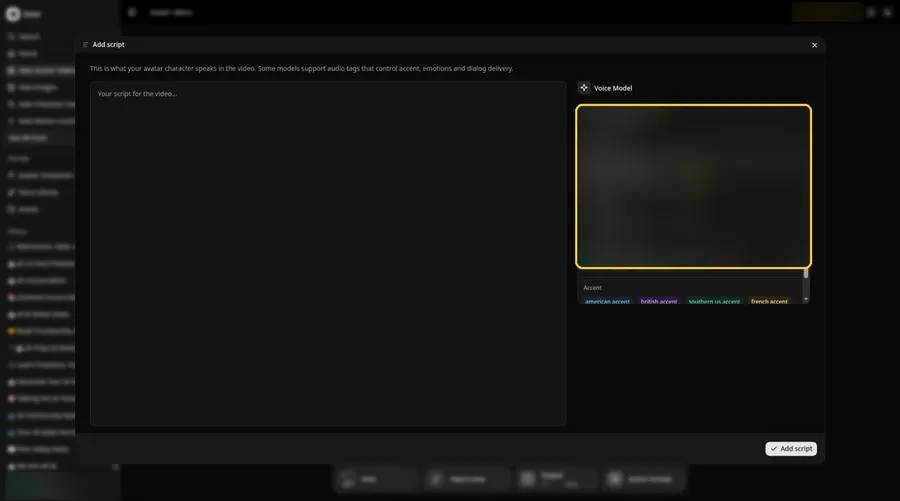
Choose the voice model from the Voice Model menu; it shapes how the talking game character sounds.
Step 9: Paste Your Script and Click Add Script
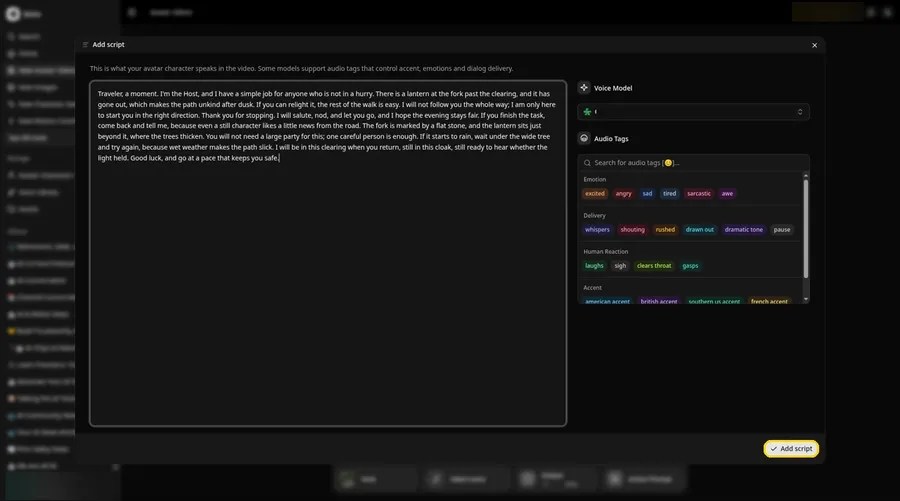
Paste the talking game character script, read it once more and click Add script. It opens with: Traveler, a moment.
Step 10: Pick a Voice
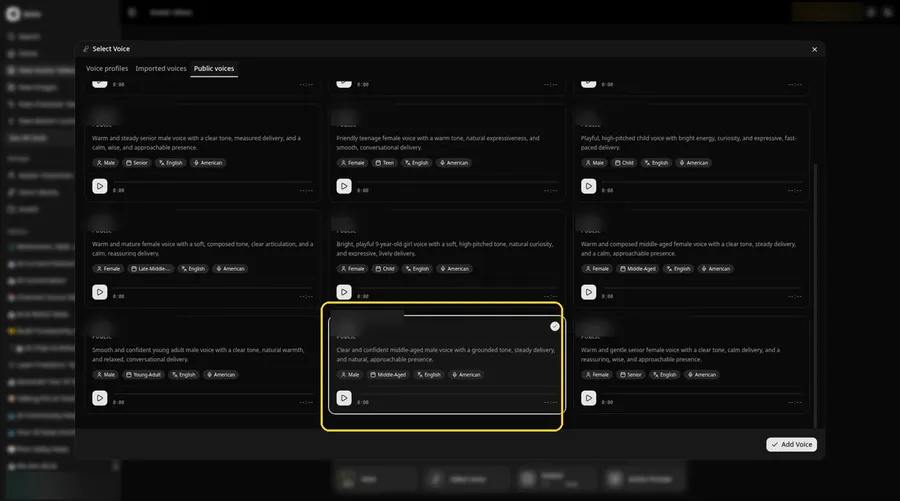
For the talking game character, open Select Voice from the voice button in the composer. On the Public voices tab, pick a calm, steady adult voice, then click Add Voice.
Step 11: Choose Your Output Settings
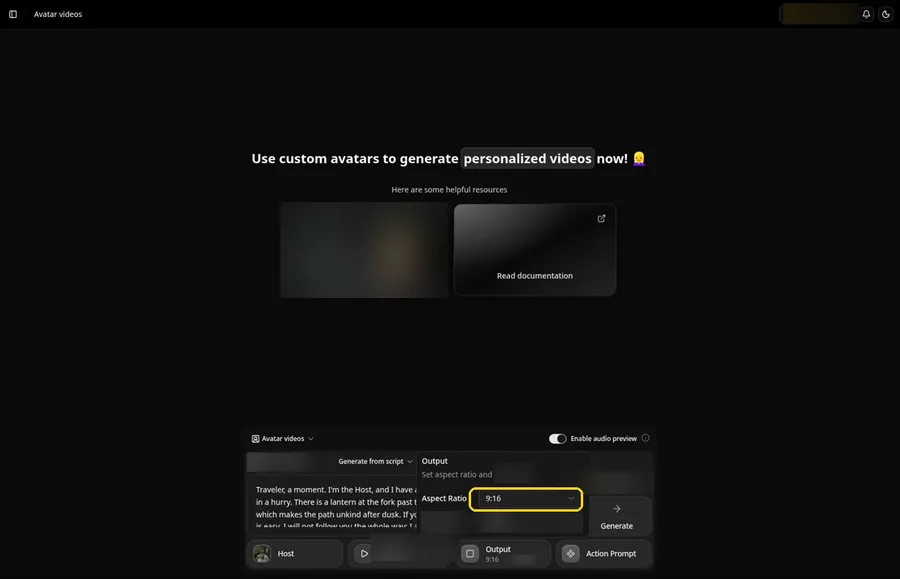
Choose your output settings. Set the Output aspect ratio dropdown to 9:16 if the talking game character is headed to vertical feeds.
Step 12: Add an Action Prompt
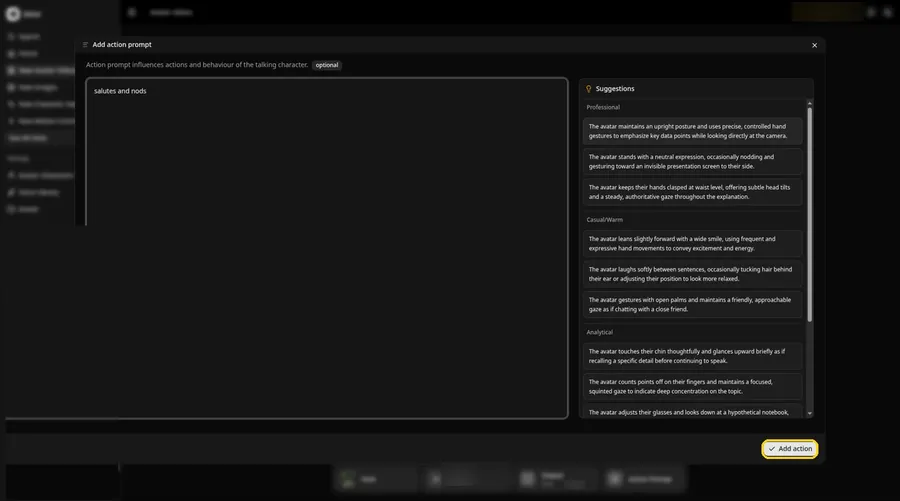
Click Action Prompt and type in the Add action prompt panel: salutes and nods. Click Add action. This step is the only place the talking game character gets its moves.
Step 13: Click Generate
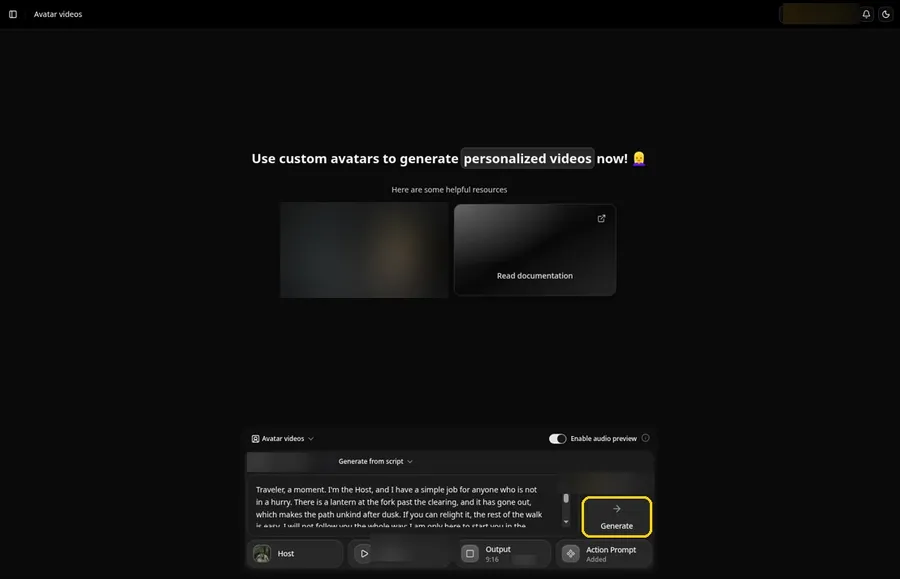
Look over every talking game character setting in the composer once more, including the Added Action Prompt chip, then click Generate.
Step 14: Confirm the Audio Preview
Listen to the talking game character audio preview, then confirm it while Zoice processes the clip.
Step 15: Preview the Video in the Player
Press play in the player and check that the talking game character lip sync and the action prompt moves match your script.
Step 16: Download From the Player Menu
Use the player's three-dot menu and choose Download to keep the talking game character file.
Step 17: Share Your Video
Post the talking game character clip as a Reel, Short or story, or drop it in a chat; stick to images and audio you have the rights to.
Writing the Action Prompt
Give the talking game character one simple move, like a short salute.
- salutes and nods
- For the talking game character, looks at the camera and smiles
- adjusts the cloak and nods
Type your pick in step 12 and click Add action so the Action Prompt chip updates on the talking game character.
Demo Idea: The Adventurer Starts the Quest
An original game-character Host in a sage-green hooded cloak, standing in a forest, opens a short quest intro in character. Here is the exact script:
"Traveler, a moment. I'm the Host, and I have a simple job for anyone who is not in a hurry. There is a lantern at the fork past the clearing, and it has gone out, which makes the path unkind after dusk. If you can relight it, the rest of the walk is easy. I will not follow you the whole way; I am only here to start you in the right direction. Thank you for stopping. I will salute, nod, and let you go, and I hope the evening stays fair. If you finish the task, come back and tell me, because even a still character likes a little news from the road. The fork is marked by a flat stone, and the lantern sits just beyond it, where the trees thicken. You will not need a large party for this; one careful person is enough. If it starts to rain, wait under the wide tree and try again, because wet weather makes the path slick. I will be in this clearing when you return, still in this cloak, still ready to hear whether the light held. Good luck, and go at a pace that keeps you safe."
Your talking game character is waiting for its first lines. Try Zoice and give the talking game character a voice.
Tips for Game Character Images
- Use a costume photo, or photo mode with the HUD hidden.
- Your own custom character only, not studio protagonists.
- Use it as a channel intro or highlight outro.
- For the talking game character, add an action prompt only after the lip sync looks right, then compare the two versions.
Our AI talking cartoon generator list pairs well with this talking game character tutorial.
FAQ
Can I use any game's main character?
Use your own custom character; check the game's content rules.
Do low poly characters work?
Test one screenshot first.
Is the action prompt required?
No. The talking game character is lip synced to your script either way; the action prompt only adds the move.
Can I make a vertical talking game character video?
Yes. Choose 9:16 in the output settings before you click Generate on the talking game character.
Try Zoice
The talking game character is ready for its close-up. Read our AI avatar generator for social media roundup, or Try Zoice and make the talking game character today.