How to Make a Talking Ninja Video With AI: 2026 Guide
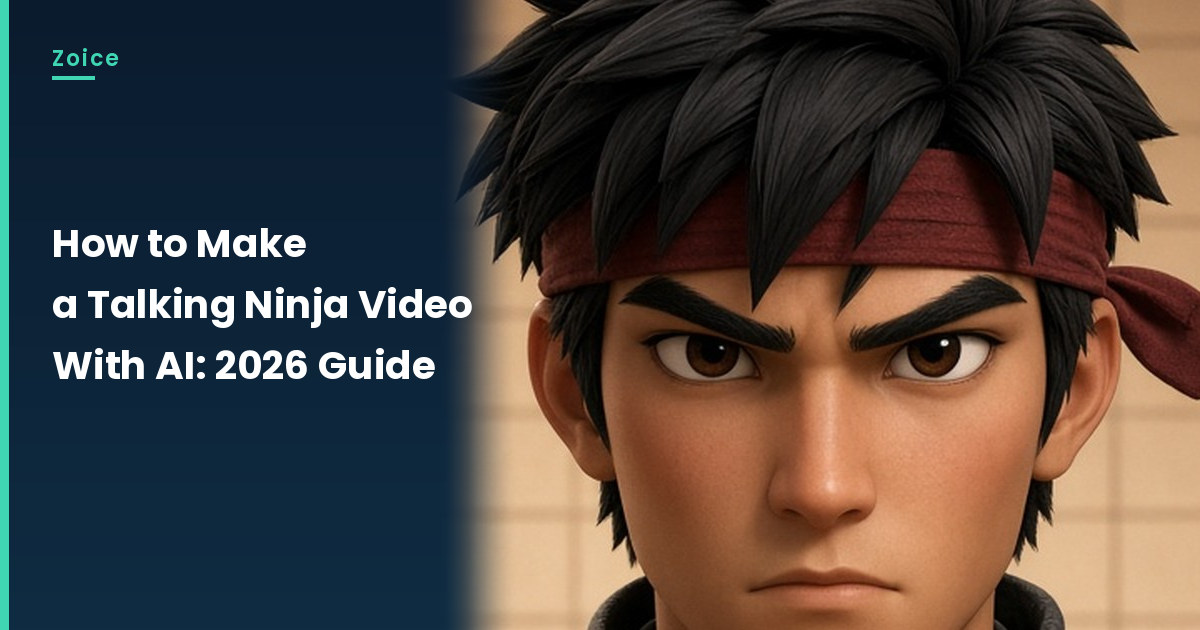
A ninja is supposed to be silent, which makes a talking one even funnier. In Zoice you upload one ninja character image as your Host, add a script, and lip sync follows your words. An action prompt adds the moves: a respectful bow, crossed arms and a sharp look. Here is how to make a ninja talk with AI, one screen at a time. This guide walks through each ninja click up to Generate.
Building your own talking ninja character starts with our guide on how to create a talking character.
Creating a Talking Ninja Character Image
A talking ninja video needs an original character with the mouth area showing. When you make the image:
- Keep the face uncovered from the nose down so lip sync works
- Use a plain dojo wall or night sky behind the character
- Design your own outfit rather than copying a franchise ninja
- Face the character straight toward the camera
How to Make a Talking Ninja Video in Zoice (Step-by-Step)
Our Host is an AI-made fictional ninja with a red headband and an uncovered face, created for this post.
Step 1: Visit Zoice and Sign In
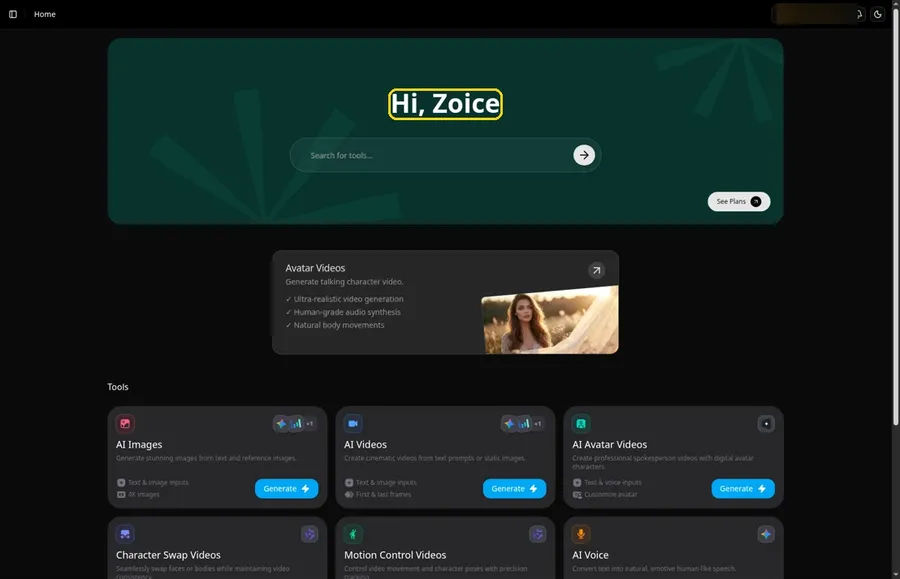
Go to Zoice and click Sign In, using email or Google; Home opens once the ninja project can begin.
Step 2: Open Avatar videos
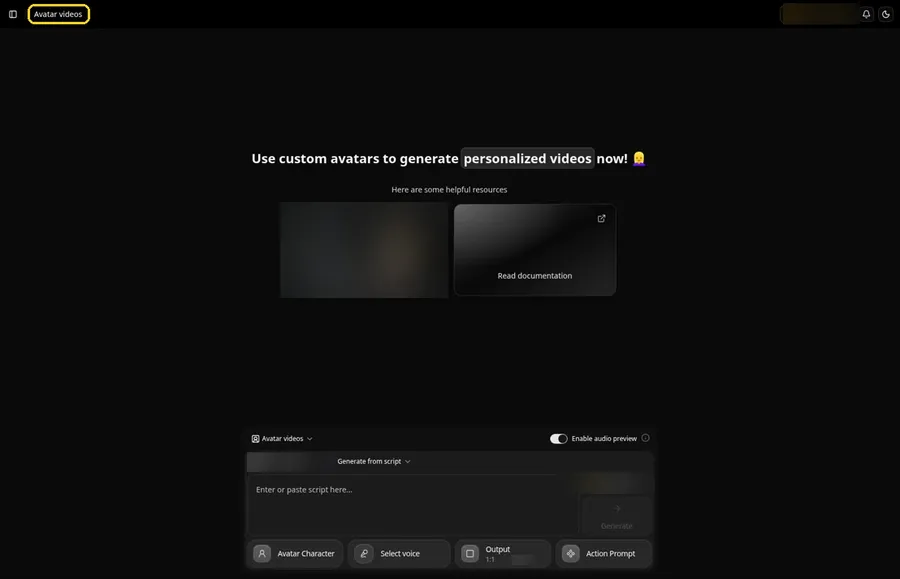
Pick Avatar videos from the sidebar to begin the ninja. The screen that opens is titled Avatar videos, with the composer for the ninja at the bottom.
Step 3: Click Avatar Character, Then Create New
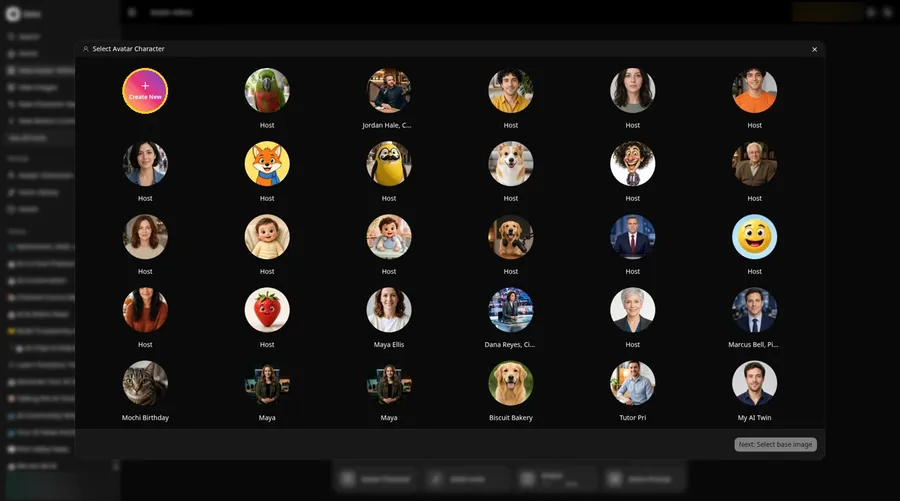
Open Avatar Character, and the Select Avatar Character window appears for the talking ninja. Create New there leads to the Avatar Characters page, where a second Create New opens the full-screen Create new avatar page for the talking ninja.
Step 4: Choose Upload Image
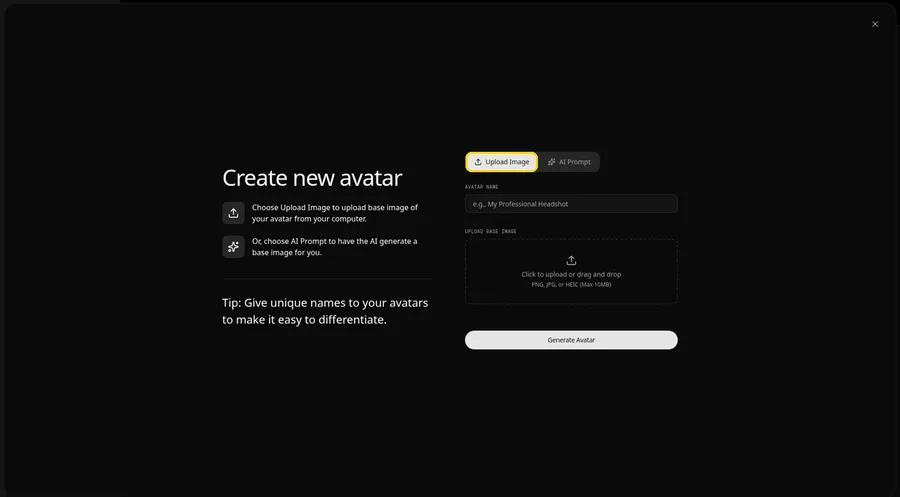
Under UPLOAD BASE IMAGE, keep the Upload Image tab selected for the talking ninja picture. The AI Prompt tab is also on this page if the talking ninja still needs a described face rather than a file.
Step 5: Upload Your Ninja Character Image
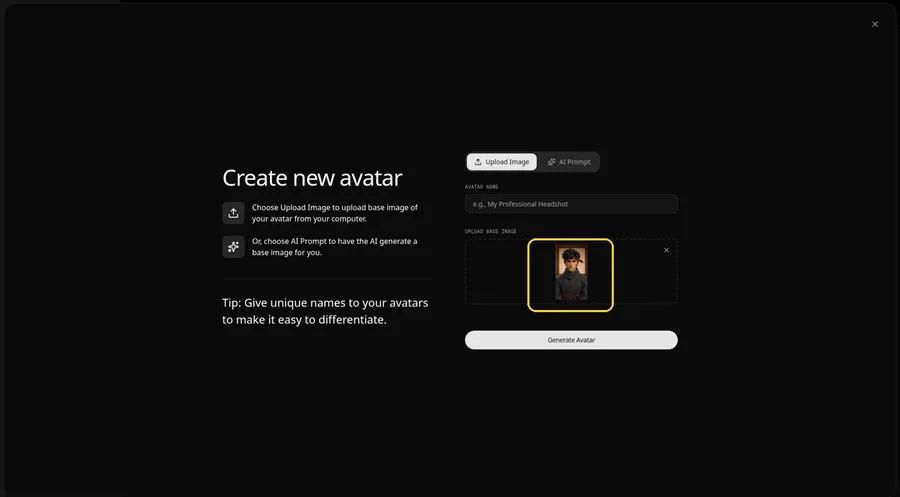
Choose a clear, front-facing ninja character photo in the upload area and check the preview shows the ninja looking straight ahead.
Step 6: Name Your Avatar Host and Click Generate Avatar
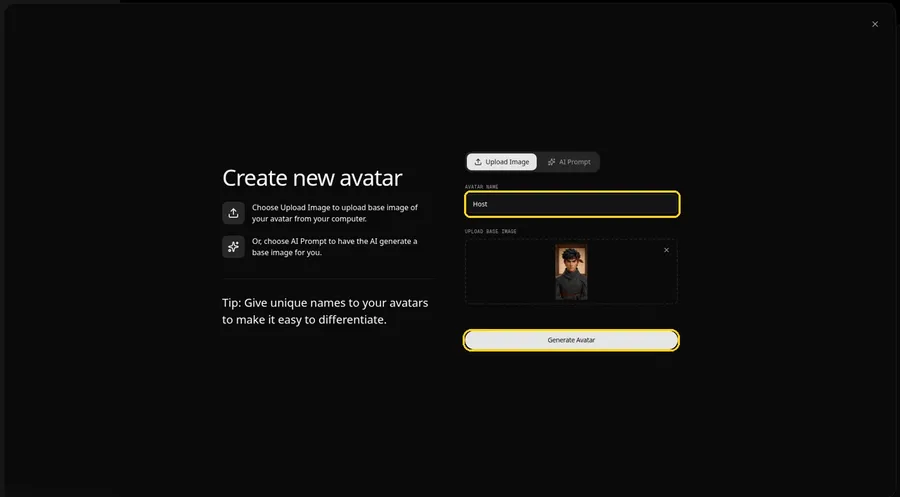
Type Host in the AVATAR NAME field and click Generate Avatar, so the talking ninja is saved for later videos.
Step 7: Open the Add Script Panel
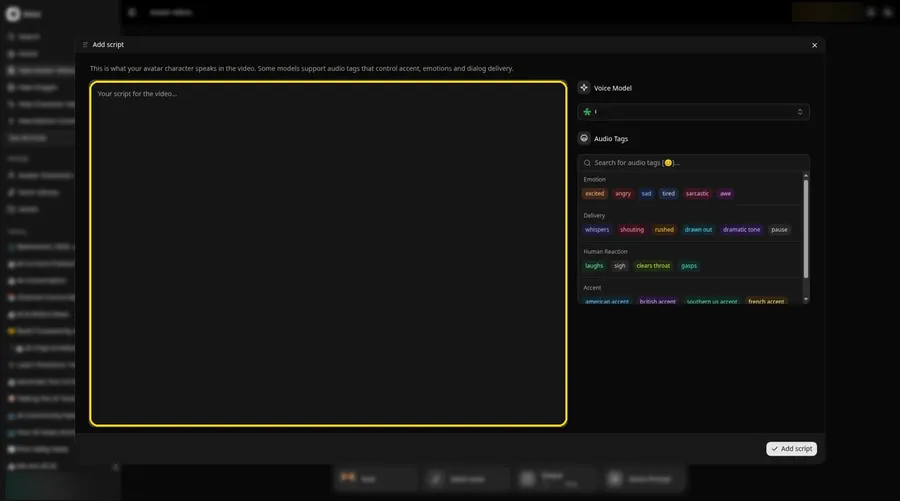
Click the script box in the composer to open the Add script panel for the ninja.
Step 8: Choose the Voice Model
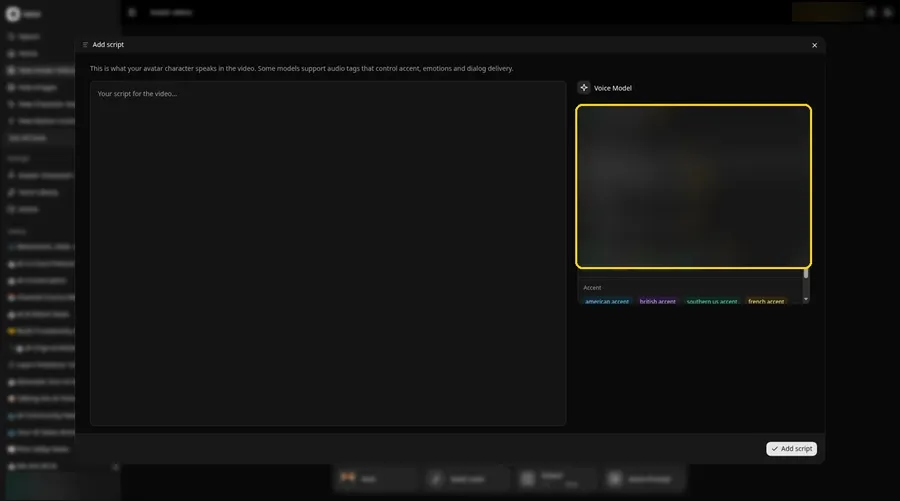
Pick a model in the Voice Model menu before the ninja script goes in.
Step 9: Paste Your Script and Click Add Script
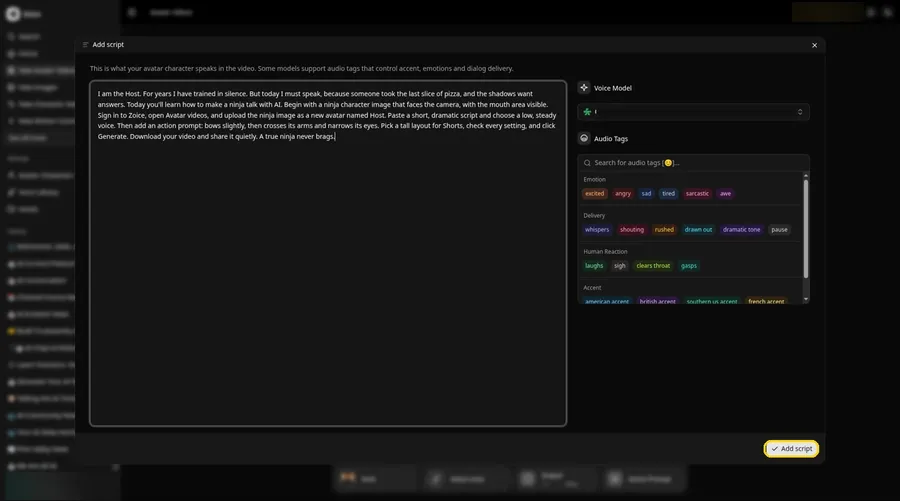
Drop in the full ninja script, then click Add script. The opening words are: I am the Host.
Step 10: Pick a Voice
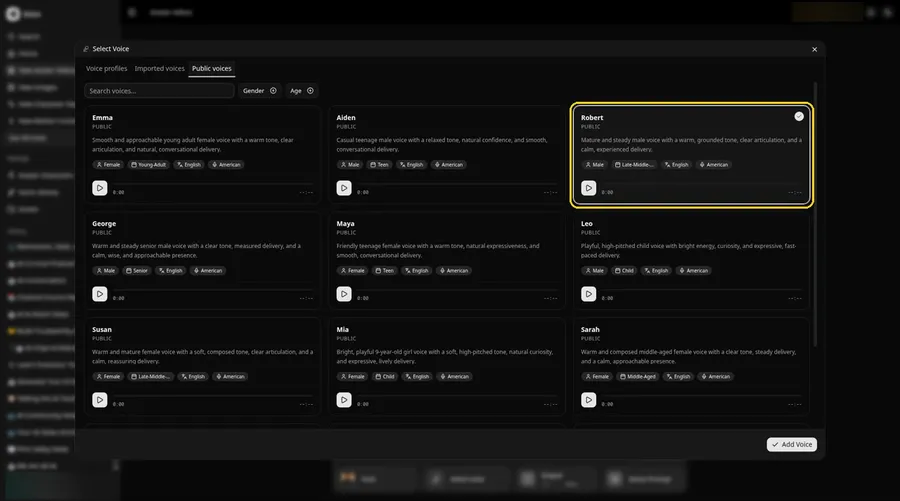
- Click the voice button in the composer to open Select Voice for the talking ninja.
- Pick a voice for the talking ninja on the Public voices tab.
- Click Add Voice to attach that voice to the talking ninja.
Choose a steady, calm adult voice for the ninja Host.
Step 11: Choose Your Output Settings
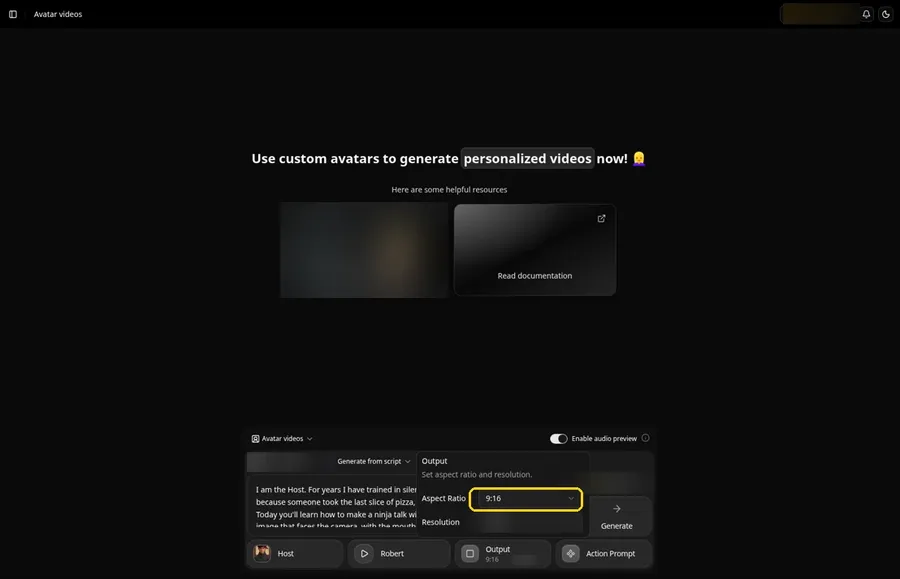
Choose your output settings. The talking ninja video uses 9:16, picked from the aspect ratio dropdown in Output.
Step 12: Add an Action Prompt
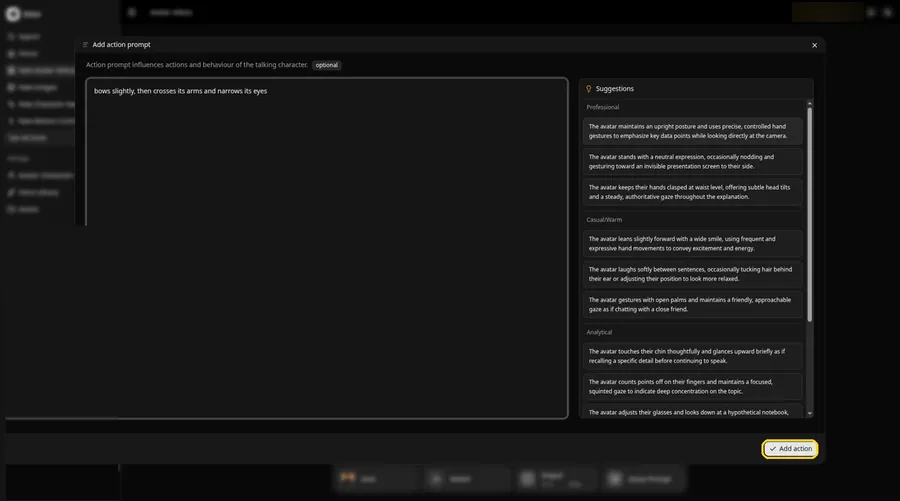
In the Add action prompt panel, enter: bows slightly, then crosses its arms and narrows its eyes. Press Add action and check that Added shows on the Action Prompt chip, since the talking ninja only moves the way this prompt says.
Step 13: Click Generate
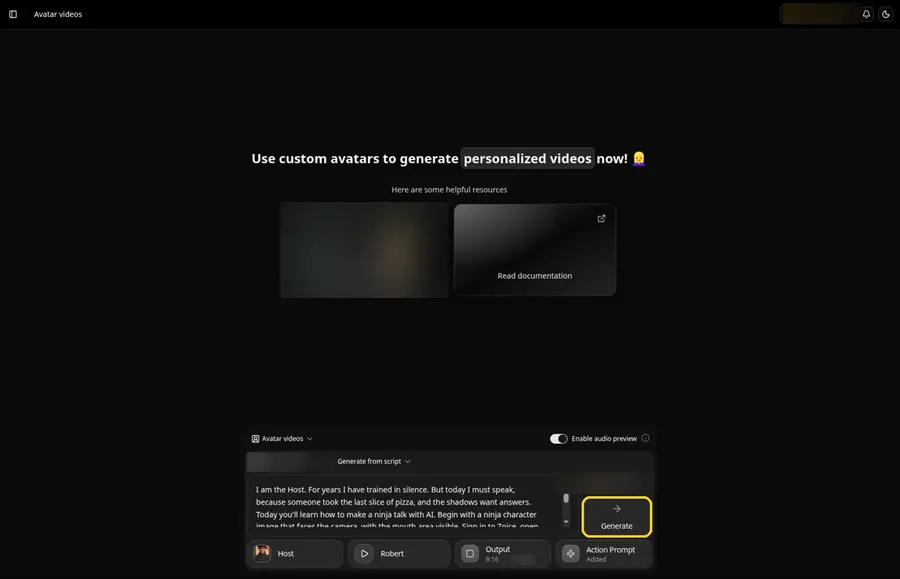
Check the ninja Host, the voice, the script, the 9:16 output and the Added action prompt, then click Generate.
Step 14: Confirm the Audio Preview and Let Zoice Process
Zoice plays an audio preview of the ninja script; click Generate avatar video to confirm, then wait while the video processes.
Step 15: Watch the Result
Play the ninja video in the player and make sure the words and the prompted moves line up.
Step 16: Download From the Player Menu
Click the three-dot menu on the player, then Download, and the ninja video saves to your device.
Step 17: Share Your Talking Ninja
Post it to Shorts or Reels, or send it to a friend who needs a dramatic message.
Writing the Talking Ninja Action Prompt
Keep the talking ninja calm and controlled. One deliberate move reads better than several fast ones.
- bows slightly, then crosses its arms and narrows its eyes
- lowers its head, then looks up slowly with a serious stare
- nods once, then folds its hands in front of its chest
Demo Idea: A Talking Ninja Breaks Its Silence
The talking ninja Host breaks its vow of silence to deliver a very serious announcement about the last slice of pizza. This is the exact script:
"I am the Host. For years I have trained in silence. But today I must speak, because someone took the last slice of pizza, and the shadows want answers. Today you'll learn how to make a ninja talk with AI. Begin with a ninja character image that faces the camera, with the mouth area visible. Sign in to Zoice, open Avatar videos, and upload the ninja image as a new avatar named Host. Paste a short, dramatic script and choose a low, steady voice. Then add an action prompt: bows slightly, then crosses its arms and narrows its eyes. Pick a tall layout for Shorts, check every setting, and click Generate. Download your video and share it quietly. A true ninja never brags."
Your talking ninja has waited long enough to speak. Try Zoice and break the silence.
Tips for Your Talking Ninja Video
- Use a ninja image where the mouth area is visible; a fully covered face hides the lip sync.
- Pick a simple background like a dojo wall so the character stands out.
- Write short, dramatic lines with pauses for a mysterious tone.
- Action prompt tip: keep the moves calm and controlled, such as bows slightly, then crosses its arms.
- Choose a steady, calm adult voice for a classic ninja feel.
Cartoon-style ninjas work well too, as our AI talking cartoon generator roundup shows.
Talking Ninja Video FAQ
Can the ninja wear a full mask?
It works best when the mouth area is visible, because lip sync follows the mouth.
Can I make a cartoon ninja?
Yes. A cartoon or illustrated ninja works, as long as the face is clear and front-facing.
How do I add a bow?
Type it in the action prompt step, such as bows slightly, and click Add action.
Can I use it for a Short?
Yes. Choose 9:16 in the output settings before you generate the ninja video.
Try Zoice
The talking ninja video is ready to create. For kid-friendly characters, see our AI talking character generator for kids list, or Try Zoice and make your ninja talk.