How to Make a Puppet Talk With AI: A Simple 2026 Guide
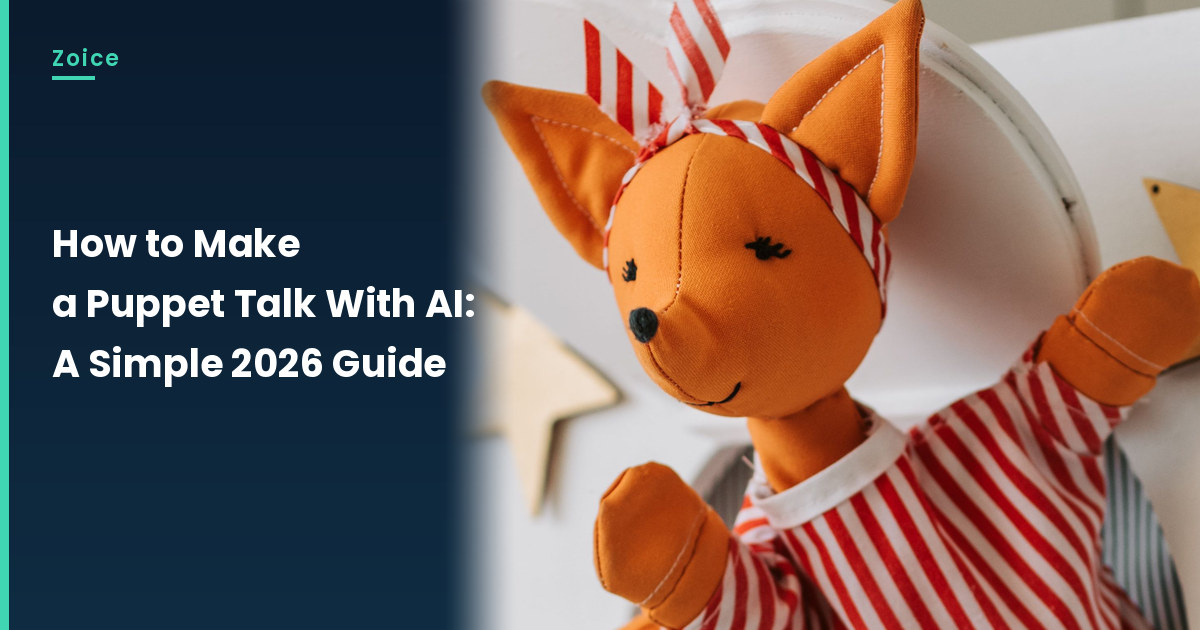
A felt puppet already looks ready to deliver a line from a tiny stage. This is how to make a puppet talk with AI from a puppet you own or made, which suits classroom stories and home plays. In Zoice you upload a front-facing photo as your Host, write a short script, and the mouth is lip synced to your words. For the talking puppet, an optional action prompt can add a small bow. Test the face, and do not use a licensed puppet you do not own.
Before you start the talking puppet, you may like our AI talking character generator for kids roundup.
Choosing a Puppet Image Zoice Can Read
A talking puppet works best from a front-facing photo of a puppet you own, with both eyes and a clearly visible mouth, in even playroom light.
- Shoot the puppet on its stage or against a plain wall
- Keep hair, hats, and curtains off the mouth
- For the talking puppet, step close enough that the face fills the frame
- Test the photo in Zoice; if a face is not detected, try a tighter crop or a more defined mouth
How to Make a Puppet Talk with AI in Zoice
Our Host is an original orange fox hand puppet with a stitched smile and a clearly visible mouth, in a red and white striped shirt, peeking from a round window in a small white puppet stage, with no brand marks, used as the Host for this post and saved in the app.
Step 1: Sign In to Zoice and Open Home
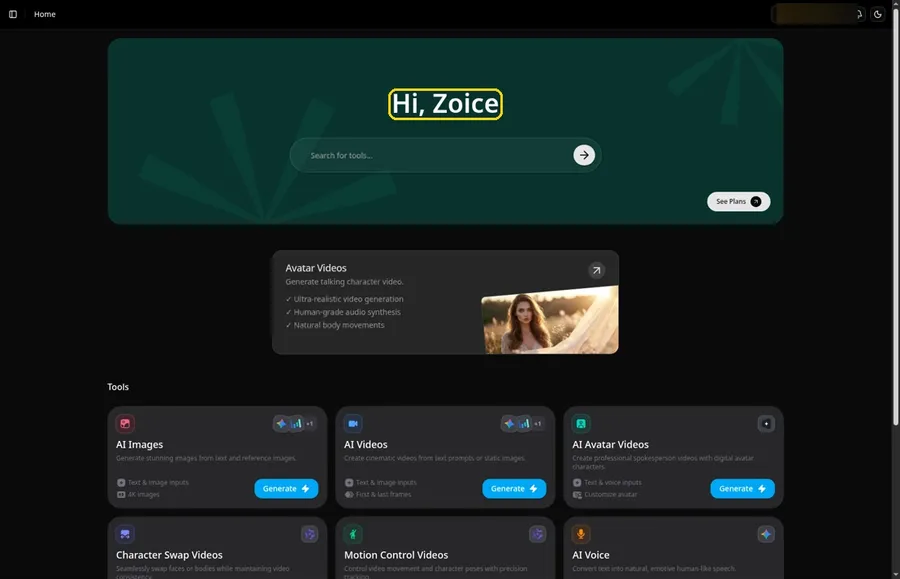
Go to Zoice and click Sign In, using email or Google; Home opens once the talking puppet project can begin.
Step 2: Open Avatar videos
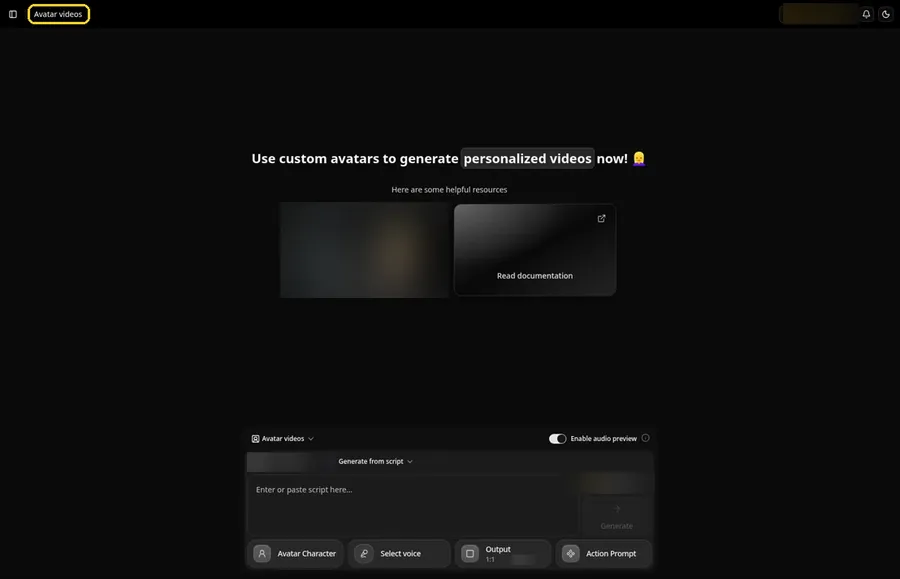
Open Avatar videos. The page title reads Avatar videos, and the composer is empty with Output at the default 1:1.
Step 3: Open Avatar Character and Create a New Avatar
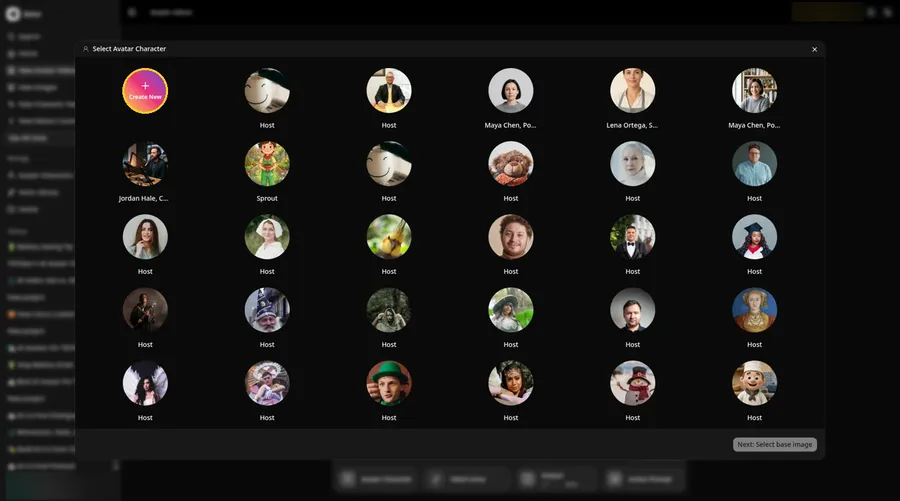
For the talking puppet, press Avatar Character, choose Create New in Select Avatar Character, then press Create New on the Avatar Characters page to reach the full-screen Create new avatar page.
Step 4: Choose Upload Image
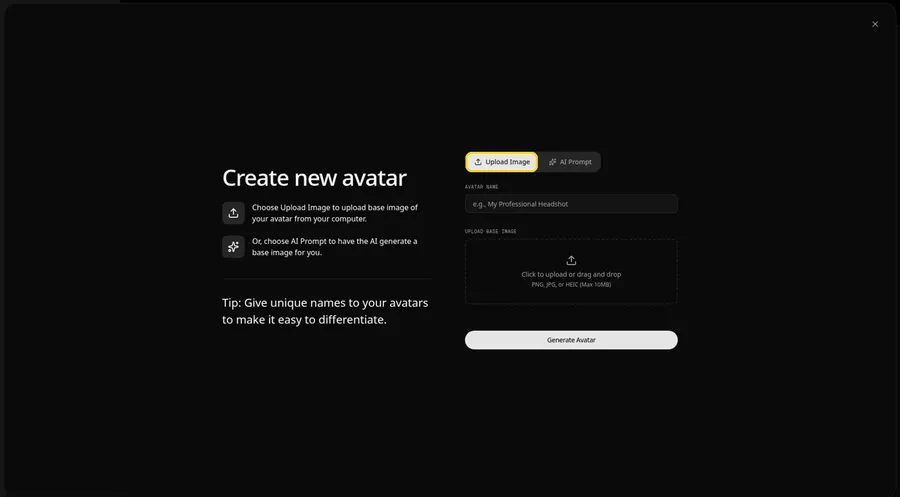
Under UPLOAD BASE IMAGE, keep the Upload Image tab selected for the talking puppet picture.
Step 5: Upload the Puppet Image
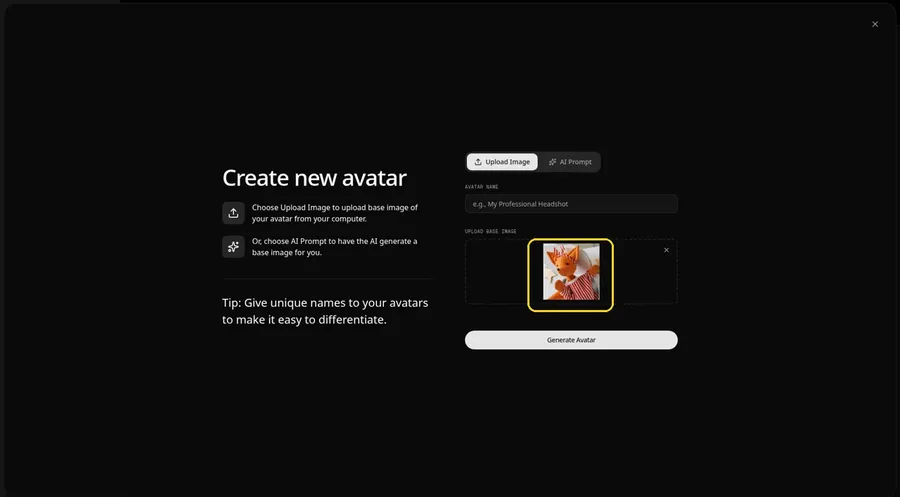
Choose the puppet image in the upload area. The preview should show the orange fox hand puppet looking toward the camera, with a stitched smile and a red and white striped shirt, peeking from a round window in a small white puppet stage.
Step 6: Name Your Avatar Host and Click Generate Avatar
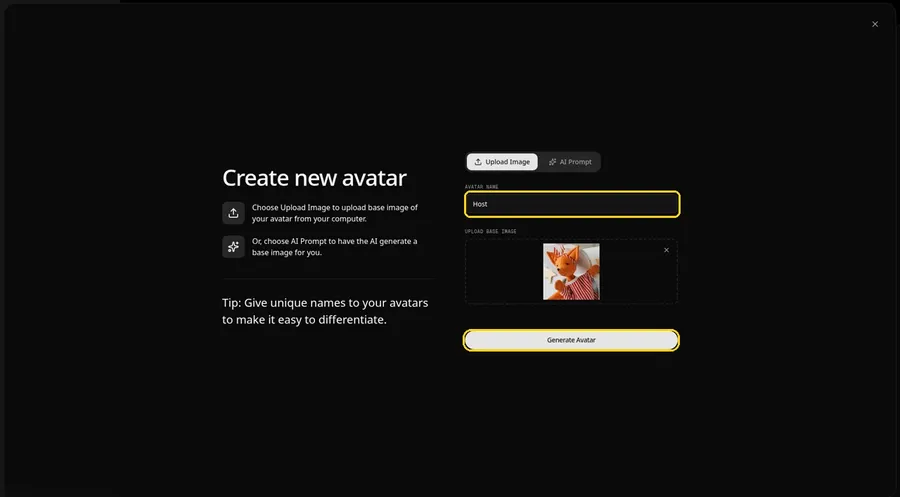
Enter Host under AVATAR NAME, with the preview in place, ready to click Generate Avatar.
Step 7: Open the Add Script Panel
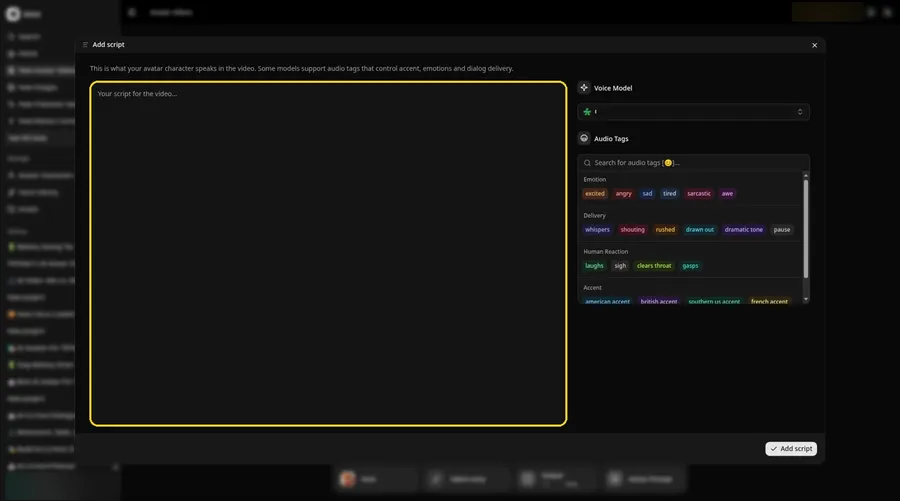
Click the script box in the composer, and the Add script panel opens for the talking puppet.
Step 8: Choose the Voice Model
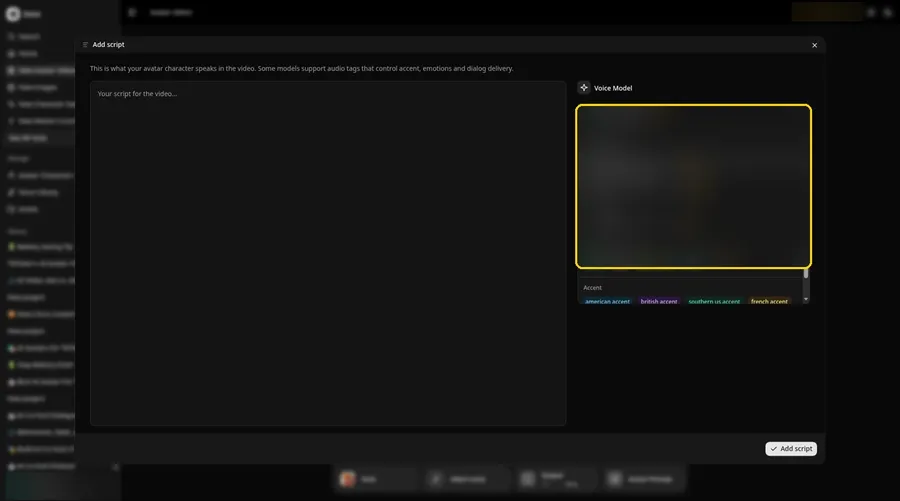
Pick a model in the Voice Model menu before the talking puppet script goes in.
Step 9: Paste Your Script and Click Add Script
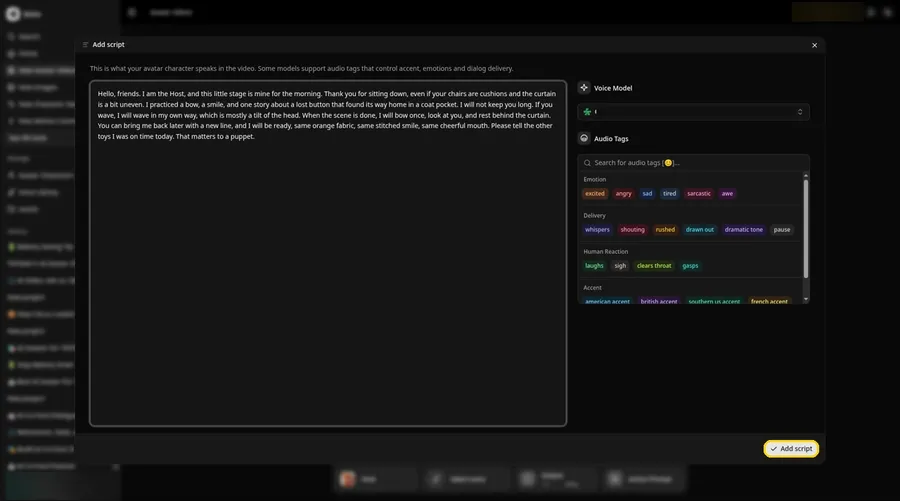
Drop in the full talking puppet script, then click Add script. The opening words are: Hello, friends.
Step 10: Pick a Voice
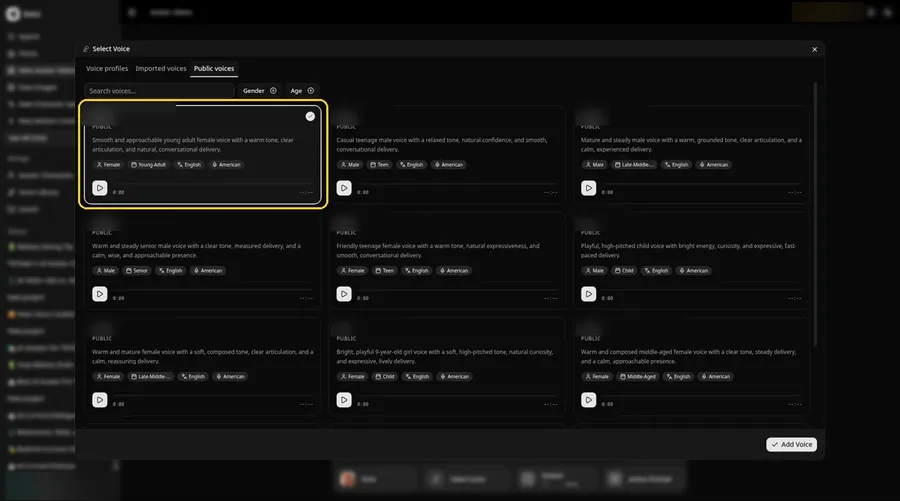
Click the voice button in the composer to open Select Voice for the talking puppet. Pick a warm, playful adult voice on the Public voices tab, then click Add Voice to attach it.
Step 11: Choose your output settings
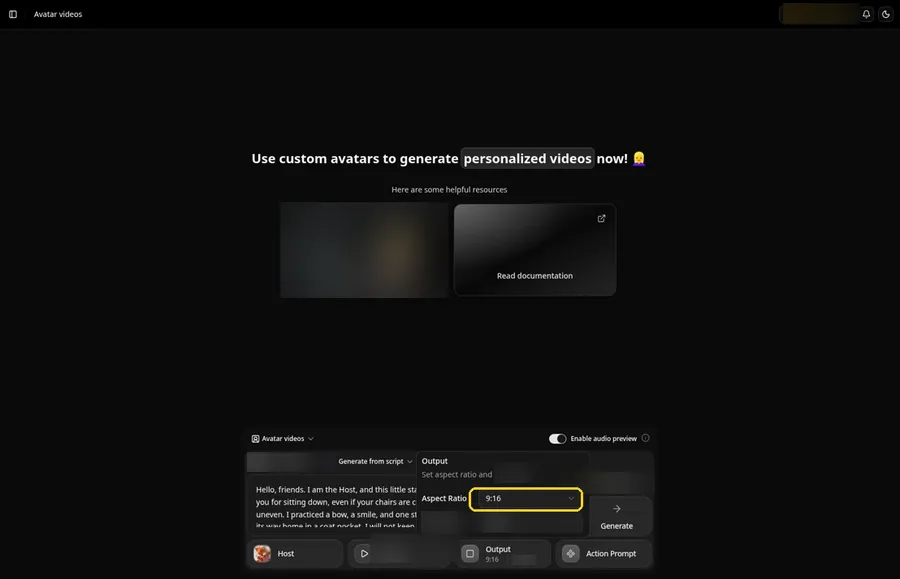
Choose your output settings. The talking puppet video uses 9:16, picked from the aspect ratio dropdown in Output.
Step 12: Add an Action Prompt
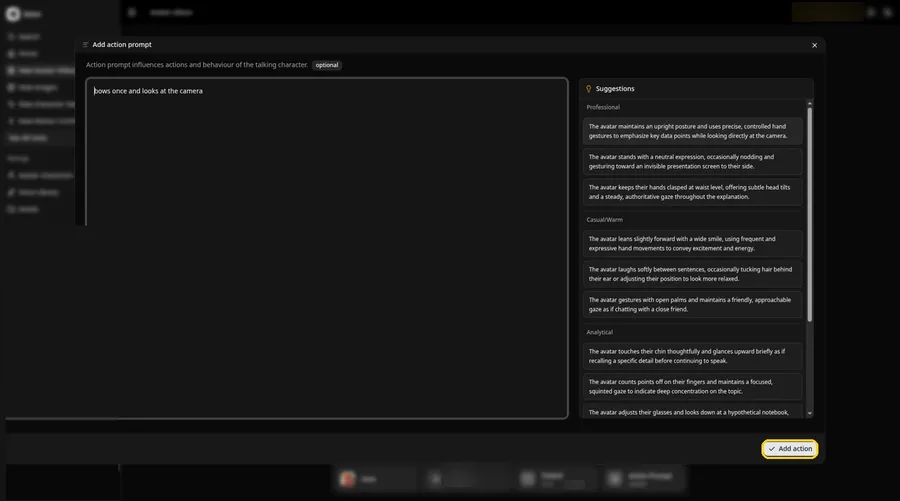
In the Add action prompt panel, enter: bows once and looks at the camera. Press Add action. The talking puppet only moves the way this prompt says.
Step 13: Click Generate
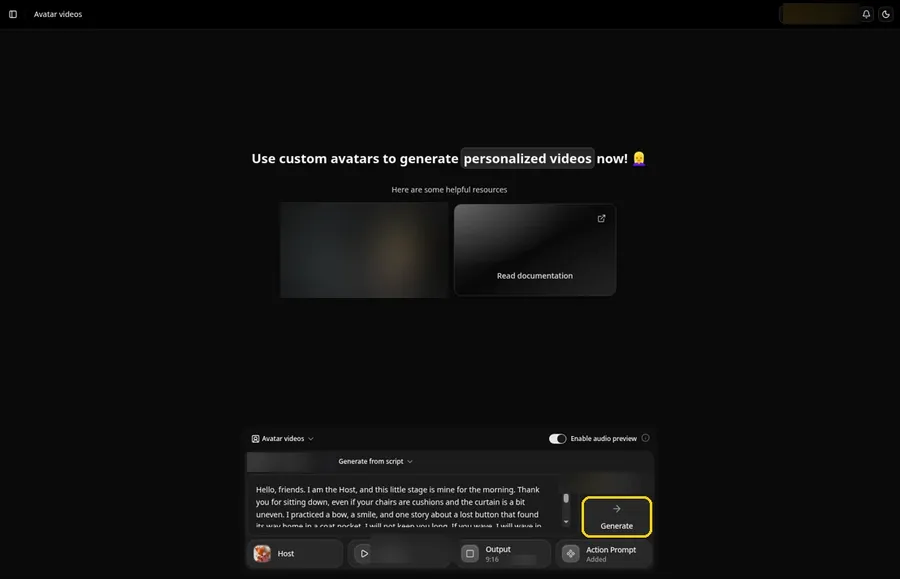
Check the talking puppet Host, the voice, the script, the 9:16 output and the Added Action Prompt chip, then click Generate.
Step 14: Confirm the Audio Preview
An audio preview of the talking puppet lines plays first; if it sounds right, confirm it and let Zoice process it.
Step 15: Preview the Video in the Player
Watch the talking puppet video once in the player to check the lip sync and the action prompt.
Step 16: Download From the Player Menu
Open the three-dot menu on the player and click Download to save the talking puppet video.
Step 17: Share Your Video
Share the downloaded talking puppet video in a group chat or as a Reel, Short or story, using only images and audio you made or may use.
Writing the Action Prompt
Keep the talking puppet move small, like a single bow, so it still feels like a figure on a toy stage.
- bows once and looks at the camera
- tilts the head and smiles
- looks toward the curtain and back
Type your pick in step 12 and click Add action.
Demo Idea: A Morning Greeting From the Stage
An original fox hand-puppet Host welcomes a small audience and promises a short, kind scene from a little white stage. Here is the exact script:
"Hello, friends. I am the Host, and this little stage is mine for the morning. Thank you for sitting down, even if your chairs are cushions and the curtain is a bit uneven. I practiced a bow, a smile, and one story about a lost button that found its way home in a coat pocket. I will not keep you long. If you wave, I will wave in my own way, which is mostly a tilt of the head. When the scene is done, I will bow once, look at you, and rest behind the curtain. You can bring me back later with a new line, and I will be ready, same orange fabric, same stitched smile, same cheerful mouth. Please tell the other toys I was on time today. That matters to a puppet."
Ready to make your own talking puppet video? Try Zoice and follow the talking puppet steps above.
Tips for Puppet Photos
- Photograph the puppet at eye level, not from above.
- Keep the background simple so the face stands out.
- Write a short scene with a greeting and a close.
- Use a small bow or head tilt in the action prompt.
Once the talking puppet works, branch out with our AI storytelling avatar generator roundup.
FAQ
Can I use a store-bought puppet?
Yes, if you own it and it is not a licensed character you lack rights to show.
Does a felt mouth need extra definition?
A slightly darker or more open mouth often reads more clearly than a faint stitch line.
Is this only for children?
No. The same steps work for classroom stories, church skits, or a short funny clip for adults.
Is the action prompt required?
No. The talking puppet is lip synced to your script either way; the action prompt only adds the move.
Can I make a vertical talking puppet video?
Yes. Choose 9:16 in the output settings before you click Generate on the talking puppet.
Try Zoice
Your talking puppet video is one click away. Explore our guide on how to create a talking character, or Try Zoice and start your talking puppet now.