How to Make a Hedgehog Talk With AI: A Simple 2026 Guide
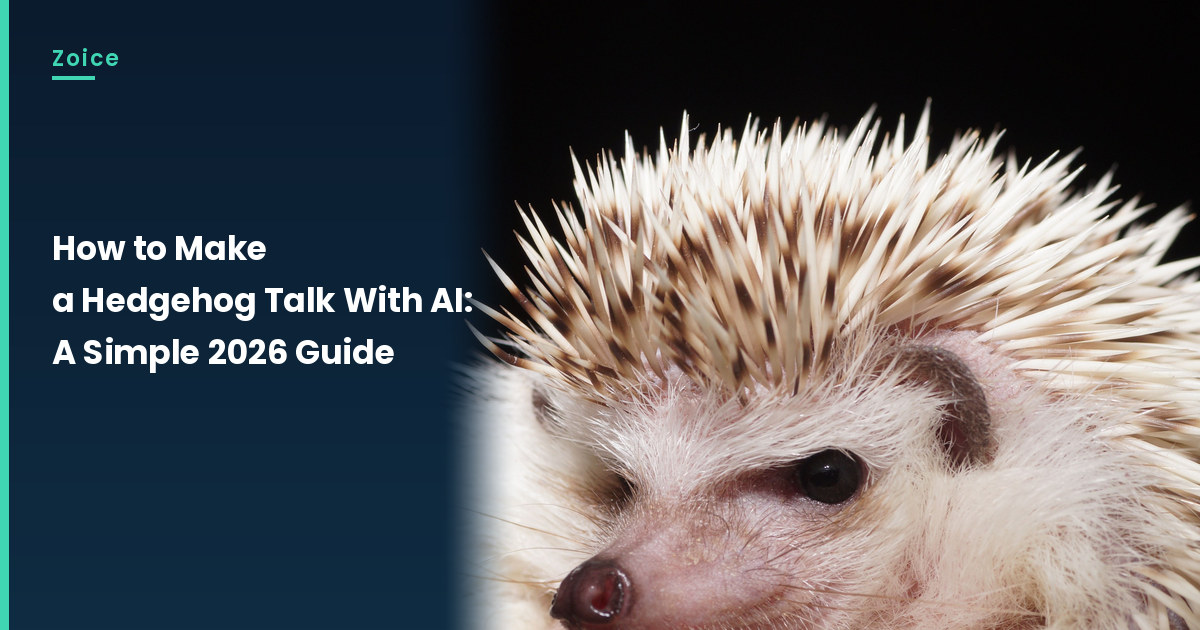
A hedgehog's face is small, so the photo has to show the nose and mouth clearly if you want a talking clip. This is how to make a hedgehog talk with AI in Zoice: upload a close, front-facing picture, use it as the Host, paste a short nest-side greeting, pick a voice, and let lip sync follow the words. An optional action prompt can add a small move, such as sniffs the air and blinks at the camera. Use a stock or fictional hedgehog photo you may use.
Here is how to make a hedgehog talk with AI, one screen at a time. Another small-animal walkthrough is our talking axolotl tutorial.
Picking a Hedgehog Photo That Can Talk
Use a close hedgehog photo that shows the nose and a visible mouth. Small faces need a tight crop so lip sync has something to follow. Only use a photo you made or may use for this talking hedgehog.
- Choose a close, front-facing hedgehog with a visible mouth
- Quills are fine if they do not hide the nose or mouth
- Keep the script quiet, like evening nest tips
- Skip franchise characters, and test the face in Zoice
How to Make a Hedgehog Talk With AI in Zoice
Our Host is a stock photograph of a pale hedgehog with brown-tipped quills, a dark nose and a visible mouth, facing the camera against a dark background, used as the Host for this post and saved in the app.
If you want a water-dwelling cousin of this talking hedgehog, see our talking octopus tutorial.
Step 1: Sign In to Zoice and Open Home
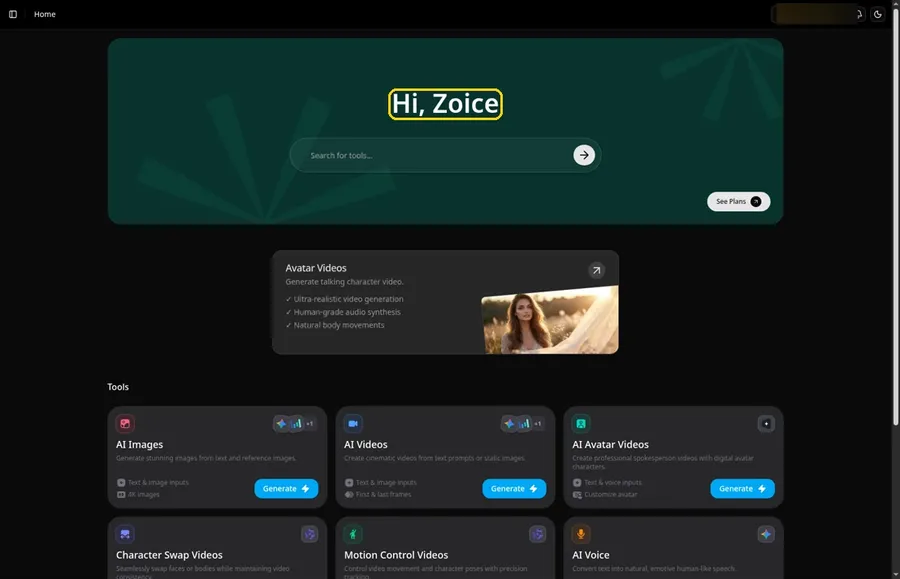
Go to Zoice first, hit Sign In, and use email or Google to reach Home before you build the talking hedgehog.
Step 2: Open Avatar videos
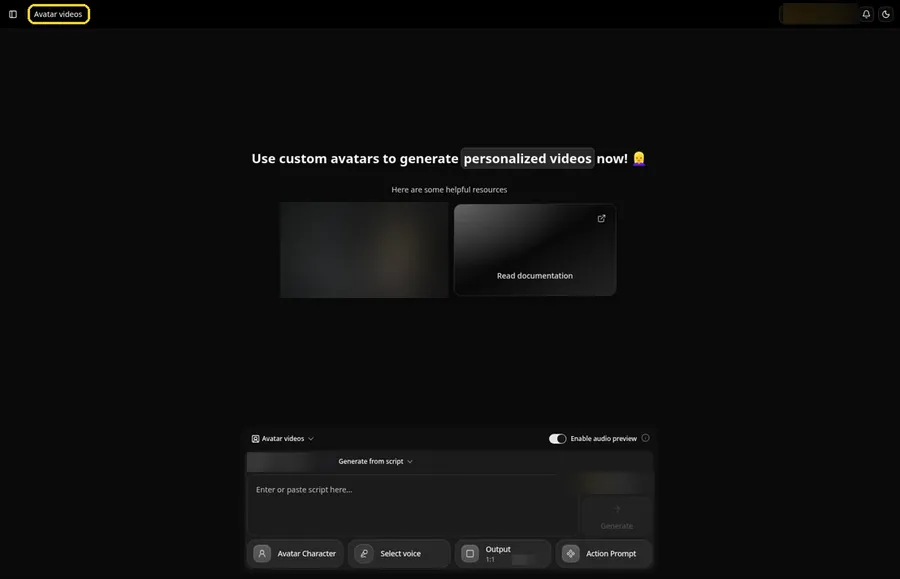
Open Avatar videos. The page title reads Avatar videos, and the composer is empty with Output at the default 1:1.
Step 3: Open Avatar Character and Create a New Avatar
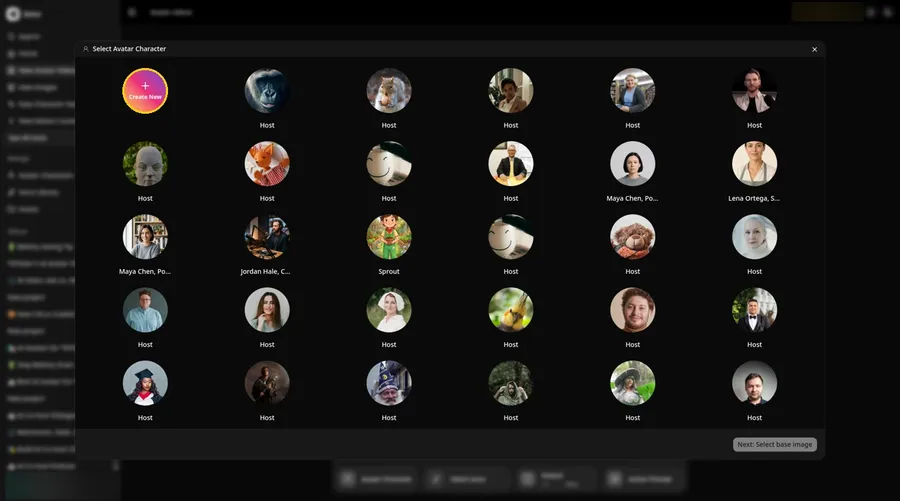
Open Avatar Character, press Create New in the Select Avatar Character window, and click Create New once more if needed until the talking hedgehog reaches the full-screen Create new avatar page.
Step 4: Choose Upload Image
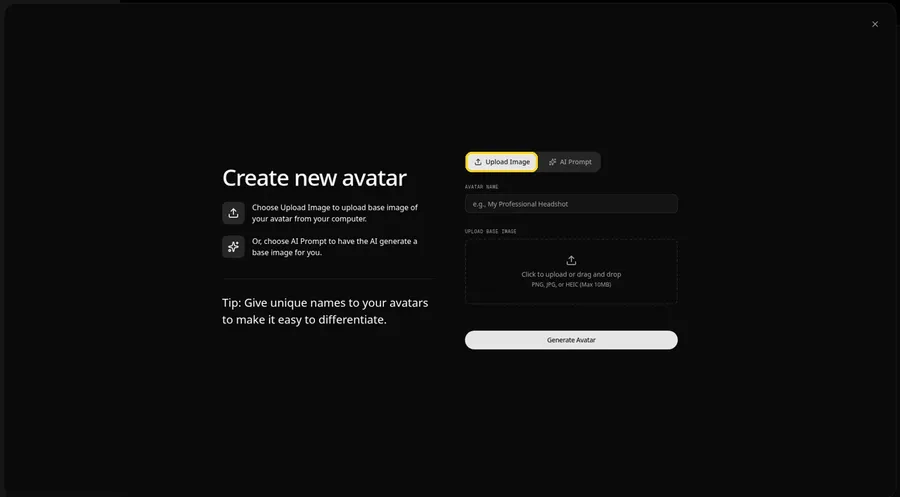
Stay on the Upload Image tab under UPLOAD BASE IMAGE so the talking hedgehog can come from an uploaded picture.
Step 5: Upload the Hedgehog Image
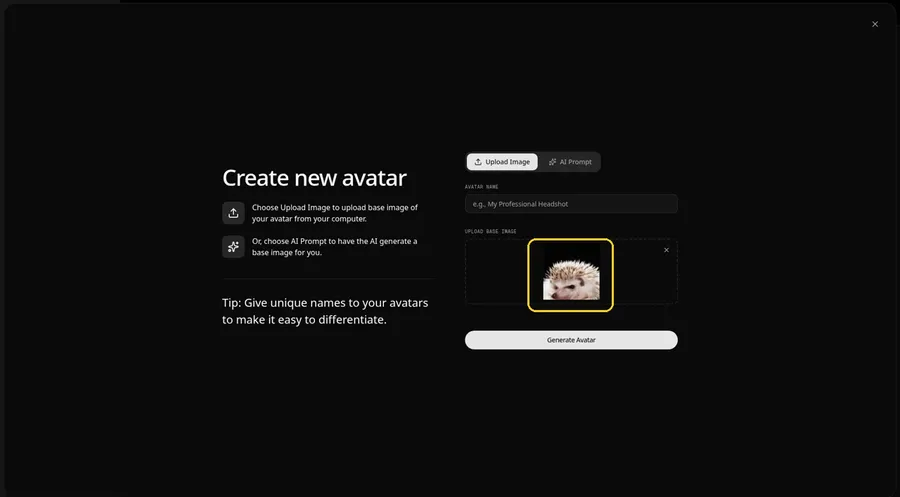
Add the talking hedgehog image in the upload area until the preview clearly shows a pale hedgehog with brown-tipped quills, a dark nose and a visible mouth, facing the camera against a dark background.
Step 6: Name Your Avatar Host and Click Generate Avatar
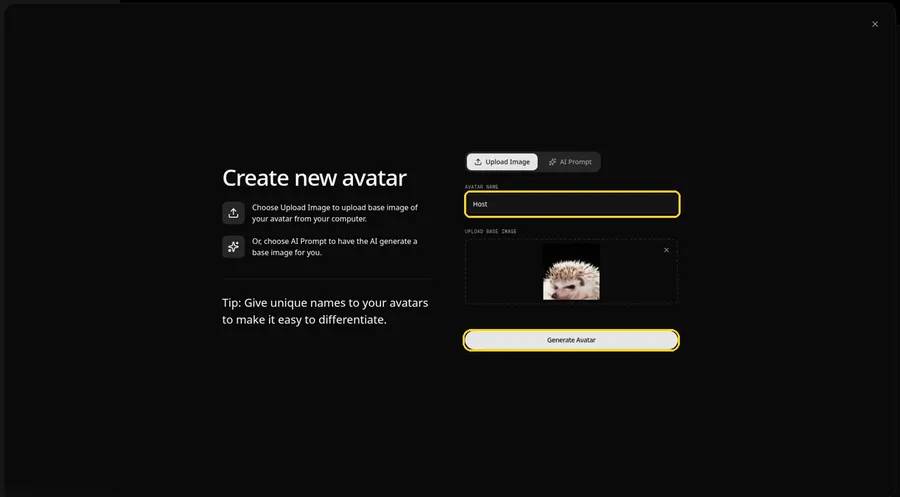
Type Host in the AVATAR NAME field, with the preview in place, ready to click Generate Avatar.
Step 7: Open the Add Script Panel
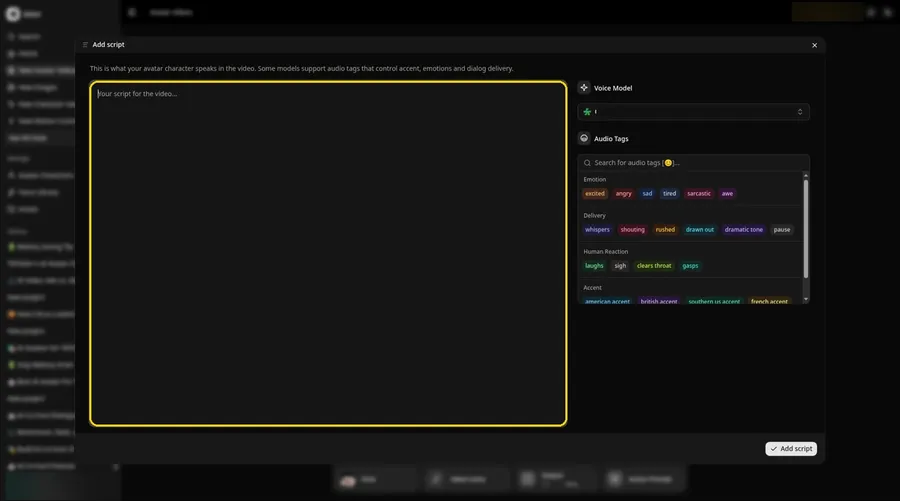
Open the Add script panel by clicking the script box, which is how the talking hedgehog takes its lines.
Step 8: Choose the Voice Model
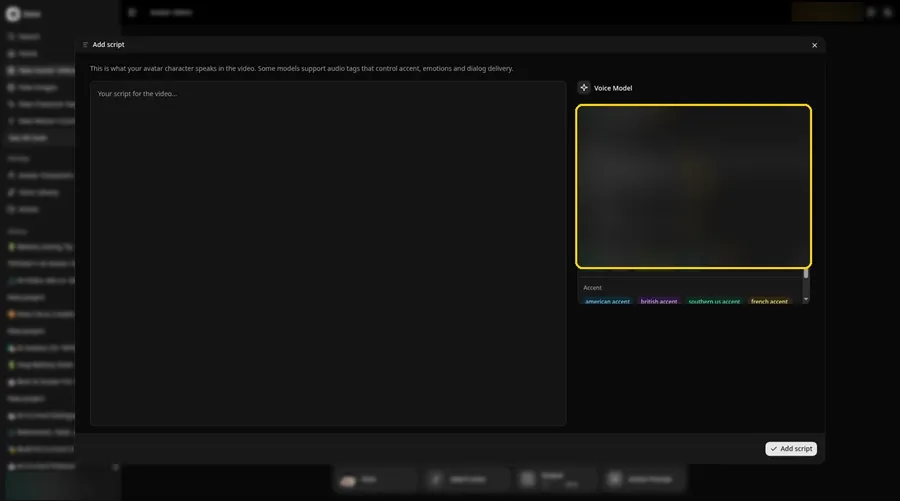
Use the Voice Model menu in Add script to pick the voice model for the talking hedgehog.
Step 9: Paste Your Script and Click Add Script
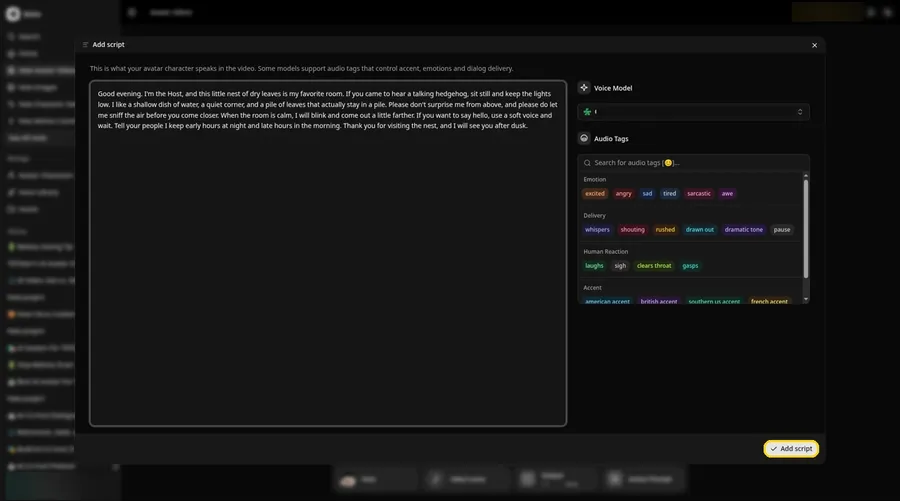
Drop the talking hedgehog script into the box, review it, and click Add script. It begins: Good evening.
Step 10: Pick a Voice
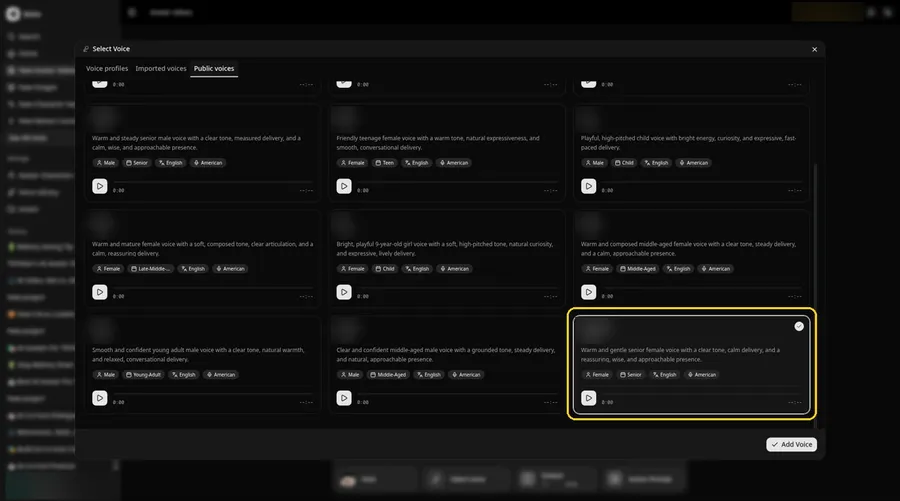
Open Select Voice, remain on the Public voices tab, select a soft and friendly adult voice, and click Add Voice so the talking hedgehog has a voice.
Step 11: Choose your output settings
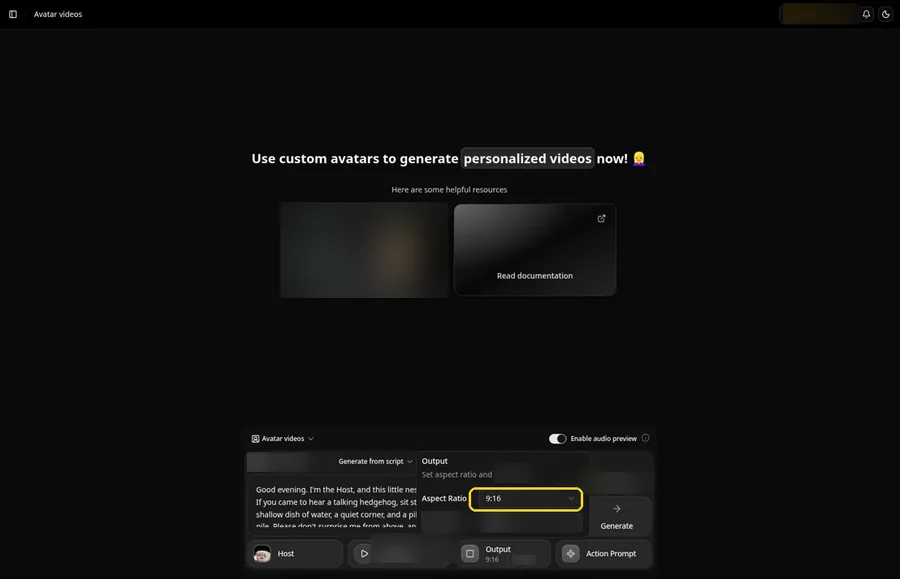
Choose your output settings. Open Output and set the aspect ratio to 9:16 when the talking hedgehog is meant for vertical clips.
Step 12: Add an Action Prompt
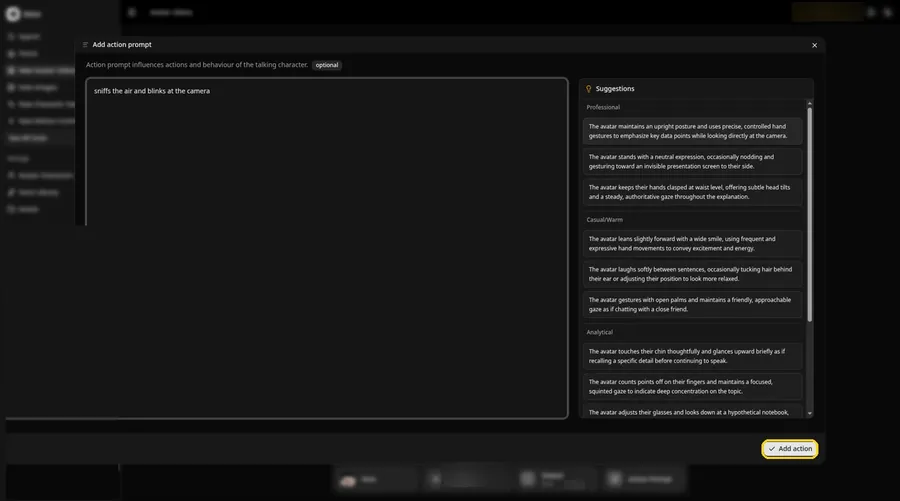
Open Add action prompt, type sniffs the air and blinks at the camera, and click Add action so the talking hedgehog is limited to that move.
Step 13: Click Generate
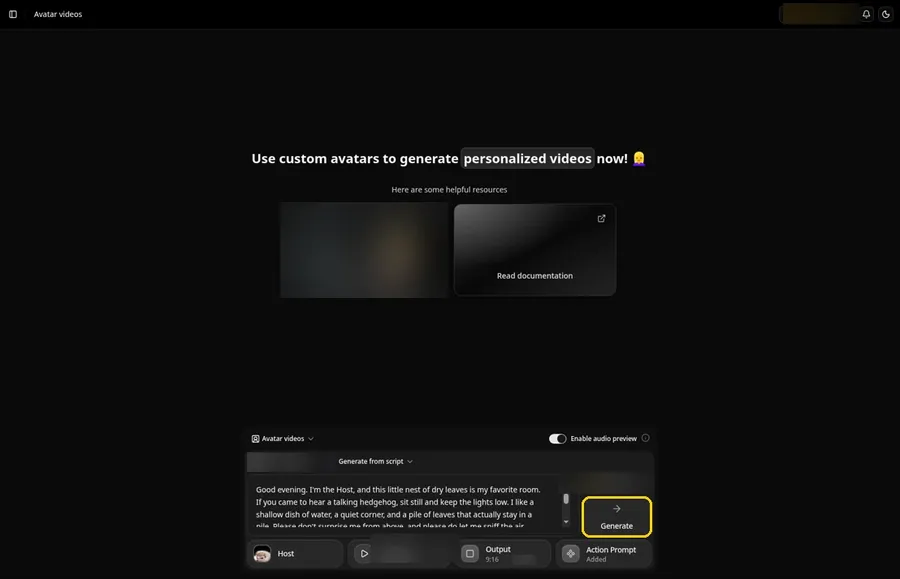
Confirm the talking hedgehog Host, voice, script, 9:16 output and the Action Prompt chip that reads Added, then click Generate.
Step 14: Confirm the Audio Preview
Hear the talking hedgehog audio preview first, then confirm it and let Zoice process the clip.
Step 15: Preview the Video in the Player
Open the player, press play, and watch the talking hedgehog lip sync and the action prompt move beside the script.
Step 16: Download From the Player Menu
From the player menu, choose Download so you can keep a copy of the talking hedgehog.
Step 17: Share Your Video
Send the talking hedgehog as a story, a Short, a Reel or a chat message, using only images and audio you may use.
Writing the Action Prompt
Keep the talking hedgehog move tiny, like a sniff and a blink as the evening tips begin.
- sniffs the air and blinks at the camera
- looks at the camera and blinks
- noses forward and pauses
Type your pick in step 12 and click Add action so the Action Prompt chip updates on the talking hedgehog.
Demo Idea: Evening Tips From the Nest
A stock-photograph Host, of a pale hedgehog with brown-tipped quills, shares quiet evening nest tips, with a sniff and a blink from the action prompt. Here is the exact script:
"Good evening. I'm the Host, and this little nest of dry leaves is my favorite room. If you came to hear a talking hedgehog, sit still and keep the lights low. I like a shallow dish of water, a quiet corner, and a pile of leaves that actually stay in a pile. Please don't surprise me from above, and please do let me sniff the air before you come closer. When the room is calm, I will blink and come out a little farther. If you want to say hello, use a soft voice and wait. Tell your people I keep early hours at night and late hours in the morning. Thank you for visiting the nest, and I will see you after dusk."
Your talking hedgehog is waiting for its first lines. Try Zoice and give the talking hedgehog a voice.
Tips for Your Talking Hedgehog Video
- Use a close, front-facing hedgehog photo with the face in focus, and only use a photo you made or may use.
- Keep the script gentle and specific, with nest, leaf and evening details.
- A soft, friendly voice fits this Host better than a loud one.
- Action prompt tip: use one small move, such as sniffs the air and blinks, near the start.
For a wider set of animal ideas, our guide to making your pet talk with AI is a useful next stop.
FAQ
Can I use a cartoon hedgehog from a game or book?
No franchise characters. Use a stock or fictional hedgehog photo, used as the Host, that you made or may use.
Does the hedgehog photo need a face?
Yes. Zoice needs a face with a visible mouth to lip sync, so pick a hedgehog that faces the camera.
What image formats can I upload?
PNG, JPG or HEIC files, as the Upload Image panel states.
Is the action prompt required?
No. The hedgehog is lip synced to your script either way; the action prompt only adds the move.
Try Zoice
Read our AI talking animals generator roundup, or Try Zoice and make the talking hedgehog today.