How to Make a Talking Octopus Video With AI: 2026 Guide
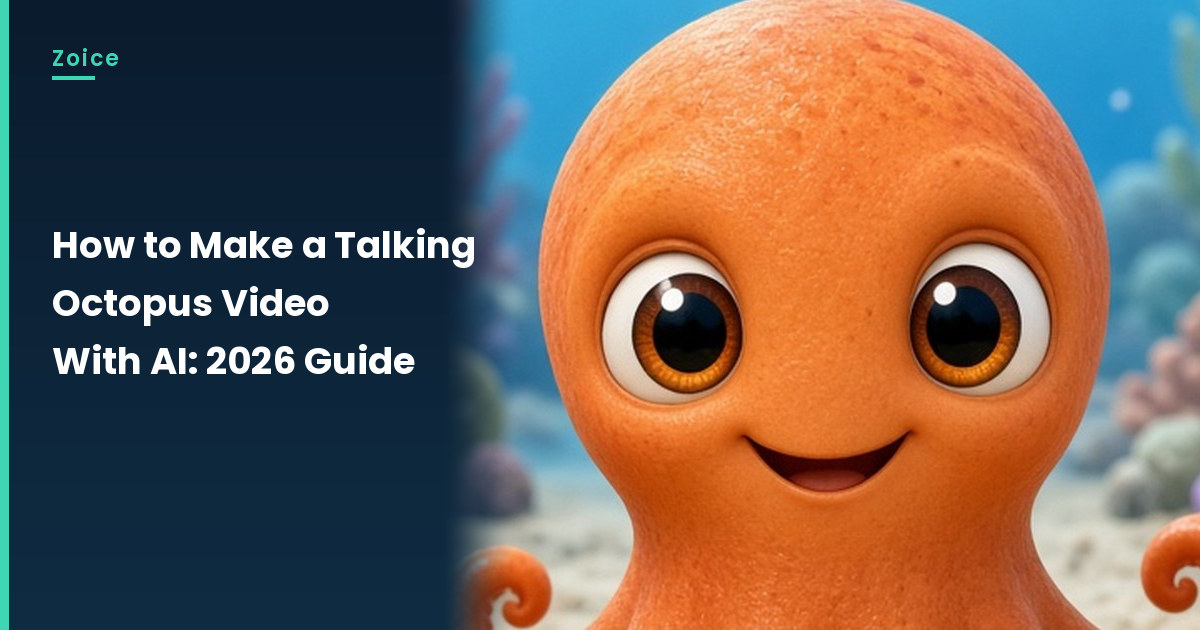
An octopus has eight arms and, with AI, plenty to say. In Zoice you upload one octopus image as your Host, add a script, and lip sync follows your words. An action prompt adds the personality: a tentacle wave, a blink and a curious lean. Here is how to make an octopus talk with AI, one screen at a time. This guide shows every octopus click up to Generate.
Sea creatures appear in our AI talking animals generator list too.
Creating a Talking Octopus Character Image
A cartoon-style talking octopus is easiest to animate. When you create the octopus image:
- Give it big eyes and a clearly visible mouth
- Face it straight toward the camera
- Curl the tentacles around the body so they stay out of the face
- Use a sandy sea floor or coral reef behind
How to Make a Talking Octopus Video in Zoice (Step-by-Step)
Our Host is an AI-made fictional orange octopus character, created for this post.
Step 1: Visit Zoice and Sign In
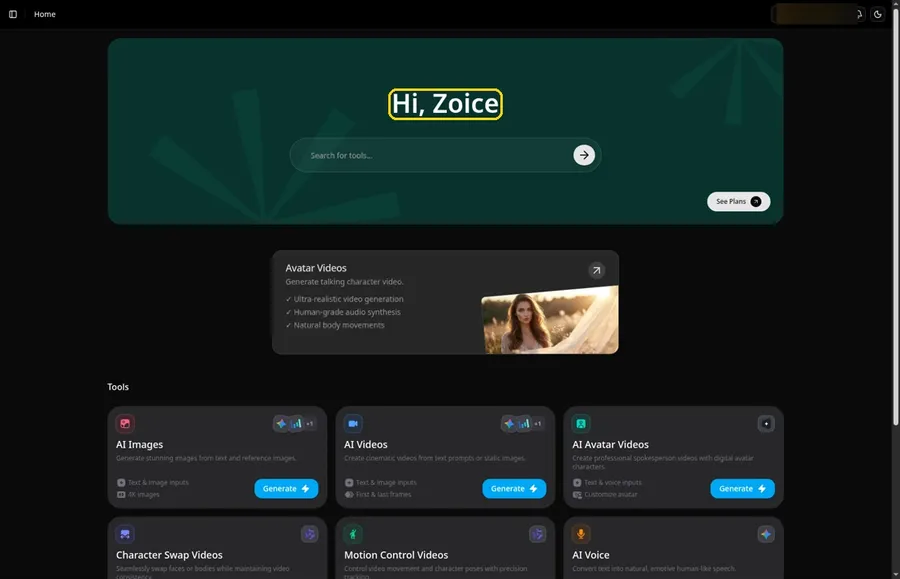
Go to Zoice and click Sign In, using email or Google; Home opens once the octopus project can begin.
Step 2: Open Avatar videos
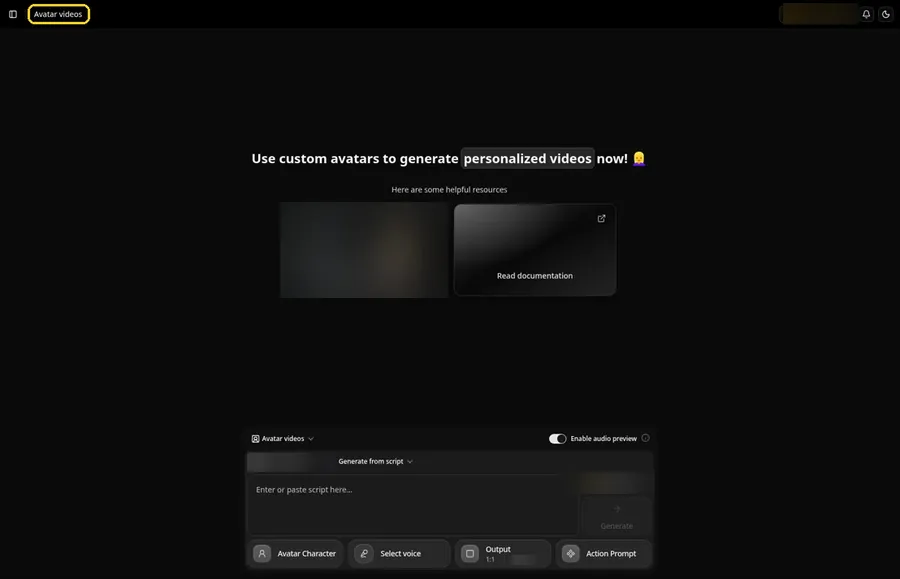
Pick Avatar videos from the sidebar to begin the octopus. The screen that opens is titled Avatar videos, with the composer for the octopus at the bottom.
Step 3: Click Avatar Character, Then Create New
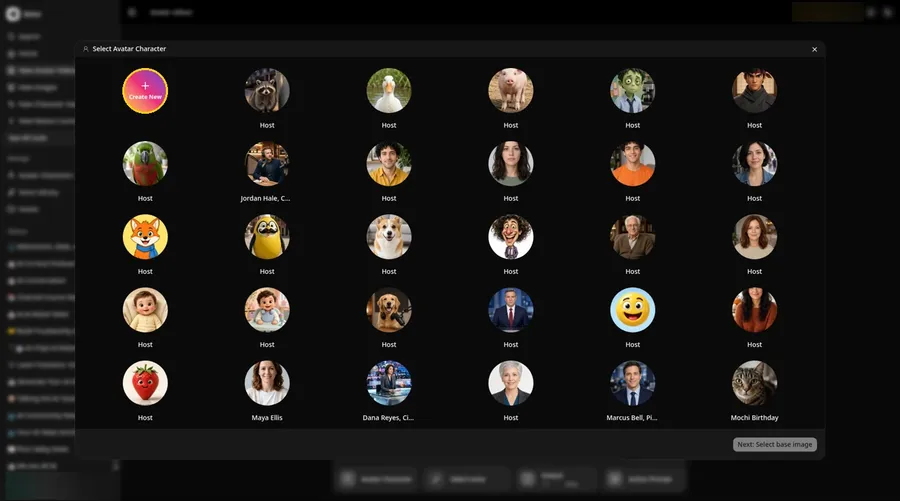
The talking octopus begins at the Avatar Character button, which opens Select Avatar Character. Click Create New, then click Create New on the Avatar Characters page to reach the full-screen Create new avatar page for the talking octopus.
Step 4: Choose Upload Image
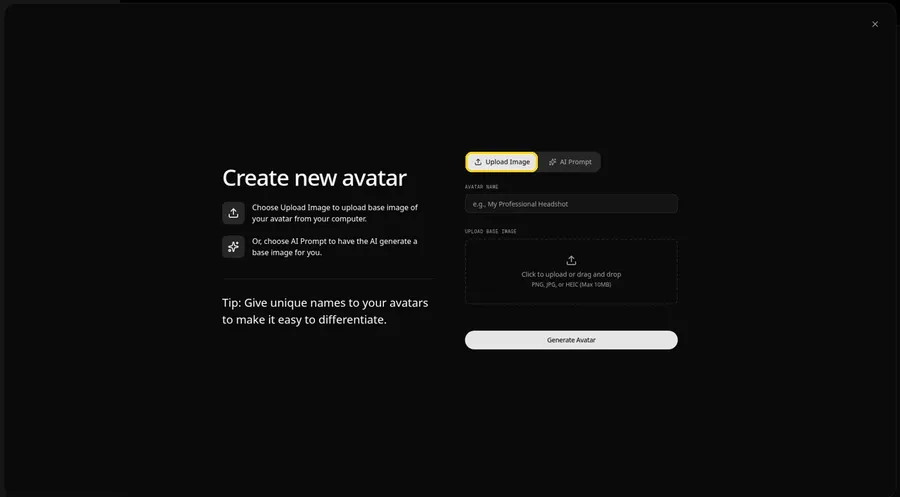
Stay on the Upload Image tab under UPLOAD BASE IMAGE for the talking octopus. AI Prompt is the other tab on this talking octopus page if you have no image yet.
Step 5: Upload Your Octopus Image
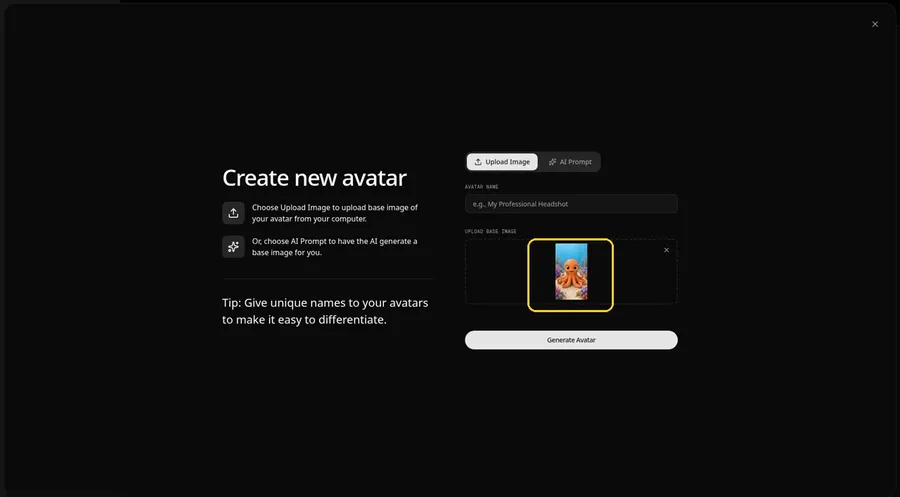
Choose a clear, front-facing octopus character photo in the upload area and confirm the octopus faces the camera in the preview.
Step 6: Name Your Avatar Host and Click Generate Avatar
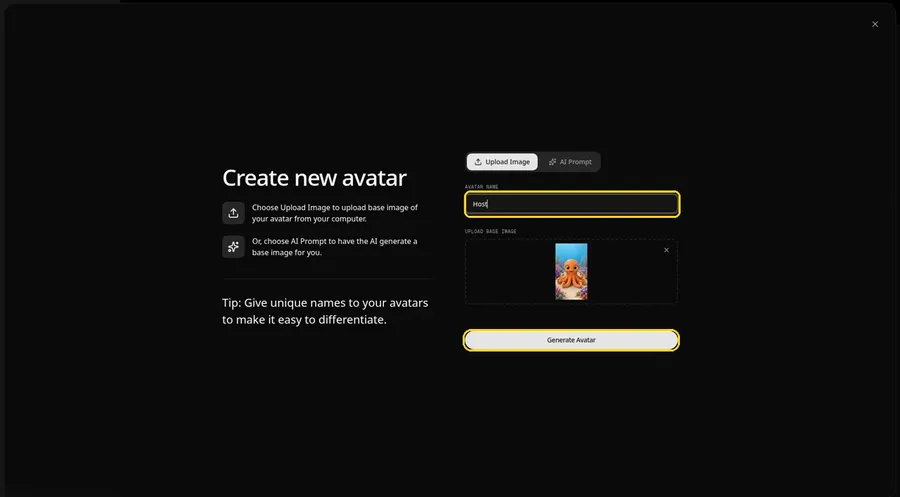
Save the talking octopus by typing Host in AVATAR NAME and clicking Generate Avatar.
Step 7: Open the Add Script Panel
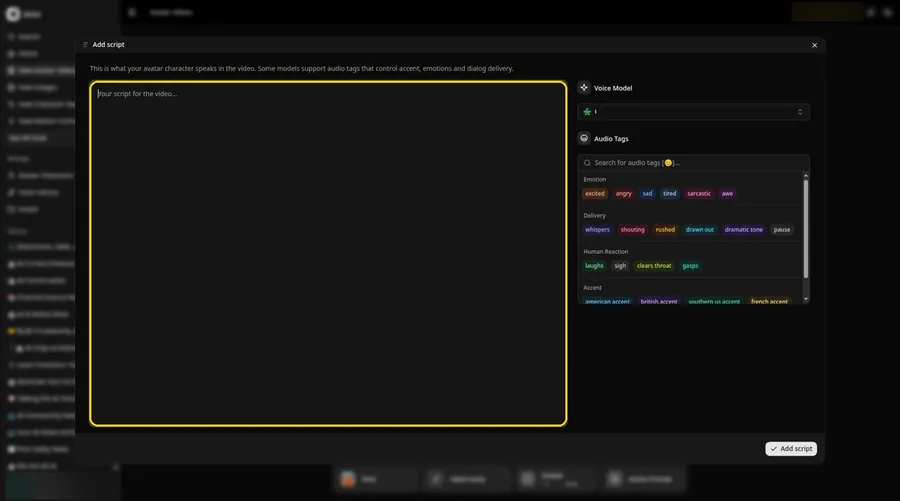
Click the script box in the composer to open the Add script panel for the octopus.
Step 8: Choose the Voice Model
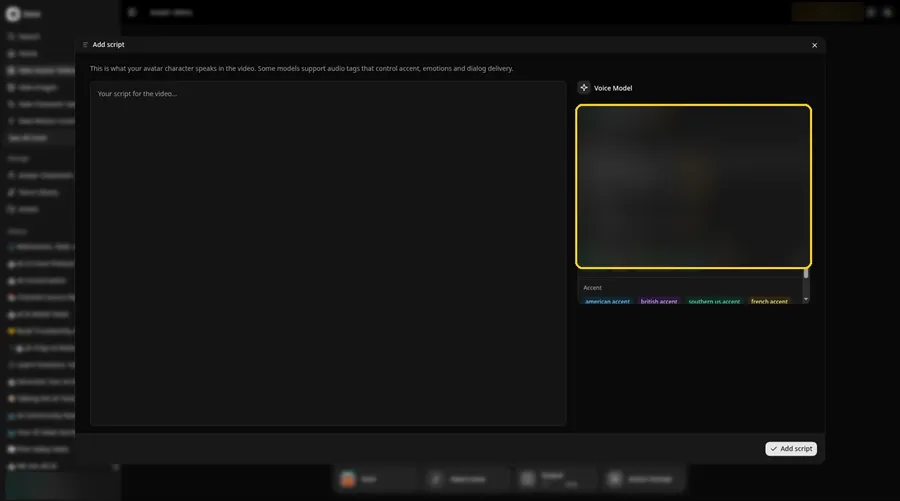
Pick a model in the Voice Model menu before the octopus script goes in.
Step 9: Paste Your Script and Click Add Script
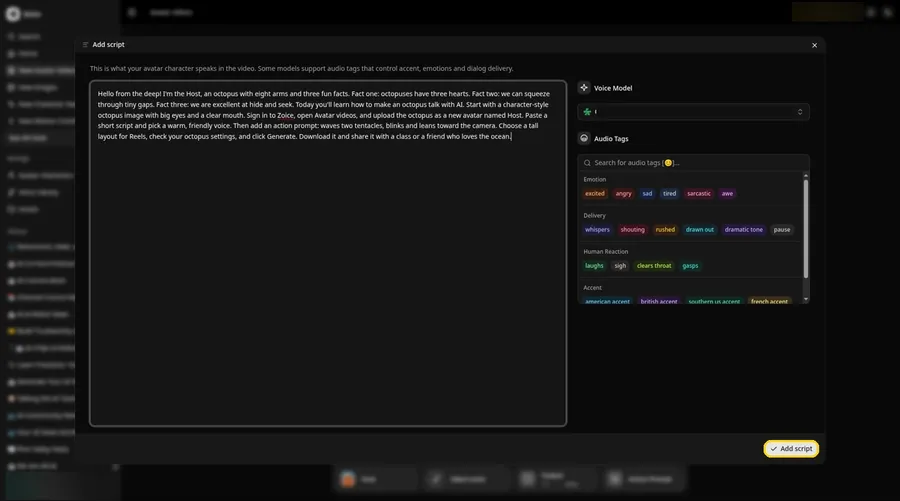
Drop in the full octopus script, then click Add script. The opening words are: Hello from the deep!
Step 10: Pick a Voice
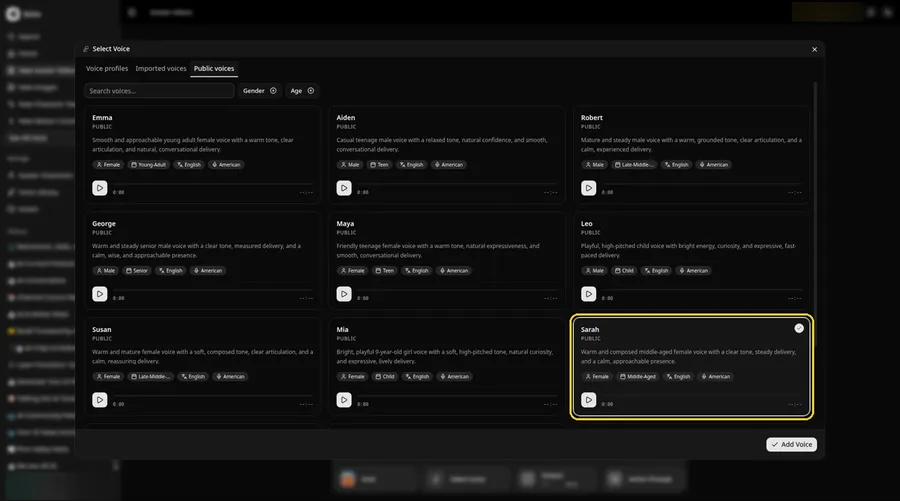
- Click the voice button in the composer to open Select Voice for the talking octopus.
- Pick a voice for the talking octopus on the Public voices tab.
- Click Add Voice to attach that voice to the talking octopus.
Pick a warm, friendly adult voice for the octopus Host.
Step 11: Choose Your Output Settings
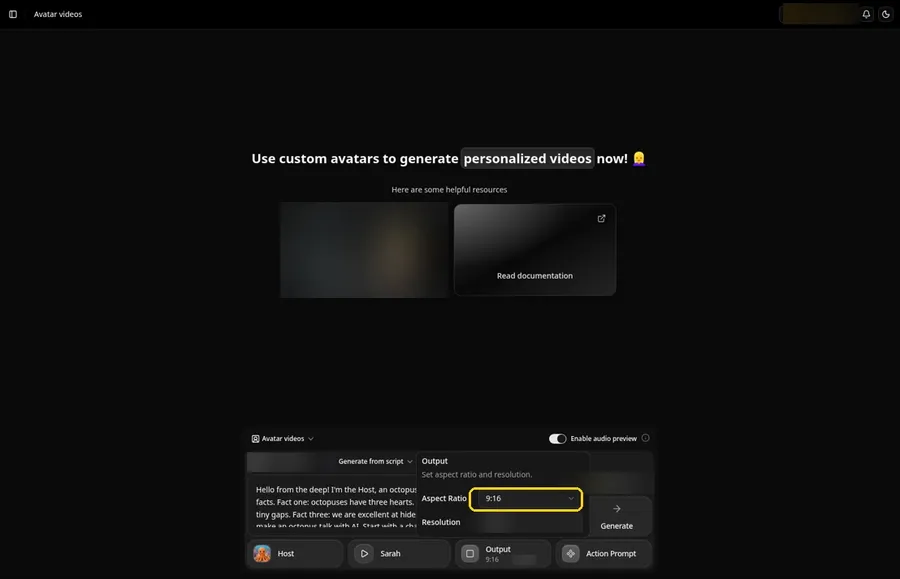
Choose your output settings. Open the aspect ratio dropdown in Output and choose 9:16 for the talking octopus.
Step 12: Add an Action Prompt
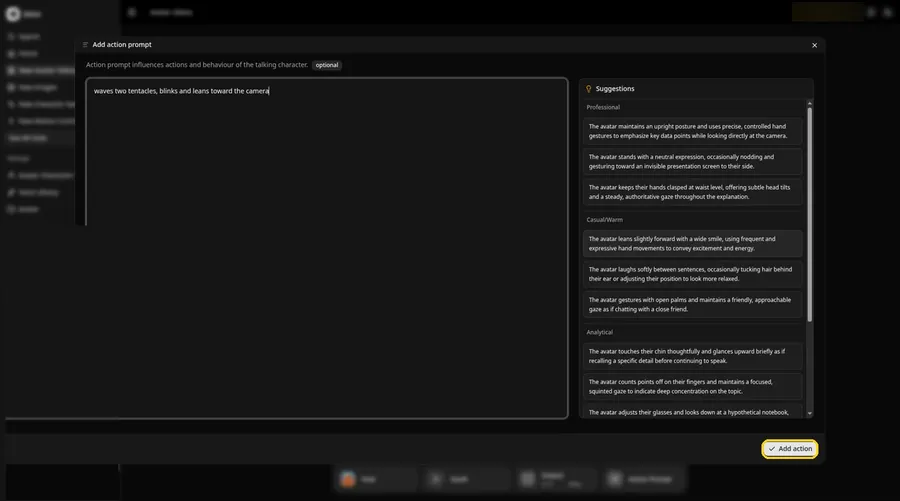
Type waves two tentacles, blinks and leans toward the camera in the Add action prompt panel. That prompt is what directs the talking octopus.
Step 13: Click Generate
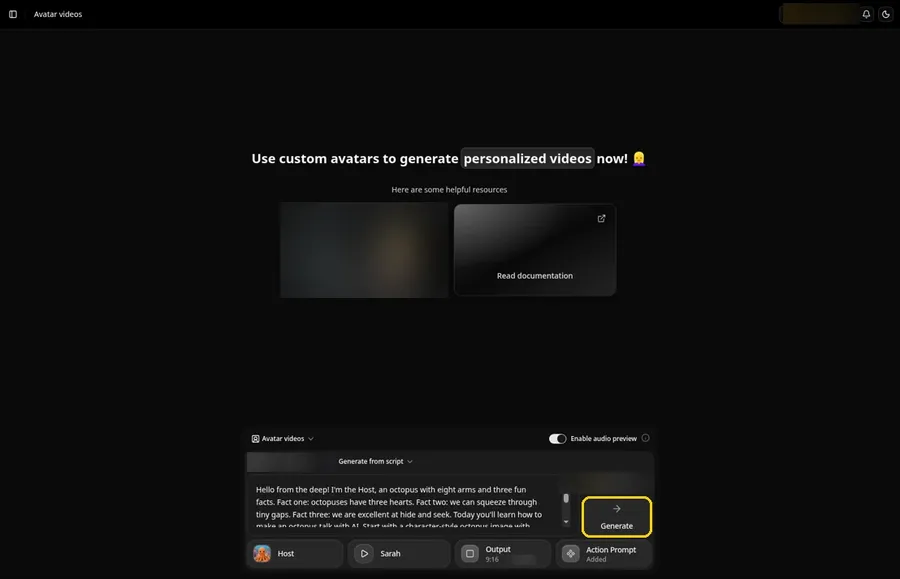
Check the octopus Host, the voice, the script, the 9:16 output and the Added action prompt, then click Generate.
Step 14: Confirm the Audio Preview and Let Zoice Process
Zoice plays an audio preview of the octopus script; click Generate avatar video to confirm, then wait while the video processes.
Step 15: Watch the Result
Play the octopus video in the player and make sure the words and the prompted moves line up.
Step 16: Download From the Player Menu
Click the three-dot menu on the player, then Download, and the octopus video saves to your device.
Step 17: Share Your Talking Octopus
Post it to Reels or Shorts, or use it in a lesson slide.
Writing the Talking Octopus Action Prompt
Eight arms means plenty of moves, but two or three read best.
- waves two tentacles, blinks and leans toward the camera
- curls one tentacle into a wave, then smiles
- wiggles all its tentacles, then blinks twice
Demo Idea: Ocean Facts From a Talking Octopus
The talking octopus Host shares three quick ocean facts while waving hello. This is the exact script:
"Hello from the deep! I'm the Host, an octopus with eight arms and three fun facts. Fact one: octopuses have three hearts. Fact two: we can squeeze through tiny gaps. Fact three: we are excellent at hide and seek. Today you'll learn how to make an octopus talk with AI. Start with a character-style octopus image with big eyes and a clear mouth. Sign in to Zoice, open Avatar videos, and upload the octopus as a new avatar named Host. Paste a short script and pick a warm, friendly voice. Then add an action prompt: waves two tentacles, blinks and leans toward the camera. Choose a tall layout for Reels, check your octopus settings, and click Generate. Download it and share it with a class or a friend who loves the ocean."
Your class could use a talking octopus. Try Zoice and dive in.
Tips for Your Talking Octopus Video
- Use a character-style octopus image with big eyes and a visible mouth, so lip sync has a mouth to follow.
- Keep the background a simple blue so the octopus stands out.
- Write fun facts in short lines; kids and classrooms love them.
- Action prompt tip: pick one or two moves, such as waves two tentacles, then blinks.
- Choose a warm, friendly adult voice.
For classroom characters, see our AI talking character generator for kids list.
Talking Octopus Video FAQ
Can I use a real octopus photo?
A character-style octopus with a clear face works better, because lip sync needs a visible mouth.
Is this good for teaching?
Yes. A talking octopus is a fun way to present ocean facts to kids.
How do I make it wave?
Type the wave in the action prompt step, such as waves two tentacles, and click Add action.
Which voices can I use?
For the talking octopus, open Select Voice and browse the Public voices tab; Add Voice attaches the one you pick.
Try Zoice
Your talking octopus video is ready to build. More cartoon looks live in our AI talking cartoon generator roundup, or Try Zoice and make your octopus talk.