How to Make a Graduation Video With AI: A Simple 2026 Guide
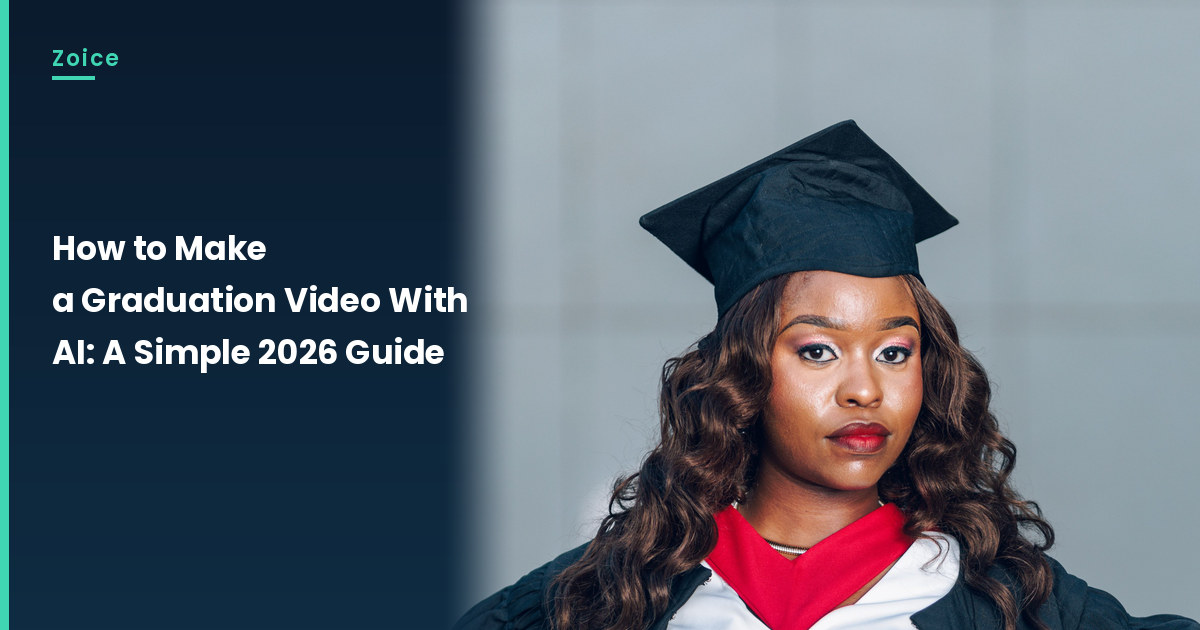
A graduation photo can deliver a short thank-you when the day is already full. This is how to make a graduation video with AI from an approved portrait, not a filmed stage speech. For the graduation video, in Zoice you upload a clear photo, it becomes your Host, and the mouth is lip synced to your script. An optional action prompt can add a proud nod. Our screenshots use a stock-model stand-in, so swap in your own photo or a photo of a graduate who has agreed to appear.
For more ideas beyond the graduation video, see our AI avatar for teachers roundup.
Choosing a Graduation Photo Image Zoice Can Read
A graduation video starts from a clear, approved photo of the graduate, with the face visible under the cap.
- Use your own photo or a photo the graduate has agreed to use
- Keep tassels and shadows off the mouth if you can
- Write a short thank-you, not a long filmed speech
- Our demo uses a stock-model stand-in; swap in an approved photo
How to Make a Graduation Video in Zoice
Our Host is a stock photograph of a young adult woman in a black graduation cap and gown with a red collar and a white outfit, front-facing against a plain light background, with a clear face and a visible mouth, used as the Host for this post and saved in the app.
Step 1: Sign In to Zoice and Open Home
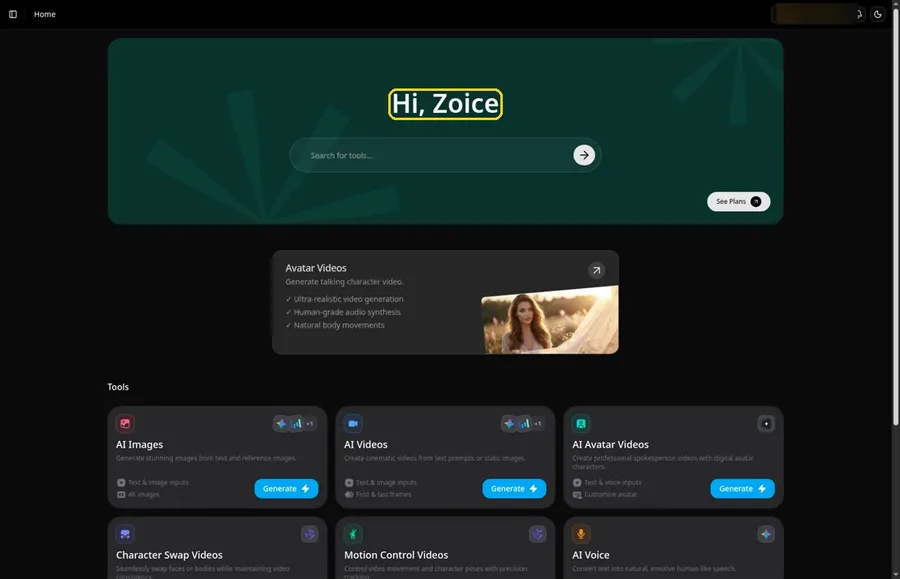
Open Zoice, press Sign In and choose email or Google, and you land on Home ready for the graduation video.
Step 2: Open Avatar videos
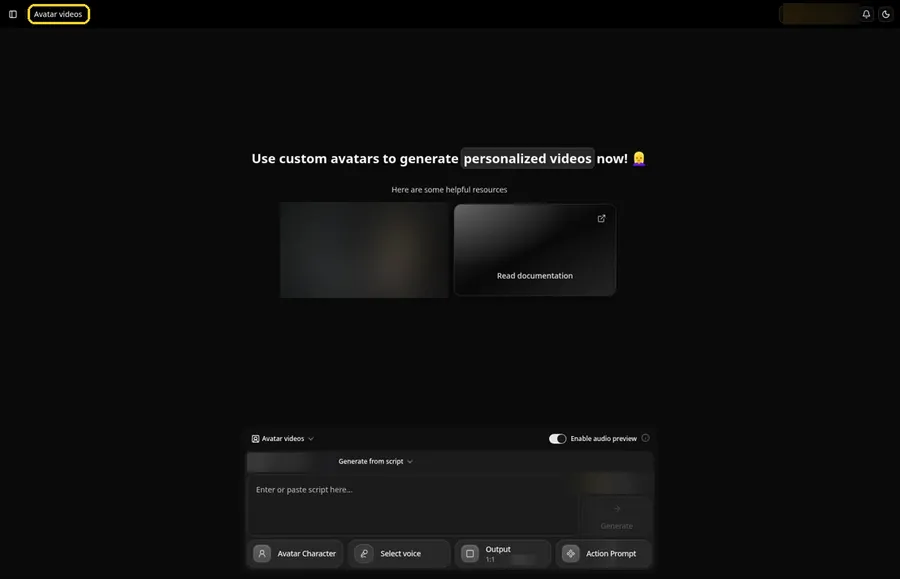
Open Avatar videos. The page title reads Avatar videos, the composer is empty with Output at the default 1:1, and it holds every graduation video setting.
Step 3: Open Avatar Character and Create a New Avatar
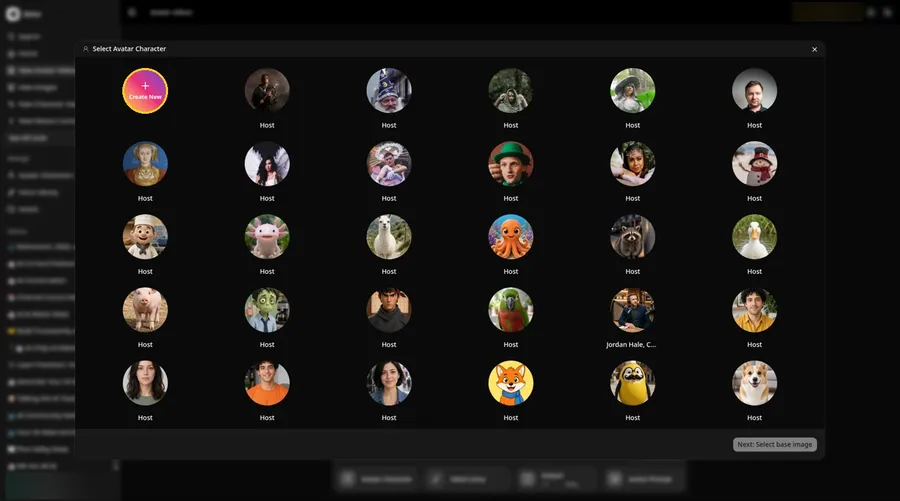
Open Avatar Character, and the Select Avatar Character window appears with the Create New button in view.
Step 4: Choose Upload Image
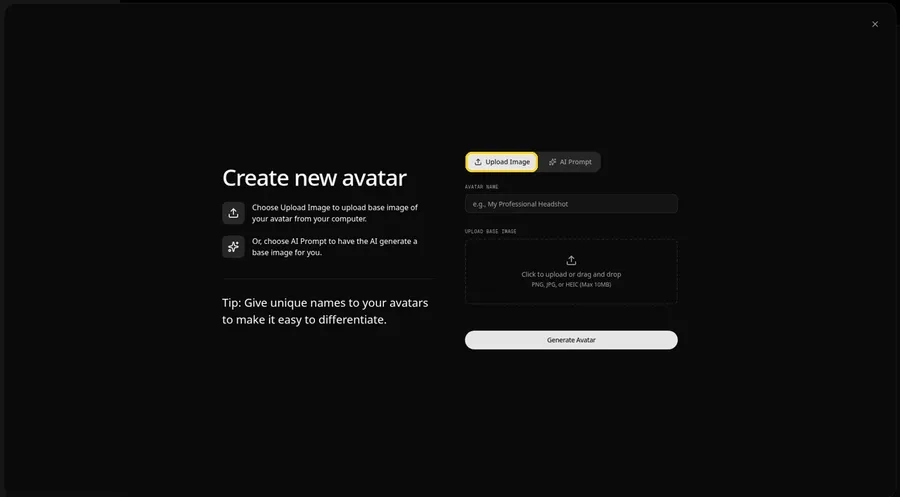
On the Create new avatar page, the graduation video image goes in under UPLOAD BASE IMAGE with the Upload Image tab active.
Step 5: Upload the Graduation Photo Image
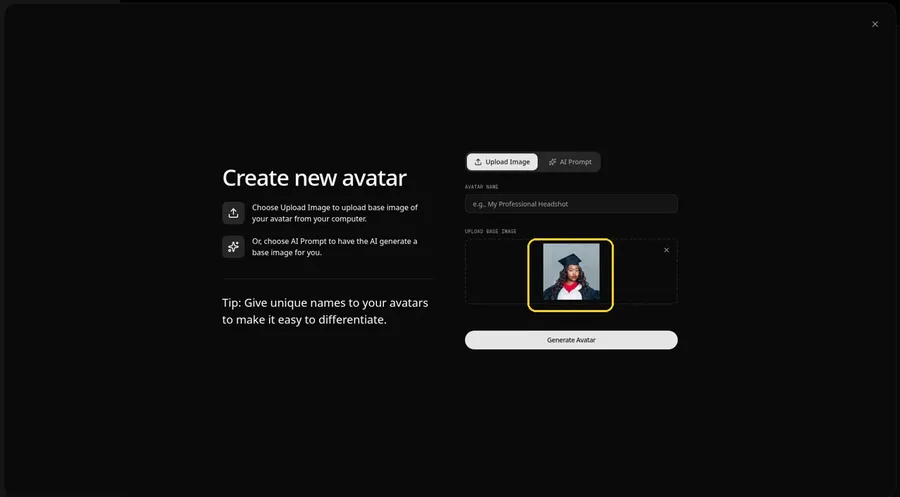
Click the upload area and pick a clear, front-facing graduation photo. The preview should show the talking graduate looking straight ahead, a young adult woman in a black cap and gown with a red collar.
Step 6: Name Your Avatar Host and Click Generate Avatar
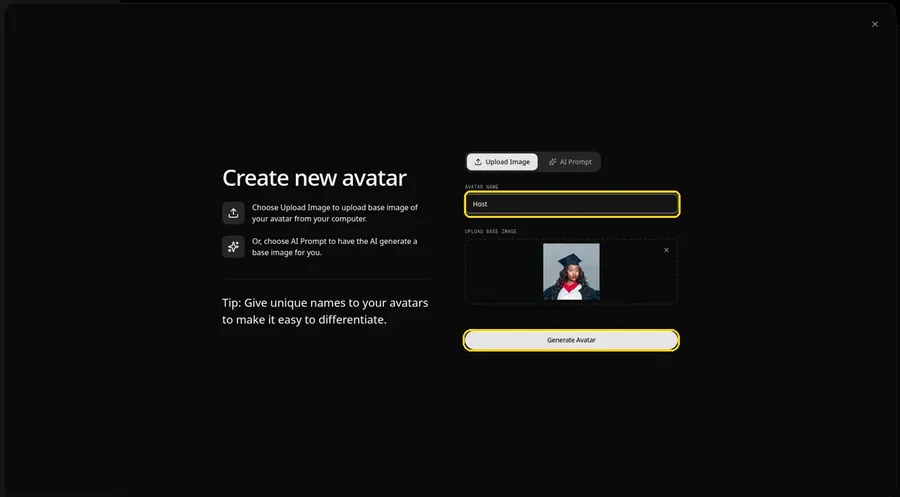
Name the graduation video avatar Host in AVATAR NAME, with the preview in place, ready to click Generate Avatar.
Step 7: Open the Add Script Panel
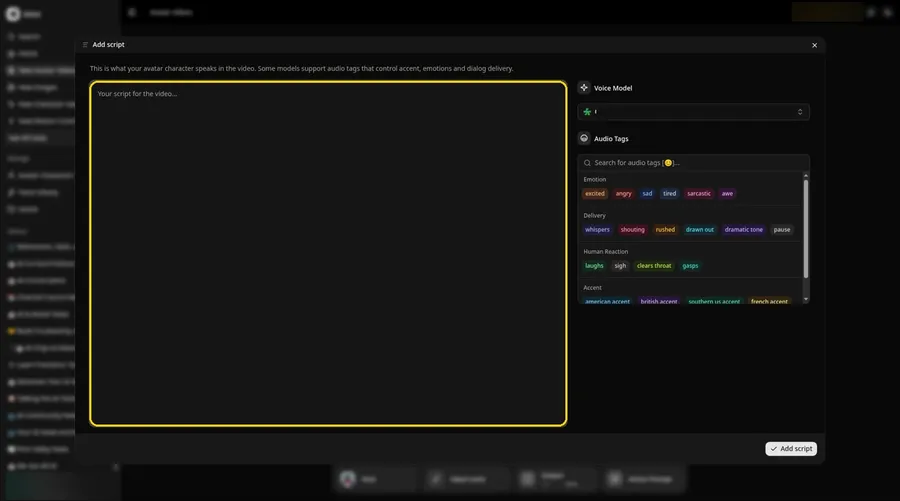
Open the Add script panel by clicking the script box beside the graduation video Host.
Step 8: Choose the Voice Model
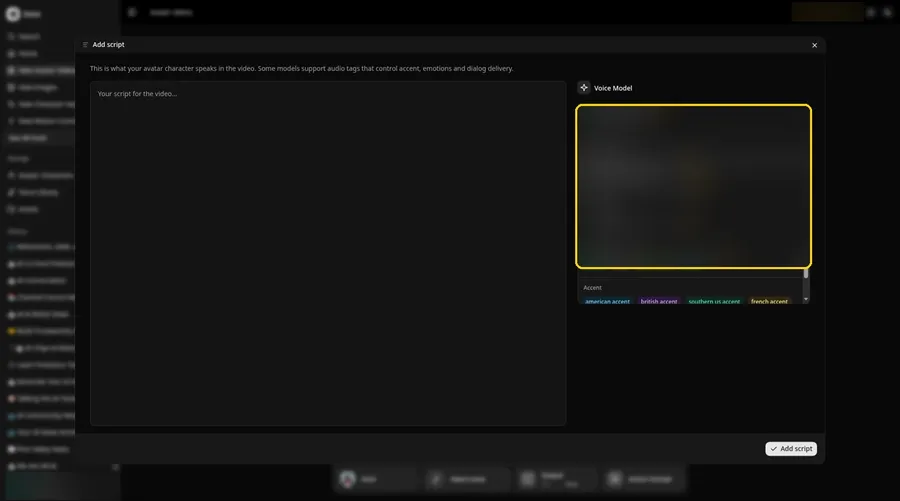
Open the Voice Model menu and choose the model that will read the graduation video lines.
Step 9: Paste Your Script and Click Add Script
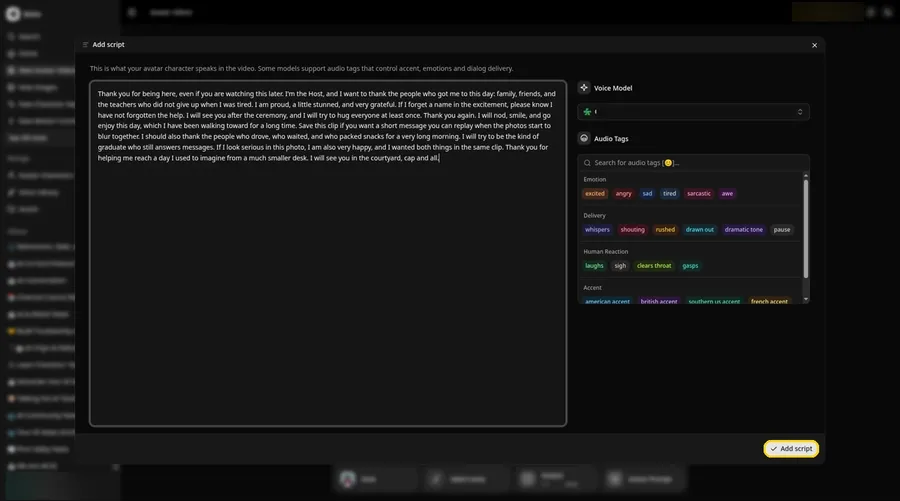
Paste the graduation video lines into the panel and click Add script. First line: Thank you for being here, even if you are watching this later.
Step 10: Pick a Voice
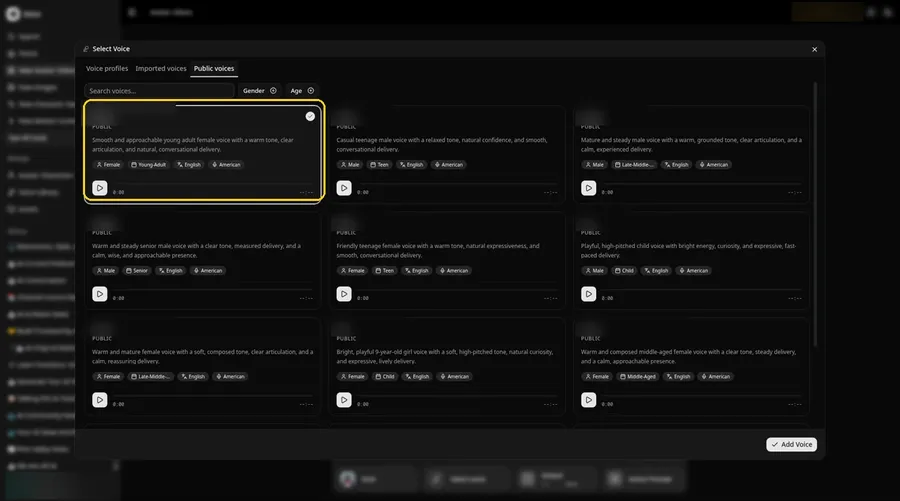
Click the voice button in the composer to open Select Voice for the graduation video. Pick a warm, proud adult voice on the Public voices tab, then click Add Voice to attach it.
Step 11: Choose your output settings
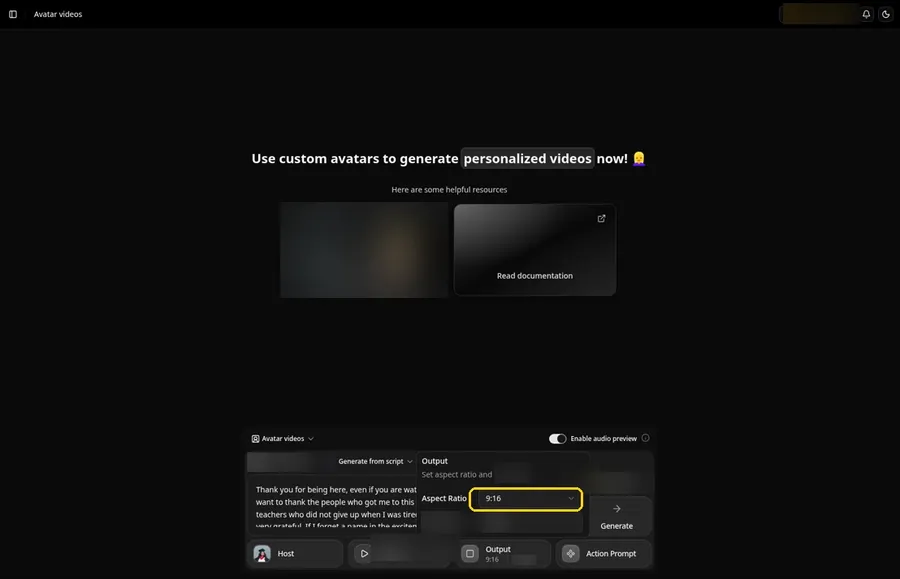
Choose your output settings. In Output, open the aspect ratio dropdown and pick 9:16 so the graduation video fits Reels and Shorts.
Step 12: Add an Action Prompt
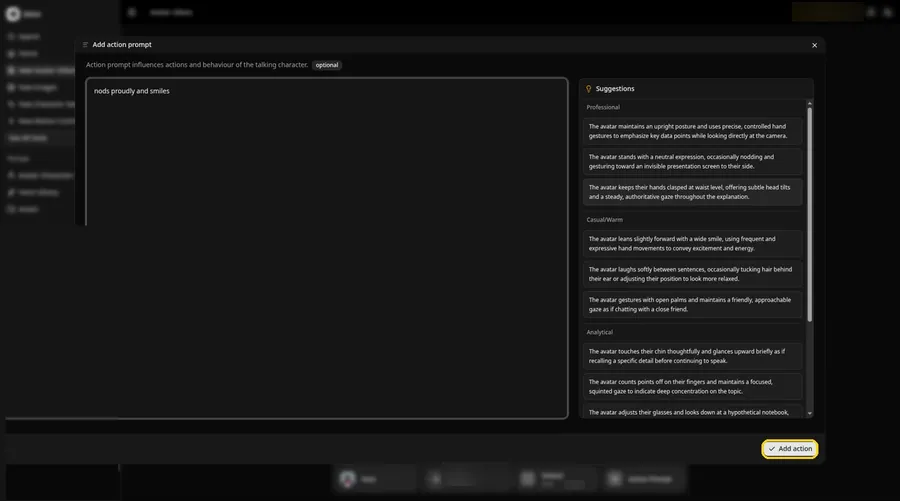
Open the Add action prompt panel, type nods proudly and smiles, then click Add action. The graduation video only moves the way this prompt says.
Step 13: Click Generate
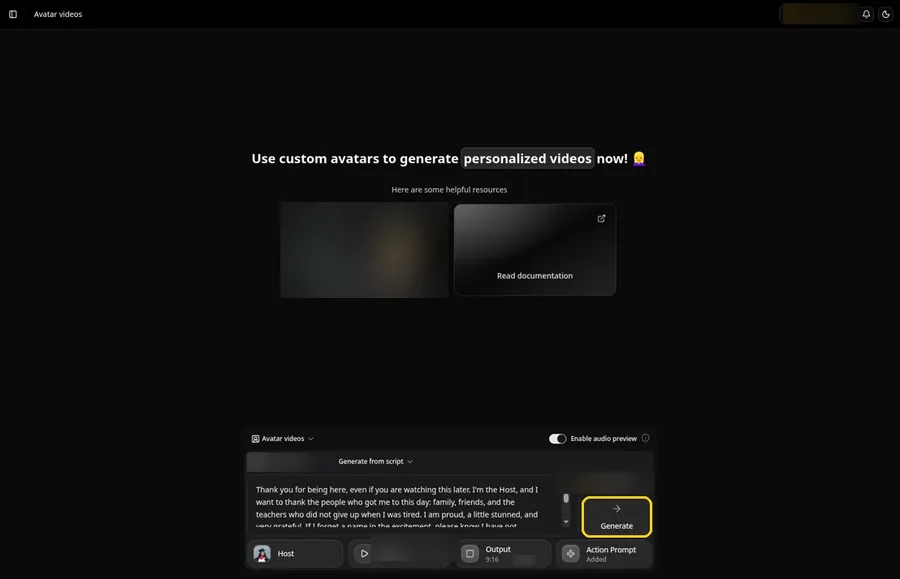
With the graduation video Host, script, voice, 9:16 frame and Added Action Prompt chip in place, click Generate.
Step 14: Confirm the Audio Preview
Zoice plays an audio preview of the graduation video script; confirm it, and Zoice processes the clip.
Step 15: Preview the Video in the Player
Play the graduation video in the player and make sure the words and the prompted moves line up.
Step 16: Download From the Player Menu
Click the three-dot menu on the player, then Download, and the graduation video saves to your device.
Step 17: Share Your Video
Send the graduation video to friends or post it to Reels and Shorts, and keep to images and audio you made or may use.
Writing the Action Prompt
Keep the graduation video move proud and small, like a single nod.
- nods proudly and smiles
- For the graduation video, looks at the camera and pauses
- tilts the cap slightly
Type your pick in step 12 and click Add action.
Demo Idea: A Short Thank You From the Graduate
A stock-photograph Host, of a young adult woman in a black graduation cap and gown with a red collar, records a short thank-you in character. Here is the exact script:
"Thank you for being here, even if you are watching this later. I'm the Host, and I want to thank the people who got me to this day: family, friends, and the teachers who did not give up when I was tired. I am proud, a little stunned, and very grateful. If I forget a name in the excitement, please know I have not forgotten the help. I will see you after the ceremony, and I will try to hug everyone at least once. Thank you again. I will nod, smile, and go enjoy this day, which I have been walking toward for a long time. Save this clip if you want a short message you can replay when the photos start to blur together. I should also thank the people who drove, who waited, and who packed snacks for a very long morning. I will try to be the kind of graduate who still answers messages. If I look serious in this photo, I am also very happy, and I wanted both things in the same clip. Thank you for helping me reach a day I used to imagine from a much smaller desk. I will see you in the courtyard, cap and all."
Give the graduation video a go yourself. Try Zoice and paste your own graduation video script.
Tips for Cap and Gown Photos
- Use the graduate's own photo with their consent.
- Name the people being thanked.
- Share it in the family group chat after the ceremony.
- For the graduation video, add an action prompt only after the lip sync looks right, then compare the two versions.
Next to this graduation video guide, our AI birthday video generator roundup offers more options.
FAQ
Can parents make one for their graduate?
Yes, with the graduate's okay.
Can I add school music?
Use music you have rights to in your editor.
Is the action prompt required?
No. The graduation video is lip synced to your script either way; the action prompt only adds the move.
Can I make a vertical graduation video?
Yes. Choose 9:16 in the output settings before you click Generate on the graduation video.
Try Zoice
Everything the graduation video needs is above. See our AI avatar generator for social media roundup too, or Try Zoice and build your graduation video now.