How to Make a Goblin Talk With AI: A Simple 2026 Guide
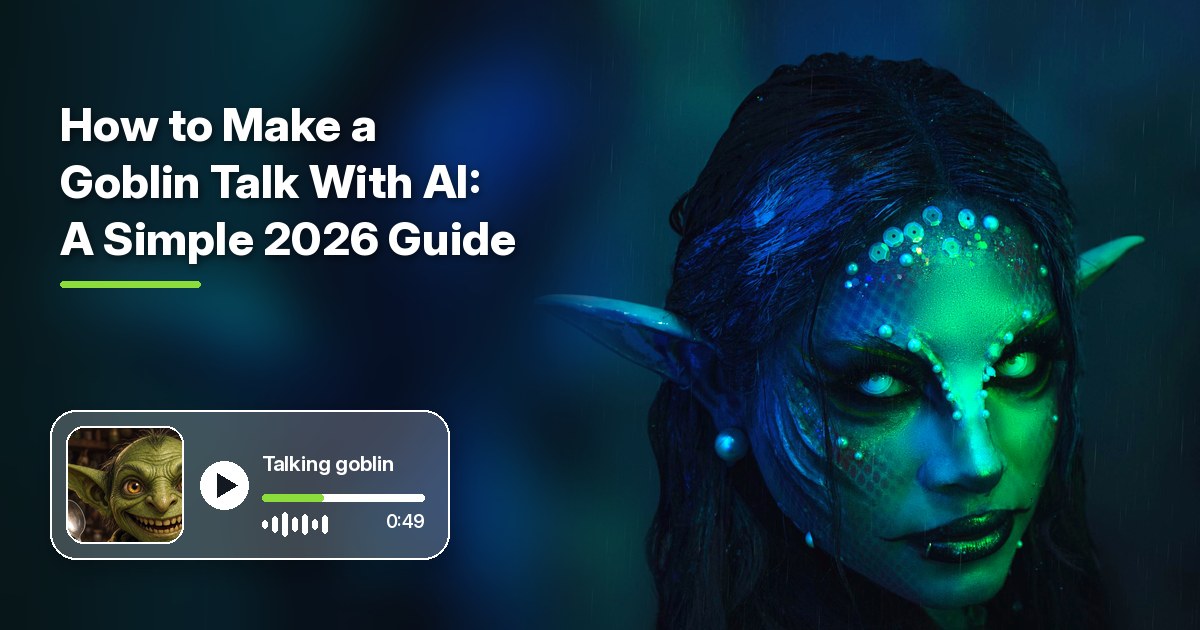
Here is how to make a goblin talk with AI in Zoice: upload goblin art or a photo of a goblin mask as your avatar, write a sneaky monologue, pick a voice, and Zoice turns it into a talking video, lip synced to your script. Goblins are sneaky, greedy, and very funny, which makes them a great voice for game nights and October fun. An optional action prompt can guide how your goblin moves.
This guide walks through every screen in Zoice, from sign in to download, then shares a demo idea and tips. For more, see the best AI Halloween video generators, or browse AI talking cartoon generators.
What You Need
You only need a few things before you start. Gather them first, and the steps below go quickly.
- Goblin art or a goblin mask photo with a clear face and one visible mouth
- A short, sneaky monologue to type or paste
- A voice: pick one from the library or use a voice you cloned
- A Zoice account: avatar videos start on the Starter plan
Choosing a Goblin Image Zoice Can Read
Zoice needs to find the face and the mouth, so the goblin should have both in plain view. These tend to give the cleanest result:
- One clear mouth, not hidden behind a hand, a hood, or a prop
- A front facing pose with both eyes showing
- Bright, even light, which keeps the result fun rather than frightening
- One goblin per image, cropped close around the face
Working with a costume photo instead? Our guide on how to make a Halloween talking photo covers masks and face paint.
How to Make a Goblin Talk in Zoice, Step by Step
Here is how to make a goblin talk with AI in Zoice, one click at a time. Each step shows the exact screen, with a yellow arrow on the button to click. For this demo we used an illustrated goblin, the Cartesia Sonic 3.6 voice model, a public voice from the library, an action prompt, and 720p output.
Step 1: Visit Zoice and Sign In
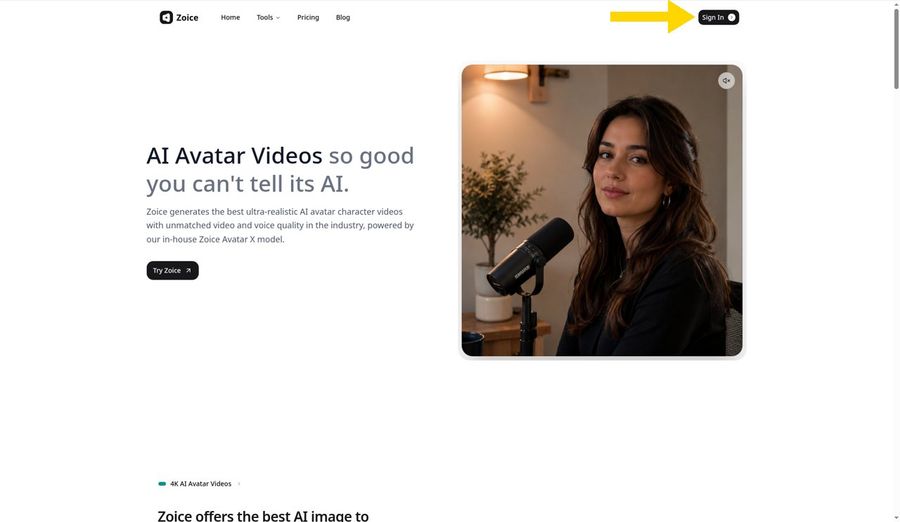
Go to the Zoice website at zoice.com and click Sign In in the top right corner of the homepage. Log in with your email and password, or with Google. New to Zoice? Click Sign up on the login form to create a free account first.
Step 2: Open Avatar Characters
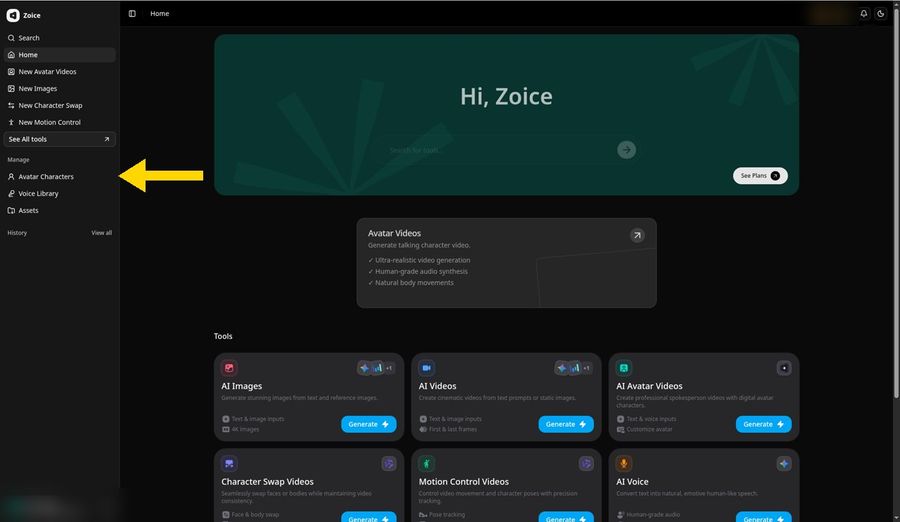
After you sign in, you land on the Zoice Home dashboard. In the left sidebar, under Manage, click Avatar Characters. This page lists every avatar you have saved, and it is where your goblin becomes a reusable avatar.
Step 3: Click Create New
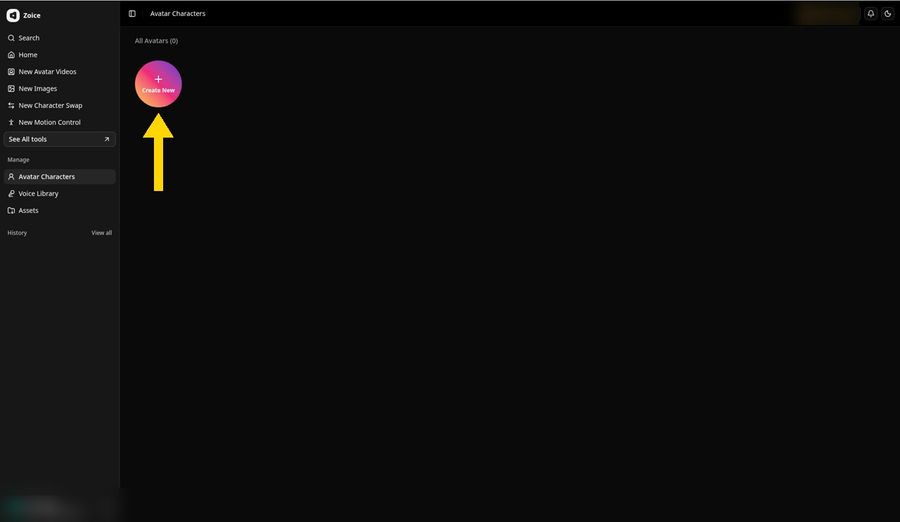
On the Avatar Characters page, click the round Create New button at the top left. Every avatar you save shows up in this list, so a goblin you add today is easy to reuse later.
Step 4: Choose Upload Image
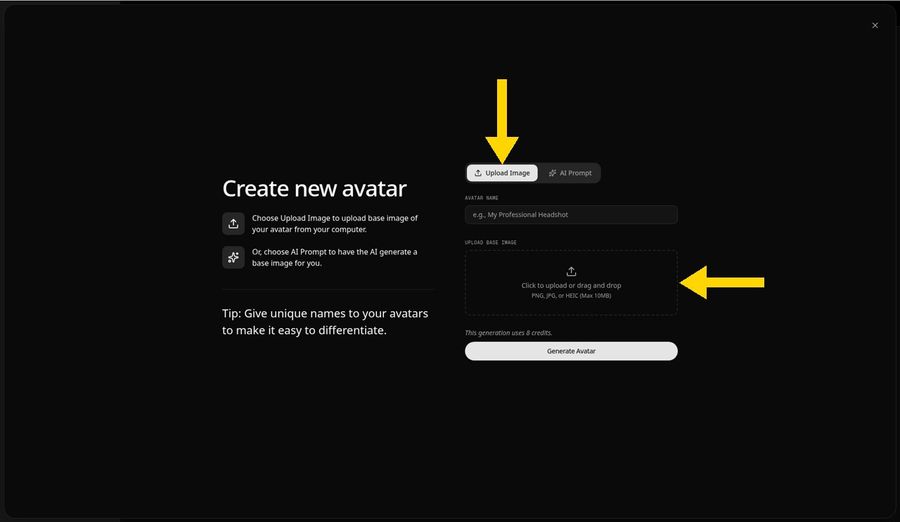
The Create new avatar panel opens. Keep the Upload Image tab selected, then click the upload area, or drag your file onto it. Zoice accepts PNG, JPG, and HEIC files up to 10 MB, so goblin art or a phone photo of a goblin mask both work.
Step 5: Upload a Goblin Image and Check the Face
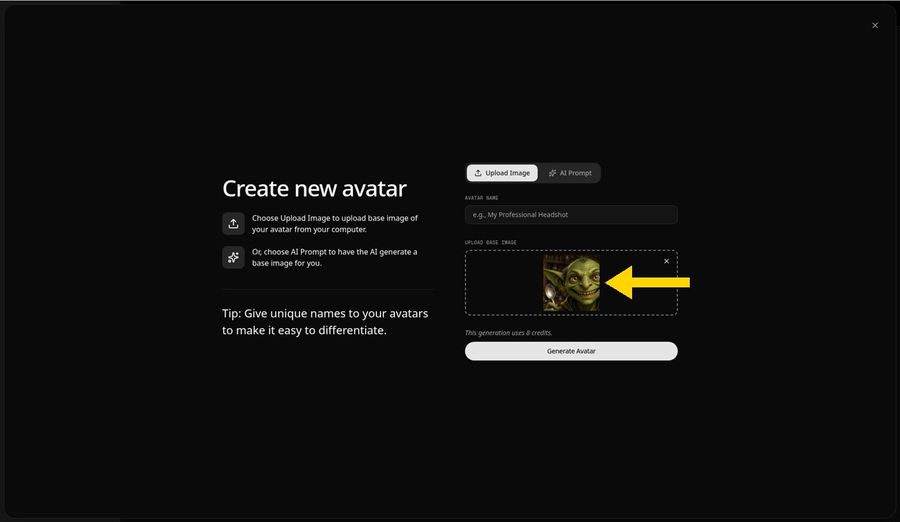
Pick your goblin image. A preview appears in the upload area, so you can check the face before you continue. For this demo we used an AI generated illustration of an original goblin with green skin, big pointed ears, amber eyes, and a big toothy mouth, holding a silver spoon. It is a made up character, not a real person. A goblin image works best when:
- There is one clear mouth with the lips easy to see
- The face looks straight at the camera
- The light is bright and even, with no deep shadows
- The goblin is the only character in the picture
- The image is cropped close around the face
Step 6: Name Your Avatar Host and Click Generate Avatar
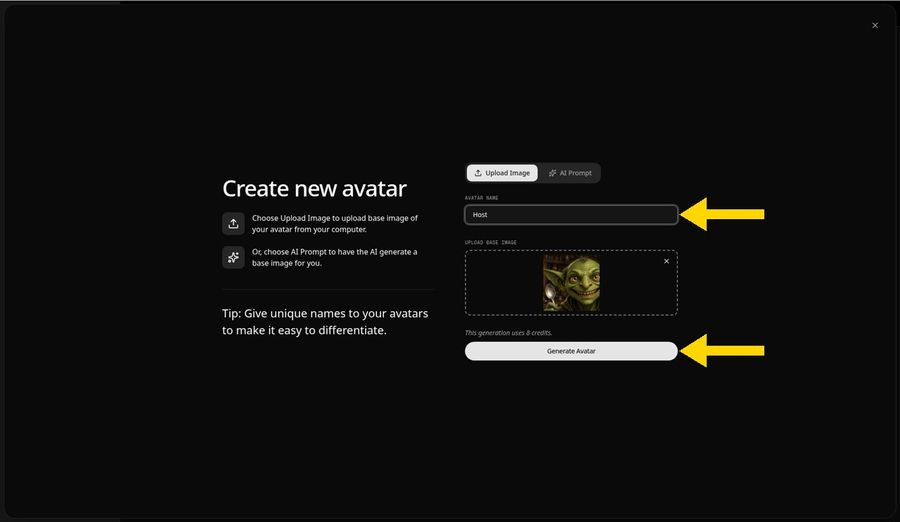
Type a name in the Avatar Name field. We used Host. A unique name makes the avatar easy to find later, when you have many saved avatars. Then click Generate Avatar. The panel notes that this generation uses 8 credits.
Step 7: Wait While Zoice Creates the Avatar
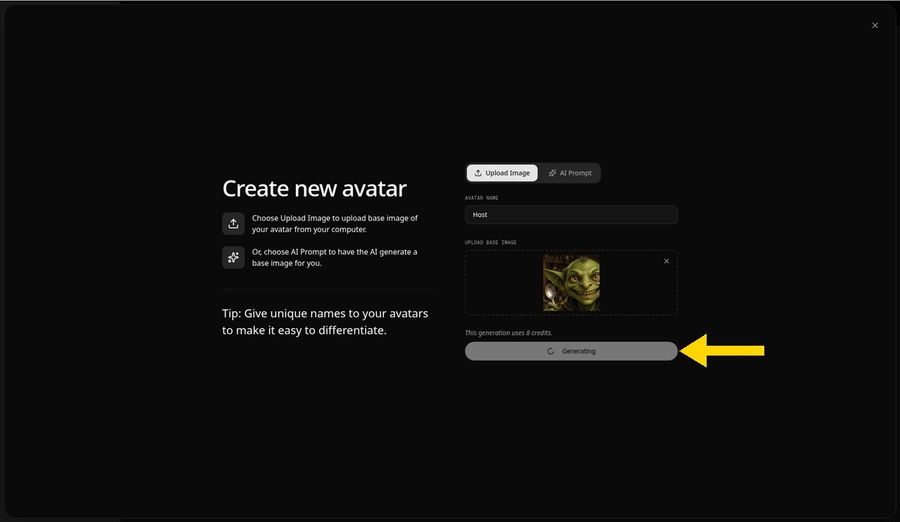
The button changes to Generating while Zoice prepares your goblin. When it finishes, Host is saved to Avatar Characters, so you can pick it in any avatar video.
Step 8: Open New Avatar Videos, Pick Host, and Choose 720p
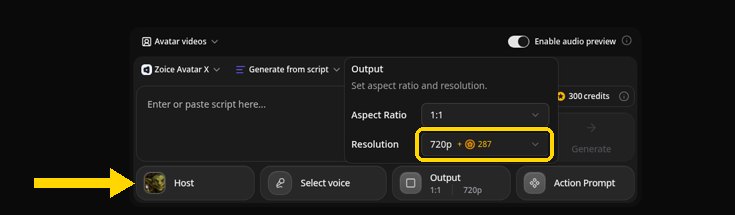
Click New Avatar Videos in the sidebar to open the composer. Click the Avatar Character button and pick Host, so your goblin's picture shows on the button.
Then click Output. Keep the 1:1 aspect ratio and choose 720p in the Resolution menu, which shows the extra credits 720p uses. The Output button now reads 1:1 and 720p. Choose 9:16 for Reels and Shorts, or 16:9 for YouTube. You add the script and the voice next.
Step 9: Open the Add Script Panel
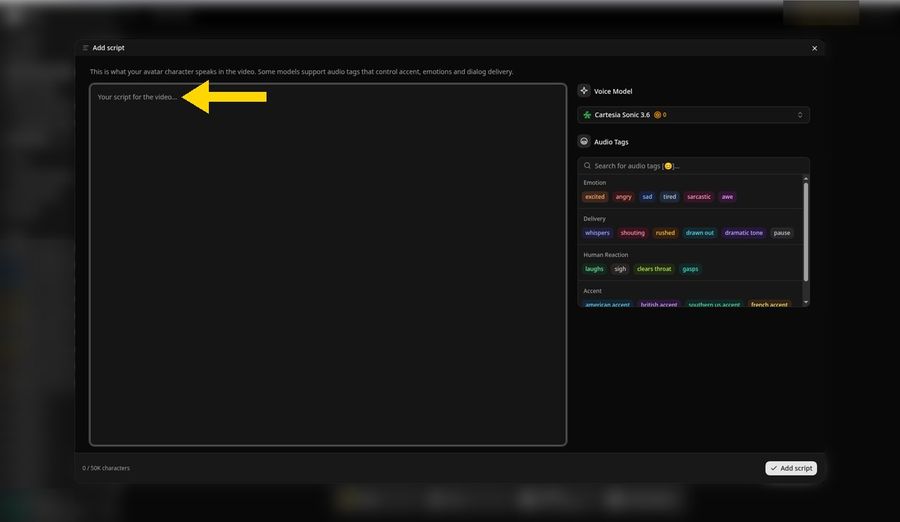
Click the script box in the composer. The Add script panel opens, with the Voice Model menu on the right.
Step 10: Choose the Cartesia Voice Model
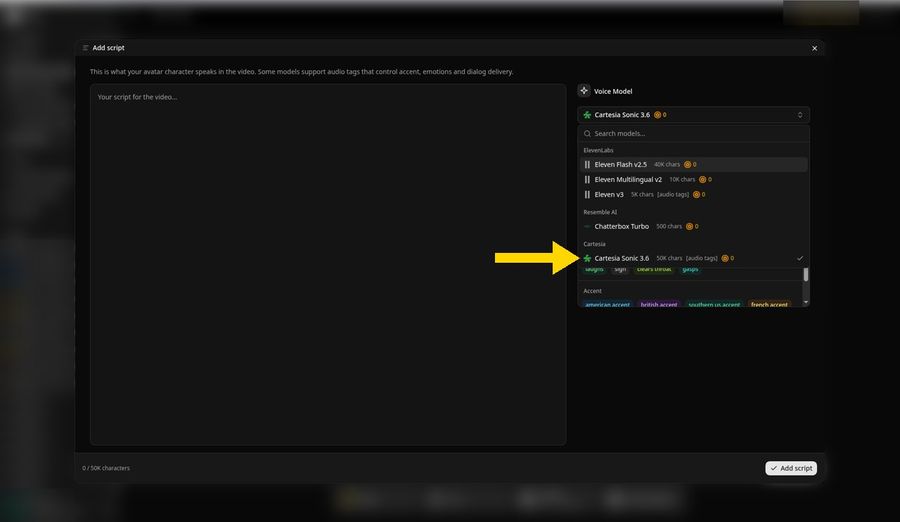
Open the Voice Model menu on the right and choose Cartesia Sonic 3.6 under Cartesia. A check mark shows next to the selected model. It handles scripts of up to 50K characters and supports audio tags, such as whispers or laughs, that suit a sneaky goblin.
Step 11: Paste Your Script and Click Add Script
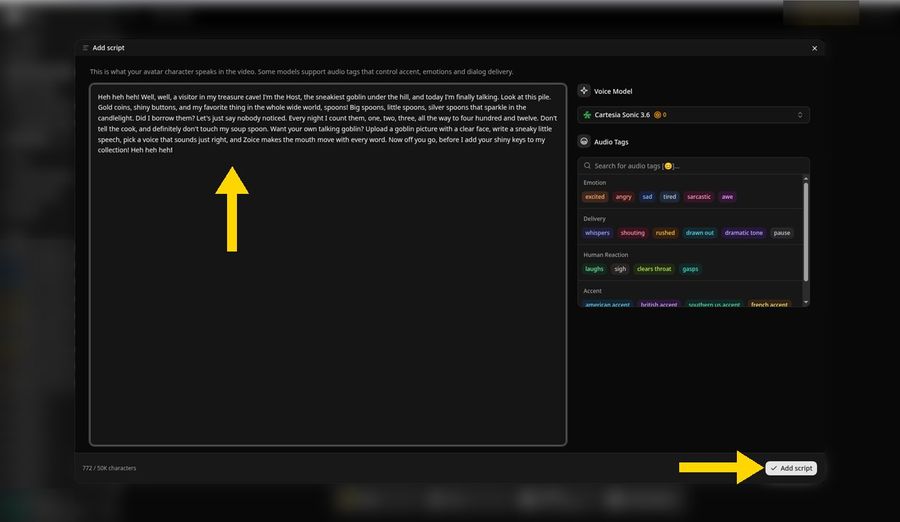
Type or paste the words your goblin will say. Our script starts with "Heh heh heh! Well, well, a visitor in my treasure cave!" It runs 772 characters, so the panel counts 772 of 50K. Zoice supports scripts in 170+ languages and dialects. Then click Add script.
Here is the full script we used:
Heh heh heh! Well, well, a visitor in my treasure cave! I'm the Host, the sneakiest goblin under the hill, and today I'm finally talking. Look at this pile. Gold coins, shiny buttons, and my favorite thing in the whole wide world, spoons! Big spoons, little spoons, silver spoons that sparkle in the candlelight. Did I borrow them? Let's just say nobody noticed. Every night I count them, one, two, three, all the way to four hundred and twelve. Don't tell the cook, and definitely don't touch my soup spoon. Want your own talking goblin? Upload a goblin picture with a clear face, write a sneaky little speech, pick a voice that sounds just right, and Zoice makes the mouth move with every word. Now off you go, before I add your shiny keys to my collection! Heh heh heh!
Step 12: Add an Optional Action Prompt
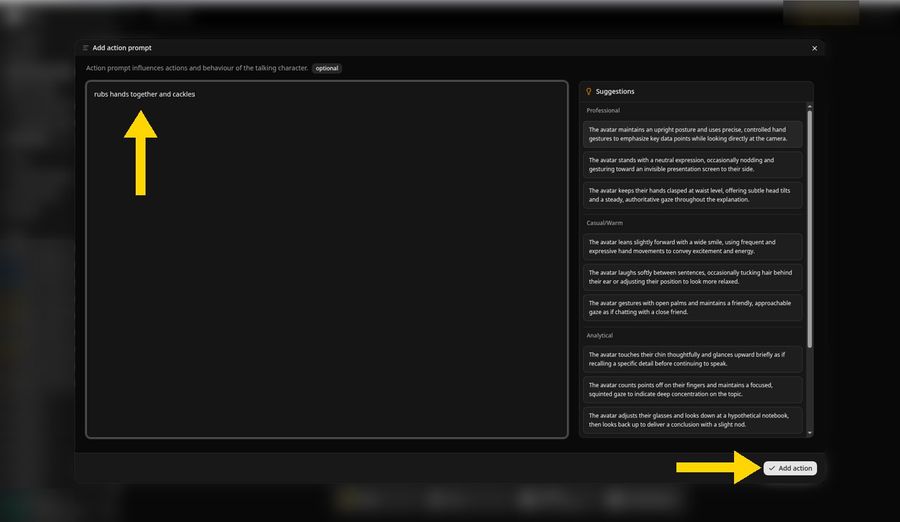
Click Action Prompt in the composer to open the Add action prompt panel. It is marked optional, and a list of suggestions sits on the right. We typed "rubs hands together and cackles" and clicked Add action, so the Action Prompt button in the composer now reads Added.
The action prompt guides how the character moves; it does not script every frame, and results vary from image to image. In our finished clip, the goblin raises one hand into view near the start and flashes wide, squinting grins as it talks. A full hand rub does not show, since our image is a close crop and both hands never appear together. Either way, the mouth stays lip synced to your script.
Step 13: Pick the Leo Voice and Click Generate
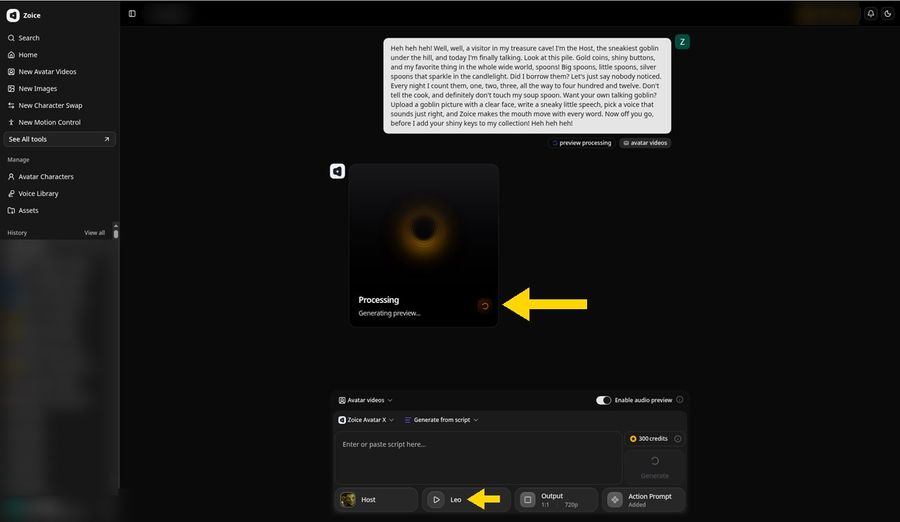
Click Select voice in the composer and pick a voice profile. We chose Leo, a public voice from the library. The composer now shows Host, Leo, your script, Output 1:1 and 720p, and Action Prompt Added.
Check that everything is set, then click Generate. With Enable audio preview switched on, Zoice opens a new project and shows a Processing card that reads Generating preview.
Step 14: Check the Audio Preview and Click Generate Avatar Video
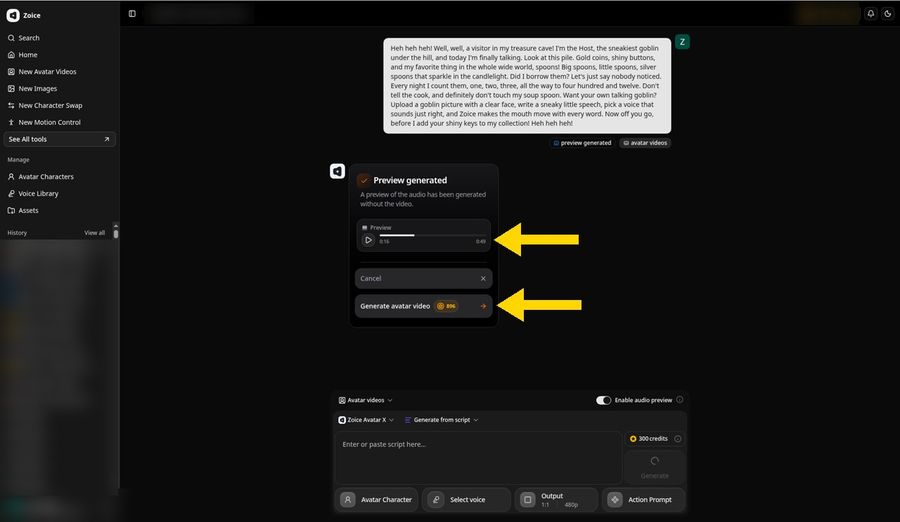
When the preview is ready, the card reads Preview generated. The player shows the length, and ours ran 0:49. Press play to check the words and the timing. If it sounds right, click Generate avatar video. The credit cost shows on the button, 896 credits for our 0:49 script at 720p. Want to change something? Click Cancel, edit the script, and generate a new preview.
Step 15: Wait While Zoice Processes the Video
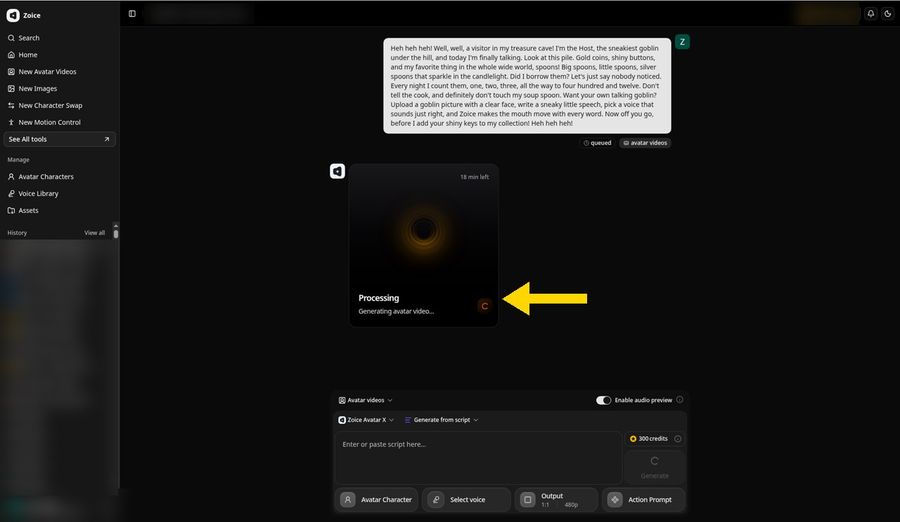
Zoice queues the request and shows a Processing card with the text Generating avatar video. The card shows an estimate of the time left, and ours showed 18 minutes. You can leave the page open or come back to the project later from History.
Step 16: Preview Your Talking Goblin
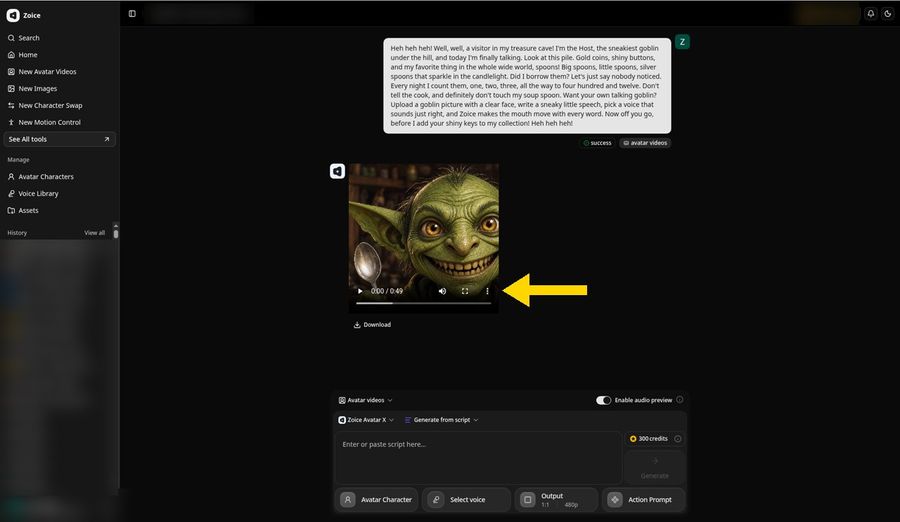
When the status changes to success, the video player appears. Our talking goblin video ran 0:49. Press play and check that the video is lip synced to your script and that the voice fits the character. If something is off, change the script, the voice, or the image and generate again.
The composer below resets to 480p for your next video, but your finished video stays at 720p.
Step 17: Open the Player Menu and Download
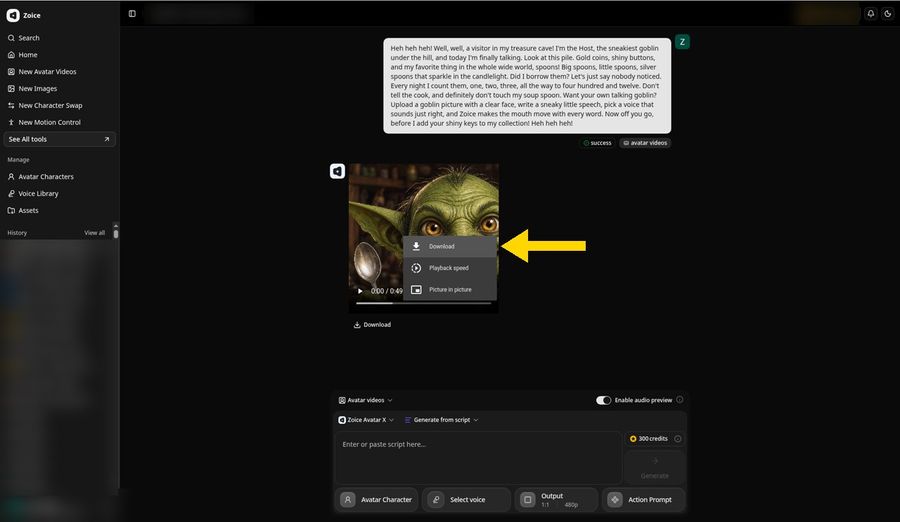
To save the video, click the three dot menu in the player and choose Download. You can also click the Download link below the player. Your browser saves the clip as an MP4 file, ready for a game night, a group chat, or your stories. Only use images and audio you have the rights to use.
Watch the Finished Video

This is the talking goblin we made in this guide: Host reads the full script with the Leo voice, 0:49 at 720p. Want one of your own? Try Zoice.
Demo Idea: The Goblin's Treasure Monologue
Our script gives the goblin a funny obsession: a hoard of spoons it insists it only borrowed. A single silly detail like that carries a short clip. Here are more ideas to start with:
- A goblin game master who welcomes players to tonight's session
- A goblin shopkeeper who haggles over a shiny button
- A goblin guard who demands a riddle before the party starts
- A goblin who reads the rules of a board game, badly
Want a longer tale? Browse AI storytelling avatar generators. Ready to give your goblin a voice? Try Zoice.
Tips for Goblin Images
- Pick goblin art with a clear, single mouth
- Use bright light so it stays fun rather than frightening
- Give your goblin a funny obsession, like shiny spoons
- Keep the action prompt short and simple, since it guides the motion rather than controlling it
- Preview the audio before you spend credits on the video
FAQ
Is this the same as the Halloween guide?
No. This guide focuses on one goblin character, while the Halloween talking photo guide covers spooky photos and costumes in general.
Can kids watch it?
Yes. Keep the script silly rather than scary, use a bright image, and preview the audio before you make the video.
Is the action prompt required?
No. It is optional and only guides how the character moves. The video is lip synced to your script either way.
Does it use credits?
Yes. Creating the avatar and generating the video both use credits, and Zoice shows the cost before you click Generate.