How to Make a Cockatiel Talk With AI: A Simple 2026 Guide
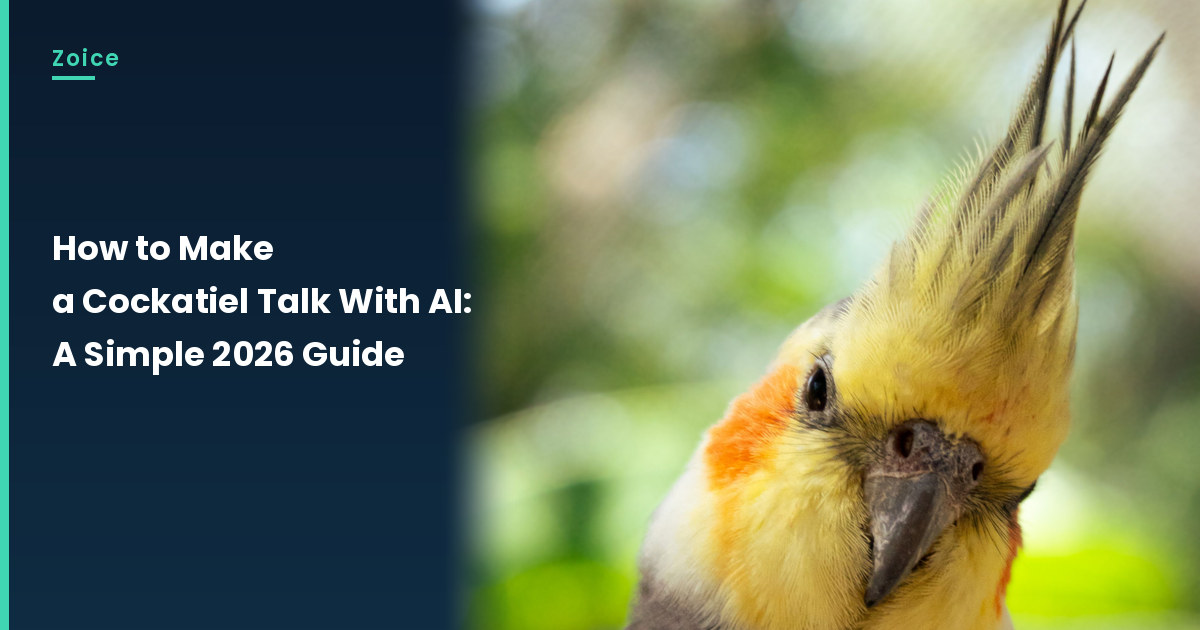
A cockatiel already has a bright crest and a lot of personality, so a still photo is a natural start for a short talking clip. This is how to make a cockatiel talk with AI in Zoice: upload a clear, front-facing picture, use it as the Host, paste a short script, pick a voice, and let lip sync follow the words. An optional action prompt can add a small move, such as tilts its head and lifts its crest. The walkthrough below uses a stock cockatiel photo as a stand-in, and you can swap in a bird photo you made or may use.
Below is how to make a cockatiel talk with AI, one screen at a time. If you would rather start from a different companion animal, our guide to making your pet talk with AI covers that wider path. If your photo is a parrot, follow our parrot tutorial instead.
Picking a Cockatiel Photo That Can Talk
Use a stock or fictional cockatiel photo with a clear face and a visible beak. Skip franchise characters and photos of birds you do not have rights to use.
- Choose a close, front-facing shot with the beak in view
- Soft indoor or outdoor light is easier to read than harsh glare
- Keep toys and cage bars out of the mouth area
- Test the photo in Zoice; if a face is not detected, try a tighter crop or a different picture, and note the swap
How to Make a Cockatiel Talk With AI in Zoice
Our Host is a stock photograph of a grey cockatiel with a raised crest, a pale yellow face, orange cheek patches and a visible beak, facing the camera, used as the Host for this post and saved in the app.
Step 1: Sign In to Zoice and Open Home
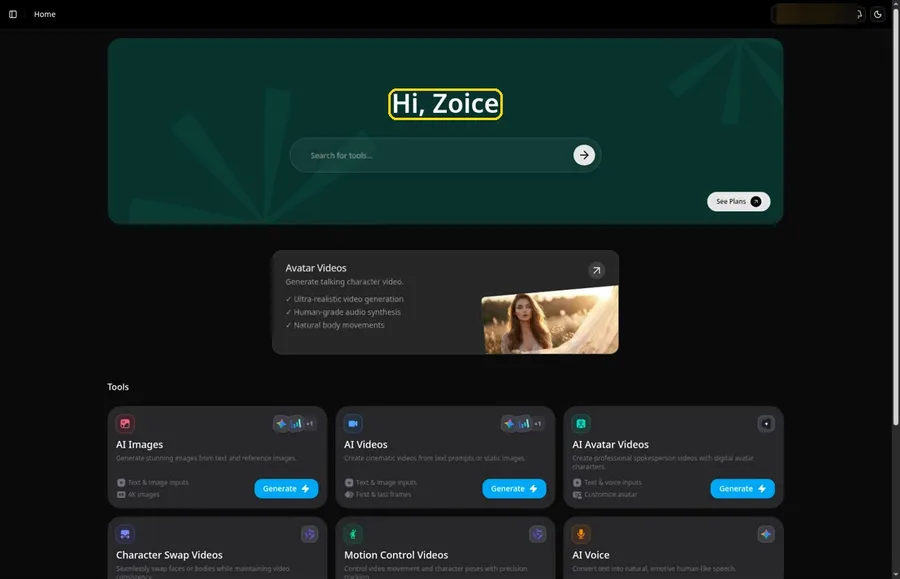
Open Zoice, click Sign In, and log in with email or Google so you can build the talking cockatiel.
Step 2: Open Avatar videos
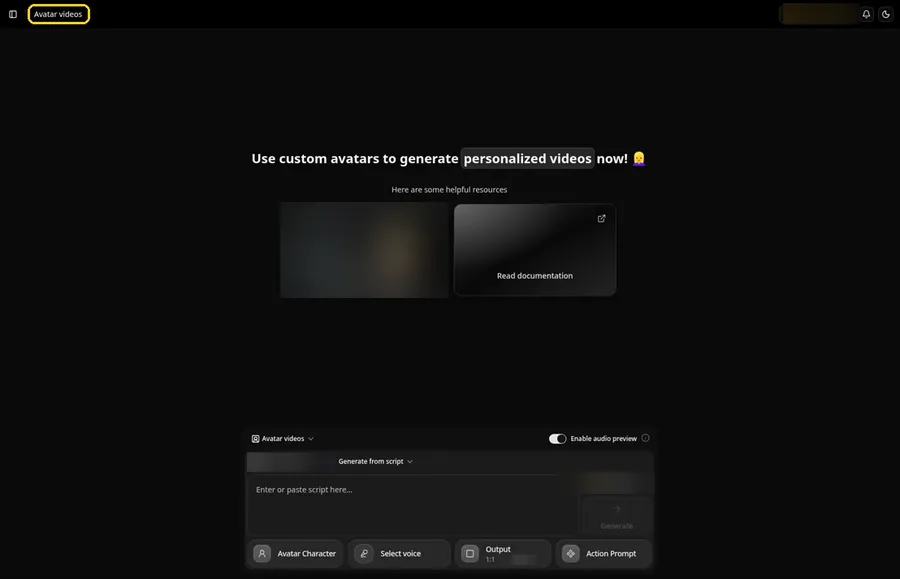
Open Avatar videos. The page title reads Avatar videos, and the composer is empty with Output at the default 1:1.
Step 3: Open Avatar Character and Create a New Avatar
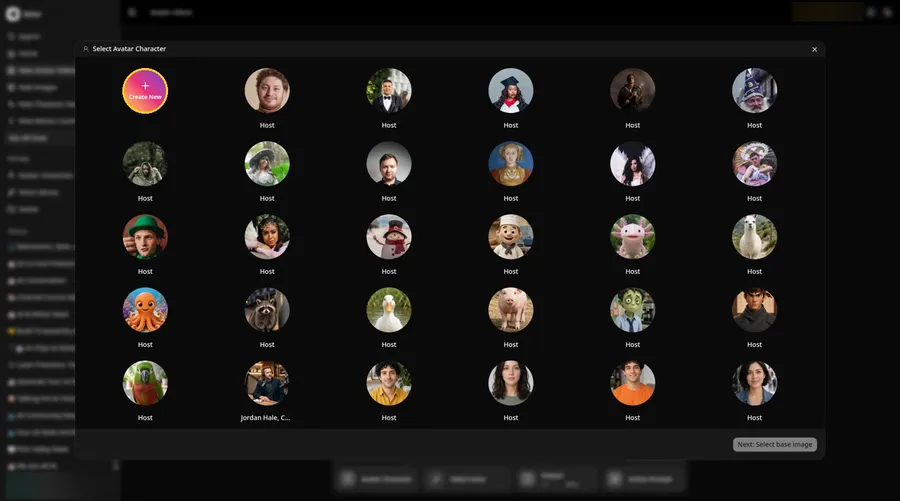
Click Avatar Character, then Create New in the Select Avatar Character window. If the Avatar Characters page appears, click Create New once more so the full-screen Create new avatar page opens for the talking cockatiel.
Step 4: Choose Upload Image
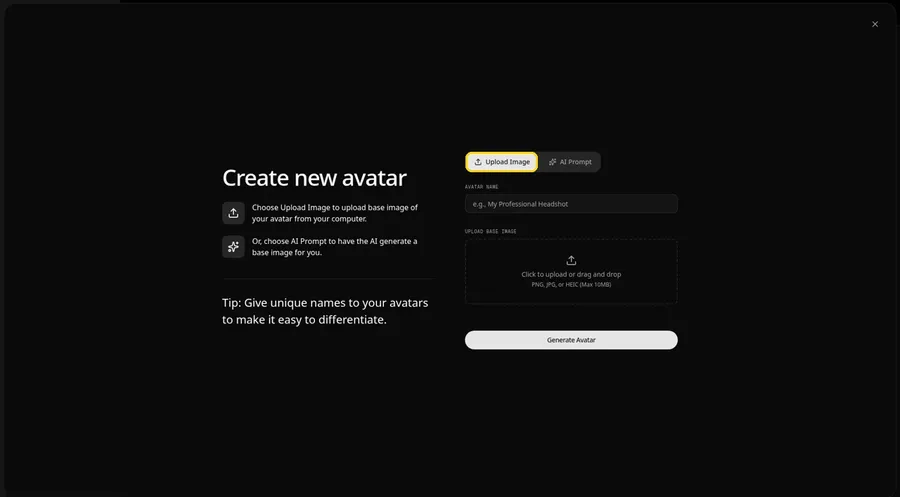
Stay on the Upload Image tab under UPLOAD BASE IMAGE, because this talking cockatiel starts from a photo file.
Step 5: Upload the Cockatiel Image
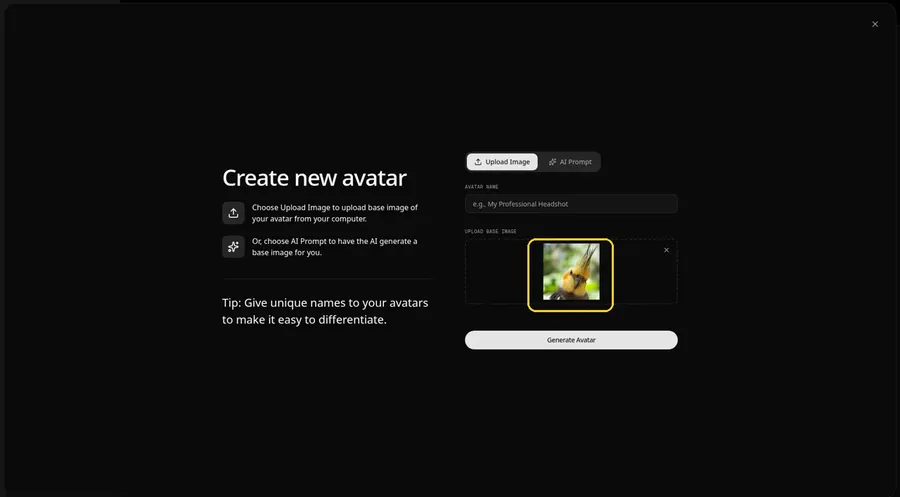
Upload the cockatiel photo. The preview should show a grey cockatiel with a raised crest, a pale yellow face, orange cheek patches and a visible beak, facing the camera.
Step 6: Name Your Avatar Host and Click Generate Avatar
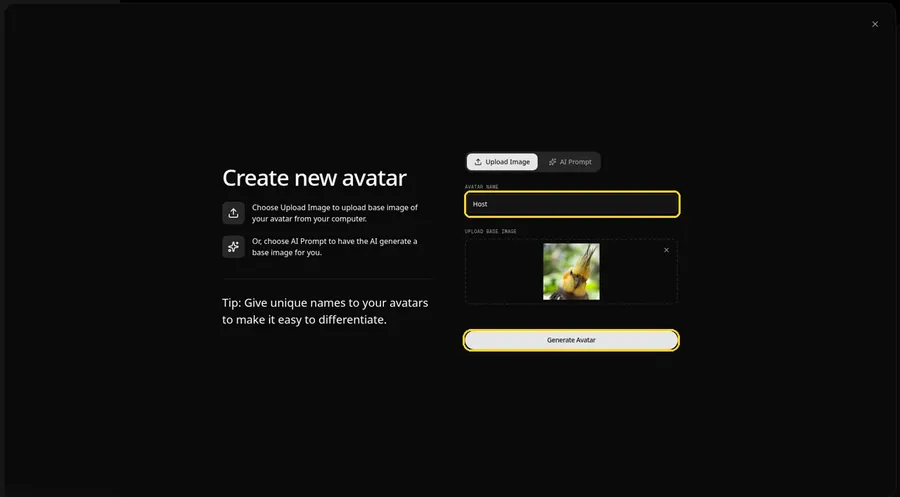
Name the talking cockatiel avatar Host in AVATAR NAME, with the preview in place, ready to click Generate Avatar.
Step 7: Open the Add Script Panel
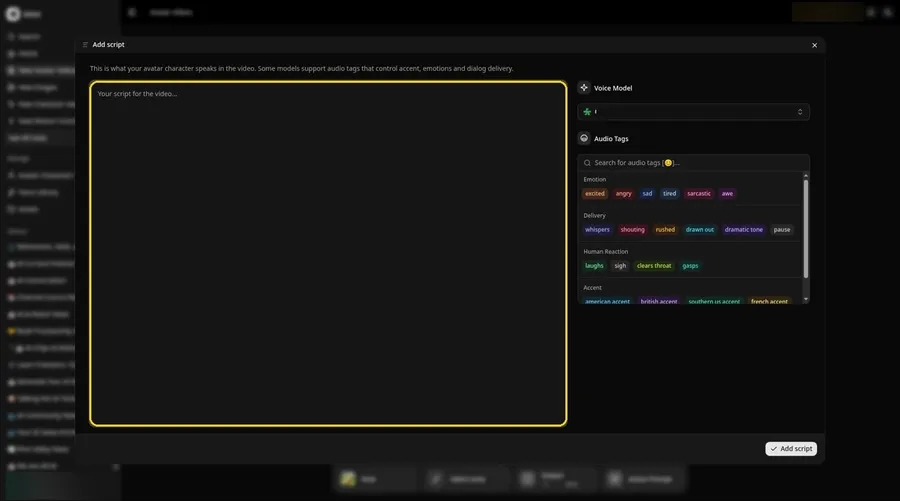
Click the script box in the composer, and the Add script panel for the talking cockatiel opens.
Step 8: Choose the Voice Model
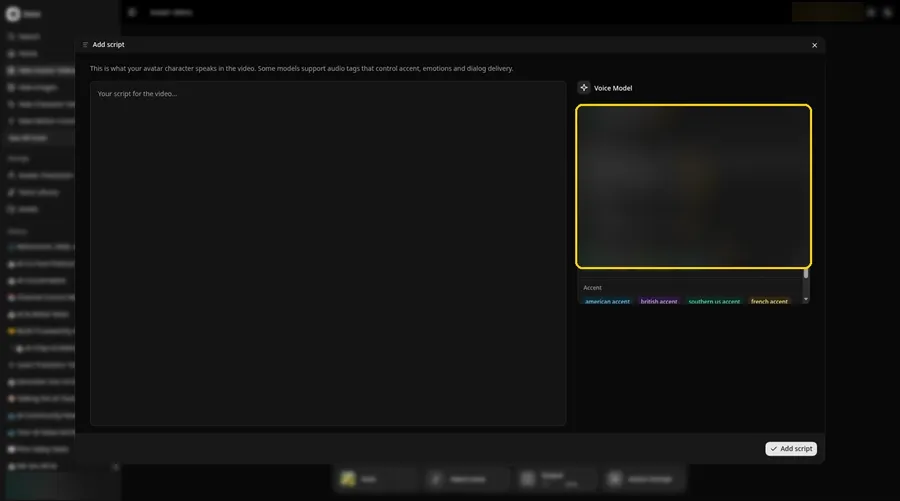
Open the Voice Model menu and choose the voice model that will shape the talking cockatiel.
Step 9: Paste Your Script and Click Add Script
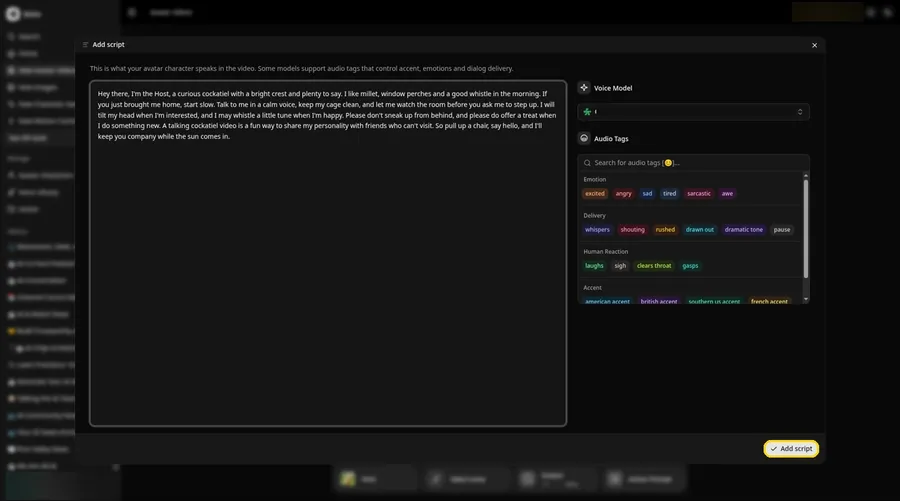
Paste the talking cockatiel script, then click Add script. It starts with: Hey there, I'm the Host, a curious cockatiel with a bright crest and plenty to say.
Step 10: Pick a Voice
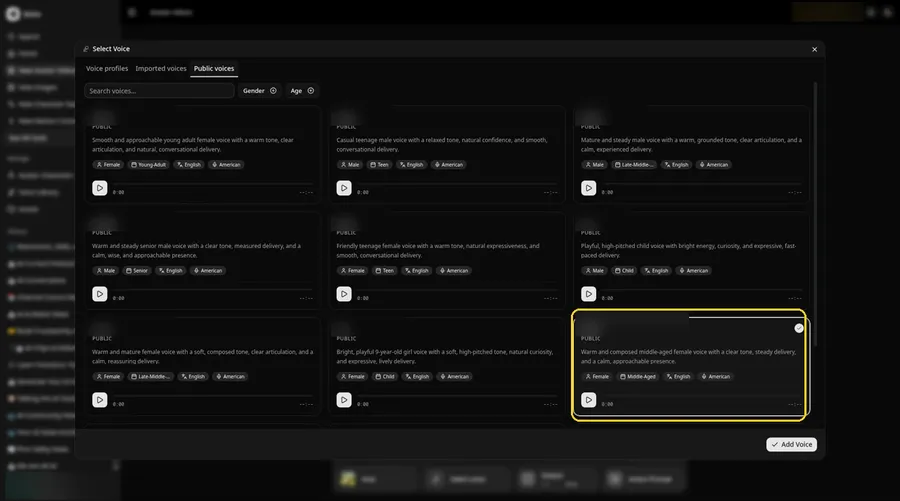
Open Select Voice from the composer, stay on the Public voices tab, pick a bright, friendly adult voice, and click Add Voice. Do not name the voice in the post or in captions.
Step 11: Choose your output settings
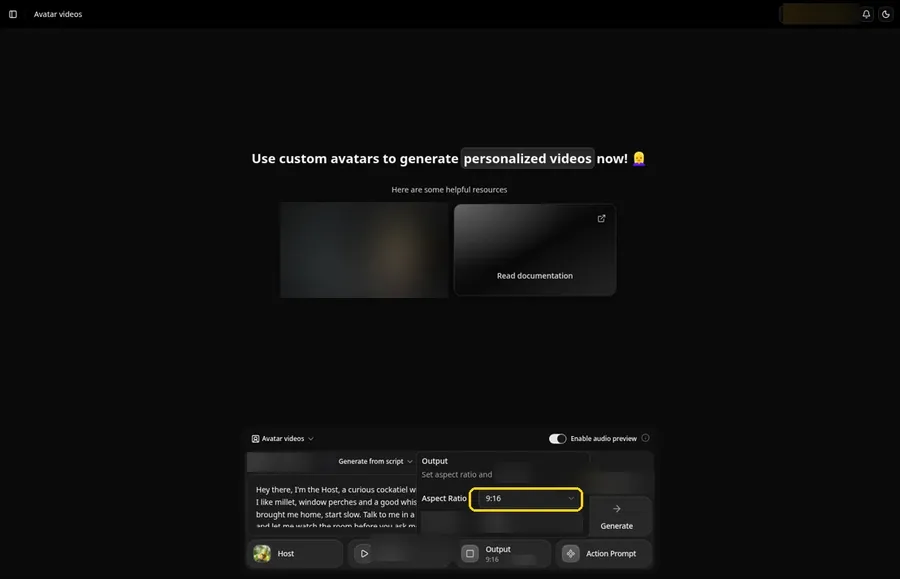
Choose your output settings. If the talking cockatiel is going to Reels, Shorts or stories, set the Output aspect ratio to 9:16.
Step 12: Add an Action Prompt
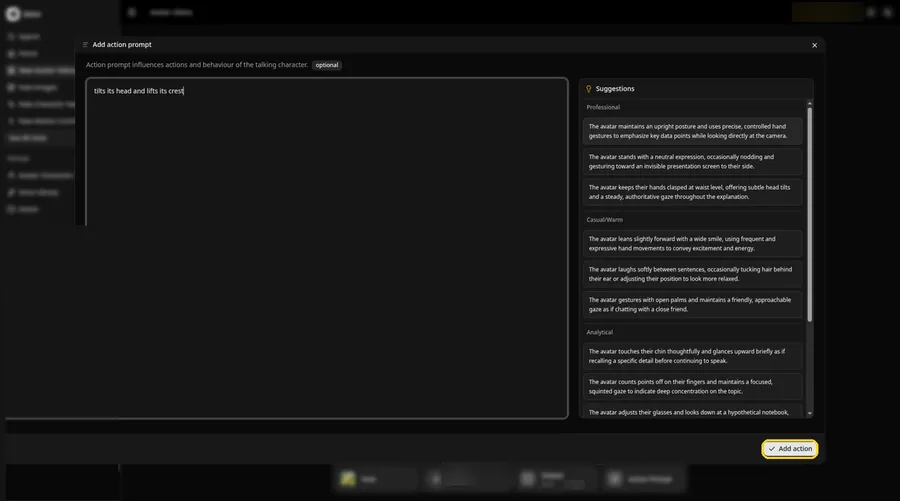
In the Add action prompt panel, type: tilts its head and lifts its crest. Click Add action. The talking cockatiel will only make the move written here.
Step 13: Click Generate
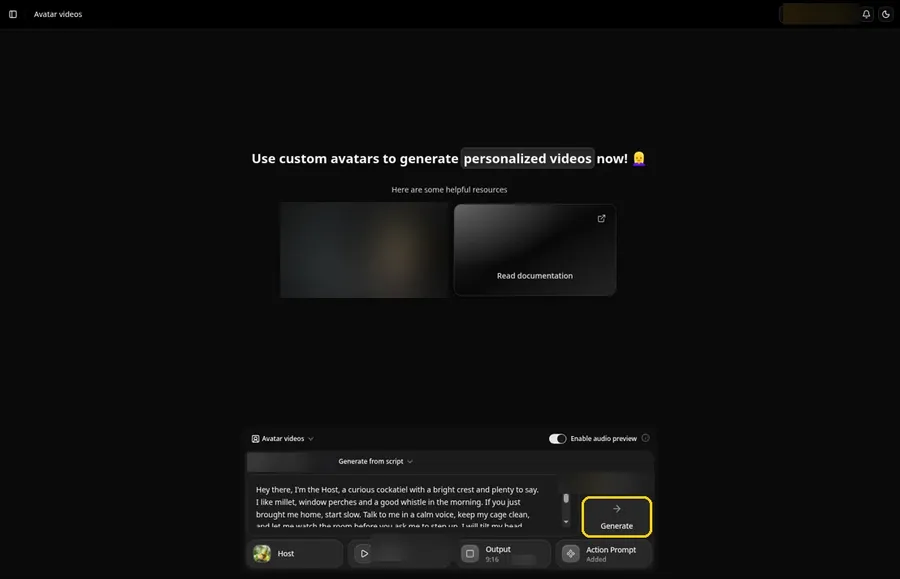
Review the talking cockatiel Host, the voice, the script, the 9:16 output and the Action Prompt chip reading Added, then click Generate.
Step 14: Confirm the Audio Preview
Play the talking cockatiel audio preview, then confirm it so Zoice can process the clip.
Step 15: Preview the Video in the Player
When the player is ready, press play and check the talking cockatiel lip sync against your script, including the action prompt move.
Step 16: Download From the Player Menu
Open the three-dot menu on the player and choose Download to save the talking cockatiel clip.
Step 17: Share Your Video
Share the talking cockatiel file in a chat, a class page or as a Reel, Short or story, and only use images and audio you made or may use.
Writing the Action Prompt
Keep the talking cockatiel move small, like a single head tilt and a lifted crest near the hello.
- tilts its head and lifts its crest
- turns toward the camera and blinks
- nods once and lifts its crest
Type your pick in step 12 and click Add action so the Action Prompt chip updates on the talking cockatiel.
Demo Idea: A Cockatiel Welcome From the Perch
A stock-photograph Host, of a grey cockatiel with a raised crest, a pale yellow face and orange cheek patches, greets a new owner from its perch, with a head tilt and a lifted crest from the action prompt. Here is the exact script:
"Hey there, I'm the Host, a curious cockatiel with a bright crest and plenty to say. I like millet, window perches and a good whistle in the morning. If you just brought me home, start slow. Talk to me in a calm voice, keep my cage clean, and let me watch the room before you ask me to step up. I will tilt my head when I'm interested, and I may whistle a little tune when I'm happy. Please don't sneak up from behind, and please do offer a treat when I do something new. A talking cockatiel video is a fun way to share my personality with friends who can't visit. So pull up a chair, say hello, and I'll keep you company while the sun comes in."
Your talking cockatiel is waiting for its first lines. Try Zoice and give the talking cockatiel a voice.
Tips for Your Talking Cockatiel Video
- Use a close, front-facing cockatiel photo with the beak visible, and only use a photo you made or may use.
- Write as the bird, with a few perch, treat and whistle details, so the clip feels specific.
- A bright, friendly voice fits a pet bird welcome.
- For the talking cockatiel, add an action prompt only after the lip sync looks right, then compare the two versions.
Want a different bird on the perch? Our talking duck tutorial follows the same photo-to-talking-clip path for a duck.
FAQ
Is this the same as the parrot tutorial?
No. This is a photo-to-talking-cockatiel how-to. Readers who have a parrot can follow that parrot tutorial instead.
Does the cockatiel photo need a face?
Yes. Zoice needs a face with a visible beak or mouth to lip sync, so pick a bird that faces the camera.
What image formats can I upload?
PNG, JPG or HEIC files, as the Upload Image panel states.
Is the action prompt required?
No. The talking cockatiel is lip synced to your script either way; the action prompt only adds the move.
Try Zoice
Read our AI talking animals generator roundup, or Try Zoice and make the talking cockatiel today.