How to Make a Parrot Talk With AI: A Simple 2026 Guide
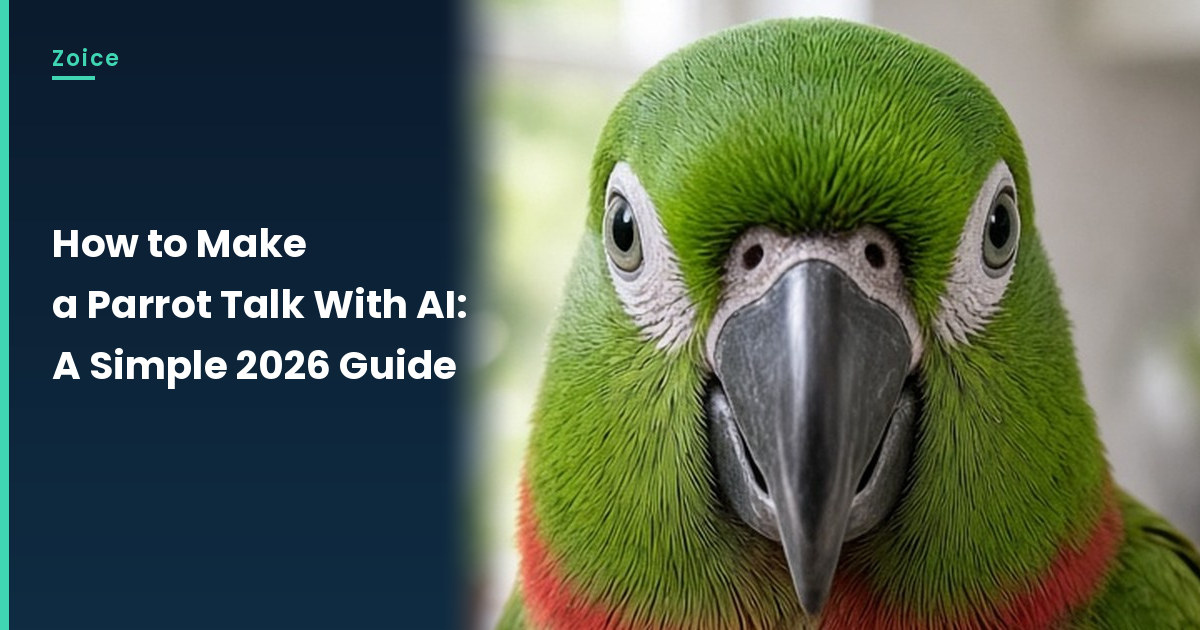
Parrots are famous talkers, and with AI yours can say a whole script. In Zoice you upload one parrot image as your Host, paste what it should say, and lip sync follows the beak. An action prompt adds the personality: a head bob, a feather fluff or a curious tilt. This guide shows every parrot click up to Generate.
Below is how to make a parrot talk with AI, one screen at a time. Birds join a long list of creatures in our AI talking animals generator guide.
Picking a Parrot Image
The right parrot image makes the lip sync easy to follow. Look for:
- A head facing the camera with both eyes visible
- A closed beak so the motion starts clean
- Bright, even light on the feathers
- A simple background like a kitchen or perch
How to Make a Parrot Talk With AI in Zoice (Step-by-Step)
Our Host is an AI-made fictional green and red parrot, created for this post.
Step 1: Visit Zoice and Sign In
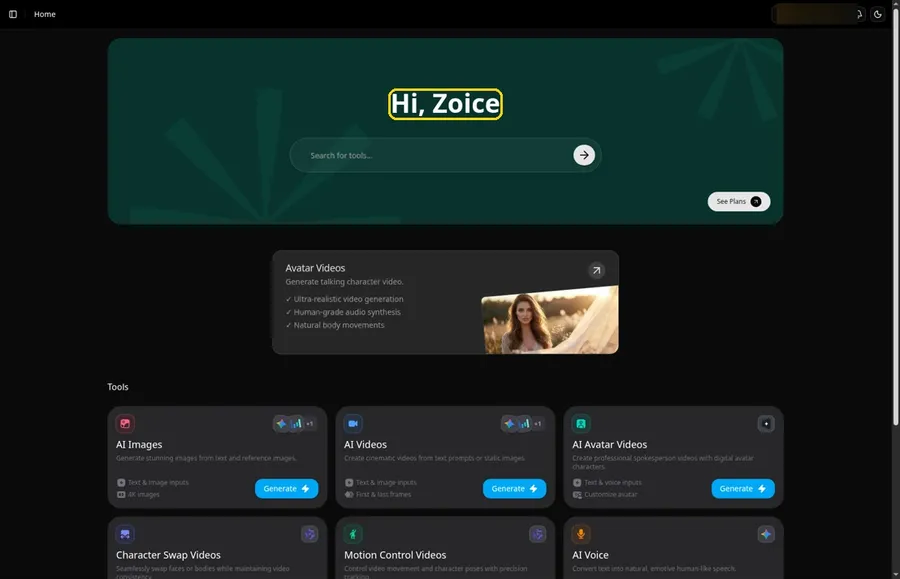
Open Zoice, press Sign In and choose email or Google, and you land on Home ready for the parrot.
Step 2: Open Avatar videos
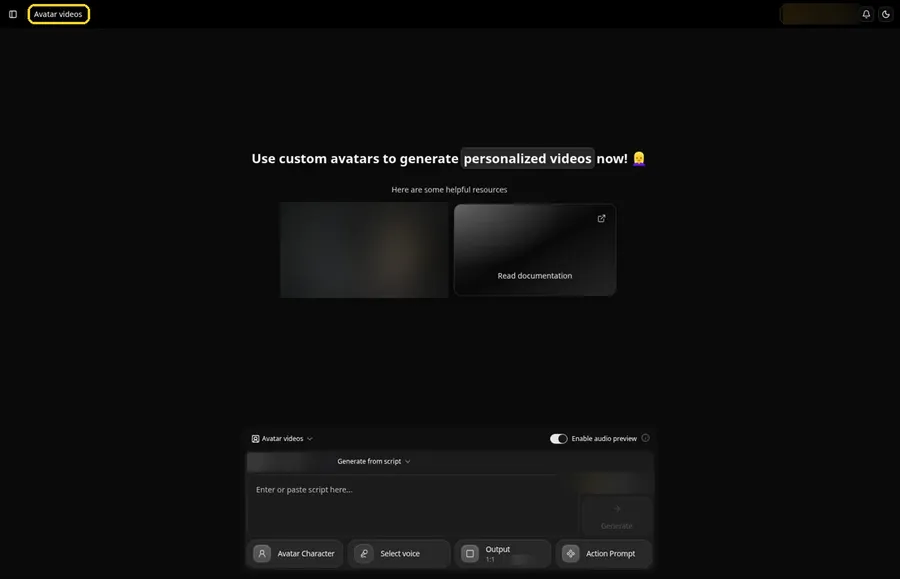
Click Avatar videos in the sidebar; the page title reads Avatar videos, and its composer holds every parrot setting.
Step 3: Click Avatar Character, Then Create New
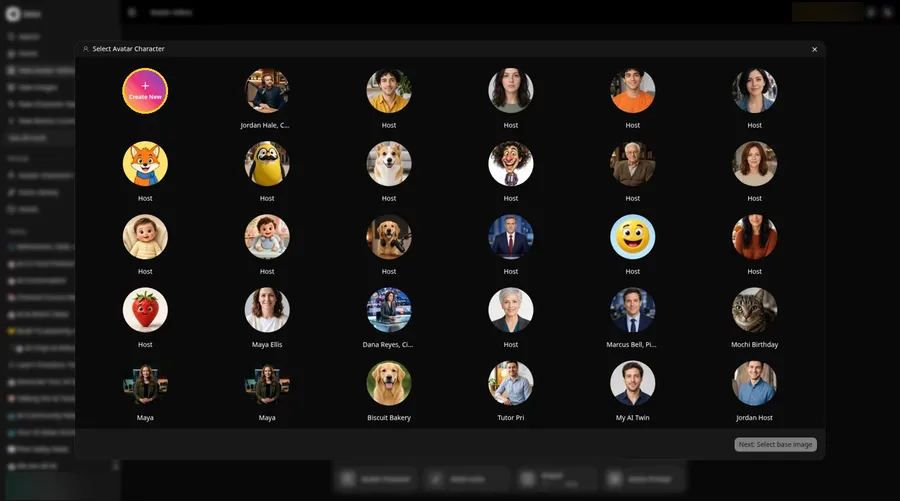
Click Avatar Character in the composer to open Select Avatar Character for the talking parrot, then click Create New. On the Avatar Characters page, click Create New again, and the full-screen Create new avatar page opens for the talking parrot.
Step 4: Choose Upload Image
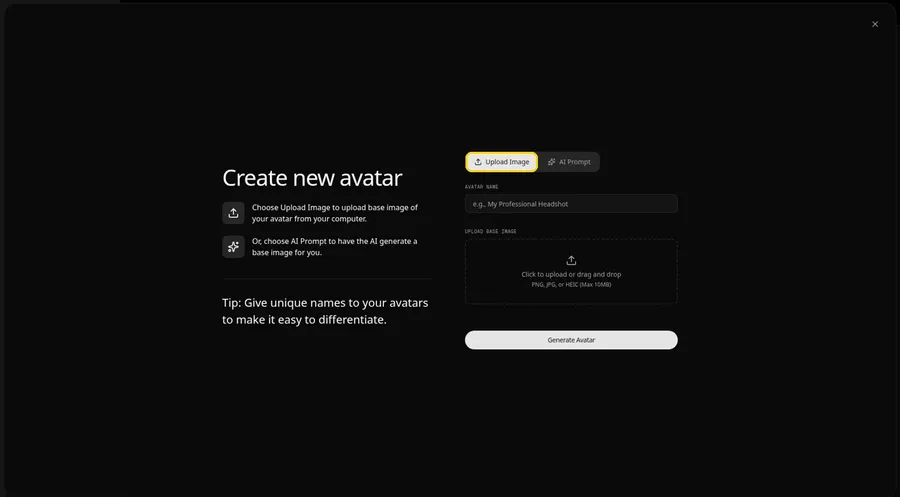
Choose the Upload Image tab under UPLOAD BASE IMAGE, because this talking parrot starts from a still image. AI Prompt remains the other tab if the talking parrot has no file to upload.
Step 5: Upload Your Parrot Image
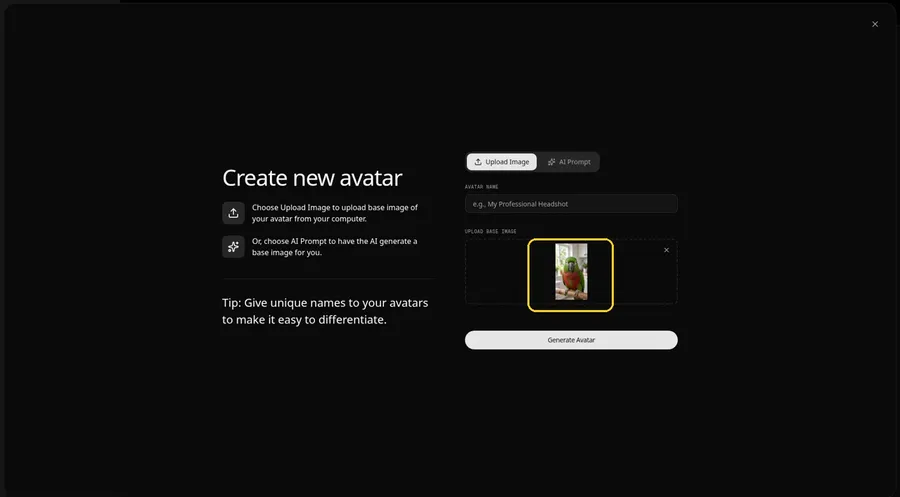
Choose a clear, front-facing parrot photo in the upload area and check the preview shows the parrot face clearly.
Step 6: Name Your Avatar Host and Click Generate Avatar
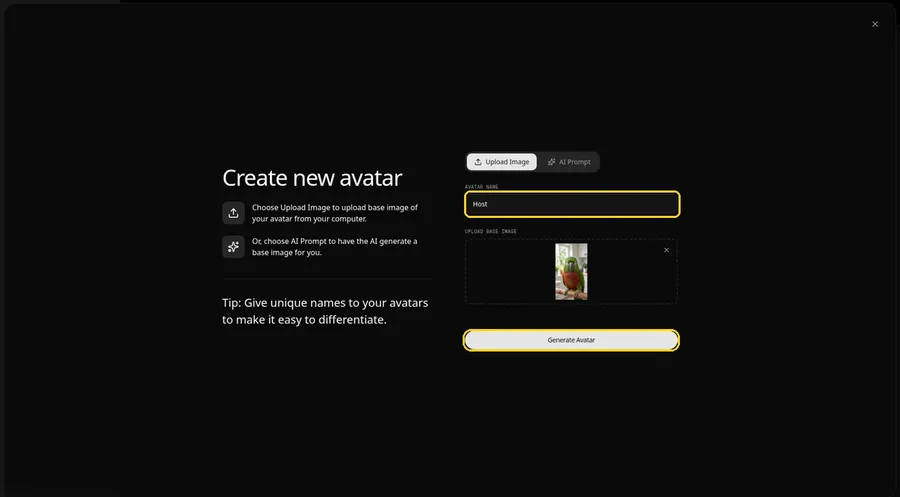
Put Host in the AVATAR NAME field and press Generate Avatar; that stores the talking parrot in your list.
Step 7: Open the Add Script Panel
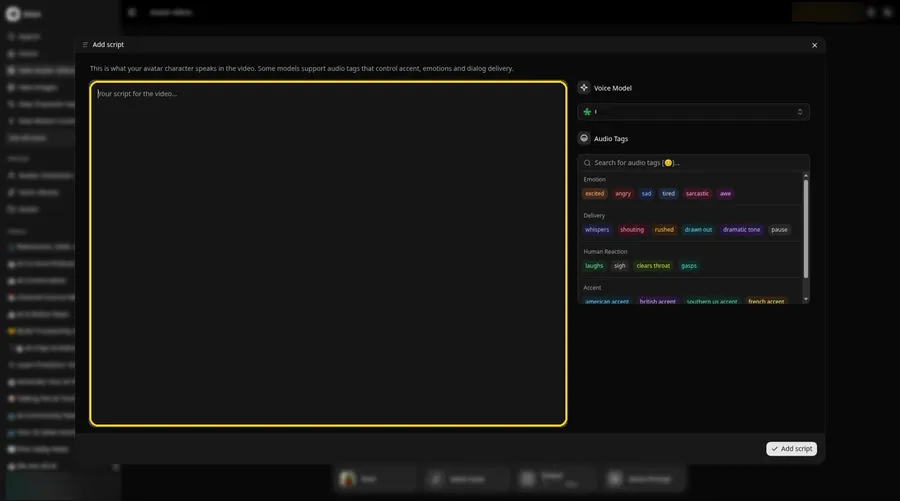
Open the Add script panel by clicking the script box beside the parrot Host.
Step 8: Choose the Voice Model
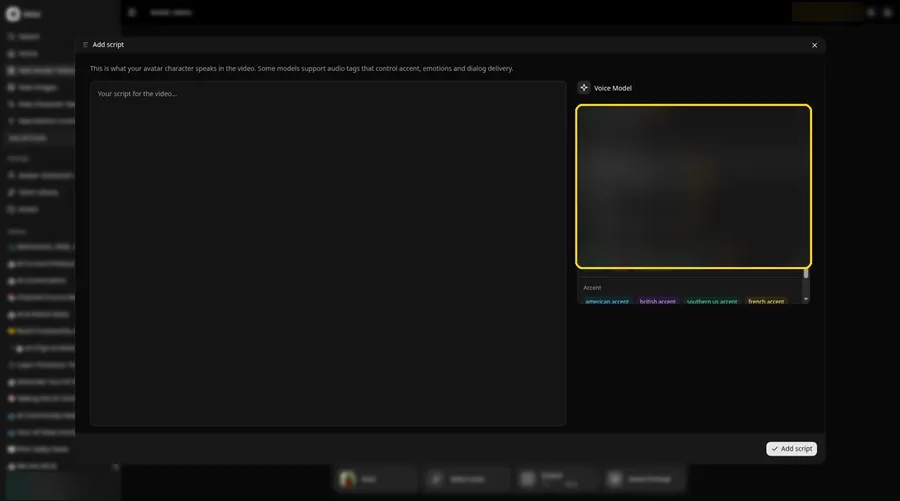
Open the Voice Model menu and choose the model that will read the parrot lines.
Step 9: Paste Your Script and Click Add Script
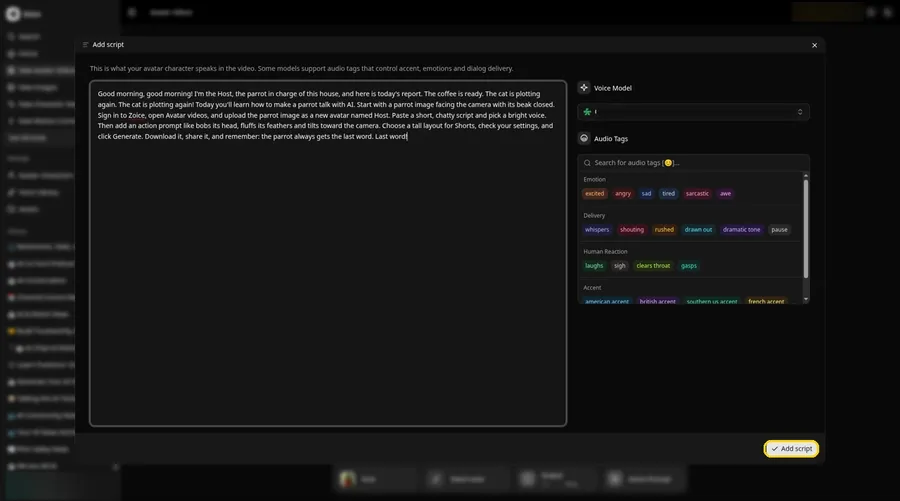
Paste the parrot lines into the panel and click Add script. First line: Good morning, good morning!
Step 10: Pick a Voice
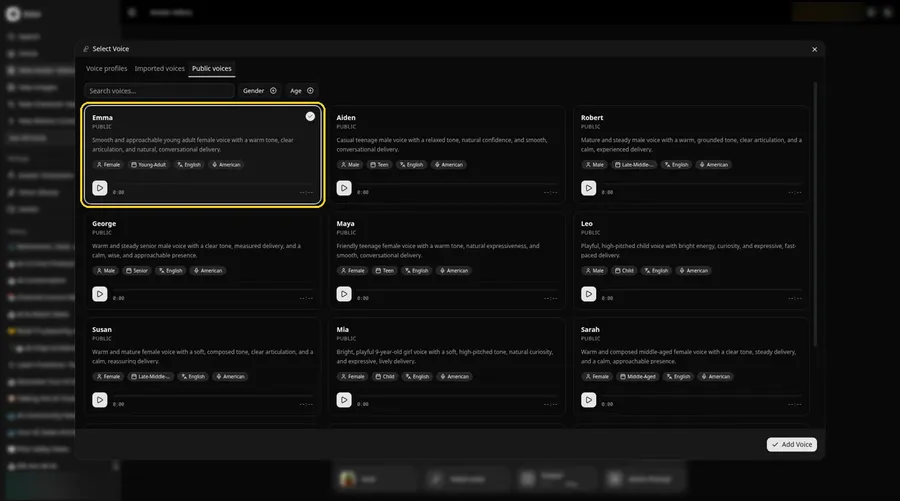
- Open Select Voice for the talking parrot by clicking the voice button in the composer.
- On the Public voices tab, pick the voice the talking parrot should use.
- Attach it to the talking parrot by clicking Add Voice.
Choose a warm, conversational voice for the parrot Host.
Step 11: Choose Your Output Settings
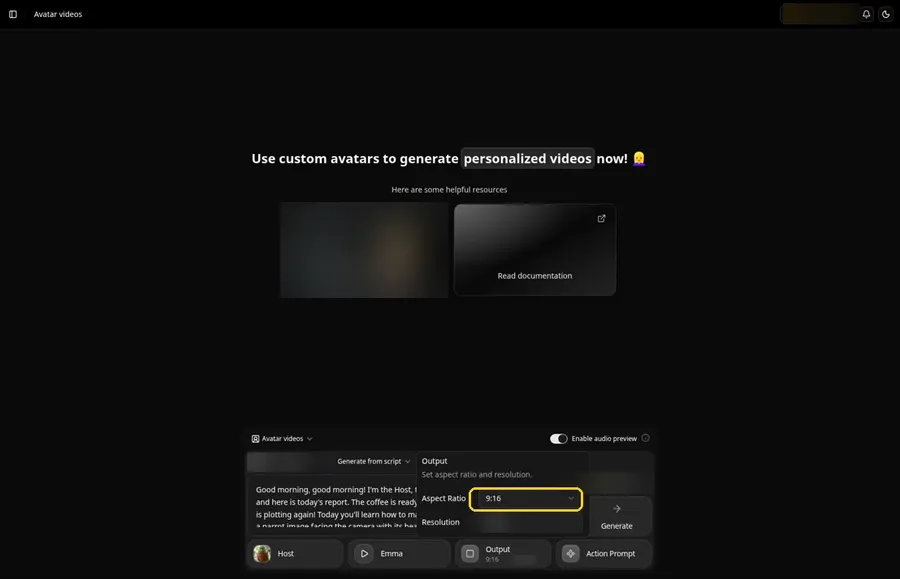
Choose your output settings. For the talking parrot, the Output aspect ratio dropdown should be set to 9:16.
Step 12: Add an Action Prompt
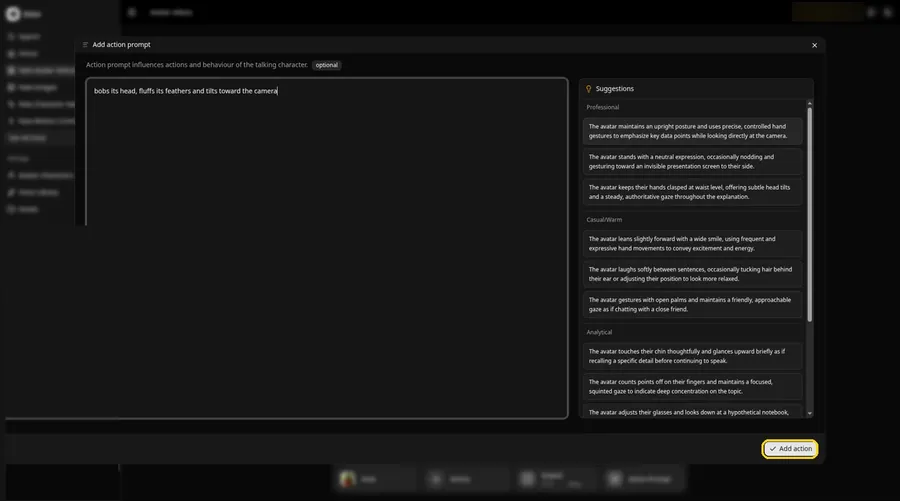
Use the Add action prompt panel to enter bobs its head, fluffs its feathers and tilts toward the camera, then click Add action. The talking parrot Action Prompt chip reads Added, and that is the only source of the talking parrot movement.
Step 13: Click Generate
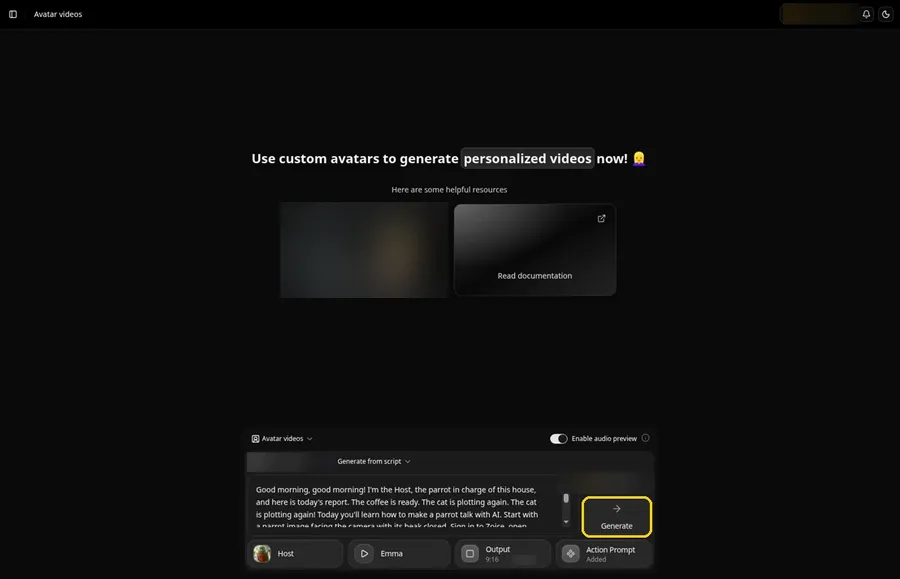
With the parrot Host, script, voice, 9:16 frame and Added action prompt in place, click Generate.
Step 14: Confirm the Audio Preview and Let Zoice Process
Listen to the parrot audio preview, then confirm with Generate avatar video while Zoice processes the clip.
Step 15: Watch the Result
Press play in the player and check that the parrot lip sync and the action prompt moves match your script.
Step 16: Download From the Player Menu
Use the player's three-dot menu and choose Download to keep the parrot file.
Step 17: Share Your Talking Parrot
Post it to Shorts or Reels, or send it to the family chat.
Writing the Parrot Action Prompt
Parrots are full of small, quick moves, so pick two or three and list them in order.
- bobs its head, fluffs its feathers and tilts toward the camera
- tilts its head to one side, then flaps its wings once
- leans in close to the camera, then bobs twice
Demo Idea: The Parrot Morning Report
The parrot Host delivers the household morning report from its perch and repeats the best bits for comic effect. This is the exact script:
"Good morning, good morning! I'm the Host, the parrot in charge of this house, and here is today's report. The coffee is ready. The cat is plotting again. The cat is plotting again! Today you'll learn how to make a parrot talk with AI. Start with a parrot image facing the camera with its beak closed. Sign in to Zoice, open Avatar videos, and upload the parrot image as a new avatar named Host. Paste a short, chatty script and pick a bright voice. Then add an action prompt like bobs its head, fluffs its feathers and tilts toward the camera. Choose a tall layout for Shorts, check your settings, and click Generate. Download it, share it, and remember: the parrot always gets the last word. Last word!"
Your parrot has news to share. Try Zoice and put it on the perch.
Tips for Your Parrot Video
- Choose a parrot image that faces the camera with the beak closed and clearly visible.
- Use a plain perch or leafy background so the head stands out.
- Write in short, punchy lines; parrots sound funnier when they repeat a word for effect.
- Action prompt tip: describe one bird move at a time, such as bobs its head, then fluffs its feathers.
- Pick a warm, conversational voice to match the parrot Host.
Have other pets at home? Our pet talk guide covers them.
FAQ
Do I need a real parrot photo?
No. An AI-made parrot image works, as long as the beak and eyes are clear.
Will this teach my real parrot to talk?
No. This guide makes a talking parrot video from an image; it is not a training method.
Can the parrot repeat my phrases?
Yes. Type the phrases into the script, and repeat a word if you want that parroting effect.
Can I share it as a Short?
Yes. Choose 9:16 in the output settings before you generate the parrot video.
Try Zoice
The perch is yours. Compare more bird-friendly tools in our AI talking pet generator list, or Try Zoice and make your parrot talk.