How to Make Faceless YouTube Videos With AI: 2026 Guide
A faceless YouTube video tells your story without you on camera. In Zoice you turn one photo into your Host, give it a script, pick a wide or tall layout and write an action prompt for gestures and expressions, while lip sync follows your words.
This step-by-step guide shows how to make faceless YouTube videos with AI, one click at a time, and the same steps work for any faceless video. Starting a channel from scratch? Our guide on how to start a faceless YouTube channel with AI covers that part.
What a Faceless YouTube Video Needs
Every video in this guide is built from the same few pieces. Gather them before you open the app and the steps go quickly.
- A script: written the way you would say it aloud, with a strong first line
- A Host photo: a clear, front-facing portrait of a made-up person, or of someone who said yes to it
- A voice: a public voice, or a voice profile made from your own reference audio
- A layout: 16:9 suits a regular YouTube video and 9:16 suits a Short
- A Zoice login on Starter or a higher plan, since that is where avatar videos begin
Wondering how to make a faceless video with AI for somewhere other than YouTube? Follow the same steps and change only the layout, such as 9:16 for TikTok or Reels. Curious how the Host itself is built? See the Zoice AI avatar generator page.
How to Make Faceless YouTube Videos With AI in Zoice: Step-by-Step
Each step below matches one screen in the Zoice app. We build a Host for a faceless explainer channel and set up the video all the way to the Generate button.
Step 1: Sign In to Zoice and Open Home
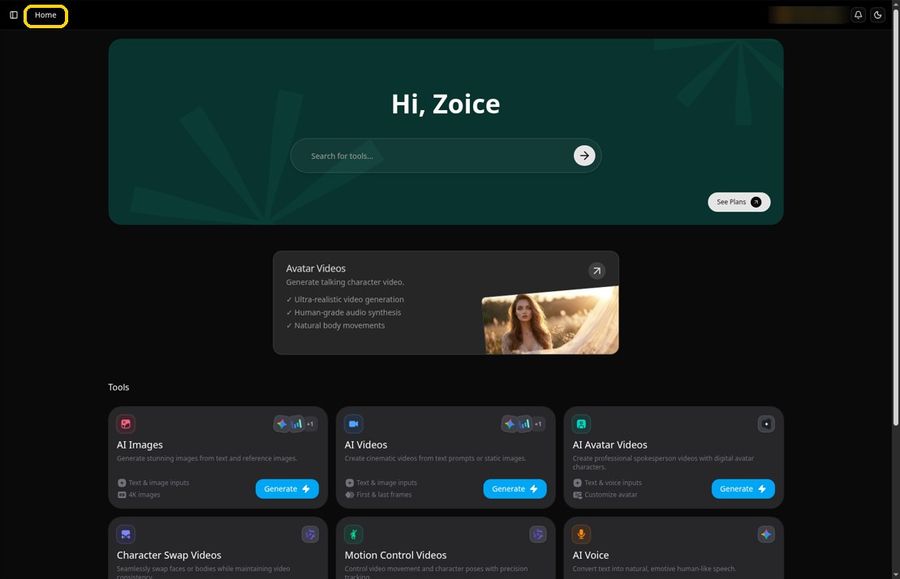
Open Zoice and look for Sign In at the top right. Enter your email and password, or use your Google account. First visit? You can create a free account from the same form. After you sign in, the app opens on the Home page, with Home shown at the top.
Step 2: Open Avatar videos
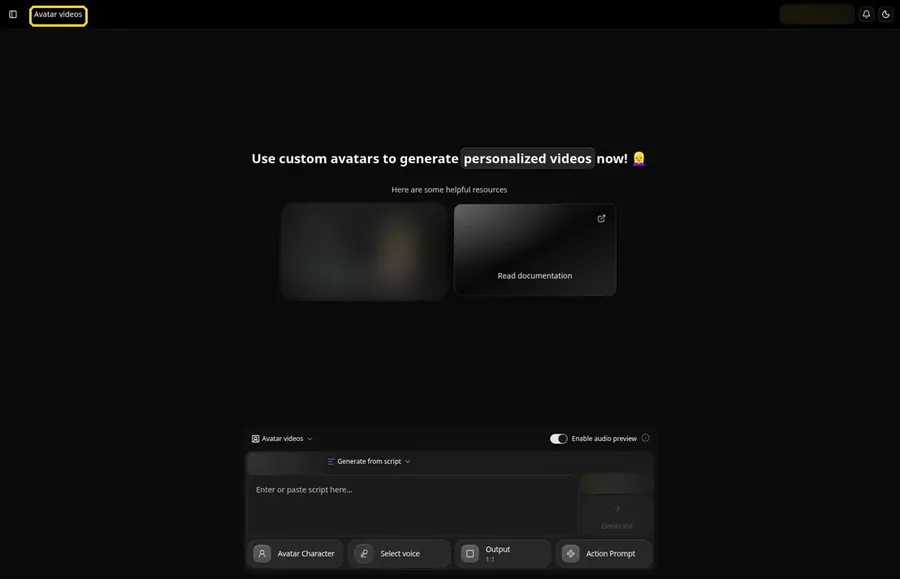
In the sidebar, pick Avatar videos. The composer sits at the bottom of the page, and this is where the Host, the script, the voice, the output and the action prompt come together.
Step 3: Start a New Avatar Character
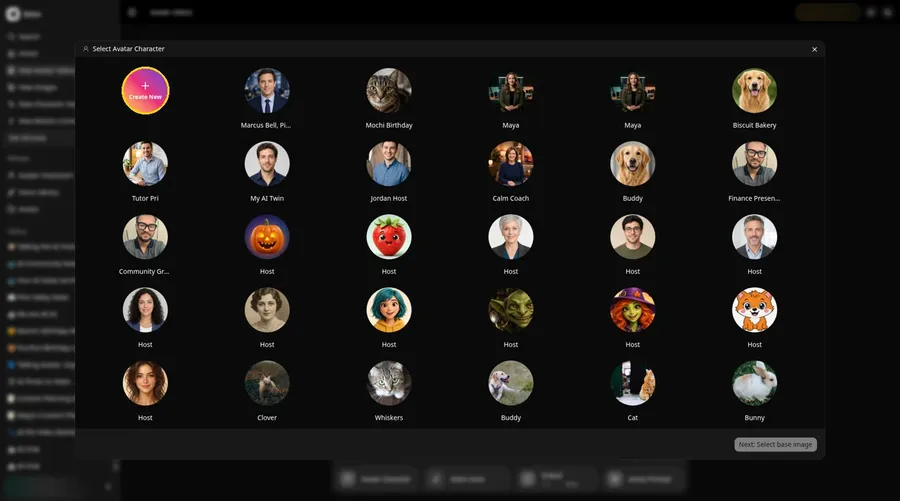
Click Avatar Character in the composer. In the Select Avatar Character window, click the round Create New button to start a new Host.
Step 4: Choose Upload Image
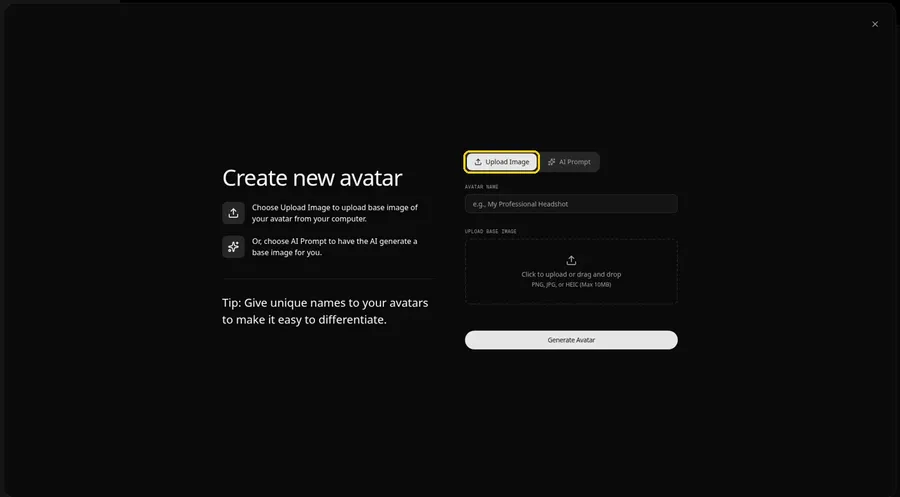
Upload Image is the tab you want, and it is already selected when the Create new avatar page appears. If you do not have a suitable photo, the AI Prompt tab lets you describe a face instead.
Step 5: Upload Your Host Photo
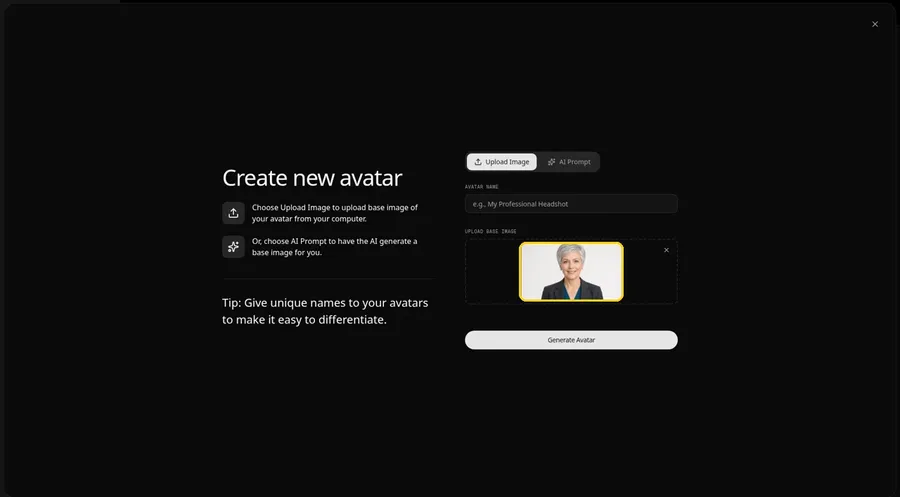
Click the upload area and choose your portrait. For this guide we used an AI-made portrait of a fictional presenter. A preview appears, so you can check the face before moving on.
- Face the camera with the eyes open
- Use soft, even light without hard shadows
- Keep the background plain
- Keep one face in the frame
Step 6: Name the Avatar Host, Then Generate It
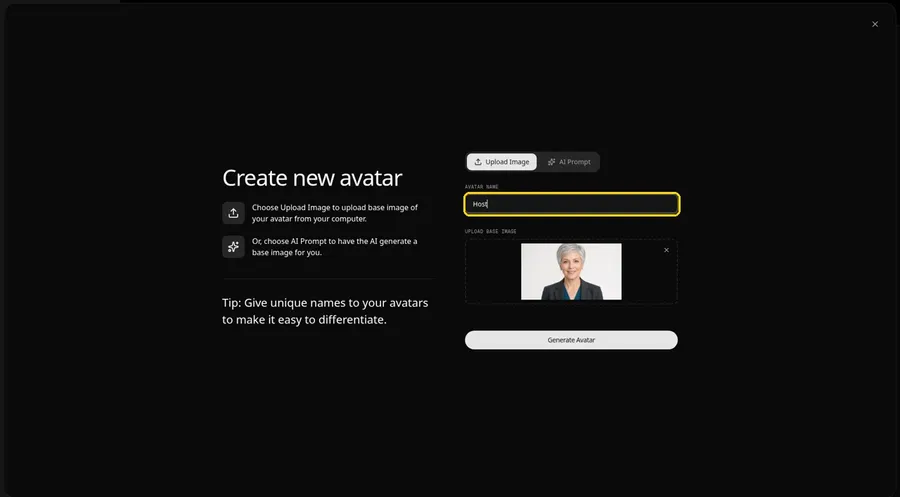
Enter Host as the Avatar Name and press Generate Avatar. Zoice keeps the Host in your avatar list, so later episodes can reuse this presenter.
Step 7: Open the Script Panel
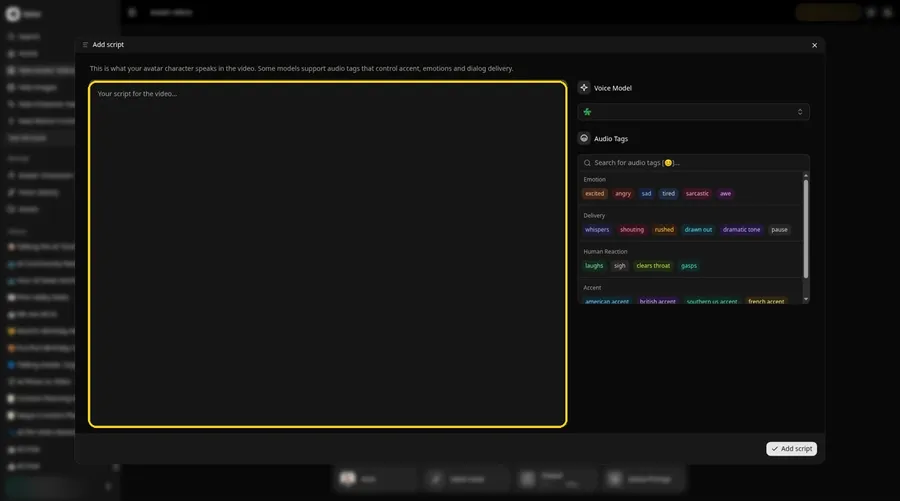
Return to the composer with the Host selected and click inside the script box. A panel for adding the script slides open, and the voice model selector sits on its right side.
Step 8: Choose the Voice Model
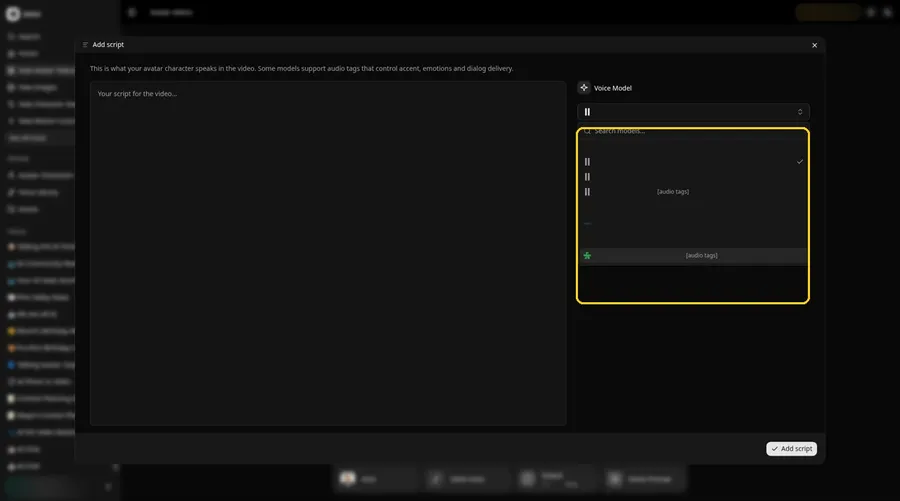
Open the Voice Model menu in the Add script panel and pick the model that will read your script. You can return to this menu later if a line does not sound right.
Step 9: Add Your Explainer Script
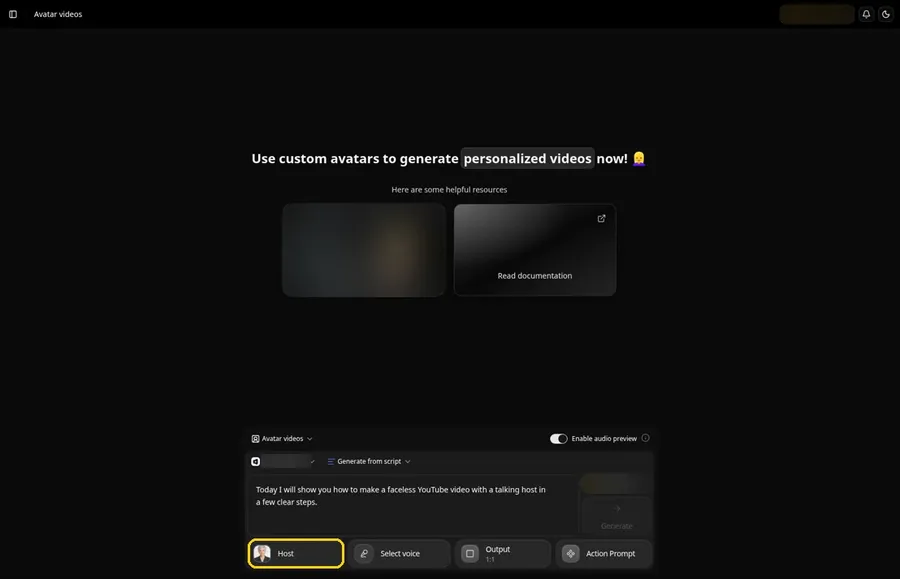
Paste your script into the panel and read it through once more. Then click Add script, and the text appears in the composer next to the Host. For this screen we typed a short opening line; the full explainer intro is in the demo section further down.
Step 10: Pick a Voice
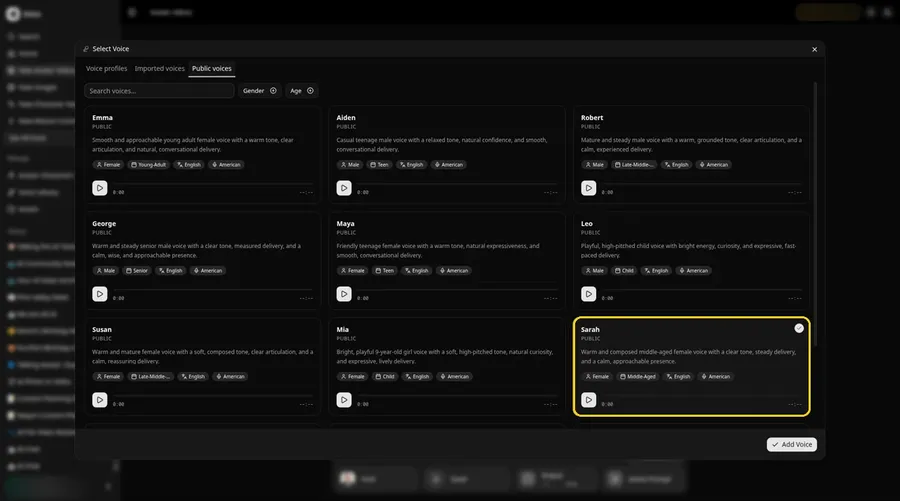
Click Select voice in the composer and browse the Voice profiles, Public voices or Imported voices tab. Pick a voice that suits your channel, or click + New to make a voice profile from a reference audio file of your own voice.
Step 11: Choose Your Output Settings
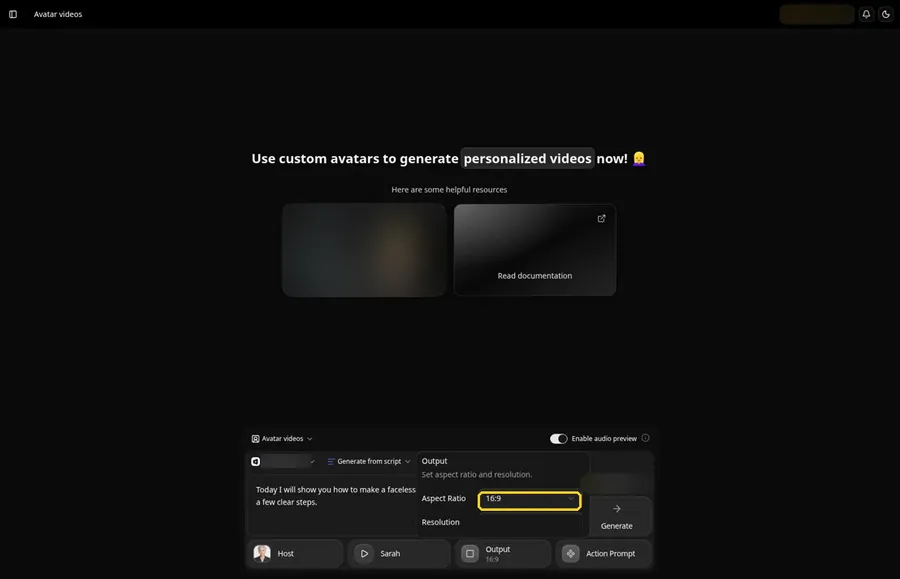
Choose your output settings. Click Output and pick the aspect ratio. Use 16:9 for a regular YouTube video and 9:16 for a Short.
Step 12: Add an Action Prompt
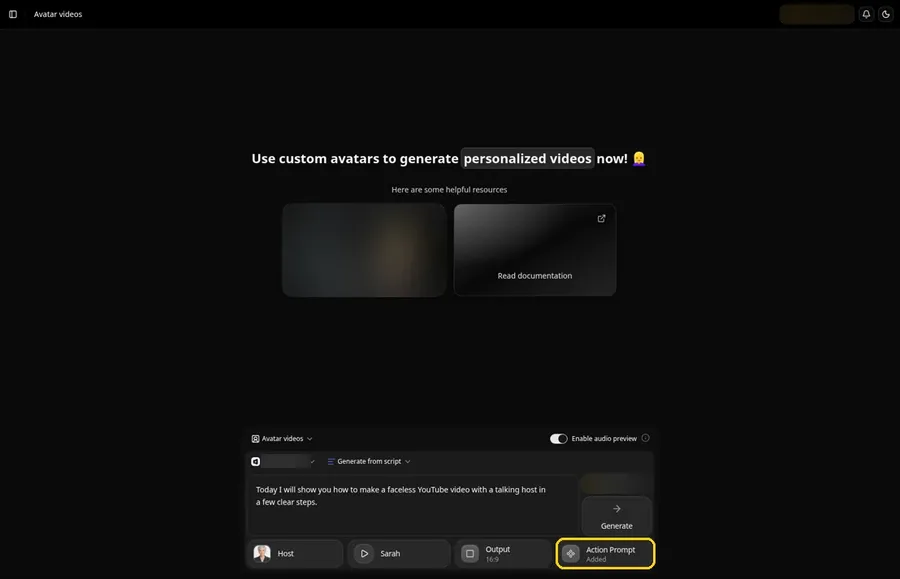
Click Action prompt and pick a suggested prompt or type your own. We typed: leans in slightly, smiles, and gestures toward the camera with one open hand. Click Add action, and the button changes to Added. This step is where the Host's gestures and expressions come from.
Step 13: Click Generate
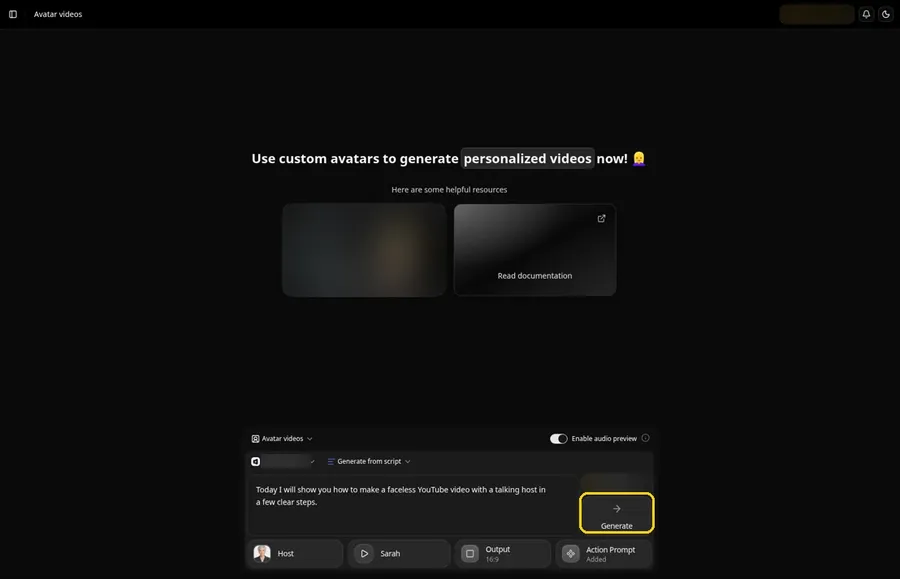
Check the Host, the voice, the script, the 16:9 output and the Added action prompt. Click Generate, listen to the audio preview, then click Generate avatar video to confirm.
Step 14: Let Zoice Process the Video
After you confirm Generate avatar video, Zoice starts processing. Leave this screen open until the player takes the place of the processing state.
Step 15: Watch the Result in the Player
When processing finishes, the video opens in the player. Press play and listen all the way through so you can confirm the Host, the voice, the script and the action prompt match what you set.
Step 16: Download It From the Player Menu
Open the menu on the player and choose Download. Save the file somewhere easy to find, then keep it ready for the YouTube Studio upload in the next step.
Step 17: Upload the File to YouTube Studio
Open YouTube Studio and click Create, then Upload videos. Choose the file you saved, add a title and a description, set the visibility and click Publish.
Writing the Action Prompt
The action prompt is the only place where you describe how the Host moves. Keep it short and physical, and say what the head, face and hands should do.
- leans in slightly and smiles on the opening line
- raises one hand as a new point begins
- nods once and keeps a calm expression
A prompt with one or two moves reads more naturally than a long list of actions. Aim the strongest gesture at the line that matters most.
Demo Idea: A Faceless Explainer Intro
For a first upload, let the Host open an episode of a faceless explainer channel and describe how the video was made. This is the full script for the episode:
“Hi, I'm the Host, and this channel is faceless, which means the person behind it never has to step in front of a camera. Here is how a faceless YouTube video comes together. First, pick one clear topic and write a script the way you would say it out loud, with a strong first line that tells viewers what they will get. Next, choose a presenter photo and give your Host a voice that suits the channel, calm for explainers or lively for news and tips. Then pick a wide layout for a standard video or a tall one for a Short, and add an action prompt so your Host leans in, smiles and gestures at the right moments. Read the script once more, fix anything that sounds stiff, and generate. When the video is ready, watch it from start to finish, download it, and upload it to YouTube with a clear title and description. That is the whole workflow, and you never had to show your face.”
Pair it with the action prompt from step 12 and the 16:9 output. Ready to build a Host for your own channel? Try Zoice
Tips for Faceless YouTube Videos
- Open with a first line that tells viewers what they will learn
- Keep sentences short so the Host's delivery stays clear
- Use a front-facing Host photo with an even background so the face is easy to read
- Use 16:9 for standard uploads and 9:16 for Shorts
- In the action prompt, describe one or two moves, such as leans in and smiles, and place the biggest gesture near your main point
- Keep the same Host and voice across uploads so viewers recognize the channel
For more presenter-led ideas, read about creating an AI avatar for YouTube, the talking head video tutorial and our roundup of AI avatar generators for YouTube.
FAQ
Do I need to show my face to make a YouTube video with AI?
No. In Zoice a Host made from one photo speaks your script, so you stay off camera.
Can I use my own voice?
Yes. Record a reference audio file and turn it into a voice profile, or choose a public voice.
Can I make YouTube Shorts the same way?
Yes. Choose the 9:16 output setting before you generate.
Is this the same as starting a faceless channel?
No. This guide makes one video. Our faceless channel guide covers the niche, setup and growth side.
Try Zoice
Your first faceless YouTube video starts with one photo and one script. Try Zoice and set up your Host.