How to Make Emojis Talk With AI: A Simple 2026 Guide
A talking emoji turns a plain chat reaction into a tiny performance. In Zoice you upload an emoji-style face you designed, type the line it should say, and that round yellow face becomes a Host that answers your friends out loud.
Before you build a whole set, test one face to be sure the eyes and mouth are picked up. For more formats along the same lines, see our list of AI meme video generators.
What Makes an Emoji Face Work
Phone keyboard emojis belong to their makers, so design your own. Whatever style you choose, keep these traits:
- Big, open eyes that stand out from the face color
- A mouth with a clear outline, ideally a little open
- One face, centered, filling most of the canvas
- A plain background in a color that contrasts with the face
How to Make Emojis Talk in Zoice (Step by Step)
Each step lines up with a screen in Zoice. We used an original glossy yellow emoji face and a group chat reply.
Step 1: Sign In and Open Home
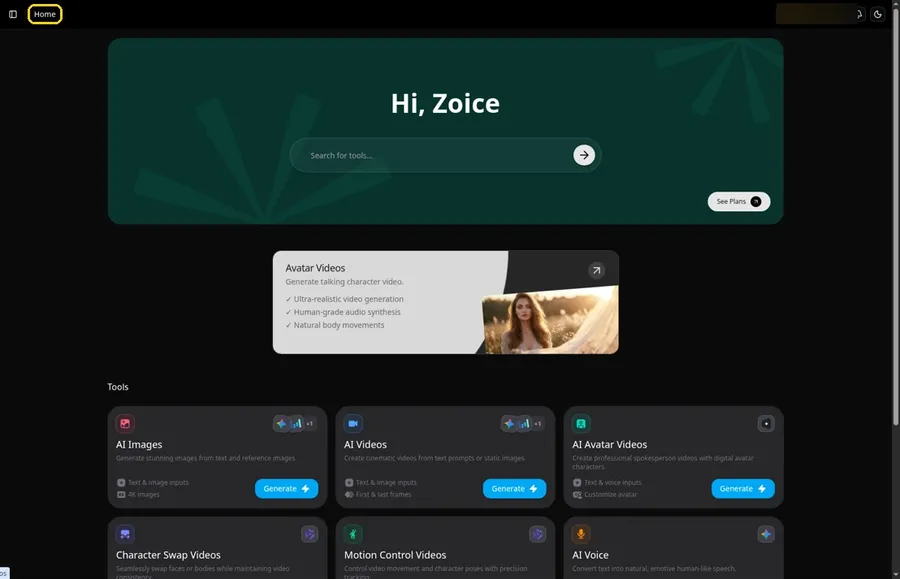
Visit Zoice, press Sign In and log in with email or Google. Home is the first page you see, and the Home title is in the top bar.
Step 2: Head to Avatar videos
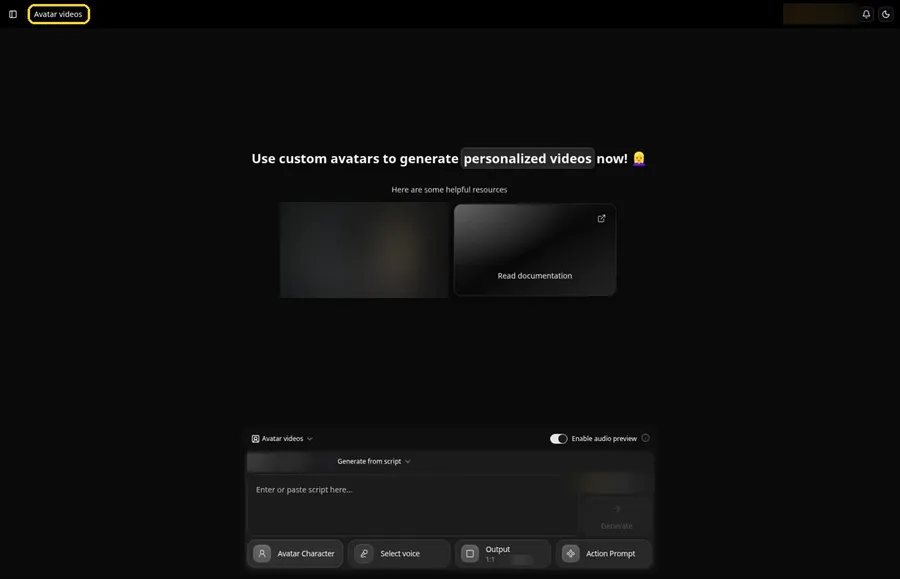
Choose Avatar videos in the sidebar. The composer along the bottom is your workspace for the rest of the guide.
Step 3: Start a New Avatar Character
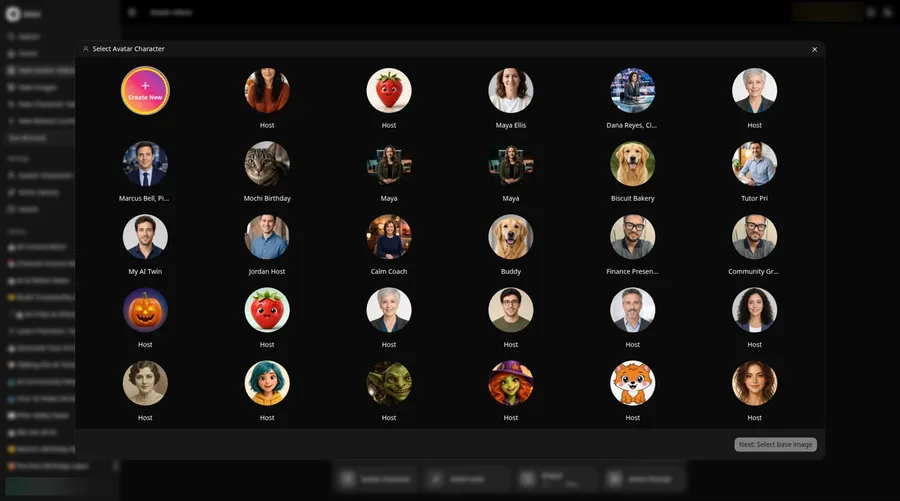
Press the Avatar Character button in the composer. In the Select Avatar Character window, click Create New. That opens the Avatar Characters page, where you click Create New again to reach the Create new avatar form.
Step 4: Keep Upload Image Selected
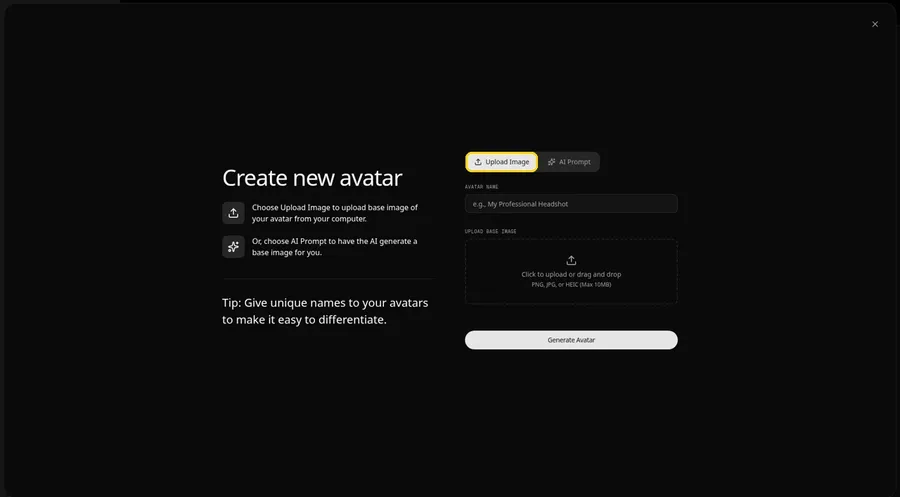
The Create new avatar page opens full screen. Keep the Upload Image tab selected under Upload Base Image, because your emoji already exists as a file.
Step 5: Upload Your Emoji Face
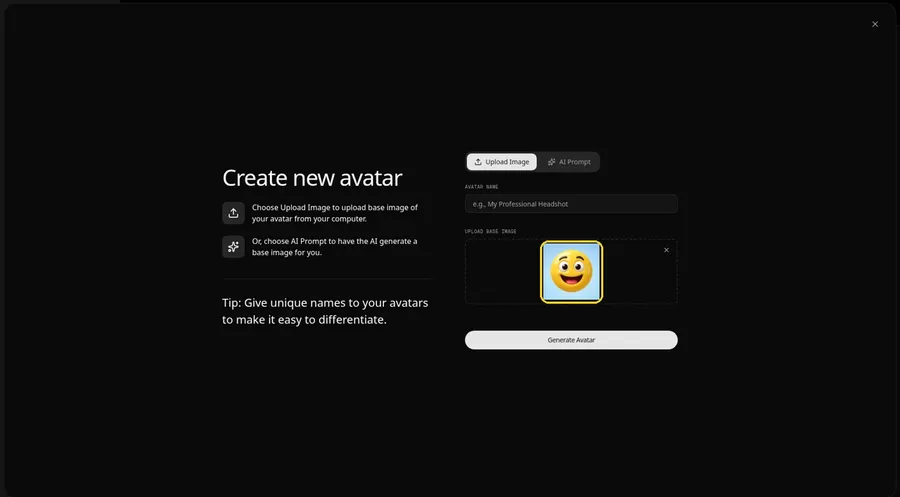
Click the upload area under Upload Base Image and choose your emoji face. In the preview, both eyes and the mouth should read clearly even at a small size.
Step 6: Call It Host and Generate It
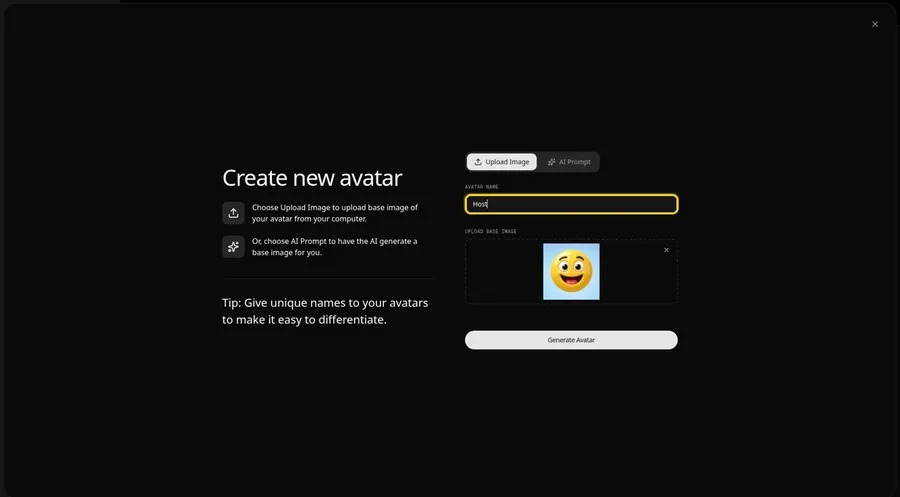
In the Avatar Name field, type Host and click Generate Avatar. The emoji now shows up as the Host in your composer.
Step 7: Open the Script Box
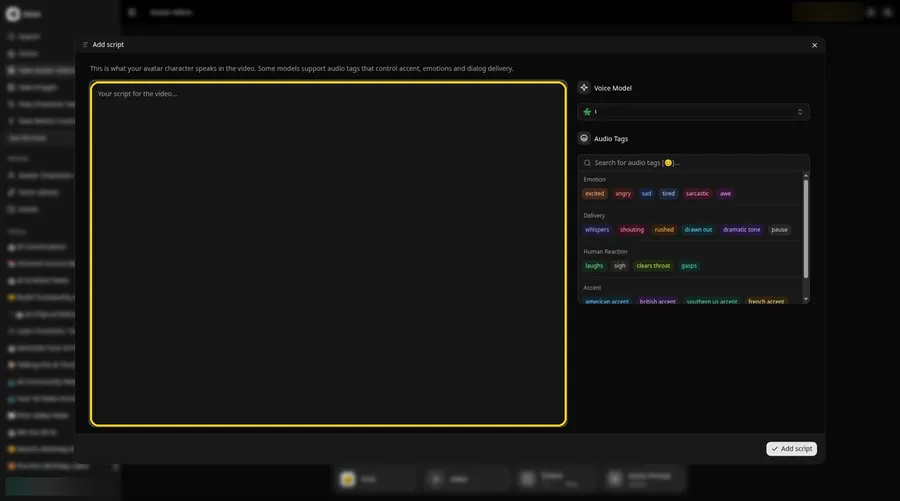
Click the script box in the composer. The Add script panel opens, where your emoji's reply will go.
Step 8: Pick the Voice Model
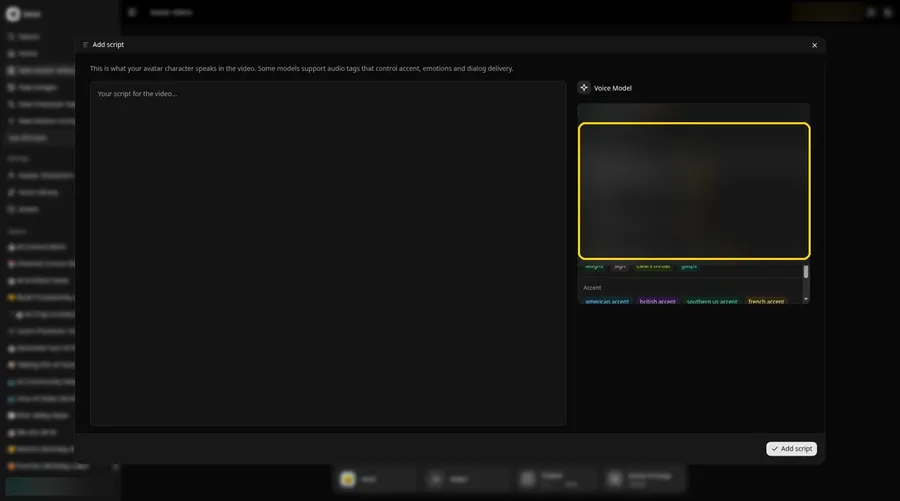
Use the Voice Model menu in the panel to choose which model reads the line.
Step 9: Write the Reply
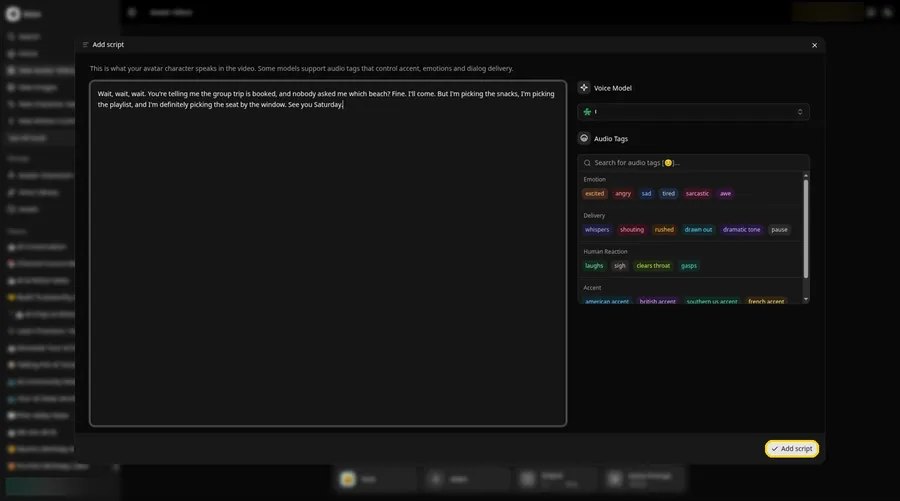
Type or paste the reply and click Add script. Ours started with: Wait, wait, wait.
Step 10: Choose a Fun Voice
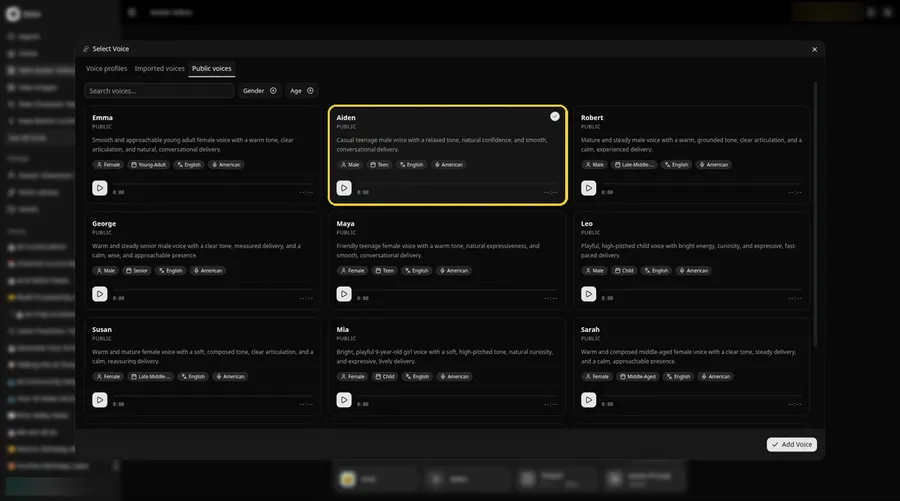
Click the voice button in the composer to open the Select Voice window. Pick something lively from the Public voices tab, then click Add Voice to attach it.
Step 11: Choose Your Output Settings
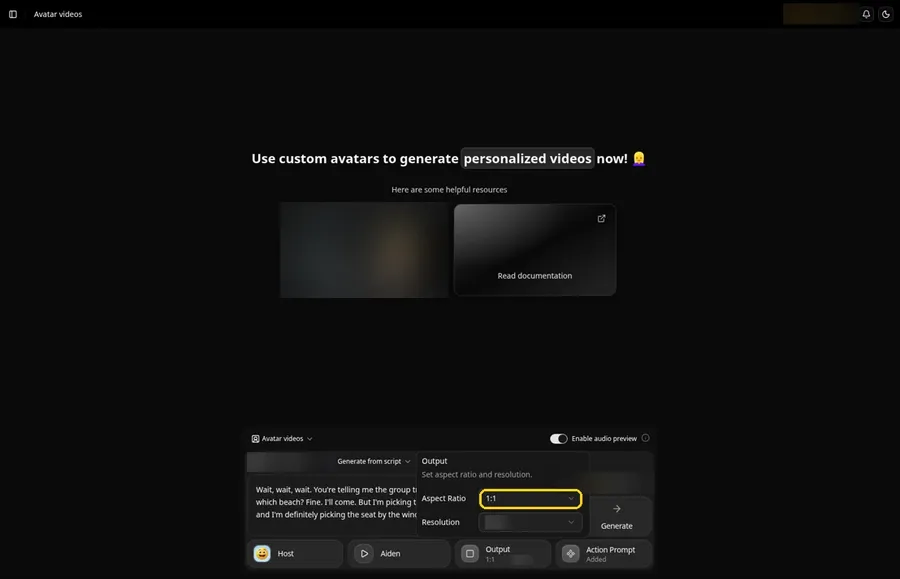
Open the Output popover and set the Aspect Ratio dropdown to 1:1, which fits chat threads and stickers, or choose 9:16 for stories.
Step 12: Add an Action Prompt
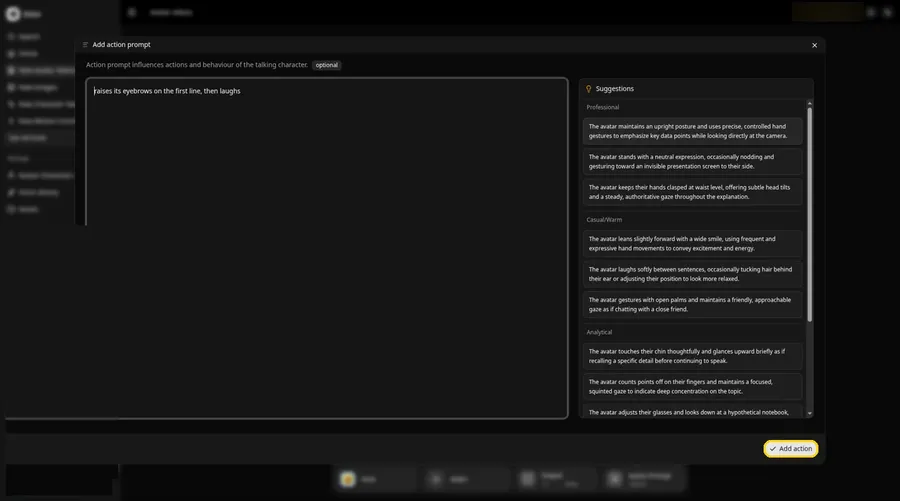
Click Action Prompt. In the Add action prompt panel, type: raises its eyebrows on the first line, then laughs. Click Add action. Added then shows on the Action Prompt chip in the composer.
Step 13: Click Generate
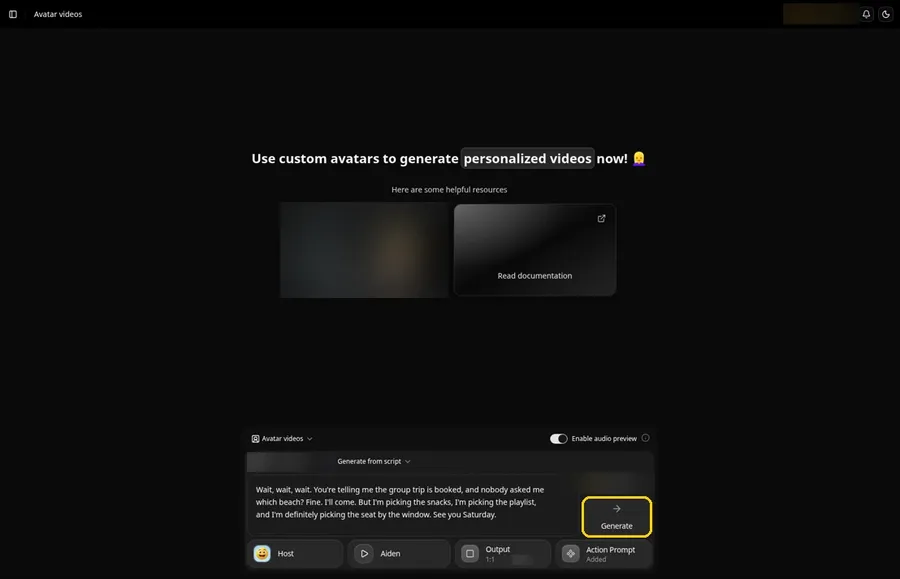
Run your eye over the Host, the reply, the voice, the square output and the action prompt. Then click Generate.
Step 14: Approve the Audio Preview
Zoice plays the audio first. If it sounds right, confirm with Generate avatar video and let it process.
Step 15: Play It Back
Press play in the player once it loads and compare the result with the line and settings you chose.
Step 16: Save the File
Pick Download from the player menu to keep a copy.
Step 17: Send It to the Chat
Drop the file into your group chat or story as your reply.
Tips for Talking Emojis
- Design your own emoji faces instead of copying keyboard ones
- Make the eyes and mouth oversized so they read on a small screen
- Test one face before you make a whole pack
- Keep replies to a sentence or two, the way you would text
- Use square output for chats and vertical for stories
Planning to post them publicly? Our guide to AI avatar generators for social media covers other options.
Demo Idea: The Group Chat Comeback
Our emoji Host read this full reply:
"Wait, wait, wait. You're telling me the group trip is booked, and nobody asked me which beach? Fine. I'll come. But I'm picking the snacks, I'm picking the playlist, and I'm definitely picking the seat by the window. See you Saturday."
Swap in your own news and your own face design. Try Zoice and make the reply everyone remembers.
FAQ
Can I use emojis from my phone keyboard?
Use emoji-style faces you created or have the rights to use.
Will every emoji design work?
Designs with clear eyes and a mouth work best, so test one first.
What shape should the video be?
Square for chats, vertical for stories.
Can I reuse the same emoji?
Yes. It stays in your avatar list after you generate it.
Try Zoice
One emoji face and one line are enough for a reply with a voice. Try Zoice to make yours.