How to Make an AI News Anchor Video: A Simple 2026 Guide
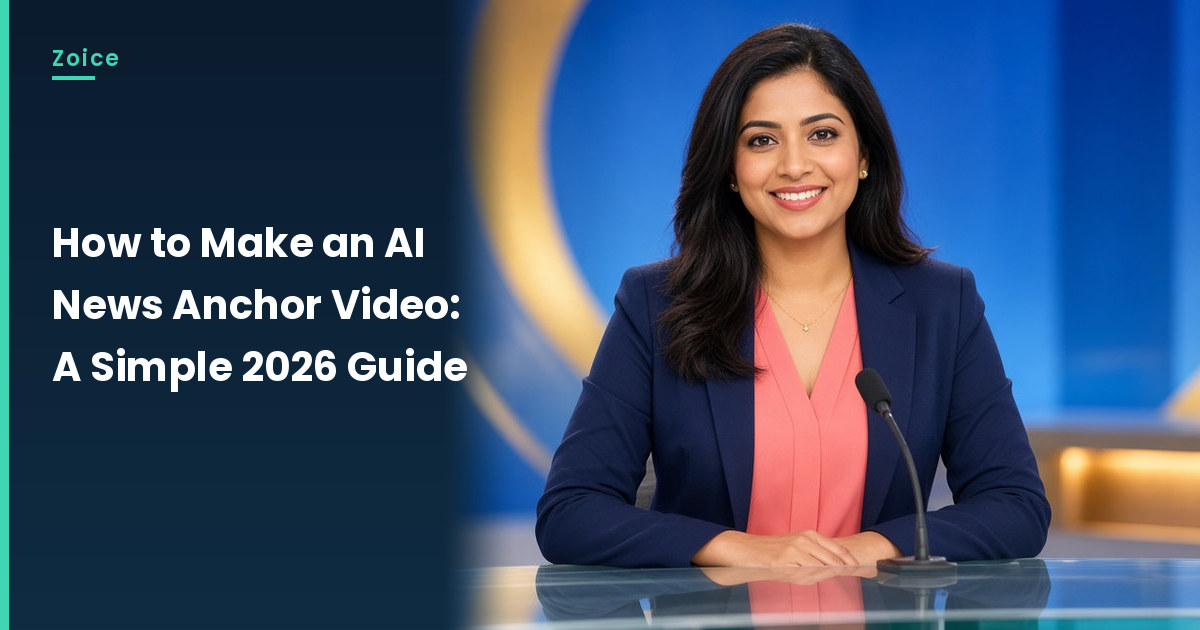
A news desk format makes any update feel organized: a weekly channel recap, a school bulletin or a neighborhood roundup. In Zoice you create an original anchor as your Host from a photo you have the rights to, write a news-style script, and set up the whole bulletin in one composer.
Keep it original. Never use a real journalist or public figure; use yourself, a person who agreed, or a fictional anchor like ours. Comparing tools first? See our AI news anchor generator roundup.
Planning a News Style Script
Real bulletins follow a pattern, and copying it makes yours easy to follow.
- Open with a greeting and the name of your show
- Lead with the biggest headline in one sentence
- Follow with two or three short stories
- Close with a sign off you reuse every week
How to Make an AI News Anchor Video in Zoice (Step by Step)
These steps follow the Zoice screens in order. Our example is a fictional anchor presenting a community roundup.
Step 1: Sign In to Zoice
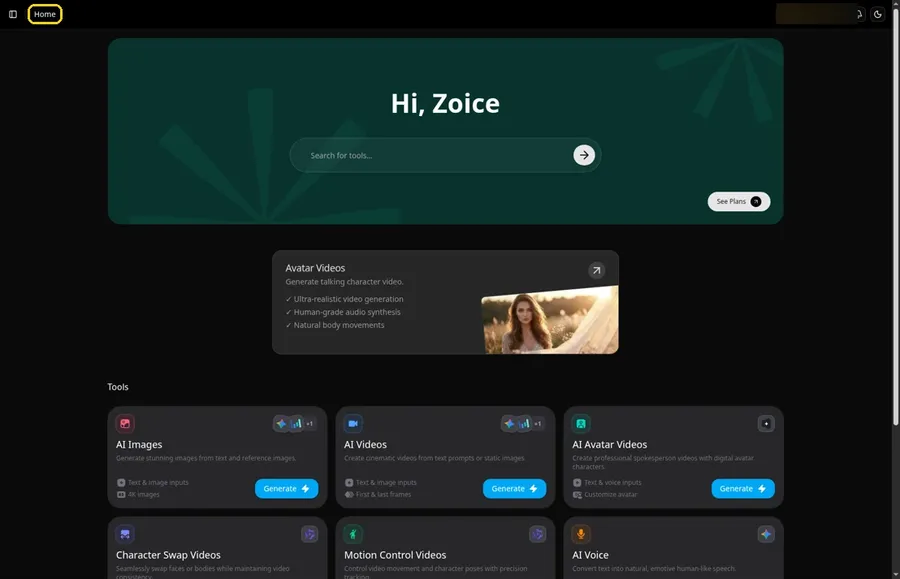
Press Sign In on Zoice and log in. You land on Home, and the Home title is in the top bar.
Step 2: Open Avatar videos
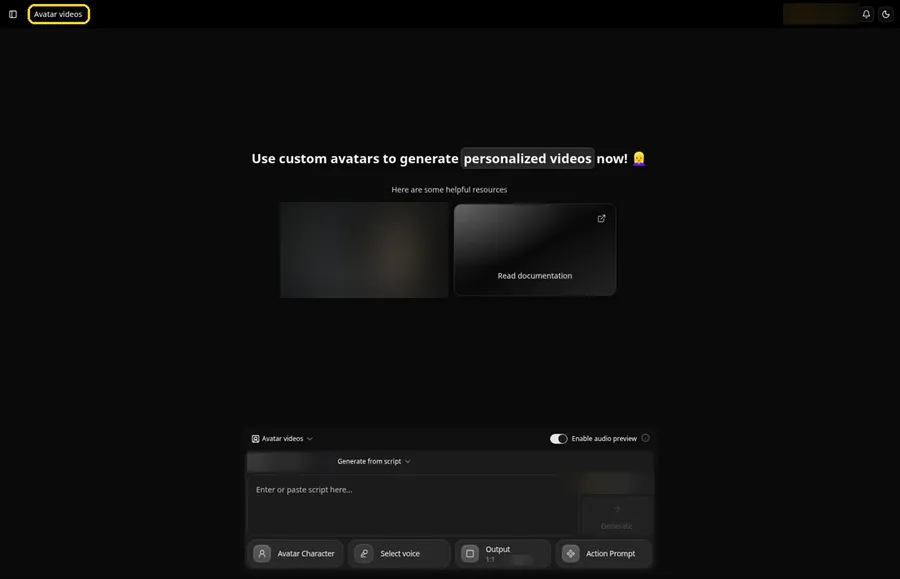
From the sidebar, open Avatar videos. The bulletin is assembled in the composer at the bottom.
Step 3: Click Avatar Character, Then Create New
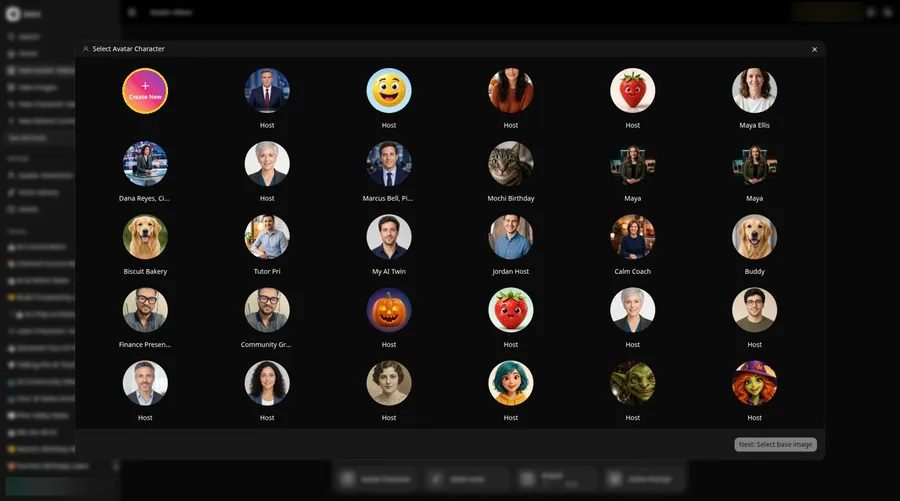
Press the Avatar Character button in the composer. In the Select Avatar Character window, click Create New. That opens the Avatar Characters page, where you click Create New again to reach the Create new avatar form.
Step 4: Use the Upload Image Tab
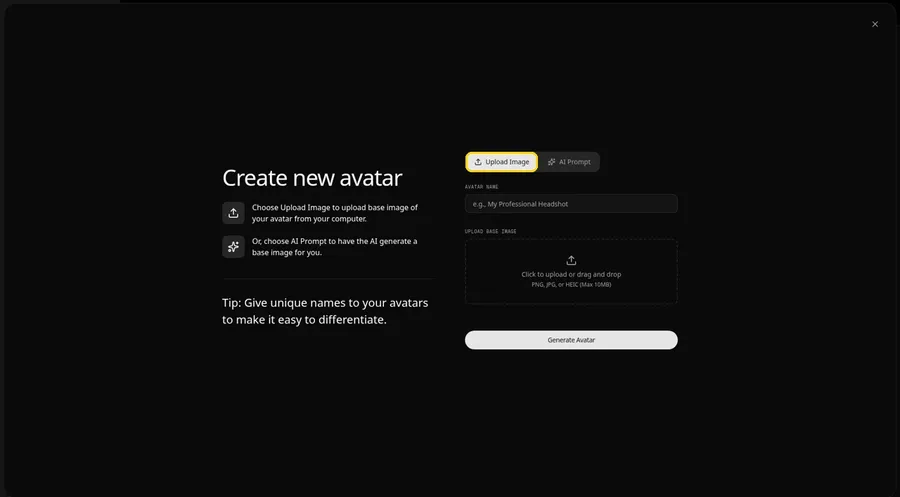
The Create new avatar page opens full screen. Keep the Upload Image tab selected under Upload Base Image. If you have no anchor photo, AI Prompt lets you describe a fictional presenter instead.
Step 5: Upload the Anchor Photo
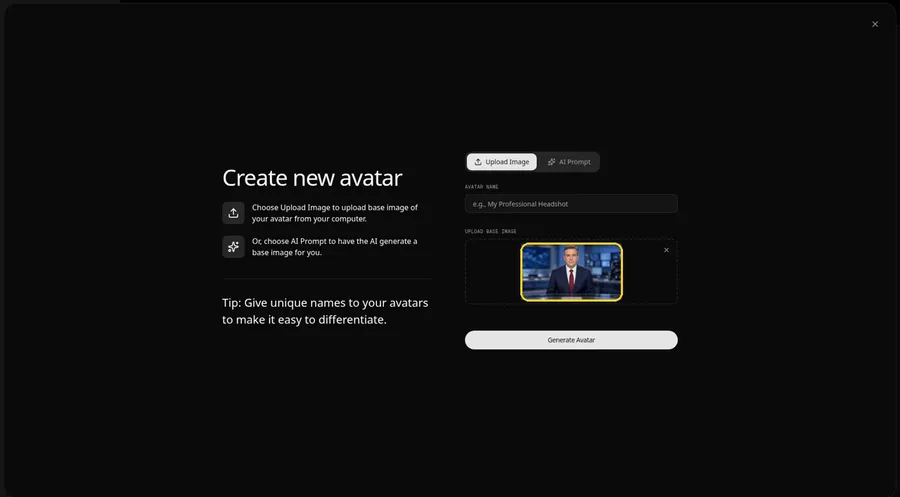
Click the upload area under Upload Base Image and pick a shoulders-up photo with the face toward the lens. The preview of the Host at the news desk lets you check it before moving on. Our anchor is an AI-made fictional presenter in a navy suit.
Step 6: Name the Anchor Host and Generate
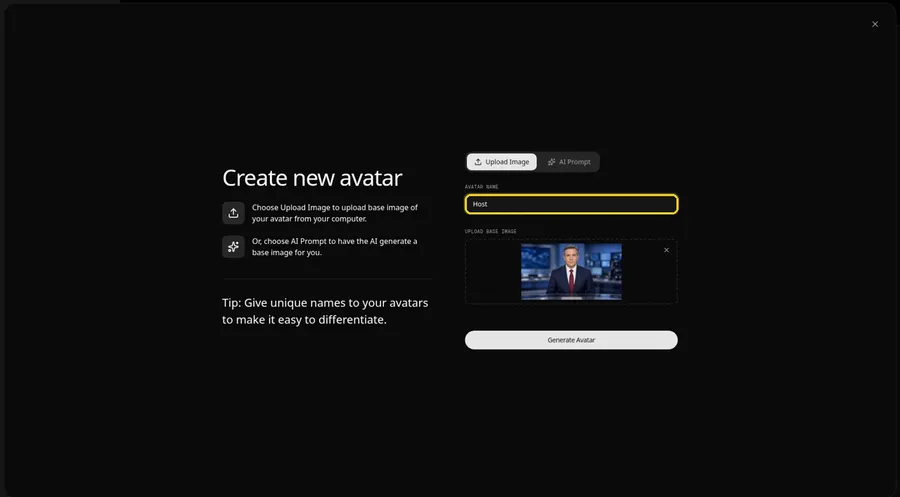
In the Avatar Name field, type Host and click Generate Avatar. The same anchor can front every future bulletin.
Step 7: Open the Script Panel
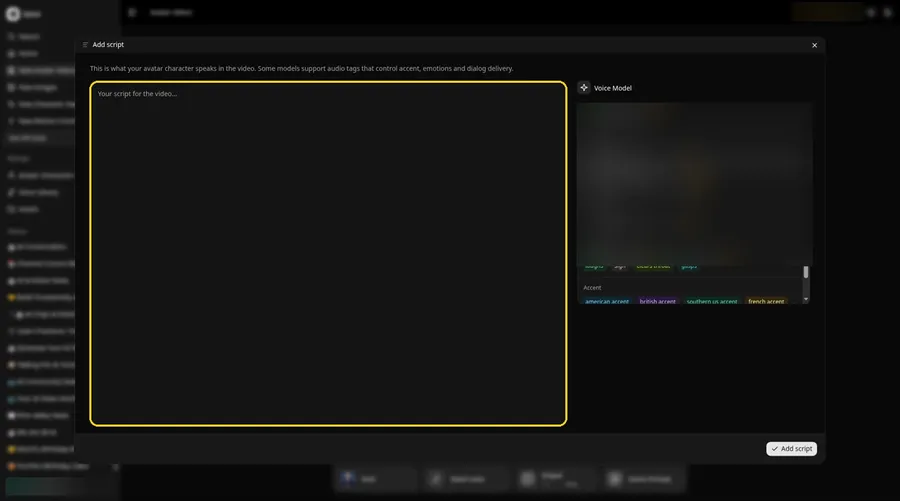
Click the script box in the composer. The Add script panel opens.
Step 8: Select the Voice Model
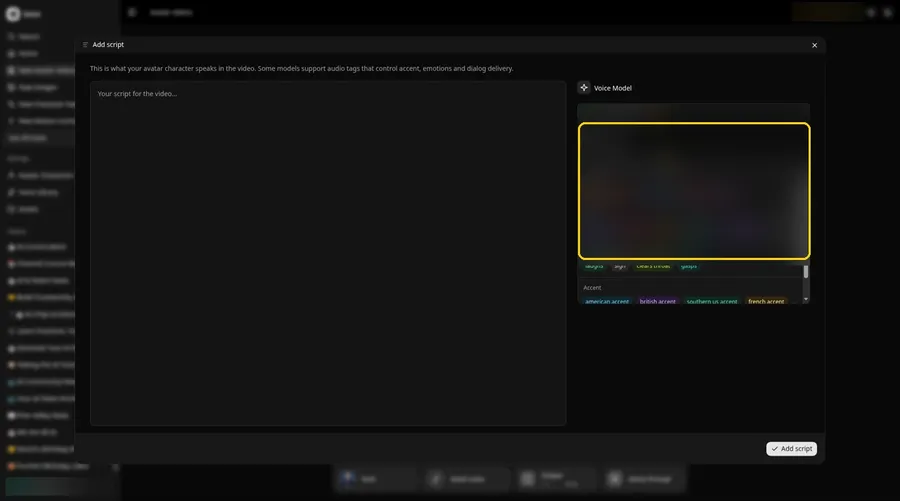
Choose a model in the Voice Model menu. You can switch later if a headline sounds off.
Step 9: Paste the Bulletin
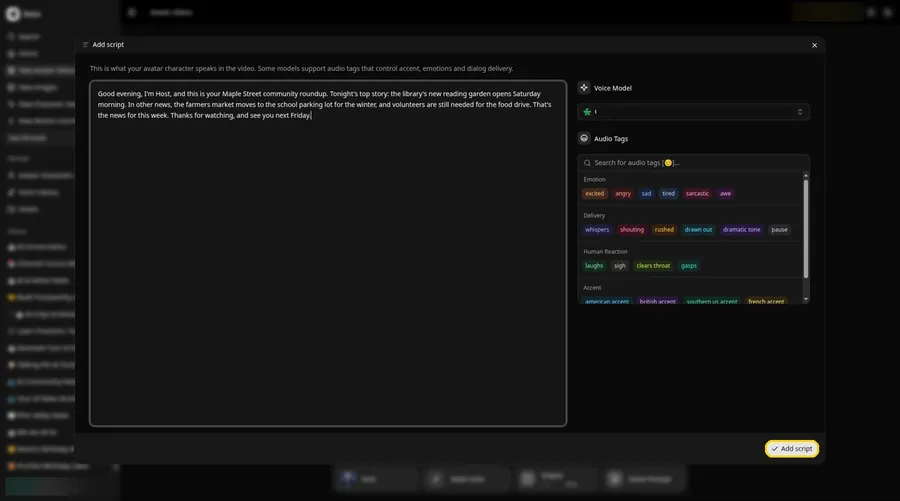
Paste your bulletin and click Add script. Ours opens with: Good evening, I'm Host, and this is your Maple Street community roundup.
Step 10: Pick a Steady Voice
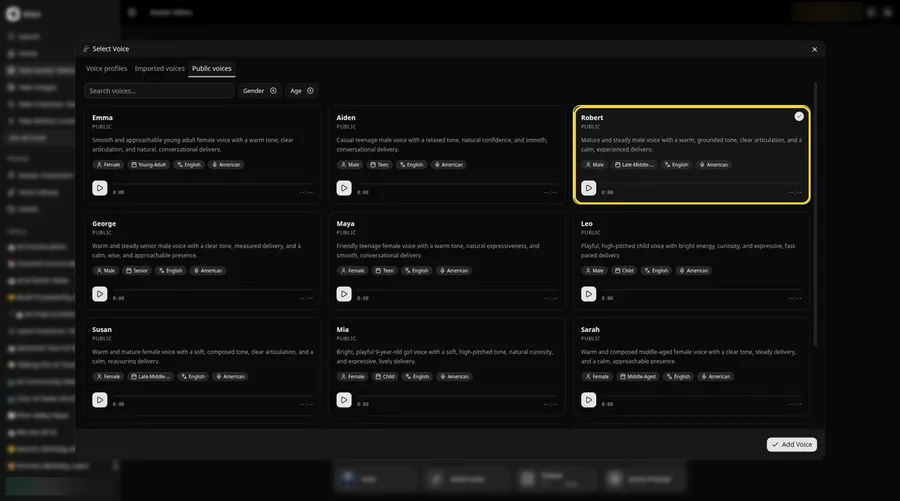
Click the voice button in the composer to open the Select Voice window. Pick a calm, even voice, the kind you trust to read the news, from the Public voices tab, then click Add Voice to attach it.
Step 11: Choose Your Output Settings
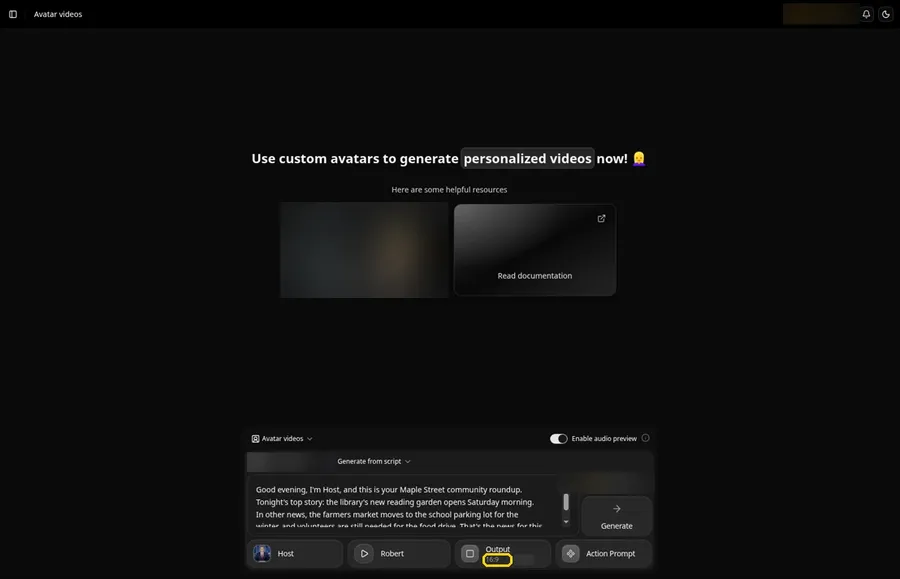
On the Output tile in the composer, set the aspect ratio to 16:9 for a classic broadcast frame with room for lower thirds.
Step 12: Add an Action Prompt
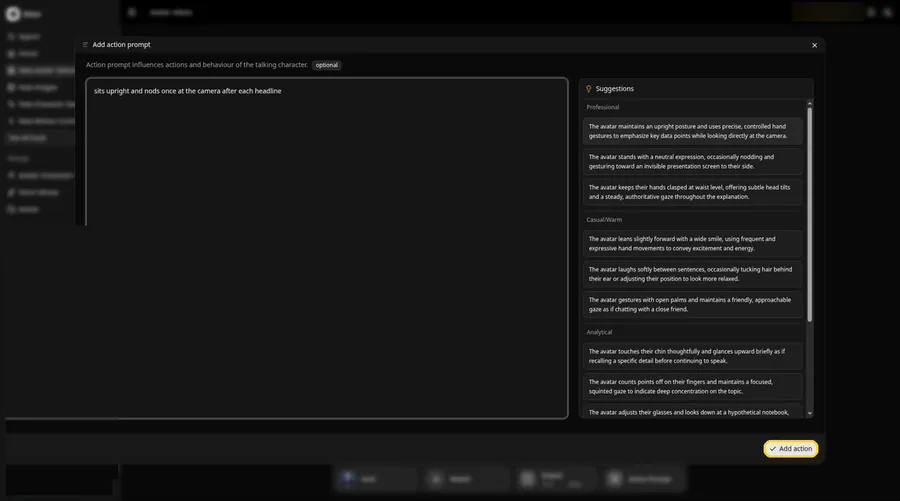
Click Action Prompt. In the Add action prompt panel, type: sits upright and nods once at the camera after each headline. Click Add action. Added then shows on the Action Prompt chip in the composer.
Step 13: Click Generate
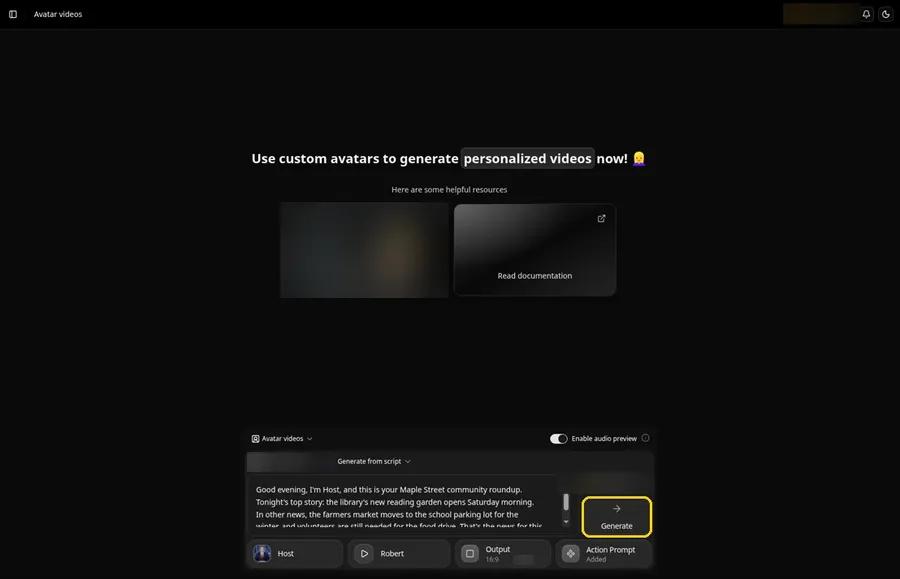
Check the anchor, the script, the voice, 16:9 and the action prompt, then click Generate.
Step 14: Confirm After the Audio Preview
Listen to the audio preview and confirm with Generate avatar video. Zoice starts processing the bulletin.
Step 15: Review the Bulletin
Play the result in the player and confirm each story is read the way you wrote it.
Step 16: Download
Select Download in the player menu.
Step 17: Add Graphics and Publish
Open the file in your editor, add lower thirds and a headline banner, and publish your recap.
Tips for a Believable Bulletin
- Use your own photo, a consenting person or a fictional anchor, never a real journalist
- Start with the headline, then two or three short stories
- Write numbers and names the way they should be spoken
- Leave space in the frame for lower thirds you add later
- Keep the same anchor and sign off every week
For more presenter formats, see our picks for AI avatar generators for YouTube.
Demo Idea: A Community Roundup
Our fictional anchor read this bulletin:
"Good evening, I'm Host, and this is your Maple Street community roundup. Tonight's top story: the library's new reading garden opens Saturday morning. In other news, the farmers market moves to the school parking lot for the winter, and volunteers are still needed for the food drive. That's the news for this week. Thanks for watching, and see you next Friday."
Replace the stories with your own channel or school news. Try Zoice and put your anchor on air.
FAQ
Can I make a real news anchor talk?
No. Use an original anchor photo you have the rights to.
What can I use an AI anchor for?
Channel recaps, school bulletins, team updates and community news.
Can I add graphics?
Yes. Add lower thirds and banners in your editor after you download.
Can the anchor read a new bulletin each week?
Yes. Reuse the saved Host and paste a fresh script.
Try Zoice
Your news desk needs one anchor photo and one script. Try Zoice and record this week's bulletin.