How to Make AI Dog Videos: Easy Step by Step Guide for 2026
AI dog videos land because everyone already has a guess about what their dog is thinking. In Zoice you upload a dog image as your Host, paste a script, and the dog delivers it in a video you can turn into a running series.
Use one dog for jokes, pet tips or a daily household announcement. For a single heartfelt message, our dog talk tutorial may suit you better.
Choosing a Format for Your Dog
- A daily announcement from the dog to the family
- A pet tip told from the dog's point of view
- A reaction to something new in the house
- A weekly recap of walks, snacks and naps
How to Make AI Dog Videos in Zoice (Step by Step)
Here are the screens in order. Our star is a corgi named Biscuit in the script, saved as Host in the app.
Step 1: Sign In to Zoice
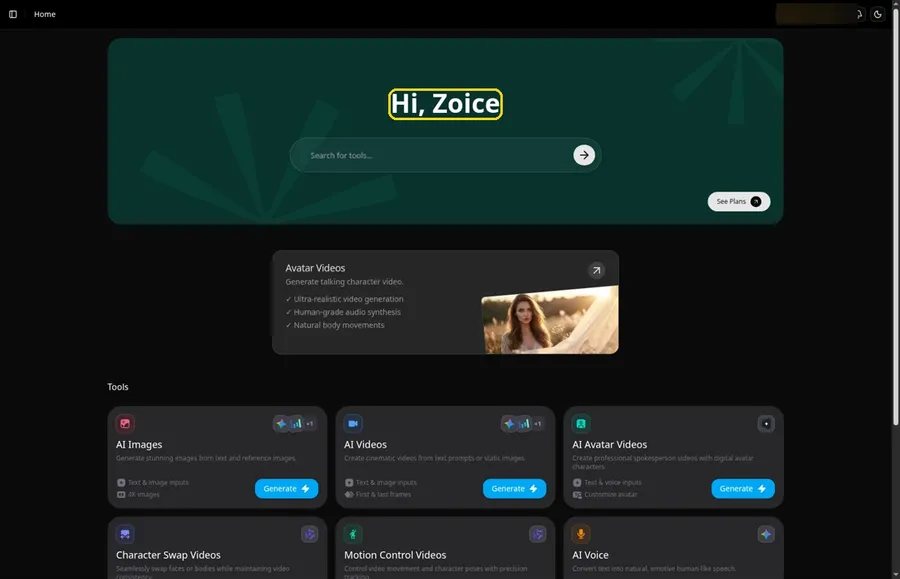
Press Sign In on Zoice and log in. Home opens with the Hi, Zoice heading.
Step 2: Head to Avatar videos
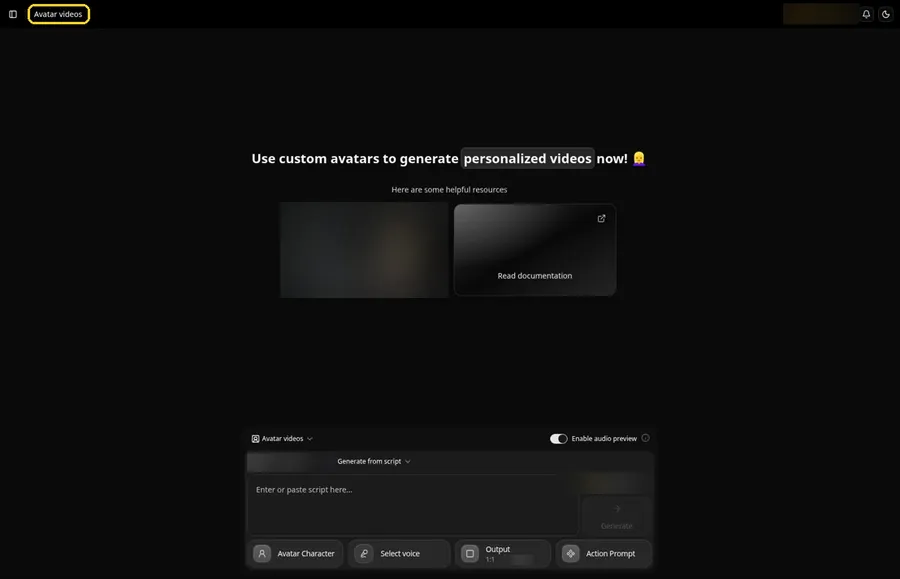
Use the sidebar to open Avatar videos.
Step 3: Click Avatar Character, Then Create New
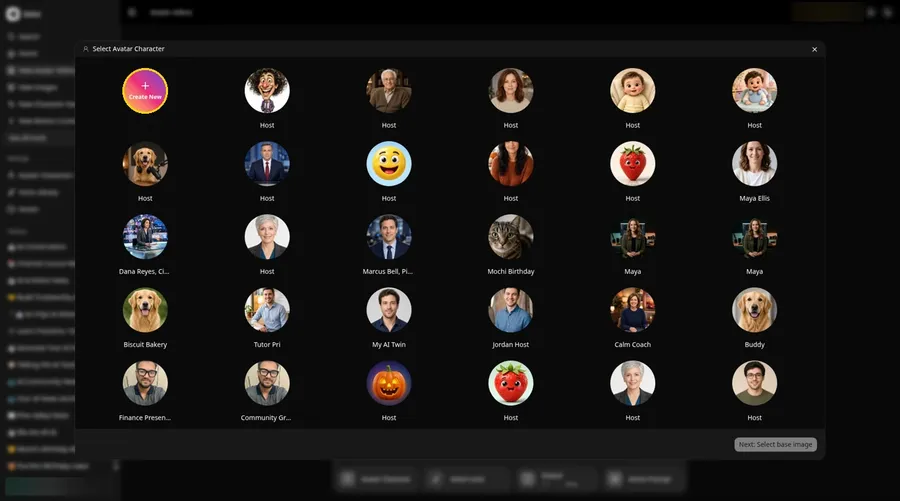
The dog video star begins at the Avatar Character button, which opens Select Avatar Character. Click Create New, then click Create New on the Avatar Characters page to reach the full-screen Create new avatar page for the dog video star.
Step 4: Pick Upload Image
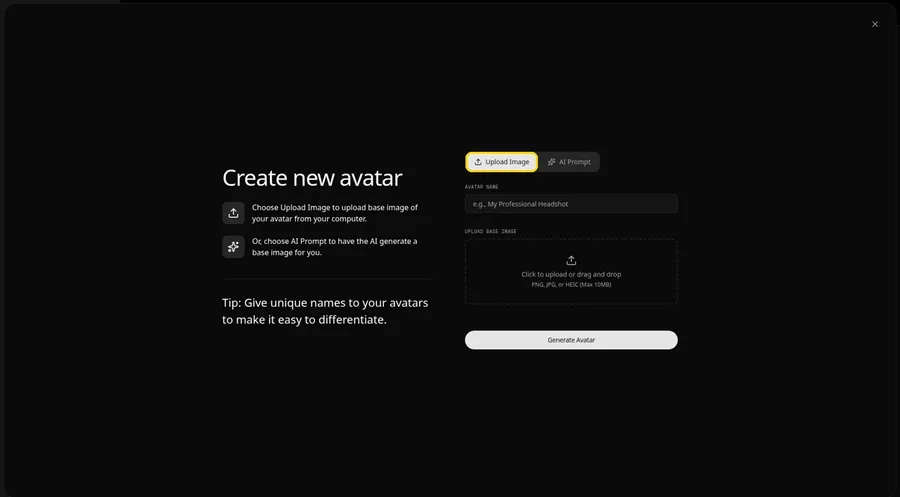
The Create new avatar page opens full screen on the Upload Image tab under Upload Base Image. Stay on Upload Image for the dog video star. AI Prompt is the other tab if you have no image yet.
Step 5: Upload the Dog Image
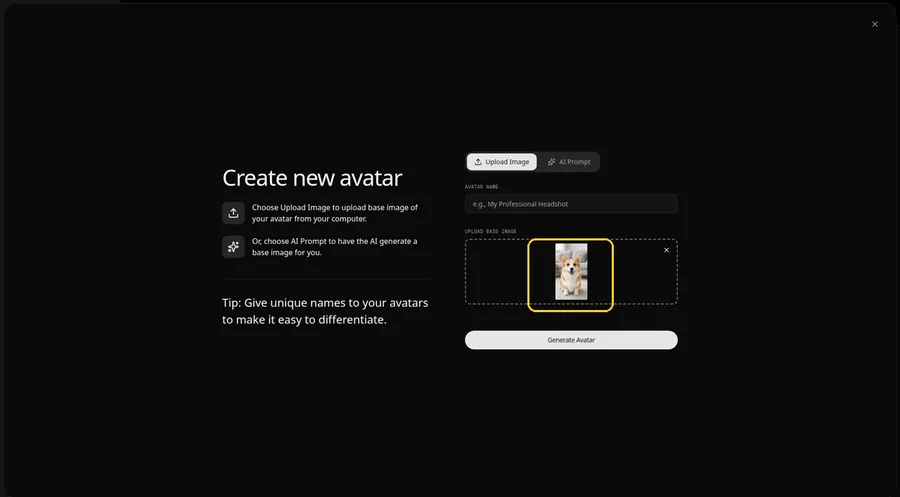
Click the upload area under Upload Base Image and add a front-facing shot with the mouth in view. Check the preview.
Step 6: Save Your Dog as Host
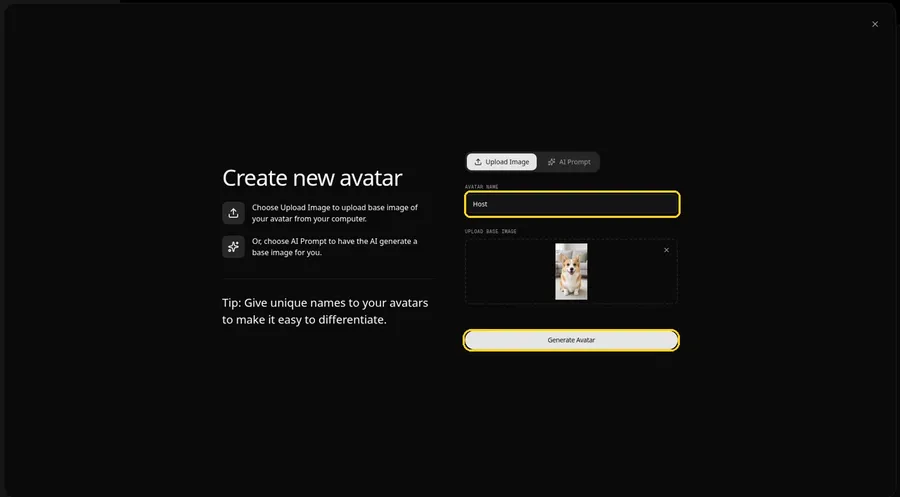
In the Avatar Name field, type Host and click Generate Avatar so the dog video star is saved for later videos.
Step 7: Open the Script Panel
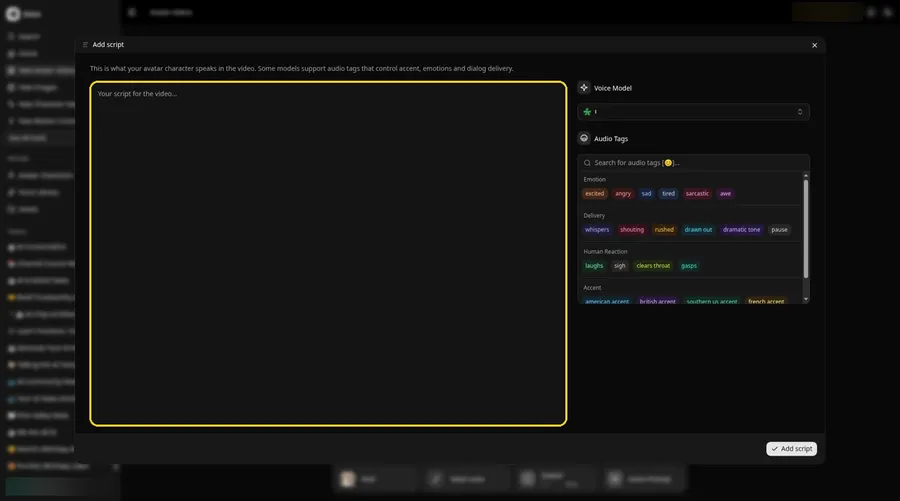
Click the script box in the composer. The Add script panel opens.
Step 8: Select a Voice Model
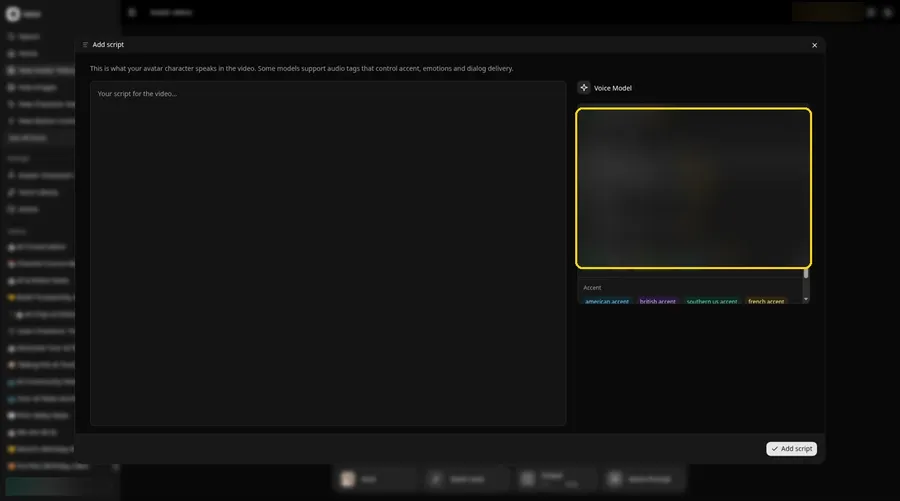
Choose the model in the Voice Model menu.
Step 9: Paste Today's Script
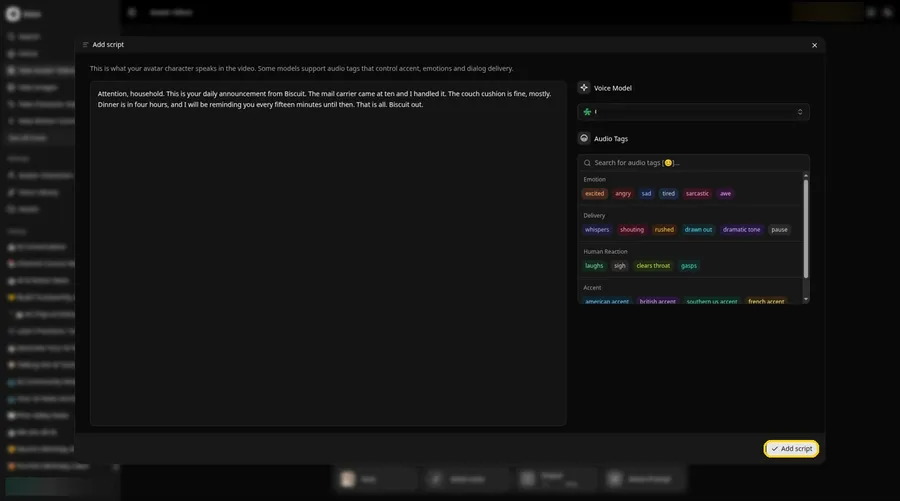
Paste today's episode, then select Add script. Ours begins: Attention, household.
Step 10: Give the Dog a Voice
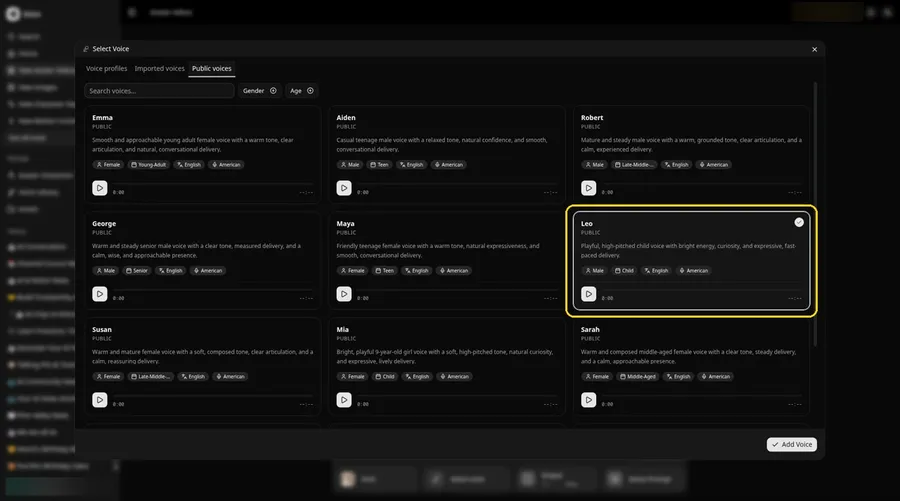
- Click the voice button in the composer to open Select Voice for the dog video star.
- Pick a voice for the dog video star on the Public voices tab.
- Click Add Voice to attach that voice to the dog video star.
A playful, bright voice suits the dog video star.
Step 11: Choose Your Output Settings
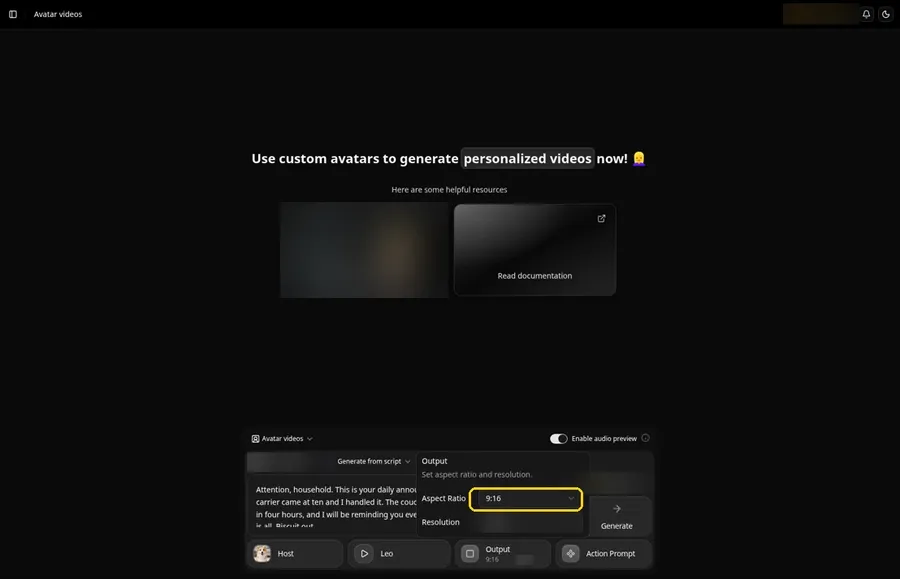
Choose your output settings. Open the Output popover and set the Aspect Ratio dropdown to 9:16.
Step 12: Add an Action Prompt
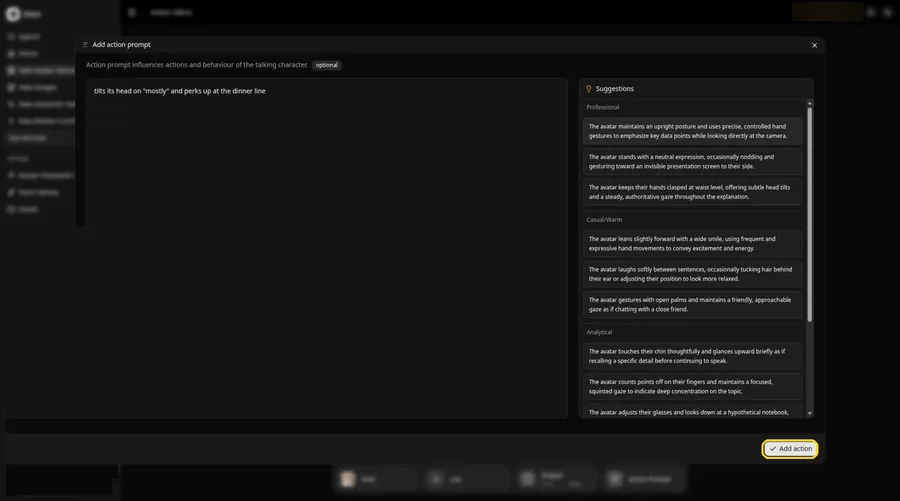
Click Action Prompt. In the Add action prompt panel, type: tilts its head on "mostly" and perks up at the dinner line. Click Add action. Added then shows on the Action Prompt chip in the composer.
Step 13: Click Generate
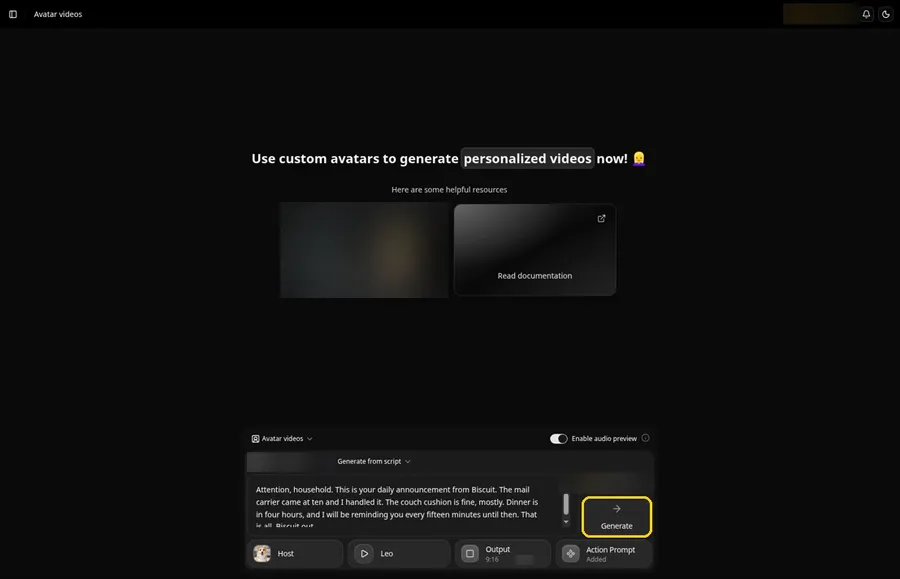
Confirm the corgi, script, voice, vertical frame and action prompt, then click Generate.
Step 14: Confirm the Preview
Play the audio preview, and if the voice fits, confirm with Generate avatar video.
Step 15: Watch the Episode
Play the episode in the player when it is ready.
Step 16: Download
Grab the file with Download in the player menu.
Step 17: Post the Next Episode
Upload it, then reuse the saved Host with a fresh script tomorrow.
Tips for AI Dog Videos
- Pick front-facing photos where the face is clear and the mouth shows
- Give your dog a catchphrase to end every video
- Write from the dog's point of view, with dog priorities
- Save the Host once and only change the script after that
- Match the voice to the breed's personality
More pet ideas live in our list of AI talking animals generators.
Demo Idea: The Daily Announcement
Our corgi Host read this script:
"Attention, household. This is your daily announcement from Biscuit. The mail carrier came at ten and I handled it. The couch cushion is fine, mostly. Dinner is in four hours, and I will be reminding you every fifteen minutes until then. That is all. Biscuit out."
Write tomorrow's announcement now. Try Zoice and start the series.
FAQ
Which dog photos work best?
Front-facing photos where the face is clear and the mouth shows.
Can I make a series with my dog?
Yes. Save the Host once and reuse it with a new script each time.
Can the dog use different voices?
Yes. Any voice on the Public voices tab works for the dog; attach each one with Add Voice.
What shape fits dog videos for social media?
Use vertical 9:16, which you pick in the Output panel.
Try Zoice
Your dog has opinions; give them a stage. Try Zoice and post the first episode.