How to Make a Testimonial Video With AI: A Simple 2026 Guide
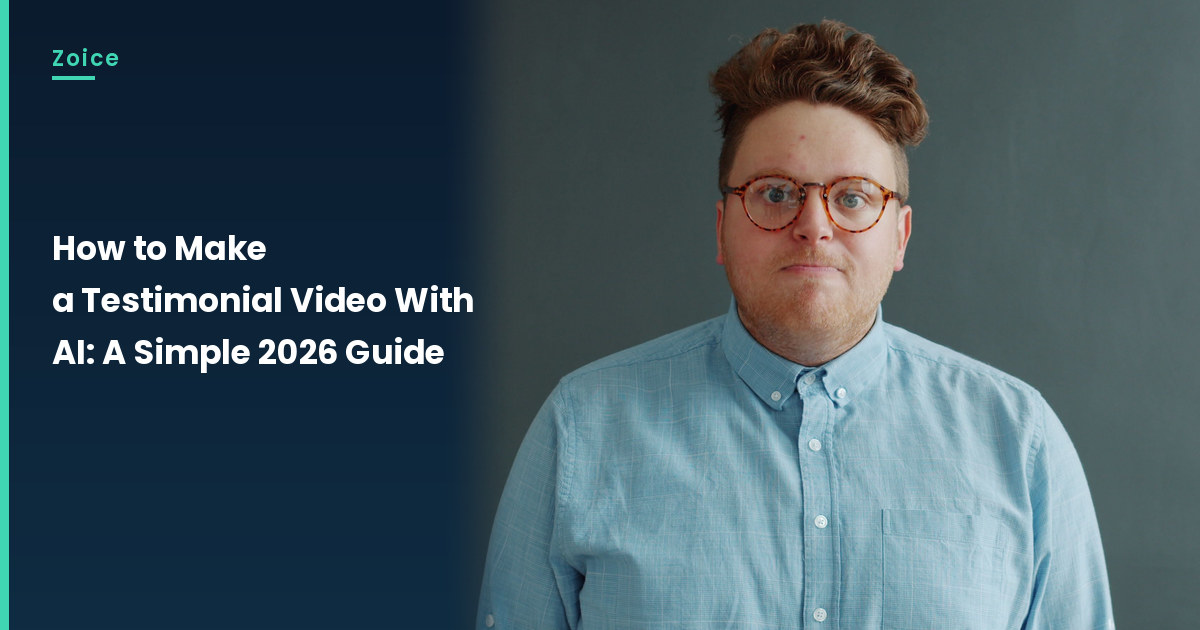
A testimonial video should only go out when the customer has approved the photo, the exact words, and where it will appear, and the clip should be clearly labeled as AI. This is how to make a testimonial video with AI; it is not ad copy and it is not a UGC-ad workflow. In Zoice you upload the approved photo, it becomes your Host, and the mouth is lip synced to the approved script. For the testimonial video, an optional action prompt can add a small nod. Our screenshots use a stock-model stand-in, so do not use a real customer photo until you have that approval.
Before you start the testimonial video, you may like our AI spokesperson generator roundup.
Choosing a Testimonial Image Zoice Can Read
A testimonial video may only use a photo the customer has approved, along with the exact words and the placement they agreed to, and the clip should be labeled as AI.
- Get approval for the photo, the exact script and the placement before you record
- Label the finished clip as AI
- This is not ad copy or a UGC-ad workflow
- Our demo uses a stock-model stand-in; swap in the approved customer photo only after that consent
How to Make a Testimonial Video in Zoice
Our Host is a stock photograph of an adult man with tortoise-shell glasses and a light blue chambray shirt, front-facing against a plain gray wall, with a clear face and a visible mouth, used as the Host for this post and saved in the app.
Step 1: Sign In to Zoice and Open Home
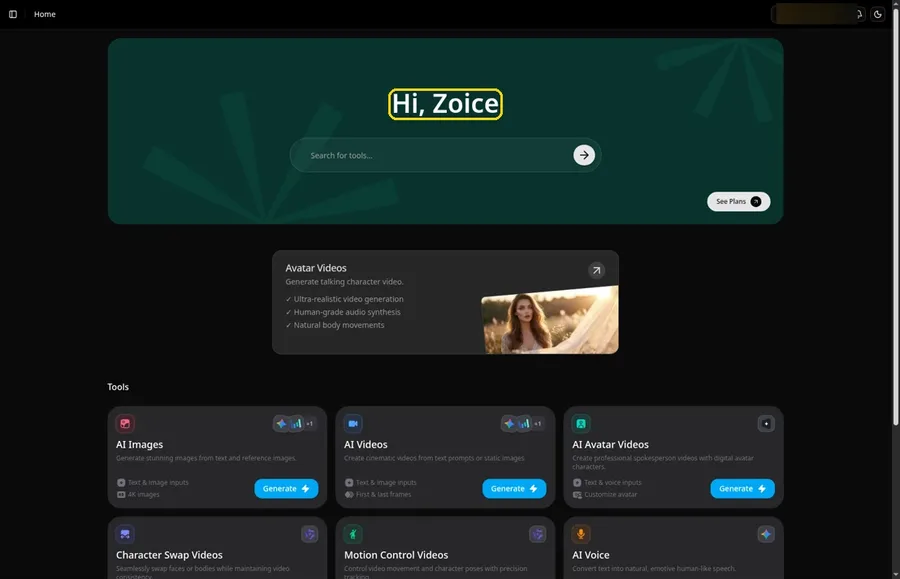
Go to Zoice and click Sign In, using email or Google; Home opens once the testimonial video project can begin.
Step 2: Open Avatar videos
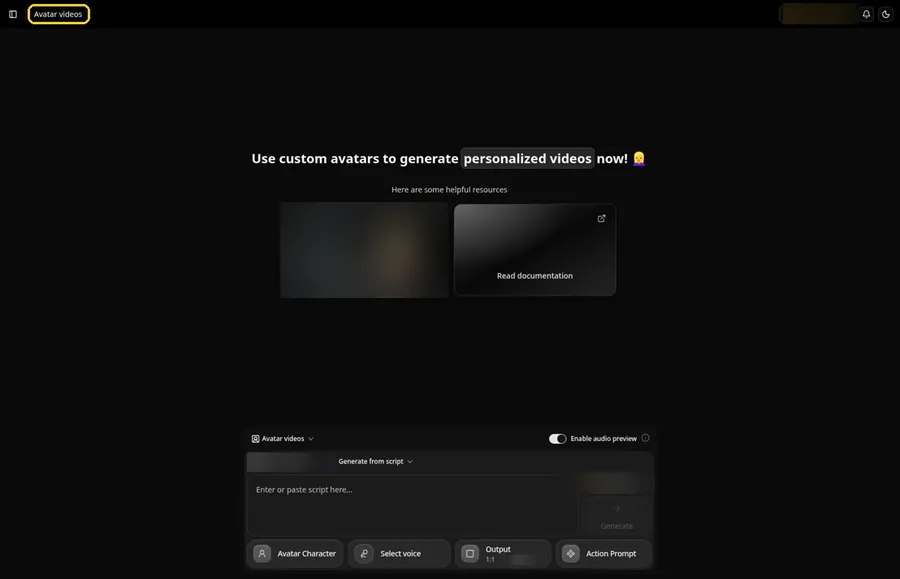
Open Avatar videos. The page title reads Avatar videos, and the composer is empty with Output at the default 1:1.
Step 3: Open Avatar Character and Create a New Avatar
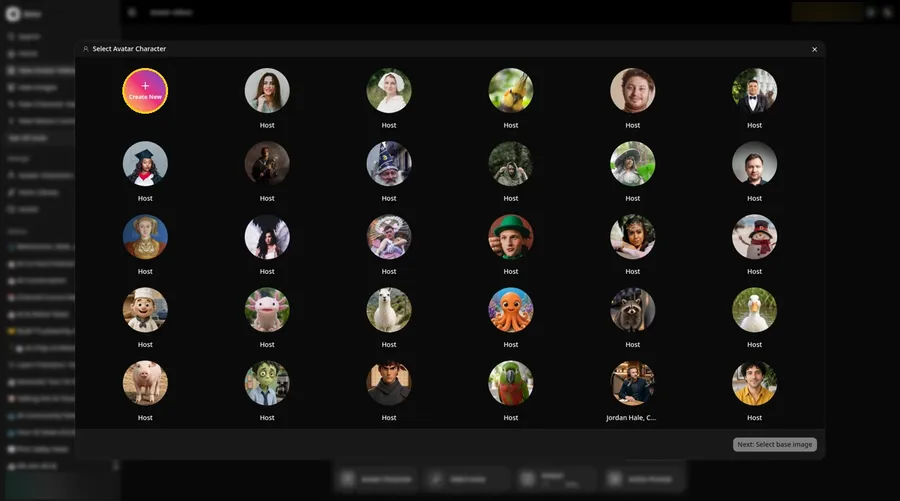
For the testimonial video, press Avatar Character, choose Create New in Select Avatar Character, then press Create New on the Avatar Characters page to reach the full-screen Create new avatar page.
Step 4: Choose Upload Image
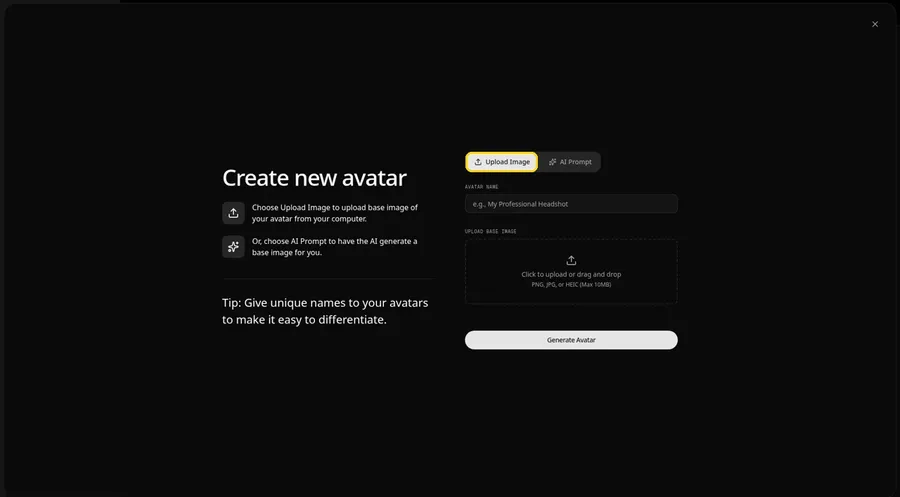
Under UPLOAD BASE IMAGE, keep the Upload Image tab selected for the testimonial video picture.
Step 5: Upload the Testimonial Portrait Image
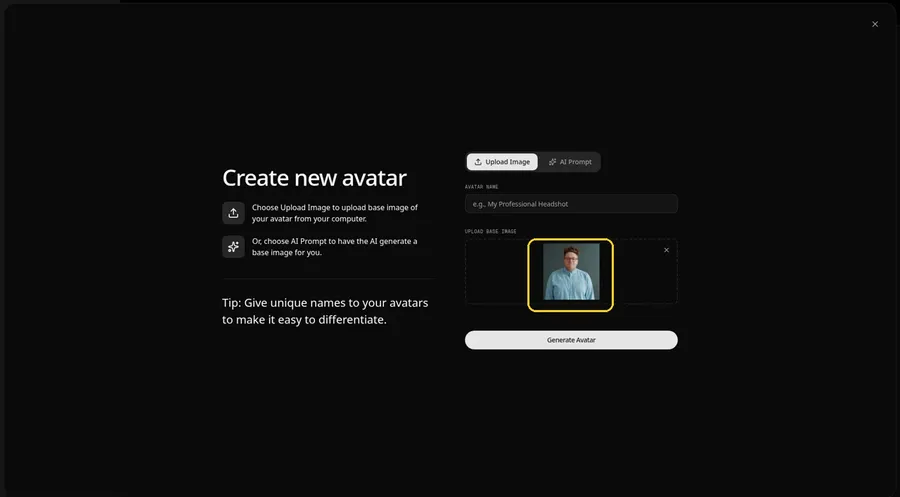
Choose the testimonial image in the upload area. The preview should show the testimonial Host looking straight ahead, an adult man with tortoise-shell glasses and a light blue chambray shirt against a plain gray wall.
Step 6: Name Your Avatar Host and Click Generate Avatar
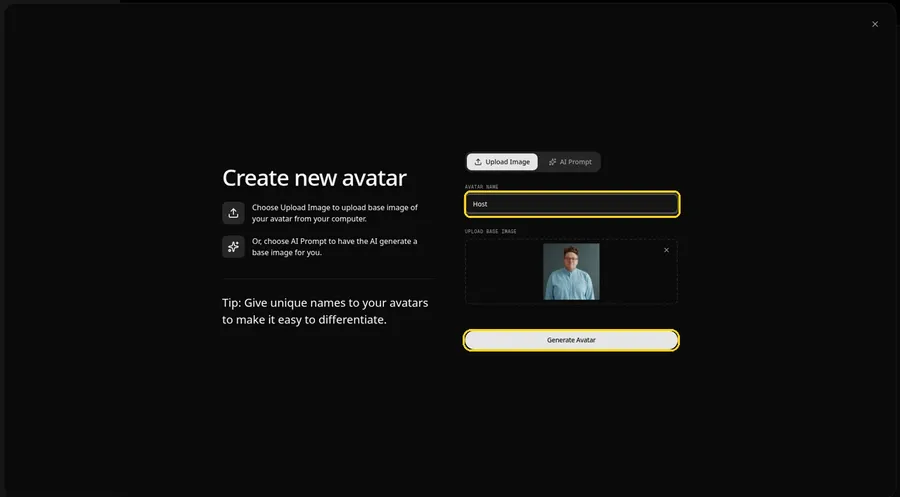
Name the testimonial video avatar Host in AVATAR NAME, with the preview in place, ready to click Generate Avatar.
Step 7: Open the Add Script Panel
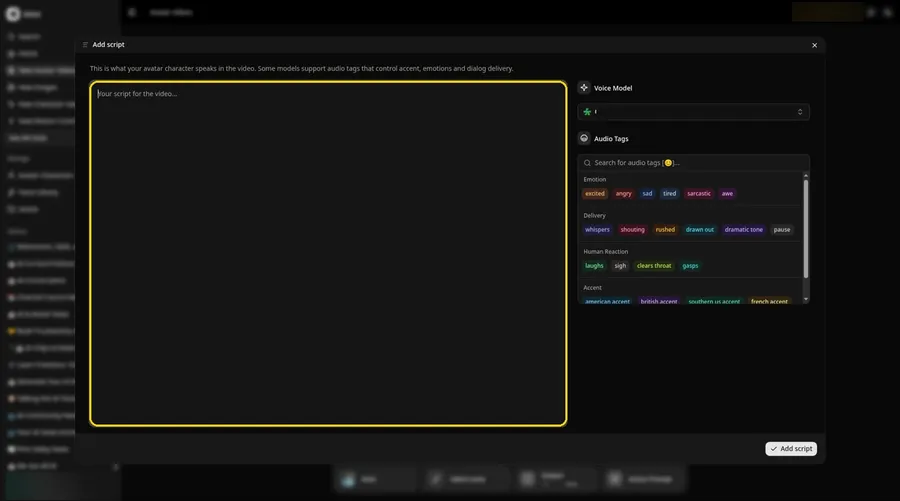
Click the script box in the composer, and the Add script panel opens for the testimonial video.
Step 8: Choose the Voice Model
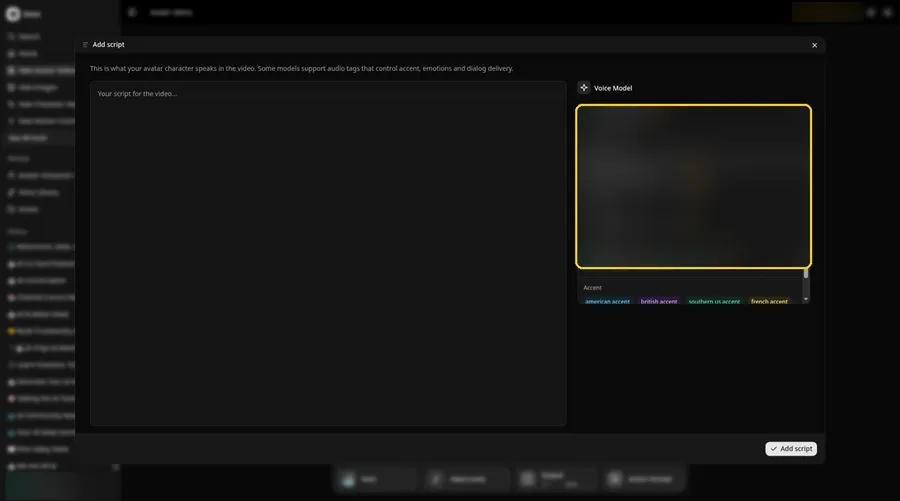
Pick a model in the Voice Model menu before the testimonial video script goes in.
Step 9: Paste Your Script and Click Add Script
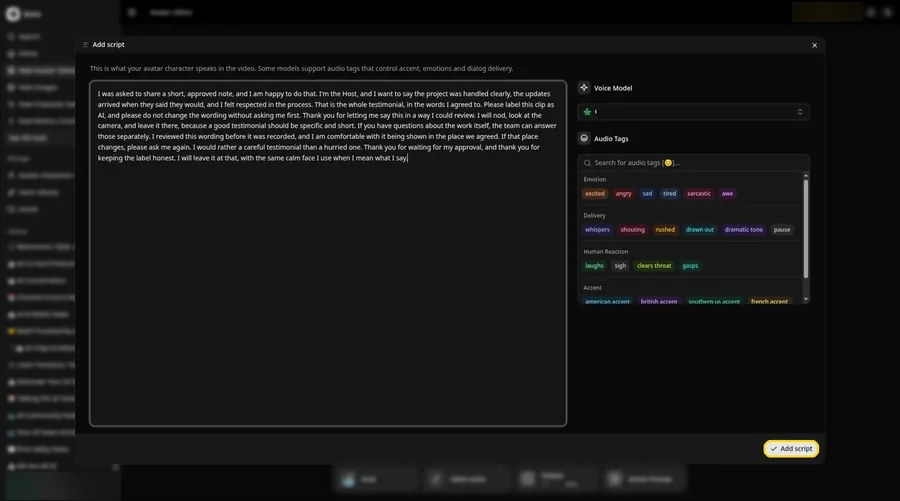
Drop in the full testimonial video script, then click Add script. The opening words are: I was asked to share a short, approved note, and I am happy to do that.
Step 10: Pick a Voice
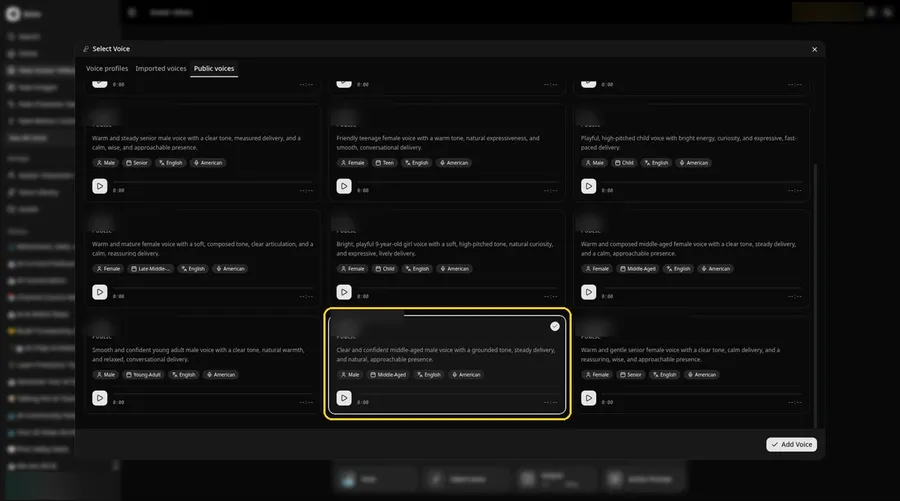
Click the voice button in the composer to open Select Voice for the testimonial video. Pick a calm, clear adult voice on the Public voices tab, then click Add Voice to attach it.
Step 11: Choose your output settings
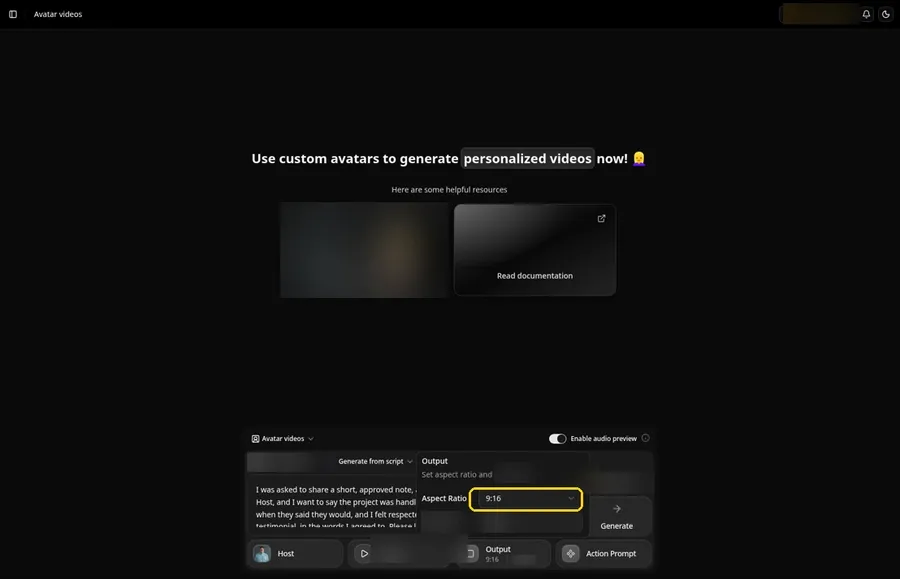
Choose your output settings. The testimonial video uses 9:16, picked from the aspect ratio dropdown in Output.
Step 12: Add an Action Prompt
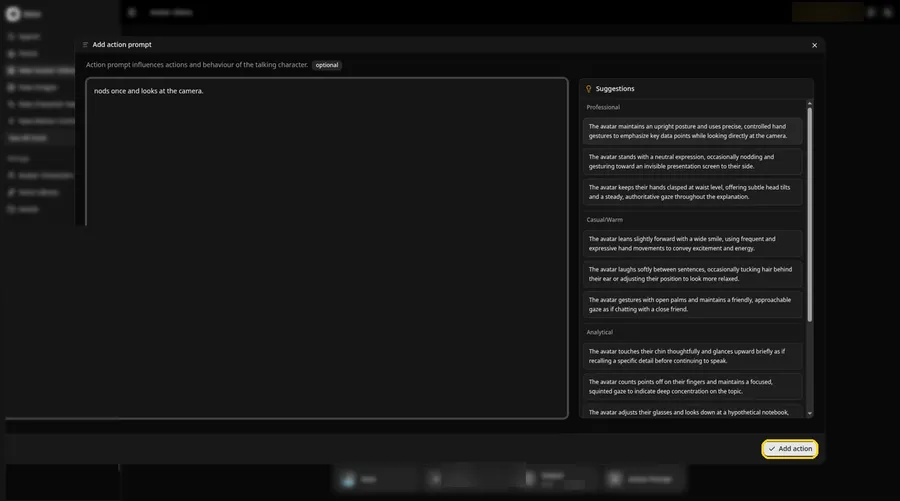
For the testimonial video, in the Add action prompt panel, enter: nods once and looks at the camera. Press Add action. The testimonial video only moves the way this prompt says.
Step 13: Click Generate
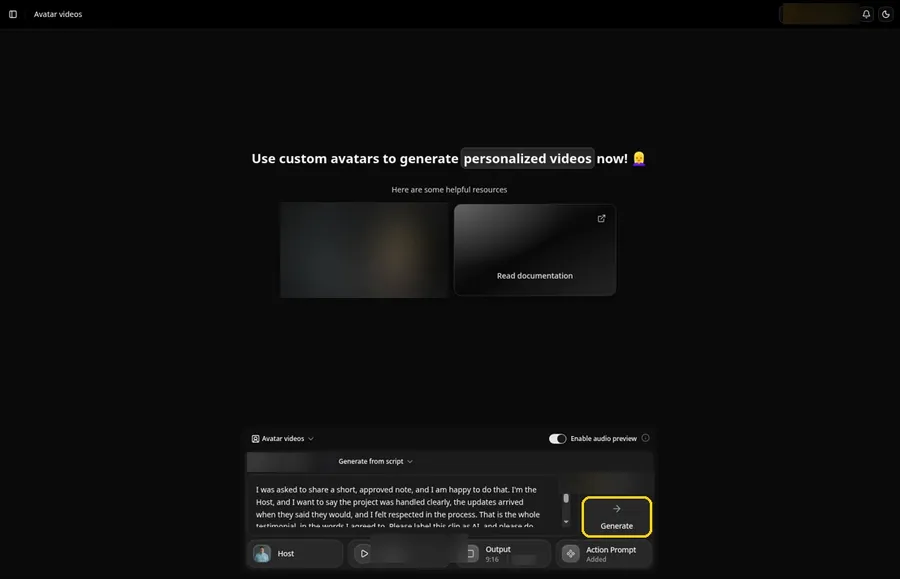
Check the testimonial video Host, the voice, the script, the 9:16 output and the Added Action Prompt chip, then click Generate.
Step 14: Confirm the Audio Preview
An audio preview of the testimonial video lines plays first; if it sounds right, confirm it and let Zoice process it.
Step 15: Preview the Video in the Player
Watch the testimonial video once in the player to check the lip sync and the action prompt.
Step 16: Download From the Player Menu
Open the three-dot menu on the player and click Download to save the testimonial video.
Step 17: Share Your Video
Share the downloaded testimonial video in a group chat or as a Reel, Short or story, using only images and audio you made or may use.
Writing the Action Prompt
Keep the testimonial video move modest, like a single nod, so the words stay first.
- For the testimonial video, nods once and looks at the camera
- smiles and pauses
- For the testimonial video, gestures lightly with one hand
Type your pick in step 12 and click Add action.
Demo Idea: An Approved Customer Thank You
A stock-photograph Host, of an adult man with tortoise-shell glasses and a light blue chambray shirt, reads exact approved words, clearly labeled as AI. Here is the exact script:
"I was asked to share a short, approved note, and I am happy to do that. I'm the Host, and I want to say the project was handled clearly, the updates arrived when they said they would, and I felt respected in the process. That is the whole testimonial, in the words I agreed to. Please label this clip as AI, and please do not change the wording without asking me first. Thank you for letting me say this in a way I could review. I will nod, look at the camera, and leave it there, because a good testimonial should be specific and short. If you have questions about the work itself, the team can answer those separately. I reviewed this wording before it was recorded, and I am comfortable with it being shown in the place we agreed. If that place changes, please ask me again. I would rather a careful testimonial than a hurried one. Thank you for waiting for my approval, and thank you for keeping the label honest. I will leave it at that, with the same calm face I use when I mean what I say."
Ready to make your own testimonial video? Try Zoice and follow the testimonial video steps above.
Tips for Honest Testimonials
- Get written consent for the photo, the words and where it will appear.
- Use their exact words; never write a testimonial for them.
- Label the video as AI generated.
- For the testimonial video, add an action prompt only after the lip sync looks right, then compare the two versions.
Once the testimonial video works, branch out with our AI avatar generator for customer support videos roundup.
FAQ
Can I write a testimonial for a customer?
No, use only their real, approved words.
Should I disclose AI?
Yes, label the video as AI generated.
Do I need the customer's approval?
Yes. Approve the photo, the exact words, and where the testimonial will appear, and label the clip as AI.
Can I write the testimonial myself?
Only if the customer reviews and approves the exact wording before you make the video.
Is the action prompt required?
No. The testimonial video is lip synced to your script either way; the action prompt only adds the move.
Can I make a vertical testimonial video?
Yes. Choose 9:16 in the output settings before you click Generate on the testimonial video.
Try Zoice
Your testimonial video is one click away. Explore our AI avatar generator from photo roundup, or Try Zoice and start your testimonial video now.