How to Make a Singing Pumpkin Video With AI: 2026 Guide
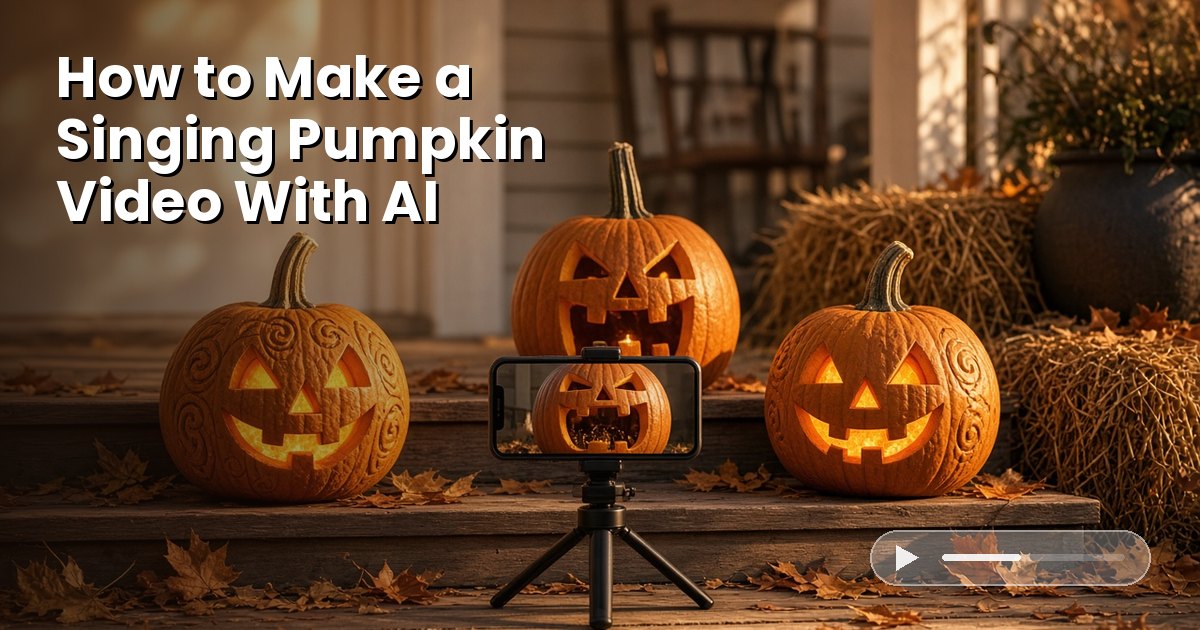
Carved pumpkins sit on porches all night, so give yours a song. To make a singing pumpkin video with AI in Zoice, upload your pumpkin image as the Host with Avatar X, add a royalty free song, and Zoice syncs the carved mouth to the song.
Below you will find each screen of the Zoice flow in order, from sign in to download, plus tips and a demo idea. For more, see the best AI Halloween video generators, follow our guide to make a Halloween talking photo, or read about the AI singing avatar generator.
What You Need
Have these ready before you open Zoice:
- A clear picture of a carved or painted pumpkin, as a PNG, JPG or HEIC file up to 10 MB
- A song you own, or one with a license that allows it, such as a Pixabay Music track
- A Zoice account, with credits for the avatar and the video
Picking a Pumpkin Zoice Can Read
Zoice needs to find a mouth to lip sync, so the carving should show one clearly. These pumpkins tend to give the cleanest result:
- A wide, open carved mouth, such as a toothy grin
- A front facing pumpkin that fills most of the picture
- Bright, even light, with the face easy to see
- One pumpkin per picture, cropped close
Cartoon pumpkins and illustrated jack o lanterns work too, as long as the face is clear.
How to Make a Singing Pumpkin Video With AI in Zoice, Step by Step
Follow these 17 steps in order to make a singing pumpkin video with AI in Zoice. Every screenshot marks the control to use with a yellow arrow. For this demo we used an original jack o lantern character named Host, Avatar X in song mode, the Pixabay Music track Halloween Hop (Alternative melody) by kaazoom, and 720p output.
Step 1: Visit Zoice and Sign In
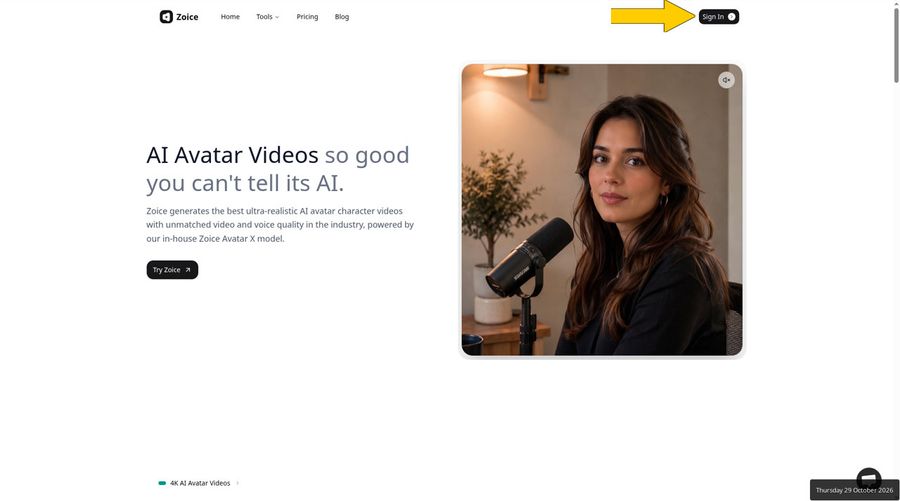
Open zoice.com in your browser and press Sign In at the top right of the homepage. Enter your email and password, or continue with Google. No account yet? Choose Sign up on the login form and create one first.
Step 2: Open New Avatar Videos
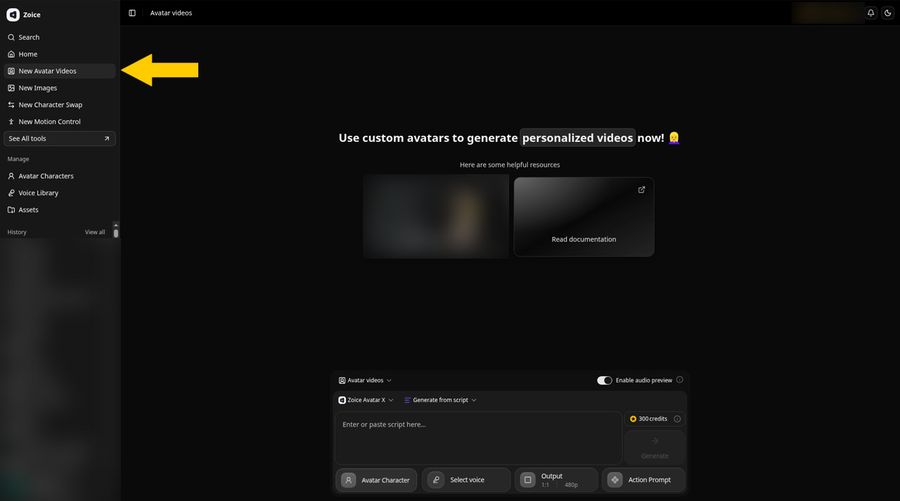
Once you are in, pick New Avatar Videos from the left sidebar. The Avatar videos page appears with the composer along the bottom. The composer starts in Generate from script mode, and you will switch it to Generate from audio in step 7.
Step 3: Click Avatar Character, Then Create New
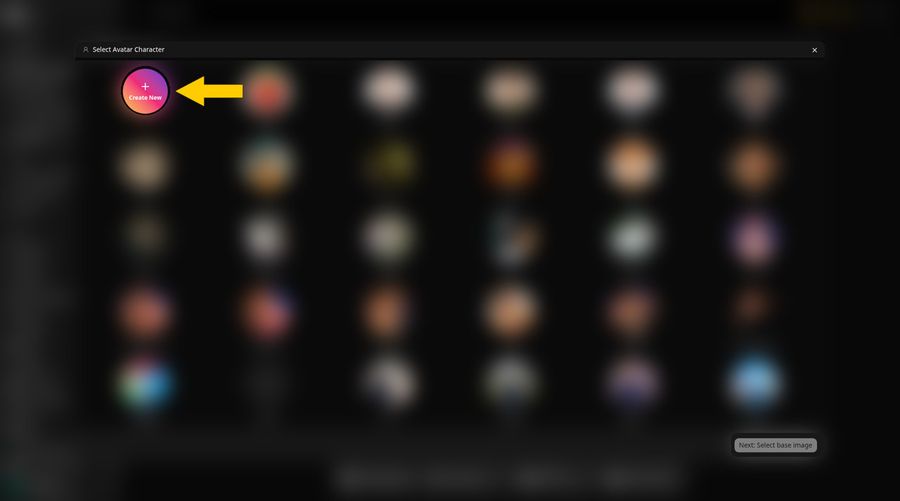
Press the Avatar Character button in the composer. A Select Avatar Character window lists any avatars you have saved. Press the round Create New button in its top left corner. Zoice takes you to the custom avatars page, where you click Create New once more to open the new avatar panel.
Step 4: Choose Upload Image
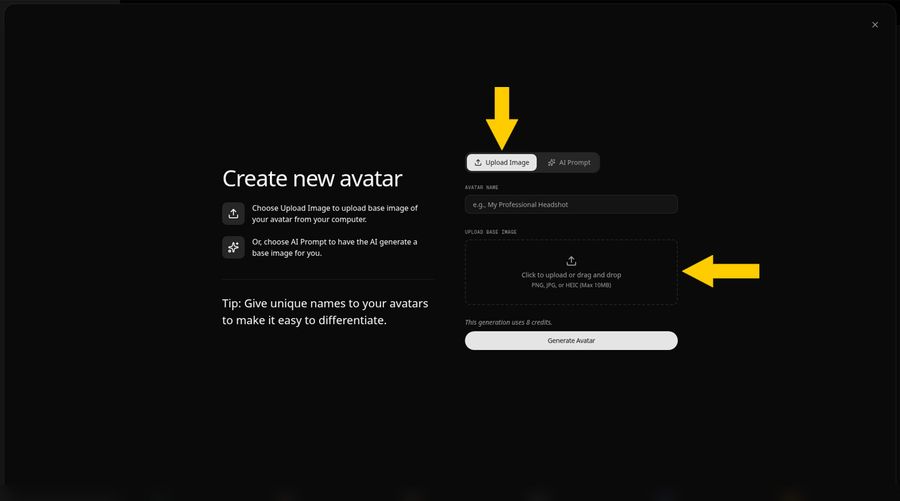
The Create new avatar panel opens with two tabs, Upload Image and AI Prompt. Keep Upload Image selected, since we are using our own pumpkin picture. Click inside the upload area or drop your file there. Allowed formats are PNG, JPG and HEIC, up to 10 MB.
Step 5: Upload the Jack O Lantern Pumpkin Image
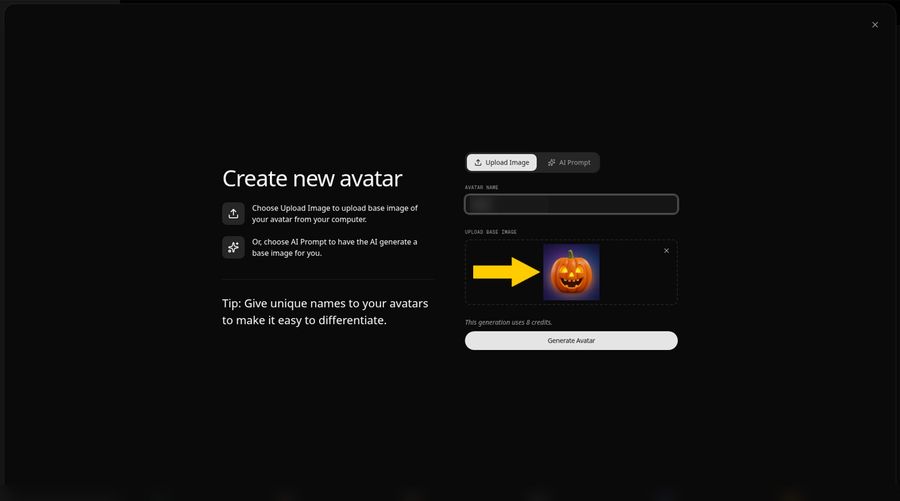
Pick your jack o lantern image. A preview appears in the panel. Our demo pumpkin is an original AI made character, created for this post, with glowing triangular eyes, a triangular nose and a wide open smiling mouth. Check these before you go on:
- The carved mouth is clear and easy to see
- The pumpkin faces the camera
- There is one pumpkin in the picture
- The light is bright enough to show the carving
Step 6: Name Your Avatar Host and Click Generate Avatar
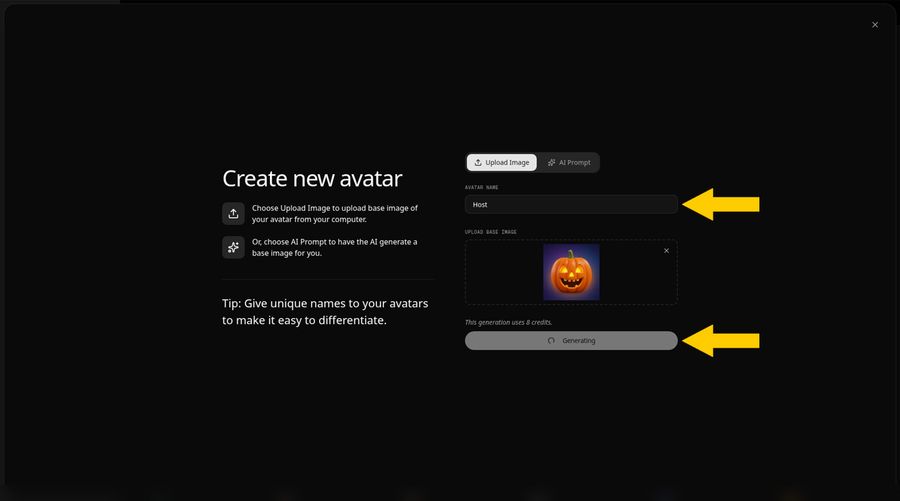
Enter a name in the Avatar Name field. We entered Host. A unique name makes the avatar easy to find later, when your list of avatars grows. The note under the upload shows the credit cost of creating an avatar. Click Generate Avatar to create it.
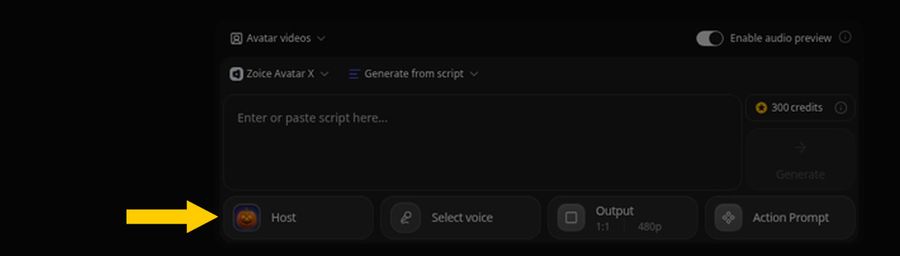
When it finishes, the pumpkin appears as the Host button in the composer, as the second screenshot shows. That confirms your avatar is attached and ready.
Step 7: Select Generate from audio
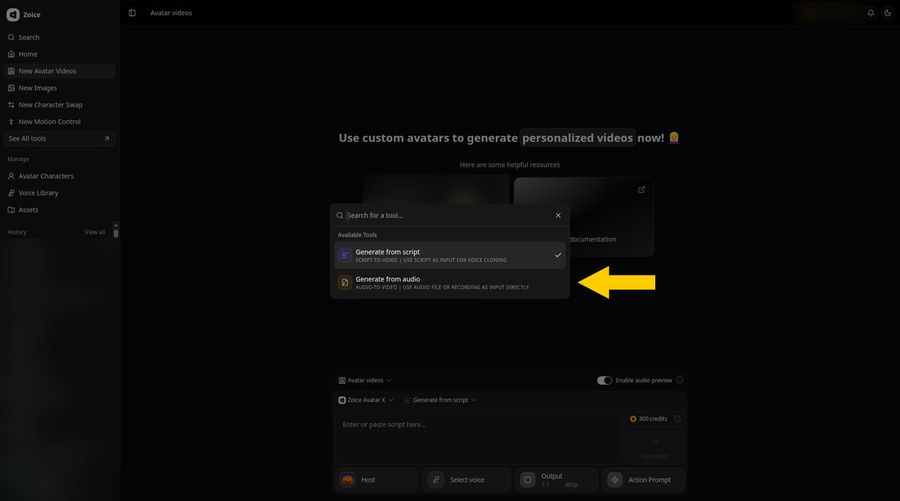
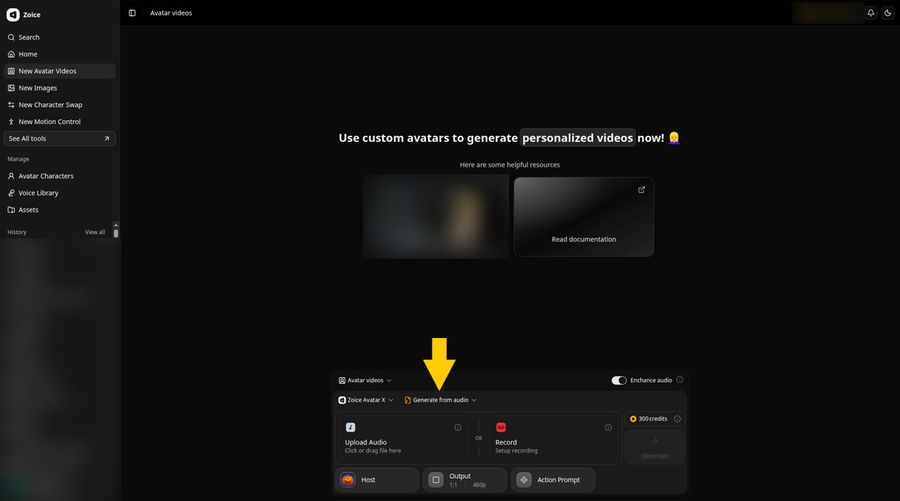
In the composer, click the method button that reads Generate from script, next to the Zoice Avatar X model. A menu lists Generate from script and Generate from audio. Choose Generate from audio. The composer now shows two cards, Upload Audio and Record.
Step 8: Click Upload Audio and Add the Song
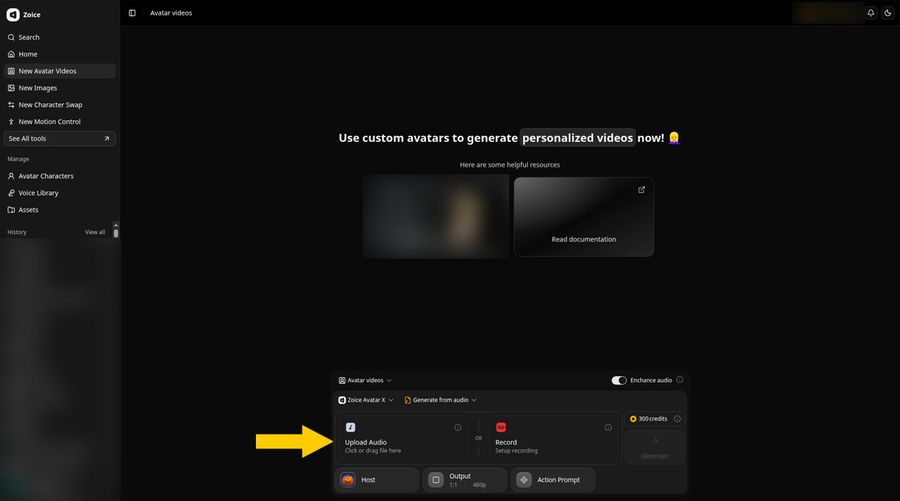
Click Upload Audio and choose your song file from your computer. We used the Pixabay Music track Halloween Hop (Alternative melody) by kaazoom. Pixabay shares its music under the Pixabay Content License, but always read the license for the track you pick. When the upload finishes, the song appears in the composer as a file card, which the next step shows.
Step 9: Preview Your Uploaded Audio
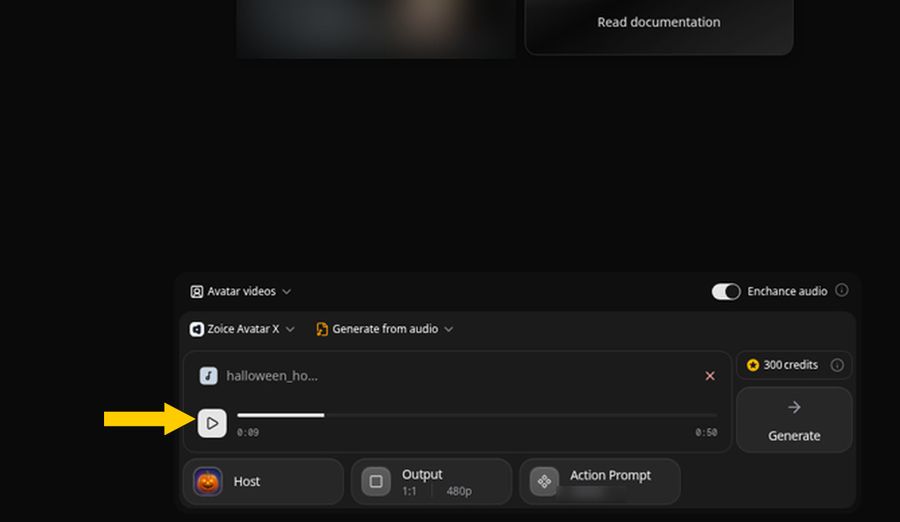
Press the play control on the song card and listen for a few seconds to make sure it is the right file. The timer at the right end of the bar shows how long your song file is.
Step 10: Set 720p in Output
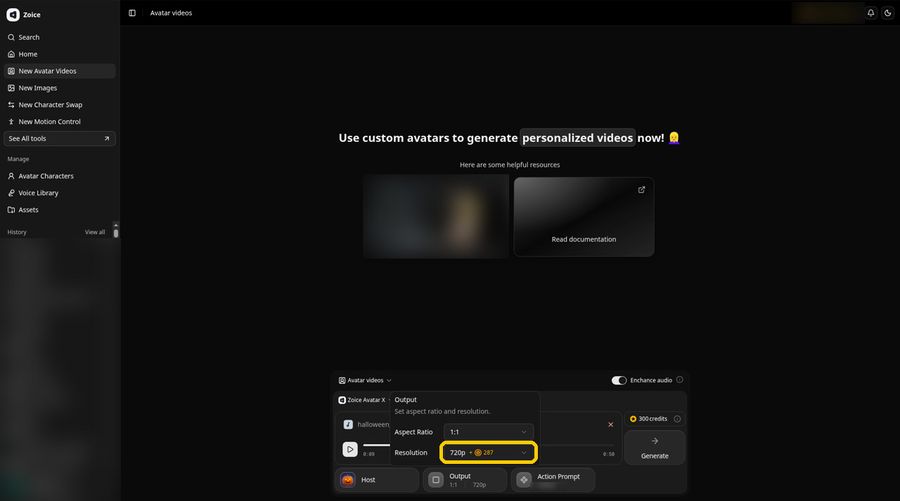
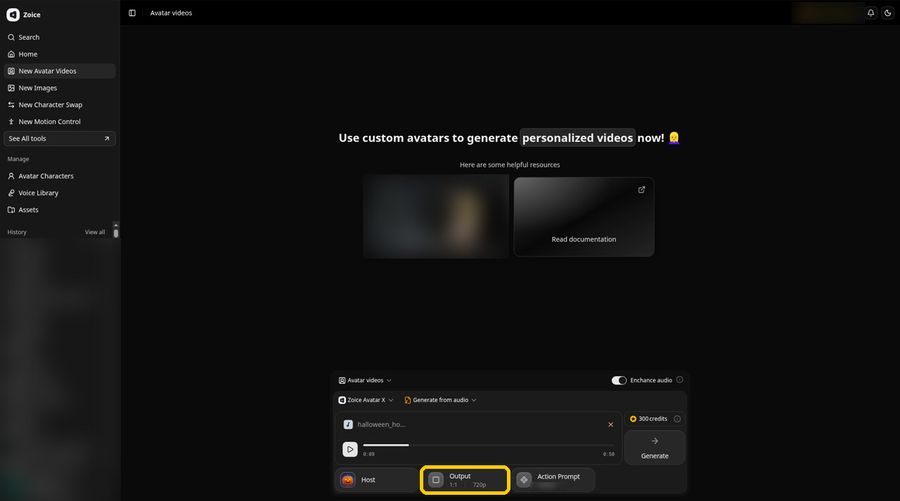
Open Output to reach the Aspect Ratio and Resolution settings. We left the ratio at 1:1 and chose 720p under Resolution, and the Output button then showed 1:1 and 720p. The Resolution menu lists a credit cost beside each option, so check it on your own screen. For stories, Reels and Shorts pick 9:16, and for YouTube pick 16:9.
Step 11: Click Action Prompt
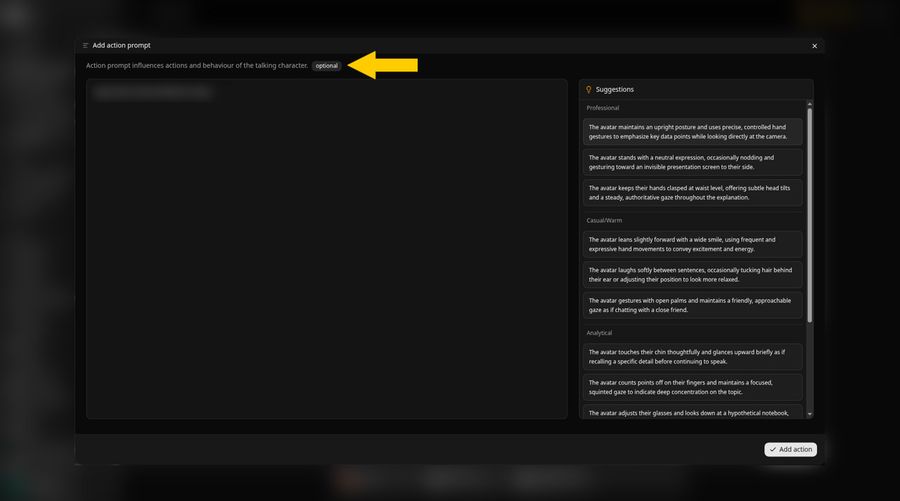
Click the Action Prompt button in the composer. The Add action prompt panel opens with the label optional next to its title, and a list of suggestions on the right that you can read for ideas. This panel is optional, so you can skip it and go straight to step 13.
Step 12: Write an Action Prompt and Click Add Action
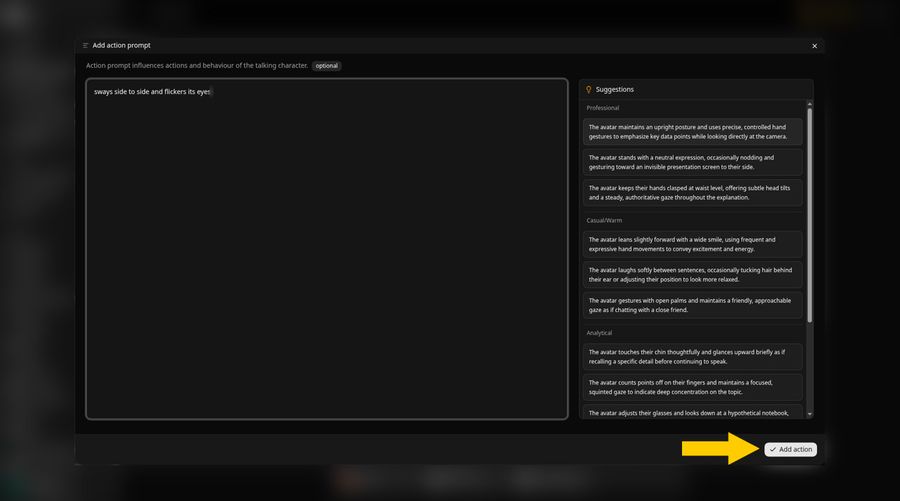
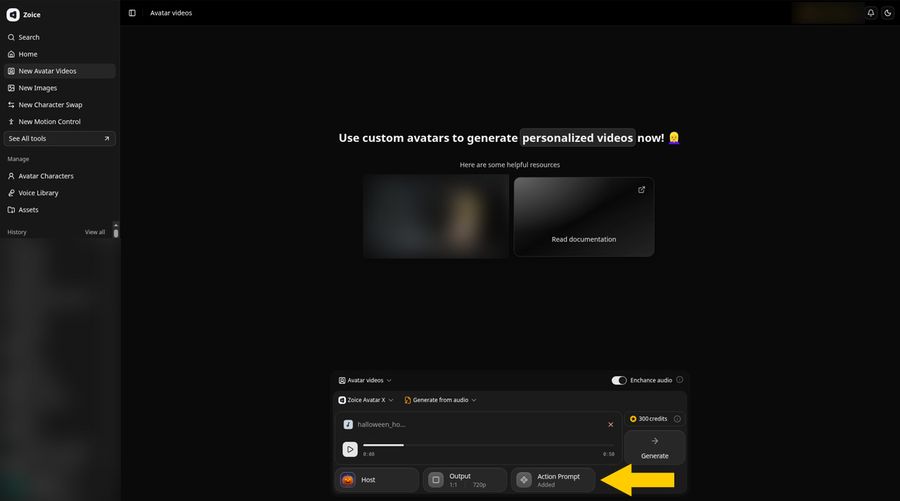
Type a short action in the big text box. We typed: sways side to side and flickers its eyes. An action prompt guides how your character moves, so ask for motion that a carved pumpkin can show. Then click Add action at the bottom right.
Back in the composer, the Action Prompt button now reads Added.
Step 13: Click Generate
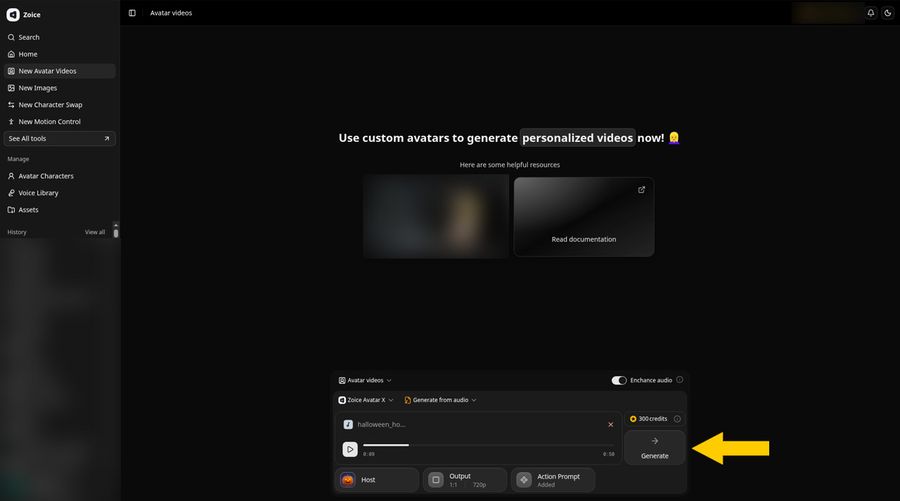
Check the composer before you generate: the pumpkin Host, your song, Output at 1:1 and 720p, and Action Prompt showing Added. The credit chip beside Generate shows the cost of your setup, so compare it with your balance first. When everything looks right, click Generate. If Zoice shows a confirmation card, confirm it with Generate avatar video.
Step 14: Wait While Zoice Processes the Video
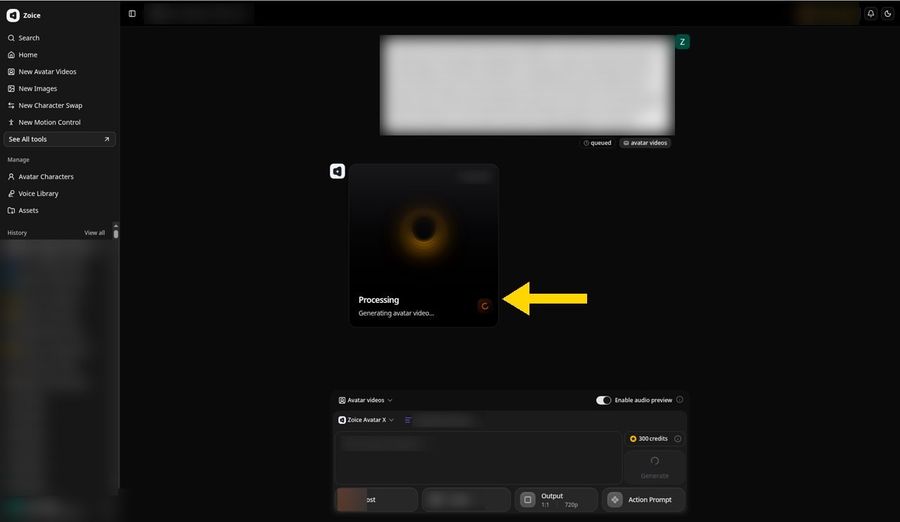
After you confirm, a Processing card labeled Generating avatar video appears. You can keep the page open or return to the project later from History. Steps 14 to 17 use screens from our earlier Halloween tutorial, with its own details blurred, so they will not match your pumpkin or song.
Step 15: Preview the Video in the Player
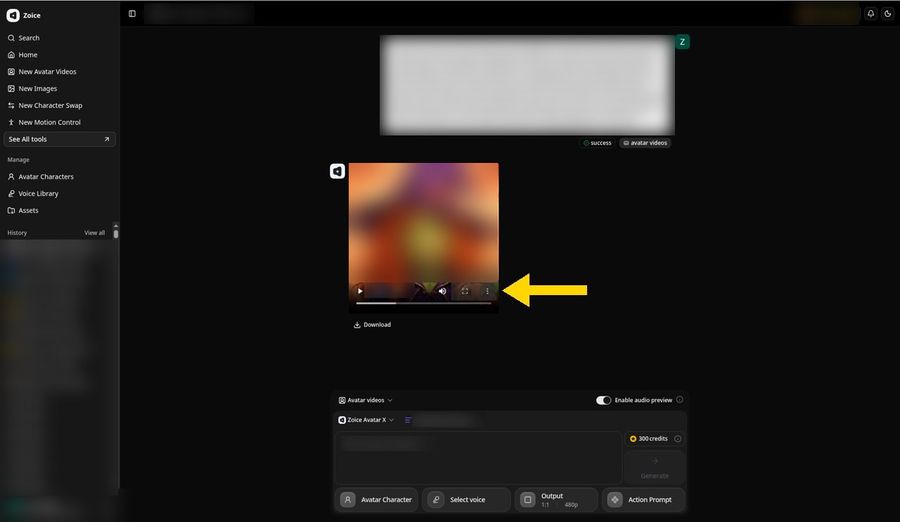
Once the status reads success, the player appears. Press play to review your result. If you want changes, adjust the image, the song or the settings and run it again.
Step 16: Open the Player Menu and Click Download
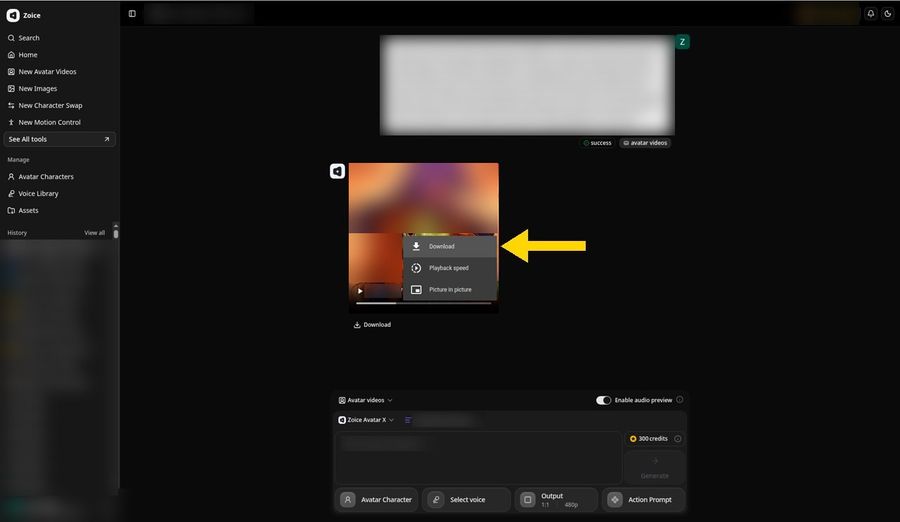
To keep a copy, open the three dot menu on the player and pick Download. Playback speed and Picture in picture sit in the same menu. The Download link under the player does the same job.
Step 17: Find the File in Your Browser Downloads
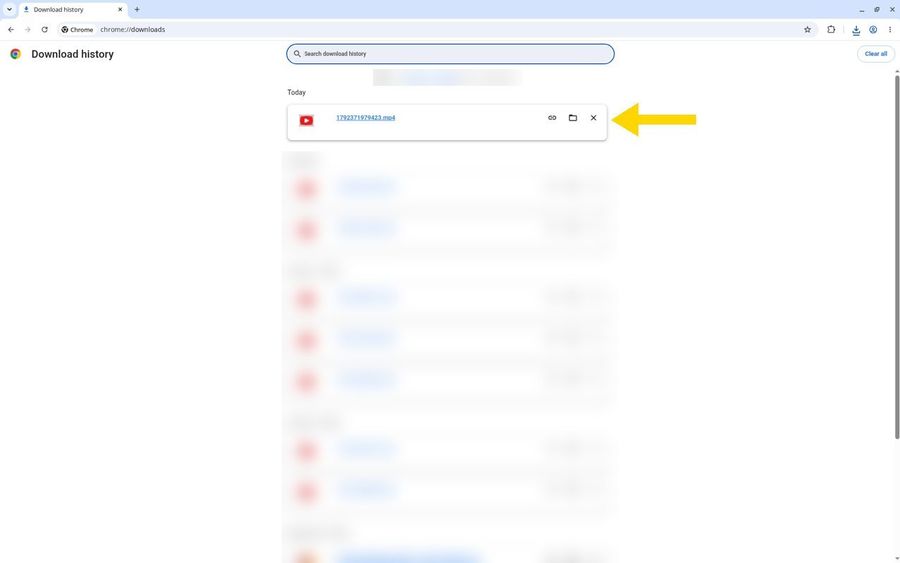
The file lands in your browser's Downloads as an MP4, listed first under Today. From there you can open it or show it in its folder. Then share it on your porch screen, in your group chat or as a story. Use only pictures you made or may use, and songs you have the rights to.
Demo Idea: The Porch Pumpkin's Halloween Hop
Here is the idea behind our demo: a glowing jack o lantern waits by the door as the Host, ready to sing the Pixabay Music track Halloween Hop (Alternative melody) by kaazoom to trick or treaters. Swap in your own carved pumpkin and a song you are allowed to use, and the same steps work for a porch screen, a party or a story. Want one of your own? Try Zoice.
Tips for Carved Pumpkin Photos
- Carve a wide, open mouth, since a toothy grin gives the lip sync a clear shape
- Shoot at dusk with the candle lit and the porch light on, so the face is bright, not just glowing
- Frame the pumpkin straight on and fill most of the image with it
- Upload only the part of the song you want, such as the chorus, so it is easy to check
FAQ
Does the pumpkin need to be carved?
A carved or painted face works best, because Zoice needs a mouth to lip sync. Test one image first.
Can I use my own Halloween song?
Only use a song you own, or one with a license that allows it, like a Pixabay Music track.
What image size works?
PNG, JPG or HEIC files up to 10 MB, as the Upload Image panel states.
Where can I see the credit cost?
The note in the Create new avatar panel shows the cost of creating an avatar, and the credit chip beside the Generate button shows the cost of your video setup. Check both on your own screen before you click Generate.
Try It With Your Own Pumpkin
Ready to make your own singing pumpkin video? Try Zoice.