How to Make a Painting Talk With AI: A Simple 2026 Guide
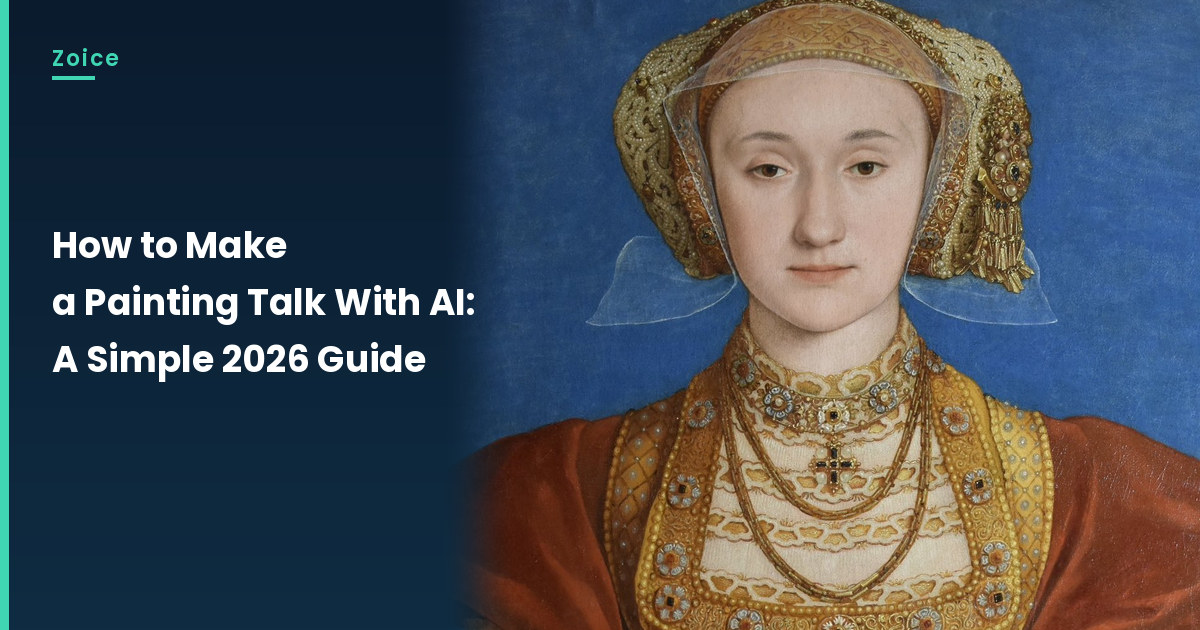
A painted portrait can speak to a class or a quiet room of followers if you have the rights to use it. This is how to make a painting talk with AI from a public-domain work or a painting you own, which is different from a sketch coming to life and from a painting that sings. In Zoice you upload a clear crop of the face, it becomes your Host, and the mouth is lip synced to your script. An optional action prompt can add a slight turn toward the viewer. Test the painted face, and do not use a work you do not have the rights to show.
For more ideas beyond the talking painting, see our list of tools that animate static portraits.
Choosing a Painting Image Zoice Can Read
A talking painting should be a public-domain work or a painting you own, cropped to a clear face with a visible mouth.
- Use only works you have the rights to show
- Crop tightly enough that the face is readable
- Avoid glare from varnish or gallery glass
- Test the crop in Zoice; if a face is not detected, try a tighter crop or a different work, and note the swap
How to Make a Painting Talk in Zoice
Our Host is a public-domain painted portrait of Anne of Cleves by Hans Holbein the Younger, a woman in a rust-red dress and a gold headdress against a blue ground, facing the camera with a visible mouth, used as the Host for this post and saved in the app.
Step 1: Sign In to Zoice and Open Home
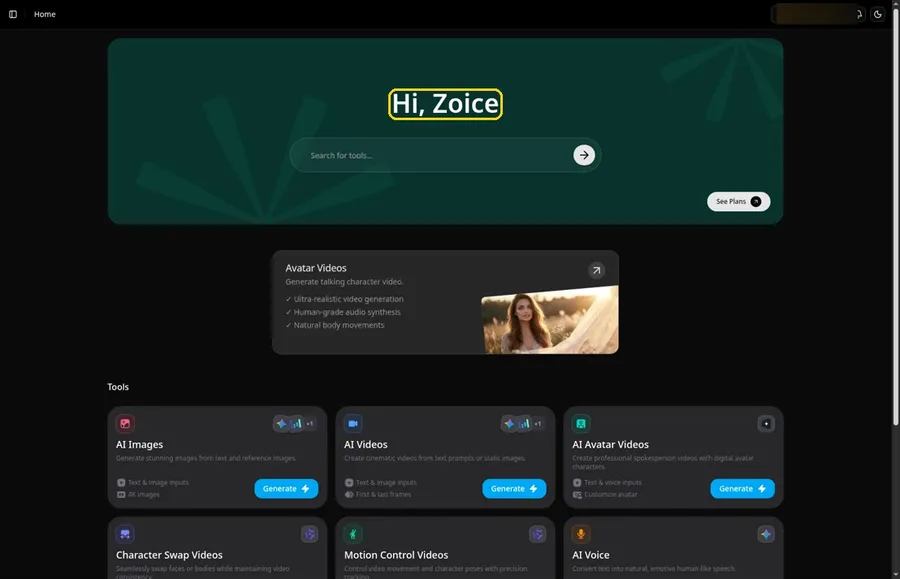
Open Zoice, press Sign In and choose email or Google, and you land on Home ready for the talking painting.
Step 2: Open Avatar videos
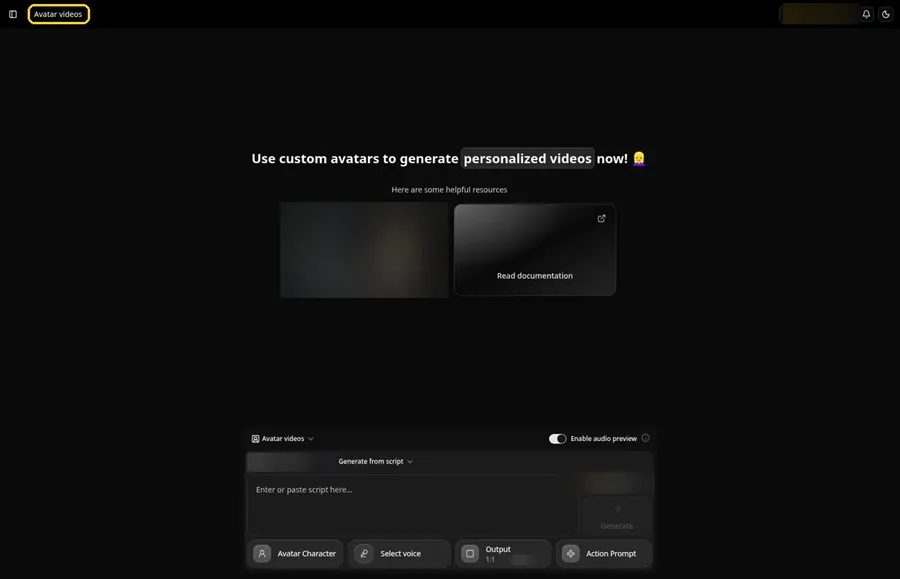
Click Avatar videos in the sidebar; the page title reads Avatar videos, and its composer holds every talking painting setting.
Step 3: Open Avatar Character and Create a New Avatar
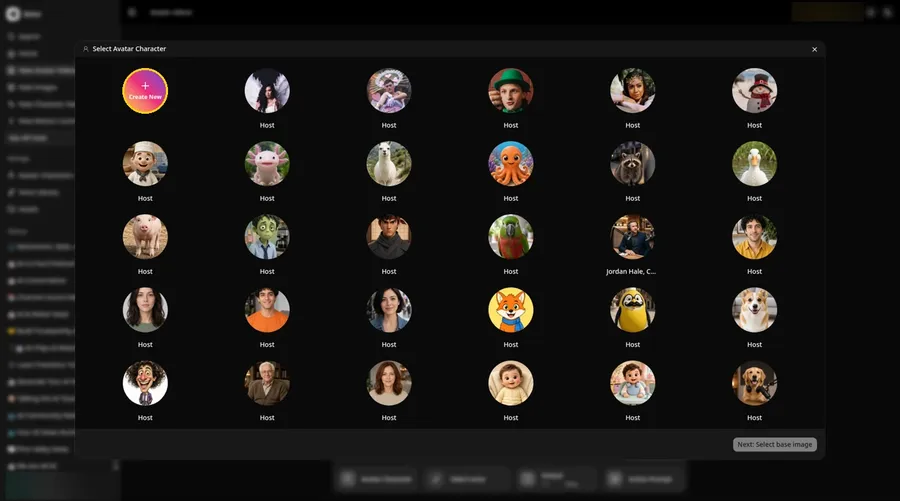
Open Avatar Character, and the Select Avatar Character window appears; Create New there leads to the Avatar Characters page, where a second Create New opens the full-screen Create new avatar page for the talking painting.
Step 4: Choose Upload Image
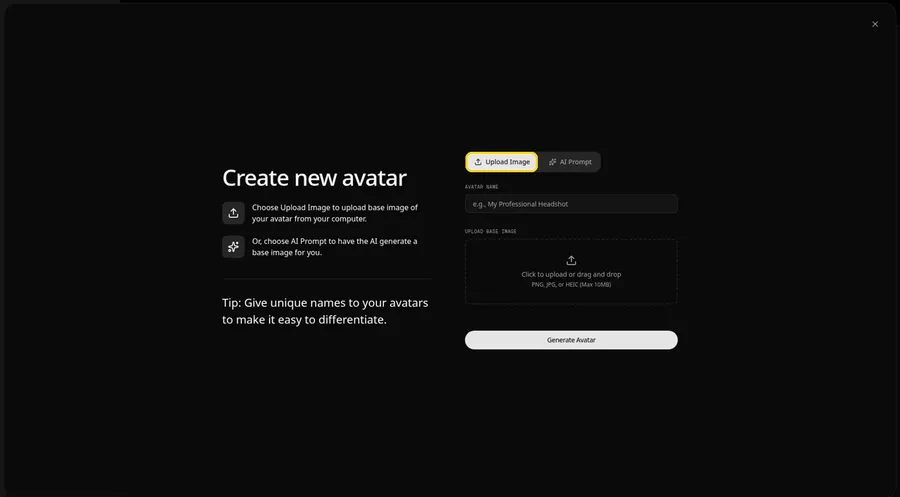
On the Create new avatar page, the talking painting image goes in under UPLOAD BASE IMAGE with the Upload Image tab active.
Step 5: Upload the Painting Image
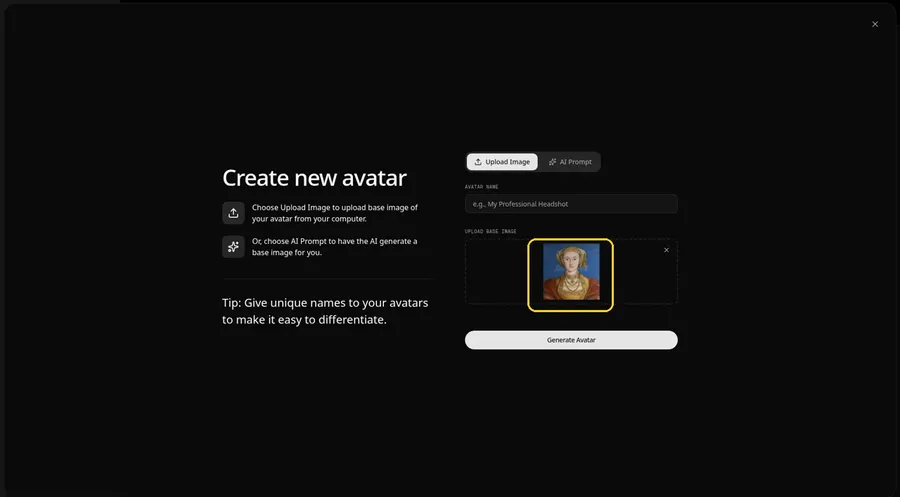
Click the upload area and pick the painting image, then check the preview shows the talking painting face clearly, with a rust-red dress, a gold headdress, and a blue ground.
Step 6: Name Your Avatar Host and Click Generate Avatar
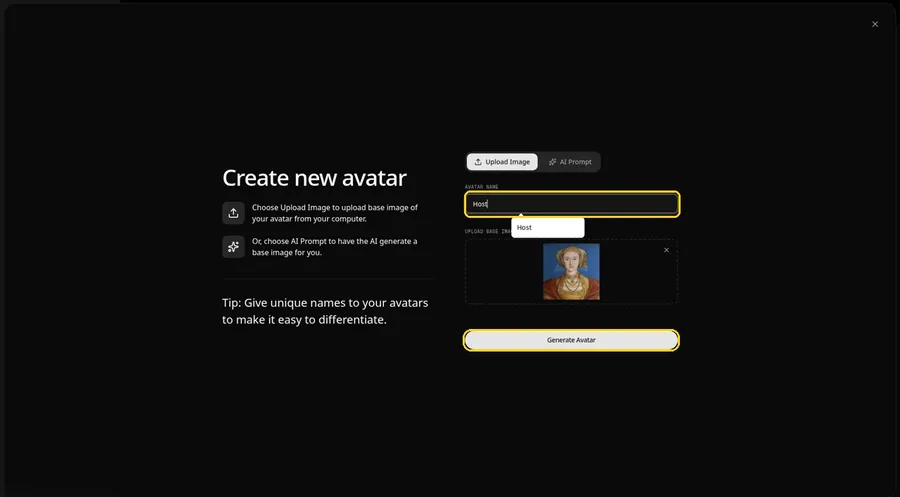
Name the talking painting avatar Host in AVATAR NAME, then click Generate Avatar to save it.
Step 7: Open the Add Script Panel
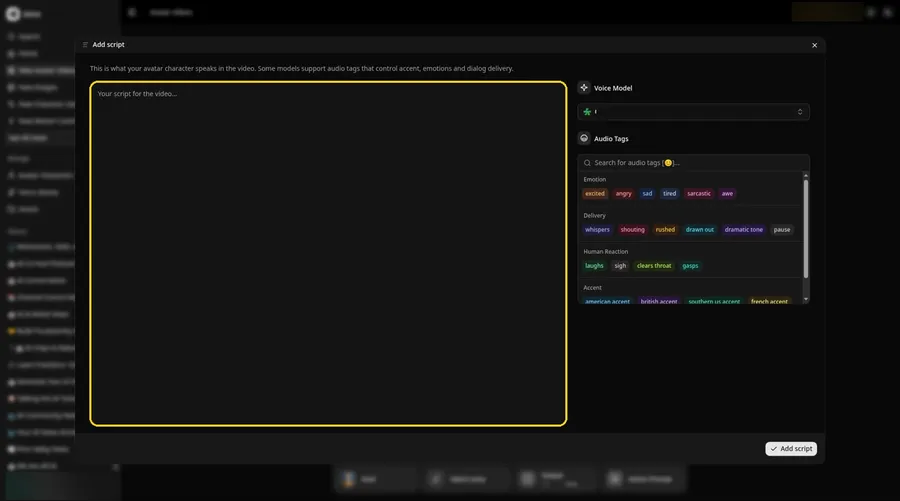
Open the Add script panel by clicking the script box beside the talking painting Host.
Step 8: Choose the Voice Model
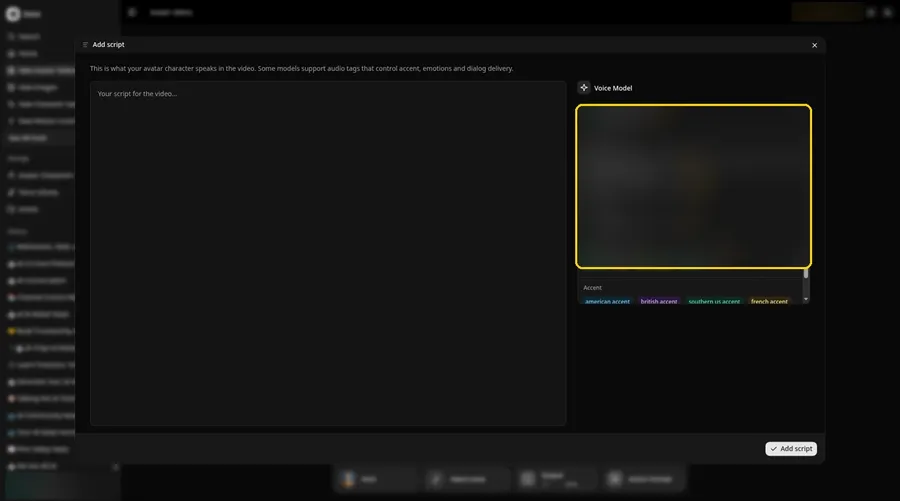
Open the Voice Model menu and choose the model that will read the talking painting lines.
Step 9: Paste Your Script and Click Add Script
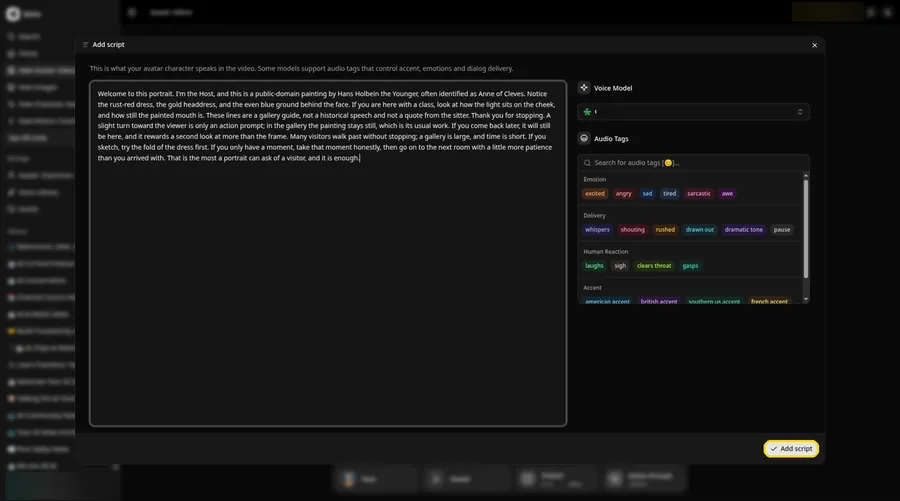
Paste the talking painting lines into the panel and click Add script. First line: Welcome to this portrait.
Step 10: Pick a Voice
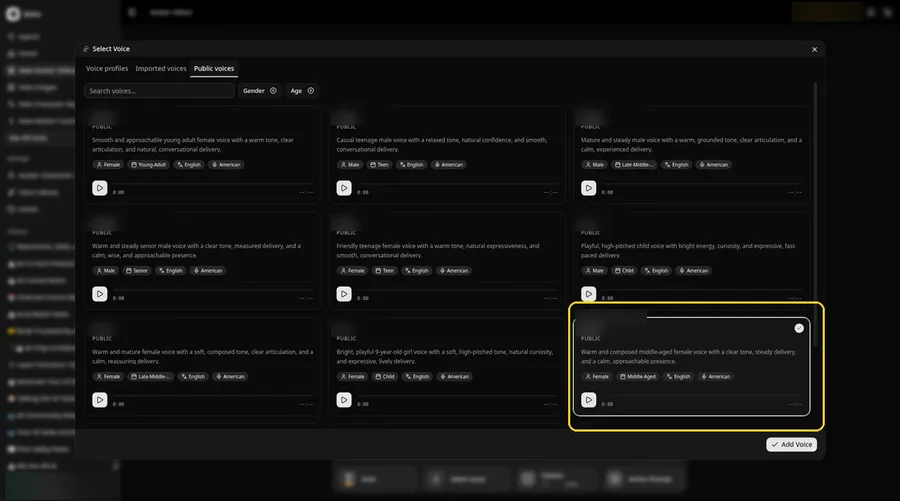
Press the voice button in the composer so Select Voice opens, choose a calm, measured adult voice from Public voices, and click Add Voice to attach it.
Step 11: Choose your output settings
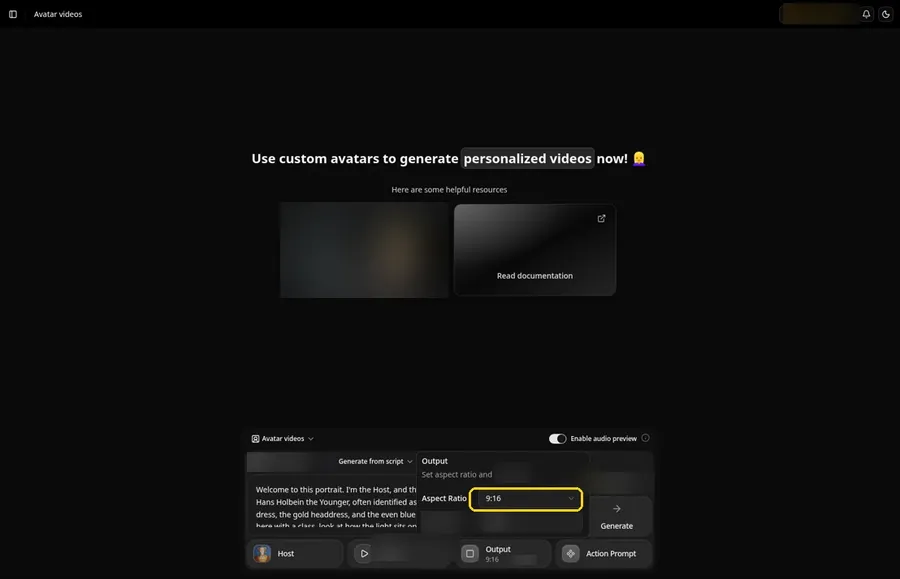
Choose your output settings. In Output, open the aspect ratio dropdown and pick 9:16 so the talking painting fits Reels and Shorts.
Step 12: Add an Action Prompt
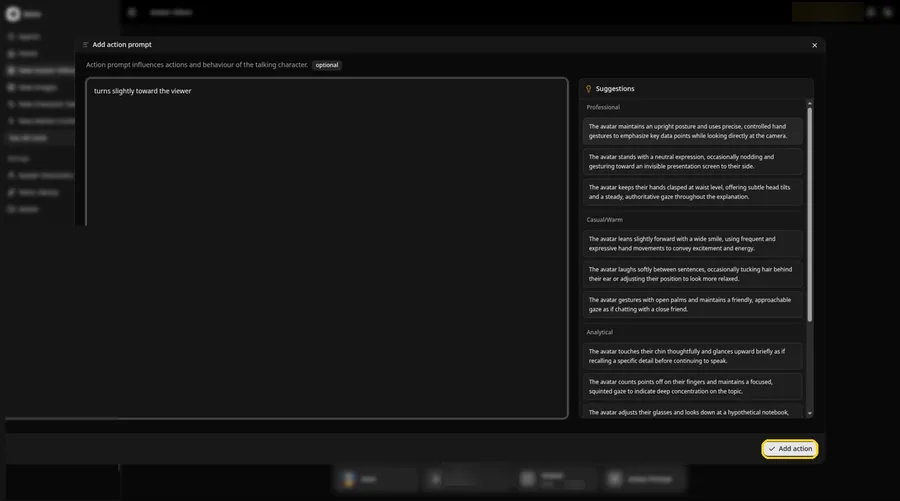
Open the Add action prompt panel, type turns slightly toward the viewer, then click Add action. Every talking painting move comes from this prompt.
Step 13: Click Generate
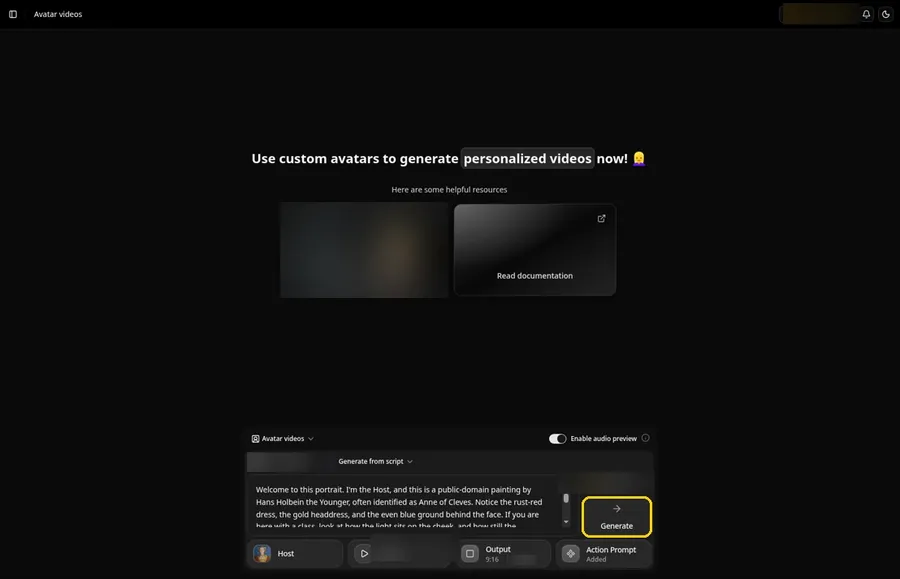
With the talking painting Host, script, voice, 9:16 frame and Added Action Prompt chip in place, click Generate.
Step 14: Confirm the Audio Preview
Zoice plays an audio preview of the talking painting script; confirm it, and Zoice processes the clip.
Step 15: Preview the Video in the Player
Play the talking painting video in the player and make sure the words and the prompted moves line up.
Step 16: Download From the Player Menu
Click the three-dot menu on the player, then Download, and the talking painting video saves to your device.
Step 17: Share Your Video
Send the talking painting video to friends or post it to Reels and Shorts, and keep to images and audio you made or may use.
Writing the Action Prompt
Keep the talking painting move slight, like a small turn toward the viewer.
- turns slightly toward the viewer
- For the talking painting, looks at the camera and blinks
- nods once
Type your pick in step 12 and click Add action so the Action Prompt chip updates on the talking painting.
Demo Idea: The Portrait Speaks in the Gallery
A public-domain portrait Host, cropped from Holbein's Anne of Cleves, delivers a short original gallery-guide talk. The lines are not the words of the historical sitter, and they are not historical fact. Here is the exact script:
"Welcome to this portrait. I'm the Host, and this is a public-domain painting by Hans Holbein the Younger, often identified as Anne of Cleves. Notice the rust-red dress, the gold headdress, and the even blue ground behind the face. If you are here with a class, look at how the light sits on the cheek, and how still the painted mouth is. These lines are a gallery guide, not a historical speech and not a quote from the sitter. Thank you for stopping. A slight turn toward the viewer is only an action prompt; in the gallery the painting stays still, which is its usual work. If you come back later, it will still be here, and it rewards a second look at more than the frame. Many visitors walk past without stopping; a gallery is large, and time is short. If you sketch, try the fold of the dress first. If you only have a moment, take that moment honestly, then go on to the next room with a little more patience than you arrived with. That is the most a portrait can ask of a visitor, and it is enough."
Give the talking painting a go yourself. Try Zoice and paste your own talking painting script.
Tips for Painted Portraits
- Public domain works or your own paintings only.
- Crop out the frame so the face is larger.
- Teachers can use it to open an art history lesson.
- For the talking painting, add an action prompt only after the lip sync looks right, then compare the two versions.
Next to this talking painting guide, our guide on how to make a drawing come to life offers more options.
FAQ
Which paintings can I use?
Public domain works or paintings you created.
How is this different from the drawing guide?
This is for finished painted portraits; the drawing guide covers sketches.
Is the action prompt required?
No. The talking painting is lip synced to your script either way; the action prompt only adds the move.
Can I make a vertical talking painting video?
Yes. Choose 9:16 in the output settings before you click Generate on the talking painting.
Try Zoice
Everything the talking painting needs is above. See our AI historical figure video generator roundup too, or Try Zoice and build your talking painting now.