How to Make a Caricature Talk With AI: A Simple 2026 Guide
Caricatures stretch a face for laughs, and they land even harder when the drawing talks back. In Zoice you upload an original caricature as your Host, type a few punchy lines, and that oversized grin delivers them.
Only use caricatures of yourself, of a friend who agreed, or of a made-up person; never a celebrity. For more drawn characters that speak, see our AI talking cartoon generators.
What Makes a Caricature Easy to Animate
- A face drawn straight on, not in profile
- Lips with a clear outline, even if the grin is huge
- Eyes that are open and easy to see
- A clean scan or digital file with a plain background
How to Make a Caricature Talk in Zoice (Step by Step)
Each step follows a Zoice screen. We used an original watercolor caricature of a fictional man with enormous curly hair.
Step 1: Sign In to Zoice
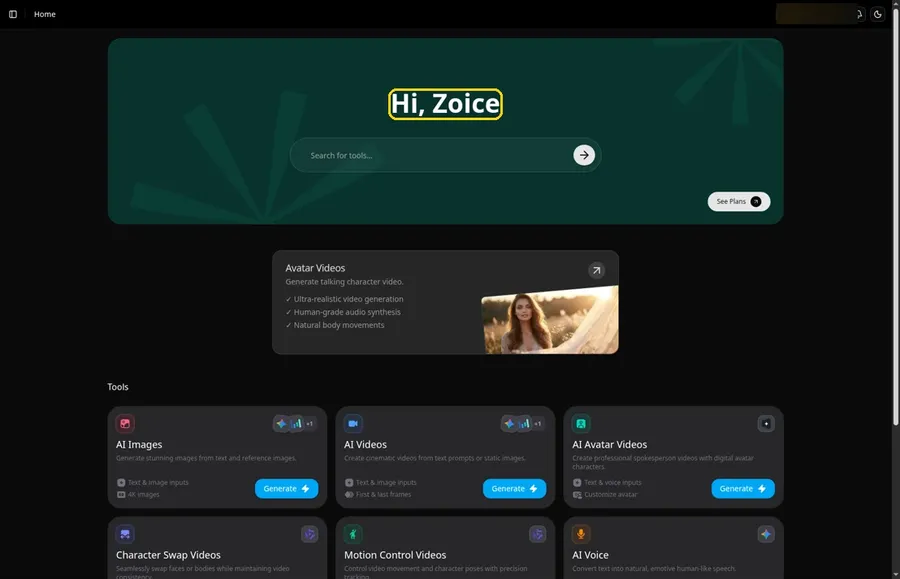
Click Sign In on Zoice and log in. Home opens with the Hi, Zoice heading.
Step 2: Open Avatar videos
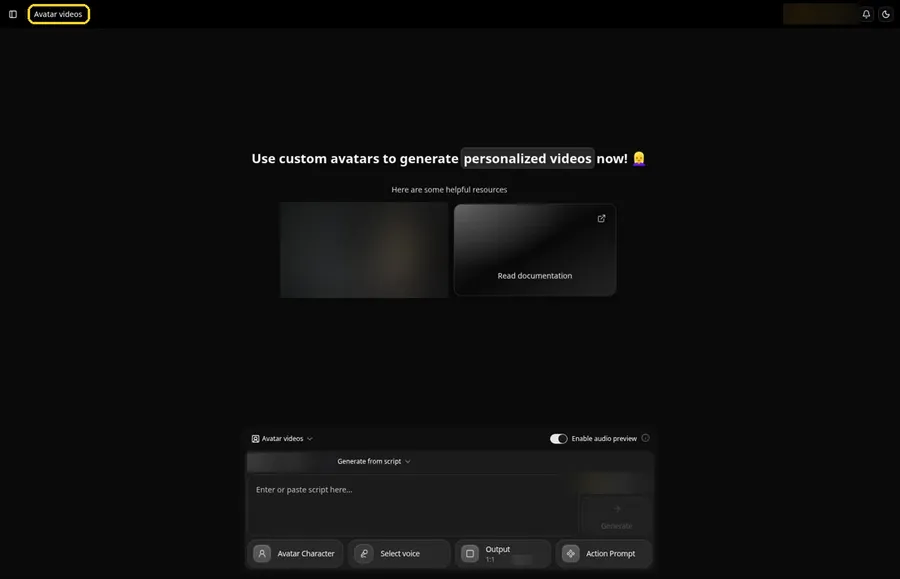
Choose Avatar videos in the sidebar to reach the composer.
Step 3: Create a New Avatar Character
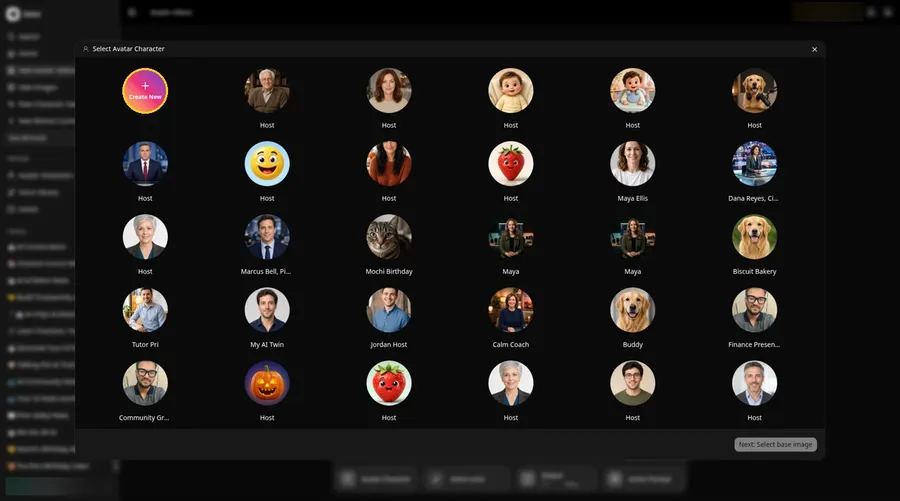
The talking caricature begins at the Avatar Character button, which opens Select Avatar Character. Click Create New, then click Create New on the Avatar Characters page to reach the full-screen Create new avatar page for the talking caricature.
Step 4: Stay on Upload Image
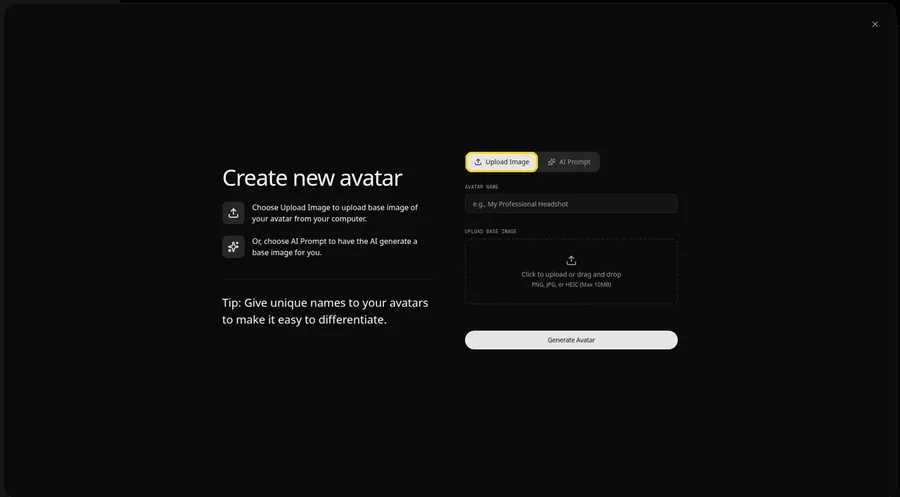
The Create new avatar page opens full screen on the Upload Image tab under Upload Base Image. Stay on Upload Image for the talking caricature. AI Prompt is the other tab if you have no image yet.
Step 5: Upload the Caricature
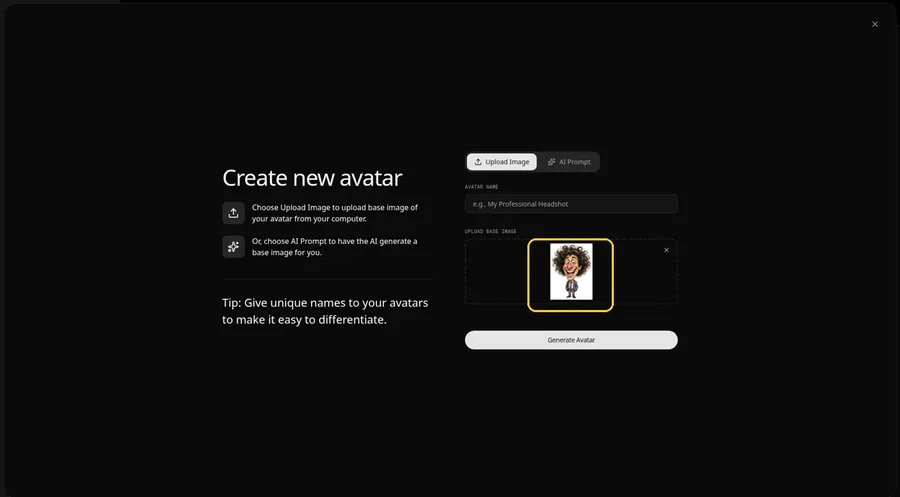
Click the upload area under Upload Base Image and add your scan or digital file. Check that the eyes and lips are crisp in the preview.
Step 6: Name It Host and Generate
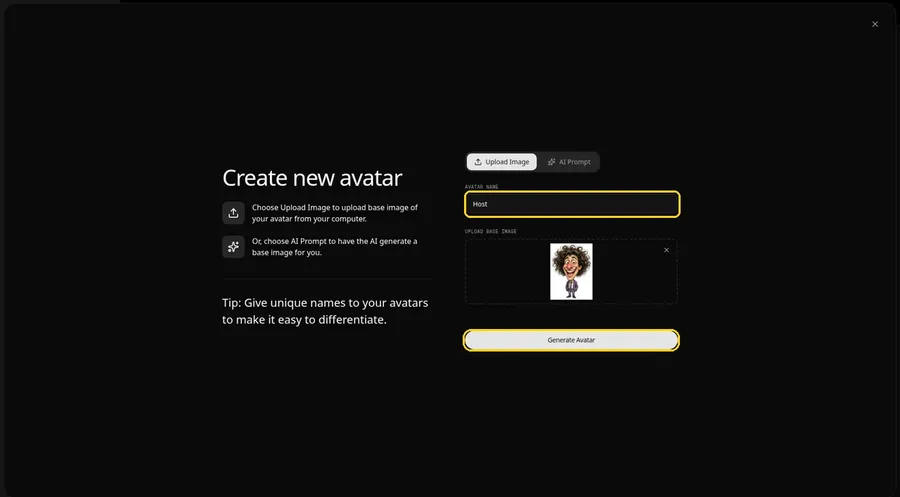
In the Avatar Name field, type Host and click Generate Avatar so the talking caricature is saved for later videos.
Step 7: Open the Script Box
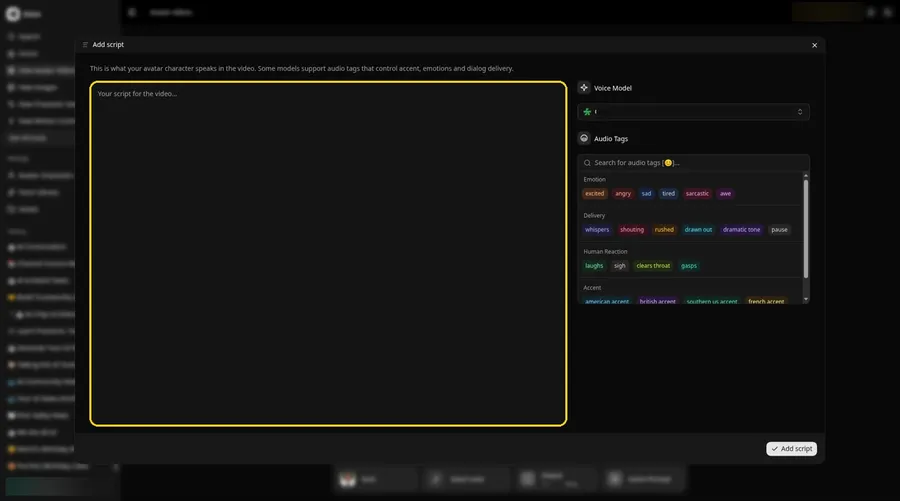
Click the script box in the composer. The Add script panel opens.
Step 8: Choose the Voice Model
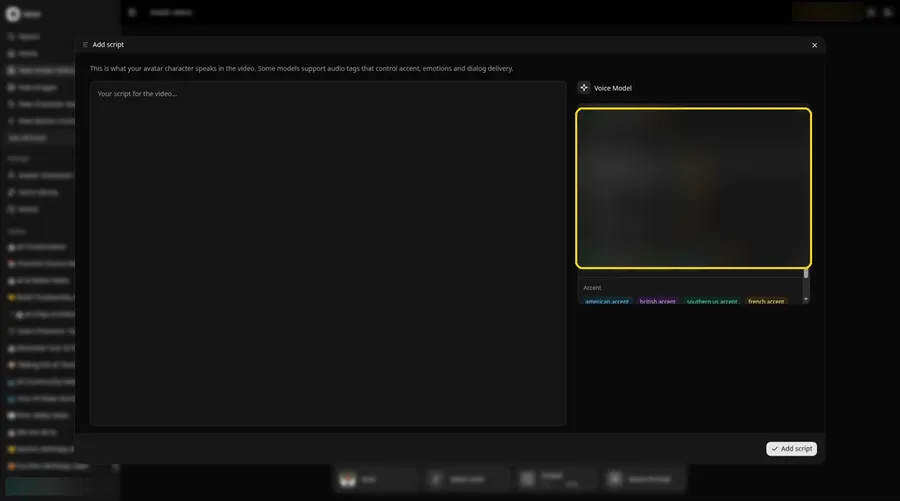
Pick a model from the panel's Voice Model menu.
Step 9: Write the Punchlines
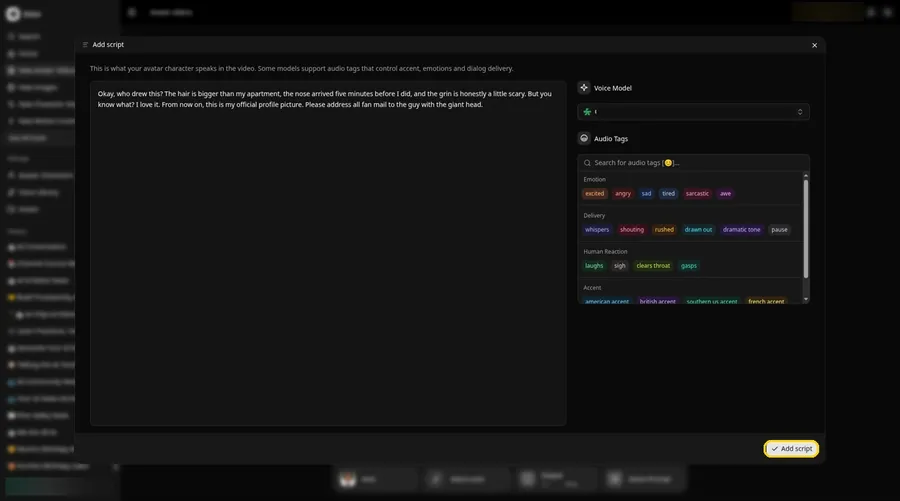
Drop the lines into the panel and hit Add script. Ours kick off with: Okay, who drew this?
Step 10: Pick an Expressive Voice
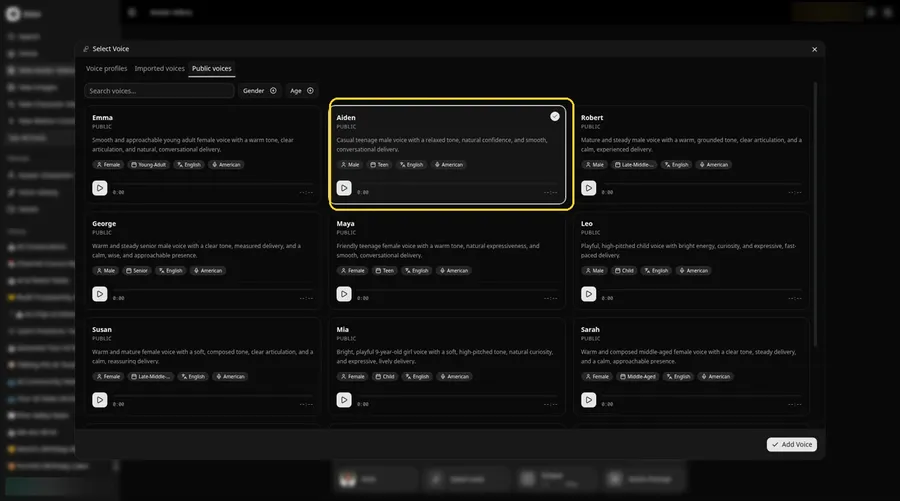
- In the composer, click the voice button so Select Voice opens for the talking caricature.
- Choose a voice for the talking caricature from the Public voices tab.
- Click Add Voice, and the talking caricature now has that voice.
A lively, upbeat voice suits the talking caricature.
Step 11: Choose Your Output Settings
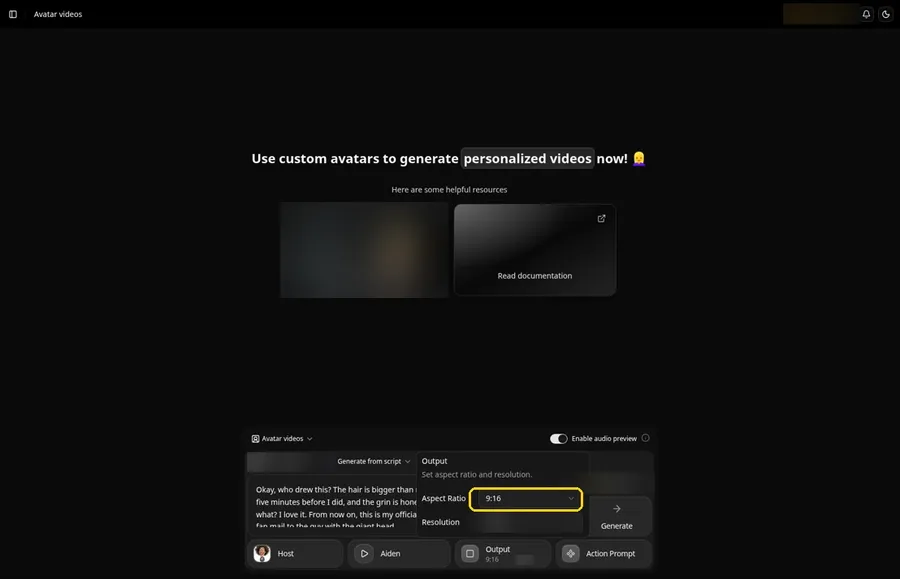
Choose your output settings. Open the Output popover and set the Aspect Ratio dropdown to 9:16.
Step 12: Add an Action Prompt
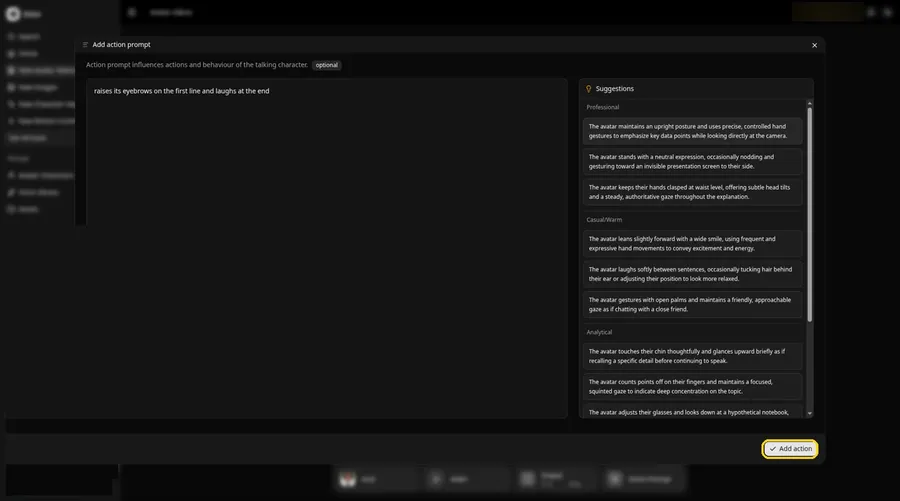
Click Action Prompt. In the Add action prompt panel, type: raises its eyebrows on the first line and laughs at the end. Click Add action. Added then shows on the Action Prompt chip in the composer.
Step 13: Click Generate
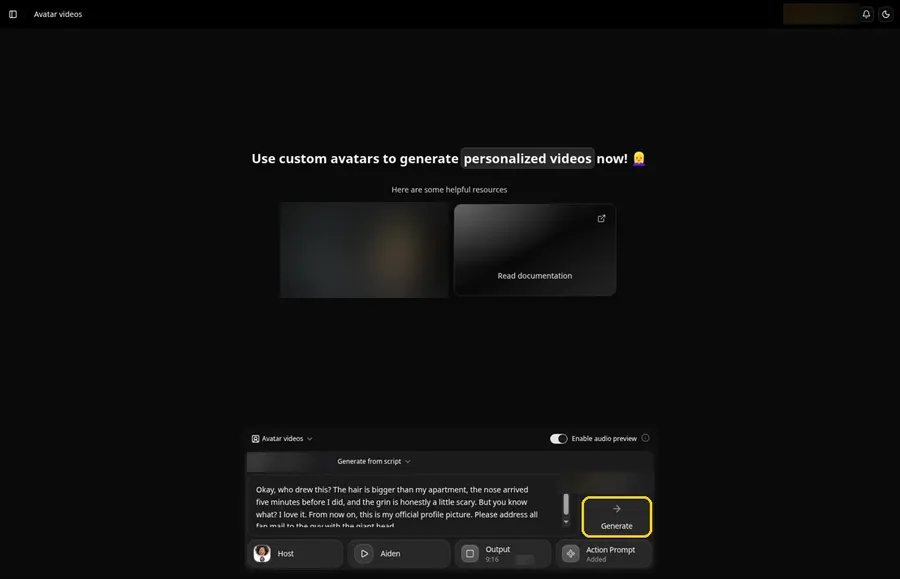
Confirm the caricature, the lines, the voice, the output and the action prompt, then press Generate.
Step 14: Confirm After the Preview
Hear the audio preview through, then confirm it with Generate avatar video.
Step 15: Watch the Caricature
Play the clip in the player once processing finishes and check the lines.
Step 16: Download the Clip
Choose Download in the player menu.
Step 17: Share It With the Subject
Send it to the friend in the drawing first, then post it together.
Tips for Talking Caricatures
- Use original drawings of yourself or people who said yes
- Write jokes about the drawing itself, which always gets a laugh
- Keep each line short so the punch lands
- Scan paper drawings in daylight to avoid shadows
- Try a party-favor series where every guest gets a talking caricature
For more meme-friendly formats, browse our AI meme video generators.
Demo Idea: The Caricature Reacts to Itself
Our caricature Host read these lines:
"Okay, who drew this? The hair is bigger than my apartment, the nose arrived five minutes before I did, and the grin is honestly a little scary. But you know what? I love it. From now on, this is my official profile picture. Please address all fan mail to the guy with the giant head."
Draw yourself and write your own reaction. Try Zoice and let the caricature speak.
FAQ
Can I use a caricature of a celebrity?
No. Use original caricatures of yourself or people who gave permission.
Do digital caricatures work?
Yes. Scans and digital art with a clear face both work.
Can the caricature sing?
Yes, by switching to Generate from audio and uploading a song you have the rights to.
Can I reuse the caricature later?
Yes. It stays in your avatar list after Generate Avatar.
Try Zoice
Big hair, big grin, big laughs. Try Zoice and make your caricature talk.