How to Animate a Face With AI: A Simple 2026 Guide
A still face can say a lot once it moves. In Zoice you upload one portrait as your Host, add a script, and lip sync follows your words, while an action prompt adds the expressions: a slow blink, raised brows or a warm smile. This step-by-step guide shows every click up to Generate, using an AI-made portrait so you can follow along with your own image.
Below is how to animate a face with AI, one screen at a time. Any clear portrait can become a speaking face, much like our guide on how to make a picture talk shows for everyday photos.
What You Need to Animate a Face
You need surprisingly little to animate a face in Zoice:
- One clear, front-facing portrait with the eyes open
- A short script for the face to speak
- A list of two or three expressions for the action prompt
- A free moment to check each setting before Generate
How to Animate a Face With AI in Zoice (Step-by-Step)
Our Host is an AI-made fictional woman with a neutral expression, created for this post so you can follow along with any portrait.
Step 1: Visit Zoice and Sign In
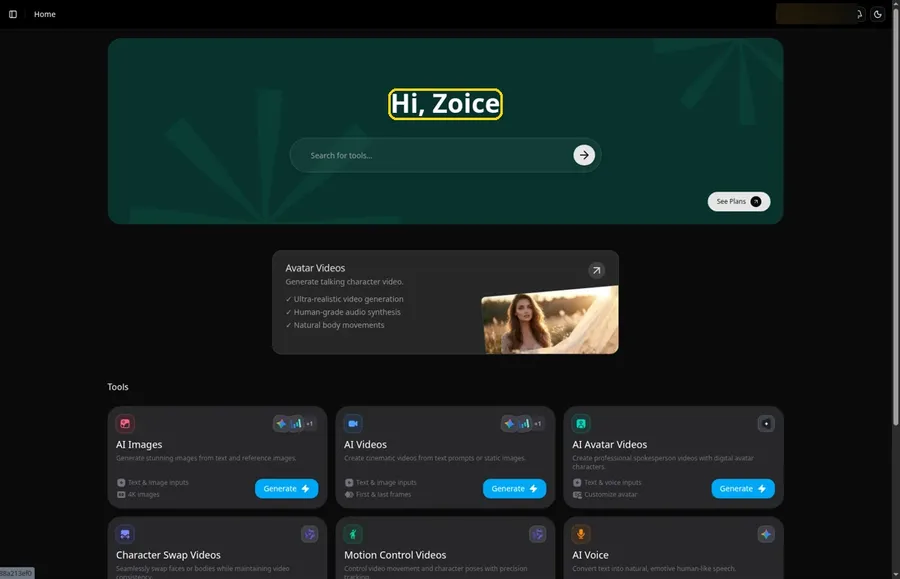
Go to Zoice and click Sign In, using email or Google; Home opens once the portrait project can begin.
Step 2: Open Avatar videos
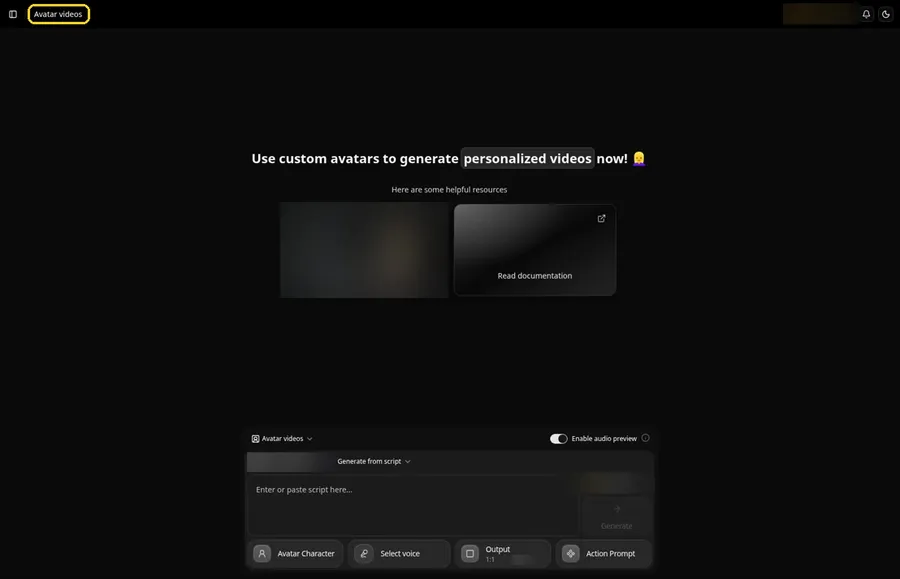
Pick Avatar videos from the sidebar to begin the portrait. The screen that opens is titled Avatar videos, with the composer for the portrait at the bottom.
Step 3: Click Avatar Character, Then Create New
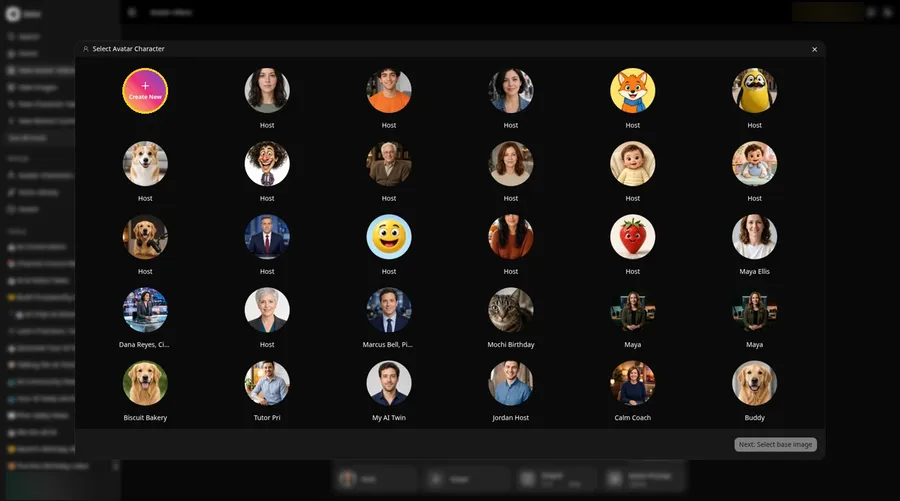
Open Avatar Character, and the Select Avatar Character window appears for the animated face. Create New there leads to the Avatar Characters page, where a second Create New opens the full-screen Create new avatar page for the animated face.
Step 4: Choose Upload Image
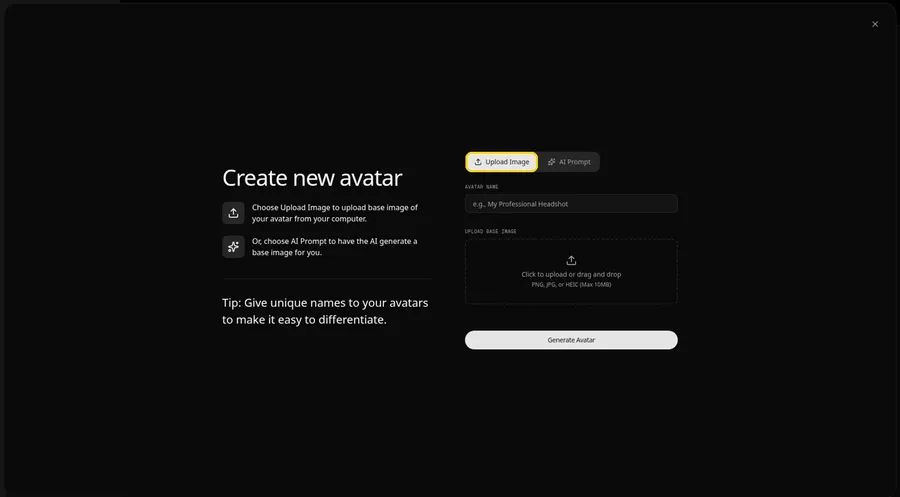
The Create new avatar page holds UPLOAD BASE IMAGE for the animated face. Leave the Upload Image tab selected; the AI Prompt tab is the alternative for the animated face if you would rather describe a face.
Step 5: Upload Your Portrait
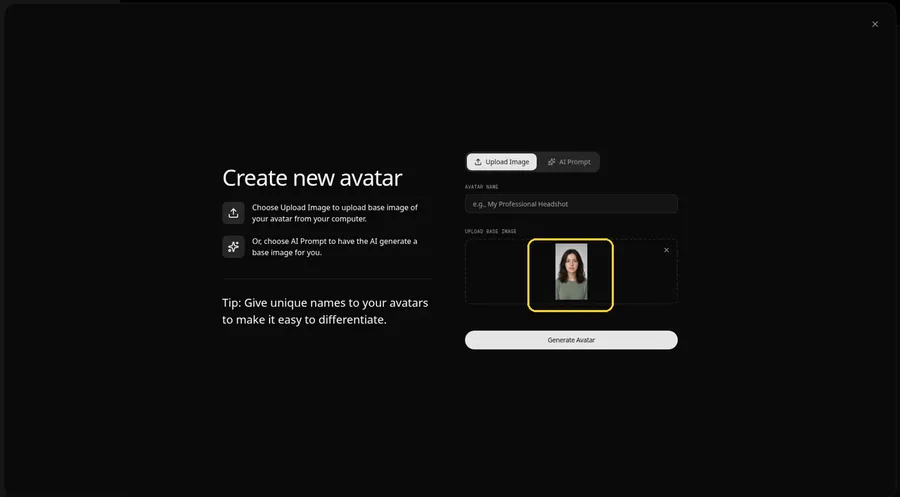
Choose a clear, front-facing portrait and check the preview looks straight ahead.
Step 6: Name Your Avatar Host and Click Generate Avatar
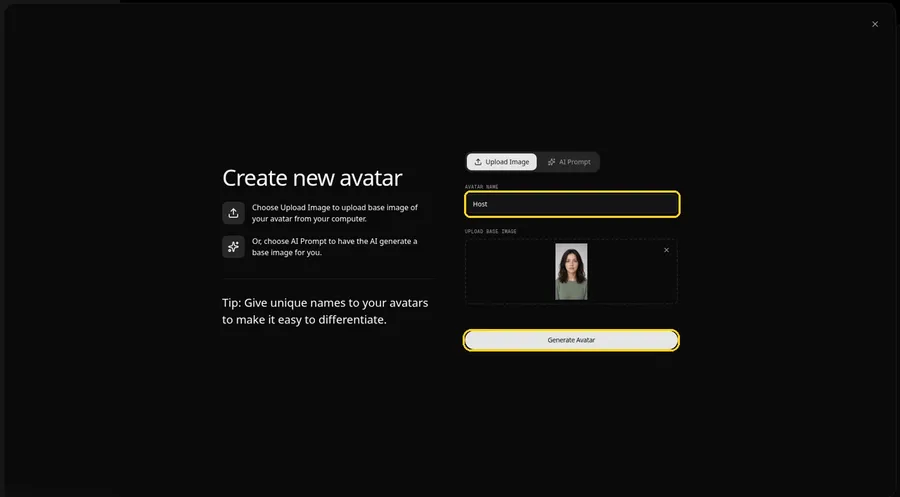
The AVATAR NAME field reads Host and the preview is in place. Click Generate Avatar to save the animated face for this project and the next one.
Step 7: Open the Add Script Panel
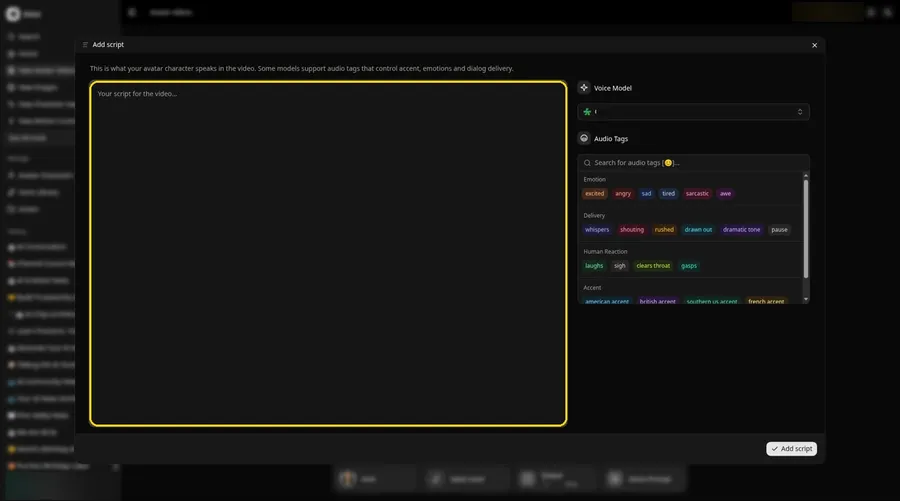
Click the script box in the composer to open the Add script panel for the portrait.
Step 8: Choose the Voice Model
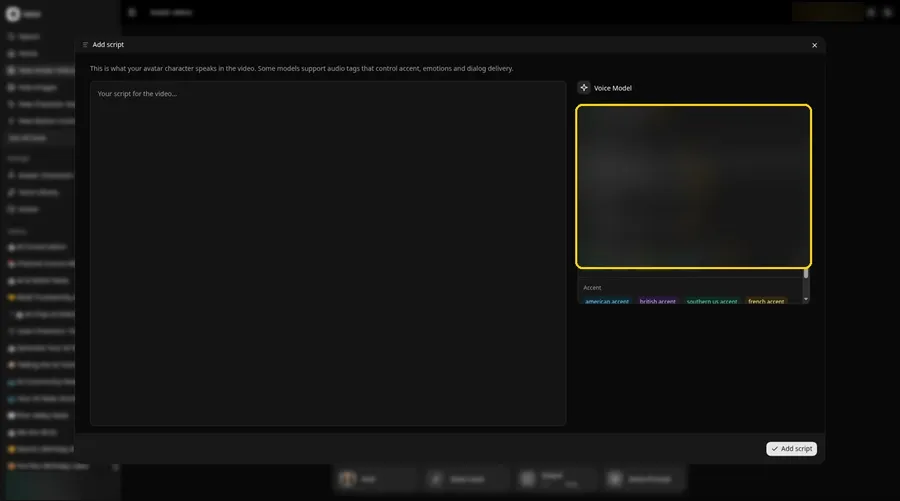
Pick a model in the Voice Model menu before the portrait script goes in.
Step 9: Paste Your Script and Click Add Script
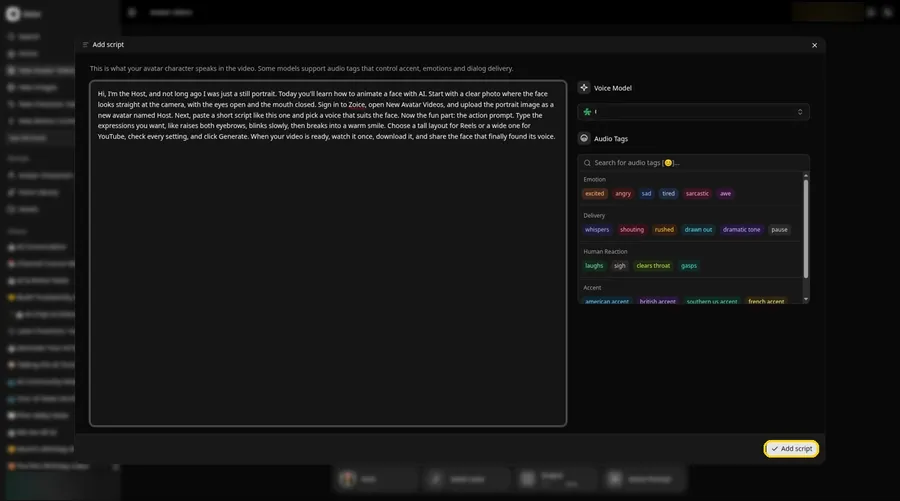
Drop in the full portrait script, then click Add script. The opening words are: Hi, I'm the Host, and not long ago I was just a still portrait.
Step 10: Pick a Voice
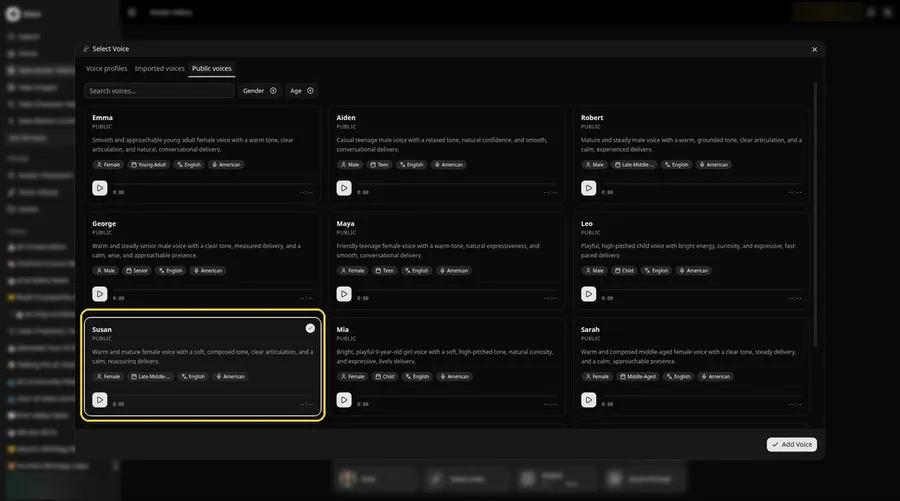
- Click the voice button in the composer to open Select Voice for the animated face.
- Pick a voice for the animated face on the Public voices tab.
- Click Add Voice to attach that voice to the animated face.
A calm, warm voice suits the animated face.
Step 11: Choose Your Output Settings
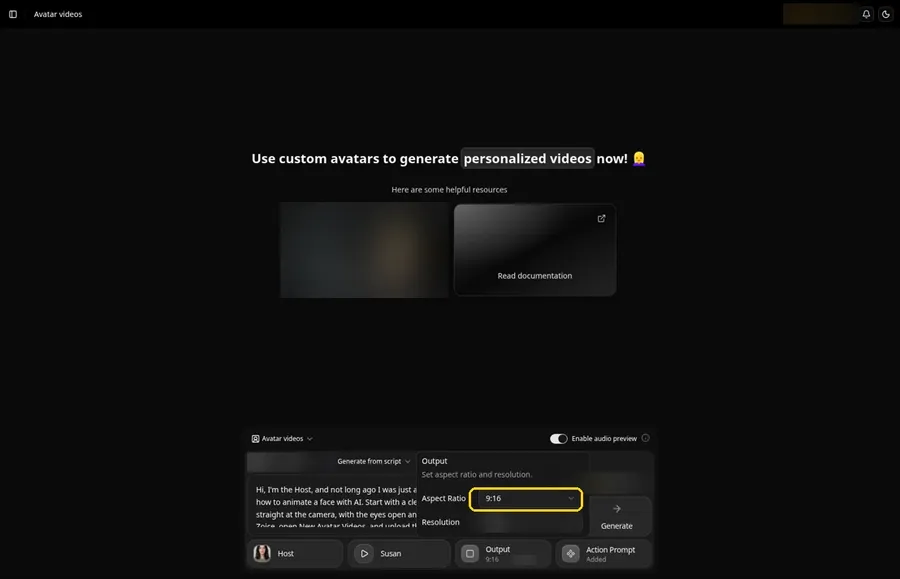
Choose your output settings. Set the Output aspect ratio dropdown to 9:16 if the animated face is headed to that frame.
Step 12: Add an Action Prompt
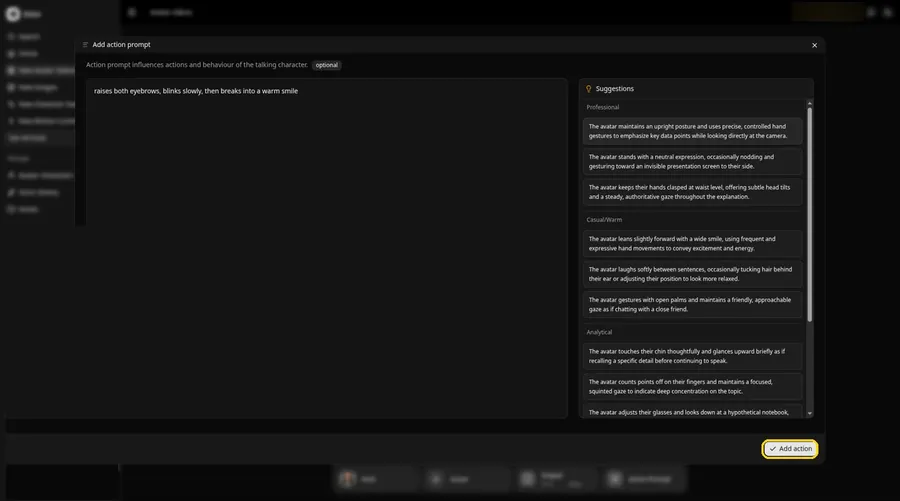
Enter raises both eyebrows, blinks slowly, then breaks into a warm smile inside the Add action prompt panel and press Add action. When Added shows on the Action Prompt chip, the animated face has its move, which comes only from this prompt.
Step 13: Click Generate
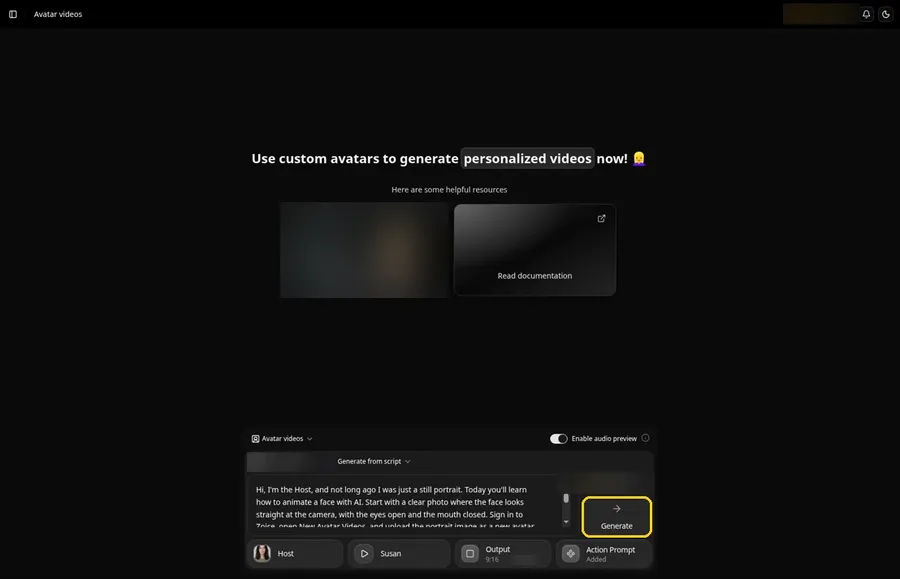
Check the portrait Host, the voice, the script, the 9:16 output and the Added action prompt, then click Generate.
Step 14: Confirm the Audio Preview and Let Zoice Process
Zoice plays an audio preview of the portrait script; click Generate avatar video to confirm, then wait while the video processes.
Step 15: Watch the Result
Play the portrait video in the player and make sure the words and the prompted moves line up.
Step 16: Download From the Player Menu
Click the three-dot menu on the player, then Download, and the portrait video saves to your device.
Step 17: Share Your Animated Face
Post the file to Reels, Shorts or a chat, or drop it into a slideshow.
Writing an Expression Action Prompt
The action prompt decides every expression on the portrait. Name the moves in the order you want them, from small to big.
- raises both eyebrows, blinks slowly, then breaks into a warm smile
- narrows the eyes, then softens into a grin
- glances to the side, then looks back at the camera and smiles
Demo Idea: A Portrait That Reacts
The Host introduces herself as a former still portrait and reacts with a raised brow, a slow blink and a warm smile while explaining face animation. This is the exact script:
"Hi, I'm the Host, and not long ago I was just a still portrait. Today you'll learn how to animate a face with AI. Start with a clear photo where the face looks straight at the camera, with the eyes open and the mouth closed. Sign in to Zoice, open New Avatar Videos, and upload the portrait image as a new avatar named Host. Next, paste a short script like this one and pick a voice that suits the face. Now the fun part: the action prompt. Type the expressions you want, like raises both eyebrows, blinks slowly, then breaks into a warm smile. Choose a tall layout for Reels or a wide one for YouTube, check every setting, and click Generate. When your video is ready, watch it once, download it, and share the face that finally found its voice."
Bring your own portrait to life. Try Zoice and give the face its first lines.
Tips for Animating a Face
- Use a front-facing portrait with the eyes open and the mouth closed so the face is easy to read.
- Pick an image with even light and a plain background.
- Keep the script short and conversational so each expression has room to land.
- Action prompt tip: name two or three facial moves in order, such as raises both eyebrows, blinks slowly, then smiles.
- Match the voice to the face: calm and warm for a portrait, brighter for a playful character.
Comparing face tools? Our best AI tool to animate static portraits roundup lists more options.
FAQ
What kind of face can I animate?
A clear, front-facing face works best, whether it is a photo, a drawing or an AI-made portrait.
How do I add a smile or a blink?
Type it in the action prompt step, for example blinks slowly then smiles, and click Add action.
Which voices can I use?
For the animated face, open Select Voice and browse the Public voices tab; Add Voice attaches the one you pick.
Is this different from animating a whole photo?
Yes. This guide focuses on the face and its expressions while your Host speaks.
Try Zoice
The face is ready to talk. See more expressive avatars in our AI avatar generators with facial expressions list, or Try Zoice and animate a face today.