Best AI Image to Video Generator: Top Picks for 2026
An AI image to video generator turns one still image into a moving clip. Zoice is our top pick when you want that image to talk: upload one photo, add your script and the Host speaks it with lip sync, while action prompts direct gestures and expressions.
Not every image to video tool works that way. Some focus on camera movement and scene motion, others on editing and effects. This guide compares Zoice with Runway, Kling, Luma and Pika so you can choose between a voice-driven video and a moving scene. Each entry covers key features from the tool's own site, who it suits, pros, cons, rating and pricing.
What Is an AI Image to Video Generator?
An AI image to video generator animates a still picture. Depending on the tool, the result can be a person or character speaking your script, a portrait that moves to a reference clip, or a scene with camera motion and effects.
It suits creators, marketers, teachers and small businesses who have a good image but no time to film. If you want the image to deliver a message, look for lip sync to a script. If you want atmosphere, look for camera motion and scene tools. Many of the tools below do one far better than the other, so start with the result you need.
Talking Image or Moving Scene: Which Do You Need?
Image to video splits into two jobs, and naming yours first saves time.
- A talking image delivers words. The face in the photo speaks a script or a recording, so lip sync matters most. Use this for explainers, greetings, product intros, course lessons and character dialogue.
- A moving scene delivers mood. The camera pushes in, the background drifts or the subject copies a movement, and there may be no speech at all. Use this for social loops, trailers, mood boards and product reveals.
Zoice is built for the first job. Runway, Kling, Luma and Pika lean toward the second, with some voice features on top. Runway maps your voice and expressions onto an image through Add Performance, and Luma lip syncs a character from an uploaded video plus audio, which means you need a video of the character first rather than a single photo.
What to Prepare Before You Start
Whatever tool you pick, a little preparation gives you a cleaner first result.
- The image. Use a clear, well-lit picture with the face or subject easy to see. For a talking video, a front-facing face works well because the mouth is visible.
- The words. For a talking video, write the script first and read it aloud once. Short sentences are easier to fix later, because editing means changing the script and generating again.
- The voice. Decide whether you want a stock voice, your own cloned voice or an existing recording. In Zoice you can clone your voice from a short sample or use Generate from Audio with a file you already have.
- The motion source. For motion-copy tools like Kling, record or pick the reference clip before you start. Kling's Motion Control works with one primary subject, so keep the clip simple.
- The rights. Only use images, voices and clips you own or have permission to use.
Quick Comparison: Best AI Image to Video Generators
| Tool | Best For | Photo-only input | Lip sync | Gestures and expressions | Starting price | Rating |
|---|---|---|---|---|---|---|
| Zoice | A talking video from one image and a script | Yes | Yes, lip synced to your script | Yes, with action prompts | Free plan; paid from $7.99 per month | Not listed |
| Runway | Editing and transforming video in one studio | Yes | Yes, through Add Performance | Expressions through Add Performance | Free plan; Standard $15 per month | Not listed |
| Kling | Copying motion from a reference clip onto an image | Yes | Not stated | Facial expressions from the reference clip | See tool site | 4.7/5 on G2 |
| Luma | Animating stills inside an agent canvas | Yes | Yes, for an uploaded video of a character | Not stated | Plus $30 per month | Not listed |
| Pika | Short clips and edits from your references | Yes | Not stated | Not stated | Free plan; Starter $10 per month | Not listed |
1. Zoice: Best Overall
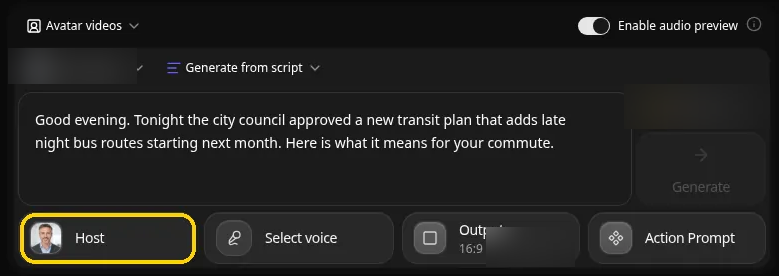
Zoice turns one photo into a talking or singing Host. You upload the image, add a script or an audio file, choose a voice and generate, and the Host speaks with lip sync. Action prompts let you direct gestures, body motion and expressions.
Key Features
- One photo to a talking or singing Host
- Lip sync to your script
- Generate from Audio when you already have a recording
- Voice cloning from a short sample
- More than 50 voices and more than 170 languages
- Voice import for voices made elsewhere
- Action prompts that direct gestures, body motion and expressions
Best For
A talking video from one image and a script, for presenters, characters, pets or portraits.
Pros of Zoice
- Only one photo needed
- Your own voice through cloning
- Gestures and expressions you can direct with action prompts
- Free plan available
Cons of Zoice
- Needs an internet connection
- Smaller public avatar library
Overall Zoice Rating
Not listed. Zoice does not yet have a G2 rating for this use.
Pricing
Zoice has a free plan, and paid plans start at $7.99 per month. Yearly billing saves 20%.
When to Use It
- Your image needs to speak a message
- You want your own cloned voice on the video
- You want to direct gestures and expressions with a short prompt Try Zoice
For more on talking images, read our guides to the best AI talking photo generator and how to make a picture talk.
2. Runway: Best for Editing and Transforming Video
Runway is a broad creative studio for image, video and audio. Its Add Performance feature maps your voice and expressions onto an image or character, and its editing tools change lighting, restyle a shot or remove elements by describing what you want.
Key Features
- Add Performance, which maps your voice and expressions onto an image or character
- Edit, transform and generate video by describing the change
- Relight a scene or change the time of day in a video
- Plugins for Premiere Pro and After Effects
- Node-based custom workflows
Best For
Creators who want image to video alongside a full set of editing tools.
Pros of Runway
- Many tools in one studio
- Works inside Premiere Pro and After Effects through plugins
Cons of Runway
- A wide toolset takes time to learn
Overall Runway Rating
Not listed.
Pricing
Runway has a free plan. Standard costs $15 per month, or $12 per month billed yearly, and removes watermarks.
When to Use It
Pick Runway when image to video is one step in a bigger editing project.
3. Kling: Best for Copying Motion Onto an Image
Kling's Motion Control takes a character image and a motion reference video and copies the movement and facial expressions onto the image. Its site also describes product videos made from product images.

Key Features
- Motion Control from a character image plus a reference video
- Copies movement and facial expressions
- Bind Face Subject option for a consistent face
- Product videos from product images
- Canvas with an agent for scripts, storyboards and edits
Best For
Animating a character image with motion from a clip you already have.
Pros of Kling
- Face binding for consistency
- Handles human, anime and 3D characters
Cons of Kling
- Motion Control supports one primary subject
Overall Kling Rating
4.7/5 on G2 from 5 reviews.
Pricing
See tool site.
When to Use It
Pick Kling when the image should move like a reference clip rather than speak a script.
4. Luma: Best for Animating Stills in an Agent Canvas
Luma is a creative workspace where an agent helps plan and generate images, video and audio on an infinite canvas. Its FAQ says you can animate still images into video, add camera motion, create transitions between frames and extend scenes.
Key Features
- Animate still images into video
- Camera motion and transitions between frames
- Lip sync for an uploaded video of a character with an audio track
- Text to speech, music and captions in the same canvas
- Sharing and collaboration on boards
Best For
Teams who want image to video inside a larger campaign workspace.
Pros of Luma
- Agent helps plan as well as generate
- Collaboration built in
Cons of Luma
- Lip sync starts from a video, not a single photo
Overall Luma Rating
Not listed.
Pricing
Luma Plus costs $30 per month, or $25 per month billed yearly. Commercial use is included on Plus.
When to Use It
Pick Luma when one image is the start of a wider set of campaign assets.
5. Pika: Best for Short Clips From Your References
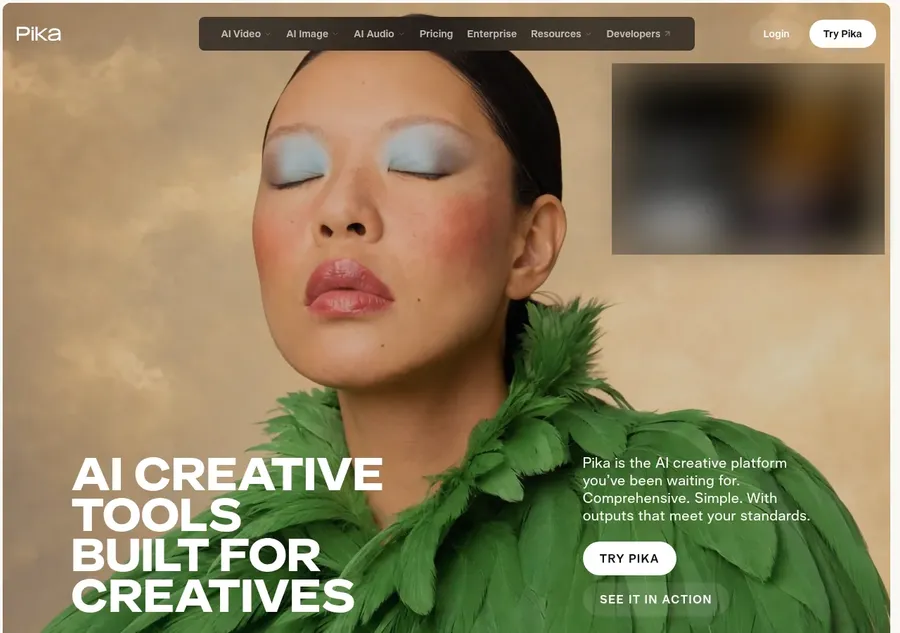
Pika is a creative platform for video, image and audio. Its site describes making short clips or full videos from your references, with apps for extending footage, scoring clips, editing images and building reusable characters.
Key Features
- Video Studio for clips from your references
- Character Studio for a character you can reuse
- Extend Video to lengthen a clip with new frames
- Pika Soundtrack for music, ambience and foley
- Edit Image and Product Shot
Best For
Social creators who want short clips and quick edits.
Pros of Pika
- Many small apps in one place
- No watermark on the free plan, according to its pricing page
Cons of Pika
- Lip sync to a script is not stated
Overall Pika Rating
Not listed.
Pricing
Pika has a free plan. Starter costs $10 per month, or $8 per month billed yearly, with a commercial license.
When to Use It
Pick Pika when you want a quick moving clip from a reference image for social posts.
Limitations to Keep in Mind
Each approach has trade-offs, and the tools' own pages are clear about several of them.
- A single photo cannot show what it does not contain. If the image is cropped at the shoulders, any tool has to invent the rest of the body, so pick an image framed the way you want the video to look.
- Lip sync from one photo and lip sync from a video are different features. Zoice works from one photo, while Luma describes lip sync for an uploaded video of a character with an audio track.
- Motion copying depends on the reference. Kling copies movement and facial expressions from the clip you supply and supports one primary subject.
- Broad studios take longer to learn. Runway, Luma and Pika offer many tools beyond image to video, which is useful for big projects but adds menus to learn if you only need one talking clip.
- Plans change. Prices in this guide come from each tool's own pricing page and can change, so check the current page before you subscribe.
How to Choose the Right AI Image to Video Generator
- Choose Zoice if the image should speak your script with lip sync and directed gestures.
- Choose Runway if image to video is part of a larger edit.
- Choose Kling if the image should copy motion from a clip.
- Choose Luma for campaign work in an agent canvas, or Pika for quick social clips.
See also our best AI avatar generator from photo and best AI tool to animate static portraits guides, or start with the Zoice AI avatar generator.
FAQ
What is the difference between image to video and a talking photo tool?
Image to video is the broad category. A talking photo tool is one kind of image to video that makes the person in the image speak, lip synced to your script. Other image to video tools focus on camera or scene motion instead.
Do I need a script to turn an image into a video?
Not always. In Zoice you add a script or an audio file so the Host can speak. Scene motion tools usually start from a text description or a reference clip.
What kind of image works best for image to video?
A clear, well-lit image with the face or subject easy to see is a good start. Check each tool's own guidance before you upload.