Best AI Avatar Generator for Software Tutorials in 2026
The best AI avatar generator for software tutorials is Zoice, our top pick for adding a friendly presenter to product walkthroughs, release updates and help center videos. Record your screen in the tool you already use, write the narration, and Zoice provides a Host that speaks your script. With action prompts, your Host can point or nod while speaking, so the tutorial has a human guide.
A tutorial has two jobs: show the screen and keep the viewer oriented. We compared four tools on how they split those jobs, checking whether each one records the screen itself, how easily you can redo a clip when a button moves, how many languages you can reach and which plans suit a small product team. HeyGen, Synthesia and Colossyan are reviewed with a screenshot of each tool's own site, a G2 or Capterra rating and current plans.
What Is an AI Avatar Generator for Software Tutorials?
An AI avatar generator for software tutorials creates a presenter who narrates your product on video. Some tools record the screen and then add the avatar. Others focus on the presenter and leave the screen capture to your own recorder. Either way, the presenter's voice and face are driven by your text, so you do not need a microphone, a quiet room or a retake every time you stumble over a feature name.
The real benefit shows up later. Interfaces change, and a normal tutorial has to be recorded again. With a scripted presenter, you edit the line that changed, regenerate that clip and drop it into the project. That is why product marketers, support teams and documentation writers are adopting avatar presenters for release notes and onboarding.
Check these four things before you commit:
- Screen capture: does the tool record the screen, or does the recording come from elsewhere?
- Redo speed: how fast can you replace one line after the interface changes?
- Languages: can the same walkthrough reach users in other regions?
- Plans: is there a monthly plan that fits a small team?
Quick Comparison: Best AI Avatar Generators for Software Tutorials
| Tool | Best For | Starts from | Screen recording | Starting price | Rating |
|---|---|---|---|---|---|
| Zoice | A Host that guides a recorded walkthrough | One photo plus your script | Pairs with a recording from your own tool | Avatar videos from $7.99/month, free tier available | 5.0 on Capterra (5 reviews) |
| HeyGen | Polished presenter clips and translations | A script, a photo or a custom avatar | Screen recorder inside AI Studio | Free plan, Creator $29/month | 4.8 on G2 (1,975 reviews) |
| Synthesia | Recording and presenter in one flow | A prompt, a script or a browser recording | Chrome extension recorder | Free plan, then $19/month billed monthly | 4.6 on G2 (2,857 reviews) |
| Colossyan | Product training and help centers | A document, a script or a recording | Built-in screen recorder | Free plan, Professional $59/month billed annually | 4.6 on G2 (498 reviews) |
We read every price on the vendor's own page while writing. Plans move often, so recheck before you buy.
The recording column splits this group. Synthesia, Colossyan and HeyGen can capture the screen themselves, while Zoice pairs with a recording from your own tools.
1. Zoice: Best AI Avatar Generator for Software Tutorials Overall
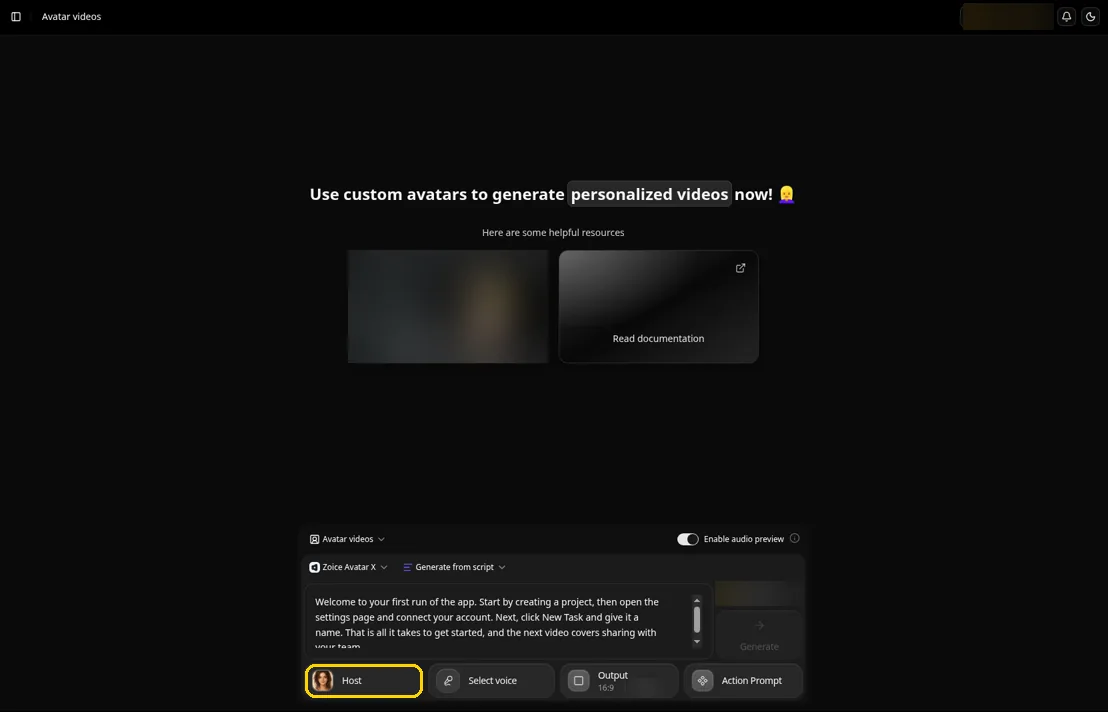
Zoice is built for the presenter part of a tutorial. Zoice turns one portrait into a Host, and you drop that Host onto a screen recording made in your usual editor. When a button moves, you change one sentence and generate that clip again, with no studio and no new recording of yourself.
Key Features
- One photo creates a Host who speaks your narration with matching lip movement
- Action prompts let you direct a point toward the screen or a nod when you name a step
- Timeline triggering places an action at an exact moment, such as a point at the menu just as you say its name
- Audio tags in the script set tone and pace, so a warning about a destructive step sounds different from a tip
- Clone your own voice, or import a voice profile you already made elsewhere
- Narration written in 170+ languages and dialects reaches users in other regions
- Audio preview to check product names and feature terms before the video is made
Best For
- Product marketers and support teams who already record their screens
- Docs teams that update walkthroughs after each release
Pros of Zoice
- One presenter across releases. The same Host appears in every tutorial, so the series feels consistent.
- Fix one line. Edit the sentence that changed and generate that clip again.
- Pronunciation check. Audio preview lets you hear brand and feature names first.
- Free to explore. Voice and image tools are free to try, and avatar videos arrive with the first paid plan.
Cons of Zoice
- Needs an internet connection. Zoice runs online, so you have to be connected to use it.
- Smaller public avatar library. Zoice offers fewer ready-made public avatars than the large presenter library at HeyGen.
Overall Zoice Rating
A 5.0 out of 5 average on Capterra, across 5 reviews. The score comes from five reviews on Capterra.
Pricing
| Plan | Each month | Included |
|---|---|---|
| Free | $0/month | AI voice, images, chat and transcription |
| Starter | $7.99/month | One voice profile, and avatar videos open up |
| Basic | $29.99/month | Three voice profiles, avatar videos included |
| Creator | $49.99/month | Five voice profiles, avatar videos included |
| Agency | $89.99/month | Ten voice profiles, avatar videos included |
Check the Zoice pricing page for the latest plans. The yearly option comes in 20% under the monthly price.
When to Use It
Zoice is the pick when you already record screens and just want a steady presenter on top. For the full photo to export flow, open the AI talking head video generator page.
- You make walkthroughs and release videos on a regular schedule
- You want to patch a clip after a UI change instead of recording a full new take
- You want to try a presenter on a free plan before choosing a team plan. Try Zoice
2. HeyGen: Best for Polished Presenter Clips
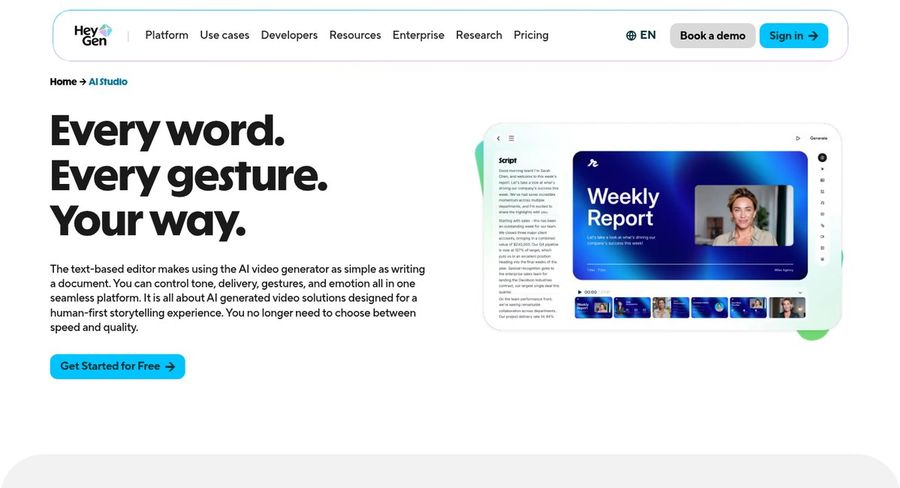
HeyGen is an avatar video tool with a text-based studio. Its AI studio page promises control over every word and every gesture, which suits a team that wants a refined presenter segment to open or close a tutorial.
Key Features
- A text-based studio where you control tone, delivery, gestures and emotion
- Your own custom avatar, with your voice and likeness, included on the free plan with more on paid plans
- Slide and PDF imports to turn existing documentation into video
- Video translation into 175+ languages and dialects with lip sync
- A screen recorder inside AI Studio that turns a capture into editable scenes
- Video templates for repeat formats
Best For
- Teams that want a polished presenter segment
- Products with users in many regions
Pros of HeyGen
- Fine control. The studio lets you shape delivery line by line.
- Strong reviews. A 4.8 on G2 from almost two thousand reviewers.
- Translation. Lip-matched translations help global help centers.
Cons of HeyGen
- Team tools on Business only. Shared workspaces and a brand kit start on the Business plan.
- Free videos are marked. The free plan adds a watermark.
Overall HeyGen Rating
4.8 out of 5 on G2, based on 1,975 reviews. The highest G2 score among the three competitors here.
Pricing
A free plan exists, but its videos are marked. Paid tiers start with Creator at $29 a month, then Pro from $49 and Business at $149 plus $20 per seat. Enterprise pricing comes from sales.
When to Use It
Pick HeyGen when presenter polish and translation matter most and you want a screen recorder in the same studio.
3. Synthesia: Best for Recording and Presenter in One Flow
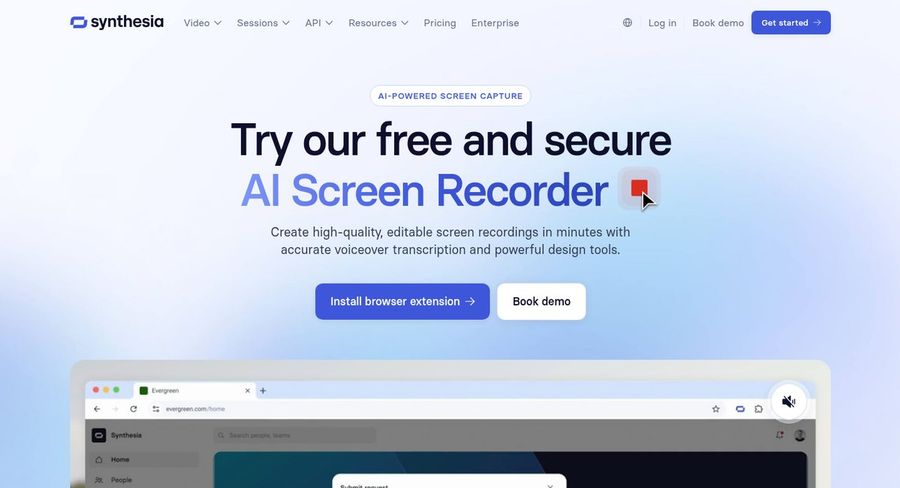
Synthesia offers a free Chrome extension that records your screen, turns your spoken voiceover into an editable script and lets you add an avatar afterward. For a team that wants one place for capture and presenter, that is a short path from recording to finished tutorial.
Key Features
- Record a browser tab with a Chrome extension and speak as you go
- Your speech becomes an editable script, so you fix the video by editing text
- The recording is split into short scenes, and filler words are removed
- Add an AI avatar paired with your cloned voice, without appearing on camera
- Translate the recording into other languages and share it as a link or an MP4 file
Best For
- Teams that want recording and presenter in one tool
- Help center writers who edit by changing text
Pros of Synthesia
- Built-in capture. Record, edit and add an avatar without switching tools.
- Text editing. Change the transcript and the video follows.
- Free recorder. The extension is free to install.
Cons of Synthesia
- Personal avatars on paid plans. The free Basic plan does not include a personal avatar.
- Browser focus. The recorder is a Chrome extension, so it fits browser-based products best.
Overall Synthesia Rating
4.6 out of 5 on G2, based on 2,857 reviews. This is the score on G2's own page.
Pricing
There is a free Basic tier. Starter bills $19 monthly and Pro $89 monthly, each with an introductory first-month price, and yearly plans cost less. Enterprise is custom.
When to Use It
Pick Synthesia when your product lives in a browser and you want recording, script editing and the presenter in one place.
4. Colossyan: Best for Product Training and Help Centers
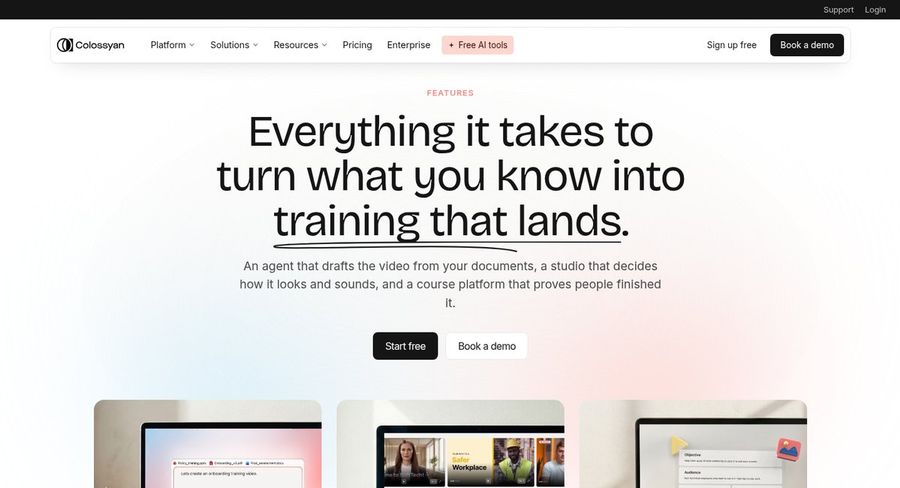
Colossyan began with training video and now offers a studio, an AI agent that drafts videos from documents and a screen recorder. It suits teams that write product documentation and want it turned into video with a presenter.
Key Features
- Screen recording with AI editing inside the studio
- Turn a PDF, PowerPoint, document, web page or script into a video plan
- Convert an existing walkthrough or meeting recording into a new video
- A pronunciation library, templates and brand kits for consistency
- Translation, dubbing and subtitles in many languages
Best For
- Documentation teams with written guides to convert
- Customer education teams producing many walkthroughs
Pros of Colossyan
- Document-driven. Start from guides you already wrote.
- Recorder included. Capture and presenter share one studio.
- Consistency tools. Brand kits and a pronunciation library keep series uniform.
Cons of Colossyan
- Learning platform extras. Course features may be more than a small tutorial team needs.
- Seats cost more. Added editors are billed per person.
Overall Colossyan Rating
4.6 out of 5 on G2, based on 498 reviews. G2 lists the product as Colossyan Creator.
Pricing
A free Starter plan is available. Professional is $59 a month when billed annually, and each extra editor adds $30 a month. Enterprise is priced on request.
When to Use It
Pick Colossyan when your tutorials start as written documentation and you want the recorder and presenter in one studio.
Video Ideas for Software Teams
Presenter-led videos fit best where a human voice reduces friction. Four formats that work:
- A first-run walkthrough that shows a new user the three steps to a first win
- A feature release video that explains what changed and where to find it
- A help center answer for the question your support team gets most often
- A migration guide that walks existing users from the old screen to the new one
If you also need a longer product story, the explainer video maker comparison covers tools for that format.
How to Add an AI Presenter to a Screen Recording
Record the screen first, with the cursor moving at a calm pace. Write the narration beside each step, then upload a clear, front-facing photo in Zoice to create your Host and paste the script. Use audio preview to check names of features, plans and menus.
Add action prompts where the Host should point or nod, generate, and place the clip in a corner of your recording in your editor. When the product changes, rewrite the affected lines and regenerate only those clips. For support-style content and step-by-step process guides, see the customer support picks and the procedure video guide.
How to Choose the Right Tool for Product Tutorials
Decide first whether you want the recording and presenter in one tool.
- Choose Zoice if you already record screens and want a consistent presenter you can patch quickly.
- Choose HeyGen if presenter polish and translation come first.
- Choose Synthesia if you want to record in the browser and edit by changing text.
- Choose Colossyan if written documentation is your starting point.
Run one real walkthrough through a free plan, change a sentence, and see how fast the updated clip is ready.
FAQ
Can an avatar narrate a screen recording?
Yes. Generate the narration as a presenter clip, then place it over your recording in an editor. Synthesia, Colossyan and HeyGen also record the screen inside their own tools, so the avatar and the capture live in one project.
Can I update the video when the UI changes?
Yes, and this is the main reason to use a scripted presenter. Edit the line that no longer matches, generate that clip again and replace it. If the screen itself changed, record only that section again.
Can I make tutorials in other languages?
Yes. Zoice accepts text in 170+ languages and dialects, and your cloned voice can carry across. HeyGen translates videos with lip sync, Synthesia translates recordings, and Colossyan offers translation and dubbing.