How to Turn Pet Photo into Avatar
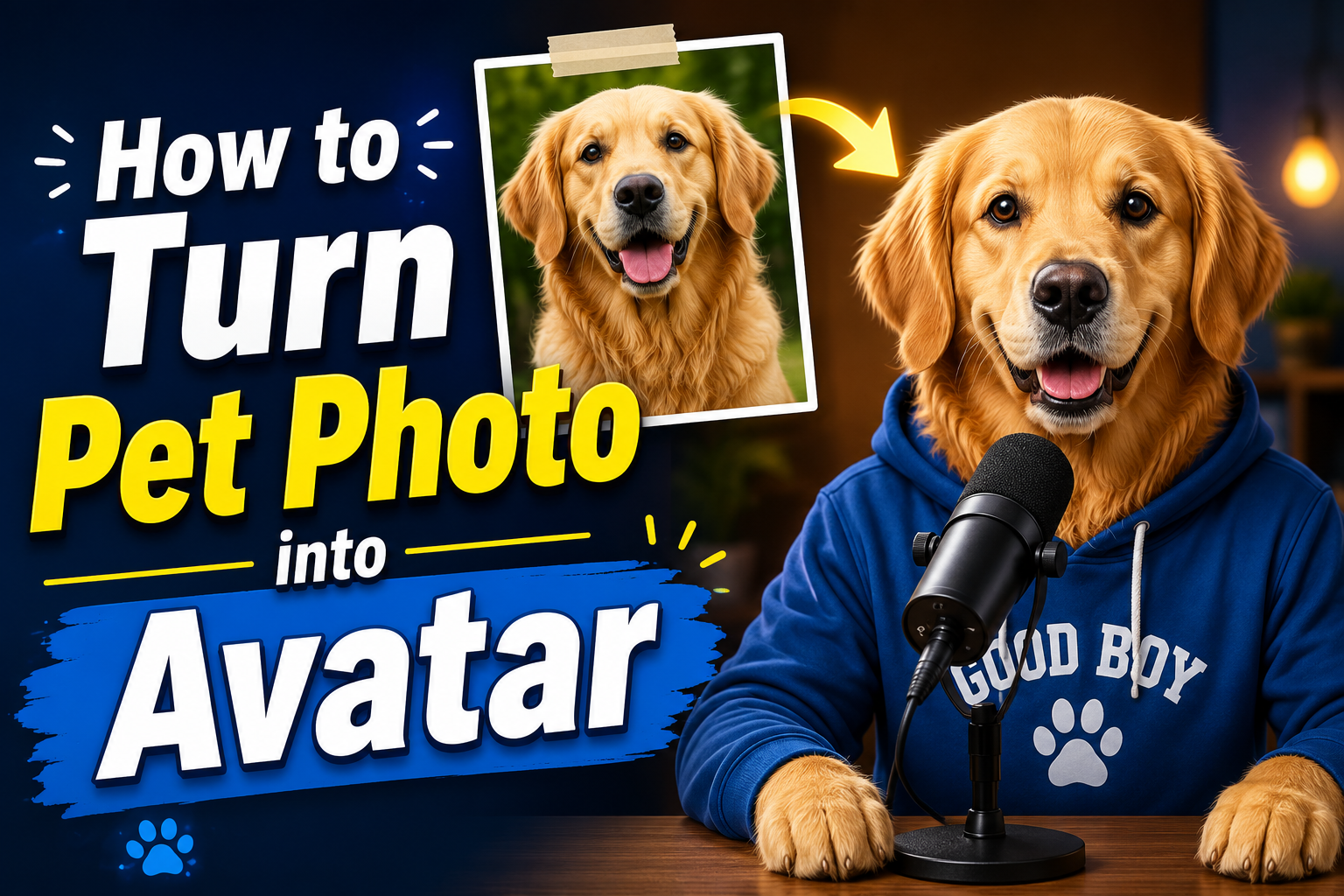
Pets are more than just animals, they are family members, companions, and a big part of our daily lives. With the help of AI avatar technology, you can now transform your pet’s regular photos into creative, realistic, and animated digital avatars within minutes.
Whether you want to create a cute pet character, a talking pet video, a social media profile picture, or a fun digital version of your furry friend, AI tools make the process simple. You only need a clear photo of your pet, and AI can generate a unique avatar while keeping your pet’s original features.
What is an AI Pet Avatar?
An AI pet avatar is a digital version of your pet created using artificial intelligence. Instead of manually drawing or editing your pet’s picture, AI analyzes your uploaded photo and transforms it into a new character style.
AI can convert your pet photo into different avatar styles, including:
- Realistic pet portraits
- Cartoon-style characters
- 3D animated pets
- Fantasy characters
- Talking pet avatars
- Social media profile images
The AI keeps important details like your pet’s face shape, fur pattern, colors, and expressions while creating a new version based on your selected style.
Why Create an AI Avatar of Your Pet?
Turning your pet’s photo into an AI avatar gives you a fun and creative way to bring your pet’s personality to life.
You can use AI pet avatars for:
- Social media profile pictures
- Personalized stickers
- Pet videos
- Digital memories
- Birthday cards
- Funny memes
- Pet influencer content
Instead of keeping your pet photos static, AI allows you to create interactive and engaging versions that look unique and entertaining.
How to Turn Pet Photo into Avatar Using AI
Follow these simple steps to create an AI avatar from your pet photo.
Step 1: Visit Zoice and Click Sign In
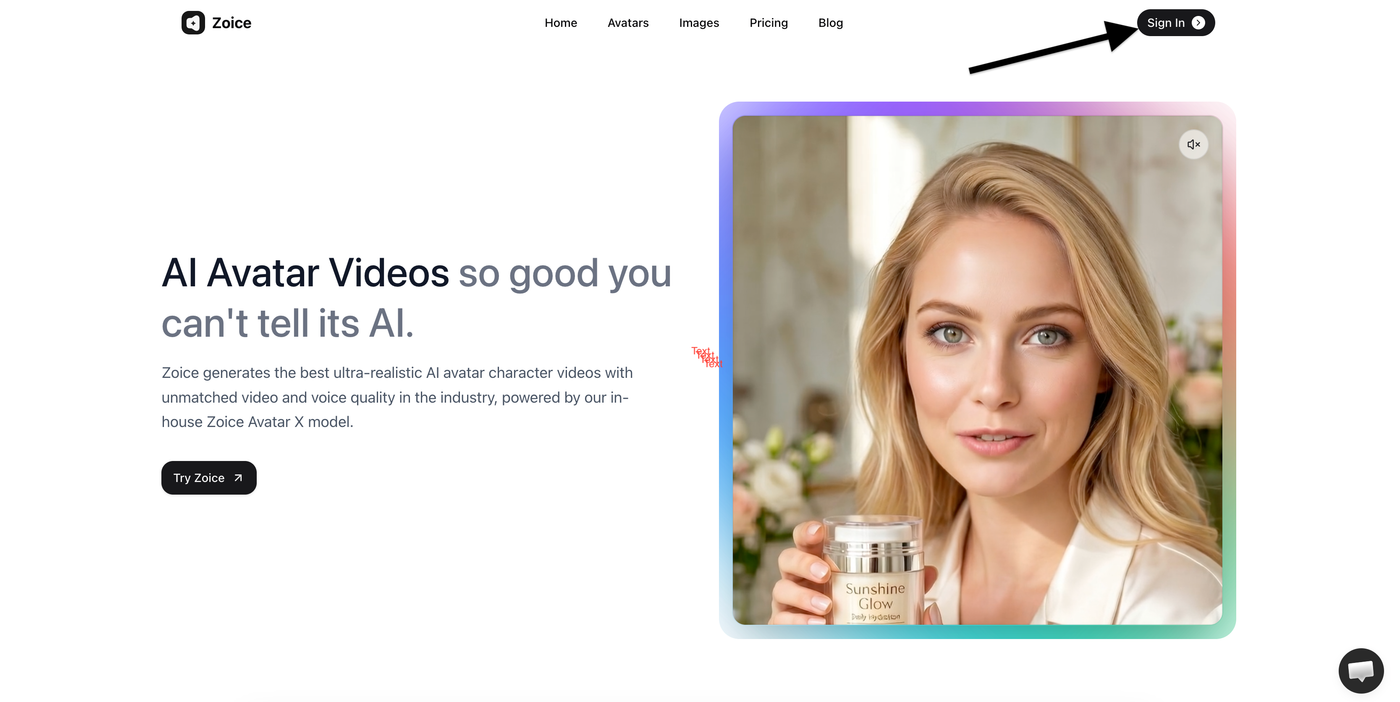
Go to the Zoice website and click the Sign In button available at the top-right corner of the homepage. This will open the login page where you can access your Zoice account.
Step 2: Create a New Zoice Account
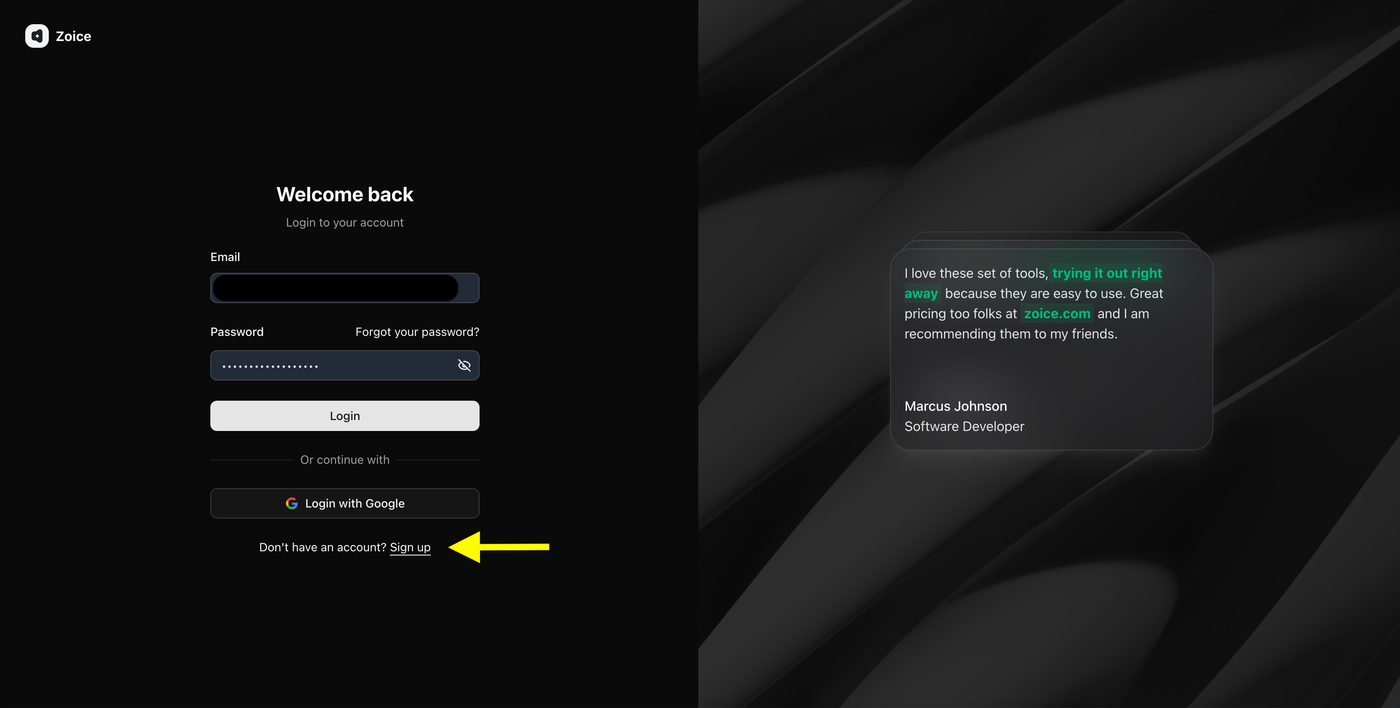
If you are using Zoice for the first time, click Sign Up to create a new account.
Enter the required details:
- Name
- Email address
- Password
You can also select Sign up with Google to quickly create your account.
Step 3: Sign In to Your Zoice Account
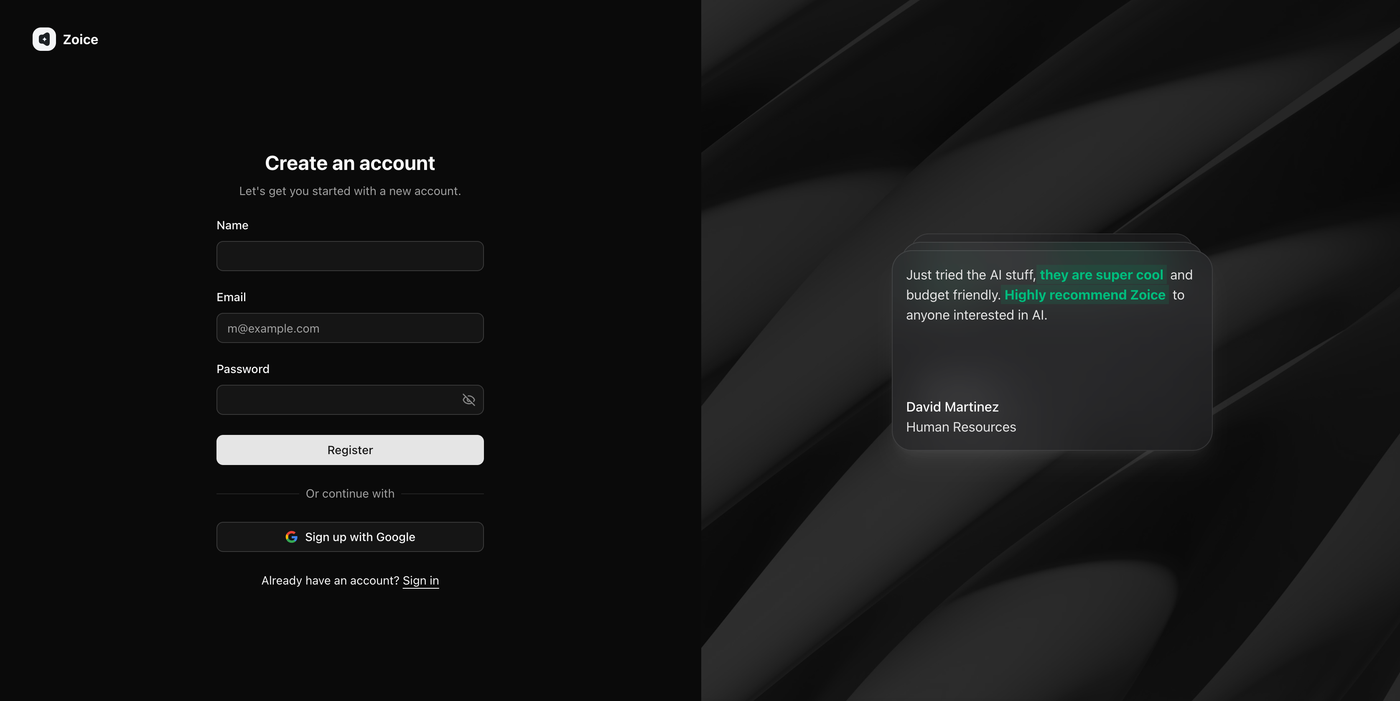
After creating your account, return to the sign-in page and log in using your registered email and password.
You can also choose Sign in with Google if your account is connected with Google. Once signed in, you will be redirected to the Zoice dashboard.
Step 4: Navigate to Avatar Characters
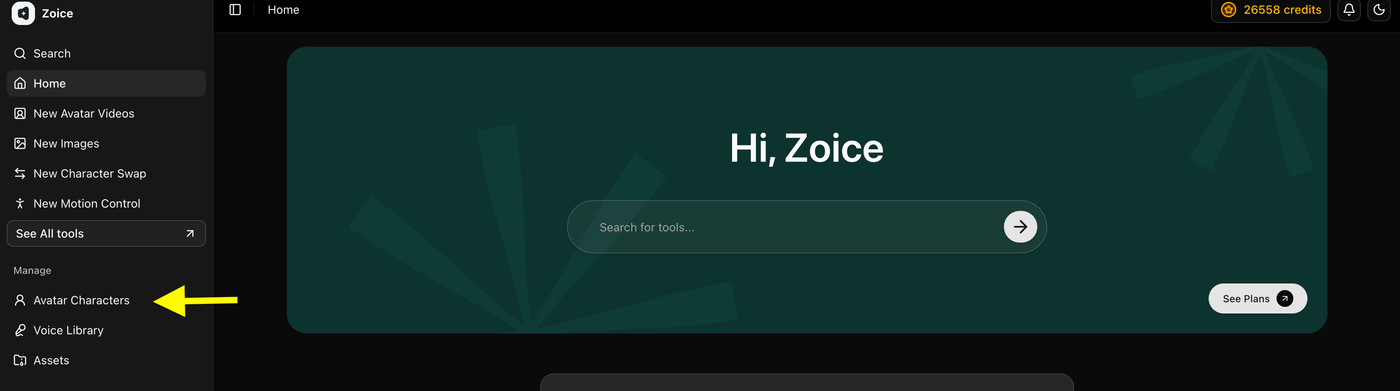
After logging in, you will reach the Zoice dashboard. From the left sidebar, click Avatar Characters under the Manage section.
This is where you can create and manage custom AI avatars using your pet photo or any other image.
Step 5: Click Create New Avatar
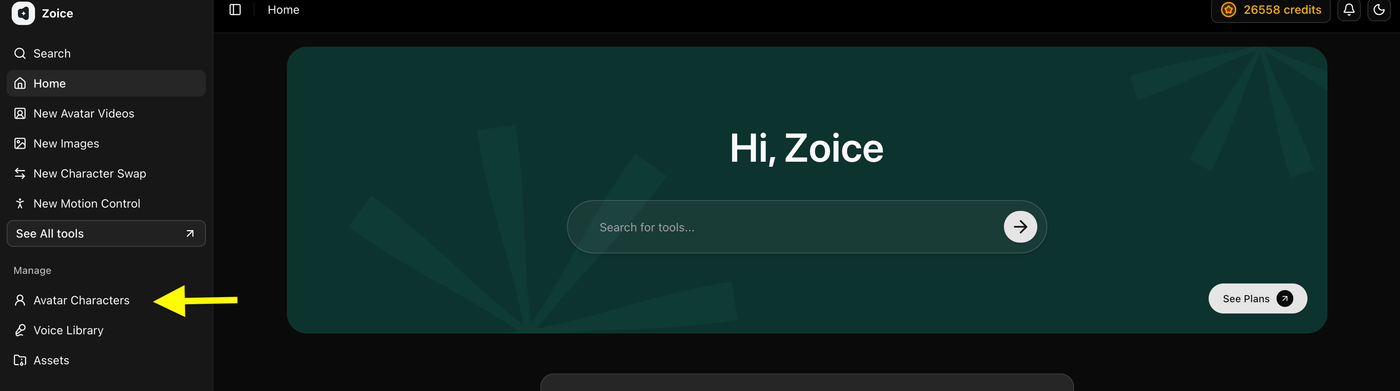
On the Avatar Characters page, click the Create New button to start creating your custom pet avatar.
This will open the avatar creation page where you can either upload an existing image or generate a new avatar image using an AI prompt.
Step 6: Upload Your Pet Photo and Name Your Avatar
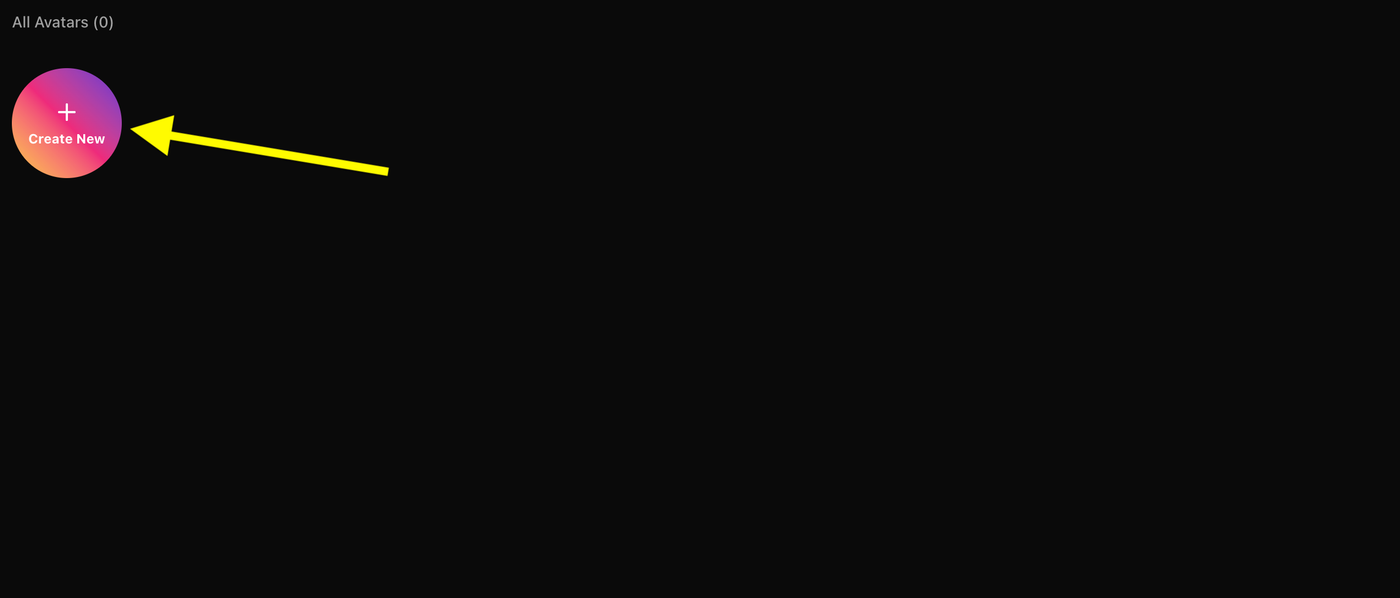
Upload a clear, high-quality pet photo that you want to turn into an AI avatar.
Add an Avatar Name to easily identify your avatar later, then click Generate Avatar to create your custom AI pet avatar.
For better results, use a photo with:
- Clear face visibility
- Good lighting
- Front-facing angle
- No blurry or low-quality images
Step 7: Upload Your Pet Photo or Generate an Image Using AI Prompt
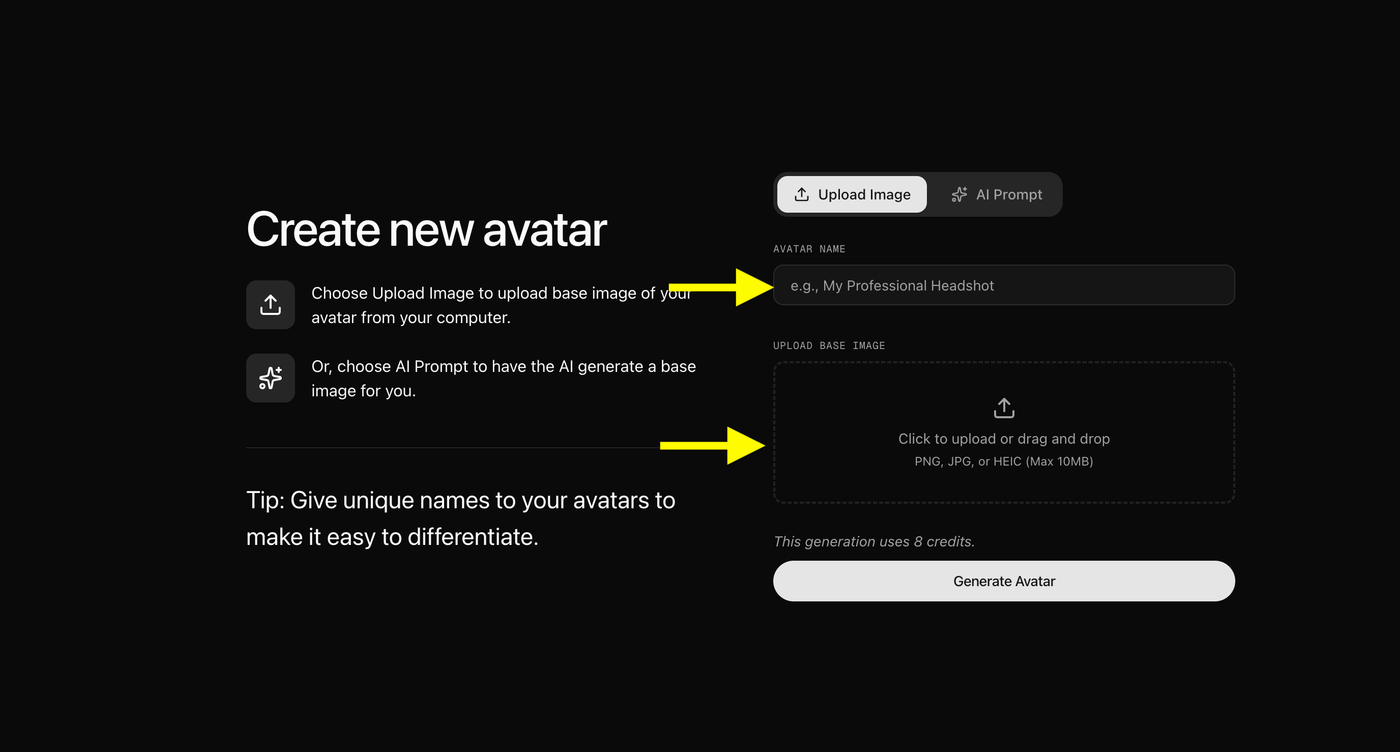
Now, create your pet avatar by adding a base image. Zoice gives you two options:
- Upload Image: Upload a clear photo of your pet directly from your device.
- AI Prompt: If you don’t have a pet image, select the AI Prompt option and describe the pet avatar you want to create. Zoice will generate a custom AI image based on your prompt.
After adding your image, enter a unique Avatar Name so you can easily find your avatar later.
For the best talking pet avatar results, use images with:
- Clear pet face visibility
- Front-facing angle
- Good lighting
- High image quality
Once everything is ready, click Generate Avatar to create your AI pet avatar.
Step 8: Name Your Pet Avatar and Generate Avatar
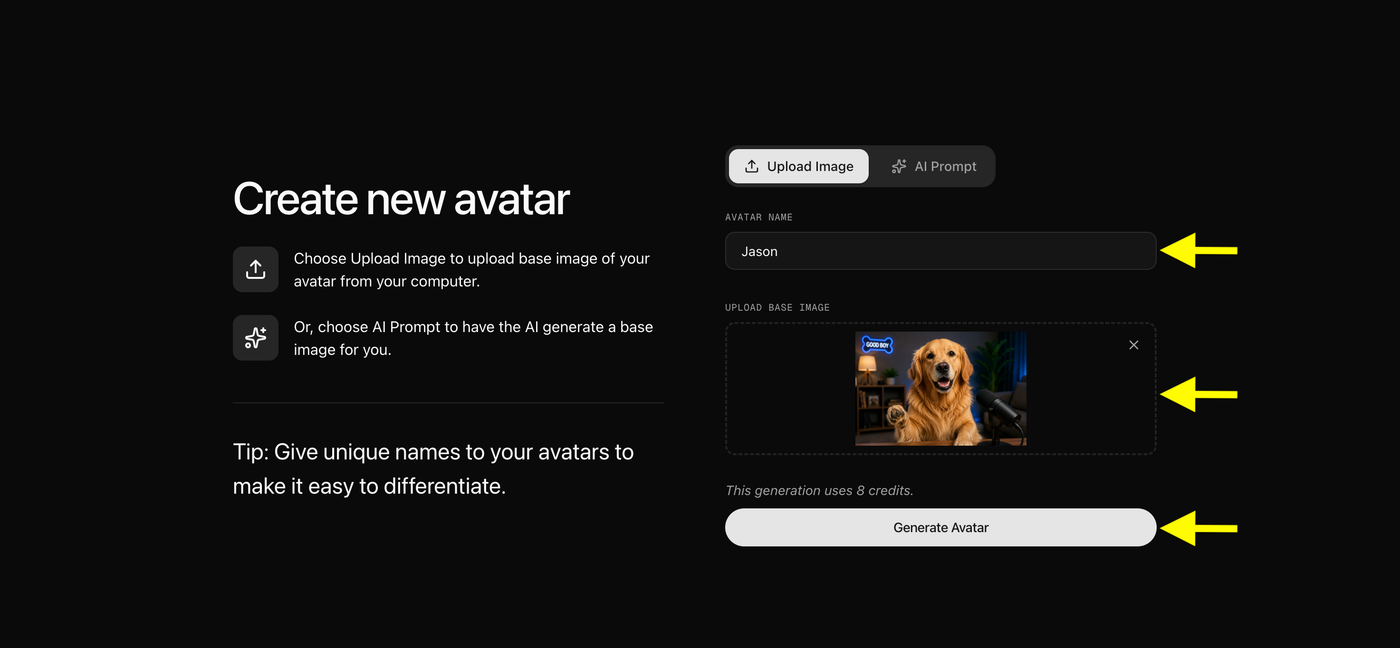
After uploading or generating your pet image, enter an Avatar Name to easily identify your custom pet avatar.
You can either:
- Upload your own pet photo from your device.
- Use AI Prompt to generate a realistic pet image if you don’t have one.
Once your image is uploaded and the avatar name is added, click Generate Avatar. Zoice will process your image and create a custom AI pet avatar that you can use to generate talking pet videos.
Step 9: Select Your Created Pet Avatar
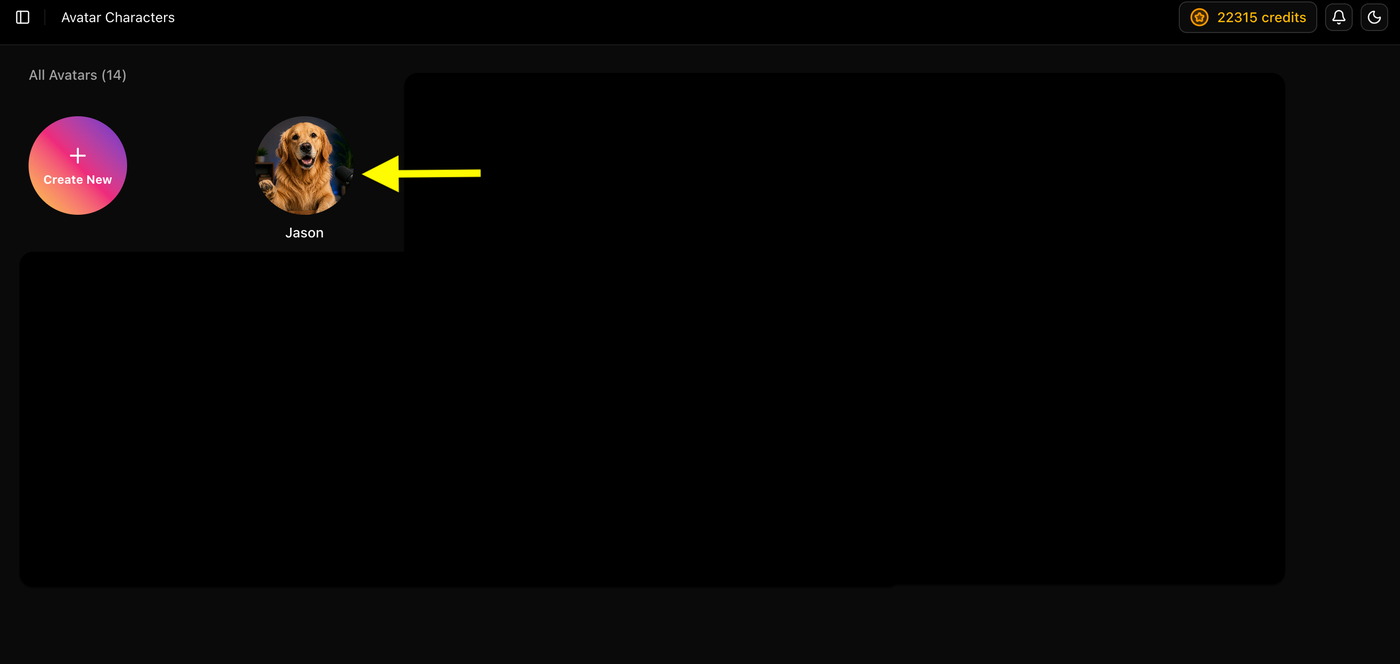
After your pet avatar is generated, go to the Avatar Characters section.
You will see your newly created pet avatar saved there. Click on the avatar you want to use for creating your talking pet video.
Step 10: Click Generate Video
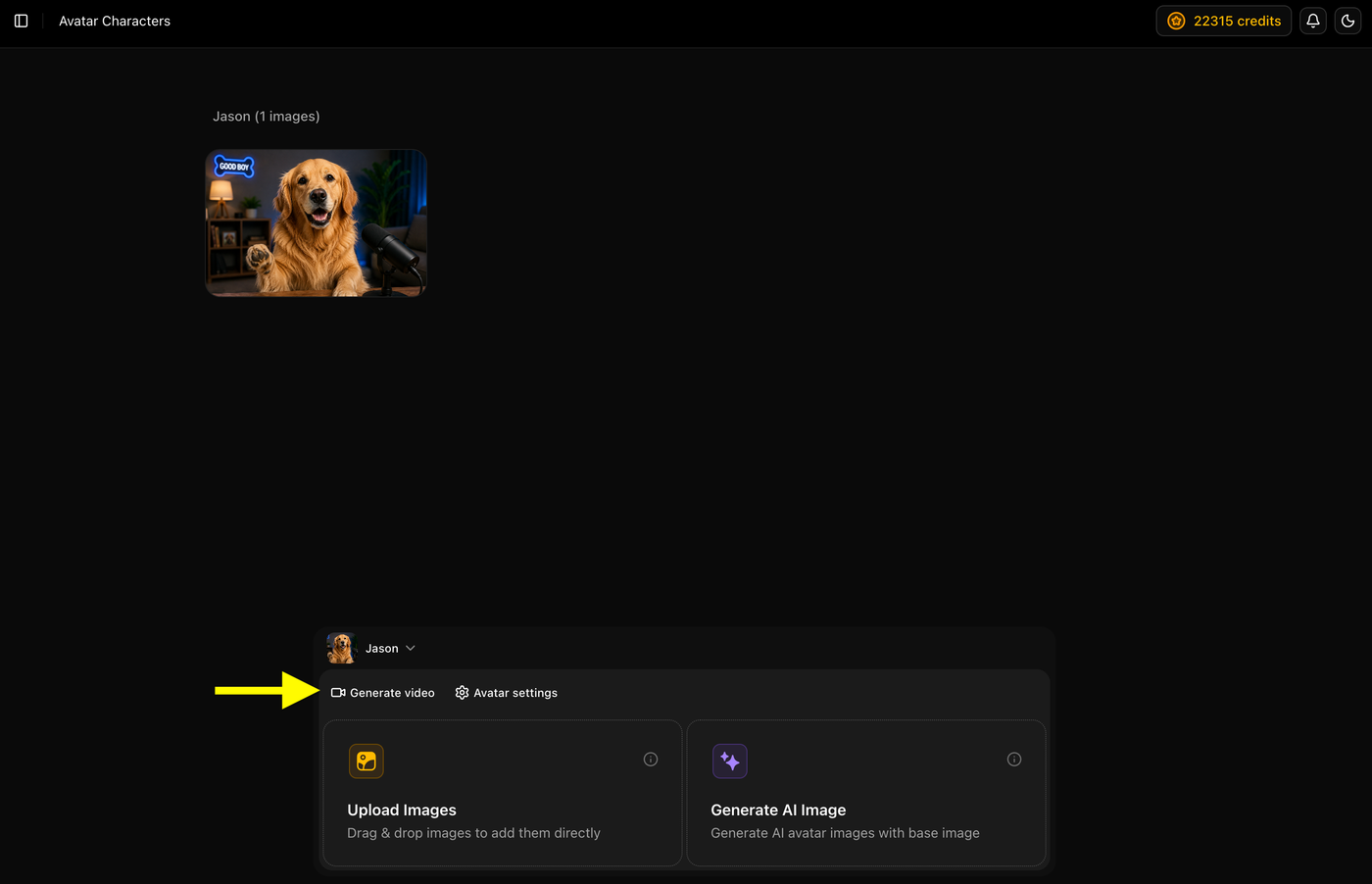
After selecting your pet avatar, click on the Generate Video option.
This will open the avatar video creation page where your custom pet avatar will already be connected and ready to use.
Step 11: Add Your Script and Customize Video Settings
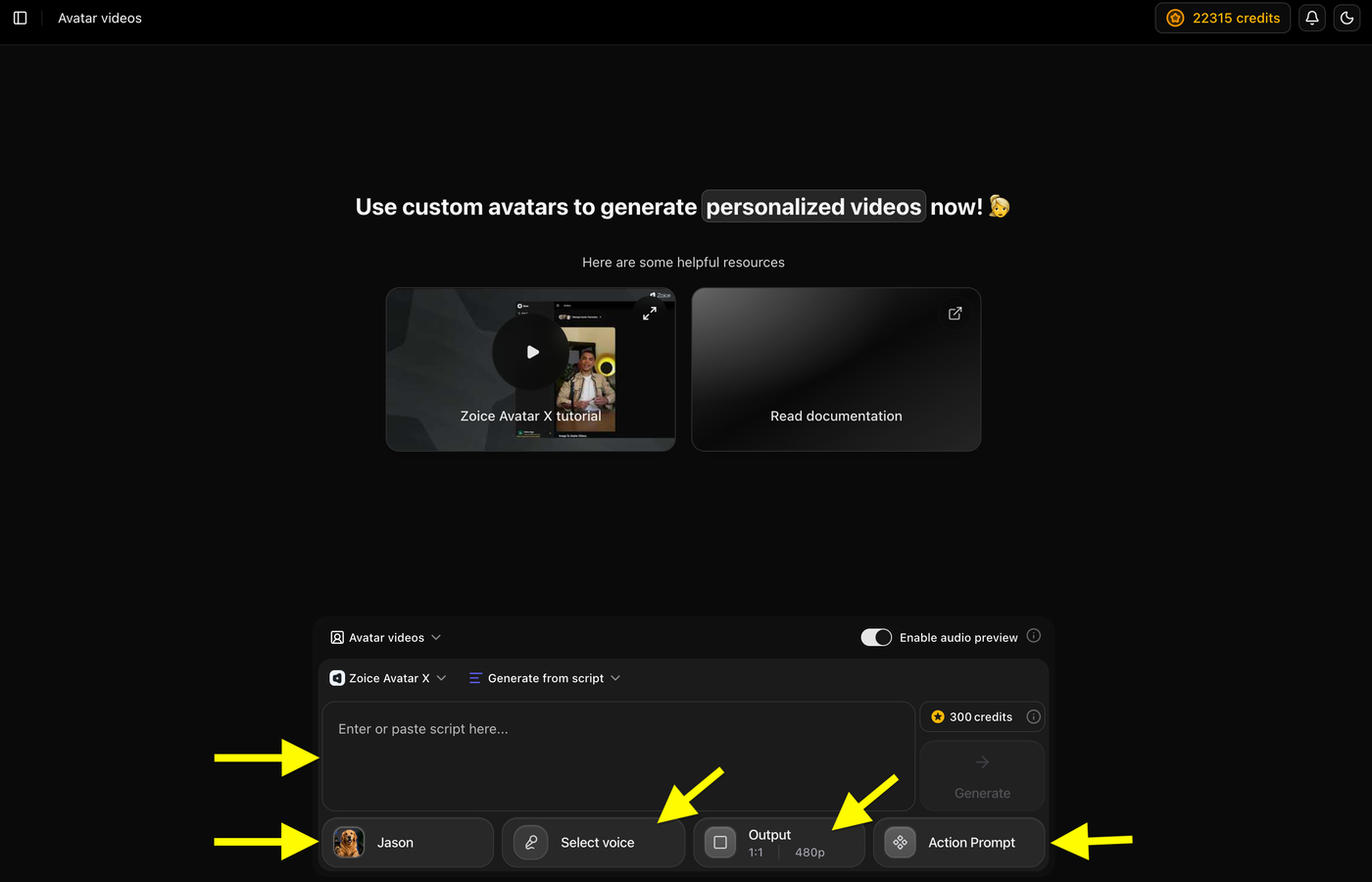
Your pet avatar will already be selected and connected automatically.
Now customize your video:
- Enter the text you want your pet avatar to speak in the script box.
- Click Select Voice to choose the voice for your talking pet.
- Adjust Output Settings to select your preferred:
- Aspect ratio
- Video resolution
- Use Action Prompt to control your pet avatar’s expressions and movements.
After completing these settings, your talking pet avatar will be ready for video generation.
Step 12: Add Your Pet Avatar Script and Select Voice Model
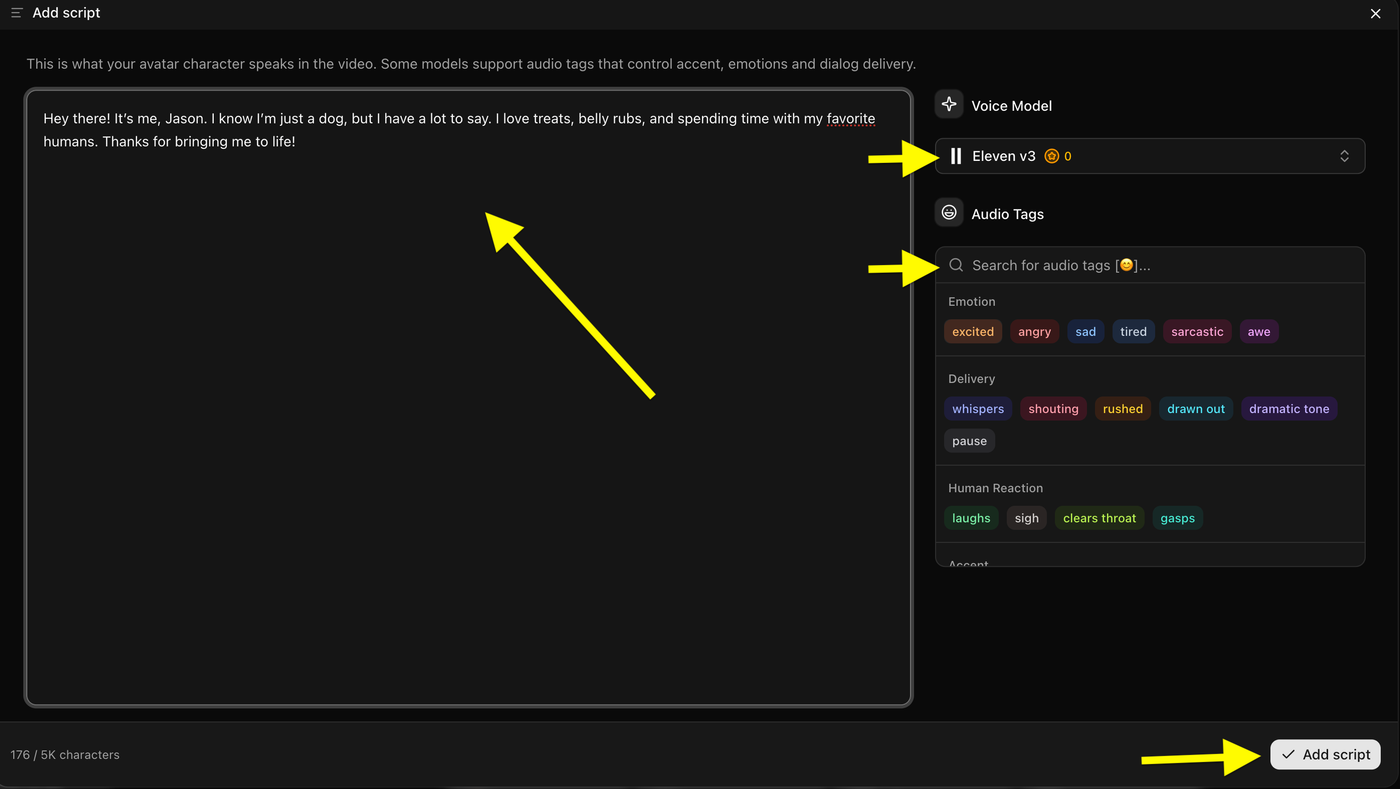
Now, add the script you want your pet avatar to speak in the script box.
After adding your script:
- Choose a Voice Model for your talking pet avatar.
- Add Audio Tags to control the voice style, emotions, and delivery (optional).
- Click Add Script to save your script.
This script will be used to generate the voice and make your pet avatar talk naturally in the final video.
Step 13: Select a Voice for Your Pet Avatar
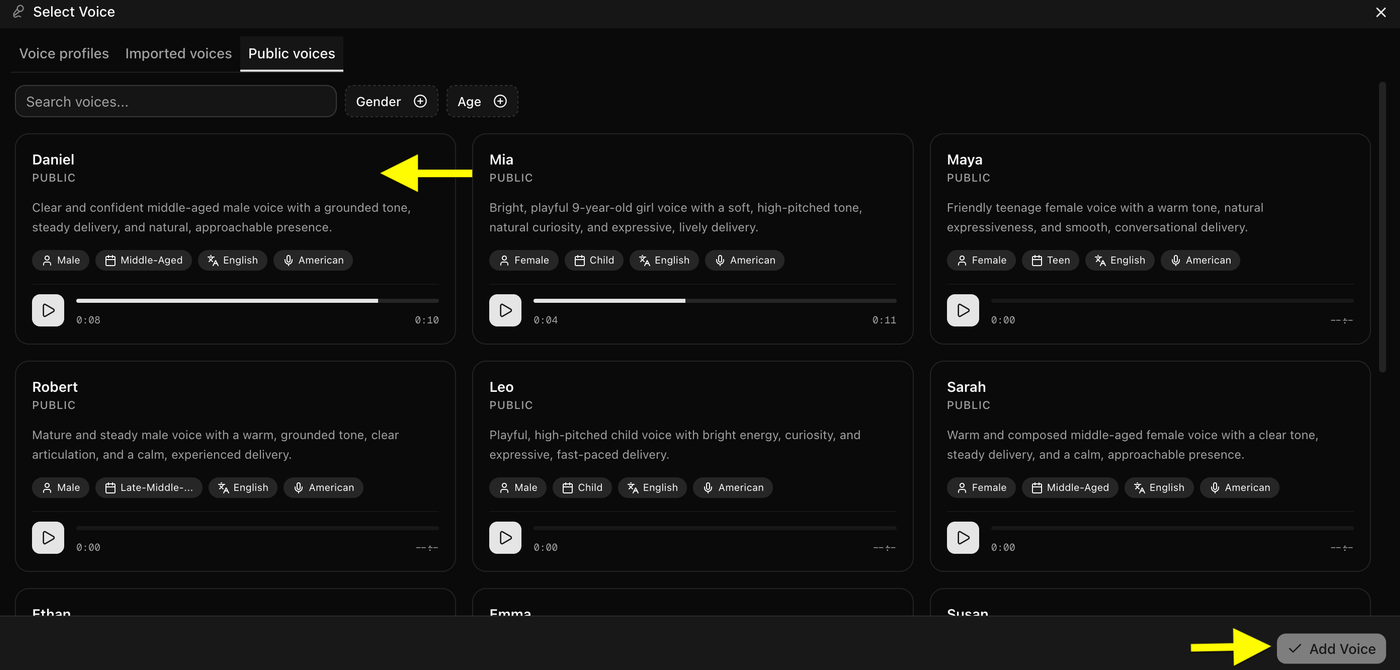
Choose a voice from the available Public Voices library for your pet avatar.
You can:
- Preview different voices before selecting.
- Use filters like gender and age to find the right voice style.
- Select the voice that matches your pet avatar’s personality.
- Click Add Voice to apply it to your avatar video.
Step 14: Choose Output Settings
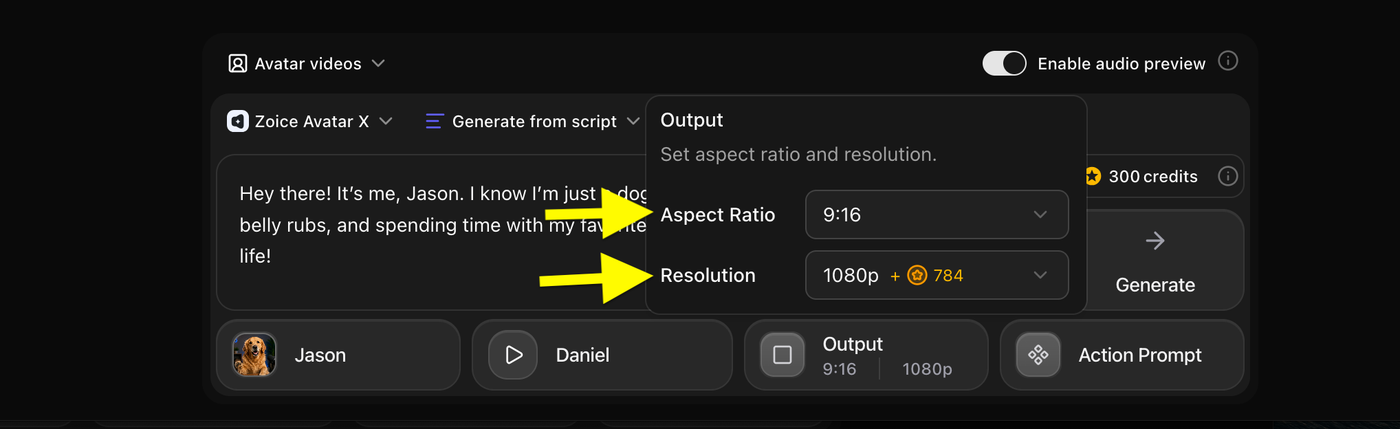
After adding the script and voice, customize your video output settings.
Select:
- Aspect Ratio: Choose the video format you want (such as 9:16 for Shorts/Reels or other available sizes).
- Resolution: Select your preferred video quality.
These settings decide the final size and quality of your talking pet avatar video.
Step 15: Add an Action Prompt
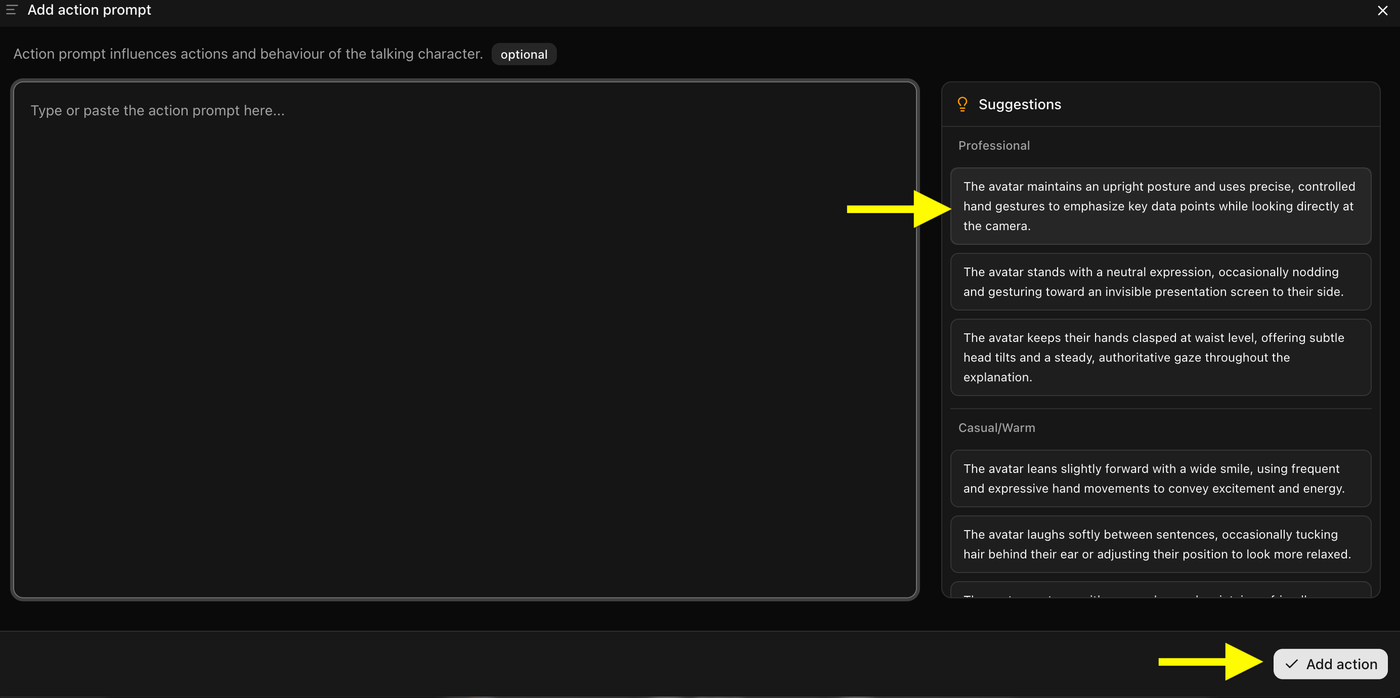
Customize your pet avatar’s movements by adding an Action Prompt.
You can:
- Write your own action prompt to control your pet avatar’s expressions, gestures, and behavior.
- Select ready-made suggestions from the right side.
- Choose actions based on the style you want, such as professional, casual, or expressive.
After adding the prompt, click Add Action to apply it to your talking pet avatar video.
Step 16: Generate Your Talking Pet Avatar Video
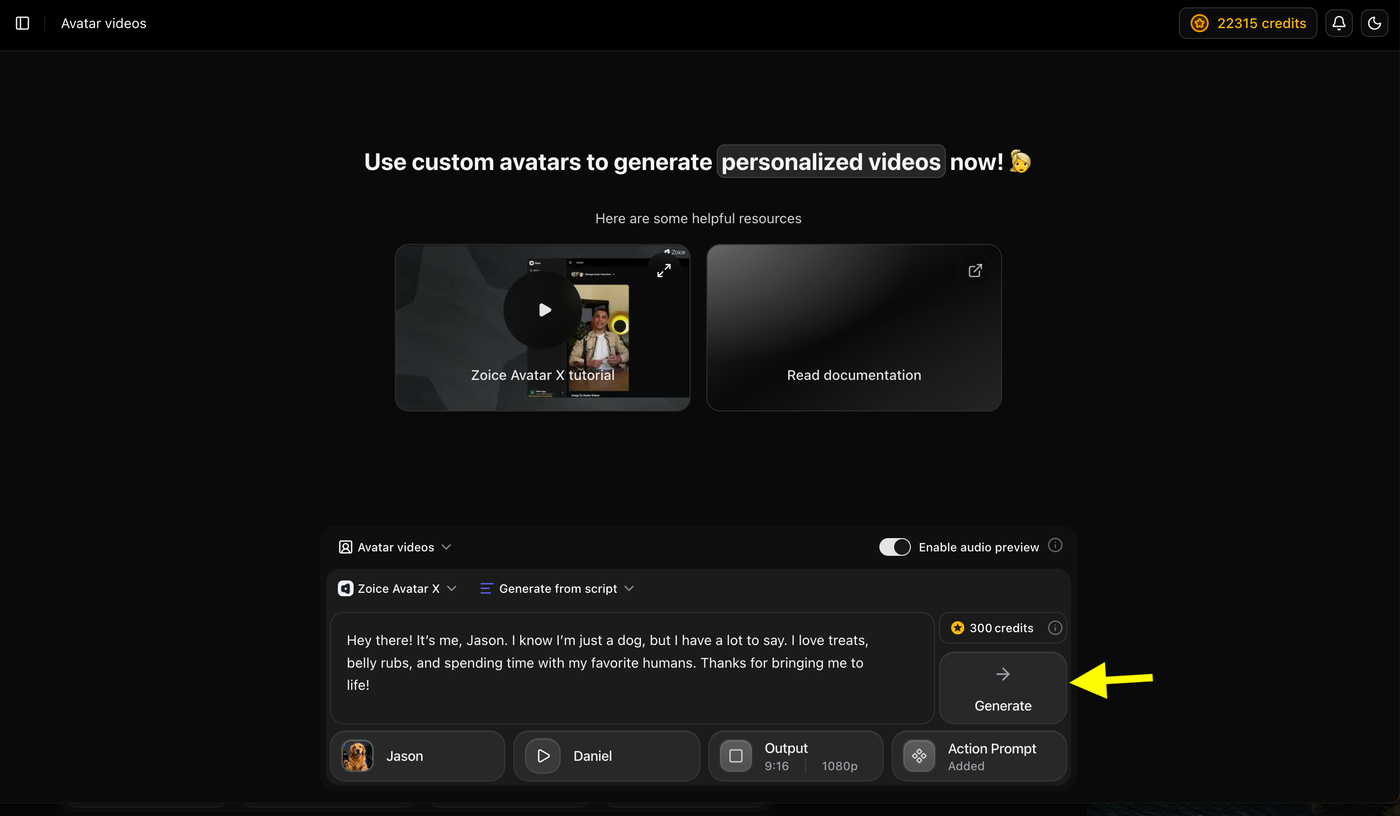
Once everything is ready, review your selected options:
- Your pet avatar is connected.
- Your script has been added.
- Your selected voice is applied.
- Output settings and action prompt are configured.
Click the Generate button to start creating your talking pet avatar video. Zoice will process your settings and generate the final AI pet video.
Step 17: Preview the Audio and click on Generate the Video
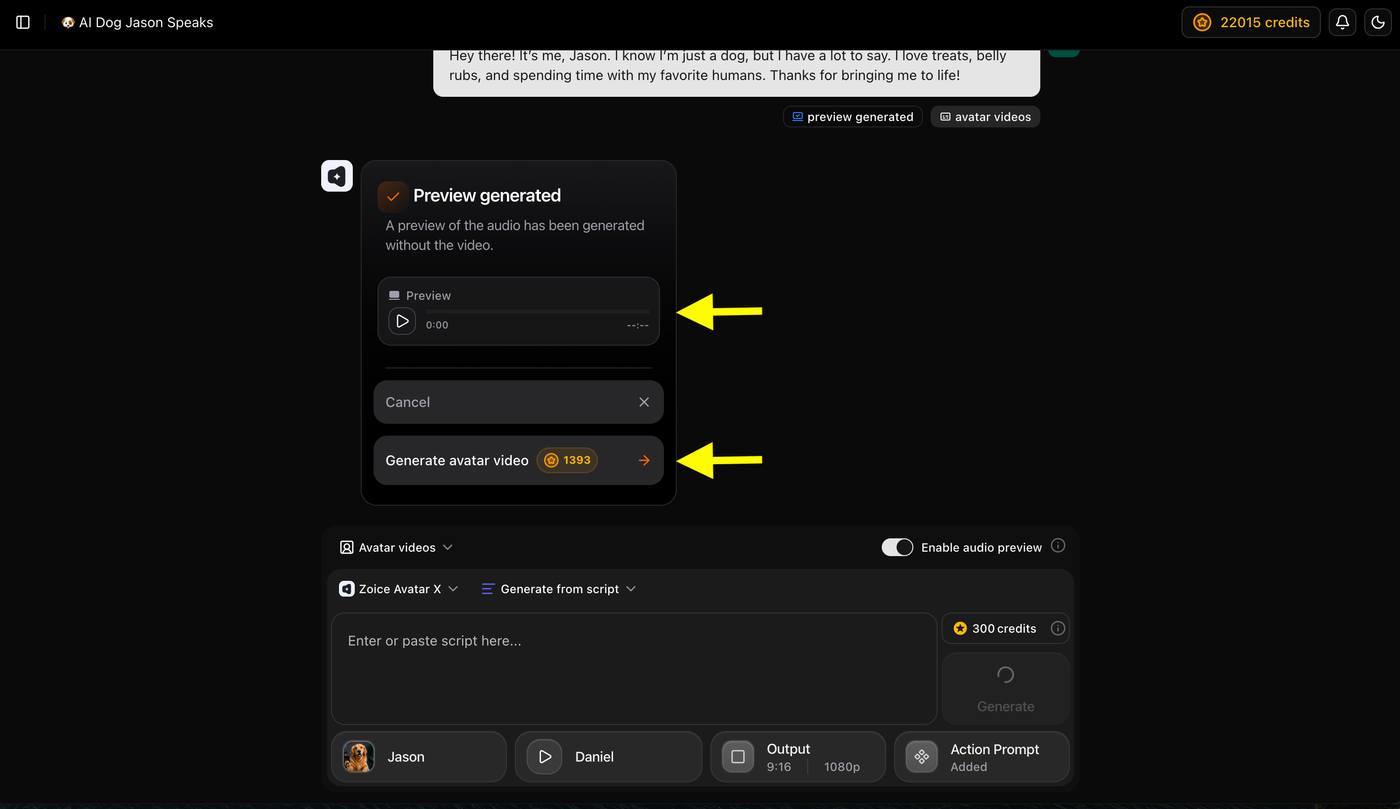
Before creating the final video, Zoice generates an audio preview so you can check how your pet avatar will sound.
You can:
- Play the preview audio and review the voice output.
- Make changes if needed before generating the complete video.
- Save credits by confirming the audio first.
Once everything looks good, click Generate Avatar Video to create your final talking pet avatar video.
Step 18: Wait for Your Pet Avatar Video to Process
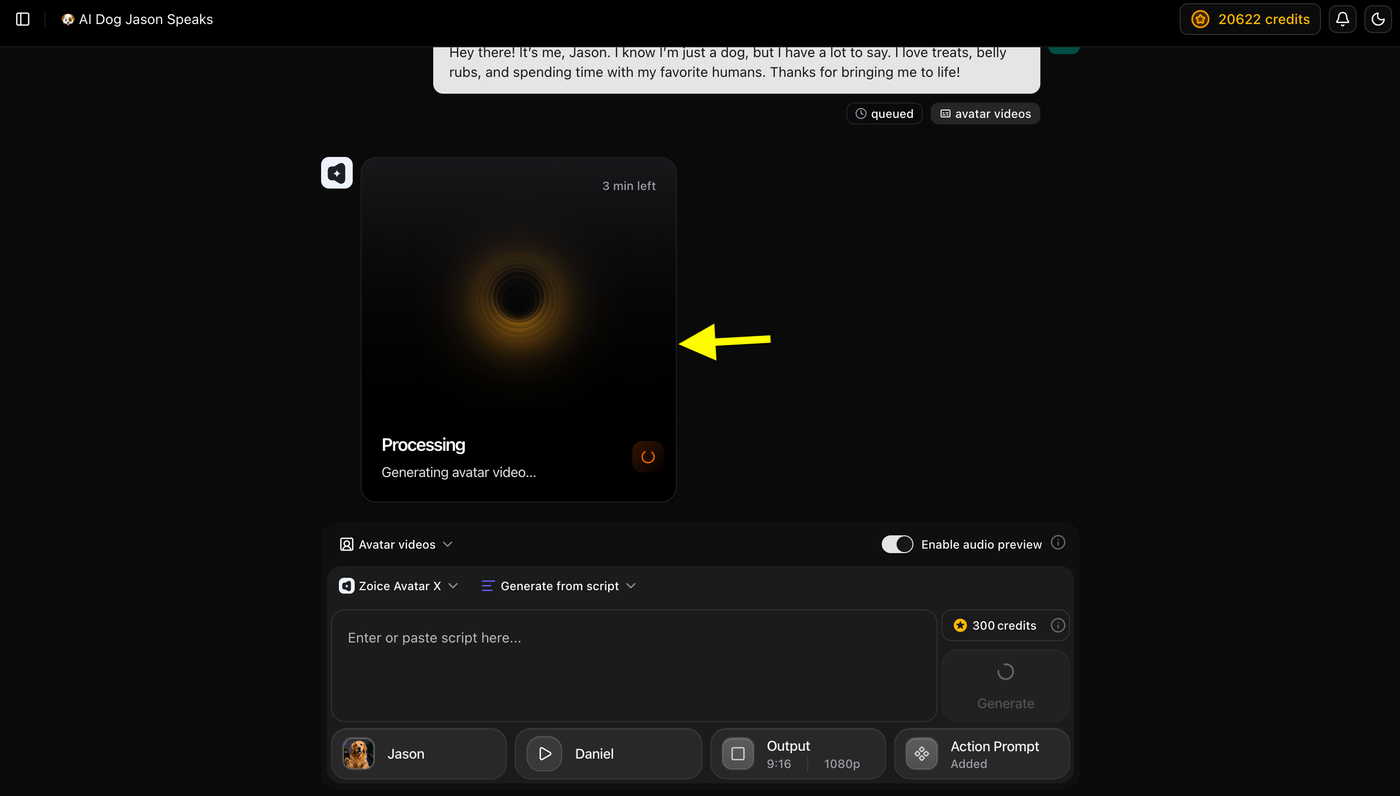
After clicking Generate Avatar Video, Zoice will start processing your talking pet video.
You can:
- Track the video generation progress on the screen.
- See the estimated remaining time.
- Wait while Zoice creates your final AI pet avatar video with the selected avatar, voice, script, and actions.
Once processing is complete, your talking pet avatar video will be ready to preview and download.
Step 19: Preview and Download Your Talking Pet Avatar Video
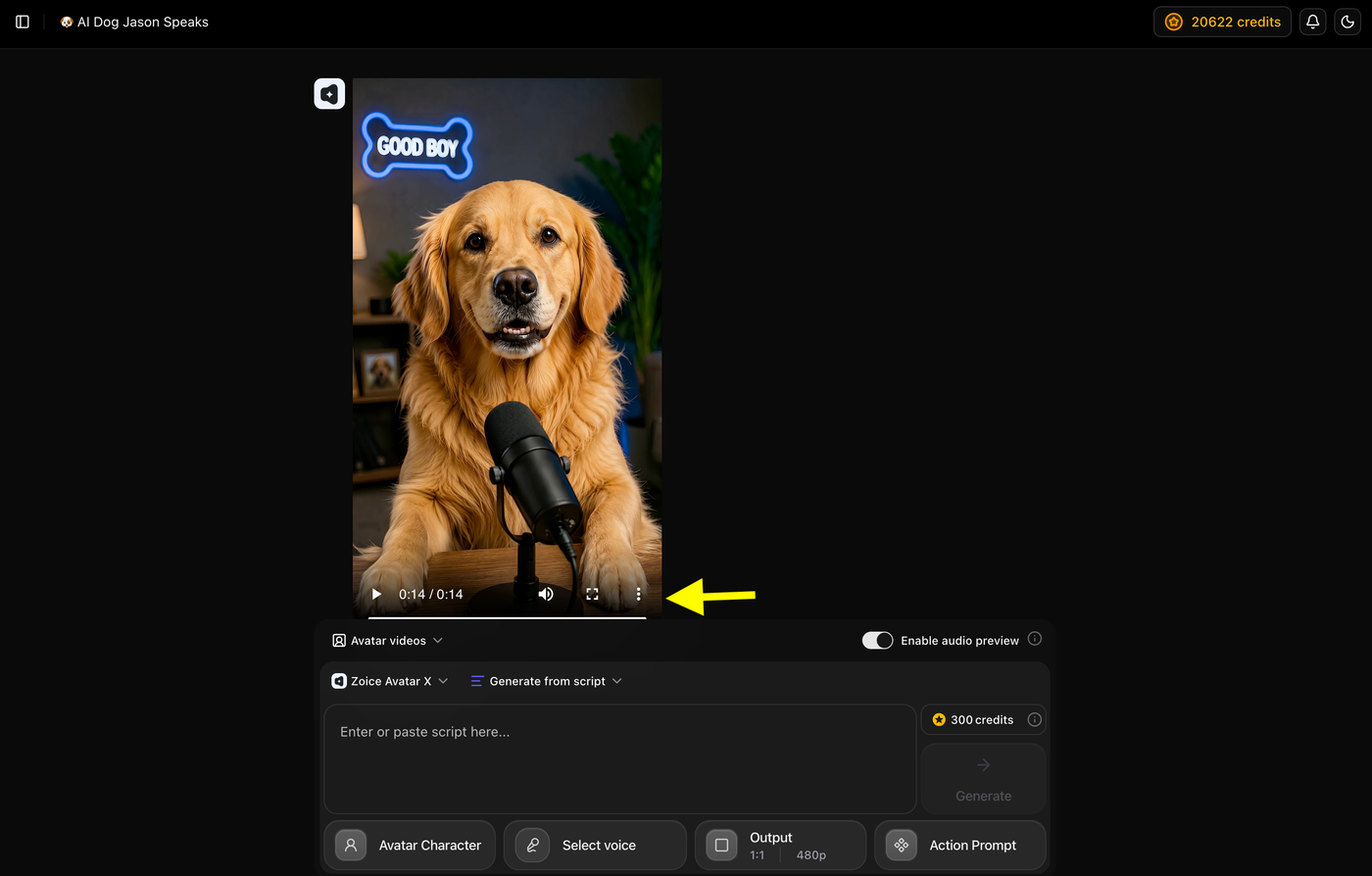
Once processing is complete, your AI pet avatar video will be ready.
You can:
- Watch the final video preview.
- Check the pet’s voice, expressions, and movements.
- Click the Download option to save the generated talking pet video to your device.
Your talking pet avatar is now ready to share on social media, websites, or anywhere you want.
Example AI Talking Pet Avatar Video
To show the final result, we created an AI talking pet avatar using Zoice.
A pet photo was uploaded, a script was added, and a voice was selected from the voice library. Zoice generated a realistic talking pet video where the avatar spoke naturally with accurate mouth movements and lifelike expressions.
Script Used
"Hey there! It’s me, Jason. I know I’m just a dog, but I have a lot to say. I love treats, belly rubs, and spending time with my favorite humans. Thanks for bringing me to life!"
Generated AI Talking Pet Video
Tip: Compare the original pet photo with the generated talking video to see how AI transforms a still pet image into an interactive talking avatar.
Tips for Creating Better AI Pet Avatars
Use a High-Quality Image
The better your original pet photo, the better your AI avatar will look. Avoid blurry or low-resolution images.
Keep the Face Clearly Visible
AI works best when it can properly detect your pet’s facial features, especially the eyes, nose, and mouth.
Try Different Styles
Experiment with multiple styles to create different versions of your pet avatar.
For example:
- Professional pet portrait
- Funny cartoon pet
- Superhero pet character
- Fantasy pet design
Write Detailed Prompts
Instead of using simple prompts like “make my dog an avatar,” describe the exact style, mood, and details you want.
Example:
“Create a realistic golden retriever avatar wearing sunglasses, sitting on a beach during sunset with cinematic lighting.”
Creative Ideas for AI Pet Avatars
Here are some fun ways to use your generated pet avatar:
Talking Pet Videos
Turn your pet avatar into a talking character by adding voice and animations.
Pet Social Media Content
Create funny posts, reels, and short videos featuring your AI pet.
Custom Pet Artwork
Generate unique artwork of your pet in different styles and themes.
Personalized Gifts
Use your pet avatars for:
- Posters
- Stickers
- Cards
- Phone wallpapers
FAQs About Turning Pet Photos into Avatars
Can AI turn any pet photo into an avatar?
Yes, AI can convert photos of dogs, cats, birds, rabbits, and many other pets into digital avatars. Clear photos provide better results.
Do I need editing skills to create a pet avatar?
No. AI avatar generators automatically create avatars from your uploaded photos, so you do not need design or editing experience.
Can I create a realistic avatar of my pet?
Yes. Many AI tools can create realistic pet avatars that maintain your pet’s original appearance, fur details, and expressions.
Can I animate my pet avatar?
Yes. After creating your avatar, you can use AI video tools to add movement, voice, and animations.
What type of pet photo works best?
A high-quality front-facing photo with clear lighting works best for creating realistic AI pet avatars.
Final Thoughts
Turning a pet photo into an AI avatar is a simple and creative way to reimagine your favorite pet pictures. With only one image, AI can create realistic portraits, cartoon characters, fantasy designs, and even animated pet avatars.
By choosing the right photo, adding a creative prompt, and customizing the style, you can create a unique digital version of your pet that captures its personality and charm.